|
If a new workstation/device is added in your network, and you wish to scan only the newly added workstation instead of the entire network, you can specify the workstation/device credentials and scan.
You can scan workstations/devices using Global Credentials or Local Credentials. Global Credentials are common login permission for all assets which can be scanned with Domain mode or Network Mode. Local credentials are private login permissions i.e., login permission to the workstation/device to be scanned.
Note: Local Credentials are generally selected for scanning devices such as servers and routers which needs private or local user name and password. You can also scan VMHost machines using Local Credentials.
The Workstation/Device Scan can be access by two ways in AssetExplorer application,
Scan drop-down menu
Assets Tab
Scan drop-down menu
Click Scan drop-down menu -> Workstation/Device Scan option. The Scan drop-down menu is a quick navigator to instantly the Scan configuration page.

Assets Tab
From the Assets block, click any one of the IT Assets.
Click New Scan button to open the Scan Configuration page.
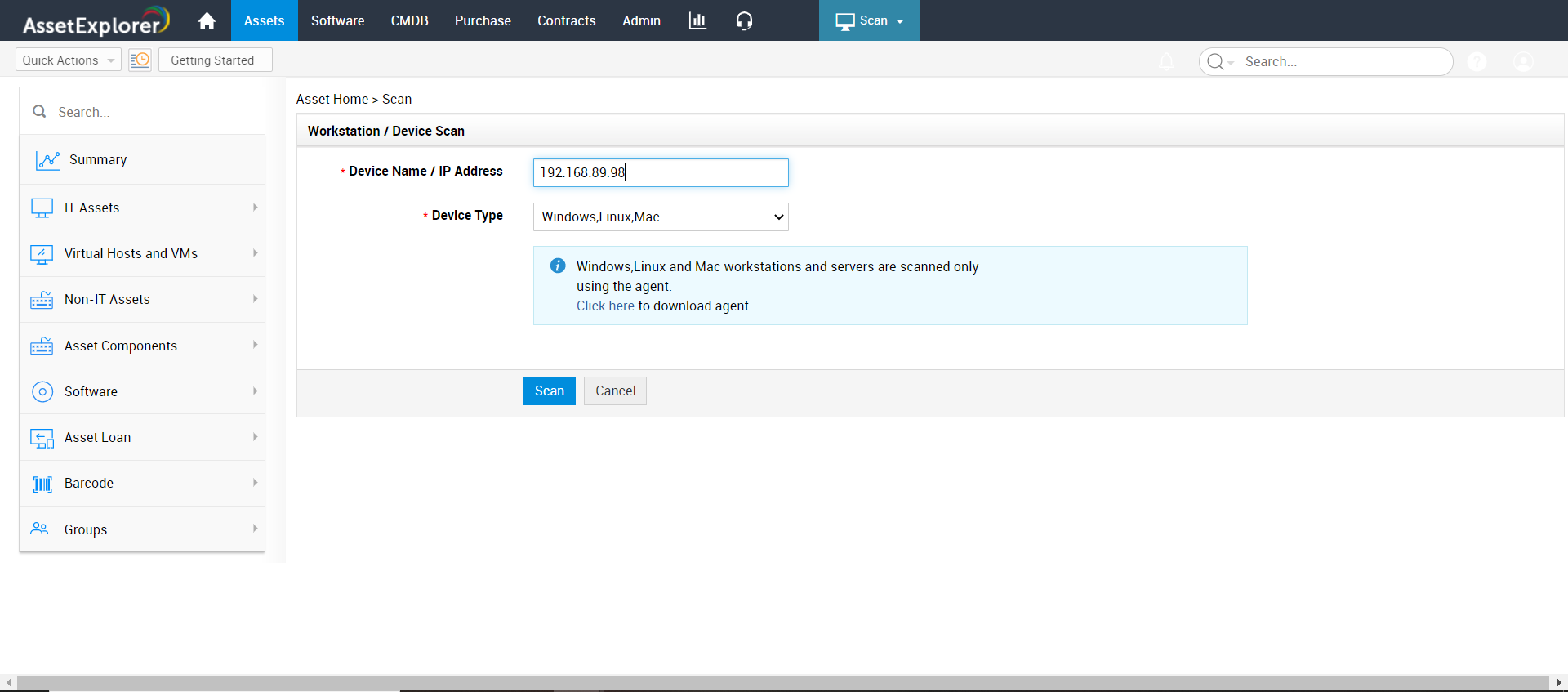
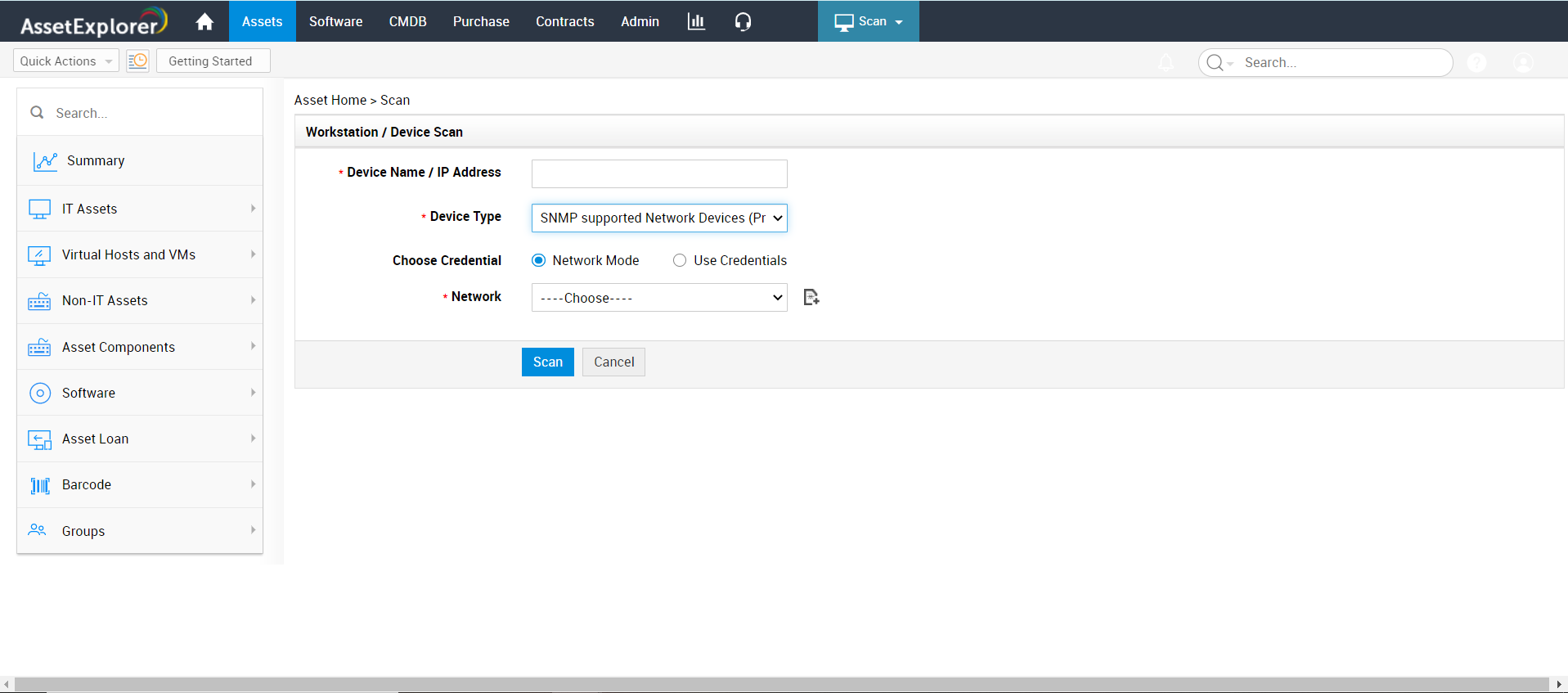
Specify the Name or IP address of the workstation to be scanned. This field is mandatory as the workstation in the network is identified with the Name or IP address.
Select any one of the credentials by enabling the radio button.
Global Credentials
Select the Scan Type from the drop down. The scan type can be either Domain Mode (if the workstation is Windows) or Network Mode.
Choose the Domain Name/Network from the drop down. If the domain/network is unavailable in the list, you can add a new domain/network using the Add New link. [Refer Network Scan to add a new network].
Specify the Login Credentials for the Domain/Network in the Login name and Password field.
If you have selected Network Mode to scan a device, enter the Community String of the device in the field provided.
Click Scan. The workstation/device is scanned and the information is obtained.
Local Credentials
Select the Device Type from the drop-down. Say, Windows, Unix or other device.
Select the communication Protocol as SSH or Telnet for workstations like Linux, Solaris, MAC, AIX and devices such as router, switches, access points and printers.
If license software are installed in Linux and Solaris machines, enable Scan Software in Linux and Solaris workstations check box.
If you have
enabled SSH, then you have an option to enable key based authentication
for Linux machines.
The key based authentication is an alternative authentication mechanism
of the username and password, and its know to be more secure.
To enable key based authentication, you need to generate a pair
of public and private keys from a Linux machine. Select Use
Public Key for authentication check box and enter the
Private Key in the field provided.
Specify the Login Credentials for the workstation/device in the Login Name and Password field.
NOTE: To scan VMWare host machines, select the Device Type as Other devices from the drop-down menu and enter the HTTPS login credentials in the Login Name and Password fields.
|