Custom groups
Custom Groups empower you to organize computers and users using both manual and criteria based —like OS name, OS Version, and more. This grouping simplifies IT management and ensures that you always reach the right devices at the right time. Whether you're deploying software, applying patches, pushing configurations, or generating reports, Custom Groups bring precision targeting, greater flexibility, and automation-ready structure to every task. By defining these groups in advance, streamline operations across your entire network. It’s a scalable, efficient solution designed to boost productivity and enhance control over your IT environment.
Table of Contents
Custom Group types and categories
Custom Groups can be created based on computers or users and are classified into the following categories to help organize and manage devices efficiently.
Computer Based Custom groups
Static Unique Custom Group:
Static Unique Groups ensure that each device belongs to one exclusive group. You can build these groups manually or map them from Active Directory OUs—giving you precise control over device organization. This one-to-one mapping is perfect for streamlined operations, especially when assigning Scope to technicians. It keeps your environment easy to manage.
Static Custom Group:
Static group allows you to select devices manually or link them with AD groups or Entra groups. Devices in these groups can also belong to other groups, making them ideal for targeting devices across multiple tasks.
Dynamic Custom Group:
Dynamic Custom Groups are created based on criteria like OS name, Computer Name. The group automatically updates to include devices for deployments that meet these conditions. During deployment, each device is validated in real-time, making sure only the right devices receive the task based on the criteria you set.
User Based Custom groups
Static custom group:
Static user based group focuses on grouping users. You can manually add users. It can be used in policies or deployments need to follow users across multiple devices—for example, applying specific configurations based on job role or department.
Note: Only computers with the Endpoint Central agent installed can be added to a Custom Group. Ensure the agent is successfully installed on the target computers before attempting to add them to a Custom group.
Create a custom group
To create Custom groups, kindly find the below navigations:
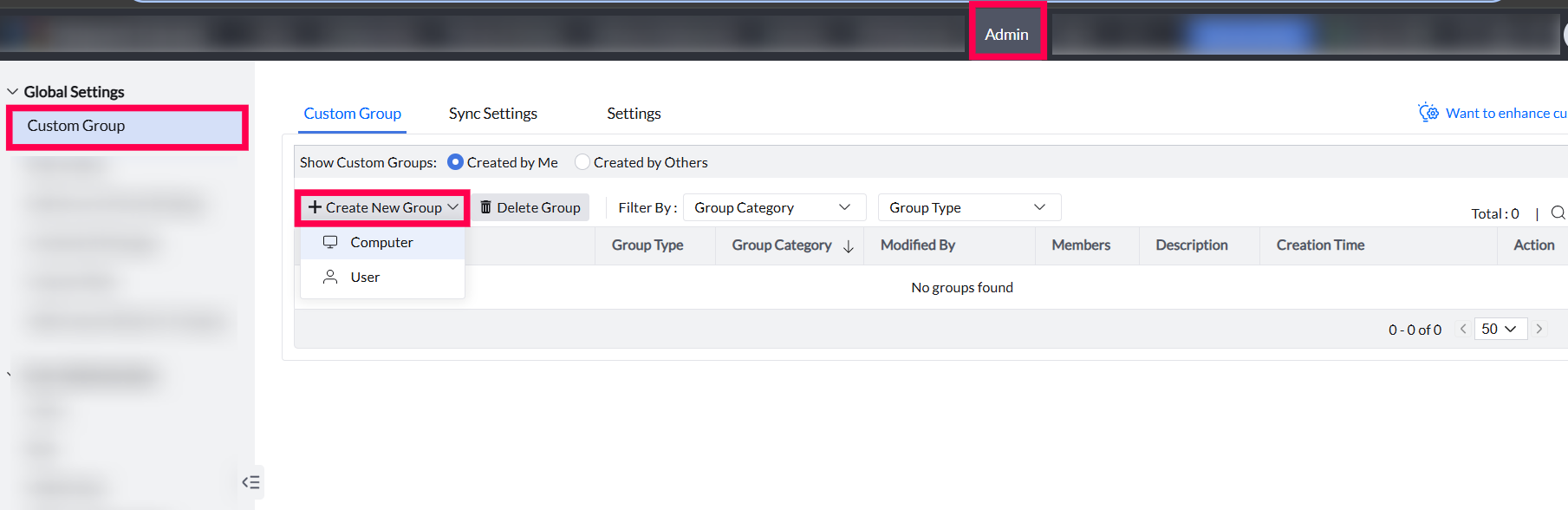
- Navigate to Admin > Custom Groups > Create new group.
- Provide a Group Name and Description.
- Select the appropriate Group Category and define a group members.
- Click create Group.
Modify a custom group
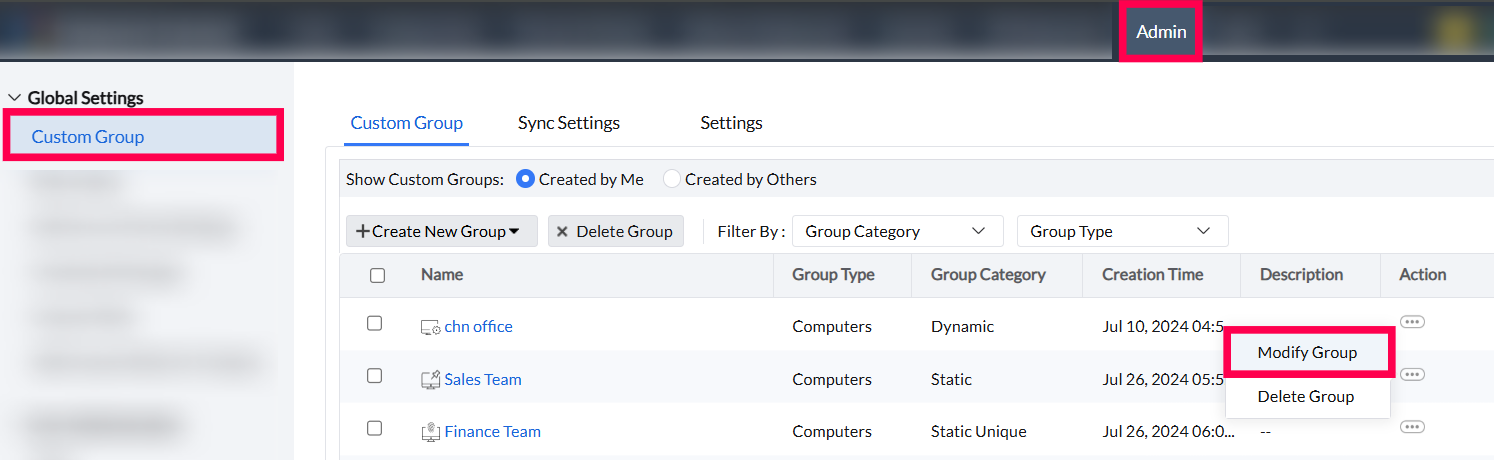
- To modify a custom group, navigate to the custom group > Action column of a specific Custom group > Modify Group.
Delete a custom group
- To delete a custom group individually, navigate to Custom Group > Action column of the specific custom group > Delete Group.
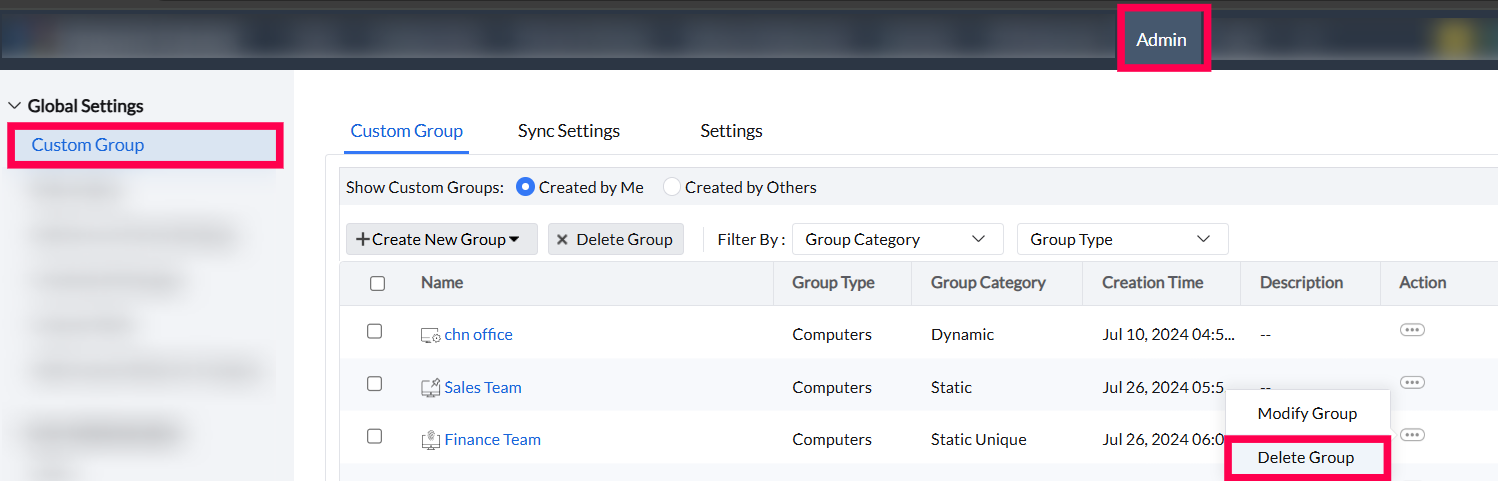
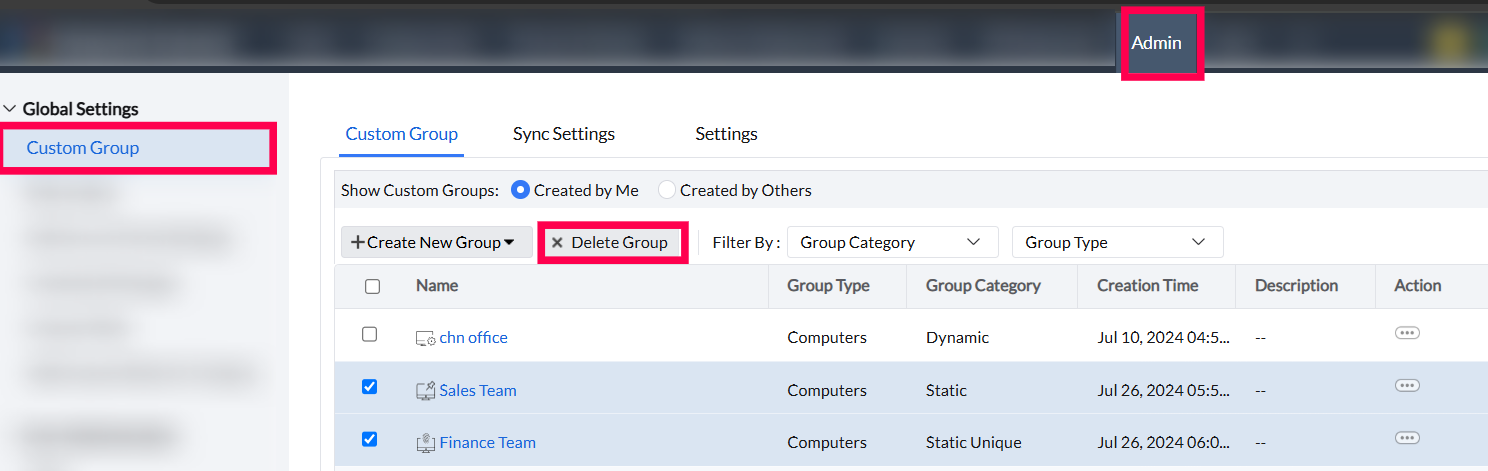
- For bulk deletion, select the Custom groups which needs to deleted and select the delete option.
Note:
- Upon deleting the custom group, all associated tasks linked to this group will be revoked.
- The deleted group will be permanently removed and cannot be recovered, as it will not be moved to the trash.
View deployment activities for custom groups:
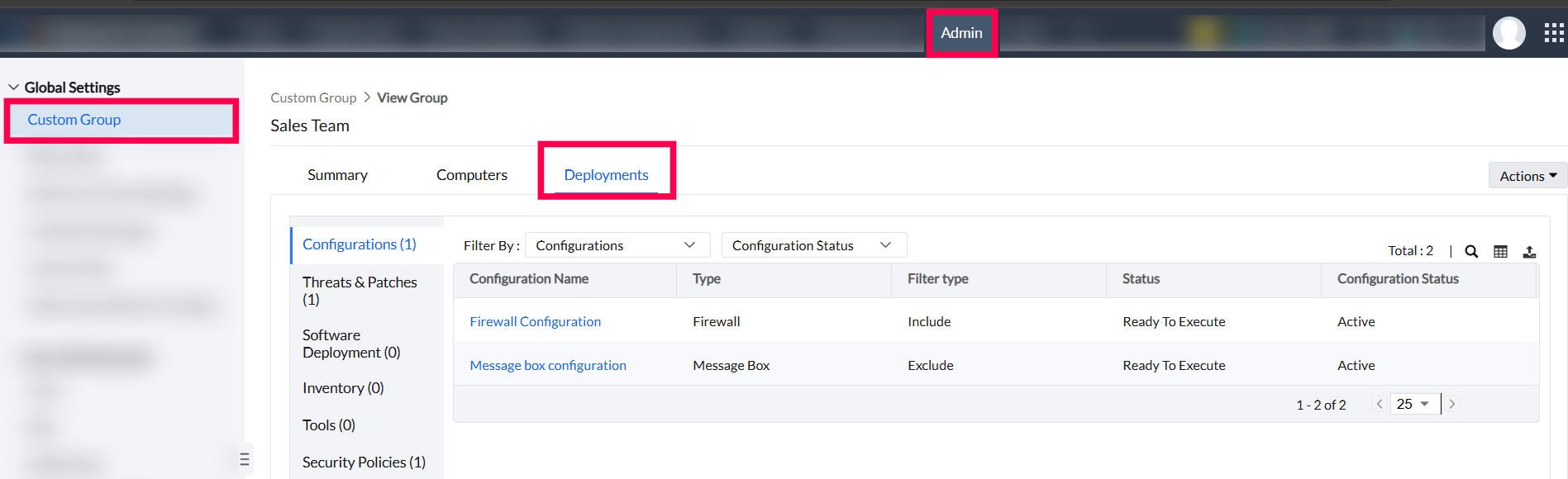
Custom Groups also provide clarity on where they are applied, allowing visibility into deployments and efficient management of group-specific activities.
To check where a Custom Group is used:
- Go to Custom Groups > Select the desired group > Deployments tab.
- From there, you can view the applied deployments associated with that group.