Installation Guide - Firewall Analyzer
Install Firewall Analyzer on Windows
Steps to install
- Download Firewall Analyzer for Windows.
- Execute the downloaded exe file to install and follow the instructions in the installation wizard.
- Click Next to begin the installation process. Go through the license agreement and click Yes to proceed to the next step.
- In the subsequent steps of the wizard, select the directory to install Firewall Analyzer. Proceed to the next step.
- Specify the port number to run Firewall Analyzer web server (Firewall Analyzer uses 8060 as the default web server port) and click Next.
- Register for technical support by providing your contact information such as Name, Email ID, etc., and click Next.
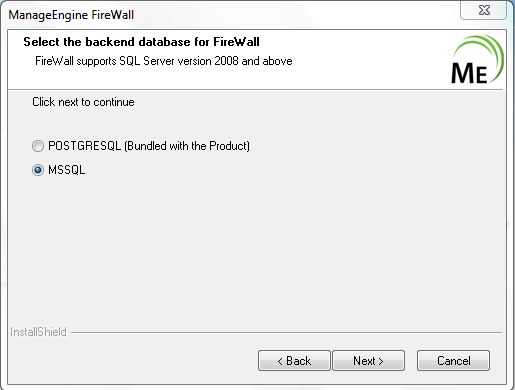
- By default, Firewall Analyzer comes bundled with PostgreSQL. Firewall Analyzer supports both, PostgreSQL and MS SQL databases. Select the required database and click Next.
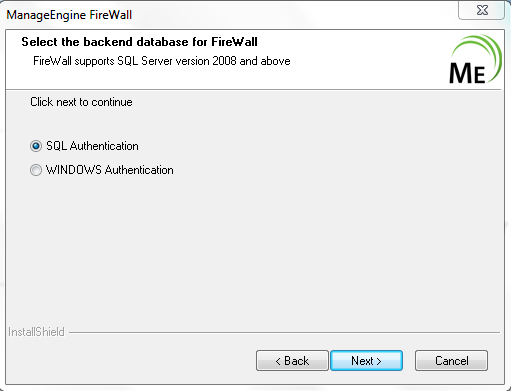
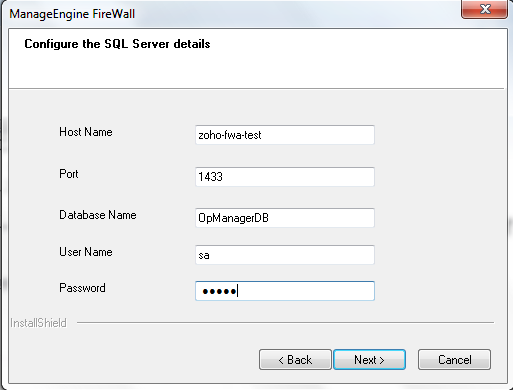
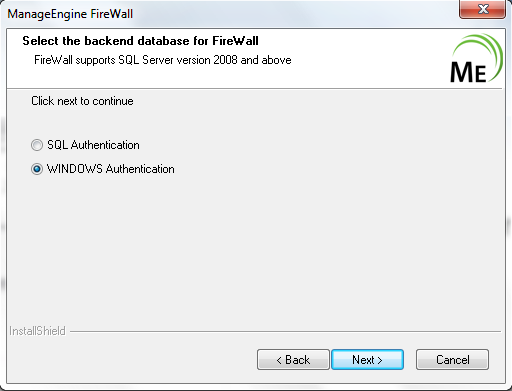
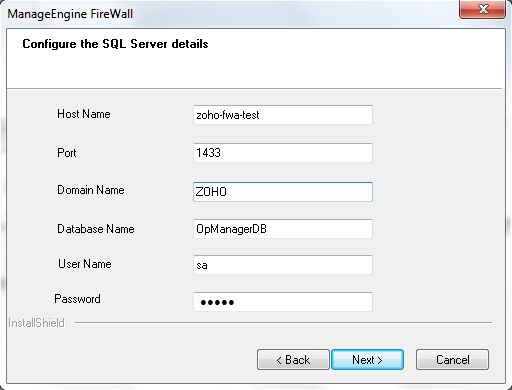
- If MS SQL database is selected, provide the SQL authentication or Windows authentication details and click Next.
- Click Finish to complete the installation process.
Installing Firewall Analyzer on Linux
Steps to install
- Download Firewall Analyzer for Linux.
- Login as super user.
- Assign the executable permission to the downloaded file using the following command:
chmod a+x <FileName>.bin
- Execute ./<FileName>.bin with administator privileges (sudo). This will display the installation wizard.
- Click Next to begin the installation process. Go through the license agreement and accept the license agreement and click Next.
- Register for technical support by providing your contact information such as Name, Email ID, etc., and click Next.
- Select the directory to install Firewall Analyzer (Firewall analyzer will install in /opt/ManageEngine/OpManager/ folder by default) and clieck Next.
- Specify the port number to run Firewall Analyzer web server. Proceed to the next step.
- Verify the installation details and click Install.
- Click Finish to complete the installation process.
Installing Firewall Analyzer on Linux using console/silent mode
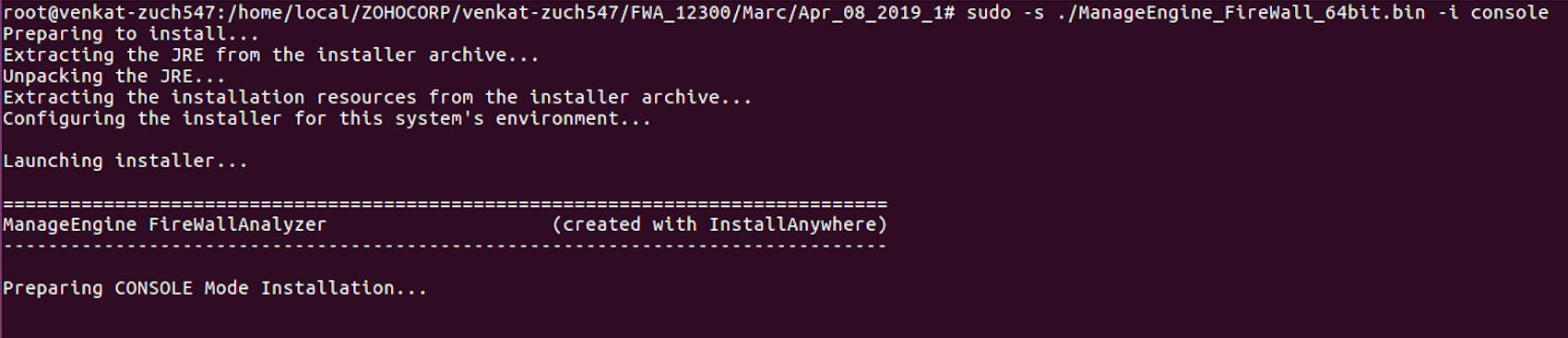
Step 1: Execute ManageEngine_FirewallAnalyzer_64bit.bin with administrator privileges (sudo) and -i console option.
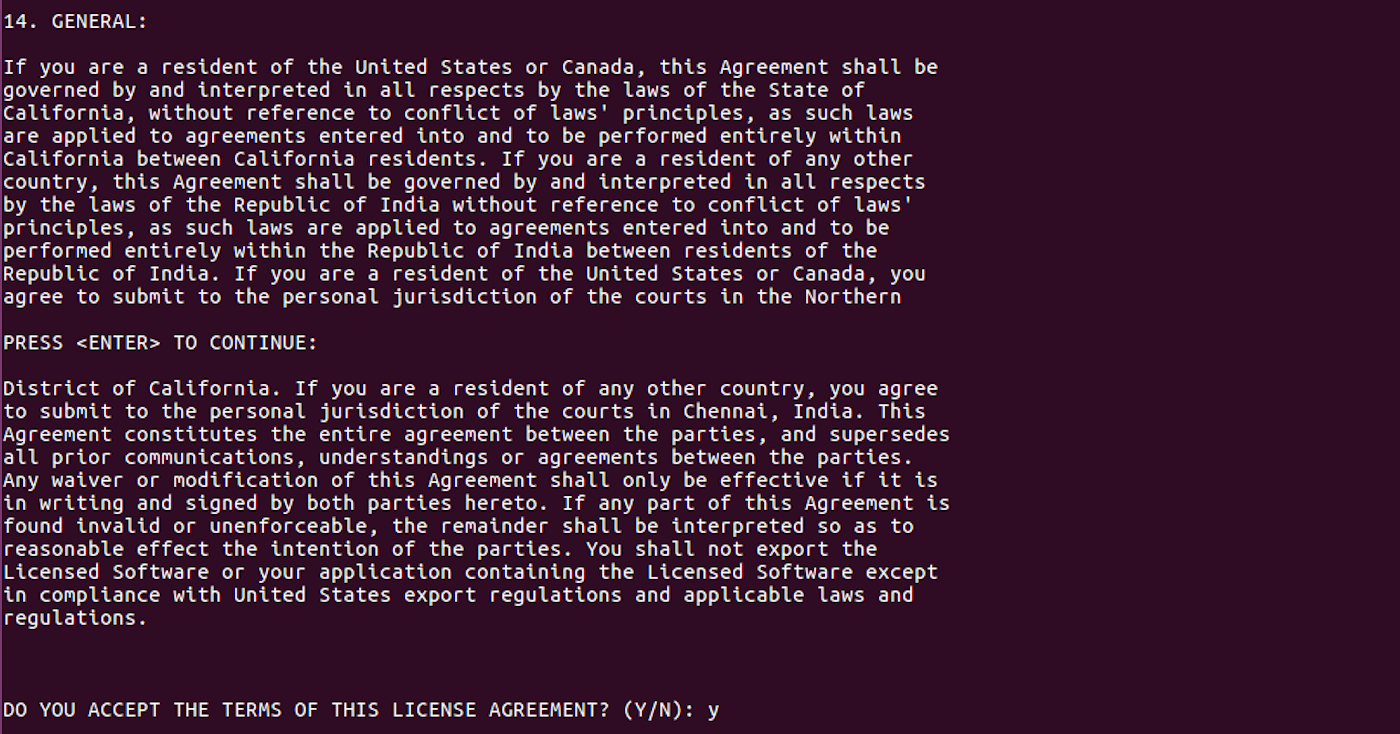
Step 2: Go through the license agreement and enter 'Y' to proceed.
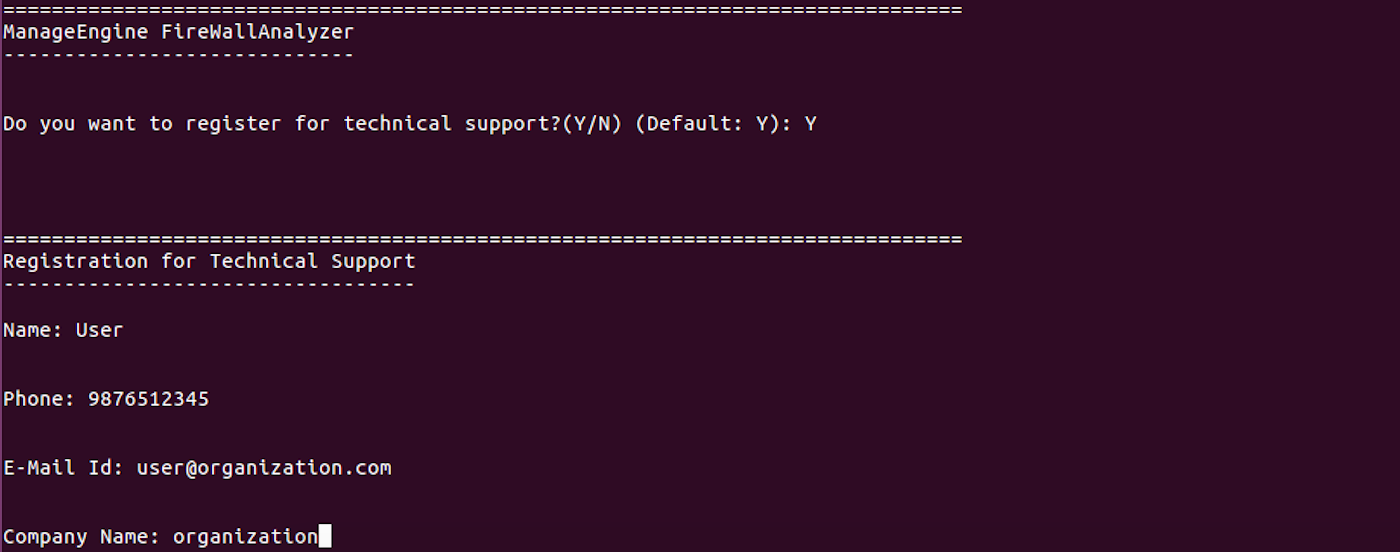
Step 3: You can register for technical support by providing the required details (Name, Email ID, Phone, Company Name)
Step 4: Select your location.
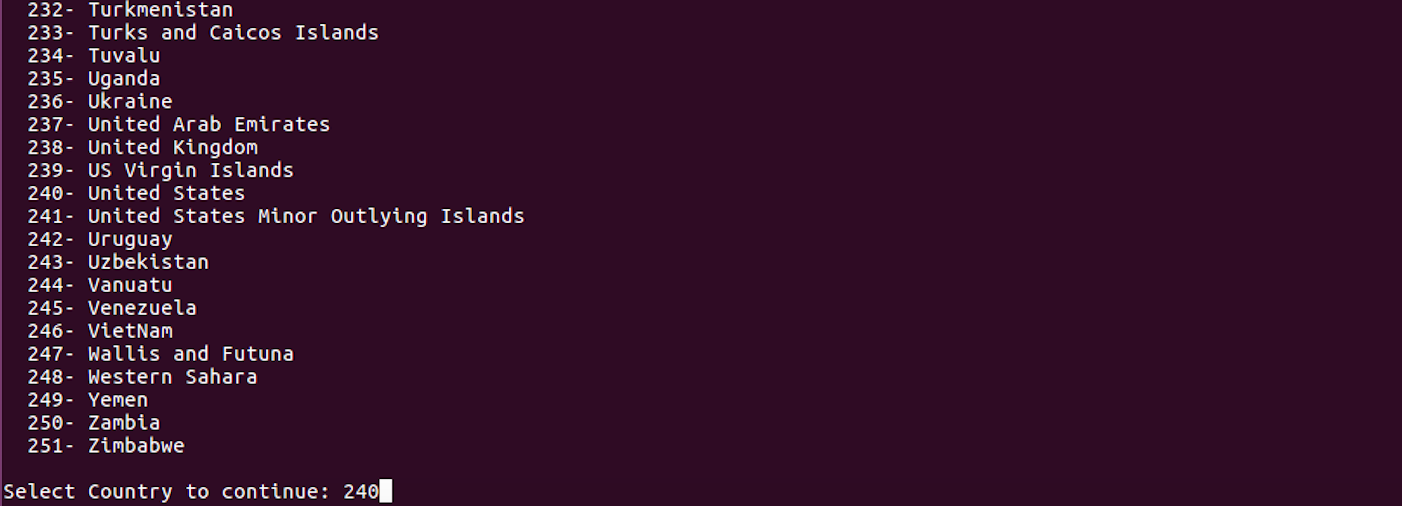
Step 5: Choose the installation directory.
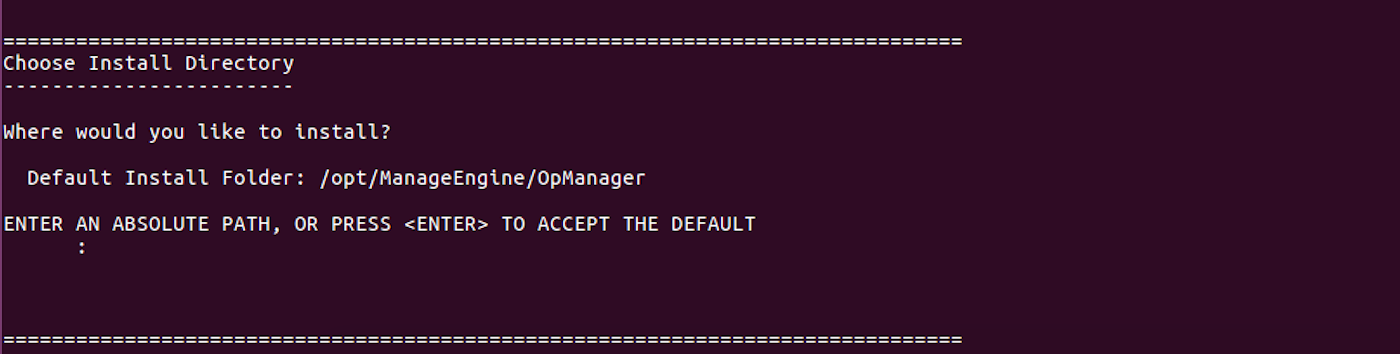
Step 6: Configure the web server port.

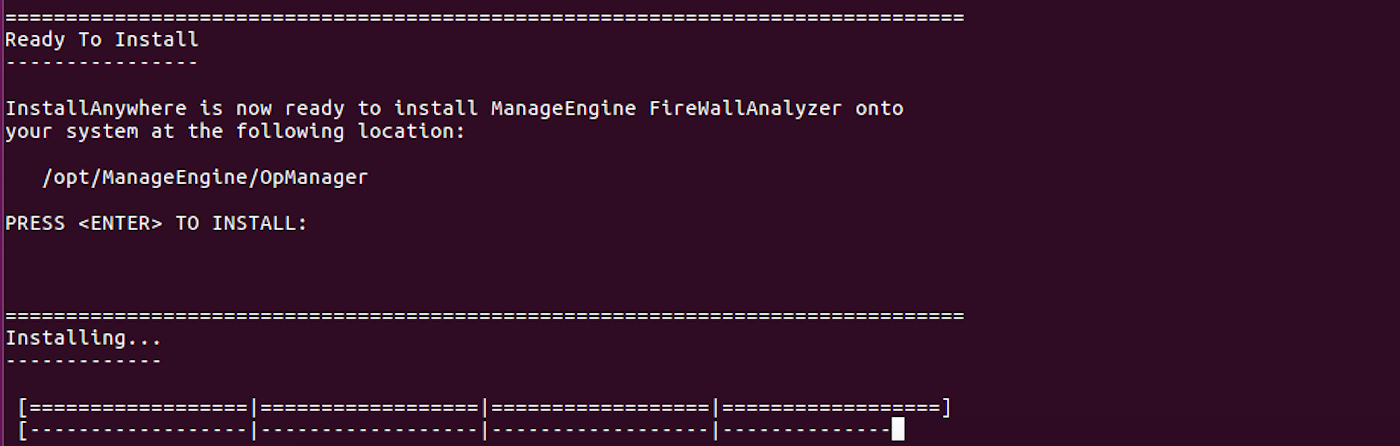
Step 7: Verify the installation details and press Enter to complete the installation.
Start Firewall Analyzer on Linux
- Go to /OpManager/bin folder
- Execute:
sh run.sh
- To run OpManager server in the background, execute:
nohup sh run.sh
To start the Firewall analyzer as service
- Go to /OpManager/bin folder
- Execute:
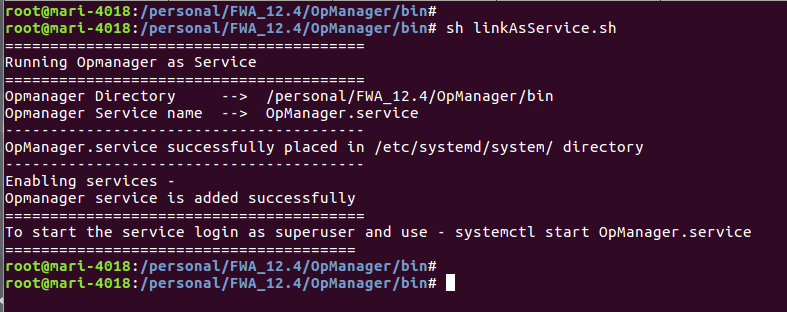
sh linkAsService.sh
- Script result will show, how to start the Firewall analyzer service.
Start Firewall Analyzer on Windows with MS SQL
- From the installed MSSQL server, copy the files bcp.exe and bcp.rll to <Firewall Analyzer Home>/bin/ folder.
- If you are copying the above file from MS SQL (Version 2005 & above) installed server and the Firewall Analyzer is installed in other machine, please install the following SQL Native Client in the Firewall Analyzer machine as per the SQL version and CPU type of Firewall Analyzer machine.
| Note: |
Use MSSQL 2012 Native client against MSSQL 2016 database and
in case of MSSQL 2016 database, install the msvcr120.dll and msodbcsql13.dll packages. |
