Mapping User/ Host Name vs IP Address using Proxy/ DHCP Logs
Firewall Analyzer by default displays the IP addresses of the Source and Destination that participate in the conversation going through Firewall. It provides you with an option to associate the IP addresses to User Name or Host Name/ MAC address in the Firewall reports. The user name to IP address can be mapped using Proxy server logs. The host name/ MAC address to IP address can be mapped using DHCP server logs. You can do it by clicking User/Host Name -IP Mapping Configuration link that is provided in the Settings page. If authenticated connection through the firewall is enabled (typically it is not enabled), then the user name is displayed in the logs. If the logs contain the tag 'user', then it will show in the reports. Check the logs for 'user' tag under <Firewall Analyzer Home>\server\default\<Firewall DNS Name/IP address>\hot folder. If the logs do not contain the "user" attribute or field, the corresponding logs/hits are considered as "Unknown Users". Carry out the procedure given below to configure the User Name - IP Address Mapping: - In the Firewall Analyzer web client, select the Settings tab.
- In Settings screen, select the System Settings > User/HostName-IP Mapping Configuration link. IP Address to User / Hostname Mapping page appears.
- In the Configuration Details section, there are three options provided with radio buttons. Select an option as per your requirement, by clicking the radio button. The options are:
- Get User Names from Proxy logs and associate with Firewall logs
- Get HostName / MACAddress from DHCP logs and associate with Firewall logs
- None [Default]
|
- Get User Names from Proxy logs and associate with Firewall logs
You can select this option to get User Name instead of IPAddress in all reports. Source & Destination IP Address of configured Firewalls will be replaced by User Name got from the Proxy Servers. - Select the Get User Names from Proxy logs and associate with Firewall logs radio button to assign devices to a particular Proxy Server. Below the selected option, a table with proxy server and devices assigned to it, appears in the screen.
The details of the columns of thetable are: | Proxy Server Details | Description |
|---|
| Proxy Server Name | The names of the proxy server from which the Firewall Analyzer will associate user name with the Firewall log data. In this case, all the Proxy servers added to the Firewall Analyzer will be listed. | | Assigned Devices | The Firewall devices assigned to the particular proxy server. | | Assign/Edit Devices | Click the icon to view the devices assigned to the proxy server and modify the devices assigned to the proxy server. If no device is assigned, you can assign devices to the proxy server. | | Delete Assigned Devices | Delete the assigned devices to the proxy server for User-IP Mapping purpose. Click the  icon to delete the assigned devices. icon to delete the assigned devices. |
- Click the Assign/Edit Devices icon to assign devices to the proxy server. The Assign Devices screen pops up.
- Select the devices, which you want to assign/re-assign to the selected proxy server. All the available devices are listed in the Available Device(s) list. Select the devices and click right arrow. The selected devices are moved to the Selected Device(s) list. If you want to remove any device from the Selected Device(s) list, select the devices and click left arrow. The removed devices will be moved back to the Available Device(s) list.
- Click Save button to assign the selected devices to the selected proxy server. Click Cancel to cancel the assigning devices to the proxy server operation.
After associating the devices to proxy server, the proxy server and the assigned devices are listed in thetable.
- Get HostName / MACAddress from DHCP logs and associate with Firewall logs
You can select this option to get Host Name / MAC Address instead of IP Address in all reports. Source & Destination IP Address of configured Firewalls will be replaced by Host Name / MAC Address got from the DHCP Servers. - Select the Get HostName / MACAddress from DHCP logs and associate with Firewall logs option from User-IP Mapping Configuration page and click Save button to save the settings. Below the selected option, you will find an option Add DHCP Servers as separate device with a check box. Select this option if you want to enable Raw Log Search over DHCP Logs.
- Import the DHCP logs.

| Note: When you import the DHCP logs, ensure to configure that the DHCP logs are periodically imported from DHCP server. |
| Note:- When you import the DHCP logs from DHCP server, ensure to select the 'Ignore UnParsed/Junk Record(s)' check box in the 'Import Log File' screen. Refer the screen shots below for Local Host and Remote Host.
- When importing the DHCP log files ensure that you have domain administrator privilege.
Local Host 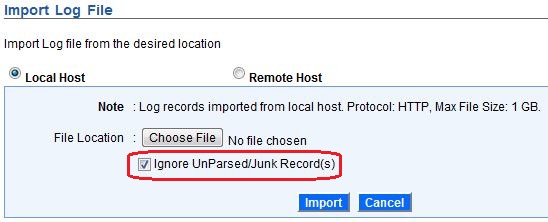
Remote Host 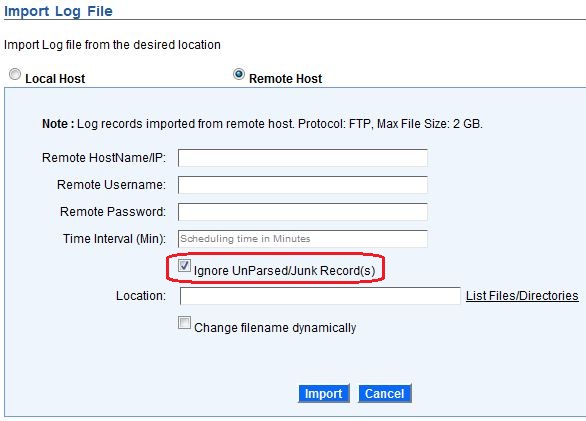
|
- Go to User-IP Mapping Configuration page and associate the Firewalls to detected DHCP server. In that page, below the selected option, you will find a table with DHCP server and devices to be assigned or assigned to it.
The details of the columns of thetable are given below: | DHCP Server Details | Description |
|---|
| DHCP Server Name | The names of the DHCP server from which the Firewall Analyzer will associate user name with the Firewall log data. In this case, only after the Get HostName / MACAddress from DHCP logs and associate with Firewall logs option is selected and saved and import of DHCP server logs in to the Firewall Analyzer, the DHCP servers will be listed. | | Assigned Devices | The Firewall devices assigned to the particular DHCP server. | | Assign/Edit Devices | Click the icon to view the devices assigned to the DHCP server and modify the devices assigned to the DHCP server. If no device is assigned, you can assign devices to the DHCP server. | | Delete Assigned Devices | Delete the assigned devices to the DHCP server for User-IP Mapping purpose. Click the icon to delete the assigned devices. |
- Click the Assign/Edit Devices icon to assign devices to the DHCP server. The Assign Devices screen pops up.
- Select the devices, which you want to assign/re-assign to the selected DHCP server. All the available devices are listed in the Available Device(s) list. Select the devices and click right arrow. The selected devices are moved to the Selected Device(s) list. If you want to remove any device from the Selected Device(s) list, select the devices and click left arrow. The removed devices will be moved back to the Available Device(s) list. After associating the devices to DHCP server the proxy server and the assigned devices are listed in thetable.
- Click Save button to assign the selected devices to the selected DHCP server. Click Cancel to cancel the assigning devices to the DHCP server operation.
- Click Save button in the User-IP Mapping Configuration page to save the settings again.
Host Name got from upcoming DHCP logs will be associated to the IP Addresses of upcoming associated firewall logs.
- None [Default]
In this option, Firewall Analyzer creates the reports based on IP Address or DNS Name with respect to Resolve DNS Configuration Settings. Only the IP Addresses or the DNS Name of the Source and Destination that participate in the conversation going through Firewall will be displayed. If you select this option, User/ Host Name - IP Address Mapping option will not be available for any of the reports. Select this option, if you want to see only IP Addresses or DNS Names of the hosts in all your reports.
- Click Save to effect the IP Address to User Mapping Configuration. Click Cancel to cancel the configuration operation.
|