1. I get "Access Denied" error on using the tools. What should I do?
The Access Denied error is shown for any of the following reasons:
- When you specify an invalid domain name or user name while adding the domain you will get this error. Ensure that you specify a valid domain bios name or FQDN. Similarly you need not include the domain alias name while adding the user name. Refer the below screenshot for better understanding
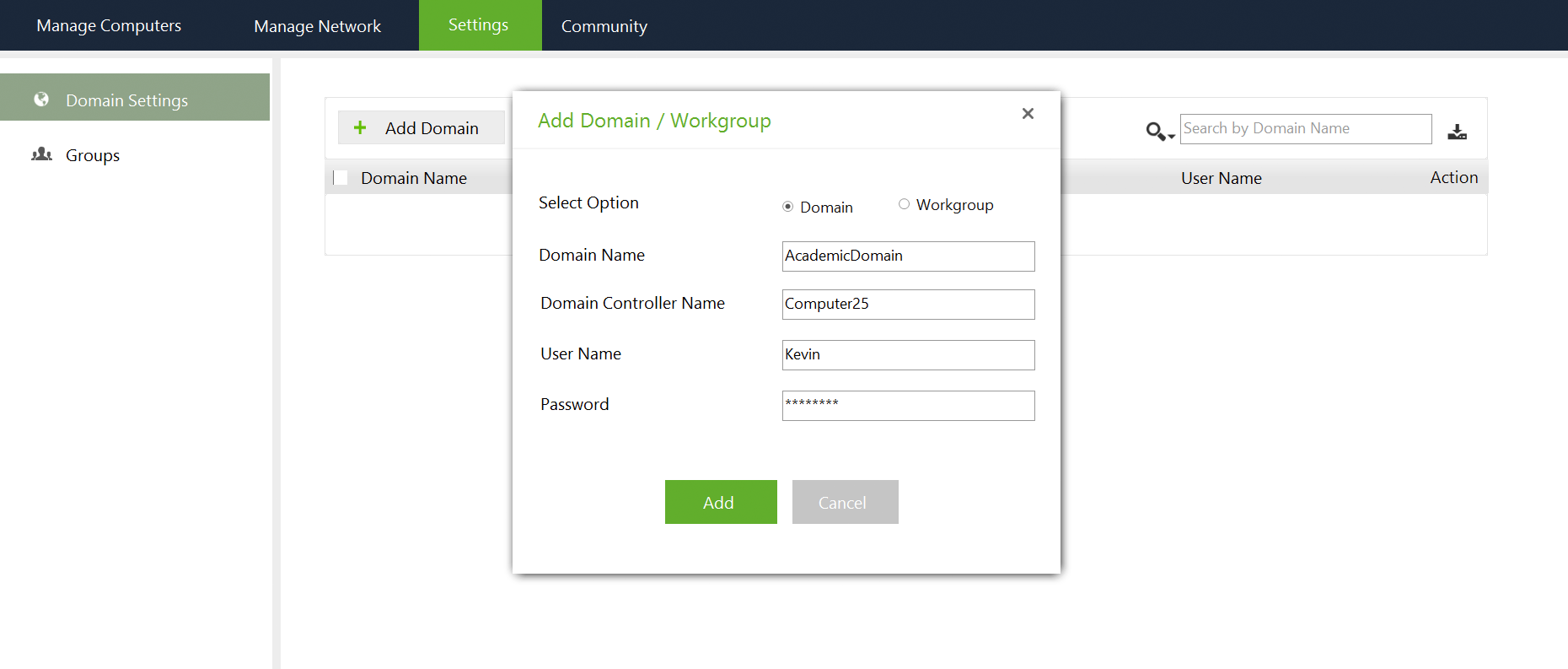
- When the credentials supplied do not have necessary privileges to access the remote computers.
- When DCOM settings have not been enabled in the remote computer. Follow the steps below to enable DCOM:
- Start --> Run--> dcomcnfg
- Select Component Services --> Computers
- Right Click My Computer and select "Properties".
- In "Default Properties" tab, make following changes,
- Select "Enable Distributed COM on this computer" checkbox
- Select "Enable COM Internet Services on this computer" checkbox
- Change "Default Authentication Level" to "Default"
- Change "Default Impersonation Level" to "Impersonate"
- If the remote computer is in a workgroup (not part of a Windows Domain), the Forced Guest feature should be turned off. Make the following change in all the client computers:
- Start --> Run--> explorer
- Select Tools --> Folder Options
- Select the View tab.
- Unselect the option "Use simple file sharing" and click OK
2. When I use a tool, I get the error as "RPC Server Unavailable". How do I fix this?
Two options to fix RPC Server Unavailable error,
Option 1:
- Reach to the client computer where this error is prompted.
- Open run and execute service.msc command.
- Start windows management instrumentation service.
- Follow the steps given this document to resolve this error.
If Option1 doesn't seem to work try Option2.
Option 2:
Unzip, run and execute this bat file, wmiconfig.bat in the client machine where this error is prompted to resolve it.
3. I cannot take remote control of my Windows 10 computers. How do I fix this ?
This is an existing issue with windows 10. Please follow the below steps to rectify it.
- Right click on My computer and select Properties.
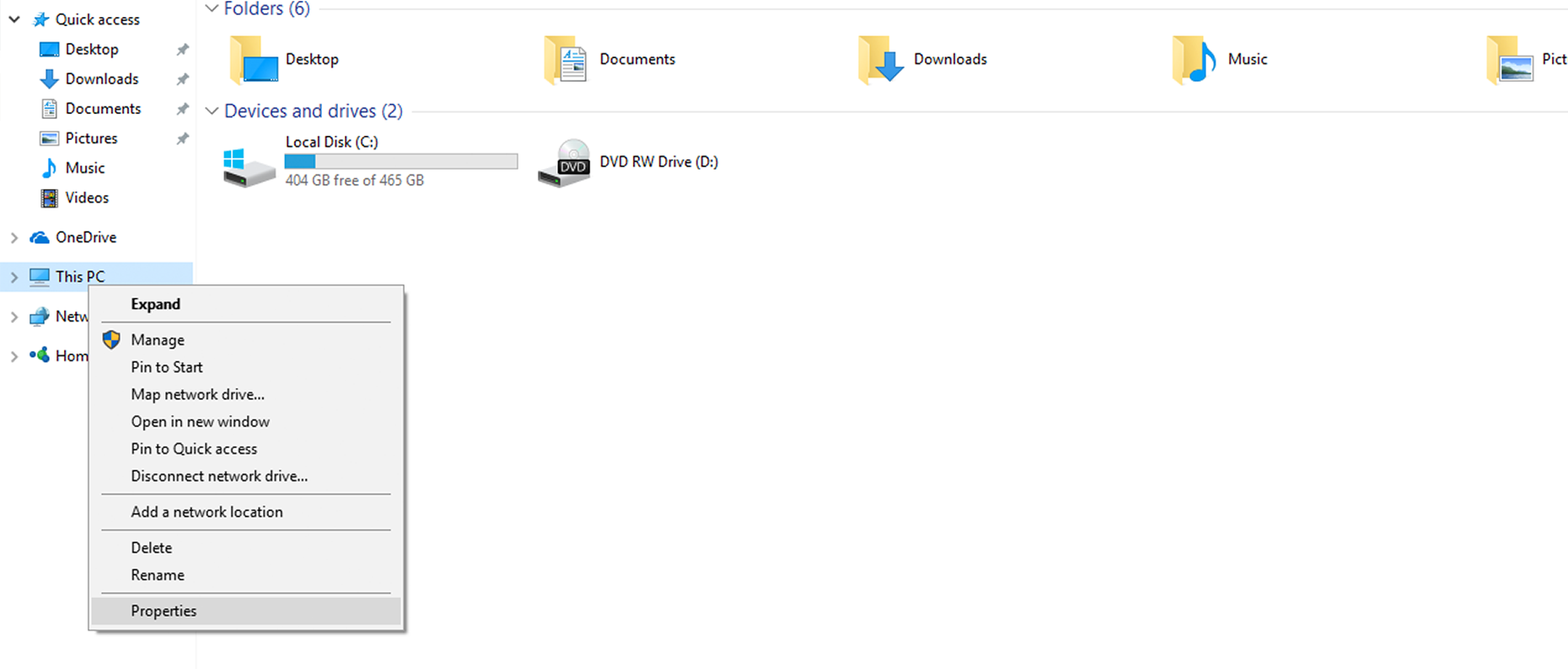
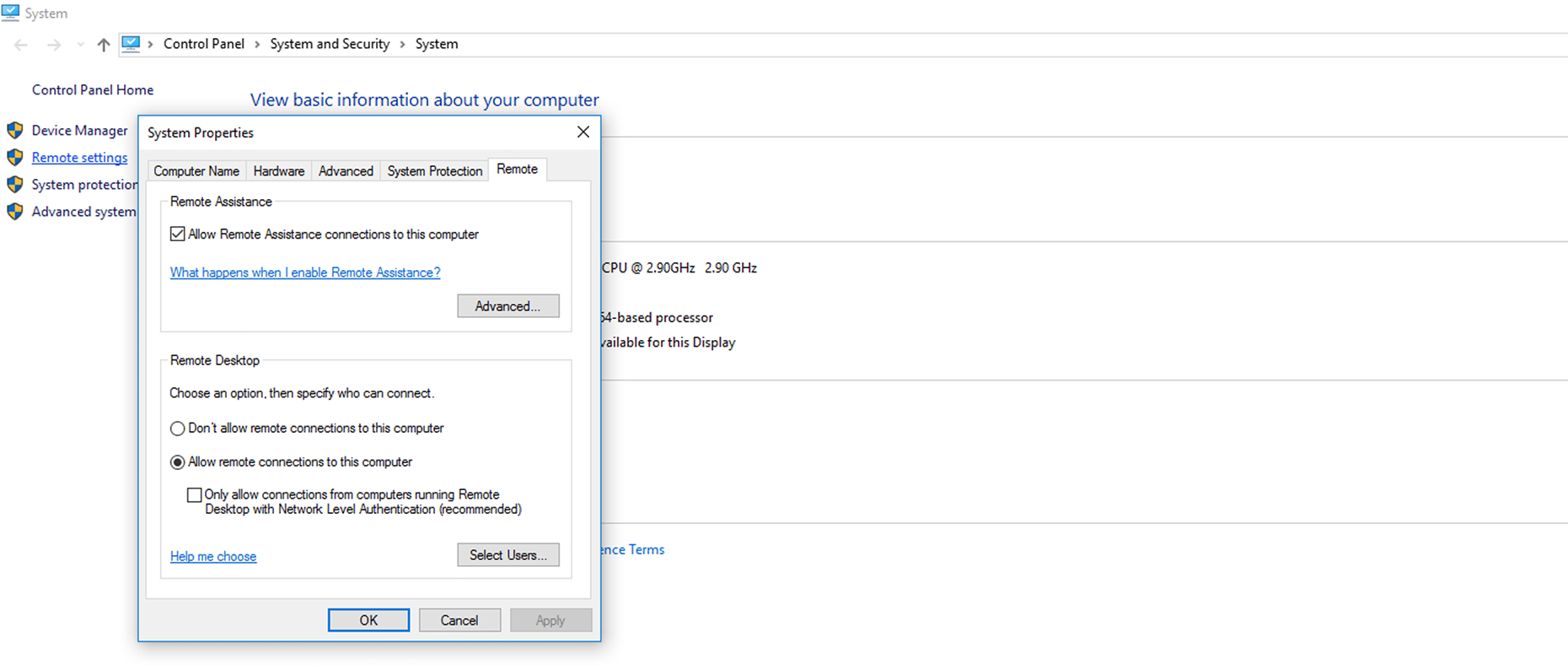
- Select Remote settings and enable 'Allow remote connections to this computer' option and disable other options if enabled. Click Apply.
- Open RegEdit.
- Navigate to this key 'HIKEY_LOCAL_MACHINE\SYSTEM\CurrentControlSet\Control\TerminalServer\WinStations\RDP-TCP'.
- Change 'SecurityLayer' to zero(0).
- Reboot the system
After following the above steps, you will now be able to remotely control windows 10 computers.
4. I get WMI access denied error. How do I fix it?
Follow the steps give below to resolve this error,
Step 1. DCOM permission
- Open Dcomcnfg
- Expand Component Service -> Computers -> My computer
- Go to the properties of My Computer
- Select the COM Security Tab
- Click on "Edit Limits" under Access Permissions, and ensure "Everyone" user group has "Local Access" and "Remote Access" permission.
- Click on the "Edit Limit" for the launch and activation permissions, and ensure "Everyone" user group has "Local Activation" and "Local Launch" permission.
- Highlight "DCOM Config" node, and right click "Windows Management and Instruments", and click Properties.
- <Please add the steps to check Launch and Activation Permissions, Access Permissions, Configuration Permissions based on the default of Windows Server 2008>
Step 2. Permission for the user to the WMI namespace
- Open WMImgmt.msc
- Go to the Properties of WMI Control
- Go to the Security Tab
- Select "Root" and open "Security"
- Ensure "Authenticated Users" has "Execute Methods", "Provider Right" and "Enable Account" right; ensure Administrators has all permission.
Step 3. Verify WMI Impersonation Rights
- Click Start, click Run, type gpedit.msc, and then click OK.
- Under Local Computer Policy, expand Computer Configuration, and then expand Windows Settings.
- Expand Security Settings, expand Local Policies, and then click User Rights Assignment.
- Verify that the SERVICE account is specifically granted Impersonate a client after authentication rights.
After following the above steps you will be able to resolve the error now.
5.Remote command prompt tool doesn't work. How can I fix it?
Follow the steps below to resolve this error,
- Try reaching to the client computer which shows this error.
- Open Run, type and execute "Services.msc" command.
- Stop the "server service" and restart it.
- Reconnect via remote command prompt now and start executing the commands.