Audit & Notifications
As Password Manager Pro deals with sensitive passwords, it is important to have a complete record of who accessed what resource and when along with trails about every single action performed by the users within the application. All operations performed by the users are audited with the timestamp and the IP address from where they accessed the application.
Password Manager Pro audit is quite comprehensive and almost all actions are audited. In case your requirement is to audit only specific operations, Password Manager Pro provides flexible options for focused auditing as well. There is also option to send notifications to required recipients whenever a desired event (audit trail of your choice) occurs in Password Manager Pro.
Audits in Password Manager Pro has been classified into four types:
1. Resource Audit
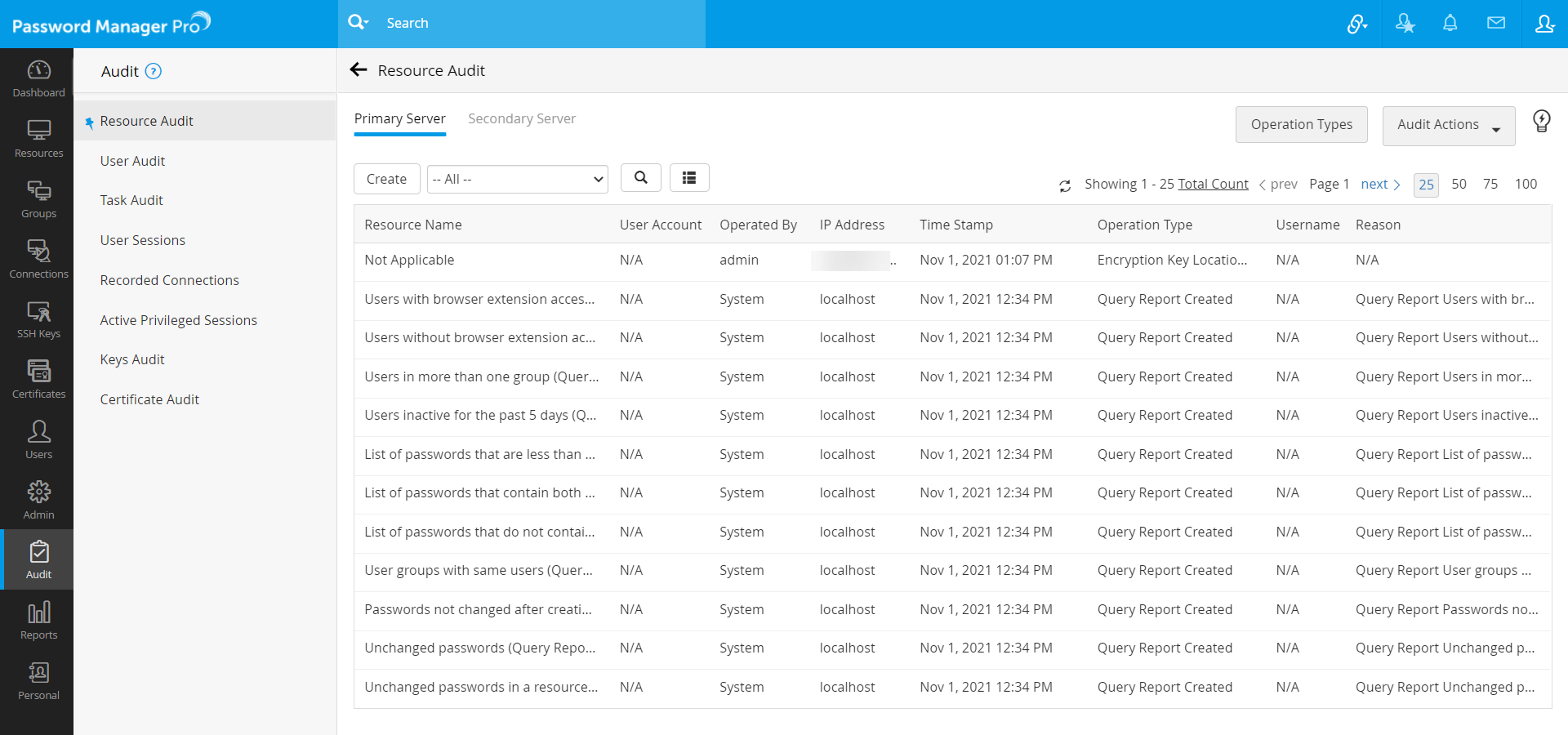
All operations pertaining to resources, resource groups, accounts, passwords, shares and policies performed in Password Manager Pro are captured under 'Resource Audit'.
To view Resource Audit:
Navigate to Audit >> Resource Audit.
To record only specific operations in Resource Audit:
- Navigate to Audit >> Resource Audit.
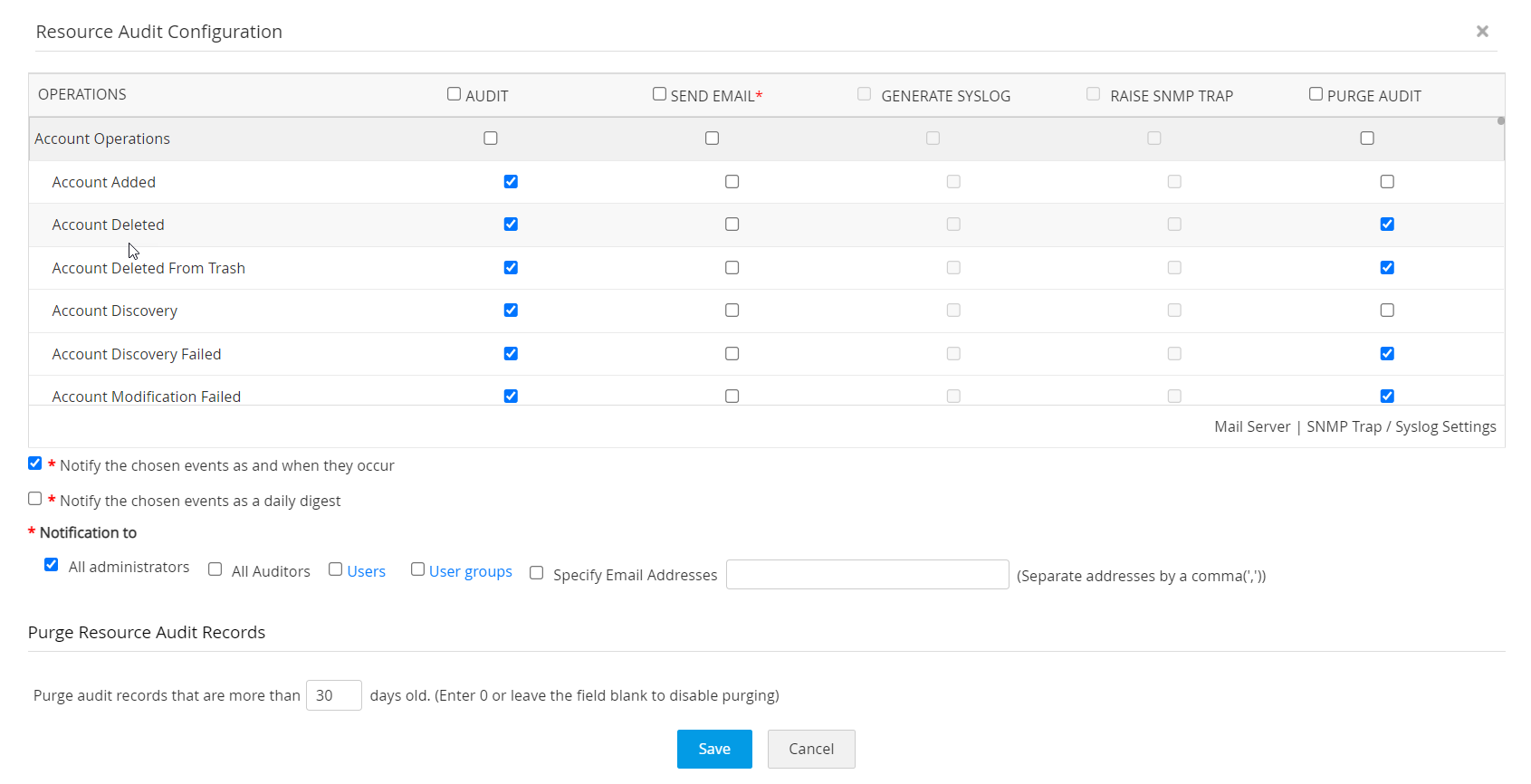
- Click the 'Configure Audit' icon under the Audit Actions drop-down.
- In the Resource Audit Configuration UI that opens, select the operations for which you want audit records to be generated. Leave the checkbox against all other operations blank.
To receive notifications, traps, syslog messages on generation of audit records:
Password Manager Pro provides the flexibility of sending separate notifications as and when the chosen event occurs.
- If you want to receive instant email notifications, SNMP traps or syslog messages on the occurrence of a desired event, you can select the respective check-boxes against the required audit operation.
- If you do not want your inbox to be flooded with notification emails, you can customize to receive a single notification every day (containing information about all the events generated on the day) in the form of a daily digest and you can also specify the list of recipients for notifications.
- Click Save.
To purge resource audit trials:
Almost all operations pertaining to resources performed in Password Manager Pro are audited and the audit data is stored in the database. Therefore, the resource audit record grows at a faster rate. To help you maintain disk space, an additional option to purge audit records is given in the same Resource Audit Configuration UI. If you do not need audit records that are older than a specified number of days, you can choose to purge them.
To configure resource audit purging,
- Go to Resource Audit >> Audit Actions >> Configure >> Purge Resource Audit Records.
- Then, specify the number of days upto which the audit records should be retained in Password Manager Pro. For instance, if you enter 90, audit records that are more than 90 days old will be automatically purged by Password Manager Pro.
- Click Save.
(Applicable from build 12000 onwards)
Note: You can choose to retain or delete specific audit records based on the operation type under Purge Audit. Use the check boxes to select the type of audit records that you wish to purge. The audit types that are left unselected will be retained permanently as a part of your audit trail.
To export resource audit trails as PDF/CSV report:
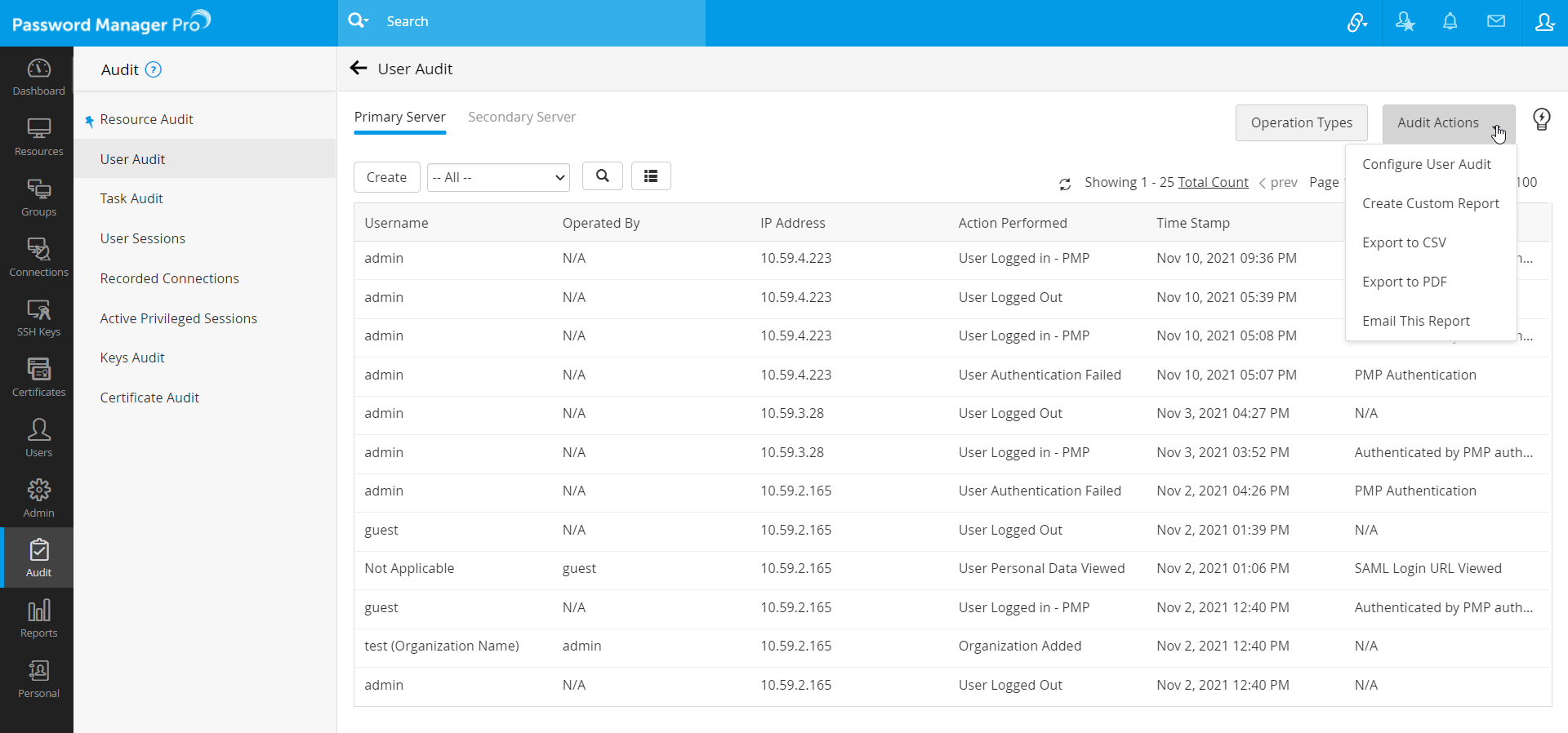
The Audit Trails could be exported as a PDF/CSV file and stored in a secure location for reference purposes.
To export Audit Trials as a report, click the button Export to PDF or Export to CSV as required, under Resource Audit >> Audit Actions.
Resource Audit Filters
You can create customized views of audit trails by adding filters and choosing to display only those audit records that are of interest to you.
- Click the button Create.
- Select the required column names from the drop-down and enter your criteria (If you want to enter operation type as criteria, click the link 'View Operation Types', refer to the list and enter the required name as it is).
- Click Save.
2. User Audit
All user operations performed in Password Manager Pro are captured under User Audit.
To view User Audit:
Navigate to Audit >> User Audit.
To record only specific operations in user audit
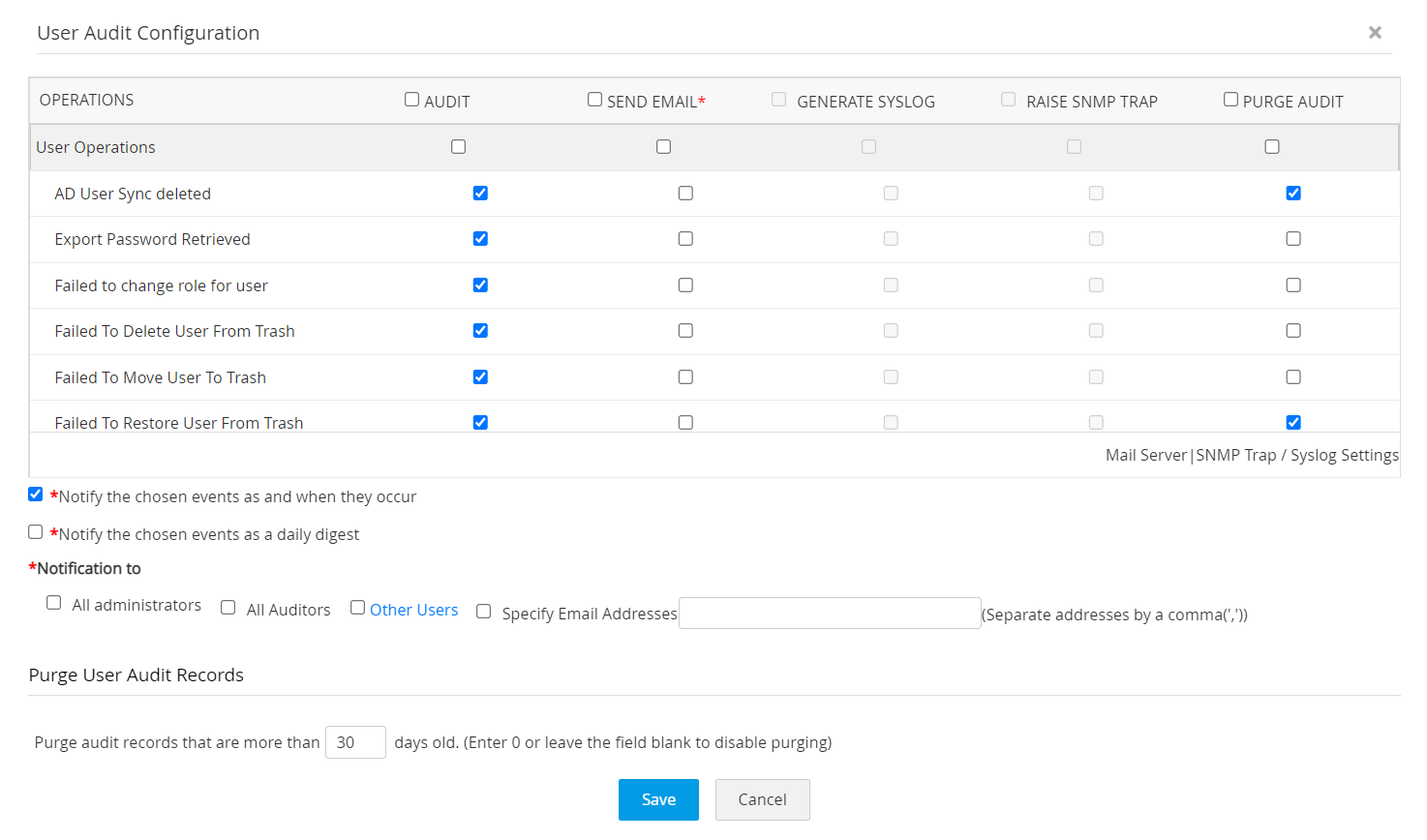
- Click the Configure Audit icon from Audit actions in the User Audit page.
- In the dialog box that opens, select the specific operation for which you want audit record to be generated. Leave the checkbox against all other operations blank.
To receive notifications on generation of audit records:
Password Manager Pro provides the flexibility of sending separate notifications to each and every occurrence of the chosen event.
- If you want to receive notifications, SNMP traps or syslog messages on the occurrence of a particular event, you can select the respective check-boxes against the required operation.
- If you do not wish your inbox to be flooded with notification emails, you can choose to receive a single notification every day about all the events generated on the day and you can also specify the list of recipients for notifications.
- Click Save.
To purge user audit trials:
Almost all operations pertaining to resources performed in Password Manager Pro are audited and the audit data is stored in the database. Therefore, the resource audit record grows at a faster rate. To help you maintain disk space, an additional option to purge audit records is given in the same Resource Audit Configuration UI. If you do not need audit records that are older than a specified number of days, you can choose to purge them.
To configure resource audit purging,
- Go to User Audit >> Audit Actions >> Configure >> Purge User Audit Records.
- Then, specify the number of days upto which the audit records should be retained in Password Manager Pro. For instance, if you enter 90, audit records that are more than 90 days old will be automatically purged by Password Manager Pro.
- Click Save.
(Applicable from build 12000 onwards)
Note: You can choose to retain or delete specific audit records based on the operation type under Purge Audit. Use the check boxes to select the type of audit records that you wish to purge. The audit types that are left unselected will be retained permanently as a part of your audit trail.
To export user audit trails as PDF/CSV report:
The Audit Trails could be exported as a PDF/CSV file and stored in a secure location for reference purposes. To export Audit Trials as a report, click the button Export to PDF or Export to CSV as required, under User Audit >> Audit Actions.
User Audit Filters:
You can create customized views for filtering and viewing only those audit records by specifying your criteria.
- Click the link Add present beside 'Manage Custom Filters'.
- Select the required column names from the drop-down and enter your criteria (If you want to enter operation type as criteria, click the link 'View Operation Types', refer to the list and enter the required name as it is).
- Click Save.
3. Task Audit
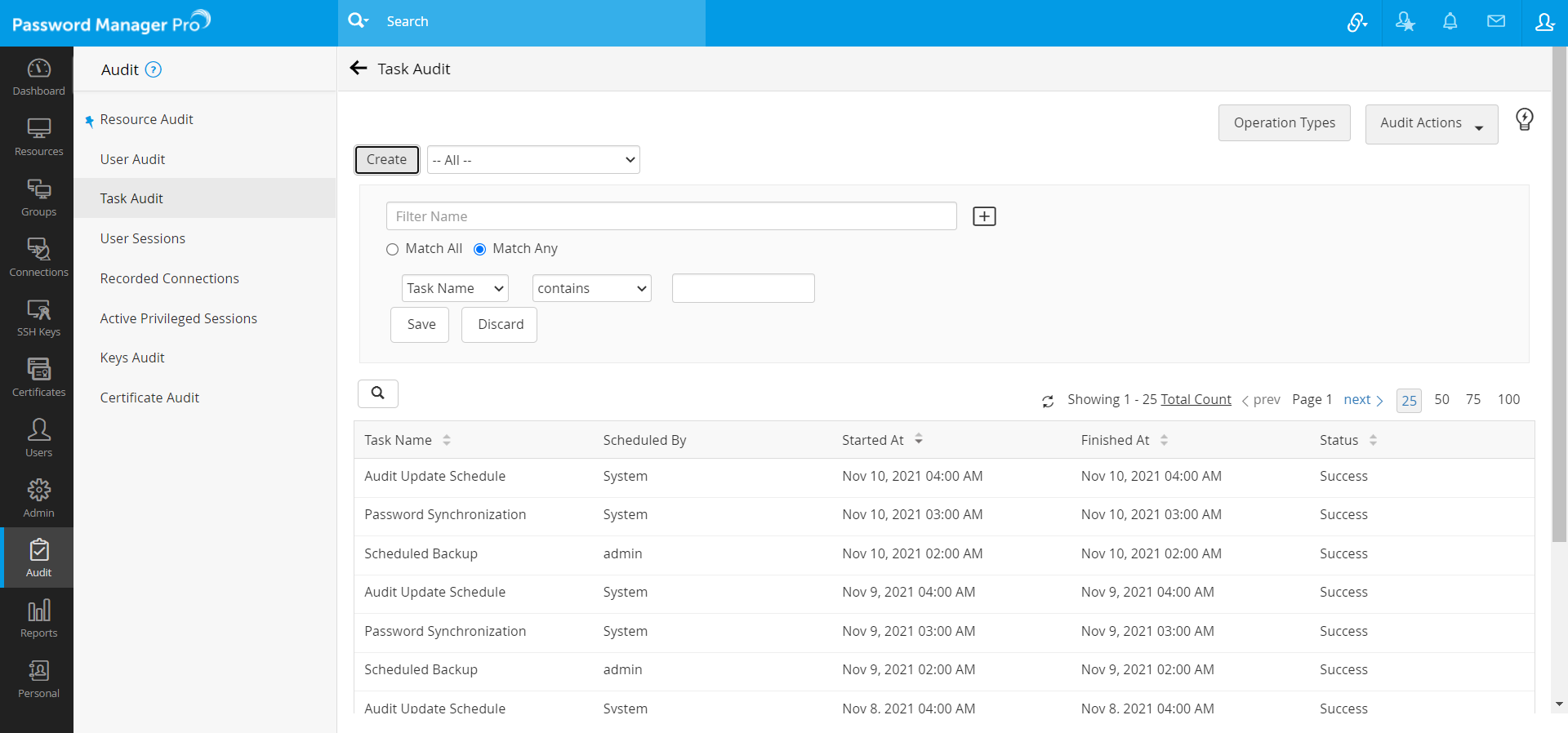
Records of various scheduled tasks created and executed in Password Manager Pro are captured under 'Task Audit'.
To view Task Audit
Navigate to Audit >> Task Audit.
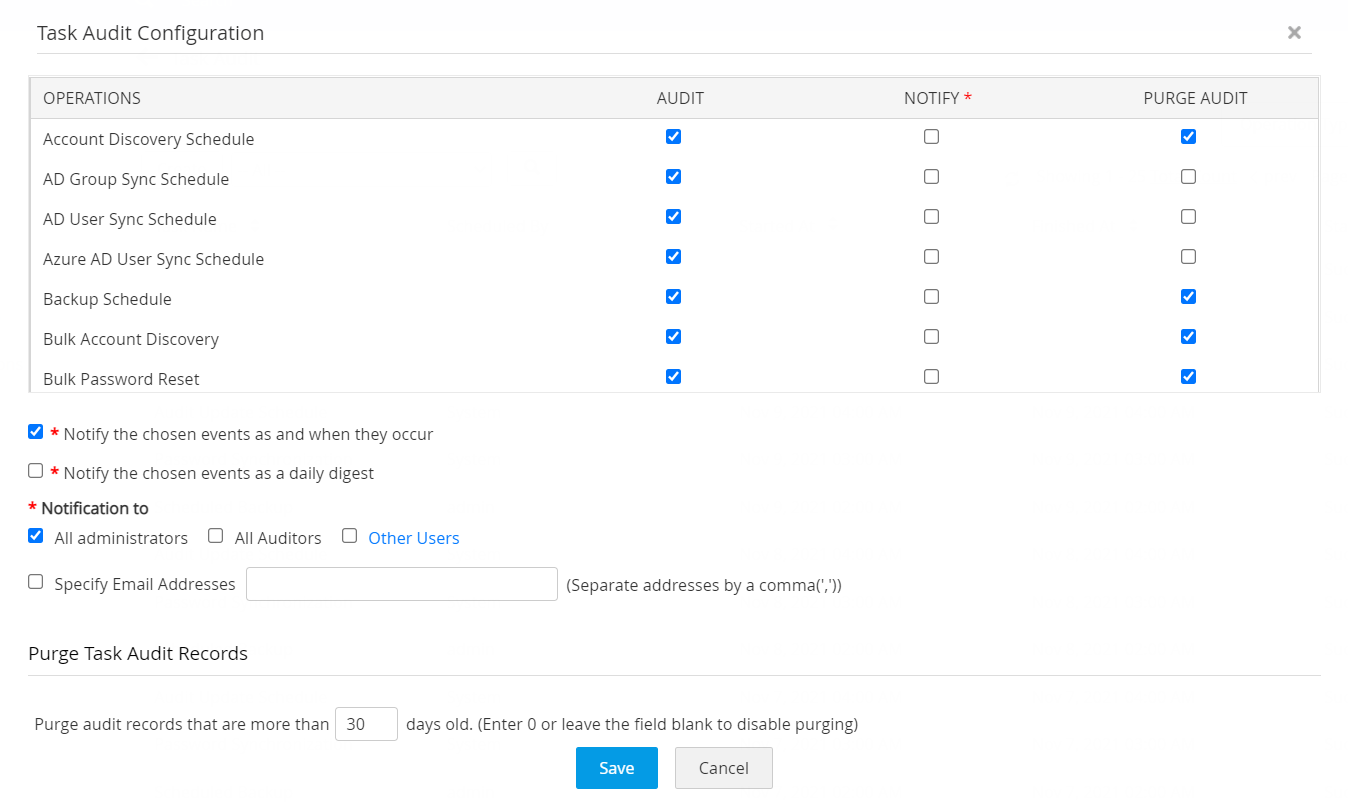
To record only specific operations in task audit:
- Click the 'Configure Audit' icon from the Audit actions in the Task Audit page.
- A UI will open. Select the specific operation for which you want audit record to be generated. Leave the checkbox against all the other operations blank.
To receive notifications, traps, syslog messages on generation of audit records:
Password Manager Pro provides the flexibility of sending separate notifications as and when the chosen event occurs.
- If you want to receive notifications, SNMP traps or syslog messages on the occurrence of a specific event, you can select the respective check-boxes against the required operation.
- If you do not want your inbox to be flooded with notification emails, you can customize to receive a single notification every day in the form of a daily digest and you can also specify the list of recipients for notifications.
- Click Save.
To purge task audit trials:
Almost all operations pertaining to resources performed in Password Manager Pro are audited and the audit data is stored in the database. Therefore, the resource audit record grows at a faster rate. To help you maintain disk space, an additional option to purge audit records is given in the same Resource Audit Configuration UI. If you do not need audit records that are older than a specified number of days, you can choose to purge them.
- Go to Task Audit >> Audit Actions >> Configure >> Purge User Audit Records.
- Then, specify the number of days upto which the audit records should be retained in Password Manager Pro. For instance, if you enter 90, audit records that are more than 90 days old will be automatically purged by Password Manager Pro.
- Click Save.
(Applicable from build 12000 onwards)
Note: You can choose to retain or delete specific audit records based on the operation type under Purge Audit. Use the check boxes to select the type of audit records that you wish to purge. The audit types that are left unselected will be retained permanently as a part of your audit trail.
To export task audit trails as PDF/CSV report:
The Audit Trails could be exported as a PDF/CSV file and stored in a secure location for reference purposes. To export Audit Trials as a report, click the button Export to PDF or Export to CSV as required, under Task Audit >> Audit Actions.
3.1 Task Audit Filters
You can create customized views for filtering and viewing only those audit records that are of interest to you by specifying your criteria.
To create an audit filter:
- Click the link Add present beside 'Manage Custom Filters'.
- Select the required column names from the drop-down and enter your criteria (If you want to enter operation type as criteria, click the link 'View Operation Types', refer to the list and enter the required name as it is).
- Click Save.
1. Does Password Manager Pro record attempts by users to view and retrieve passwords?
-
Yes, Password Manager Pro helps in establishing strong accountability for all operations carried out within the application. Therefore all the operations performed by the users including the password viewing, retrieval and copying actions are audited by Password Manager Pro. The list of operations that are audited with timestamp and IP address includes:
- User accounts created, deleted and modified.
- Users logging in and off the application.
- Resources and passwords created, accessed, modified and deleted.
2. How are the audit logs protected against modification?
All the audit records are stored in the MySQL database. To ensure security, the MySQL server has been configured not to accept connections from remote hosts. In addition, the password to access the MySQL server is randomly generated for every Password Manager Pro installation. So, unless people gain entry into the database, the audit records cannot be modified.
4. User Sessions
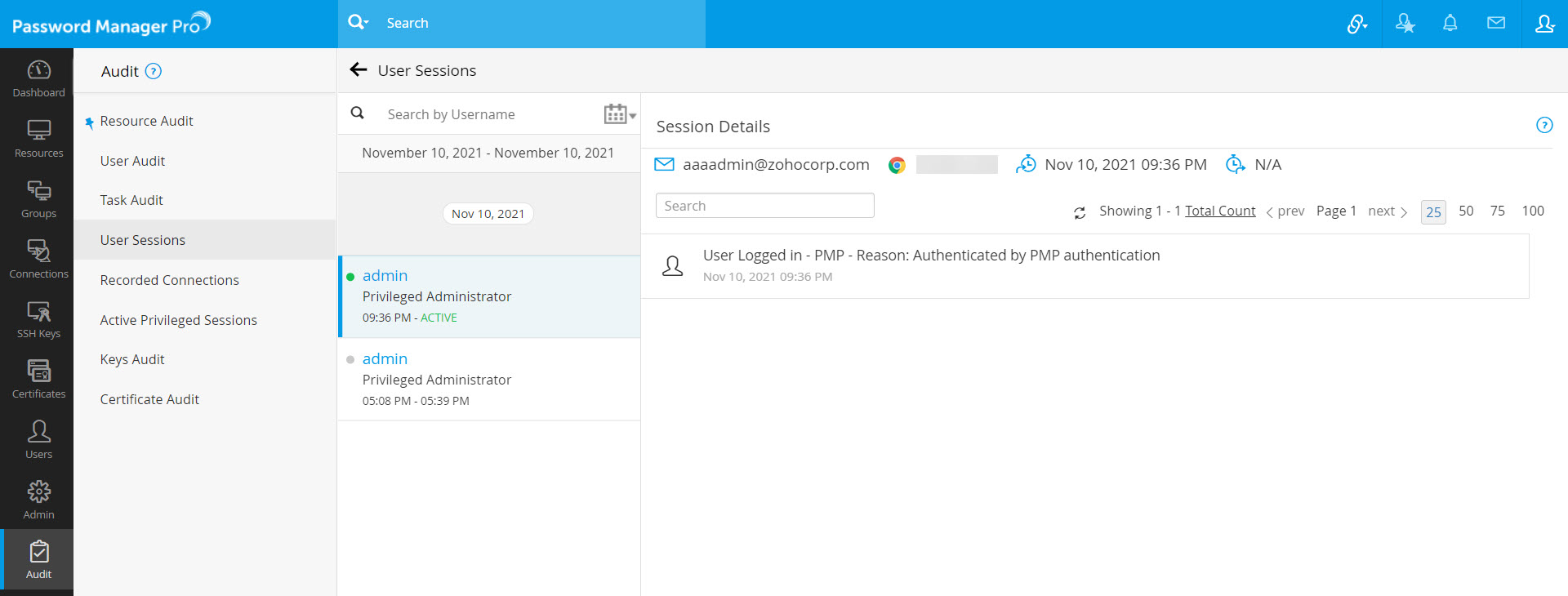
The audits of all the operations a user performed during his active session will be listed. And these audits can be viewed by selecting a particular user session of a specific date range. There is also an option to terminate any active user session by the administrators.
Note: All the user session audits are tracked only from version 9500. So, any audits prior to v9500 will not be listed.
All audits pertaining to 'User Sessions' within the chosen date range are captured under 'Audit » User Sessions'.
To view User Sessions:
- Navigate to Audit » User Sessions.
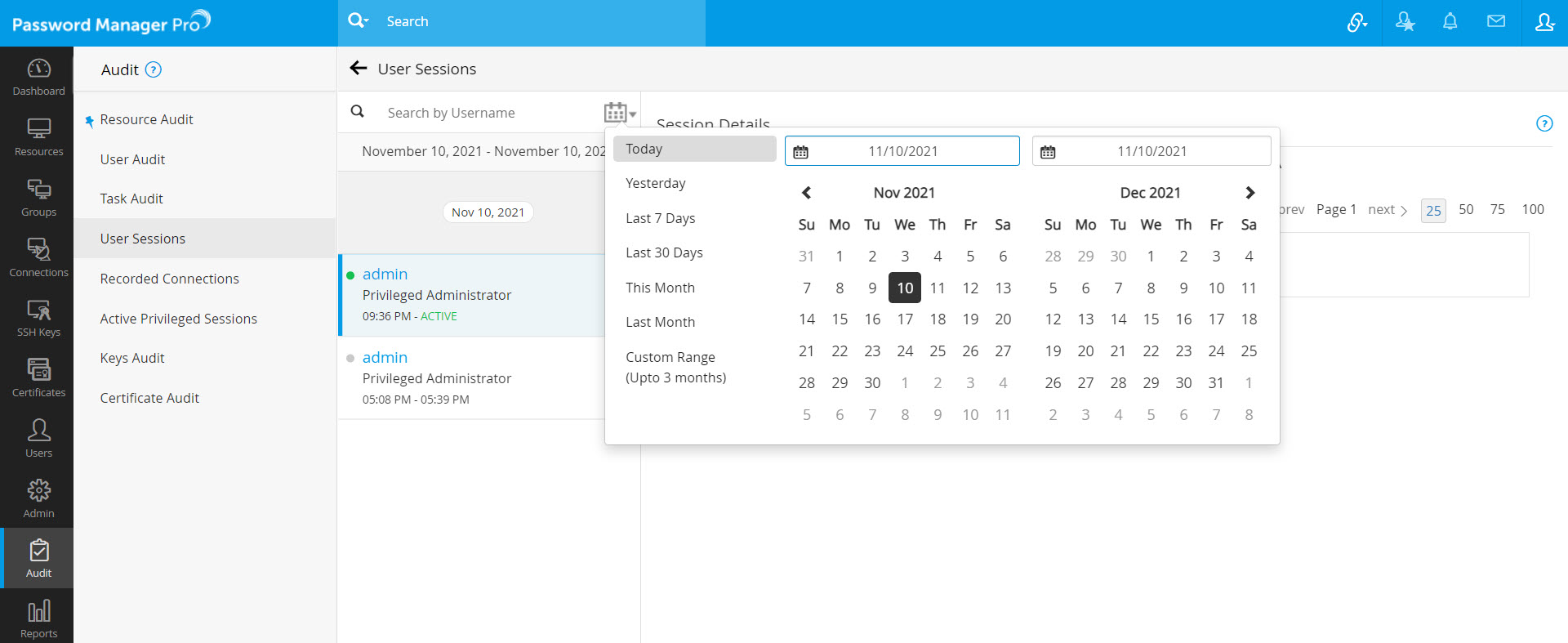
- Choose a particular date by double clicking on the specific date for which you want to view the user sessions or a range of dates by selecting a start date and end date from the 'date range picker'. The range between the start date and end date cannot be more than 3 months.
- By default, the current date will be chosen as both start and end dates.
- After choosing the date range, all the user sessions performed on the chosen date range will be listed.
- Upon clicking a particular user session, the audits of all the operations the user performed during the chosen session will be listed.
To search a particular 'User Session' or 'Audits':
- Navigate to Audit >> User Sessions.
- Search a particular user session by entering the username - first name, last name or full name in the search field.
- You can also search a particular audit by entering the keywords in the search field.
To terminate 'User Sessions',
- Navigate to Audit >> User Sessions.
- You can terminate any active user session by clicking the 'Terminate' button present beside the 'User Session' and providing a reason.
- Click 'OK'. The session will be terminated.
Notes:
- Only Administrators / Password Administrators / Privileged Administrators will be able to terminate any user session.
- The Org Manager's session can be terminated by the administrators of their MSP org only.
