Database Backup (for PMP with MySQL)
(Procedure applicable only for builds
6302 and later. For earlier versions, click
here)
Data stored in PMP database are of critical
importance and in any production environment, there would be constant
requirements for backing up the data for reference purposes or for disaster
recovery. To achieve this, PMP provides two features:
- Live Backup of PMP database
- Scheduled Backup
Live Backup
Whenever there happens an addition or
modification of the entries in the PMP database, the data gets immediately
backedup. PMP achieves this live backup by leveraging the database replication
feature offered by MySQL.
A
live 'slave' database could be configured in a remote location and it
will get instantaneously updated whenever the 'master' database running
with PMP undergoes a change. At any point of time, the data in both the
databases will be in synchronization with each other. In the unlikely
event of any disaster to the primary database, you can rely on the slave
database and recover the data.
To enable Live Backup,
Prerequisite
After installation, the PMP server should have been started and
stopped at least once. If PMP server is already running, stop it before
proceeding further. Ensure that the mysqld process
of PMP is NOT running
Step 1: Setup master and
slave databases
- Go to <PMP_Installation_Folder>/bin
directory and run the script replicationPack.bat
<FQDN of PMP Primary Server> <FQDN OF Remote Host where slave
database is running> (in Windows)
/ replicationPack.sh <FQDN of PMP Primary Server><FQDN
OF Remote Host where slave database is running> (in
Linux)
To run this script, you need to pass the fully qualified domain names
of (1) the host where PMP primary server is running and (2) the host where
slave database is to be put, as commandline arguments. For Example, if
the primary server is running at say testserver in the
domain zohocorpin.com and the slave database is to be
put in the host (say) testserver1 in the domain
zohocorpin.com , you need to execute the above script as follows:
In Windows
replicationPack.bat testserver.zohocorpin.com testserver1.zohocorpin.com
In Linux
sh replicationPack.sh testserver.zohocorpin.com
testserver1.zohocorpin.com
- This will create the data replication package "LiveBackup.zip"
under <PMP_Home>/replication
folder.
- Move this zip file from <PMP_Home>/replication
folder to the remote host where you wish to keep the slave database for
live backup
- Unzip the zip file in the remote host
- The slave database is now setup
- The database that is bundled with PMP acts as the
master database. No separate setup is required for that
Step 2: Start PMP server
and slave database
- Now, start the PMP server. This in turn starts the
master database.
- Go to the remote machine, open a command prompt with
administrator privilege and navigate to the <MySQL>/bin
folder and run the script startSlaveDB.bat
(Windows) / startSlaveDB.sh (Linux).
This will start the slave database.
Verify Live Backup Setup
After carrying out the above steps, you can verify if the Live Backup
setup is working properly by looking at the message in "Admin >>
General >> Database Backup" page. If the setup is proper, you
will see the following:
Connection Status: Alive
and Live Backup is in progress now
Slave database is
running in host: <Host Name>
Recovering data from slave when master database crashes
In the rare event of master database crash, you can recover data from
the slave database.
To recover the data,
"passtrix"
directory
"ibdata1"
file
Navigate to <PMP_Home>/mysql/data
folder and unzip the zip created from the slave database. Once you do
this, the data is safely recovered in the new PMP version
-
After extracting the zip, navigate to <PMP_Installation_Folder>/conf folder, edit manage_key.conf and specify the location of pmp_key.key (encryption master key). PMP requires the pmp_key.key file accessible with its full path when it starts up every time. After a successful start-up, it does not need the key anymore and so the device with the key file can be taken offline.
|
Note:
Once you recover the
data from the slave and give life to the master database, the slave database
will no longer be valid. Just delete the mysql folder in the remote machine.
If you want to have the Live Backup enabled again, you need to follow
the steps once again. |
Scheduled Backup
You can schedule database backup to be
executed at any specific point of time.
To schedule database backup,
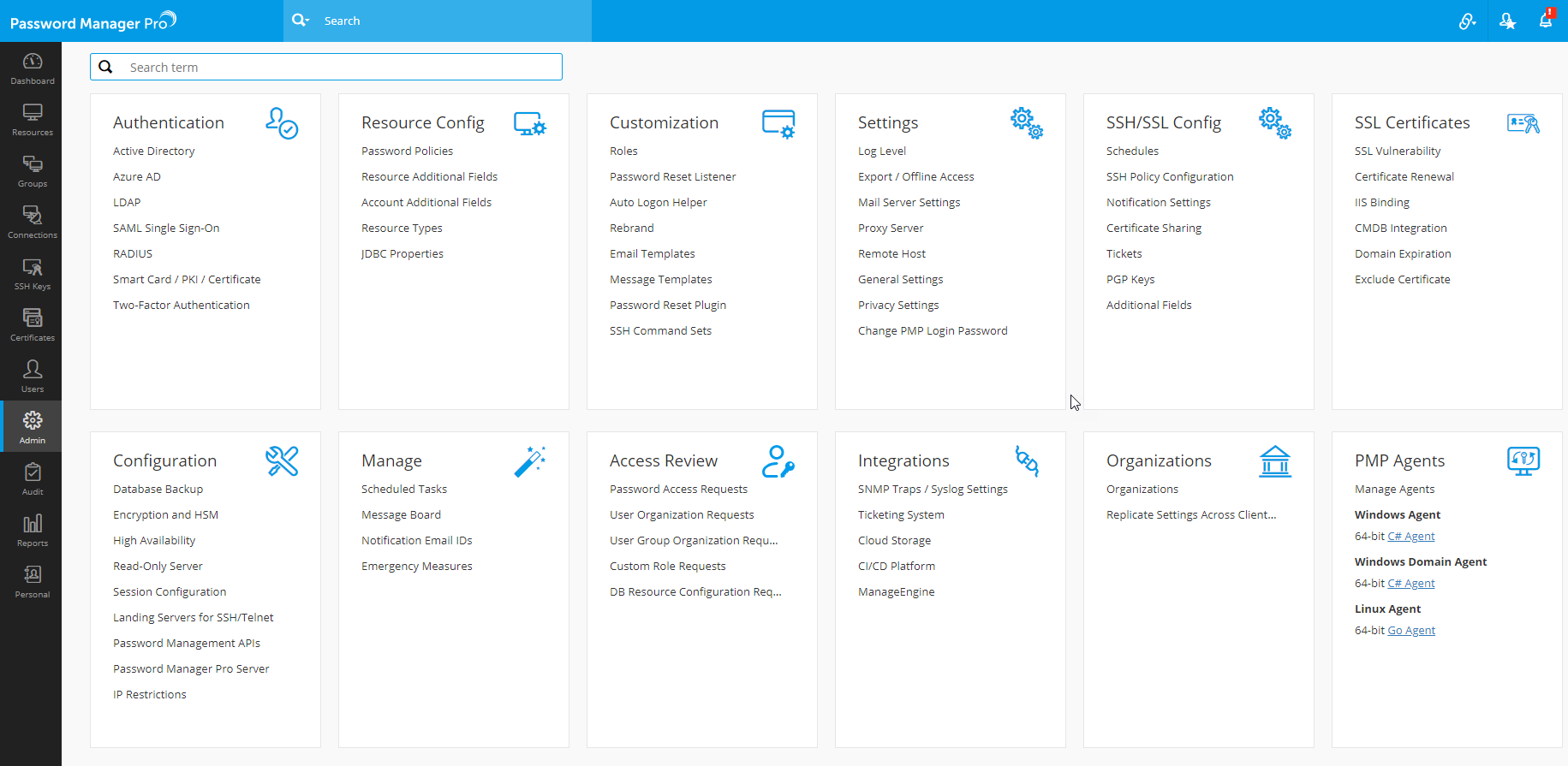
- Go to "Admin"
tab
- Click "Database
Backup" icon under "General"
section
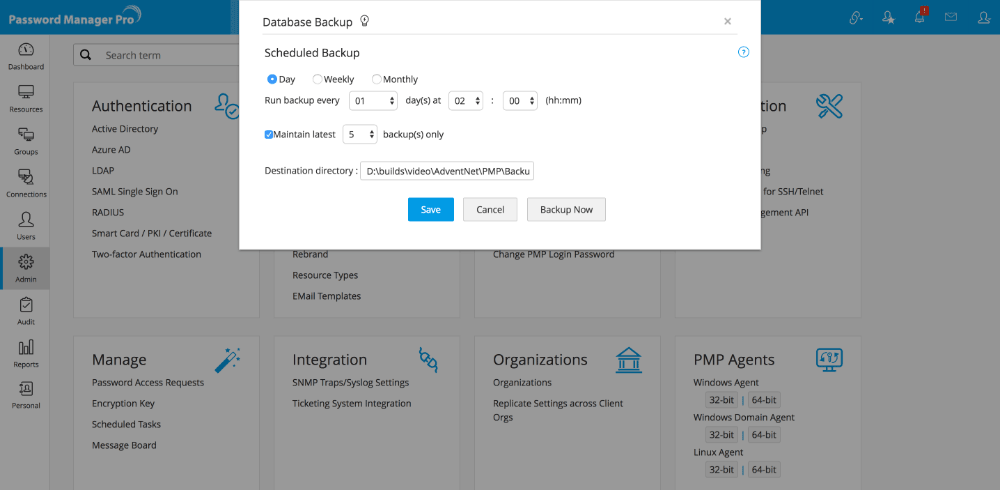
In the UI that opens up,
To schedule
backup in specific day(s) interval,
- If your requirement is to backup the database contents
in specific day intervals - say, once in three days, this option would
come in handy. You can choose any interval between 1 and 28 and also specify
the time at which backup has to be taken.
- To enable this option, click the radio button "Day"
- Select the day interval
- Select the time at which backup has to be taken
- Backed up data are stored as a .zip file under <PMP_Home>/backUp directory by default.
If you want, you can specify the destination directory where you wish
to store the backedup contents.
- Every time backup is executed, one backup file will
be created. You can specify the maximum number of such backup files to
be kept in this directory. For example, if you choose "10" in
the drop-down against the field "Maintain latest --- backups only",
only the latest 10 backup files would be kept under this directory
- Click "Save".
The required backup schedule is created
|
All sensitive data in the backup file are
stored in encrypted form in a .zip file under <PMP_Home/backUp>
directory or under the directory specified by you. It is recommended that
you backup this file in your secure, secondary storage for disaster recovery.
Database backup operation is both time and
resource consuming. Hence, it is recommended to schedule it to run during
off-peak traffic timings. While the operation is in progress, no configuration
change could be performed in PMP.
|
To schedule backup on a specific day every
week,
- If your requirement is to backup the database contents
on a specific day every week - say, on Mondays, this option would come
in handy. You can choose any day from Sunday to Saturday and also specify
the time at which backup has to be taken. To enable this option,
- click the radio button "Weekly"
- select the day of the week
- select the time at which backup has to be taken
- Backed up data are stored as a .zip file under <PMP_Home>/backUp directory by default.
If you want, you can specify the destination directory where you wish
to store the backedup contents.
- Every time backup is executed, one backup file will
be created. You can specify the maximum number of such backup files to
be kept in this directory. For example, if you choose "10" in
the drop-down against the field "Maintain latest --- backups only",
only the latest 10 backup files would be kept under this directory
- Click "Save".
The required backup schedule is created
To
schedule backup on a specific day every month,
- If your requirement is to backup the database contents
on a specific date every month - say, on 13th, this option would come
in handy. You can choose any date from 1st to 31st and also specify the
time at which backup has to be taken. To enable this option,
- Click the radio button "Monthly"
- Select the date of the month
- Select the time at which backup has to be taken
- Backed up data are stored as a .zip file under <PMP_Home>/backUp directory by default.
If you want, you can specify the destination directory where you wish
to store the backedup contents.
- Everytime backup is executed, one backup file will
be created. You can specify the maximum number of such backup files to
be kept in this directory. For example, if you choose "10" in
the drop-down against the field "Maintain latest --- backups only",
only the latest 10 backup files would be kept under this directory
Click "Save".
The required backup schedule is created
©2009, ZOHO Corp. All Rights Reserved.