Importing Users from LDAP
Similar to importing users from file, AD and Entra ID, you can also import users from the LDAP directory.
Steps Required
There are three steps involved in importing users from an LDAP directory.
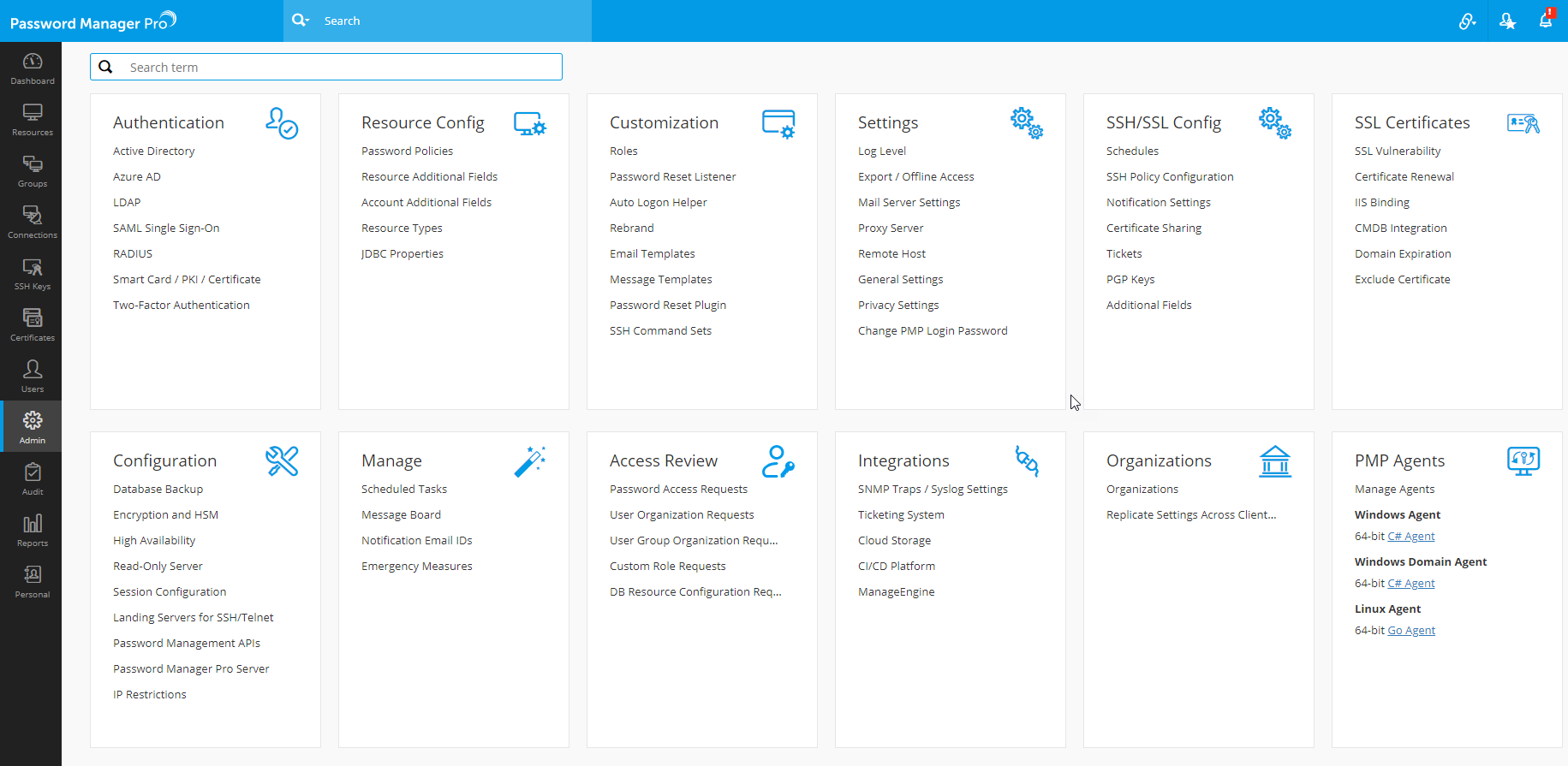
To begin, navigate to Admin >> Authentication >> LDAP. The LDAP Server Configuration page is displayed.
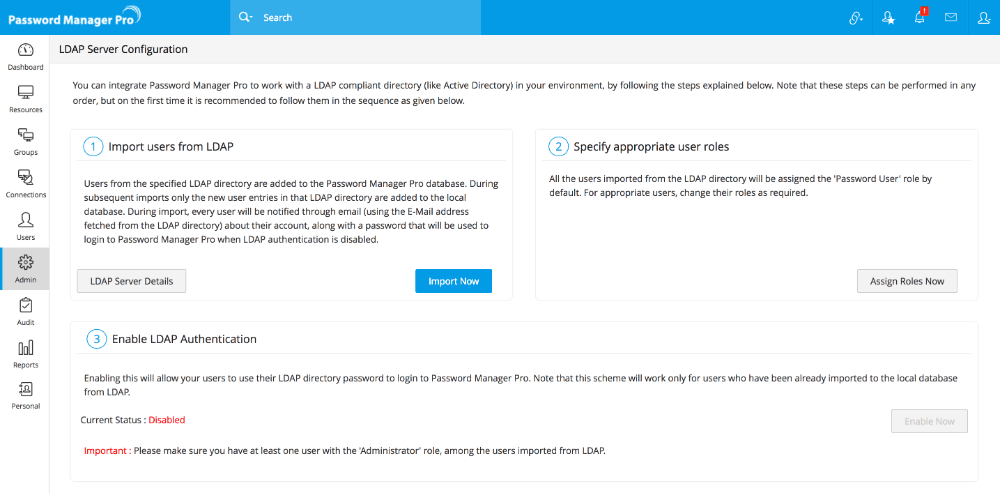
Step 1 - Importing Users from LDAP
The first step is to provide the required credential details and import users from LDAP. To do this:
- Click the Import Now button from the LDAP Server Configuration page . Alternatively, you can also access this from Users >> Import from LDAP button.
- In the pop-up form that pops-up, fill-in the details as required:
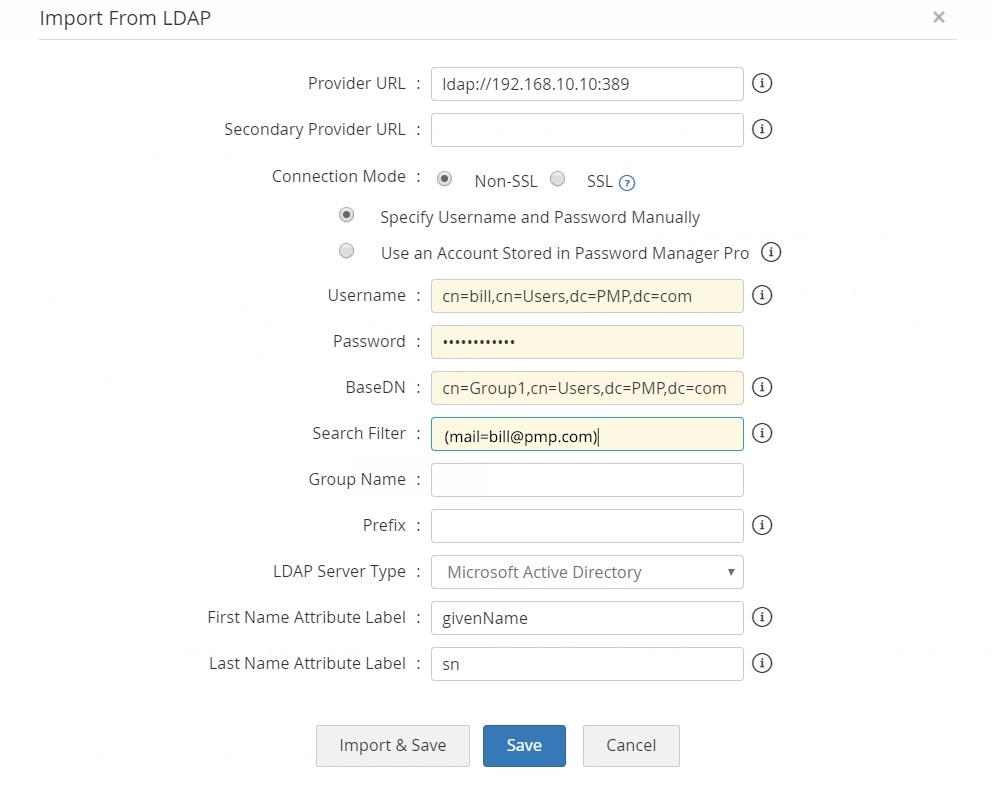
- Configure the connection between LDAP Server and Password Manager Pro to be over an encrypted channel (SSL) or Non-SSL.
- Enter the URL of the LDAP provider in the format attribute://ldap server host:port (Example ldap://192.168.4.83 <:389/)
- Enter the credentials of any one of the user already present in LDAP for authentication. It should be in the format of how the user would have submitted their username when authenticating to your application. For example, a typical entry would look something like: cn=Eric,cn=Users,o=adventnet,c=com.
- Enter the password of the user.
- This is the 'base' or 'root' from where directory lookups should take place. Enter the LDAP base (top level of the LDAP directory tree). Enter it exactly in the format used in your LDAP. No spaces are allowed between the commas or the '=' equal symbol and entries that are case sensitive.
- If you want to add only specific users from your LDAP directory, just perform a search using the appropriate search filter. For example, for adding only those users who belong to the category "Managers", a typical search filter would be like: ou=Managers,ou=Groups,o=adventnet,c=com.
- Enter the group name. While importing users from LDAP, Password Manager Pro will automatically create a user group with all the imported users. If you enable synchronization, the user group will get synchronized based on the search filter created by you.
- Select your LDAP server type
- Microsoft Entra ID (or)
- Novell eDirectory (or)
- OpenLDAP (or)
- Others
- If your LDAP server belongs to the type Microsoft Entra ID/Novell eDirectory/OpenLDAP, you can select that type and click Save.
[Step applicable only if you have chosen SSL in the previous step] To enable the SSL mode, the LDAP server should be serving over SSL in port 636 and you will have to import the LDAP server's root certificate, LDAP server's certificate and all other certificates that are present in the respective root certificate chain into the Password Manager Pro's server machine's certificate store.
To import certificates, open a command prompt and navigate to <PMP_SERVER_HOME>\bin directory and execute the following command:
For Windows:
importCert.bat <Absolute Path of certificate>
For Linux:
importCert.sh <Absolute Path of certificate>
Restart Password Manager Pro server. Then, continue with the following steps.
If your LDAP server belongs to types other than Microsoft Entra ID/Novell eDirectory/OpenLDAP, specify the following additional details to authenticate the users:
- Enter the user login attribute in your LDAP structure in the text field for "Login Attribute". For instance, for LDAP making use of AD, the entry would be "sAMAccountName" and for OpenLDAP, the entry would be "uid". If you are using any other LDAP, make this entry in accordance with your LDAP structure.
- Enter the e-mail attribute for the users in your LDAP structure in the text field for "Mail Attribute". For instance, for LDAP making use of AD, the entry would be "mail". If you are using any other LDAP, make this entry in accordance with your LDAP structure.
- Enter the distinguished name attribute - that is the LDAP attribute that uniquely defines this object. For instance, for LDAP making use of AD, the entry would be "distinguishedName" and for OpenLDAP, the entry would be "dn". If you are using any other LDAP, make this entry in accordance with your LDAP structure.
- Click "Import". Soon after hitting this "Save" button, Password Manager Pro will start adding all users from LDAP. During subsequent imports only the new users entries in LDAP are added to the local database. During import, every user will be notified through email about their account, along with a password that will be used to login to Password Manager Pro when LDAP authentication is disabled.
Configure Synchronization and Manage LDAP Server Details
(Feature available only in Enterprise Edition)Whenever new users get added to the LDAP, there is provision to automatically add them to Password Manager Pro and keep the user database in sync. This can be done from the 'LDAP Server Details' page. Click the button 'LDAP Server Details' under Step 1 in the UI. This UI has been designed to serve as a one-stop place for managing all configurations pertaining to the LDAP servers integrated with Password Manager Pro.
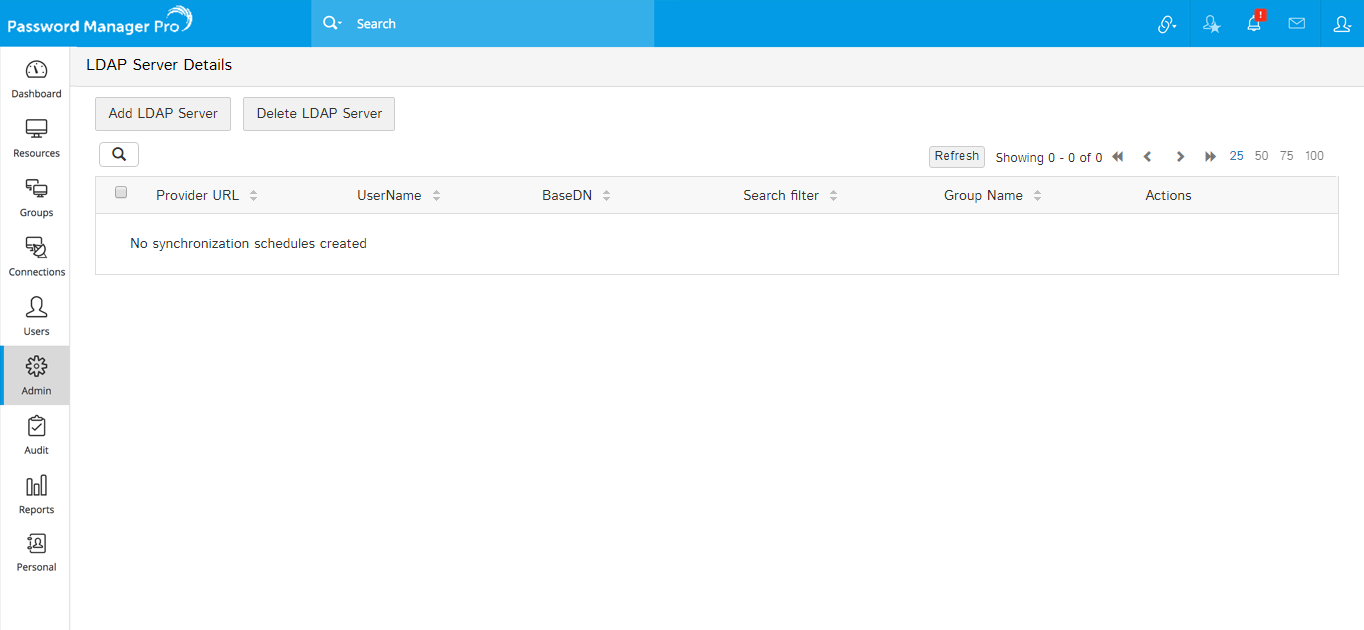
- In the 'LDAP Server Details' UI, you can view the list of LDAP servers already integrated, integrate new LDAP servers, delete existing ones, edit entries and manage the entries pertaining to the LDAP servers.
- In addition, from the "Actions" section of this page,
- You can edit the existing LDAP server details.
- You can configure user database synchronization. Enter the time interval at which Password Manager Pro has to query the LDAP server to keep the user database in sync. The time interval could be as low as a minute or it can be in the range of hours/days.
- You can also import users from LDAP.
Step 2 - Specifying Appropriate User Roles
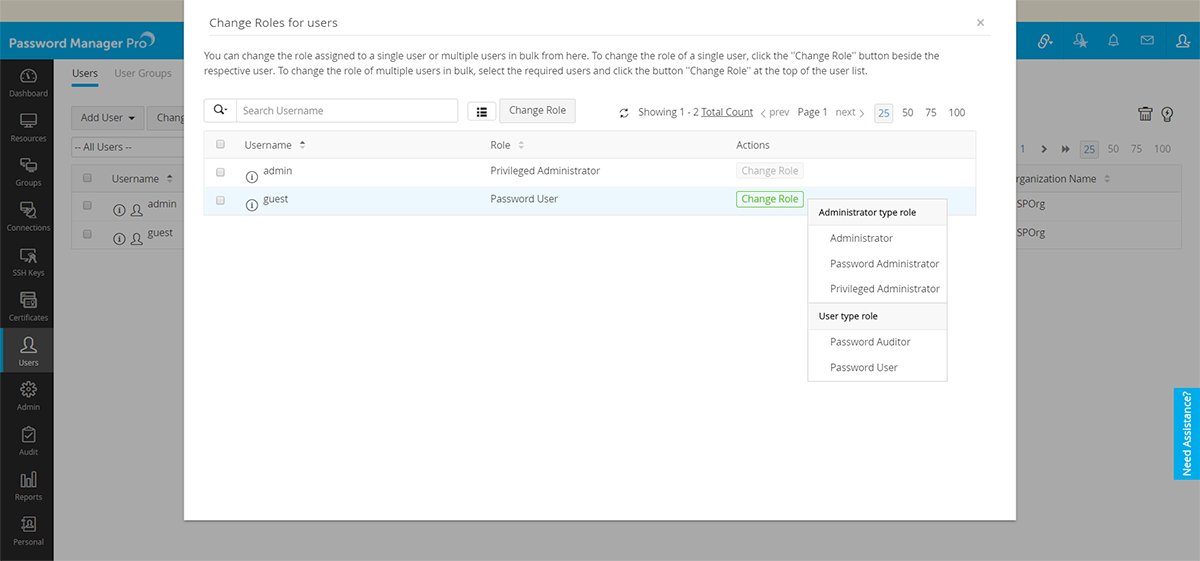
All the users imported from LDAP will be assigned the 'Password User' role by default. To assign specific roles to specific users,
- Go to Step 2 in the UI (Admin >> Authentication >> LDAP) and click the button "Assign Roles Now".
- In the pop-up form that opens, all the Users imported from AD are listed.
- Click "Change role" button against desired users for whom you wish to change the role and select the appropriate role from the drop down.
- Click "Save" and the required roles are set for the users.
Step 3 - Enabling LDAP Authentication
The final step is to enable LDAP authentication. This will allow your users to use their LDAP directory password to log in to Password Manager Pro. Note that this scheme will work only for users who have been already imported to the local database from AD.
Note: Make sure you have at least one user with the 'Administrator' role, among the users imported from LDAP.