(Feature available only in Premium Edition. This procedure and document is applicable only for PMP versions 6400 and above. If you are using previous versions of PMP, click here for the document)
PMP provides the option to remotely change the password of select resources by deploying PMP agents. As of now, this facility is available for changing the password of servers - Windows, Windows Domain and Linux alone. Using this utility, you can change the password of a server present in a remote location, from the PMP web interface itself.
The agent could be used in target machines, which will communicate with
the PMP server and effect password changes. All password related communication
is over HTTPS and is secure. The agent is useful in cases when,
The communication is always one way - that is, the agent alone will contact the server. The PMP server will not communicate with the agent. So, there is no need to keep any port open in the host where the agent has been installed.
The agent will periodically ping the PMP server through HTTPS to check if any operation (password reset or verify password) is pending for execution. The agent will then carry out the tasks and after completing them, it will notify back the PMP server with the results. So, when a task is to be executed by an agent, the PMP server will just trigger the task. The agent will get the list of tasks to be done at the remote host, when it contacts the server. That means, there will be some delay for execution of tasks depending on the time interval at which the agent contacts the server. By default, the agent pings the server once in 60 seconds. The interval is configurable.
The PMP agent package is dynamically created by the PMP server to include the SSL certificate of the PMP server, that is used for the HTTPS communication between the agent and the agent. So, the only place to download the agent is from the 'Admin' tab of the PMP web GUI. The agent package is a zip file containing the necessary executables, configuration files and the SSL certificate. Download the agent based on the OS of the target and just unzip the package.
The package has all the necessary configuration
already created by the server. Make sure the account in the system in
which the agent is installed has sufficient privileges required to modify
passwords.
To install the PMP Agent as a Windows service,
Open a command prompt and navigate to the PMP agent installation directory
Execute the command 'AgentInstaller.exe start'
To stop the agent and uninstall the Windows service,
Open a command prompt and navigate to the PMP agent installation directory
Execute the command 'AgentInstaller.exe stop'
Configuring the time interval at which the agent should ping the PMP server
By default, the agent pings the server once
in 60 seconds. The interval is configurable. To change this,
Go to the PMP agent installation directory
Open the file Agent.conf
Modify the time interval value in seconds for the parameter ScheduleInterval to the value you require (in seconds)
Restart the agent service
The package has all the necessary configuration already created by the server. Make sure the account in the system in which the agent is installed has sufficient privileges required to modify passwords.
To
install the agent as service
Execute the command "sh installAgent-service.sh install" to install the agent as service
To
start the agent
Execute the command "sh
installAgent-service.sh start"
To stop the agent
Execute the command "sh installAgent-service.sh stop"
To
uninstall the agent as service
Use the command "sh installAgent-service.sh remove", in case you wish to remove PMP Agent as service
Configuring the time interval at which the agent should ping the PMP server
By default, the agent pings the server once
in 60 seconds. The interval is configurable. To change this,
Go to the PMP agent installation directory
Open the file Agent.conf
Modify the time interval value in seconds for the parameter ScheduleInterval to the value you require (in seconds)
Restart the agent service
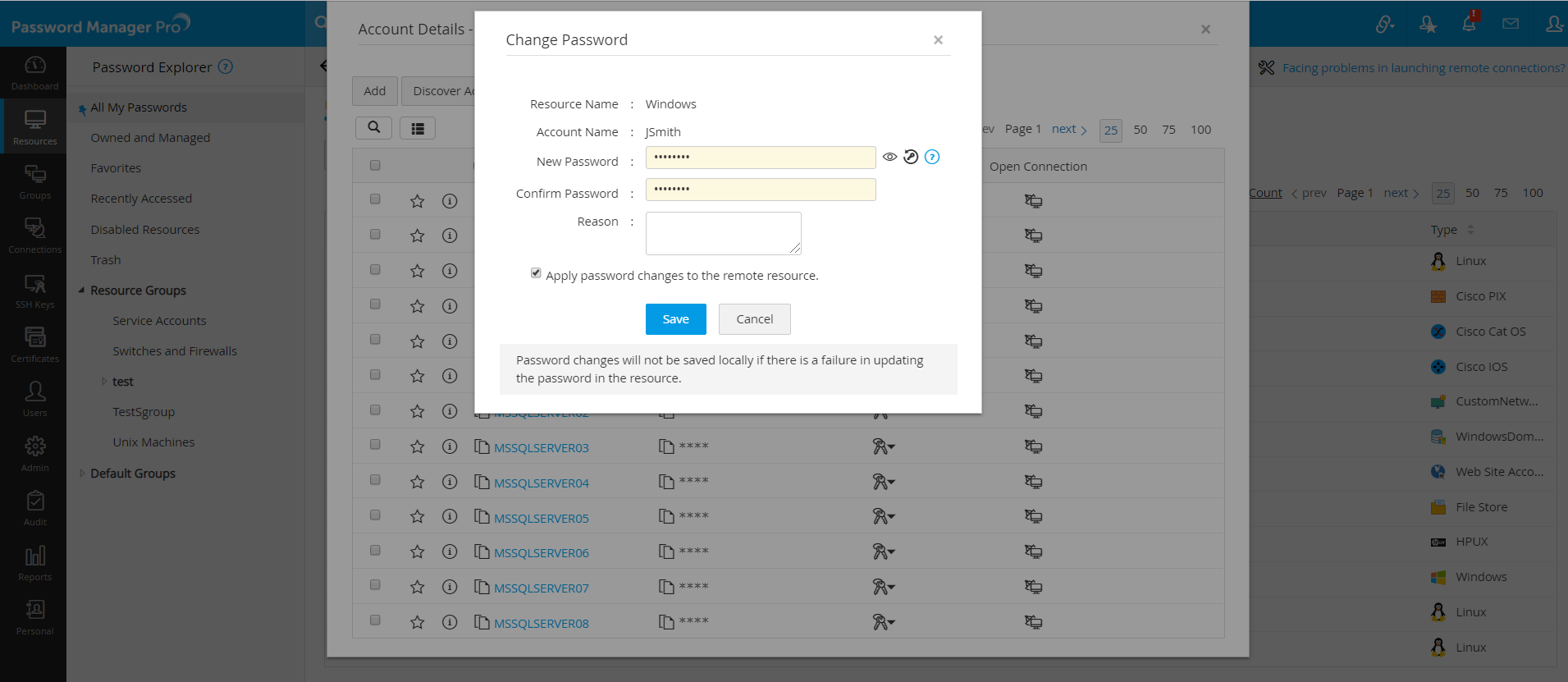
Go to 'Resources' Tab
Click the name of the resource whose password has to be changed remotely
Click the "Change Password" icon
The remote password reset and other tasks triggered by the user in PMP and awaiting execution by the agents, can be found from by clicking the icon on the top pane of the GUI. The status of the previously triggered tasks can also be known from here.
The notification icon will provide the following information:
Number of password reset actions triggered
Number of password verify actions triggered
Status of password reset action triggered earlier
Status of verify password action triggered earlier
This listing will be use-specific - that means, users get to know the status of only those tasks triggered by them.

If the password changes do not take effect in the target systems, check
if the account in which the agent is installed has sufficient privileges to make password changes
by default, the agent tries to communicate with the PMP server through the port 7272. If you have configured the default PMP port, you need to make the agent communicate with the new address.
©2011, ZOHO Corp. All Rights Reserved.