Password Policies
Password policies help you define the structure and complexity of passwords to be used. You can either make use of the predefined policies or create new policies to suit the needs of your organization. Once you define the policy, Password Manager Pro enforces that policy and reports on violations. The inbuilt password generator will generate passwords based on the policy defined.
- Default Password Policies
- Customizing Password Policies
- Creating your Own Password Policy
- Applying Password Policy to Resources in Bulk
- Enforcing Password Policy during Resource/Account Creation
- Enforcing Password Policy from General Settings
1. Default Password Policies
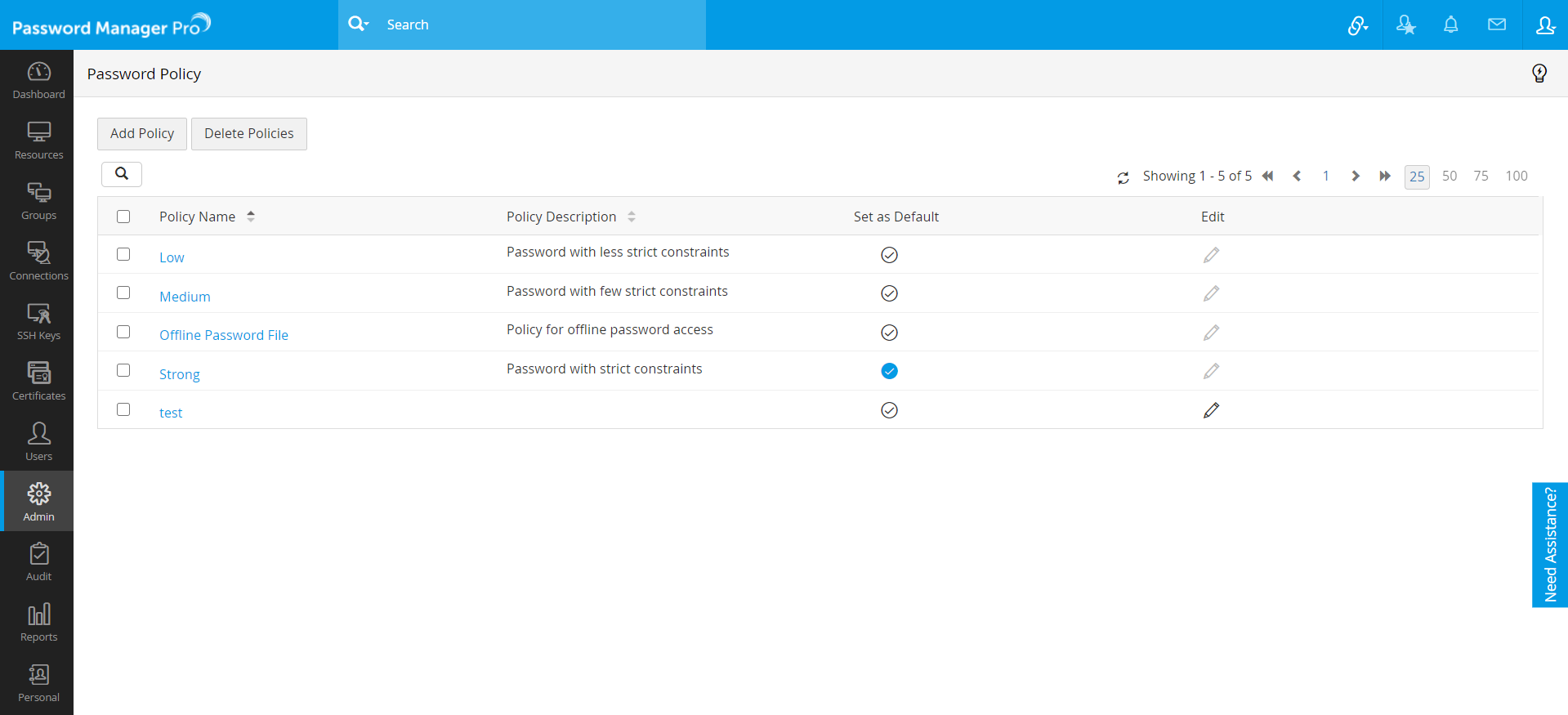
Password policy for Password Manager Pro can be centrally managed from Admin >> Resource Config >> Password policies. By default, Password Manager Pro lists four policies and these policies cannot be edited. The default password policies are:
- Low - Password with less strict constraints.
- Medium - Password with few strict constraints.
- Strong - Password with strict constraints.
- Offline password file - Policy for offline password access.
2. Customizing Password Policies
- Navigate to Admin >> Resource Config >> Password policies.
- You can select any policy as the default policy by selecting the Set as Default icon against the desired policy.
- After setting the default policy, if a user tries to change the password, the default policy will be enforced and the user will be forced to enter a password as per the policy.
3. Creating your Own Password Policy
Notes:
- From build 11100 onwards, there are changes in the default attributes for the Strong and Medium password policies. Click the red exclamation icon under 'Password Policies' to review the policy changes and choose to either Accept or Discard the policy upgrade.
- Initially, there was no password limit set for the policies. From now on, we have imposed a limit of 4-255 characters. For the existing passwords, Password Manager Pro will implement the new policy during the next password rotation.
- Initially, there was no "password should not be the same as last" limit set for the policies. From build 11100 onwards, we have imposed a limit of 0-10 previous passwords. In older build versions, if this limit is set to more than 10, Password Manager Pro will implement the new policy and set it to 10 automatically during the 11100 upgrade.
Apart from the default policies, you can also create your own password policy based on your requirements.
- Navigate to Admin >> Resource Config >> Password Policies.
- Click Add policy.
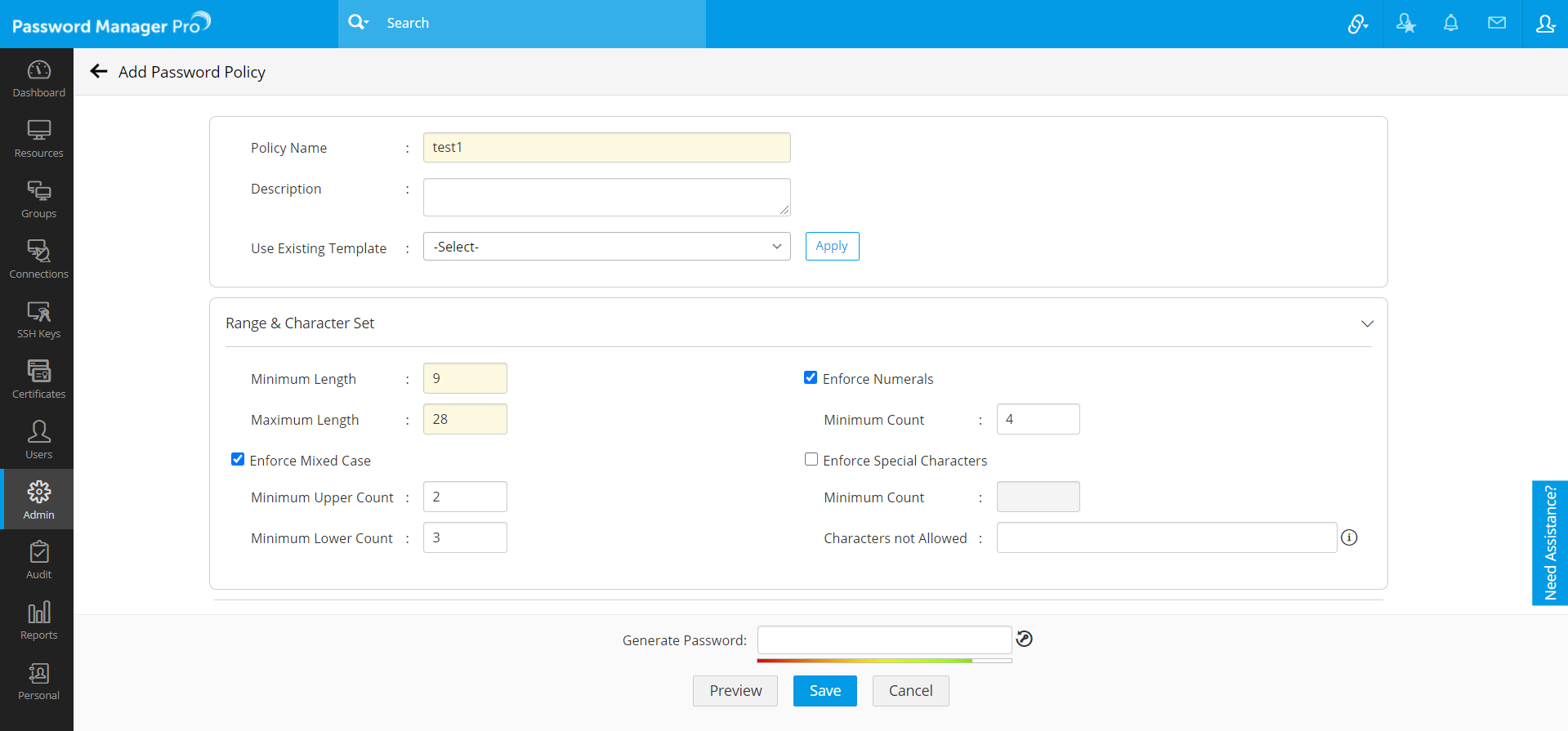
- Enter the Policy Name and Description. You can also select from the existing templates and apply them here.
- Under Range & Character Set:
- Mention the Minimum (4) and Maximum (255) Length of the password.
- Select Enforce Numerals and mention the Minimum Count of numerals to be used in the password.
- Select Enforce Mixed Case and mention the Minimum Upper Case and Minimum Lower Case letters to be used in the password.
- Select Enforce Special Characters and mention the Minimum Count of characters to be used in the password. You can also mention the Characters not Allowed in the password.
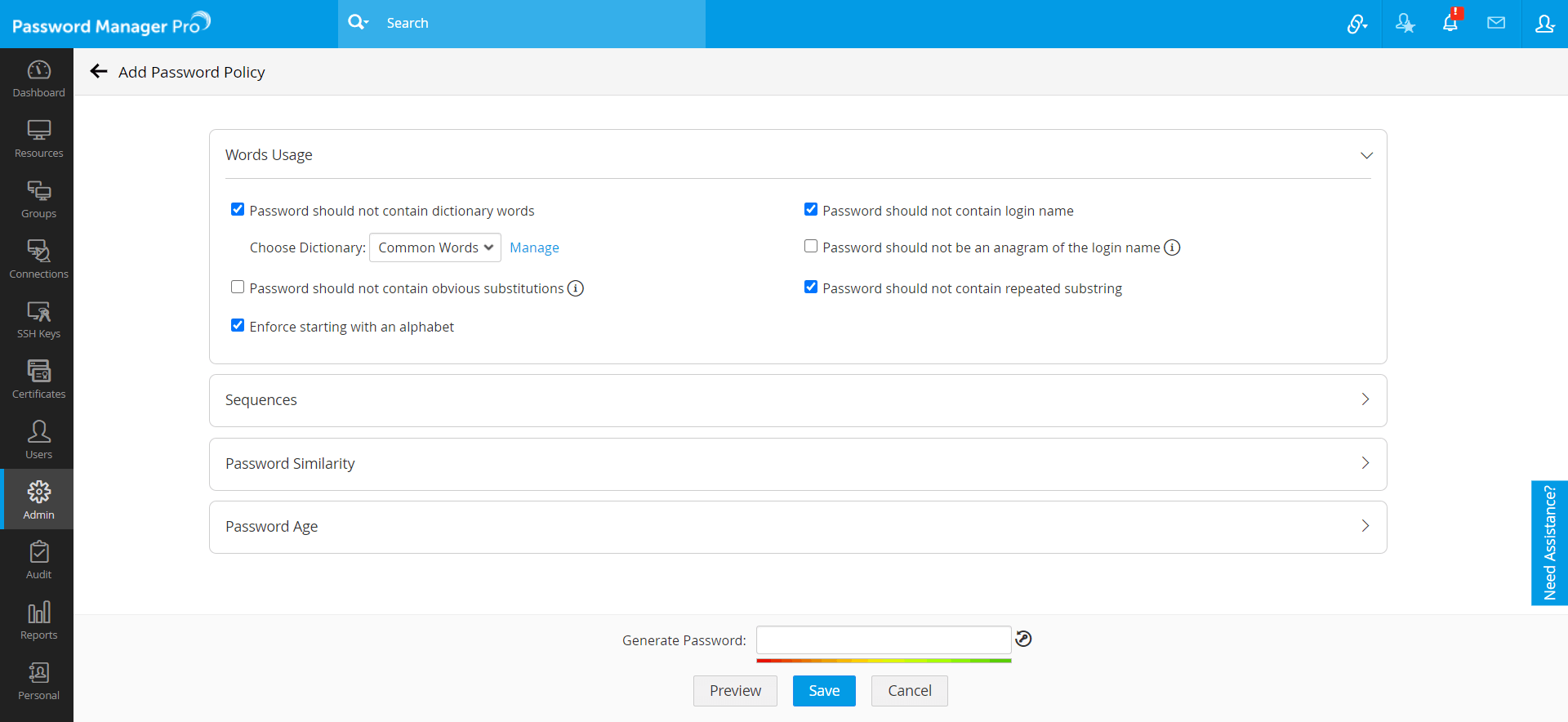
- Under Words Usage:
- Select the checkbox, Password should not contain dictionary words to not allow dictionary words as the password. Example: apple, ranger, etc.
- You can also choose from the existing dictionaries. Click Manage to manage the dictionary files.
- In the pop-up that appears, mention Dictionary name, select the dictionary file (.txt) to be imported and click Add. You can add upto 5 dictionaries. Click here to download some of the recommended dictionaries.
- Select the checkbox Password should not contain obvious substitutions to not allow obvious substitutions. Example: @pple, r4nger, etc.
- Select the checkbox Enforce starting with an alphabet to allow only the passwords that begins with an alphabet. Example: Awed28.
- Select the checkbox Password should not contain login name to not allow username as password.
- Select the checkbox Password should not be an anagram of the login name to not allow password that is an anagram of username. Example: username: admin; password: domain.
- Select the checkbox Password should not contain repeated substring to not allow password with repeated substrings. Example: testtest.
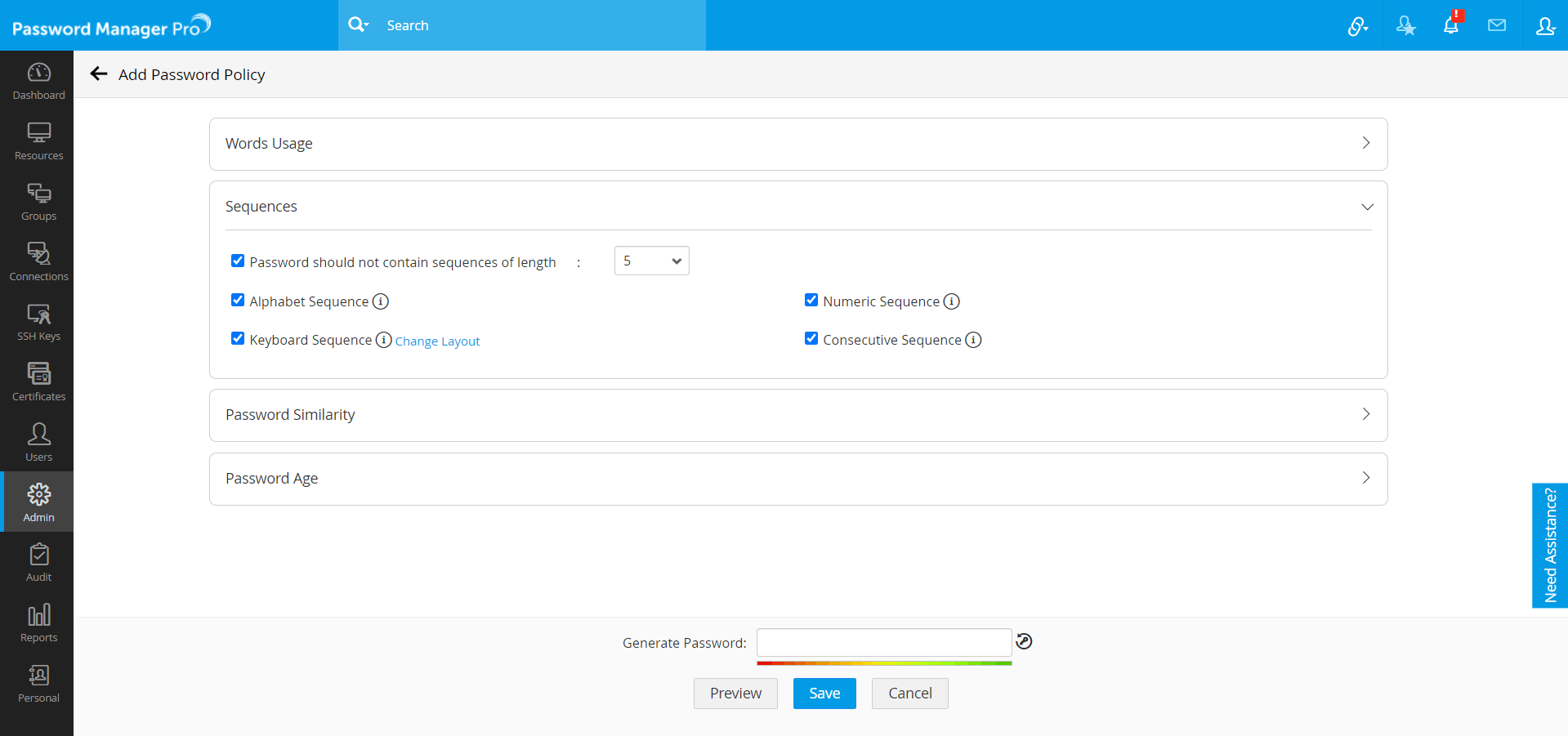
- Under Sequence:
- Select Password should not contain sequences to not allow a password with sequences and mention the sequence length.
- Select the checkbox to not allow Alphabet Sequence and their reverse as the password. Example: abcd, hgfe, etc.
- Select the checkbox to not allow Keyboard Sequence as the password. Click Change Layout to choose the layout of the keyboard. Example: qwerty, asdfg etc.
- Select the checkbox to not allow Numeric Sequence and their reverse as the password. Example: 1234,8765, etc.
- Select the checkbox to not allow Consecutive Sequence of letters, numbers or symbols as the password. Example: aaa, 111, &&&, etc.
- Under Password Similarity:
- Select Password should not be same as last to not allow previously used passwords. You can restrict upto ten (10) previous passwords.
- Select Password should not be very similar to last to not allow password similar to previously used passwords. You can check with upto ten (10) previous passwords. Example: anem28, bnem28.
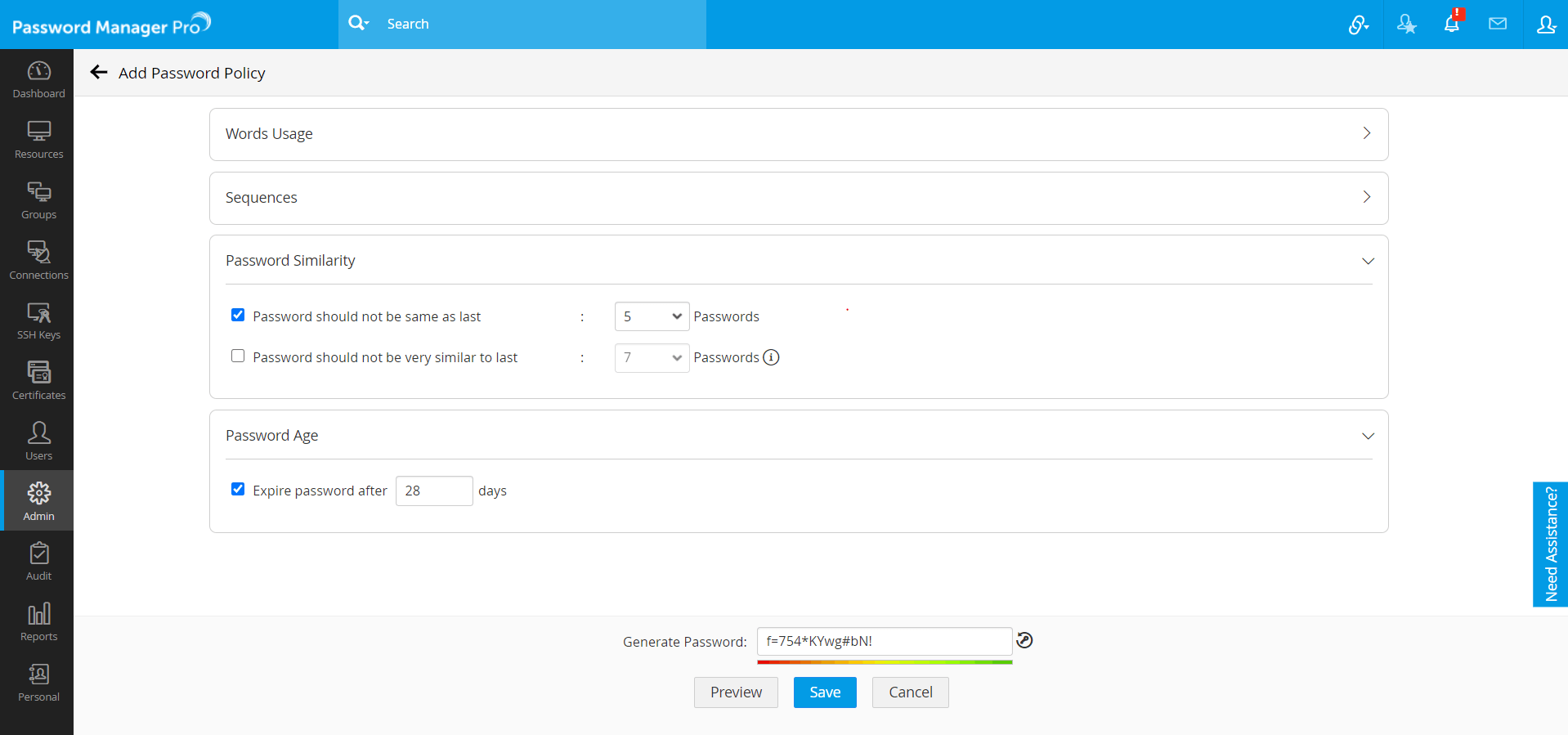
- Under Password Age:
- and mention the number of days after which the password should expire.
- Click Generate Password icon to generate a sample password with the selected constraints.
- Click Preview. A pop-up appears displaying the selected password constraints.
- Click Save.
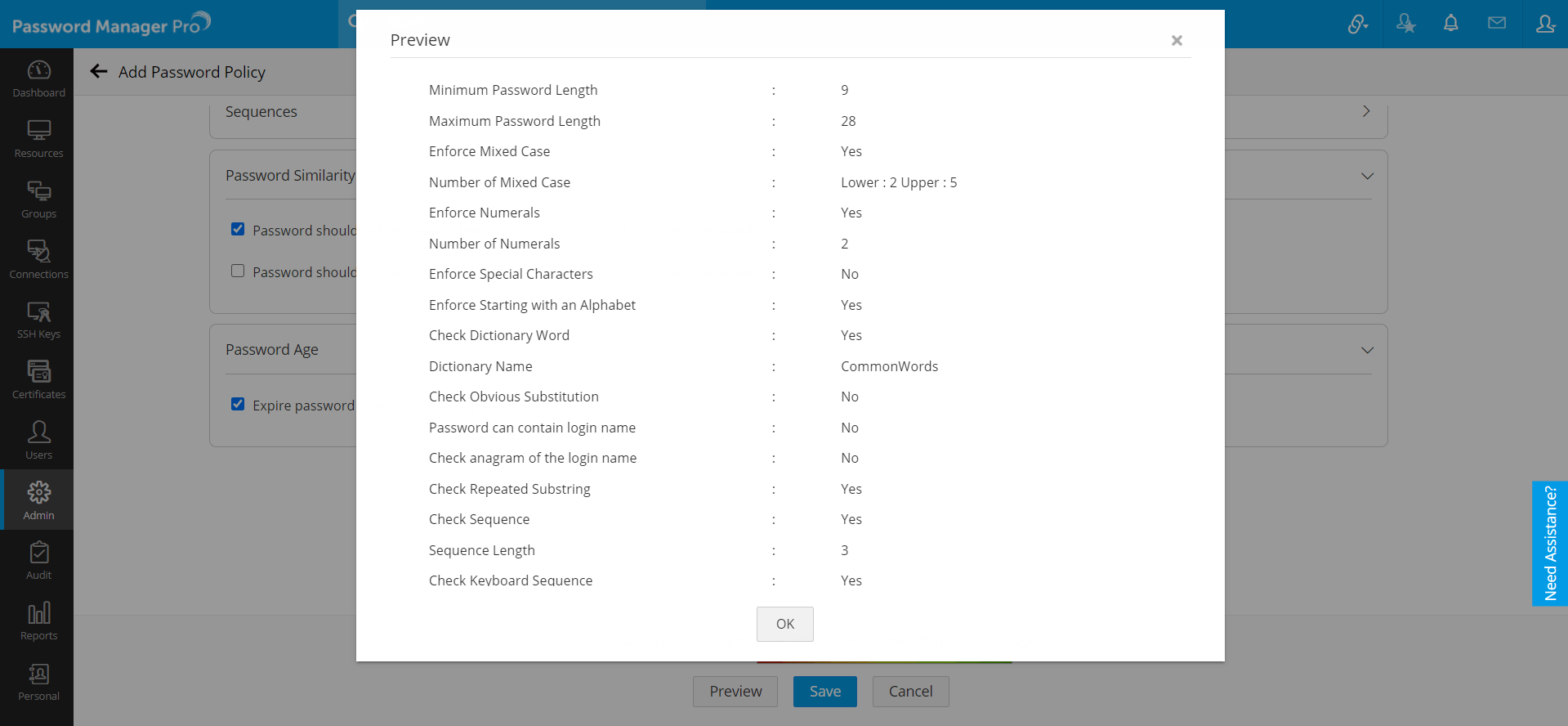
Now, you have successfully created your own password policy based on your requirement.
4. Applying Password Policy to Resources in Bulk
- Navigate to the Resources tab.
- Select the resources for which you wish to apply the same password policy.
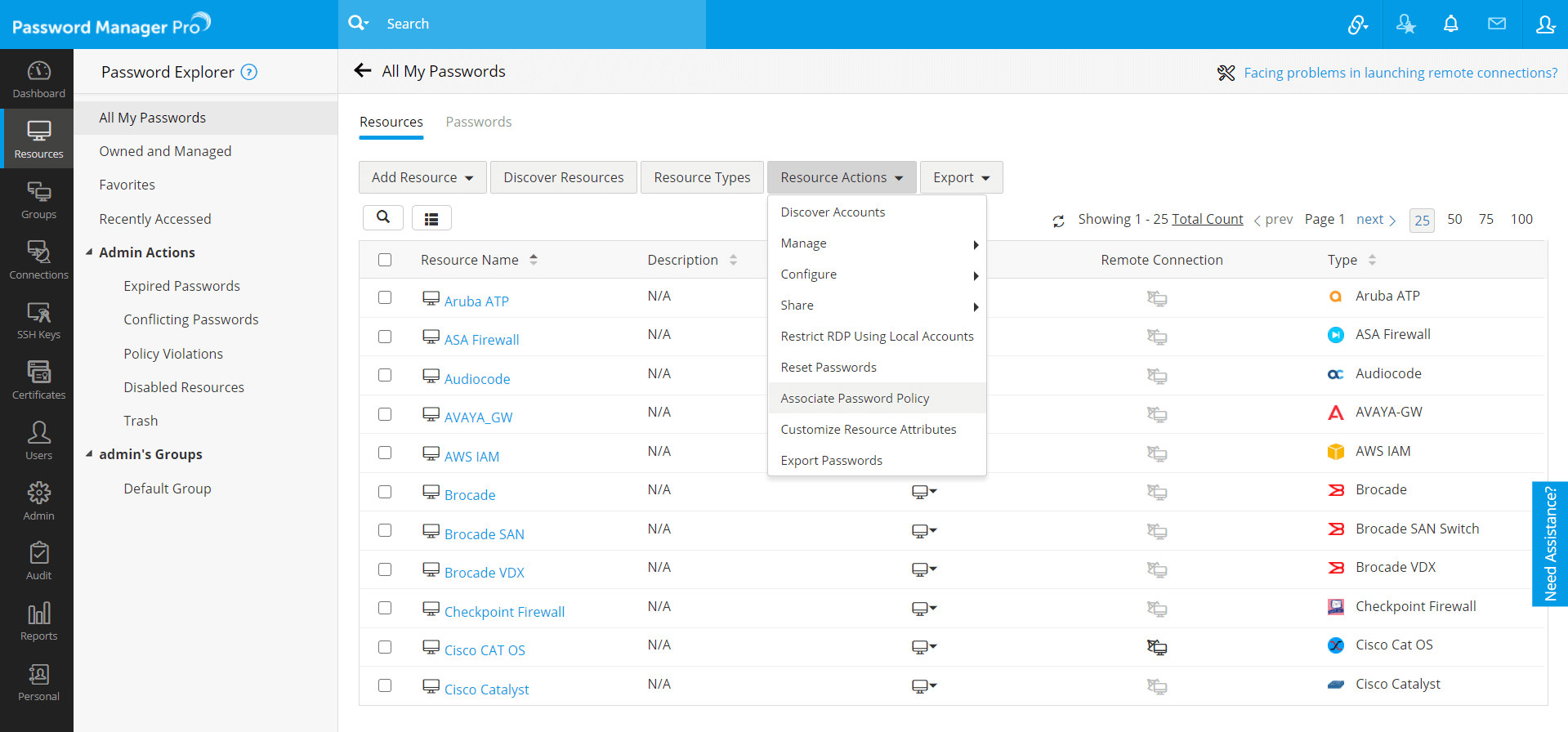
- Click Resource Actions and select Associate Password Policy from the drop down.
- In the pop-up form that appears, select a password policy to be applied to the chosen resource(s) from the drop down and click Save.
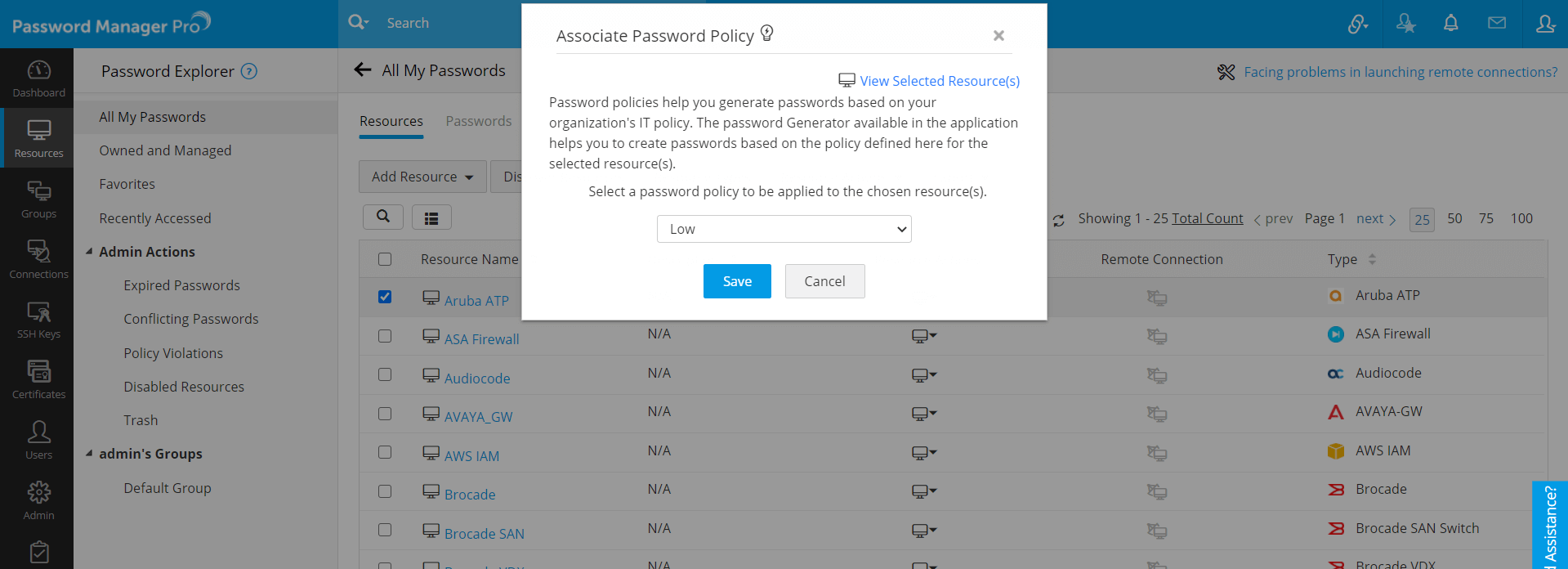
After the completion of selection of password policy, the chosen password policy will be applied to all the selected resources in bulk. In case, any of the chosen resources had already been with a password policy, this action would simply overwrite the previous policy.
5. Enforcing Password Policy during Resource/Account Creation
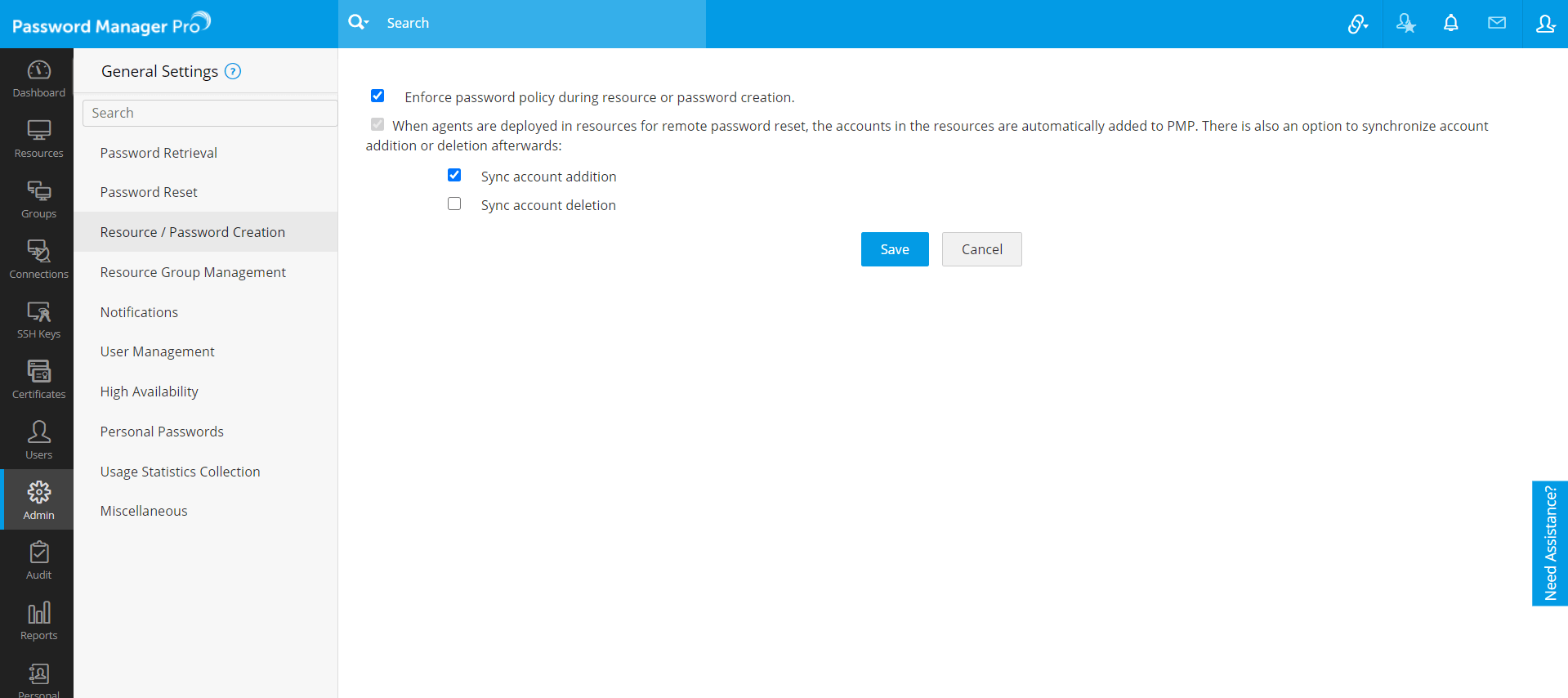
In normal scenarios, Password Manager Pro can check the passwords stored in the repository for compliance to the policy specified and report violations. If you want to enforce the password policy at the time of creation itself, you need to switch on a configuration in General Settings. To know more about general settings, click here.
6. Enforcing Password Policy from General Settings
- Navigate to Admin >> Settings >> General settings.
- In the UI that opens with a list of options, select Resource / Password Creation.
- By default password policy gets enforced only at the time of password change. If you wish to enforce policy compliance at the time of resource or account addition itself, then click the checkbox Enforce password policy during resource or password creation.
- Once you click this, you will be permitted to add your resource or account only if the password is in accordance with the policy defined.
- Click Save.