Managing Resource Groups
Resources can be grouped together in Password Manager Pro for easier management. The grouping can be done either by specifying a set of criteria or by specifying individual resources. In case of a dynamic group, i.e. criteria-based, whenever a newly added resource matches the criteria of an existing group, it automatically becomes a part of that group.
Resource groups created by the administrator users can be shared with other users or user groups. Whenever resources get added or deleted from a group, it affects the password access shared through the group. That is, users with whom a particular resource group has been shared can see passwords of only the resources that are part of the group at that point of time.
1. Steps to Add Resource Groups
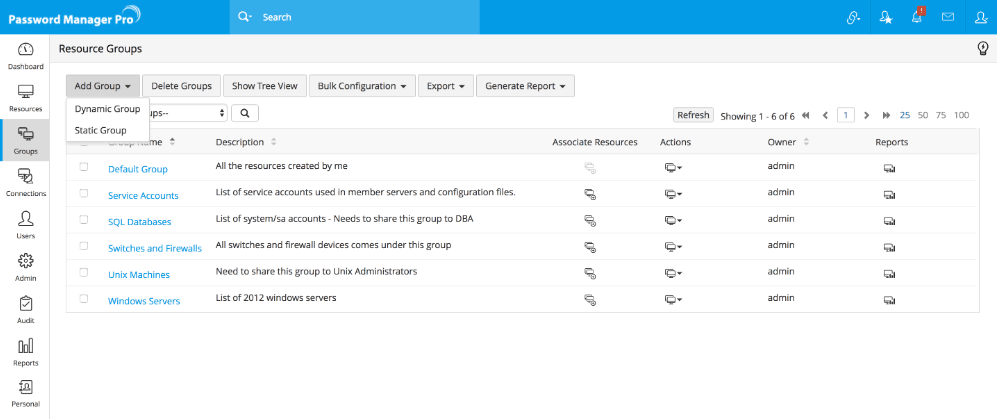
- Navigate to the "Groups" tab.
- Click the "Add Group" button.
- Upon clicking, it lists two options:
- Dynamic group
- Static group
- Choose your desired option for creating a resource group.
1.1 Adding Dynamic Group
- Select the option "Dynamic Group". In the pop-up form that opens, enter the name for the group against the text field "Group Name".
- Provide a "Description" for the group. It will be helpful for future reference.
- Select a "Password Policy" for the group
- Nested Groups: If you want to make the resource group being added as the sub-group of an already existing resource group, select the required group from the drop-down against the field "Sub Group of". The group selected by you will become the parent group for the resource group being added.
- Specify the exact criteria based on which you want to create the group. Here, you have many options to choose from:
- You can search for resources based on resource name, resource type, resource description and user accounts.
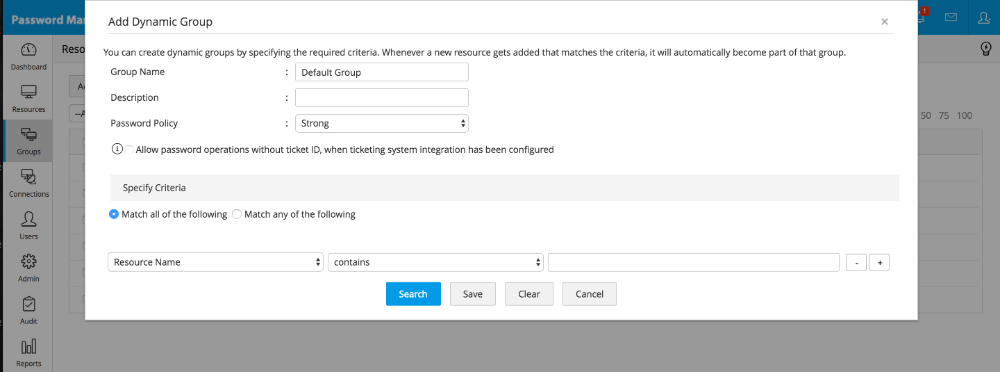
- Also, you can filter the search in fine-grained manner based on the criteria such as "contains", "does not contain", "equals" "not equal", "starts with" and "ends with"
- You can search for resources based on resource name, resource type, resource description and user accounts.
- Once you specify the criteria, click "Search" if you want to view the list of resources that will become part of this group.
- When you're done, click "Add" to add those resources to your resource group.
1.2 Adding Static Group
- In the dialog box that opens upon selecting "Static Group", enter the name for the group against the text field "Group Name".
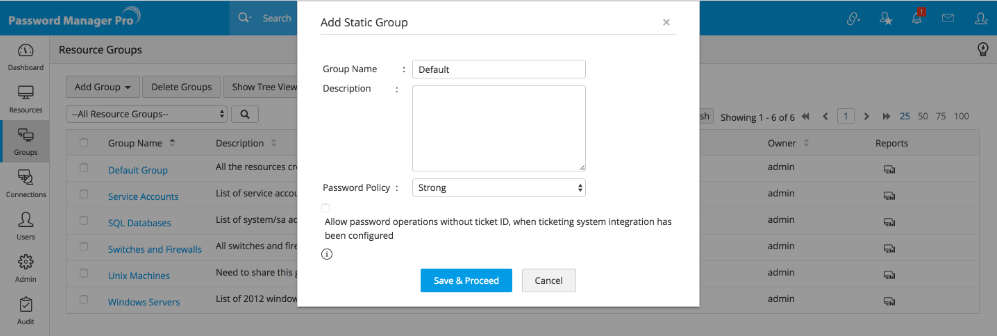
- Provide a "Description" for the group. It will be helpful for future reference.
- Select a "Password Policy" for the group. If you select "Strong" (say), it would be applicable to all the members of this resource group.
- Nested Groups: If you want to make the new resource group a sub-group, i.e. add it under an already existing resource group, select the required group from the drop-down against the field "Sub Group of". The group selected by you will become the parent group for the resource group being added.
- Click "Save & Proceed".
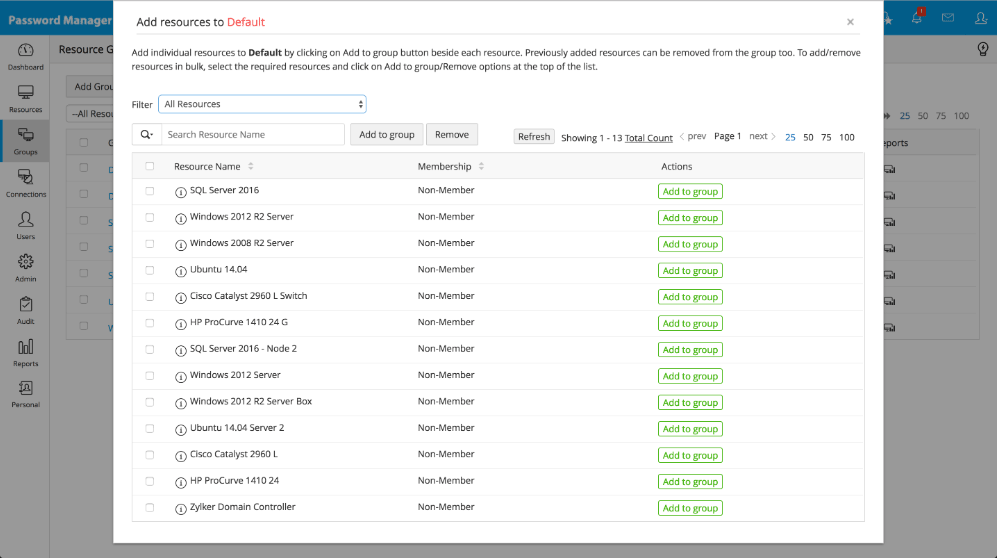
- In the pop-up form that opens, locate desired resources and click 'Add to group' against them.
- Click "OK".
2. Viewing resources
You can view the resources that belong to a particular Resource Group.
- Navigate to the "Resources" tab.
- On the left hand side, all the resource groups are displayed. Select the required resource group.
- All the resources belonging to that group will be displayed.
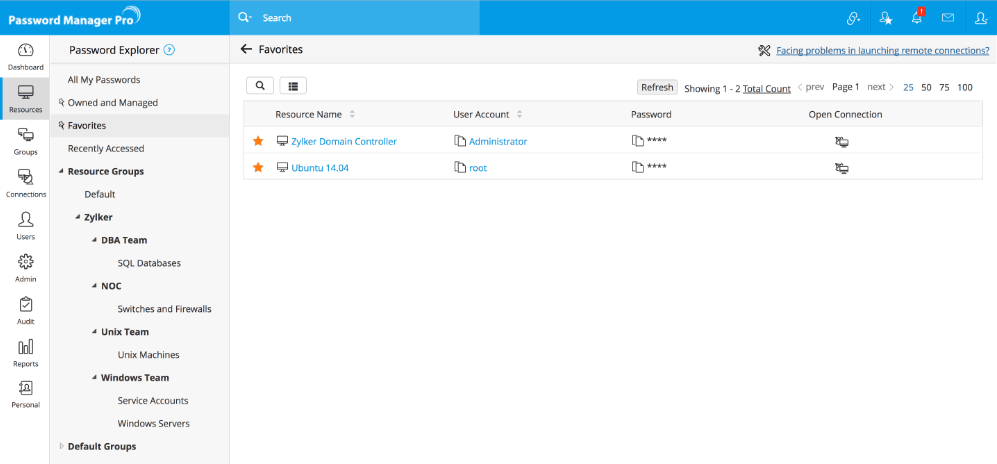
2.1 Viewing the hierarchical order of the resource groups as well the resources that are part of each respective group:
- Navigate to the "Resources" tab.
- On the left hand side, the resource groups are displayed in tree view. Select the required resource group.
- All the resources and the passwords within that group will be displayed.
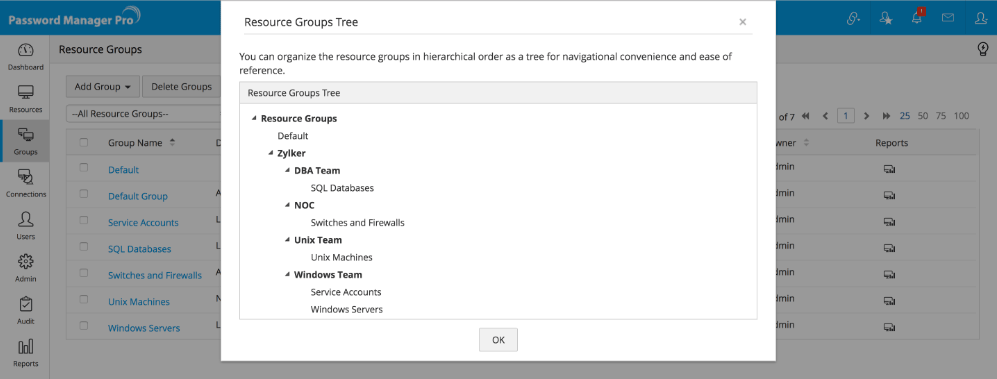
2.2 Viewing the hierarchical order alone:
2.3 Editing the name of the root node of the nested resource group tree displayed on the left hand side of Groups tab:
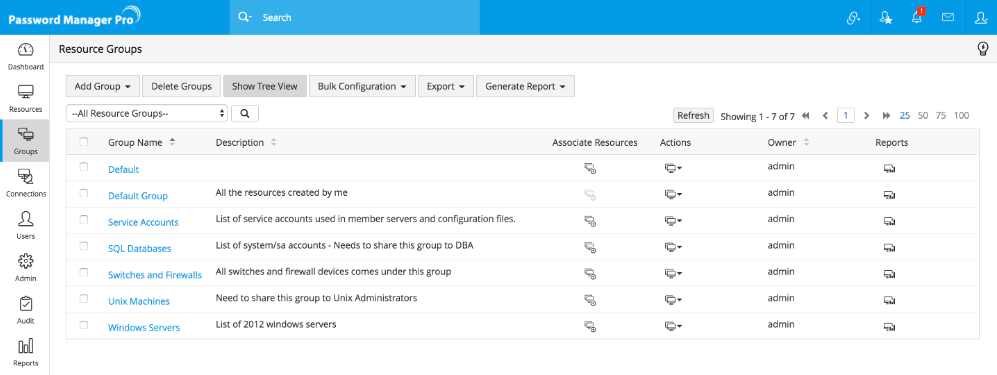
- Navigate to the "Groups" tab.
- Click "Show Tree View" button displayed at the top of the resource groups listing.
- in the UI that opens, click the "Edit" button present near the filed "Root Node Name". After making necessary changes, click "Update".