ManageEngine QEngine

Load Testing and Functional Testing Tool

 
Product End of Life Announcement

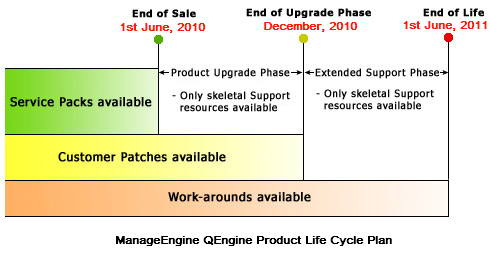
Currently we have changed the product strategy of QEngine and have announced Product End of Life Cycle. Know more »

Some of the capabilities have been ported in to ManageEngine Applications Manager:

Thank you for your patronage.


Script Maintenance Techniques

Maintaining scripts is critical in test automation. If you're implementing UI automation for a product and if the UI changes infrequently, then is a nightmare. There are a few techniques you can use to handle these UI changes. My colleague Raghavan, wrote a white paper some time ago and I've blogged about that in our blogs. This document will consolidate all the techniques and will be updated as and when new ideas come in.

Record and playback testing

First, let us see, how a typical record-playback UI automation works. The test plan will be prepared. Test script or test case will be written. Either the test case has been completely recorded or most of it will be recorded using the record mode. This will stay in the software as a test script file. Necessary checks will be added either during recording or after. The test script thus created will be played back when necessary. The results will be compared. Fine details such as creating a test suite, how to order the test scripts, etc. are also there.

Issues with Record and Playback Approach

One of the main issues with record and playback will be maintaining the test scripts and suites even if the UI changes. In the traditional approach, this is not difficult, but impossible to do. Even if one element changes, you need to change multiple scripts or suites. If multiple elements change across the suites, the entire suite may needs to be recreated.

When the recording is done, we may need to re-record the already recorded actions or copy and paste the already recorded actions. Copy and paste is one worst code-writing methods. If we take the automation is writing a software, then we can apply the techniques used to maintain other software.

Here are the techniques that need to be used:
  1. Create functions using recorded actions and use them.
  2. Have the flow as a separate function rather than in the test script itself.
  3. Have the element in the script/function instead of object repository.
  4. Use regular expressions in the functions
  5. Use minimal vendor scripting, maximize the standard functions.
  6. Separate data and script. Don't hard code the data inside the scripts.
  7. Use Index and other extractable info from the page instead of hard coding the data.

Let us discuss all the things one by one in an elaborate way.

1. Create functions using recorded actions

Here is a simple test script for entering the user name and password recorded by QEngine

launchApplication(“”) # launches a web browser with the given URL
setWindow(“Login”,2) # set the document for playback
setText(“username”,”qengine”,2) # set username in to the username text field as “qengine”
setText(“password”,””,2) # set password in the text field
clickButton(“login”,2) # click the button to login

You can create function for this as shown in the below example:

from Framework import *
def login(username,password):
launchApplication(“”)
setWindow(“Login”,2)
setText(“username”,”qengine”,2)
pwd = getEncryptedValue(password)
setText(“password”,pwd,2)
clickButton(“login”,2)

The above function will take user name and password and log in to the application. You can define this function in a file called custom.py located under /QEngineWebTest\jars folder. In the QEngine script where it requires to log in to the application, simply call the above function as shown below:

from custom import *
login(“qengine”,”qengine”)

This will perform the login operation in the web application. You can use this login function wherever you need to login.

2. Separate the flow and functions

Before I explain what the title means, let us have a look at how normal recording happens. Here are the steps to create a test script w.r.t to QEngine

  1. Create New Suite named Test
  2. Create New module in that suite if needed
  3. Create New Script named TestScript
  4. Record the steps in TestScript.
  5. Playback when needed.

Looks cool. Say, we have 100 scripts in that Test Suite. Playback is not an issue. Assume that one element changed in the UI. Now, we need to check and edit all the 100 scripts. This will neutralize any gains made using test automation.

Here is the new model

  1. Create New Suite named Test
  2. Create a python file for UI functions named UIFunctions.py
  3. Create a python file for script flow named ScriptActions.py
  4. Create New Script named as TestScript
  5. Record or use export mode for recording the scripts. Create functions using recorded actions. Store the functions in UIFunctions.py
  6. Call the functions needed in ScriptActions.py.
  7. Call and import the script flow in TestScript.
  8. Playback.

In this approach, if anything changes we need to modify in two files. Let us see this with examples.

Content of UIFunctions.py

from Framework import *

def clickthisbutton():
setLastWindow()

def clickthislink():
setLastWindow()

def function1():

..........
.........
.....

Content of ScriptActions.py

from UIFunctions import *

def Script01():
clickthisbuttion()
clickthislink()

def Script02():
clickthislink()
clickthisbutton()

def Script03():

def Script04():

..........
.......
.......

Content of TestScript01

from ScriptActions import Script01

Script01()

Content of TestScript02

from ScriptActions import Script02

Script02()
.......
.....

In this approach, there is no need to edit the script files even though they can be edited in the text editor. The files have .wcs extension and located in /QEngine Home/projects//webscripts/ folder.

If the UI changes, you need to either edit UIFunctions.py or ScriptActions.py or both. If needed you can use a macro to replace the changed parameter.

This approach combines the advantage of Scripting with Playback. If you wish, you can use the text editor or IDE to edit the python files.

3. Have the element in the script/function instead of object repository

As most of pages have dynamic content, the number of pages for any web hosted software keeps on increasing. How do we tackle this issue?

My solution is simple. Get rid of the Object repository or reduce the number of objects stored in that to the minimum(subjective). Is that possible? May be.

You can do that with the following functions present in QEngine.

fireEventOnChildElement(tagName,propertyName,propertyValue,
index,identifier,actionName,actionValue='',childpropname='',
childpropval='',childindex=1,childRegExp='false',parentRegExp='false')
fireEventOnElement(tagName,propertyName,propertyValue,index,actionName,
actionValue='',regExpRequired='false')
fireEventAtPosition(title,classID,xCoord,yCoord,actionName,actionValue='',waittime=1)
fireEventOnObject(classID,type,xCoord,yCoord,actionName,actionValue='')

In these functions, property of the object has been stored in that python/WCS file. So, there is no need to read from another file during the time of playback. That will improve the performance to a great extent.

Once we embrace the idea of removing the object repositories from the automation, we can solve few issues too.

Say we need to click on the "Add This", what are the options we have?

clickElement("Add This",1)

Here is the property of "Add This" stored in object repository.

fireEventOnElement("ID","addthis","Add This",1,"Click","NONE","false")

Here is the property stored in the python file.

fireEventOnElement(".*","innertext","Add This",1,"Click","NONE","true")

Here the property is stored in the python and if anything changes in the tag or property of the object except innertext, this function will be played. Why only innertext? Inner text will be the one exposed in web page which means if the function didn't play back, we can identify that easily.

What about the index or if more than one "Add This" is present in the page?

If we know that index of those "Add This", we can write that function based on that. If more "Add This" gets added in future, we can use

getElementProperty(tagName,propertyName,propertyValue,index,propertyNeeded,regExpRequired='false')

A simple loop like one below can check that.

i=1
while i:
   value=getElementProperty(".*","innertext",".*",i,"innertext","true")
  if value=="Add This":
maxvalindex=i
i=i+1
else:
break

Using getElementProperty you can get the if any Add This property has been added and plan accordingly.

4. Use regular expressions in the functions

In this part, we can see how we can use regular expressions to maintain the scripts.

Here is the function to get the DOM property of a element,

getElementProperty(tagName,propertyName,propertyValue,index,propertyNeeded,regExpRequired='false')

You can click on the element using the following function,

fireEventOnElement(tagName,propertyName,propertyValue,index,actionName,actionValue='',regExpRequired='false')

Here
tagName = DOM tag name such as TD,IMG,SPAN
propertyName= Property of the tag which is used such as Name,ID
propertValue= Value of the property.

First find the values in the page using getElementProperty,

getElementProperty("A","href",propertyValue,index,"href",regExpRequired='false')

Here the propertyValue is the one we don't know and that one we need. How to get this? Simple, use regex to get any value in href property.

getElementProperty("A","href",".*",index,"href","true")

Now this will match everything in that property and entire string. Let us call this in a loop and get the values as an array.

i=1
while i>0:
   values=[]
   setLastWindow()
  property=getElementProperty("A","href",".*",i,"href","true")
  if property is not None and property!='':
   values.append(property)
    i=i+1
   else:
   i=0
return values

Now use the values in the fireEventOnElement function

for i in range(0,len(values)):
setLastWindow()
fireEventOnElement("A","href",values[i],i,"click","NONE","false")

You can also concatenate the web URL if the value is relative.

for i in range(0,len(values)):
setLastWindow()
url=""+values[i]
fireEventOnElement("A","href",url,i,"click","NONE","false")

5. Use minimal vendor scripting, maximum standard functions

Every automation software may come with its own custom defined functions called as vendor scripting. Using them may be headache in a medium-to-large product. Try to minimize the use of those and write your own scripts when necessary. QEngine offers Java and Python, so no need to worry on that front.

6. Separate data and script. Don't hard code the data inside the scripts

Every developer knows that mixing data in the code will make the code unmaintainable. If so, why do we need to do that in automation. Use the functions. Either you can feed the data as input of the functions or import from csv or database. This will ensure you can maintain the code in an easier way.

7. Use Index and other extractable info from the page instead of hard coding the data

This is another area where usually an issue occurs. For example, when the page has dynamic links and that links will appear depend upon other factors, you need to use index based approach rather than feeding the data. For example, if you want to click on two links named A and B. You can record and playback. However, if the order of the links changed for the next run, the playback won't occur. If we use the index based approach, this issue can be averted.

I hope these techniques will help you in using QEngine in a better way.