How do I unlock my account?
ADSelfService Plus verifies your identity though multiple authentication techniques before you're able to unlock your account.
- Your admin decides which set of users can unlock accounts using ADSelfService Plus.
- Make sure you have enrolled for the verification methods configured for your account before you attempt to reset your passwords or unlock your accounts. For details on the enrollment process, click here.
- Access ADSelfService Plus through a web browser. Click Account locked down?.
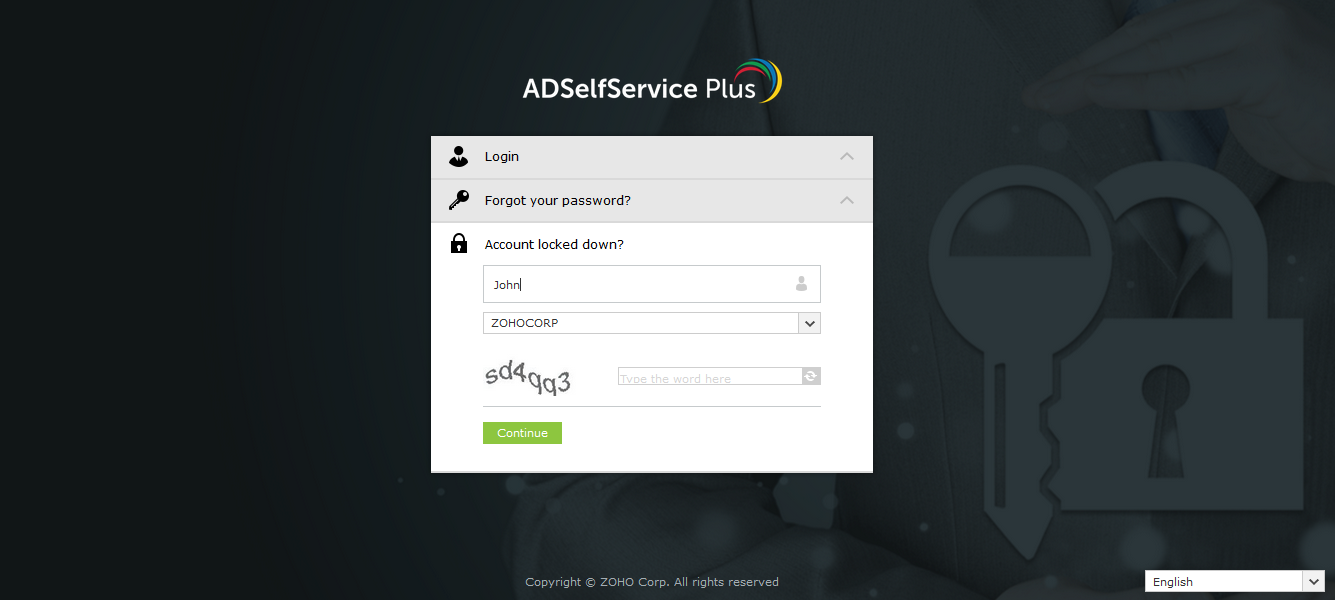
- Enter your Username. Select a domain from the drop-down menu. If your admin chose not to display the domain field, it will not be visible to you. You can simply continue to the next step.
- Enter the CAPTCHA verification code and click Continue.
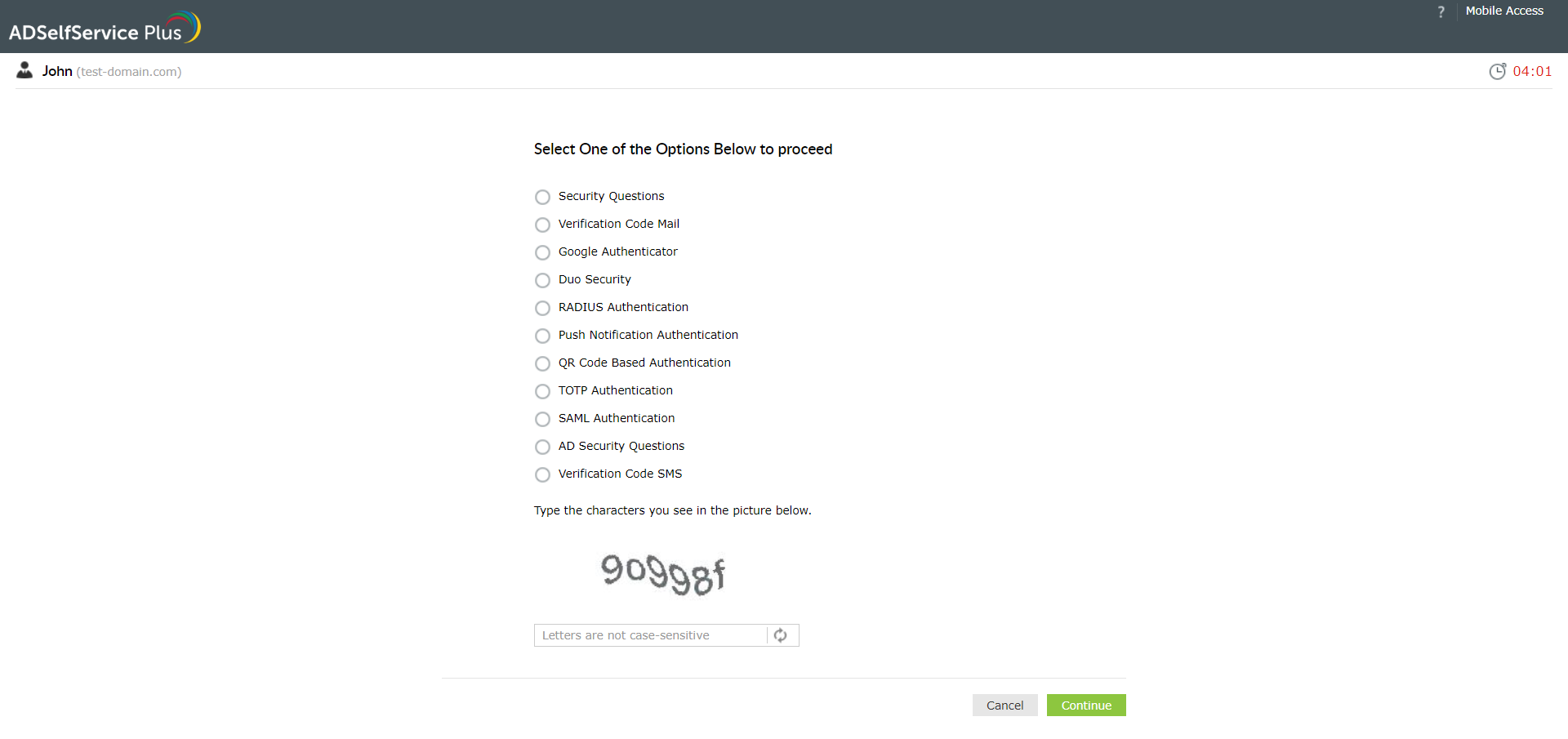
- In the window that opens, select the desired authentication techniques, enter the CAPCTHA code, and click Continue.
Unlock an account from a mobile device
ADSelfService Plus allows you to unlock your account from an Android or iOS mobile device.
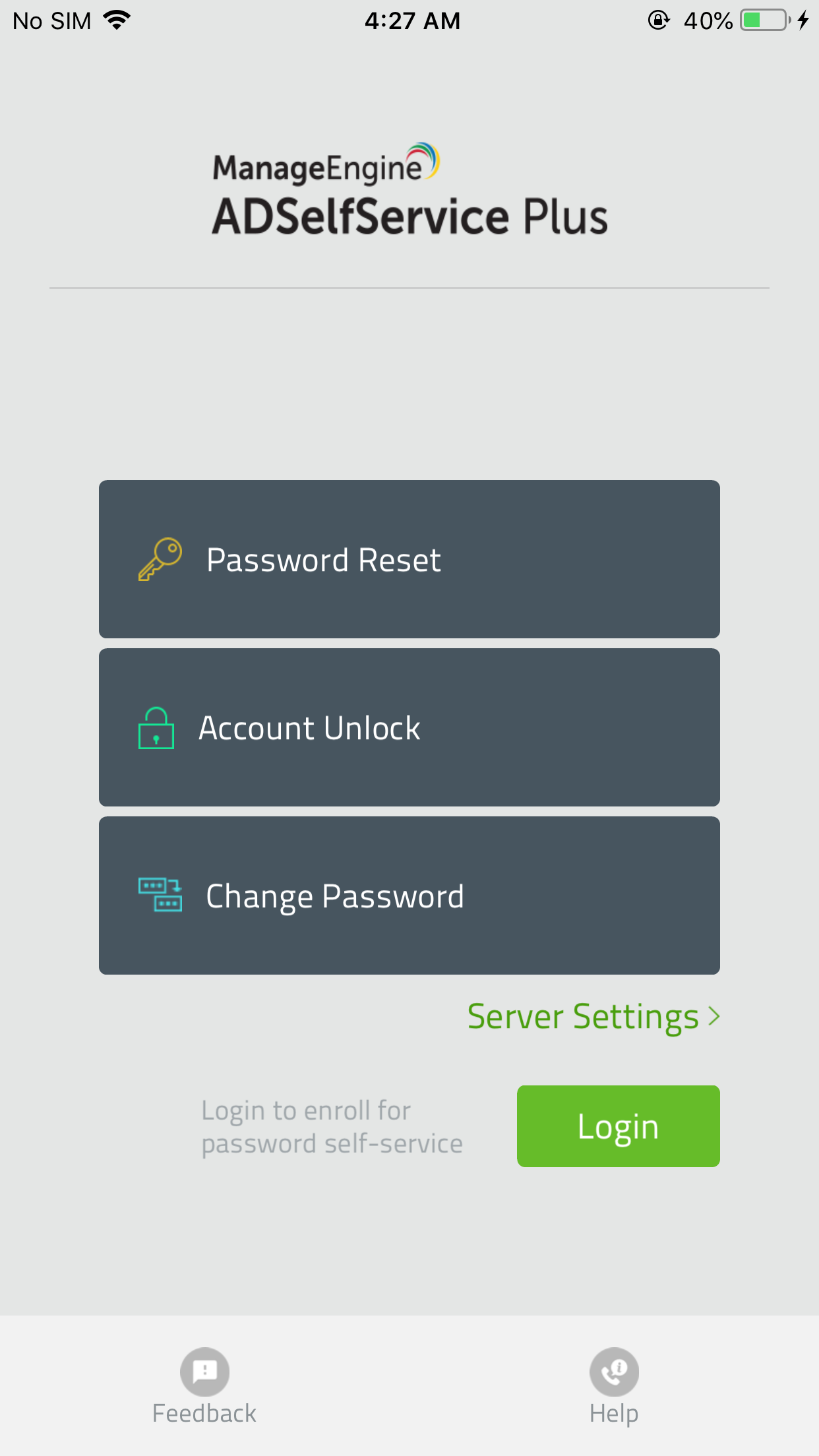
- In the ADSelfService Plus mobile app, tap Account Unlock.
- Enter your Username. Select a domain from the drop-down menu, and select Next. your administrator chose not to display the domain field, it will not be visible to you. You can simply continue to the next step.
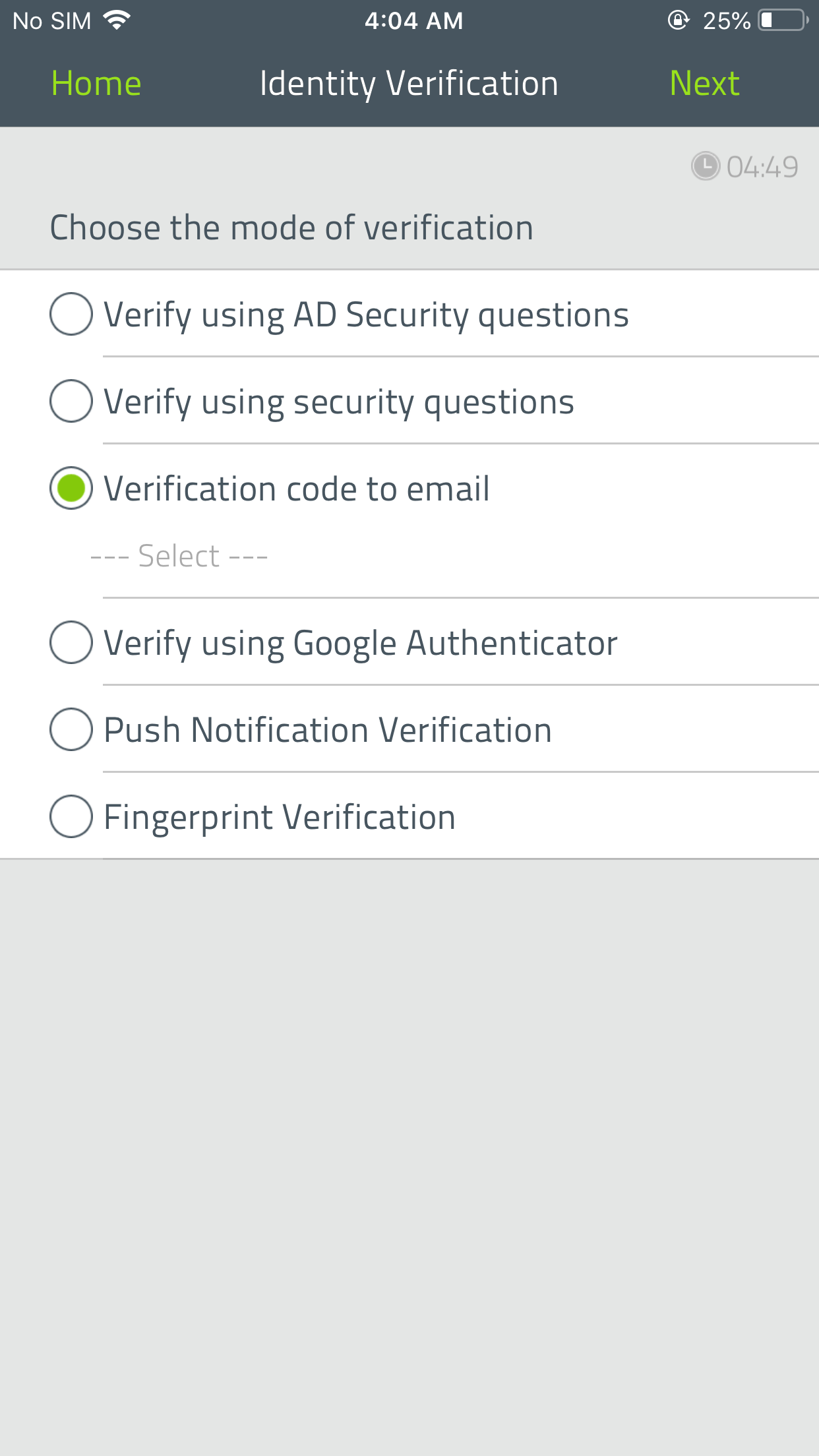
- Verify your identity based on the multi-factor authentication technique configured by your admin.
- Select Unlock.
Unlock enterprise app accounts
ADSelfService Plus allows you to securely unlock your enterprise application accounts.
To unlock an enterprise application account, simply select your respective account on the Unlock Account page of ADSelfService Plus and verify your identity. Click here to learn more about verifying your identity via enforced multi-factor authentication techniques.
You can also choose to unlock the accounts of multiple enterprise applications in one go.
Important:
- Before you can unlock your account in an enterprise application, you need to link your Windows Active Directory account with that account. Click here to learn more.
- Only your admin decides which users can access this feature.
- You can unlock your Active Directory account from the login screen of Windows, macOS, or Linux. Click here to learn more.
 ADManager Plus
 ADAudit Plus
 Exchange Reporter Plus
 M365 Manager Plus
 Previous Topic