Network Administrators always find themselves in tricky situations when finding the exact cause of user complaints. The number of contributing factors to any application slowness is well beyond that which can be contained in a manual/journal/whitepaper/best practices guide. But the unanimous thought on every network expert’s mind is the need for an integrated network and applications performance management tool. A tool which can tell you how long a database query took over two branches geographically distant, of this delay how much the inherent network latency contributed to, how much time the query took to process at the database end, how was the database CPU utilization at that point of time etc.
ManageEngine now brings together, over a single User Interface, the power of two products – the OpManager and the Applications Manager using a simple Network Monitoring connector in-built with the Applications Manager software. Along with application and database performance details, using the Network Monitoring connector one can now access health, availability and performance statistics of network devices monitored by a seperate installation of OpManager. The connector allows an administrator to form a monitoring group that includes applications, databases, Java transactions, servers, services, network links, switches, routers and any other associated devices/application that form part of a business service group e.g. the ERP system.
With the combined solution, you will never have to play(dread!) the blame game again. Register here for free technical support and consultancy during your evaluation.
User Scenario
Troubleshooting Connectivity Problems on Business-critical web Applications
A leading five star hotel uses Applications Manager to monitor and maintain high uptime of its application servers, databases and web services. The hotel has recently also deployed ManageEngine OpManager to monitor health and performance of all the network devices present within premises and over WAN as well. The IT Manager has been constantly worried about occasional peak-hour connectivity problems of the customer reservation web application. After commissioning the Network Monitoring connector over Applications Manager, he now hopes to zero in on the problem.
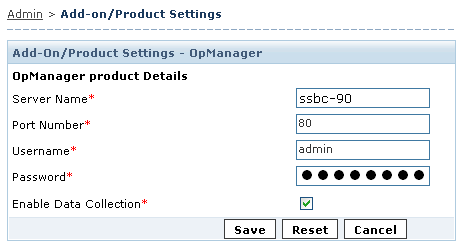
As the first step, the system admininstrator provides the relevant OpManager server details so as to have the Network Monitoring connector establish the required one-to-one connection. The admin can now scan for various devices through OpManager and quickly export them to the Applications Manager interface.
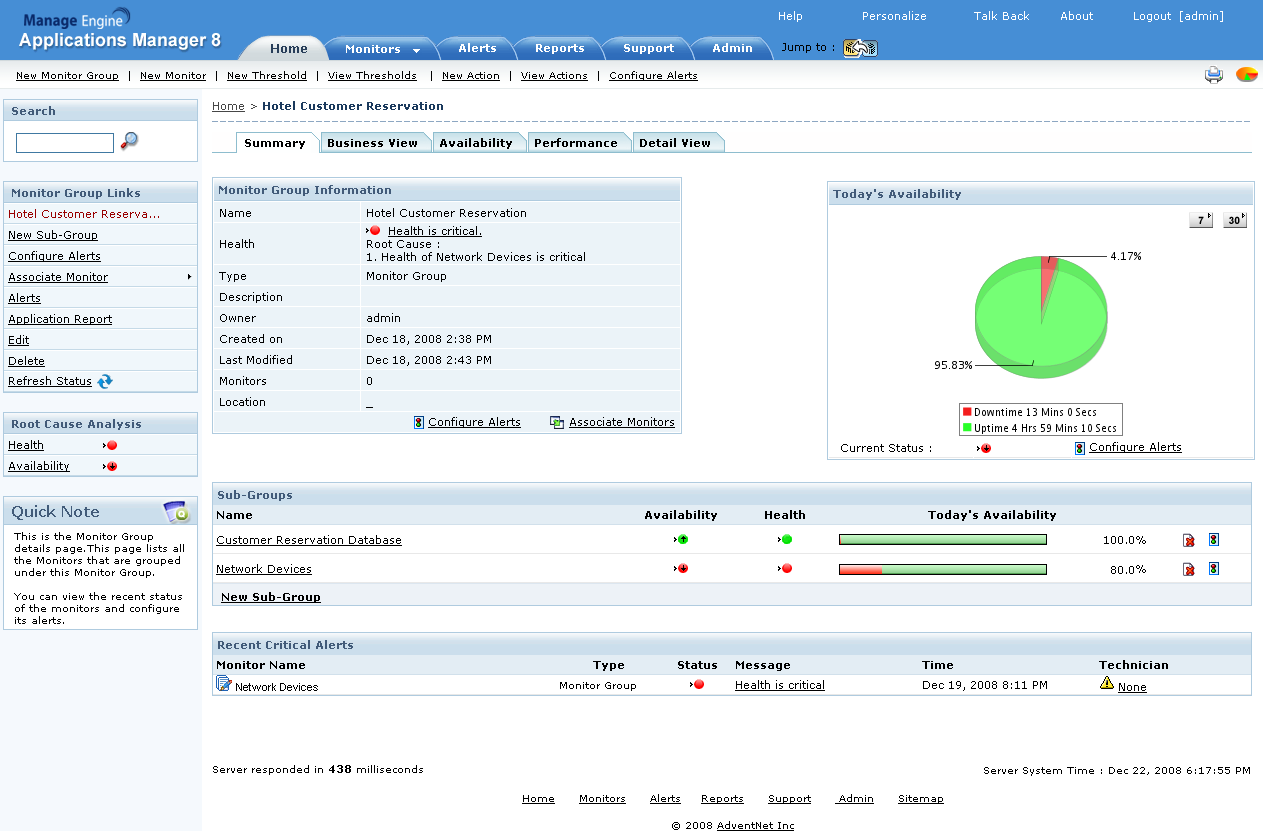
He then creates a separate business service group - “Hotel Customer Reservation”, for his online customer reservation web application. This business service group has two different sub-groups; one for the application tier and the other for the network tier.
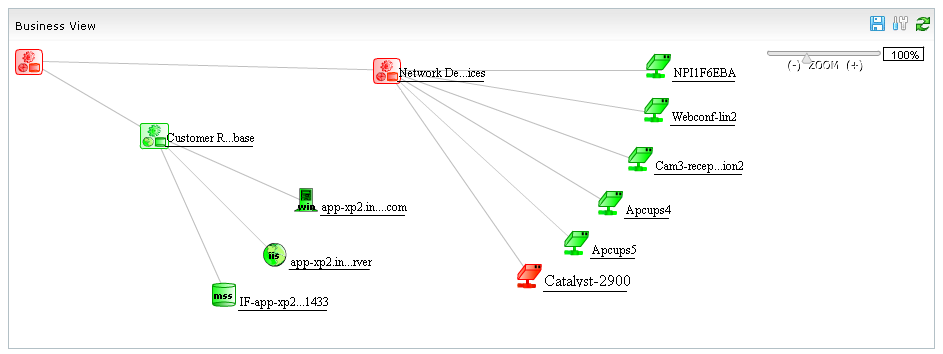
As usual, as the peak morning hours approach the customer reservation application starts having ‘time-out’ problems in addition to occasional slowness. The application and the databases show considerable traffic but are up and running without any problems as observed always through Applications Manager. Since the created business group now includes also associated network devices, the admin is this time alerted on poor performance in the business group. He drills down to view the business service group.
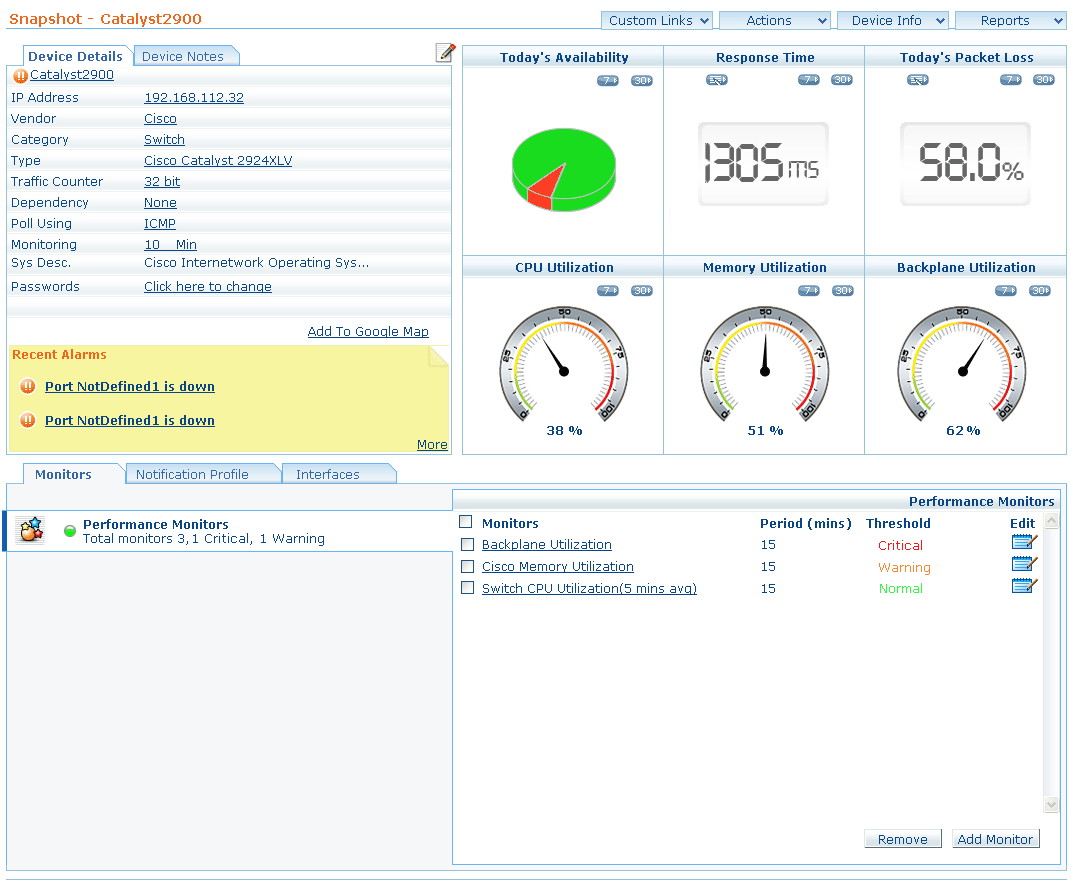
He identifies poor performance in the associated network devices and zeroes in on a switch serving the customer reservation front-end machines. The device snapshot brought in from OpManager is immediately accessed with a single click to reveal excessive backplane utilization. The high peak traffic gave way to considerable traffic congestion and high backplane utilization. The resulting high packet loss caused intermittent connectivity at the customer-serving machines in the LAN.
Outcome: The IT admin resolves the problem by upgrading to a higher capacity switch. With integrated applications and network performance monitoring, the admin team is now exposed not just to problems related to the application tier but also important network-related conditions, thus helping resolve application performance problems rapidly.
Download
Download Applications Manager(has in-built the Network Monitoring Connector) and OpManager.
ManageEngine® Applications Manager is a comprehensive asoftware pplication used to monitor heterogeneous business applications such as Web applications, application servers, Web servers, databases, network services, systems, etc.
2. What is OpManager?
AdventNet ManageEngine® OpManager is a complete, end-to-end Network & IT infrastructure monitoring platform that offers advanced fault and performance management across WAN, VoIP services, network devices, servers, applications, databases and other IT infrastructure such as printers, UPS etc.
3. Why should I try a combination of Applications Manager and OpManager?
While Applications Manager gives complete visibility on performance of applications, associated servers, services, databases, Java transactions etc, OpManager provides out-of-the-box monitoring of health, availability and performance of your network and associated network devices. The combination of the two products would give comprehensive insight into application performance problems - both at the application level and at the network level.
4. What is the Network Monitoring Connector?
The Network Monitoring Connector enables a user to view and monitor the availability and performance of applications, servers, databases and network devices such as routers, switches and firewalls - all from a single web console. It imports devices from OpManager and gives the user a unified monitoring console for their business serving applications and associated IT infrastructure.
5. Is the Network Monitoring Connector a separate download file?
No, the Network Monitoring Connector is not a separate downloadable file. This feature is in-built in the Applications Manager software(8.4 version onward).
6. How do I enable Network Monitoring Connector?
First, you need to download both Applications Manager and OpManager to be able to use the Network Monitoring Connector. This feature is enabled by default in Applications Manager for a period of 30-days. Once you have installed and configured Applications Manager and OpManager, you can activate the Network Monitoring connector by providing relevant details of the server in which OpManager is installed and configured. Consult the help guide for details on configuration and usage:
7. I am an existing customer of Applications Manager. How do I get the latest Network Monitoring Connector add-on?
You first need to ensure that you have an upgraded version of Applications Manager. You need to upgrade Applications Manager to 8.4 or above to use the Network Monitoring Connector. The Service Packs page has the upgrade packs for Applications Manager. In case you need an evaluator version of the Network Monitoring Connector, you can send us a request at appmanager-support[at]manageengine[dot]com and we will send you the required evaluation license.