

- Overview
- Configuration
Freshdesk
Simplify Freshdesk access with ADSelfService Plus integration
Freshdesk is a customer support and help desk software that helps organizations efficiently manage customer queries and resolve support tickets. Integrating ADSelfService Plus with Freshdesk enables seamless single-click access through secure SSO login, enhancing user experience and security.
Enable one-click access to Freshdesk through SSO
Minimize login delays and allow support agents to access customer data quickly and improve response times.
Enhance security for customer data management
Ensuring that only authorized personnel can access Freshdesk by implementing MFA options like FIDO2 and biometrics.
Improve user convenience through passwordless login
Simplify access to Freshdesk by removing the need for traditional passwords, enabling faster and more secure access for support agents.
Configuring SAML SSO for Freshdesk
These steps will guide you through setting up the single sign-on functionality between ADSelfService Plus and Freshdesk.
Prerequisite
- Login to ADSelfService Plus as an administrator.
- Navigate to Configuration → Self-Service → Password Sync/Single Sign On → Add Application, and select Freshdesk from the applications displayed. Note: You can also find Freshdesk application that you need from the search bar located in the left pane or the alphabet wise navigation option in the right pane.
- Click IdP details in the top-right corner of the screen.
- In the pop-up that appears, copy the Entity ID, Login URL, Logout URL and download the certificate by clicking Download Certificate.
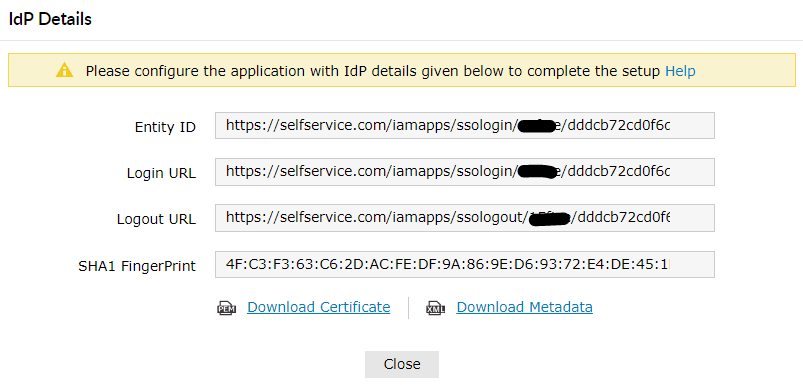
Freshdesk (Service Provider) configuration steps
- Login to Freshworks with an administrator’s credentials. (https://thinktodaytech.freshworks.com/security)
- Navigate to Security.
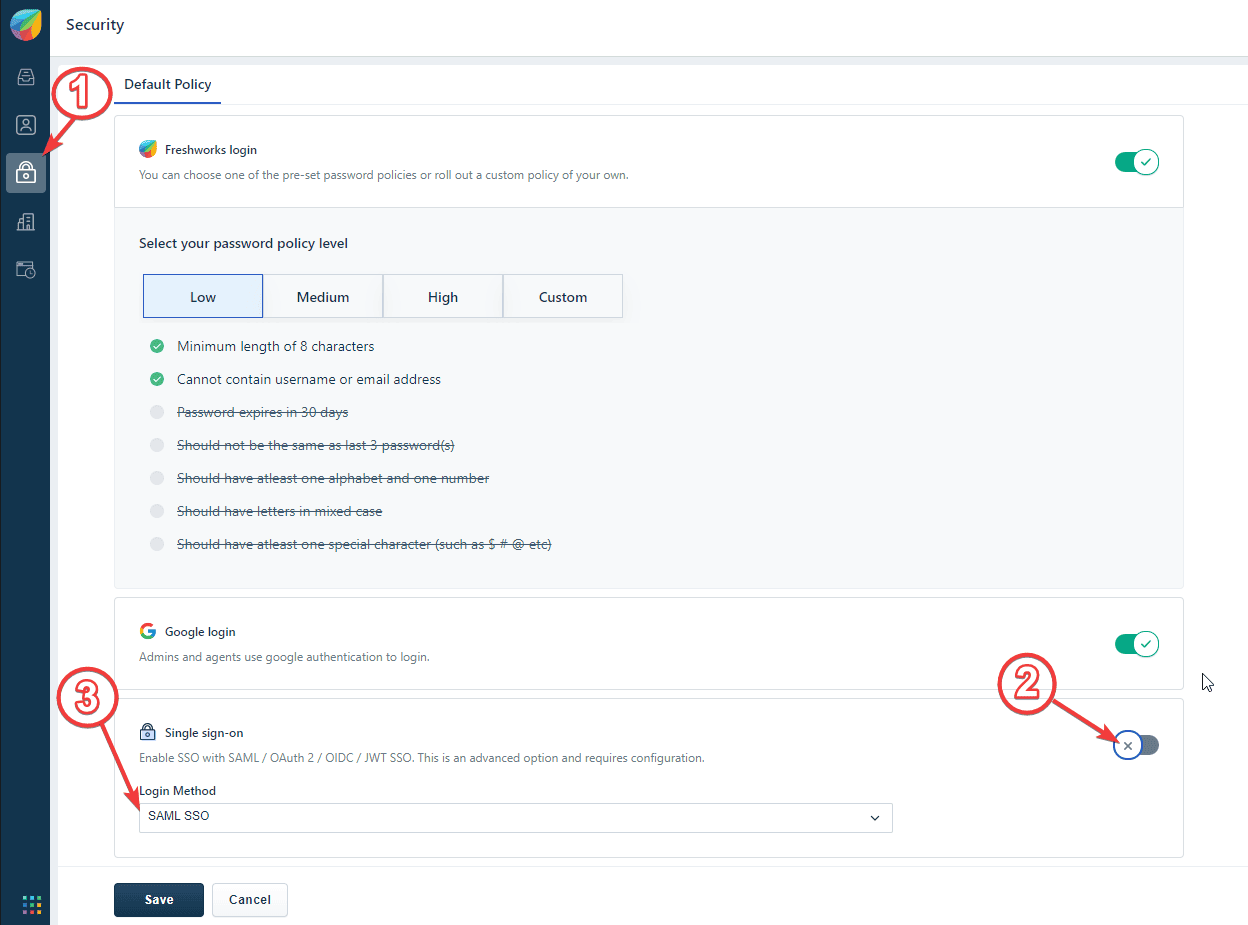
- Toggle status of Single Sign-on as enabled.
- Select SAML SSO as Login Method.
- Paste the URL, copied in Step 4 of Prerequisite, in the Entity ID, SAML SSO URL and Logout URL fields respectively.
- Choose Signing options as per your requirement.
-
Open the certificate downloaded in the Step 4 of Prerequisite in the editor,Paste the Certificate content in the Security Certificate field.
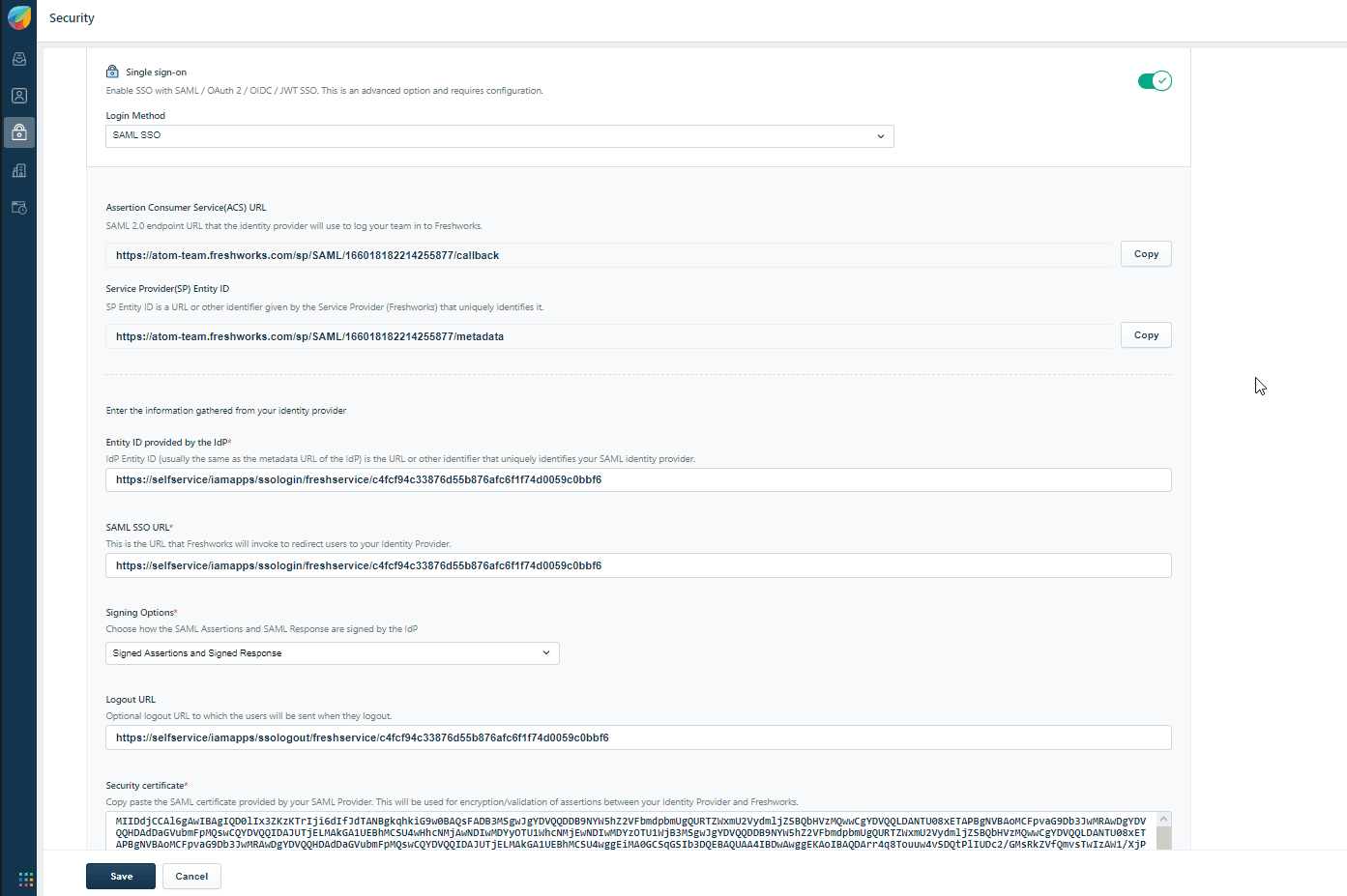
- Click Save.
ADSelfService Plus (Identity Provider) configuration steps
- Now, switch to ADSelfService Plus’ Freshdesk configuration page.
- Enter the Application Name and Description.
- In the Assign Policies field, select the policies for which SSO need to be enabled. Note: ADSelfService Plus allows you to create OU and group-based policies for your AD domains. To create a policy, go to Configuration → Self-Service → Policy Configuration → Add New Policy.
- Select Enable Single Sign-On.
- Enter the Domain Name of your Freshdesk account. For example, if you use johndoe@thinktodaytech.com to log in to Freshdesk, then thinktodaytech.com is the domain name.
- Enter the SP Identifier of your Freshdesk account in the SP Identifier field. For Eg. https://<sp_identifier>.freshdesk.com
- In the Name ID Format field, choose the format for the user login attribute value specific to the application. Note: Use Unspecified as the default option if you are unsure about the format of the login attribute value used by the application
- Click Add Application
Your users should now be able to sign in to Freshdesk through ADSelfService Plus.
Note: For Freshdesk, Only SP flow is supported.