Secure Oracle Database integration with ADSelfService Plus
Database
Oracle Database is multi-model relational database management system designed for enterprise functionality and scalability. By integrating ADSelfService Plus with Oracle Database, you can synchronize Active Directory (AD) passwords, providing users with a seamless login experience and reducing the need for multiple credentials.
Unified password sync for OracleDB and AD
Integrate ADSelfService Plus with Oracle DB to ensure consistent credentials across platforms, simplifying access and minimizing login issues for users.
Strengthen security with centralized password policies
Strengthen security by applying a unified password policy across Oracle Database and AD, incorporating breach detection to secure access and support compliance standards.
Reduced help desk requests for password resets
Synchronize AD passwords with Oracle Database to reduce the frequency of password-related support requests, allowing IT teams to focus on core tasks and improve the overall user experience.
Password Synchronization with Oracle Database
Steps to configure Oracle Database accounts with ADSelfService Plus
Important: Install the Password Sync Agent to synchronize native password changes and resets.
Prerequisite
Log in to the ADSelfService Plus admin console with admin credentials.
Navigate to Configuration > Self-Service > Password Sync/ Single Sign On.
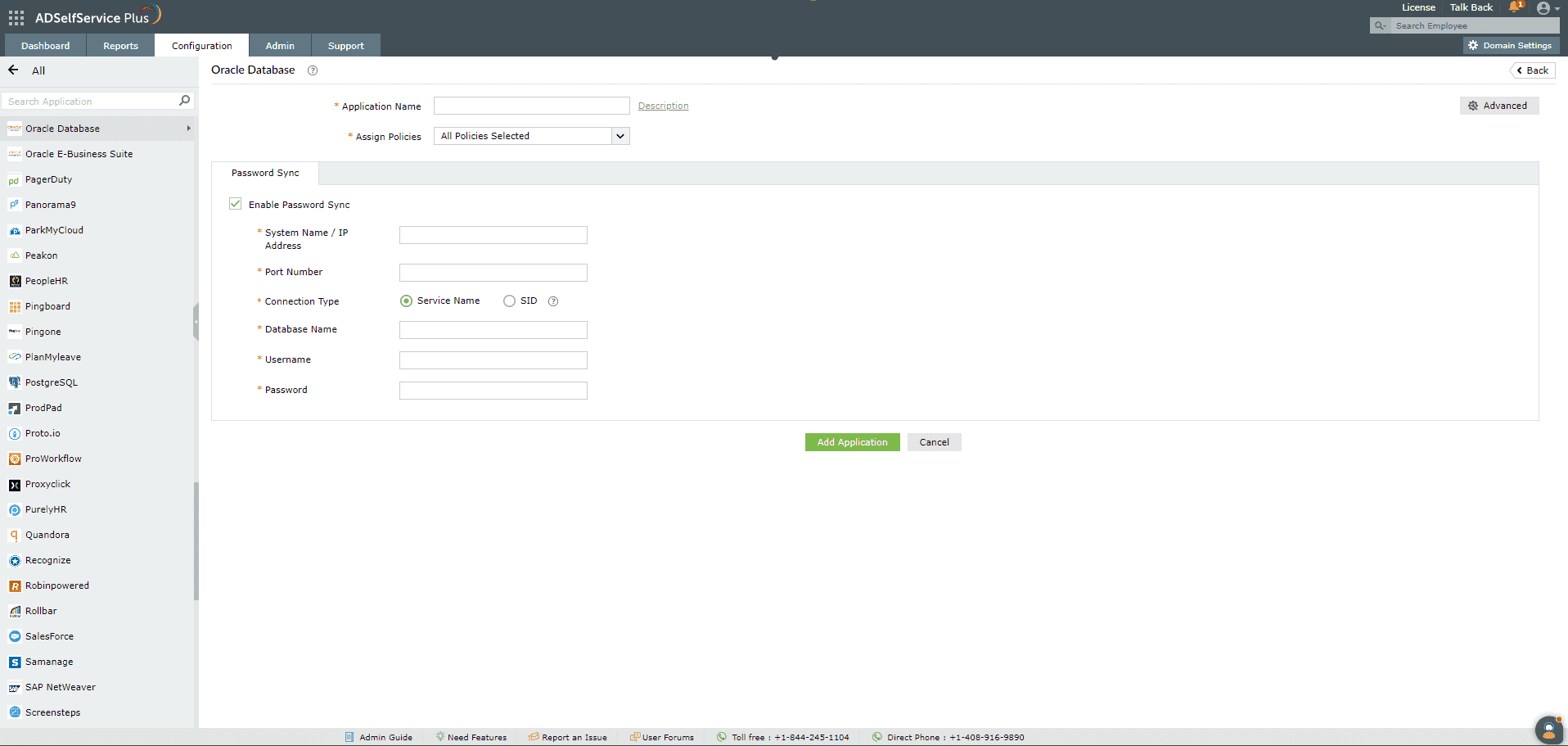
Select the Oracle Database application. Note: You can also find Oracle Database application that you need from the search bar located in the left pane or the alphabet wise navigation option in the right pane.
Enter the Application Name and Description.
In the Assign Policies field, select the policies for which password sync need to be enabled.
Note: ADSelfService Plus allows you to create OU and group-based policies for your AD domains. To create a policy, go to Configuration > Self-Service > Policy Configuration > Add New Policy.
Select Enable Password Sync.
Enter the System Name / IP Address and the Port Number of the Oracle Database.
Select the Connection Type. It can be either the Service Name or the system identifier (SID). Note: The Connection Type is determined by how the Oracle Database is configured in your organization. Please contact your Oracle Database administrator for this information.
Enter the Username and Password of the Oracle Database
Enter the name of the Oracle Database in the Database Name field.
Click Add Application
Chat now
Hello!
How can we help you?
I have a sales question
I need a personalized demo
I have a product query
E-mail our sales team
Book a meeting
Chat with sales now
Back
Book your personalized demo
Thanks for registering, we will get back at you shortly!
Back
E-mail our sales representative
Thanks for registering, we will get back at you shortly!
Back
Book a meeting
Thanks for registering, we will get back at you shortly!