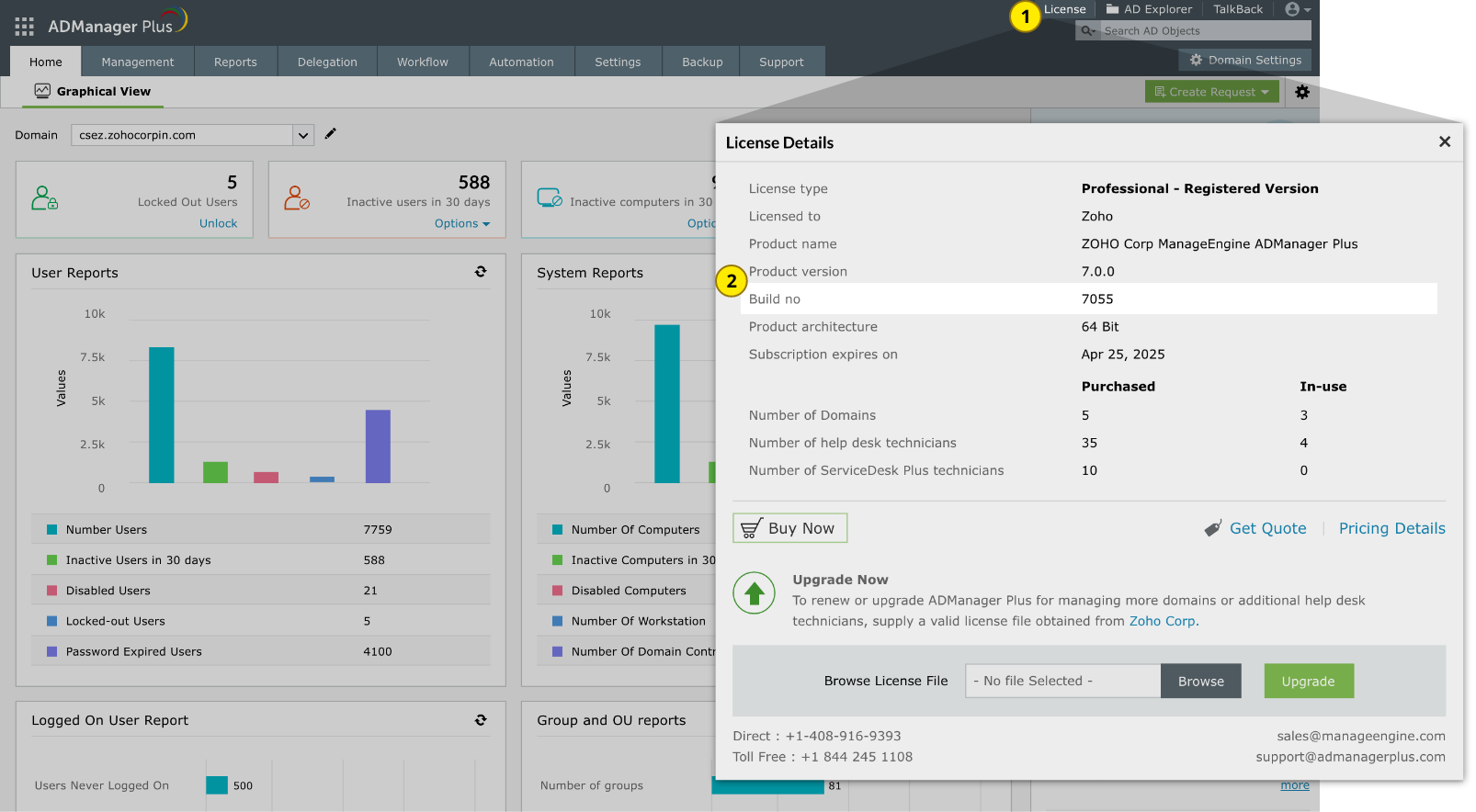
Follow steps 1 through 8 to apply the service pack
1
Shut down ADManager Plus MSP.
If the product runs as an application, click Start → All Programs → ADManager Plus MSP → Stop ADManager Plus MSP.
If the product runs as a windows service, click Start → Run. Type services.msc in the box provided. From the list that appears, find and stop ManageEngine ADManager Plus MSP.
2
Execute the stopDB.bat file under the <ADManagerPlusHome>\bin directory where <ADManagerPlusHome> is the location where the product is installed.
3
If you use MS SQL as the database server for ADManager Plus MSP, backup the database as well.
4
If you have enabled High Availability, follow the steps listed here. If not, proceed with Step 5.
5
Back up ADManager Plus MSP by zipping the contents of <ADManagerPlusHome> directory.
6
Run Command Prompt as an administrator and navigate to <ADManagerPlusHome>\bin. Execute the UpdateManager.bat file.
7
Click Browse and select the PPM file that you have downloaded.
8
Click Install. Depending on the amount of data to be migrated, the installation procedure may take a few minutes. Please do not terminate the process prematurely.
Click Close and then Exit to quit the Update Manager tool.
Start ADManager Plus MSP.
How do I update the ADManager Plus MSP build if high availability (HA) is enabled?
If high availability is enabled, follow the steps given below to update ADManager Plus MSP:
1
Shut down both the primary and standby servers.
2
Update the product on the primary server to the required build by following the steps.
3
Update ADManager Plus MSP installed on the secondary server to the required build.
4
Do not start ADManager Plus MSP until it is updated to the same build on both the servers.