Adding AWS S3 as a repository
Prerequisites
- To ensure backups in AWS S3 cannot be changed, you need to create a new repository and enable the immutability feature during the creation process. Immutability cannot be applied to an existing repository.
- You will also need the Access Key and Secret Access Key of your AWS account. To learn how to find the Access keys, click here.
Adding AWS S3 storage as a repository
- Navigate to Admin tab > Administration > Backup Repository > Cloud.
- Click the Add Repository button in the top-right corner.
- Select AWS S3 from the Repository Type drop-down.
- Enter a name in the Repository Name field.
- Enter the Access Key and Secret Access Key.
- Enter the Bucket Name.
Note Metadata of the Microsoft 365, on-premises Exchange, Google Workspace, and Zoho WorkDrive backups will be stored in the default Elasticsearch node.
- Click Save.
Once you’ve created the cloud storage repository, you can view the following information:
- Name of the repository
- Name of the account
- Type of the repository
- Status of the connected repository
You can also perform the following operations:
Refresh repository details
To fetch the status of the connected repository:
- Click the
 Refresh icon located in the Actions column of the repository.
Update existing repository
- Click the
 Edit icon under the Actions column of the repository to change the name of the repository.
 - Modify the name of the repository and click Save.
Delete existing repository
- Click the
 Delete icon under the Actions column of the repository that you wish to delete.
Note Deleting a configured repository will permanently delete all backup files in the repository, and you’ll not be able to perform any restorations.
Finding your Access Key and Secret Access Key in AWS
- Log in to the AWS Management Console in your web browser.
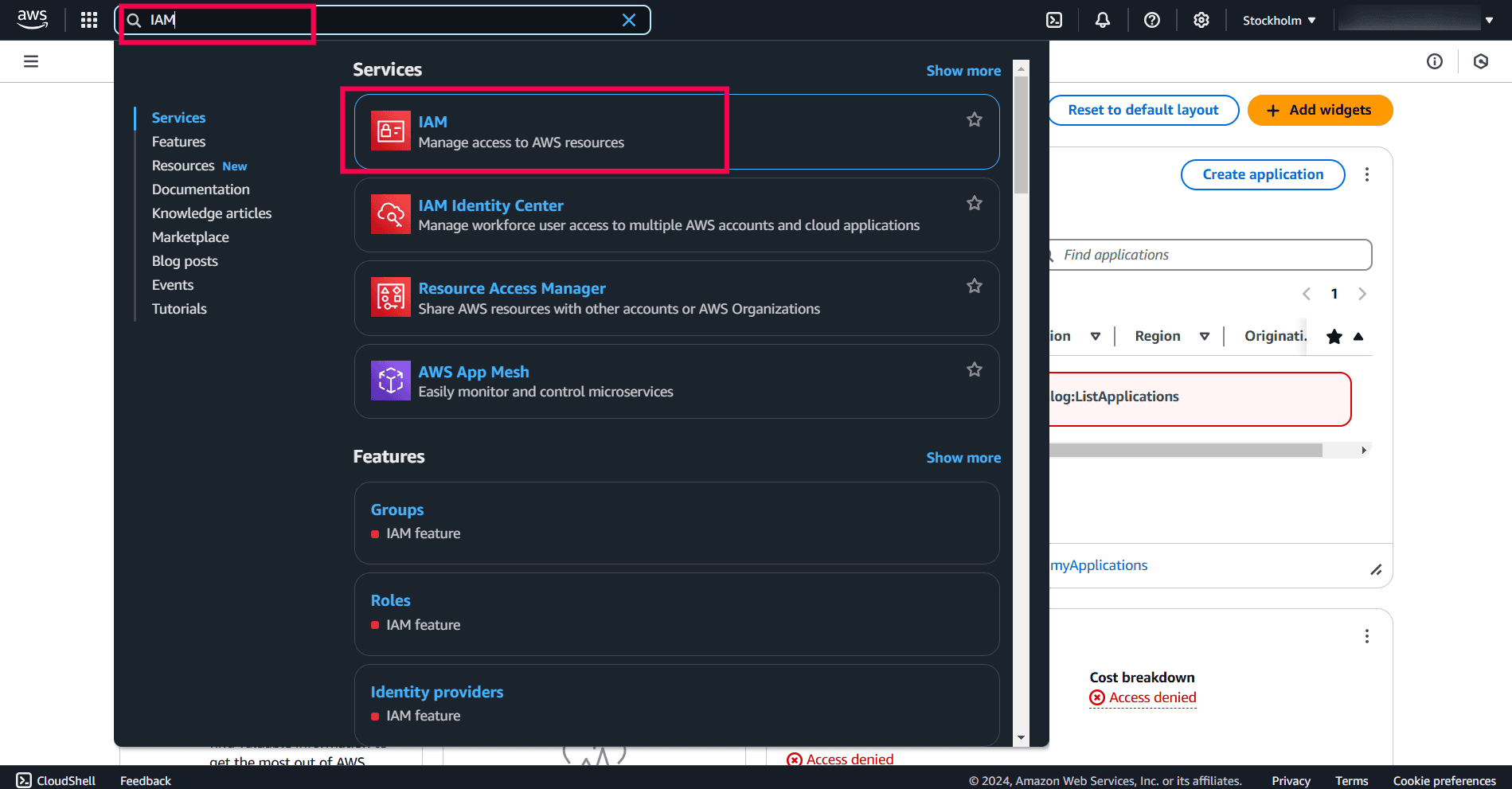
- Enter IAM in the search bar and select IAM under Services.
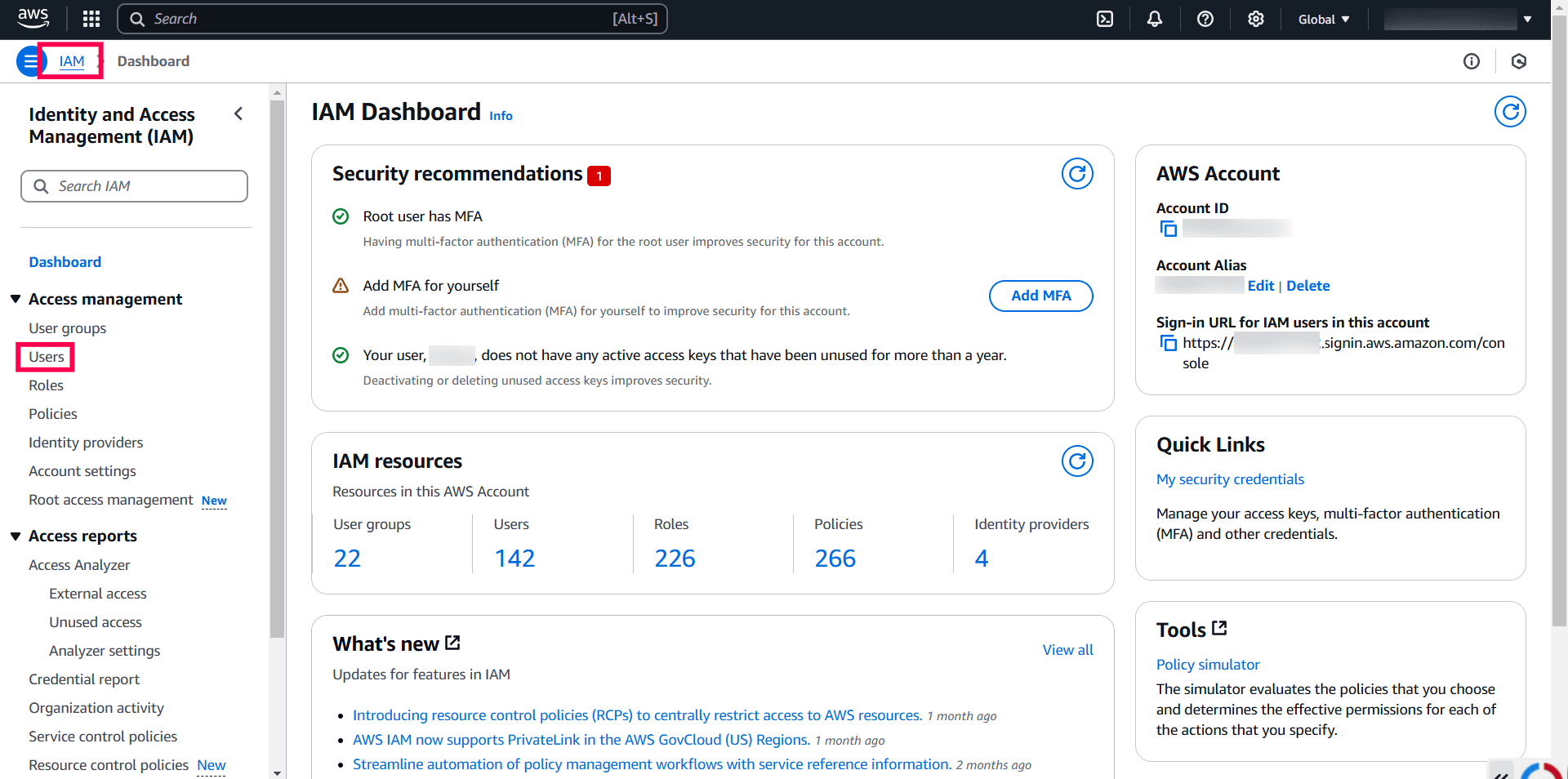
- Select Users under Access management in the left pane.
- Click Create user to create a new user. If a user has already been created, skip to step 5.
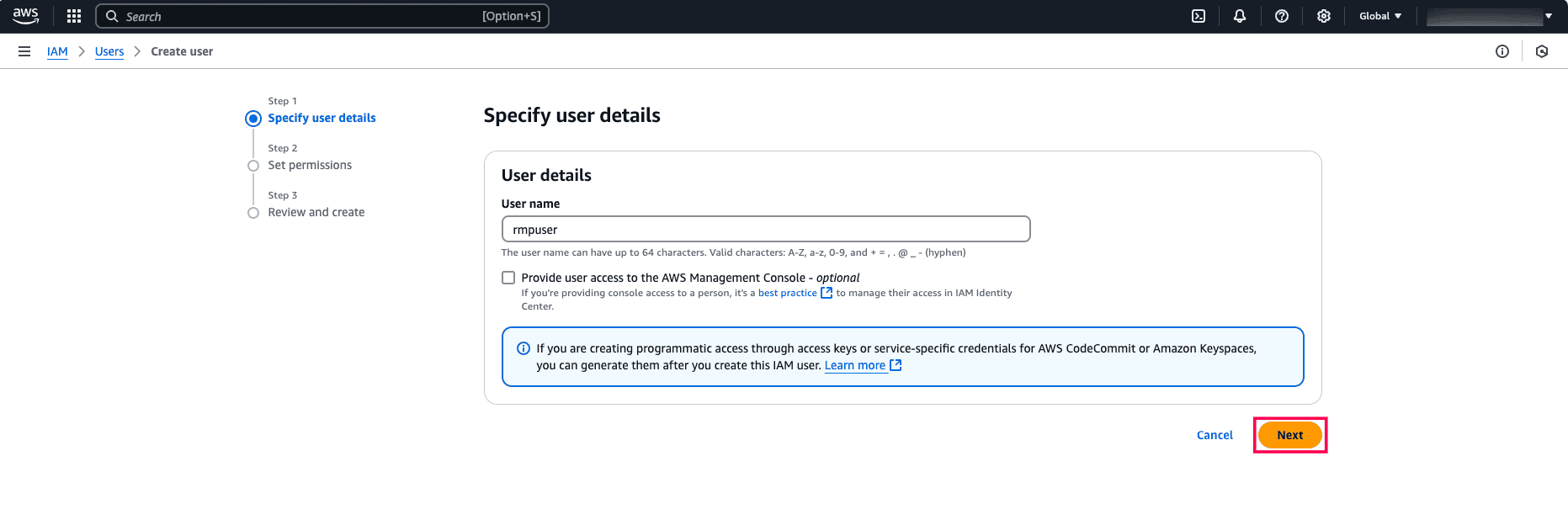
- Enter a name for the user in the User name field and click Next.
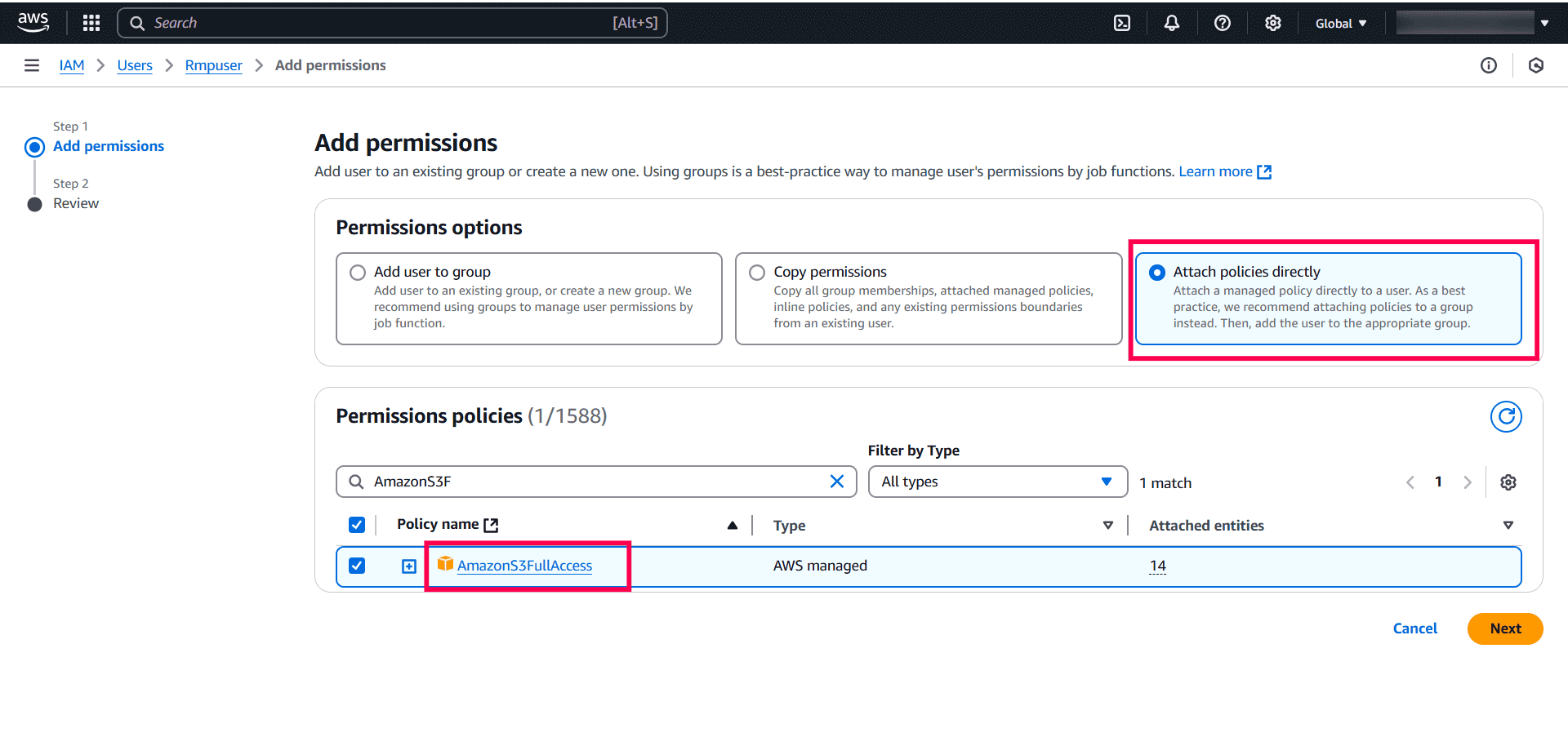
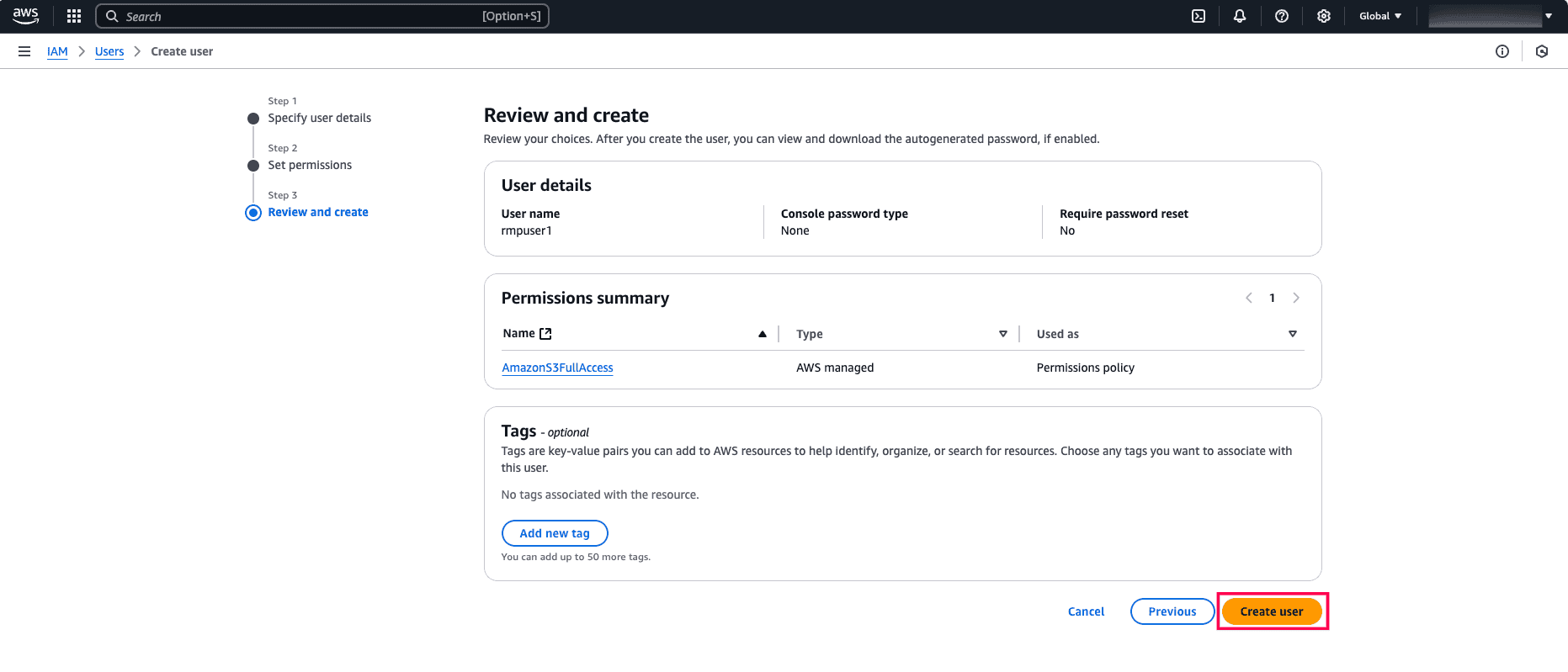
- Click Attach policies directly and select AmazonS3FullAccess. Click Next.
- Review the details and click Create user.
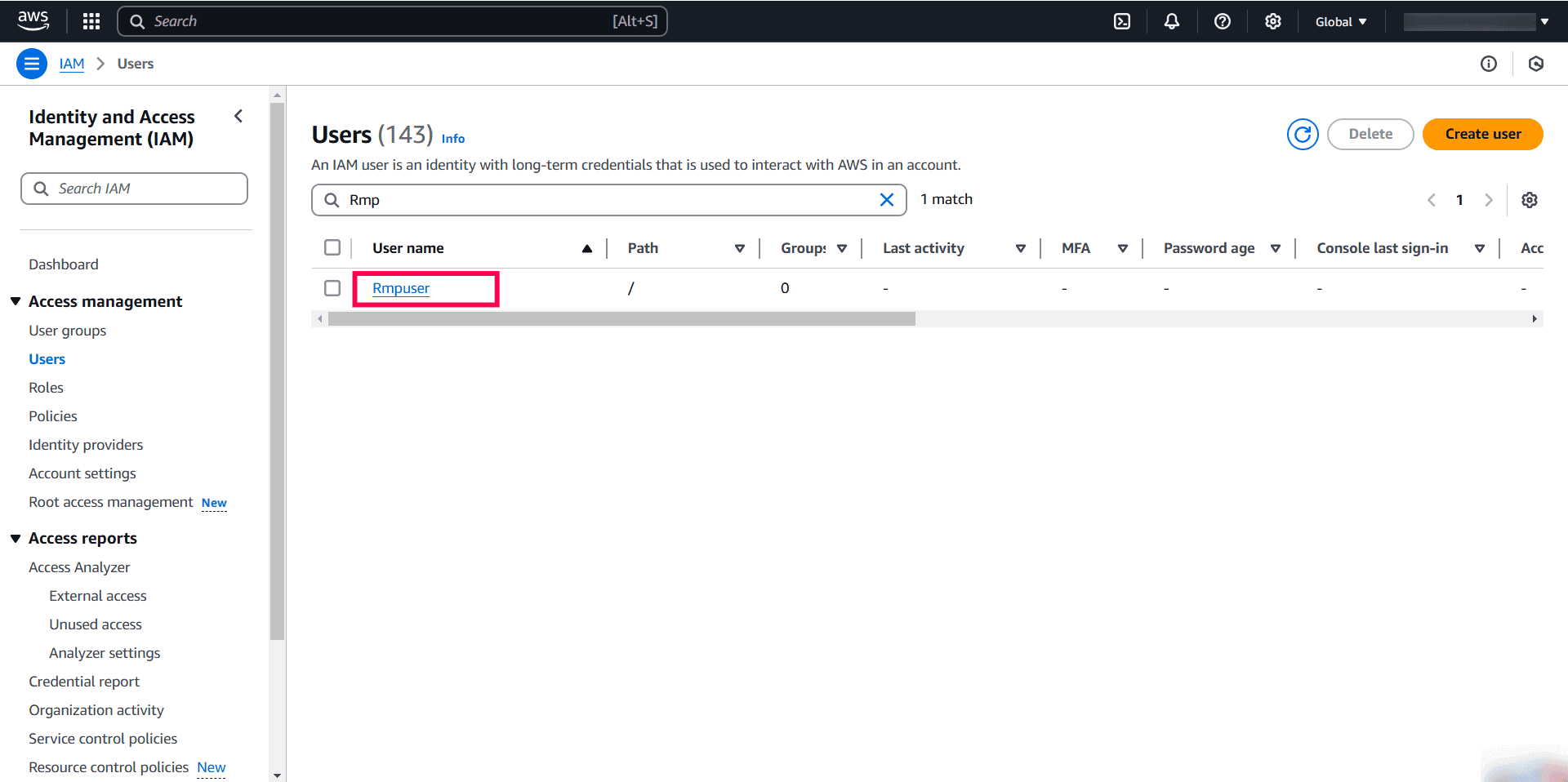
- Once you have created the user, enter the user name in the search bar.
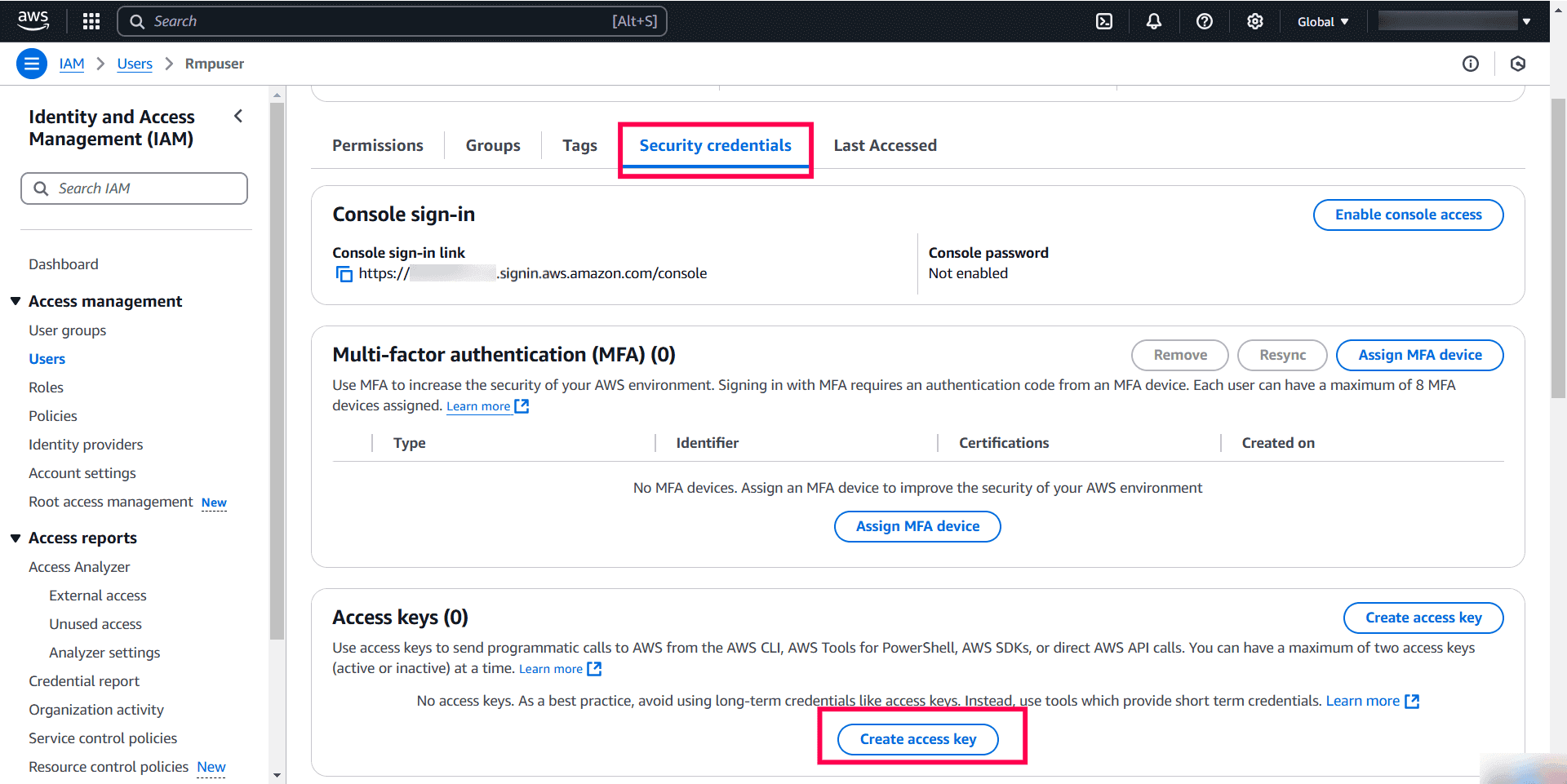
- Select Security credentials, scroll to the Access keys section, and click Create access key.
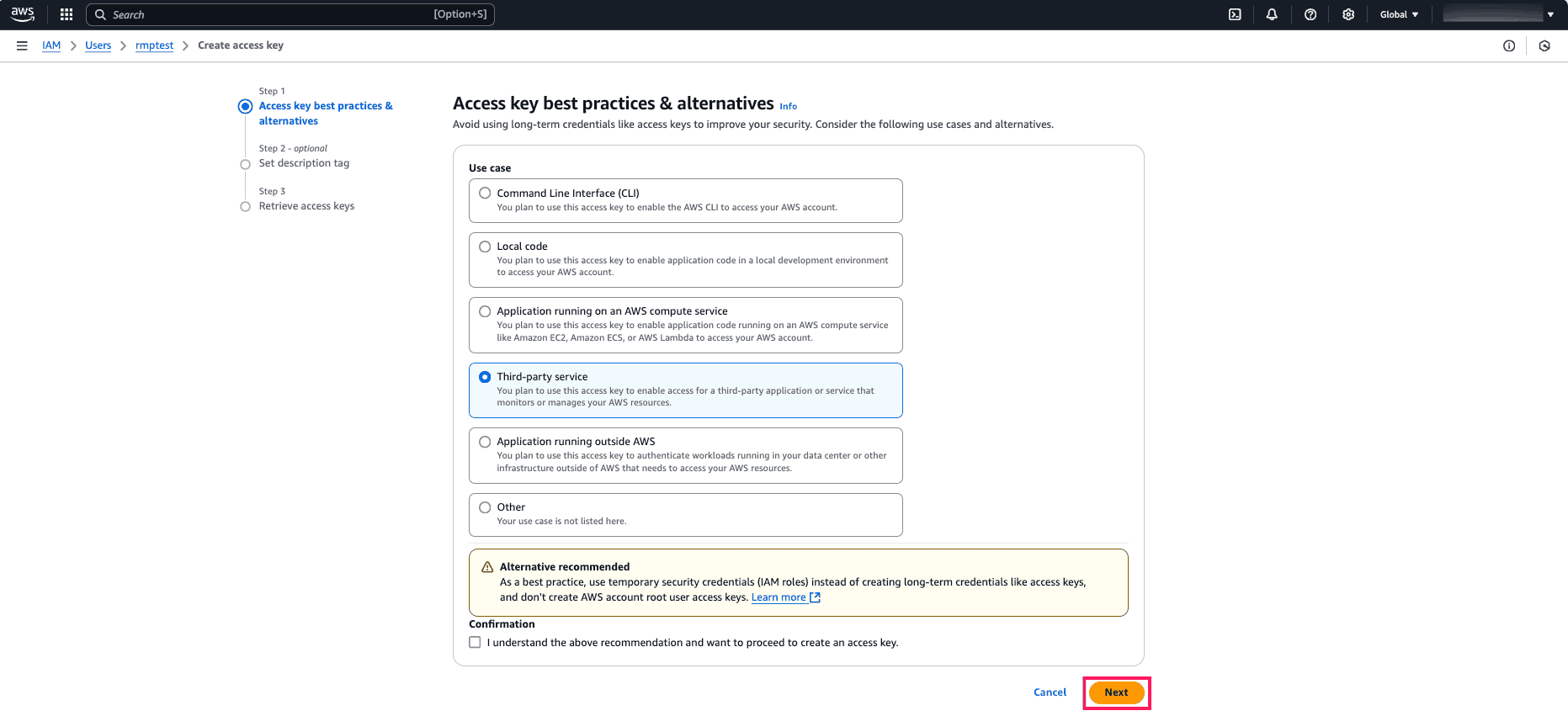
- Select Third-party service and click Next.
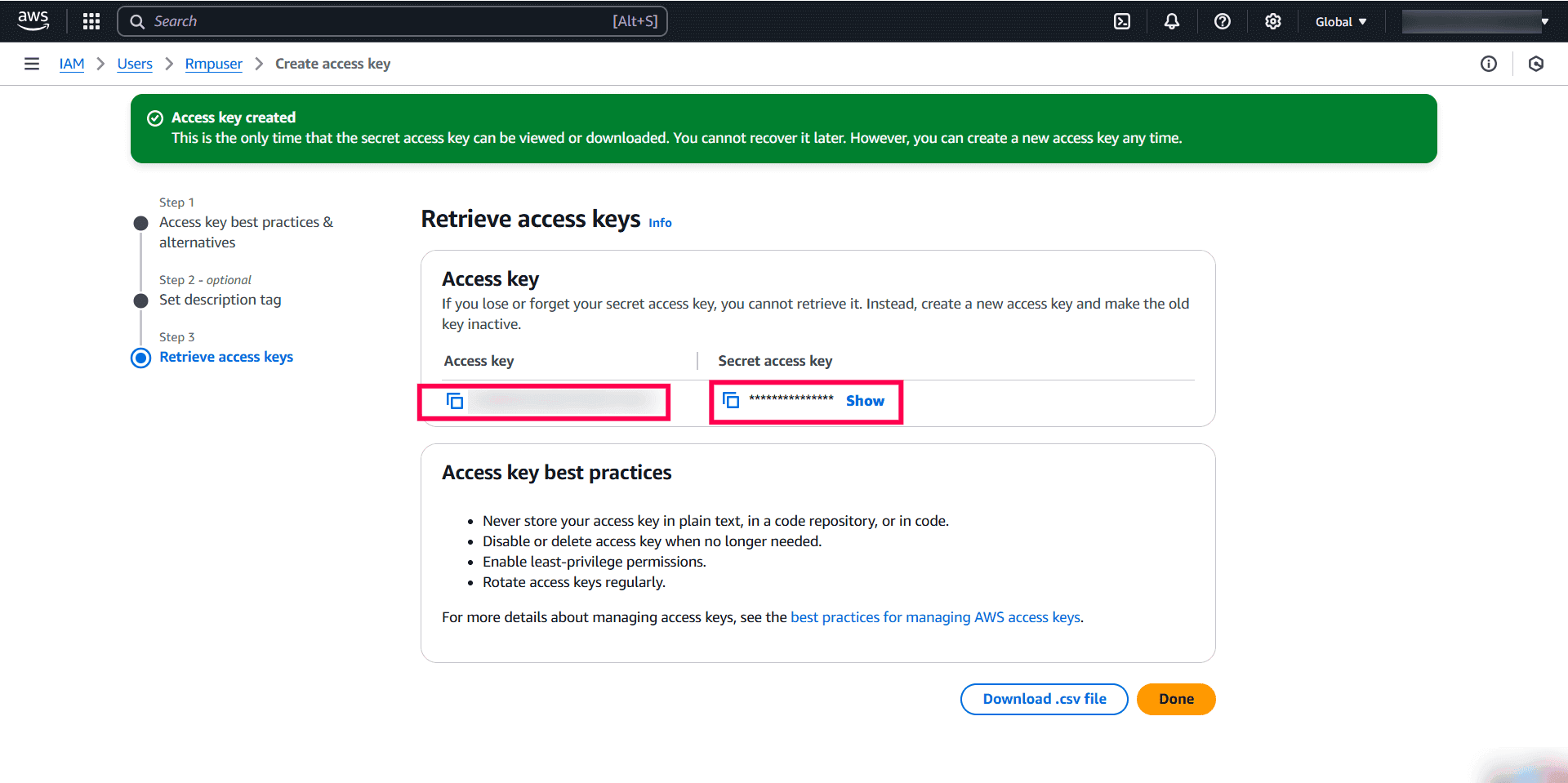
- Add a description if needed and click Create access key.
- Copy the Access Key and Secret Access Key to configure your AWS S3 storage account in RecoveryManager Plus.