Creating your Access Key and Secret Access Key in Backblaze
- Log in to your Backblaze account.
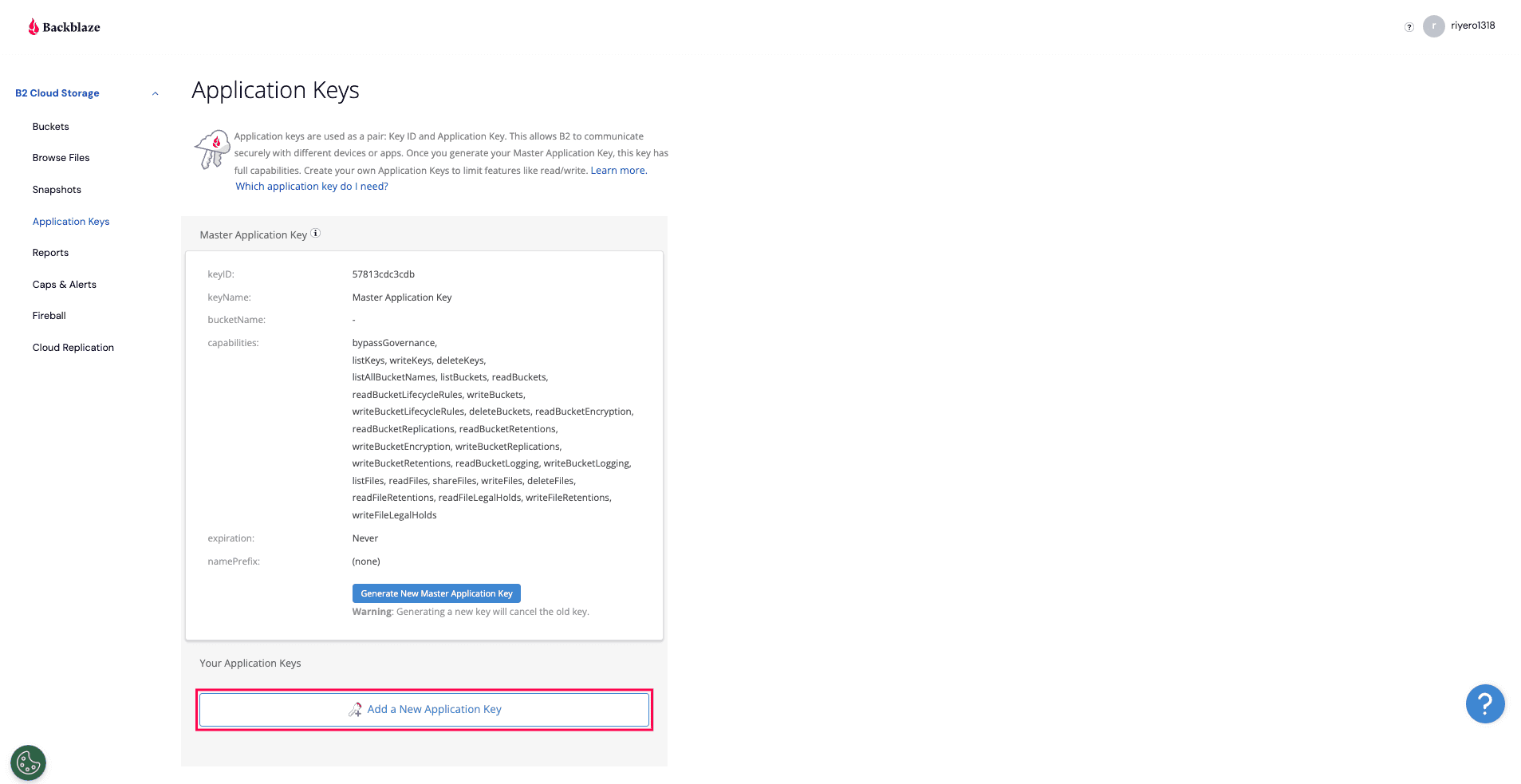
- From the left pane, select Application Keys and click Add a New Application Key.
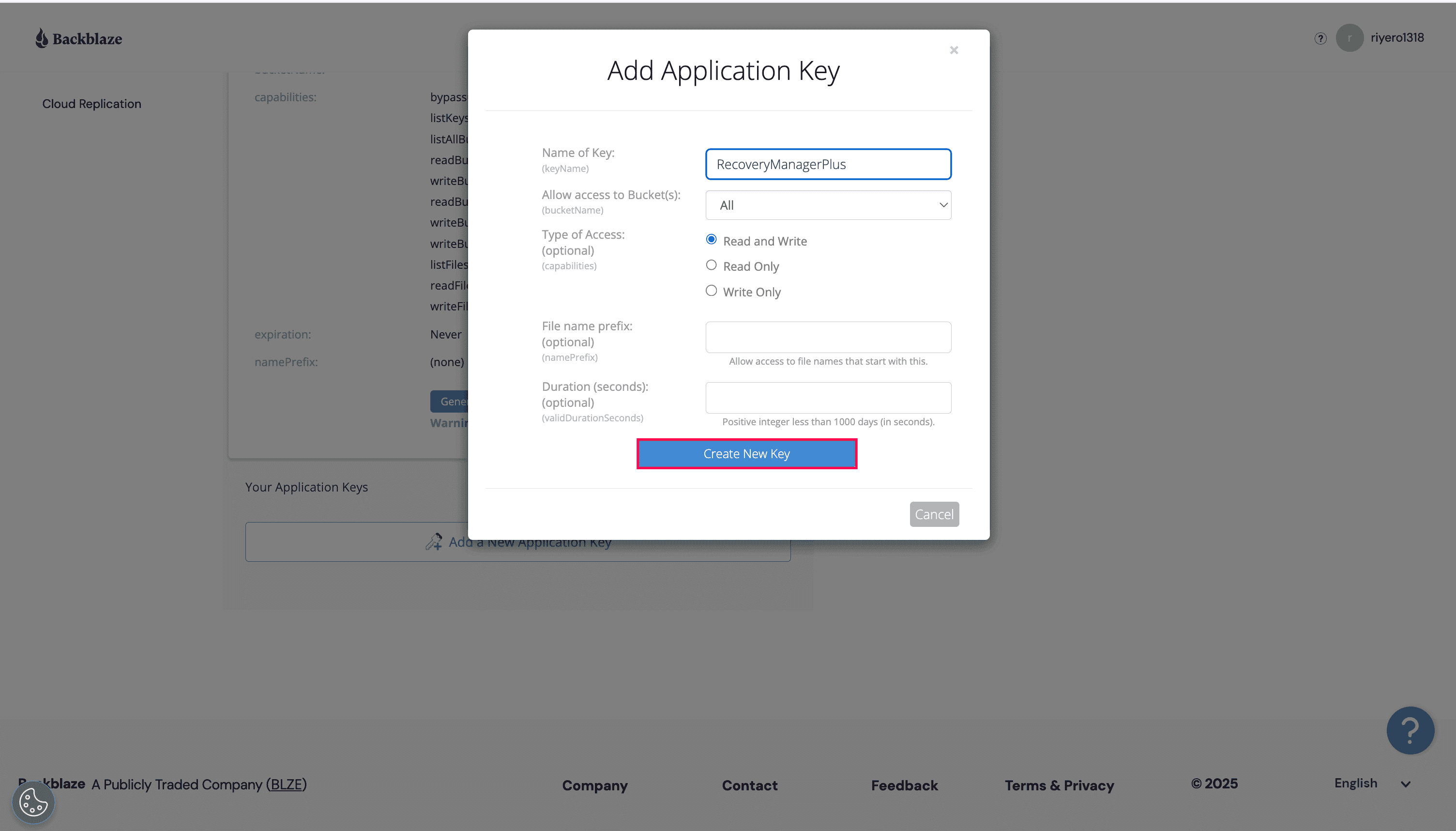
- In the pop-up that appears:
- Enter a name for the access key in the Name of Key field.
- Choose all buckets or specific buckets in the Allow access to Bucket(s) drop-down menu.
- Select Read and Write in the Type of Access field.
- Enter a prefix to restrict the access key to files that start with the specified prefix value in the File name prefix field.
- Specify the validity period of the access key in the Duration (seconds) field.
- Review the details and click Create New Key.
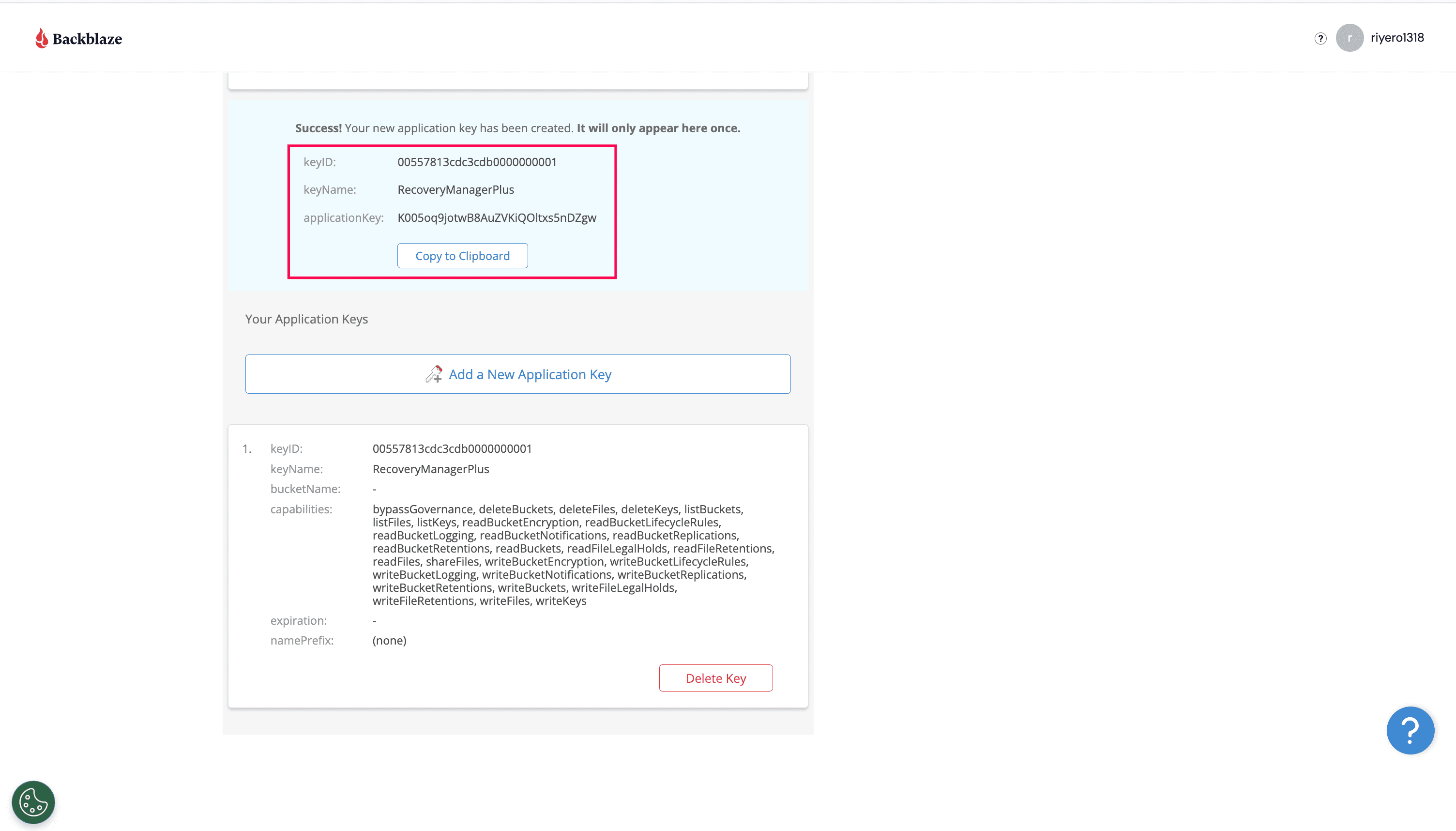
- Copy the keyID and applicationKey to set up your Backblaze storage account in RecoveryManager Plus.