Creating your Access Key and Secret Access Key in IDrive e2
- Log in to your IDrive e2 account.
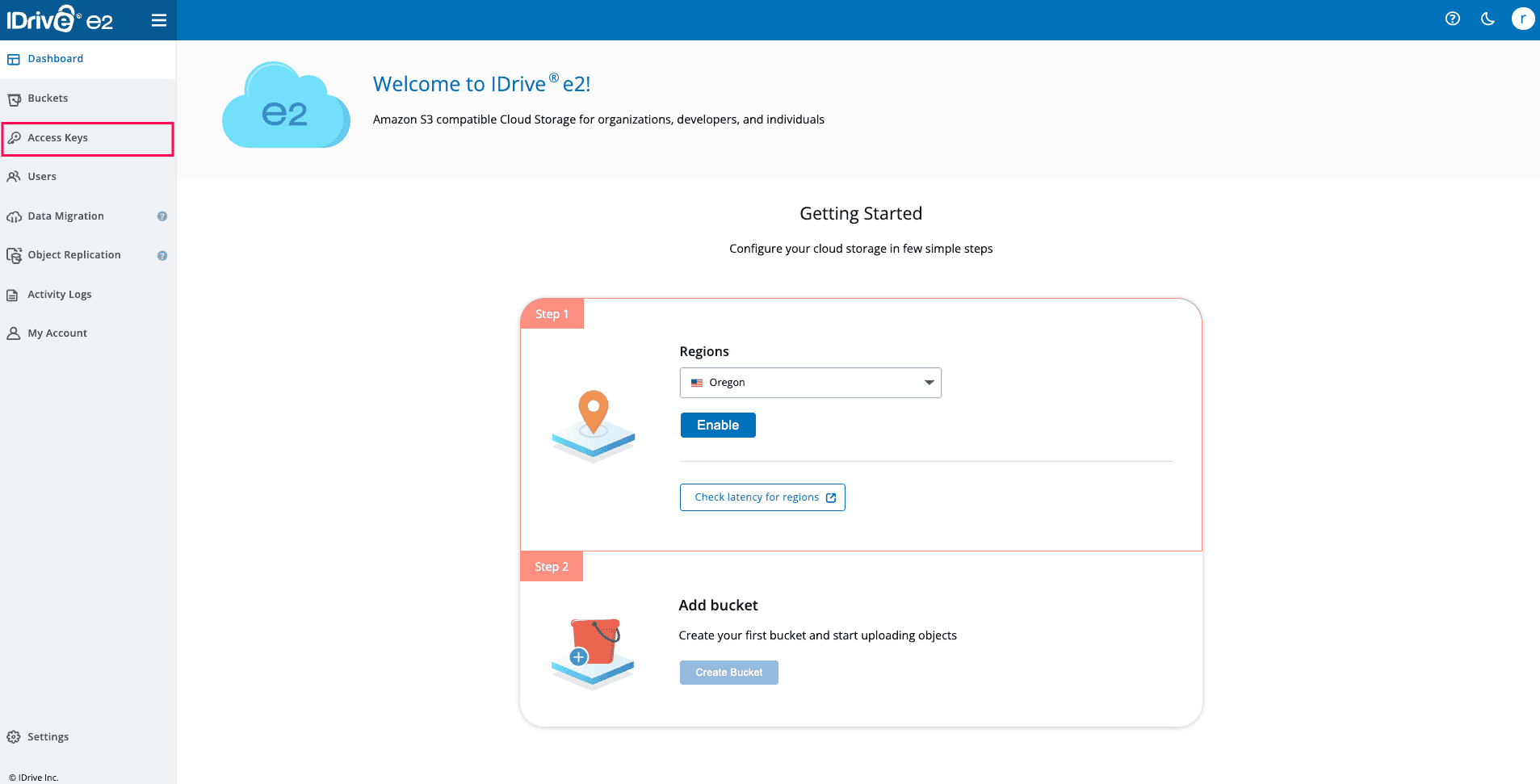
- From the left pane, select Access Keys.
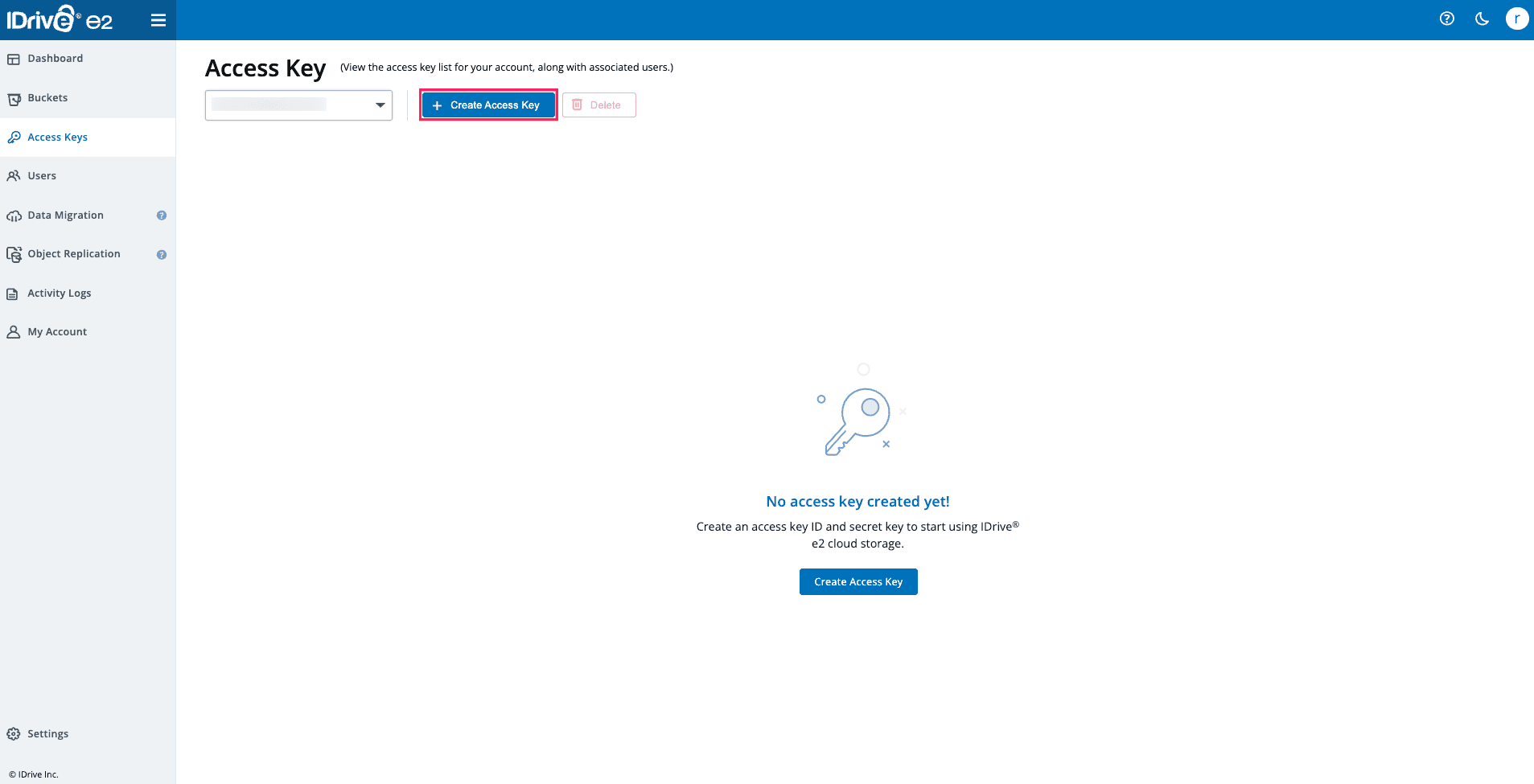
- Click Create Access Key.
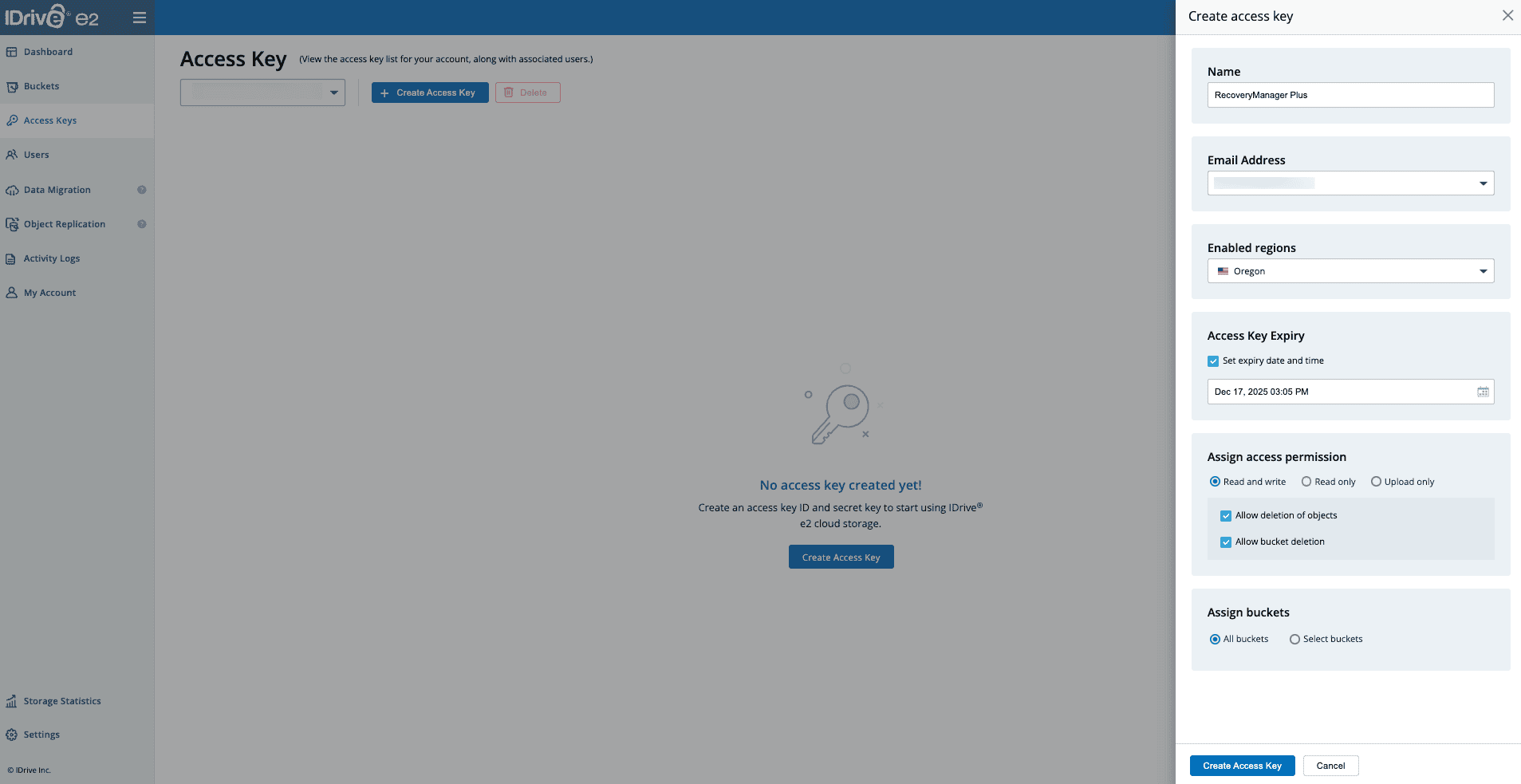
- In the pop-up that appears:
- Enter a name for the access key in the Name field.
- Select the required region in the Enabled regions drop-down menu.
- Set the expiration date and time for the access key in the Access Key Expiry field.
- Select Read and Write in the Assign access permission field.
- Choose All buckets or click Select buckets to choose specific buckets in the Assign buckets field.
- Review the details and click Create Access Key.
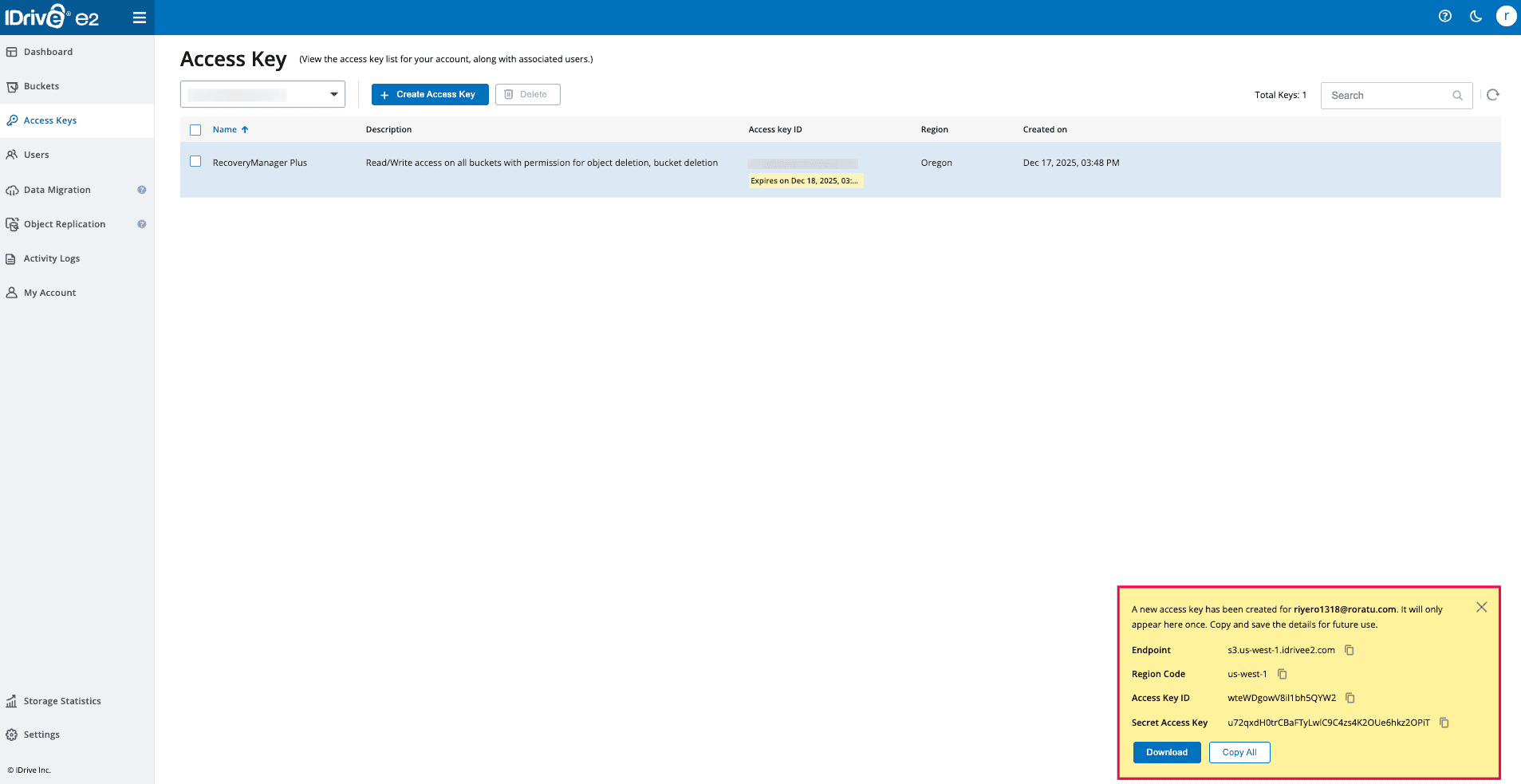
- Copy the Endpoint URL, Access Key ID, and Secret Access Key to set up your IDrive e2 storage account in RecoveryManager Plus.