Set max digits for form fields
Applicable to the following numeric fields: Number, percent, decimal, and currency.
- Open the form builder.
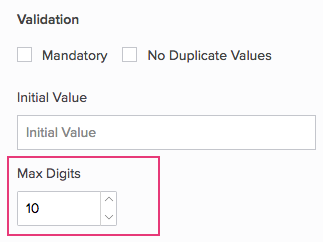
- Select the required field. Navigate to the Field Properties -> Validation section, displayed on the right.
- Enter a value between 1 and 19 in the input box next to Max Digits.
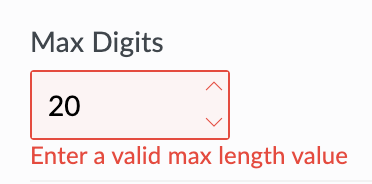
If you set Max Digits with a value greater than 19, ManageEngine AppCreator will display the following prompt:
In the event that you set the Max Digits property of a numeric field with a value that is less than the digits present in existing records, ManageEngine AppCreator:
- Allows the existing records to be updated if the data stored in that field is left unchanged
- Applies the new value to validate the existing records if the data stored in the that field is edited
- Applies the new value to validate records added after this change
This behavior is in place to ensure that existing records are not affected.