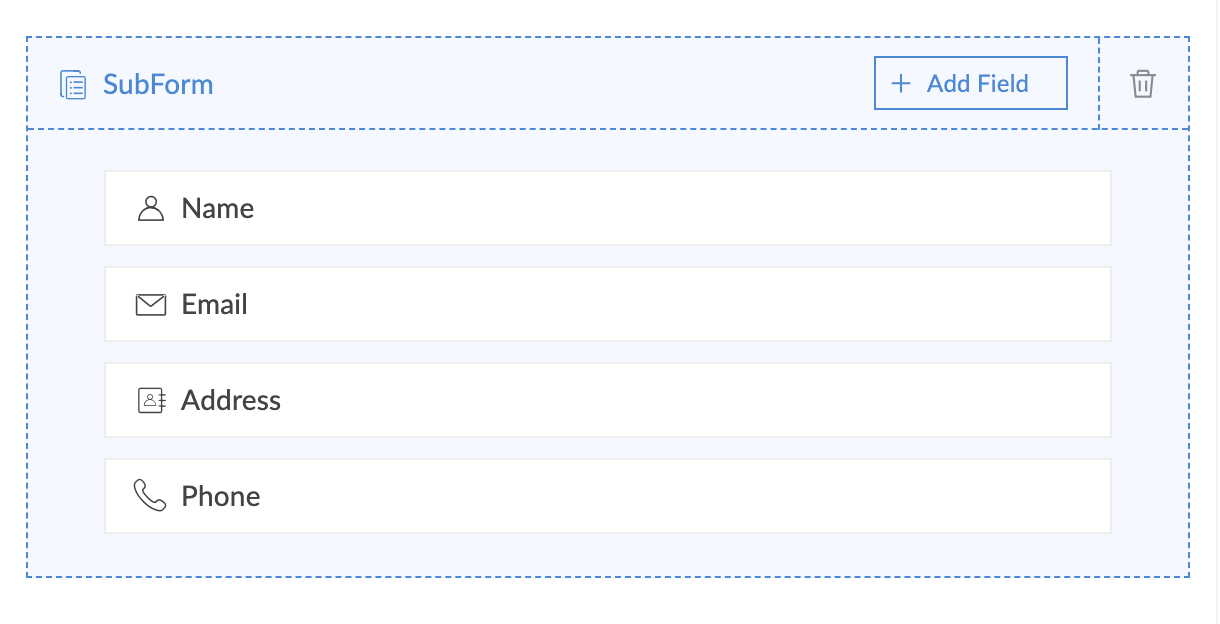
Add and manage fields in a blank subform
To add a field,
- Open the form builder.
- Select the required subform field.
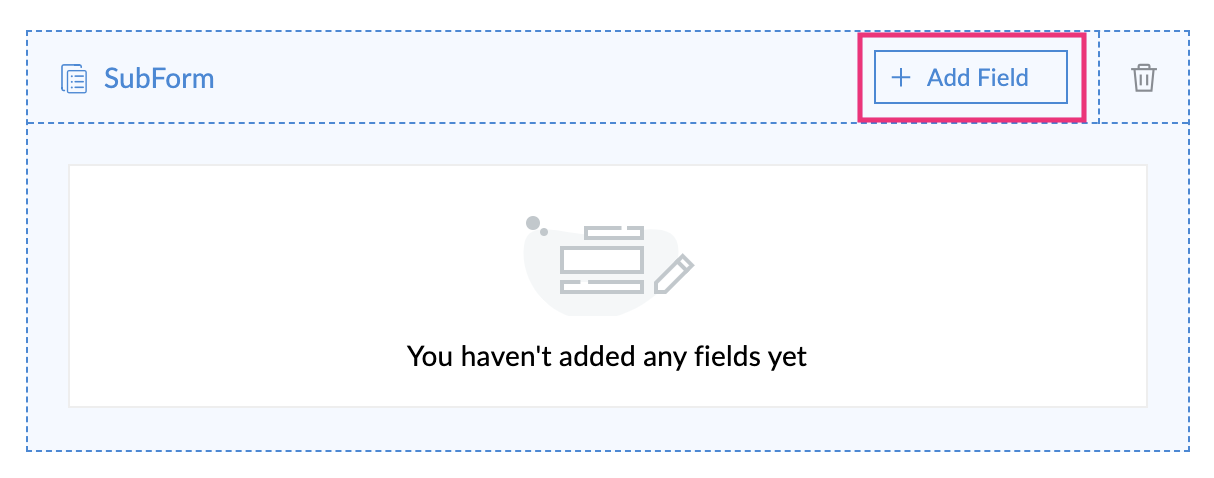
- Click Add Field:
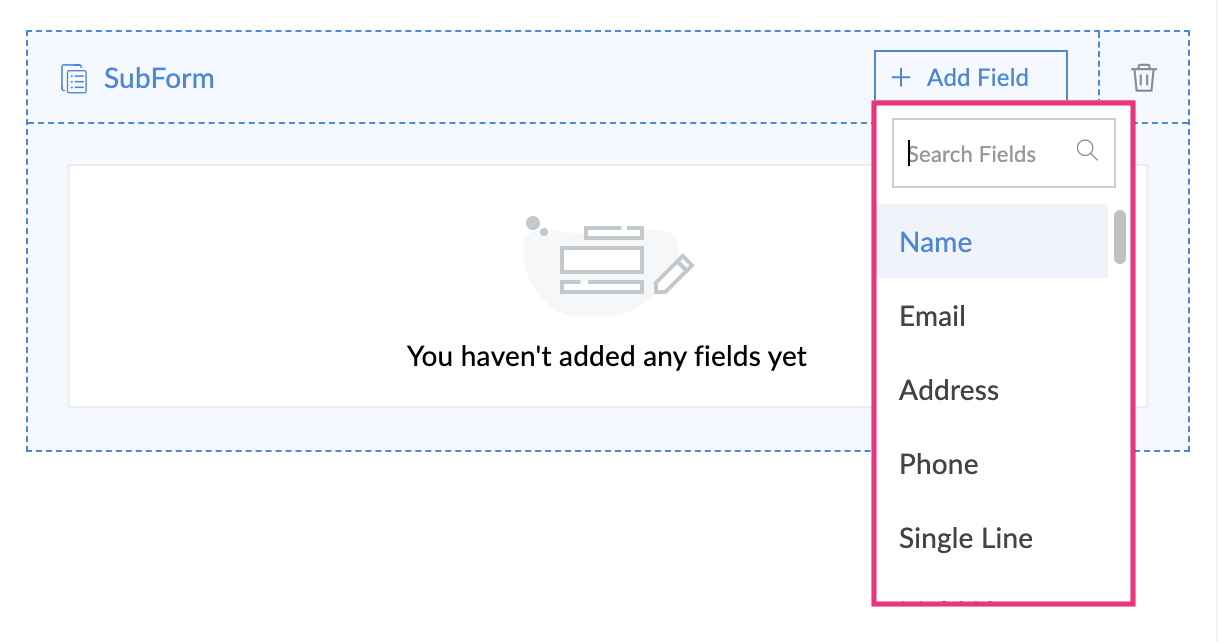
- Select the required type of field from the dropdown:You can add the following types of fields in a blank subform: All except formula, rich text, auto number, users, signature, add notes, and subform.
- Click Add Field and repeat step three to four to add additional fields in the subform.
Remove/delete a field
- Open the form builder.
- Select the required subform field.
- Click the trash icon beside the required field.
- Click Yes in the prompt window that appears.
Re-arrange fields
- Open the form builder.
- Select the required subform field.
- Select the required field and drag and drop it in the required order:
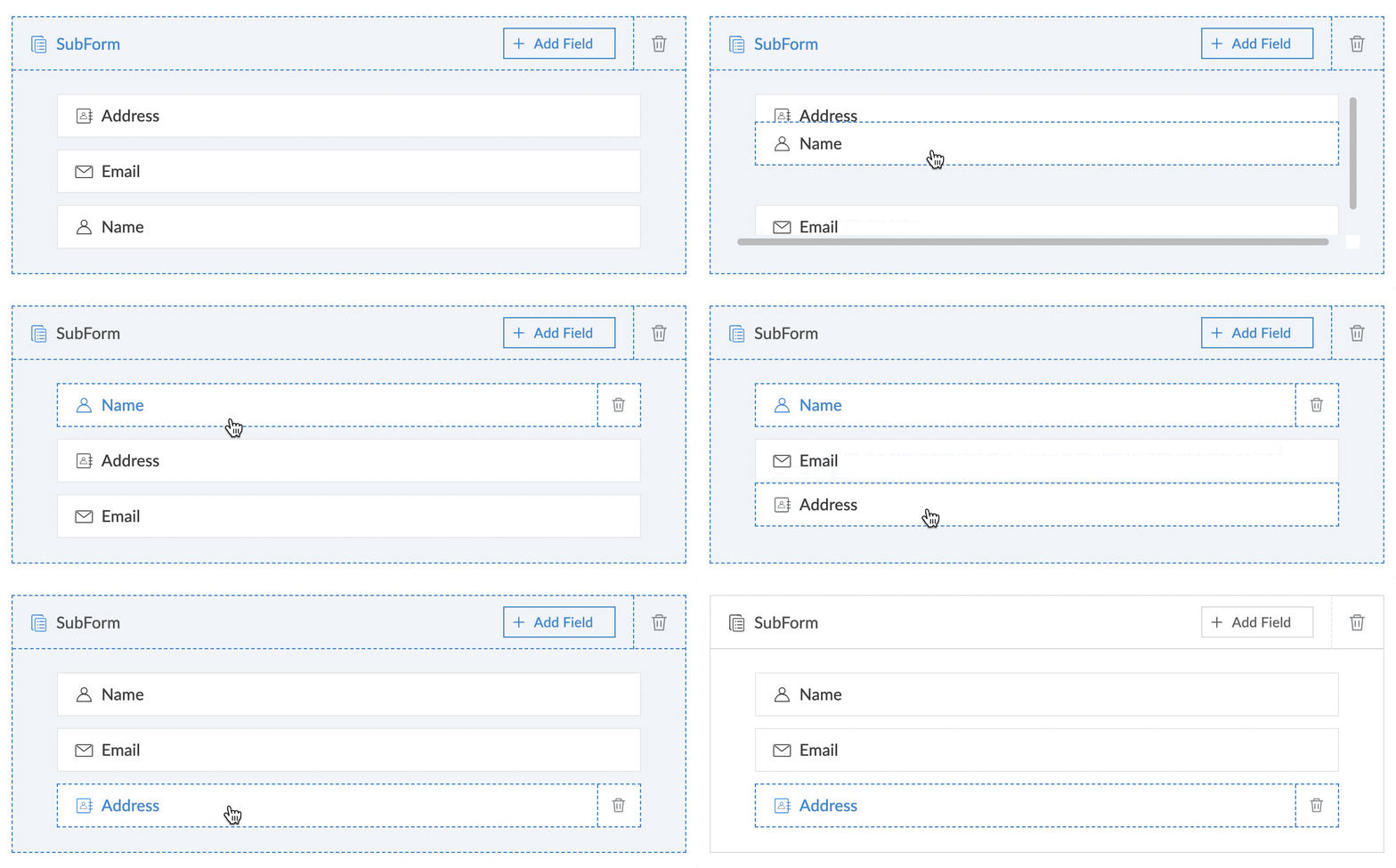
The fields added in your subform will be displayed as follows: