Configuring Agent settings
Agent
Agent is a lightweight software that is installed on the computers that are required to be managed by Application Control Plus . This software will help you implement and execute all the policies distributed to those computers.
Agent settings
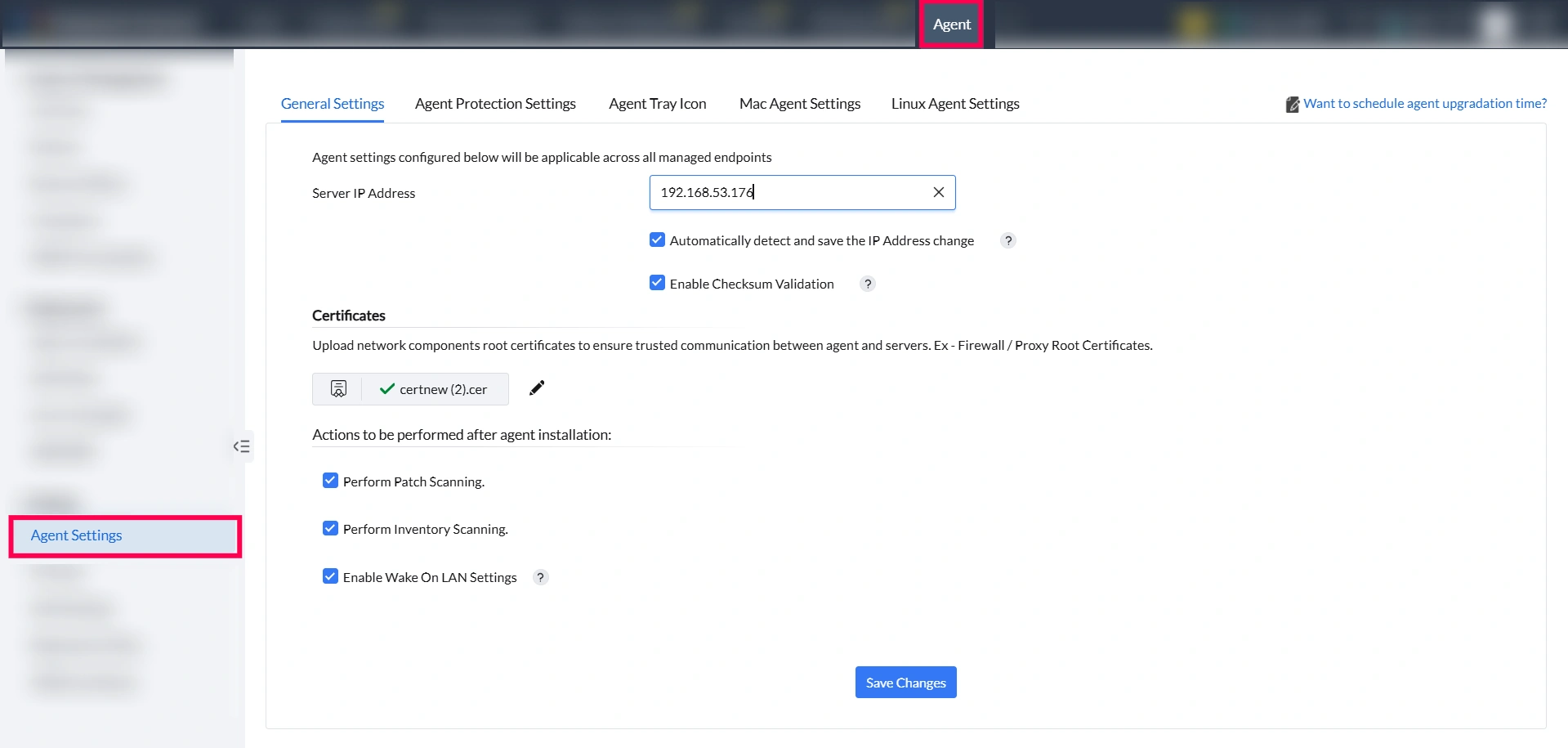
Application Control Plus 's agent settings allows you to customize the agent functioning according to your business use-cases. To configure the agent settings, navigate to Agent > Settings > Agent Settings.
General settings
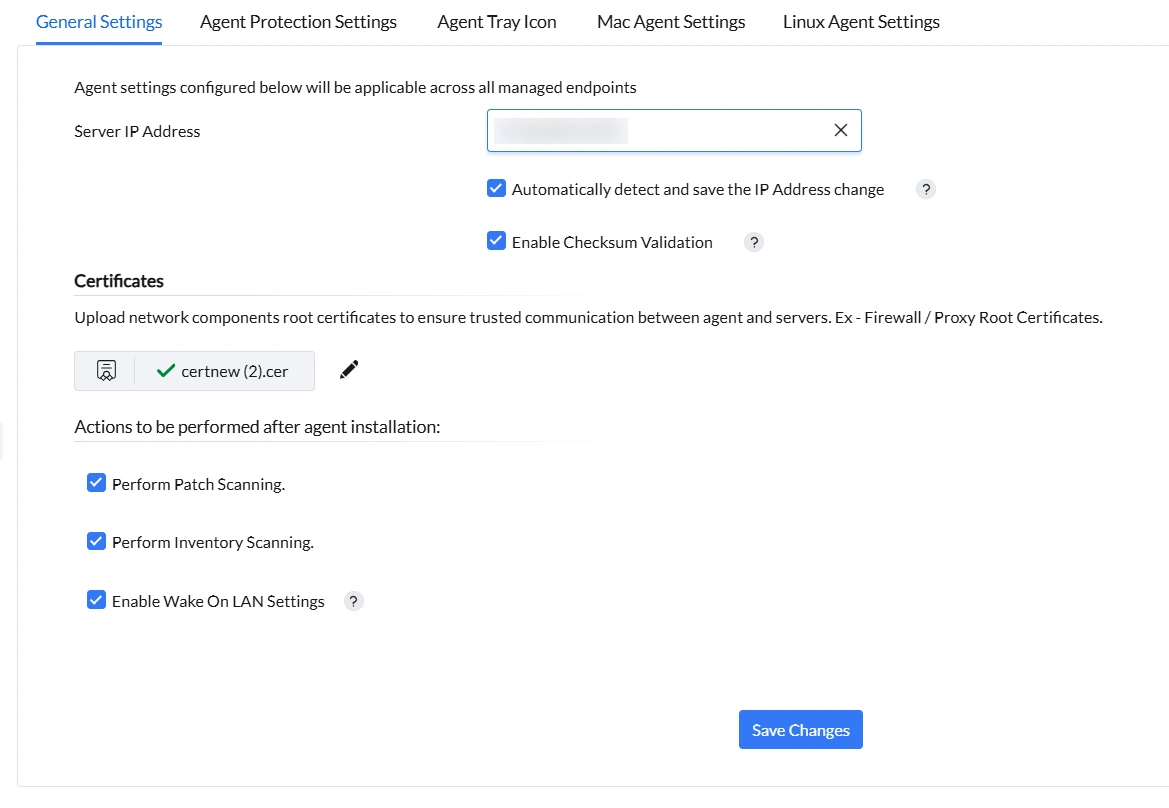
Under General Settings, you can add your central server's IP address. In addition, you can allow your agents to detect automatically and save the updated IP address of the server.
You can allow the agents to perform a checksum validation before downloading any binaries from the server.
You can configure the actions like performing patch scanning, enabling wake on LAN settings, performing inventory scanning, that needs to performed right after your agent installation
Agent Protection Settings
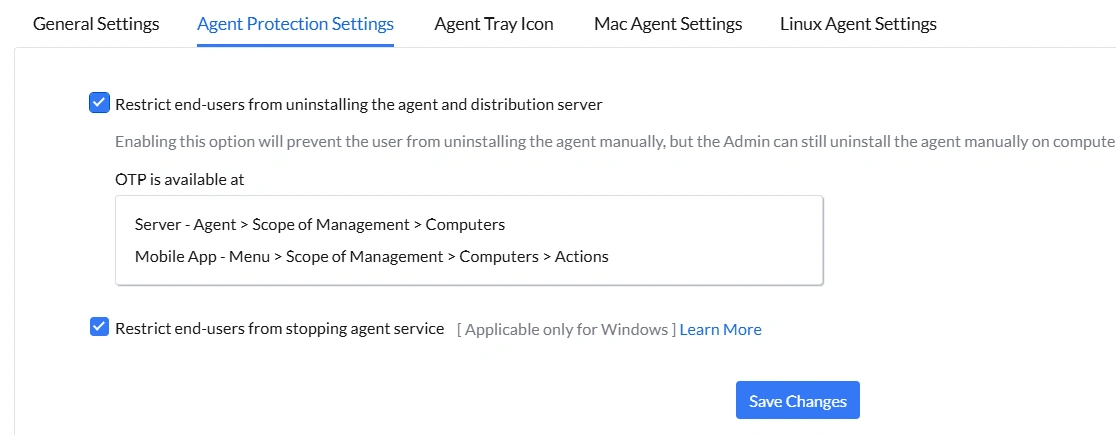
This customization is available to provide a baseline security standards to your agents. This includes restricting end-user from uninstalling the agent on their own and stopping the agent's service.
If you enable the option, "Restrict end-users from uninstalling the agent and distribution server" and click Save, it will prevent the user from uninstalling the agent manually, but the Admin can still uninstall the agent manually on computers through OTP.
The OTP for uninstalling the agent can be viewed on the console by navigating to Agent > Scope of Management > Computers. It can also be viewed in the Mobile App by navigating to Menu > Scope of Management > Computers > Actions
If you enable "Restrict end-users from stopping agent service" and click Save, Manageengine UEMS-Agent service cannot be found in the Services console. Kindly note that it applies only for Windows.
Agent Tray Icon settings
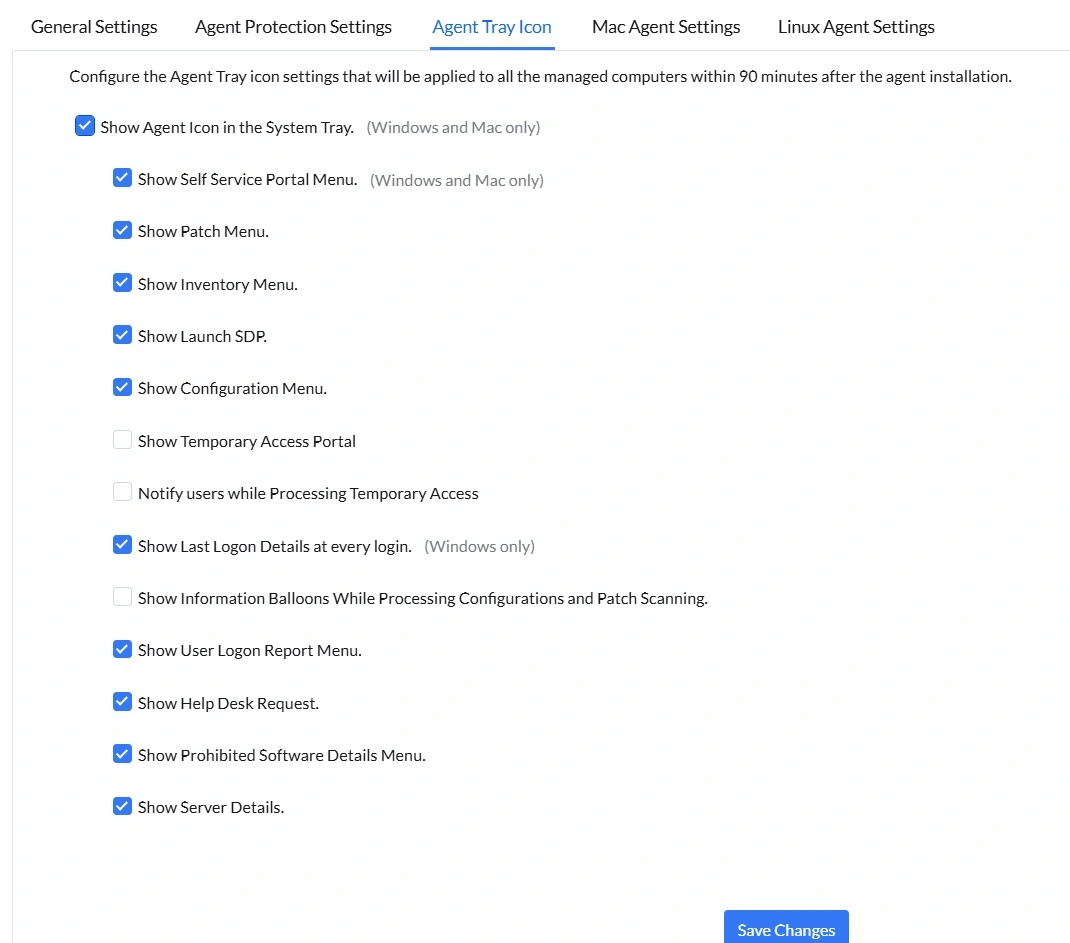
Agent tray icon is a self-service meta functionality that helps end-users to access the required services in order to contact the central server. These include, self service portal, patch scanning, inventory scanning, launching helpdesk, applying configurations on-demand, troubleshooting agents, last logon details and server details. To customize this, navigate to Agent > Settings > Agent Settings > Agent Tray Icon. A list of options will be available for you to customize and personalize the end-user's experience.