×![]()
×
×![]()
×
×
Install Agents in AWS Instances
This document covers steps to install agents at AWS Instances
How to install agent in AWS instance?
The following are the steps to install agents in bulk in AWS Instances.
- Create an S3 Bucket in the region where you want to deploy the agents.
- In the product web console, navigate to the Agent tab > Computers > Download Agent.
- Upload
Localagent.exeto the created bucket and set the permission as public. - Create an IAM role for SSM.
- In the IAM console, navigate to Roles > Create Roles.
- In Select type of trusted entity, choose AWS service.
- Select the service EC2.
- If the specified service has only one use case, it is selected automatically. Then choose NEXT: Permissions.
NoteUse cases are defined by the service to include the trust policy that the service requires.- In the Create role window (as shown in the figure below), search for AmazonEC2RoleForSSM and select it.
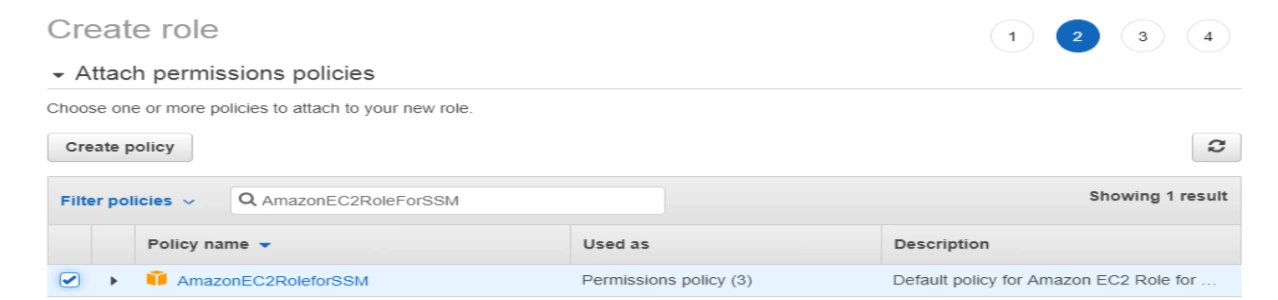 NoteYou can also add AmazonEC2RoleForSSM to an already existing IAM role.
- Choose NEXT: Review.
- Change EC2 settings.
- Select the existing instance.
- Choose Action at the top of the screen.
- Choose Instance settings and assign the created role.
- Run the command to install the agents in AWS Instances.
- In the AWS Systems Manager console, choose Run Command.
- Run the following command:
CommandNew-Item -ItemType directory -Path C:LocalOfficelocalsetup
$WebClient = New-Object System.Net.WebClient
$WebClient.DownloadFile("BUCKETPATH/UEMSAgent.msi", "C:LocalOfficelocalsetupUEMSAgent.msi")
$WebClient.DownloadFile("BUCKETPATH/UEMSAgent.mst", "C:LocalOfficelocalsetupUEMSAgent.mst")
$WebClient.DownloadFile("BUCKETPATH/setup.bat", "C:LocalOfficelocalsetupsetup.bat") cmd /c msiexec /i C:LocalOfficelocalsetupUEMSAgent.msi REBOOT="REALLYSUPPRESS"
MSIRESTARTMANAGERCONTROL="Disable"
TRANSFORMS=C:LocalOfficelocalsetupUEMSAgent.mst ENABLESILENT=yes /qnNoteReplaceBUCKETPATHwith the actual object URL.
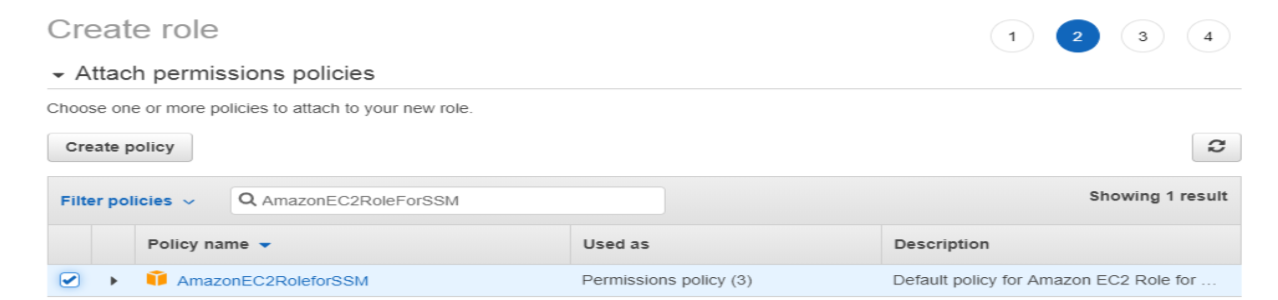
You have now successfully installed agents in AWS Instances.