Frequently Asked Questions (FAQ)
Endpoint Privilege Management
Endpoint Privilege Management is the process of allocating application-specific privileged access to users based on their requirements. You can easily adopt the principle of least privilege through out your network, without it affecting your productivity using this feature. It enables privileged access to applications without compromising the privileged credentials or any unnecessary privilege elevation.
No. Privilege Management applies only to Standard users. Admin users have full administrative access and are not subject to privilege-based restrictions.
Using the Endpoint Privilege Management feature, you can elevate application specific privileges of certain users, without compromising the privileged credentials or elevating their entire organizational level privileges.
Cause: The application requires elevated privileges (administrator rights) to run. Without privilege elevation, Windows blocks standard users from launching the app and prompts them for admin credentials.
Solution: Use Endpoint Privilege Management to automatically grant users the elevated privileges they need for that specific application, eliminating the credential prompt entirely. The application runs with the necessary privileges automatically through Endpoint Privilege Management. Users are no longer prompted to enter admin credentials each time they launch the app.
The 'Run as ManageEngine' option is displayed to standard users whose endpoints were added to Custom Groups that were associated with the Privileged Application List during policy deployment. By selecting this option, the standard users can run said applications as administrators without entering any extra credentials, even while they remain as standard users with minimum privileges.
These are the suggested resolution techniques:
- Only allowlisted applications can be elevated, even if present in the Privileged Application List otherwise. Check whether the application in question is allowlisted to the target user-device.
- Ensure that you have checked 'Yes' for the Associate Privileged Application List option during policy deployment.
- Only standard users can access applications with elevated privileges using the 'Run as Manageengine' option. Other administrators will have to use their credentials as usual, even if the Privileged Application List is associated with them. Lowering their privileges to standard user type can remedy this.
- Modify the Privileged Application List by enabling elevation to "All allowlisted application", this might act as an intermediate fix. Also try testing elevation of other applications in the endpoint to assess the extent of the issue.
- If nothing works, you can upload the agent logs from the "C:\Program Files (x86)\DesktopCentral_Agent(or UEMS_Agent)\logs" for us to analyze. Specifying if only a single application has the issue or if it is prevalent with all apps can help us fix it sooner.
Allowlisted applications that are added to the Privileged Application List, can be accessed with elevated privileges by the user-devices that are present in the custom groups associated with them. Even standard users can access applications as administrators using this feature, as it elevates the privileges specific to the application and not the user.
No, they have to be allowlisted for them to executed.
If elevation is enabled for all allowlisted applications or the specific applications selected with the 'Allow users to elevate all applications' option turned on, those applications can be elevated directly without additional justification, while the others can be elevated only after providing reason.
No. Endpoint Privilege Management does not support multiple independent policies. You can create only a single EPM policy per Endpoint Central installation, which applies across your managed environment.
Yes. You can configure a Privileged Application List to allow elevation for all allowed applications while excluding specific applications from receiving elevation privileges. Refer here to learn how to configure the exclusion settings.
Removal of Admin Rights
User accounts in computers can be classified as standard user accounts and local admin user accounts. Local admin accounts enable users to accomplish management activities on their local computers, whereas standard user accounts grant minimal to no management privileges. Here are a few capabilities that local admin accounts possess:
- Installing and uninstalling any software
- Adding or removing devices like printers
- Creating, deleting or modifying files, folders, and other computer settings
- Creating accounts for other users on the computer
Windows machines come with built-in administrator accounts. They can be used to set up other standard user and local admin accounts initially. These accounts also have privileges similar to the local admin account. However, unlike local admin accounts, they can never be deleted from the machine, only disabled.
If all local administrator rights have been removed from a machine, a new administrator account can be added using the Application Control Plus console. Follow these steps:
- Navigate to the Application Control Plus console → Tools → System Manager.
- Click the agent live status icon and select System Manager (This option will appear only when the agent is live).
- Select Groups → Administrators.
- Add the members.
You can verify the addition of the administrator account through either of the following methods:
- Type the command-line prompt net localgroup Administrators to list all administrators.
Open Windows Run and type lusrmgr.msc . Go to Groups > Administrators, and the added member will be listed under the Administrators group.
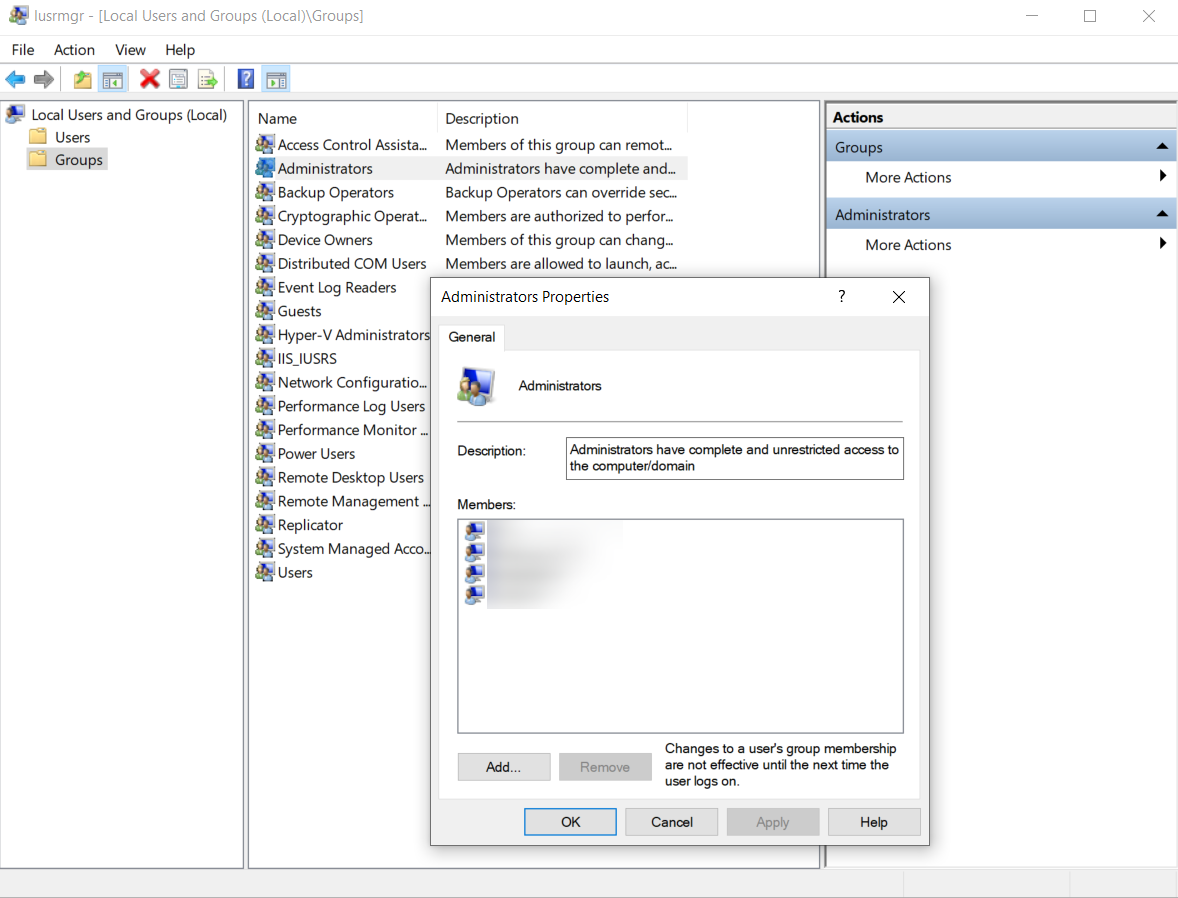
Use one of these bulk reporting methods to check local admin group membership across your managed fleet.
Option 1: System Group Users Report (See All Admins)
Use this method if you want to see all users who have local admin rights across all your managed devices.
- Navigate to Reports → Inventory Reports → System Group Users.
- Use the filter: Account Type = Local Accounts, Group Name = Administrators.
- Click Generate Report.
- Export the report to view local admin memberships across all your managed devices.
Option 2: Custom Report (Check Specific User)
Use this method if you want to check whether a specific user is a local admin on specific computers.
- Navigate to Reports → New Custom Report.
- Select Sub-Module: Computer(s), Type: Table.
- Go to the Filter tab and add a condition: Columns: Username, Criteria: equal, Value: [username] (replace [username] with the user to check, e.g., "john.smith").
- Go to the Columns tab and add these columns: Computer Name, Is Local Account, Group (set each to "Actual Value").
- Click Generate Report to see which computers have that user in the local admin group.