Frequently Asked Questions (FAQ)
Endpoint Privilege Management
Endpoint Privilege Management assigns application-specific privileged access to users based on their needs. Use this feature to apply least privilege throughout your network without affecting productivity. It provides privileged application access without exposing privileged credentials or granting unnecessary elevation.
No. Privilege Management applies only to Standard users. Admin users have full administrative access and are not subject to privilege-based restrictions.
Use the Endpoint Privilege Management feature to elevate specific applications for selected users without exposing privileged credentials or elevating their organizational privileges.
Cause: The application requires elevated privileges (administrator rights) to run. Without privilege elevation, Windows blocks standard users from launching the app and prompts them for admin credentials.
Solution: Use Endpoint Privilege Management to automatically grant users the elevated privileges they need for that specific application, eliminating the credential prompt entirely. Endpoint Privilege Management automatically runs the application with the required privileges. Users are no longer prompted to enter admin credentials each time they launch the app.
The 'Run as ManageEngine' option is displayed to standard users whose endpoints were added to Custom Groups that were associated with the Privileged Application List during policy deployment. Select this option to run those applications as an administrator without entering additional credentials. The user retains standard user rights for other activities.
Try these troubleshooting steps:
- Only allowlisted applications can be elevated, even if present in the Privileged Application List otherwise. Check whether the application is allowlisted for the target user-device.
- Check that you selected 'Yes' for the Associate Privileged Application List option during policy deployment.
- Only standard users can access applications with elevated privileges using the 'Run as Manageengine' option. Other administrators will have to use their credentials as usual, even if the Privileged Application List is associated with them. Changing their account type to standard user can resolve this.
- Modify the Privileged Application List by enabling elevation to "All allowlisted application", this might act as an intermediate fix. Test elevation of other applications on the endpoint to determine the scope of the issue.
- Check the affected computer in the policy deployment view and confirm that the intended privilege-list association and policy changes have reached it. If deployment is still pending, investigate the target scope, agent contact and deployment result before treating the missing elevation option as a rule-matching problem.
- If the issue remains, upload the agent logs from the "C:\Program Files (x86)\DesktopCentral_Agent(or UEMS_Agent)\logs" for us to analyze. Specify whether the issue affects one application or all applications to help us investigate.
Allowlisted applications that are added to the Privileged Application List, can be accessed with elevated privileges by the user-devices that are present in the custom groups associated with them. Standard users can run applications as administrators because this feature elevates the application rather than the user.
No. The Privileged Application List, once configured, is associated with computers through custom groups. It does not select an individual Windows user account for each application. Its rules apply to eligible standard users on the associated computer, subject to the configured elevation settings. Putting the same computer in another custom group does not isolate its logged-in users. The same configured applications and rules are subjected for elevation to every custom group associated with the list. For time-bound access to a selected Windows user, review Application Elevation JIT.
No. Applications must be allowlisted before they can run.
If elevation is enabled for all allowlisted applications or the specific applications selected with the 'Allow users to elevate all applications' option turned on, those applications can be elevated directly without additional justification. Other applications can be elevated only after a reason is provided.
No. Endpoint Privilege Management does not support multiple independent policies. You can create only a single EPM policy per Endpoint Central installation, which applies across your managed environment.
Yes. You can configure a Privileged Application List to allow elevation for all allowed applications while excluding specific applications from receiving elevation privileges. Refer here to learn how to configure the exclusion settings.
First check the account’s local administrator membership. Local administrator rights and application-specific elevation are different sources of privilege.
Review the effective Privileged Application List association, the all-allowed and specific-application selections, manual elevation settings, Auto Elevation and any active JIT elevation grant. Compare those settings with the affected executable and the user’s elevation action.
Record the computer, user, application path, server and agent builds, elevation event and active policy settings for support if the behavior remains unexplained. Do not assume that an unlisted application identifies a product defect.
Removal of Admin Rights
User accounts in computers can be classified as standard user accounts and local admin user accounts. Local admin accounts let users manage their local computers. Standard user accounts grant minimal or no management privileges. Local admin accounts can perform these tasks:
- Installing and uninstalling any software
- Adding or removing devices like printers
- Creating, deleting or modifying files, folders, and other computer settings
- Creating accounts for other users on the computer
Windows machines come with built-in administrator accounts. Use them to create initial standard user and local admin accounts. These accounts also have privileges similar to the local admin account. Unlike local admin accounts, built-in administrator accounts cannot be deleted from the machine. They can only be disabled.
If all local administrator rights have been removed from a machine, a new administrator account can be added using the Application Control Plus console. Follow these steps:
- Go to the Application Control Plus console → Tools → System Manager.
- Click the agent live status icon and select System Manager (This option will appear only when the agent is live).
- Select Groups → Administrators.
- Add the members.
Use either method to verify that the administrator account was added:
- Type the command-line prompt net localgroup Administrators to list all administrators.
Open Windows Run and type lusrmgr.msc . Go to Groups > Administrators, and the added member will be listed under the Administrators group.
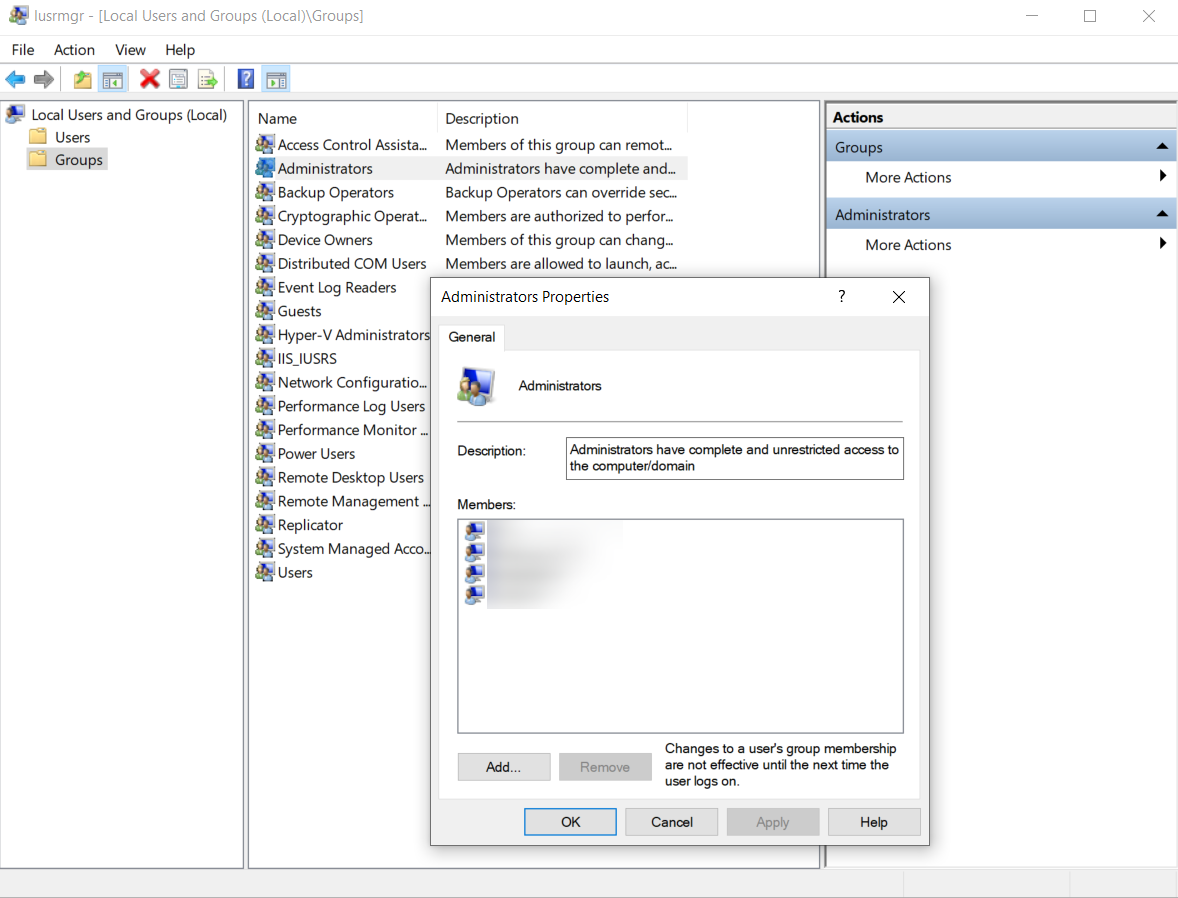
For another Windows local-account management workflow, see Manage Windows Local Users. Its Add User action includes Member of group membership, followed by target selection and deployment. Review the correct local Administrators group for the target computer. These Windows instructions are not a Mac recovery procedure.
Use these bulk reports to check local admin group membership across managed devices.
Option 1: System Group Users Report (See All Admins)
Use this method if you want to see all users who have local admin rights across all your managed devices.
- Go to Reports → Inventory Reports → System Group Users.
- Use the filter: Account Type = Local Accounts, Group Name = Administrators.
- Click Generate Report.
- Export the report to view local admin memberships across all your managed devices.
Option 2: Custom Report (Check Specific User)
Use this method if you want to check whether a specific user is a local admin on specific computers.
- Go to Reports → New Custom Report.
- Select Sub-Module: Computer(s), Type: Table.
- Go to the Filter tab and add a condition: Columns: Username, Criteria: equal, Value: [username] (replace [username] with the user to check, e.g., "john.smith").
- Go to the Columns tab and add these columns: Computer Name, Is Local Account, Group (set each to "Actual Value").
- Click Generate Report to see which computers have that user in the local admin group.