Configure Elevation for .bat and .msc Files
Learn how to securely elevate .bat and .msc files using folder path or file hash rules in Application Control Plus, without granting full administrator rights.
Overview
A .bat (Batch) file is a Windows command script that automates tasks using command-line instructions. These files are commonly used for software installation, system configuration, cleanup operations, and administrative automation. An .msc file is a Microsoft Management Console (MMC) file that opens administrative snap-ins such as Services, Device Manager, or Event Viewer. These files are typically used to access and manage system-level configurations. Examples of .msc files include:
- Services (services.msc): Manage Windows services (start, stop, configure).
- Device Manager (devmgmt.msc): View and manage hardware devices.
- Event Viewer (eventvwr.msc): Monitor system and application logs.
Application Control Plus supports elevation of both .bat and .msc files through policy-based controls. This enables approved scripts and management consoles to run with administrative privileges without granting users full local administrator rights. Only explicitly authorized files in the policy are permitted to run with elevated privileges. All others remain restricted under standard user permissions.
The goal is controlled privilege delegation — enabling necessary administrative execution without expanding the user's privilege boundary.
Configuration steps
Elevation for .bat and .msc files can be configured using either a Folder Path rule or a File Hash rule.
Folder-based elevation
Use the Folder Path rule when the files are stored in a controlled directory, or if multiple files need elevation. Follow the steps below:
- Navigate to Privilege Management. Click Create Policy/Modify.
- Enable the toggle for Configure specific application to run with elevated privileges. The option Allow users to elevate all applications can also be enabled for end-users to self-elevate applications by providing a justification. Refer to Privileged Application List configuration to learn more.
- Choose to add specific applications for elevation. Under selecting specific applications, select the rule type Folder Path.
- Specify the folder path containing the approved file(s). The elevation of child processes created by the folder files can be blocked by enabling Restrict Child Elevation.
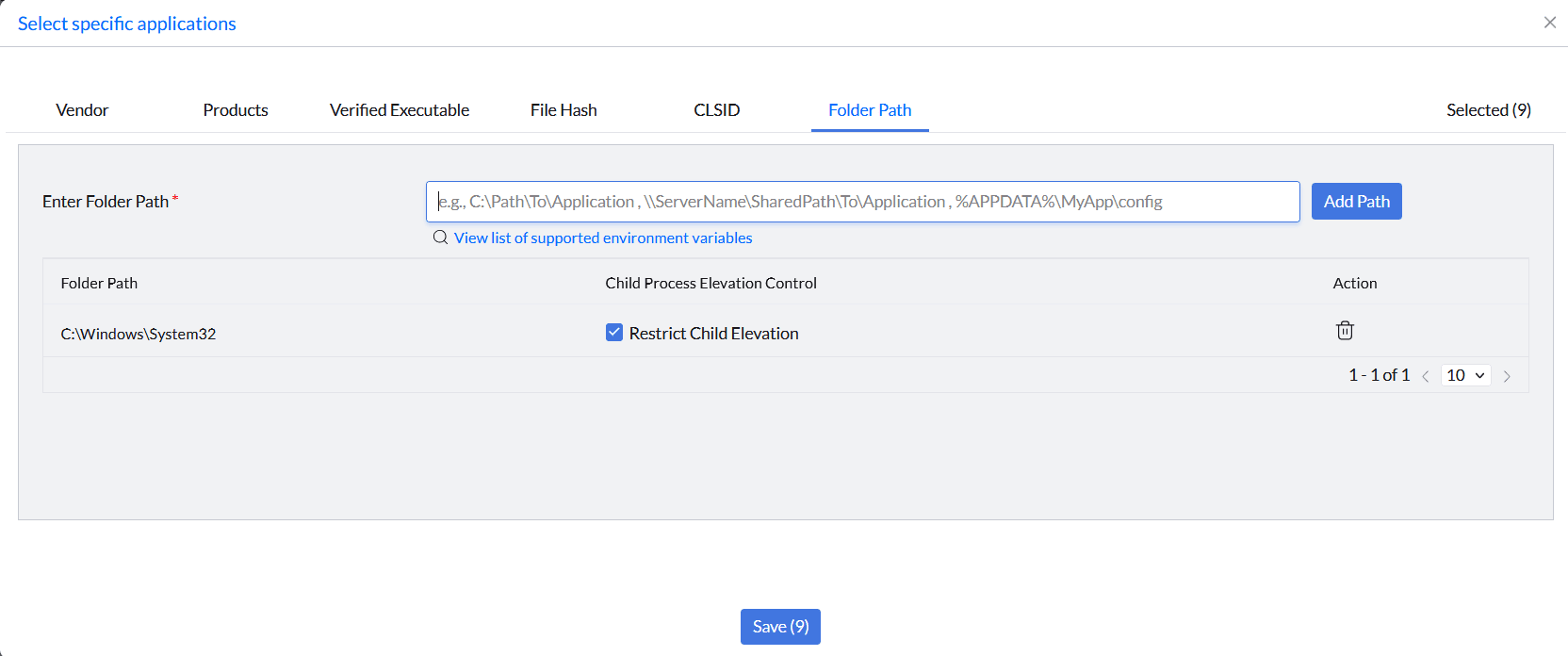
Configuring a Folder Path rule for file elevation. - Save the list and deploy it to the target devices that should receive this elevated access. All eligible files, including .bat and .msc files, inside that folder will inherit elevation based on the policy.
Hash-based elevation
Use the File Hash rule when only a specific .bat or .msc file has to be elevated. First, find the hash value of the file using Command Prompt or PowerShell.
Using Command Prompt (CMD)
- Open Command Prompt.
- Navigate to the folder containing your file using the
cdcommand (e.g.,cd Desktop). - Run the following command, replacing filename.bat with your actual file name:Command to retrieve file hash using Command Prompt
certutil -hashfile "filename.bat" SHA256
Using PowerShell
- Open PowerShell.
- Run the
Get-FileHashcommand, replacing C:\path\to\your\file.msc with your actual folder path:Command to retrieve file hash using PowerShellGet-FileHash "C:\path\to\your\file.msc" -Algorithm SHA256
Now that the file hash is retrieved, follow the steps below to configure the policy for elevating the file:
- Create the Privileged Application List as described in configuration steps above.
- In the Select Specific Applications section, select the File Hash rule type.
- Add the .bat or .msc file using the custom rule. Click Add under the rule type and specify the executable name and hash value of the file.
- The elevation of its child processes can be blocked by enabling Restrict Child Elevation against the file.
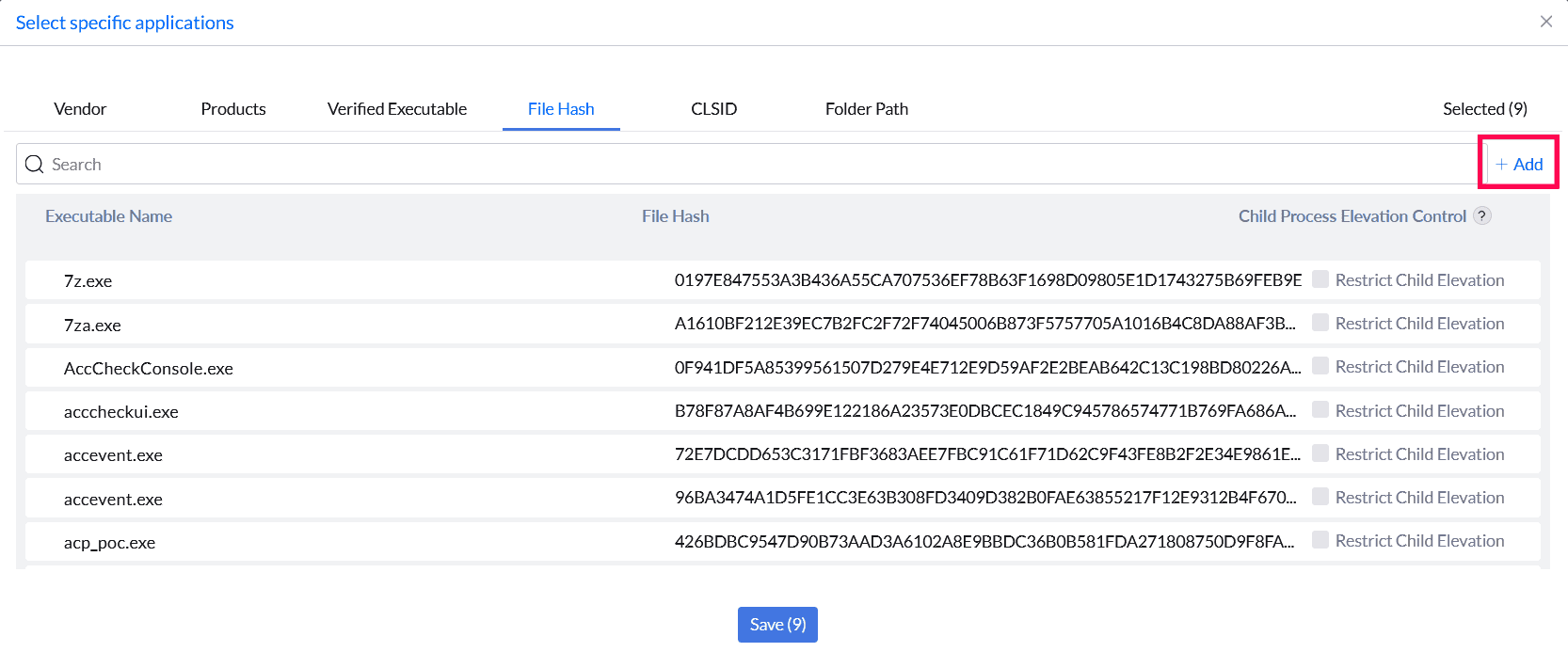
Adding a File Hash custom rule for a specific file. - Save the list and deploy it to the target devices that should receive this elevated access. This method is more secure, as elevation is tied to the file's unique hash, and the hash changes if the file is modified — the modified version will not be elevated.
End-user implementation
Once the policy is deployed, it takes effect immediately or in the next refresh cycle. After policy deployment, the end-user can navigate to the file, right-click, and select Run as Administrator. The file will run with elevated privileges.
Recommended best practices
- Prefer the Hash rule for high-security environments.
- Store elevated scripts in secured, non-user-writable directories.
- Regularly audit elevated scripts.
- Avoid broad folder-based elevation unless operationally required.
- Limit elevation to necessary administrative tasks.