How to Configure Just-In-Time Elevation Requests
Key Points
Benefits
Configuring JIT Requests
Monitoring & Audit
Overview
Just-In-Time (JIT) access in ManageEngine Application Control Plus is a privilege management approach that grants users elevated rights only when they are needed — and only for as long as they are needed. Rather than assigning permanent administrative privileges to endpoint users, JIT access ensures that elevated access is temporary, scoped, and fully auditable.
Application Control Plus supports two models of JIT access:
- Admin-configured JIT policies that proactively grant access based on predefined criteria, scoped to specific computers, users, and applications.
- A request-based model where end users can initiate their own elevation requests on demand, supplying a justification and a defined time duration.
This guide focuses on the request-based model — specifically, how end users can submit JIT Elevation Requests, and how administrators can streamline the approval process.
When a user attempts to run an application that requires elevated privileges, they are presented with an on-screen prompt to submit a JIT elevation request. The user specifies the time duration required and provides a business justification. This request is then routed to the administrator for approval. To learn how to configure JIT access requests using ManageEngine Application Control Plus, refer to the video guide.
Enforce least privilege with on-demand JIT elevation!
Benefits
- Least Privilege with Full Accountability — Users operate with standard rights at all times and can only gain elevated access by submitting a justified, time-bound request. Every request is logged with the user's identity, justification, duration, and approval status, creating a clear audit trail for compliance and security reviews.
- Reduced Attack Surface — Eliminating standing administrative privileges means attackers cannot exploit dormant admin accounts. Access is automatically revoked once the requested duration expires, ensuring no user retains elevated rights longer than necessary.
Configuring JIT Requests
Before users can submit JIT elevation requests, the option must be explicitly enabled in the Privileged Application List policy. Follow these steps:
- Navigate to Privilege Management.
- Click Create to configure a new Privileged Application List, or click Modify on an existing one.
Select Reason option against the 'Allow users to elevate applications with' setting. This enables the request-based JIT flow for end users. Refer here to learn more about configuring the Privileged Application List.
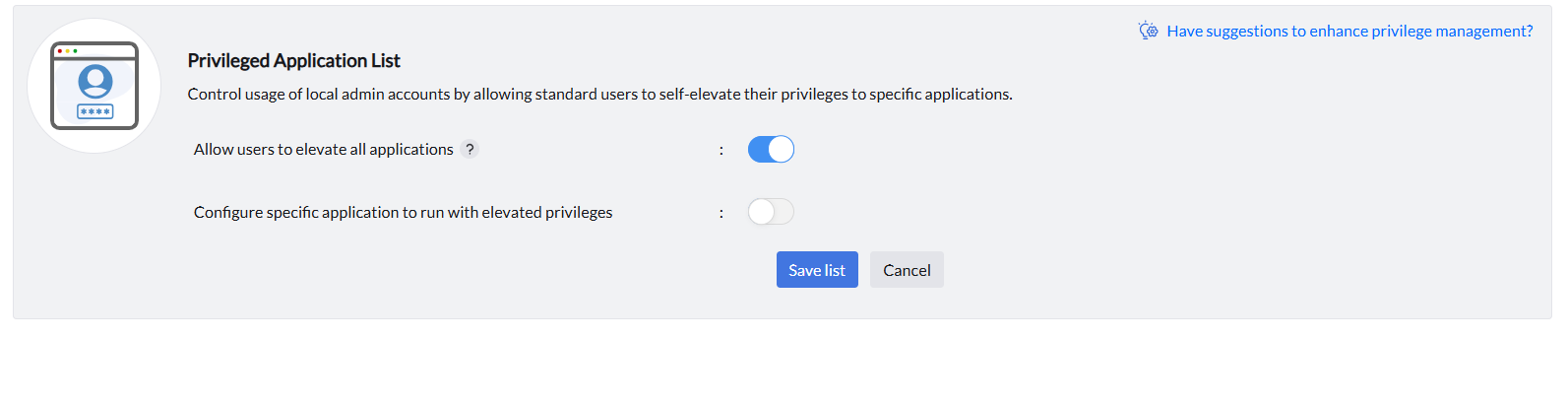
- You can provide it for all or specific applications. Toggle the button below for configuring it for specific apps. Choose whether this applies to All Allowed Applications or Specific Applications:
- All Allowed Applications - users can request elevation for any allowlisted application.
- Specific Applications - restrict elevation requests to selected applications only, defined using rule types such as Vendor, Product, Verified Executable, File Hash, CLSID, or Folder Path.
- Save the Privileged Application List, associate it with the relevant custom groups during policy deployment, and deploy the policy.
Understanding the JIT Request Flow
Once the policy is deployed, end-users can initiate elevation requests directly from their endpoints. Here is how the workflow unfolds:
Step 1: User Triggers the Request
When a user attempts to launch an application by right-clicking and selecting the 'Run as ManageEngine' option, a JIT elevation request prompt appears on their screen. The user must provide the time duration for which they need elevated access and a justification explaining why access is required.
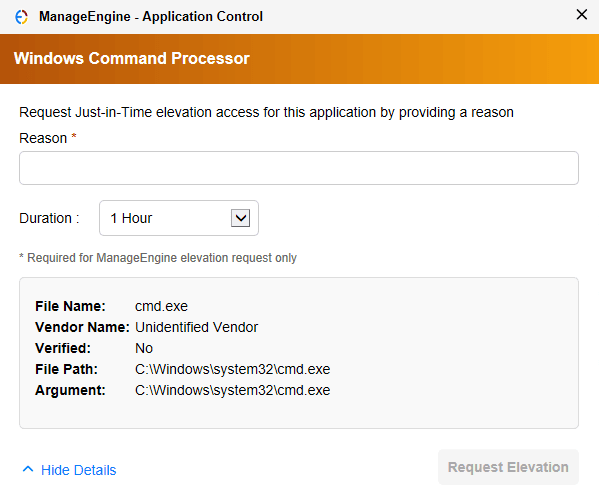
Step 2: Administrator Reviews the Request
All pending elevation requests appear in the Just-In-Time Access tab under Policies in the Application Control Plus console. Administrators can review each request, including the user's submitted justification, and take one of the following actions:
- Approve: the user receives temporary elevated access for the requested duration.
- Decline: the request is rejected and the user is notified.
Step 3: Access Expires or is Revoked
Approved access is governed by the requested time duration:
- Automatic expiry: Access is automatically revoked once the requested duration lapses, no manual action required.
- Manual revocation: Administrators can revoke active access at any time directly from the Just-In-Time Access console, regardless of the remaining duration.
Monitoring & Audit
All JIT activity — including user requests, admin approvals, declines, and access revocations — is captured in the JIT Events Report. To access it:
Navigate to the Just-In-Time Access section under Policies.
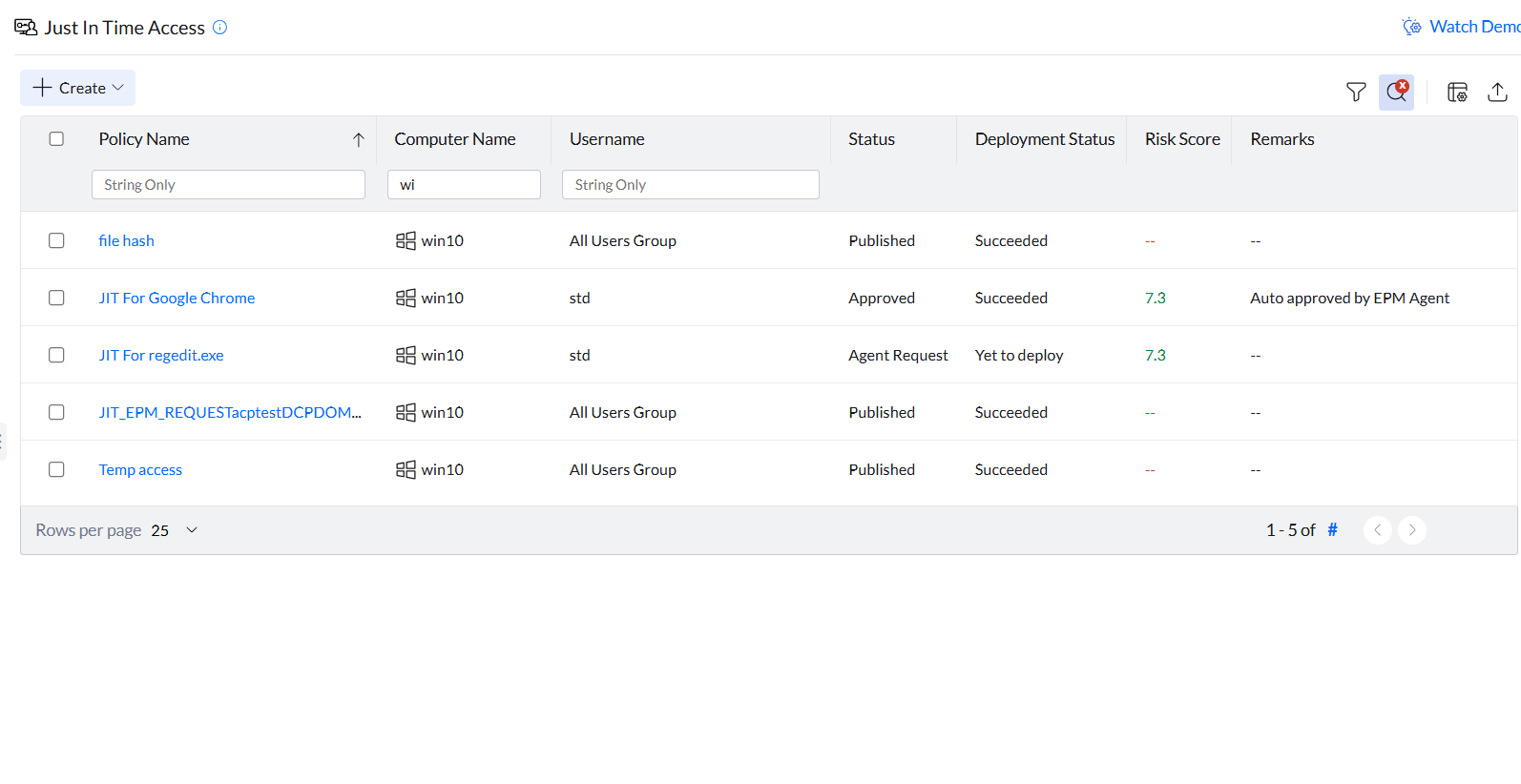
Click on any JIT policy, then select the Audit tab.
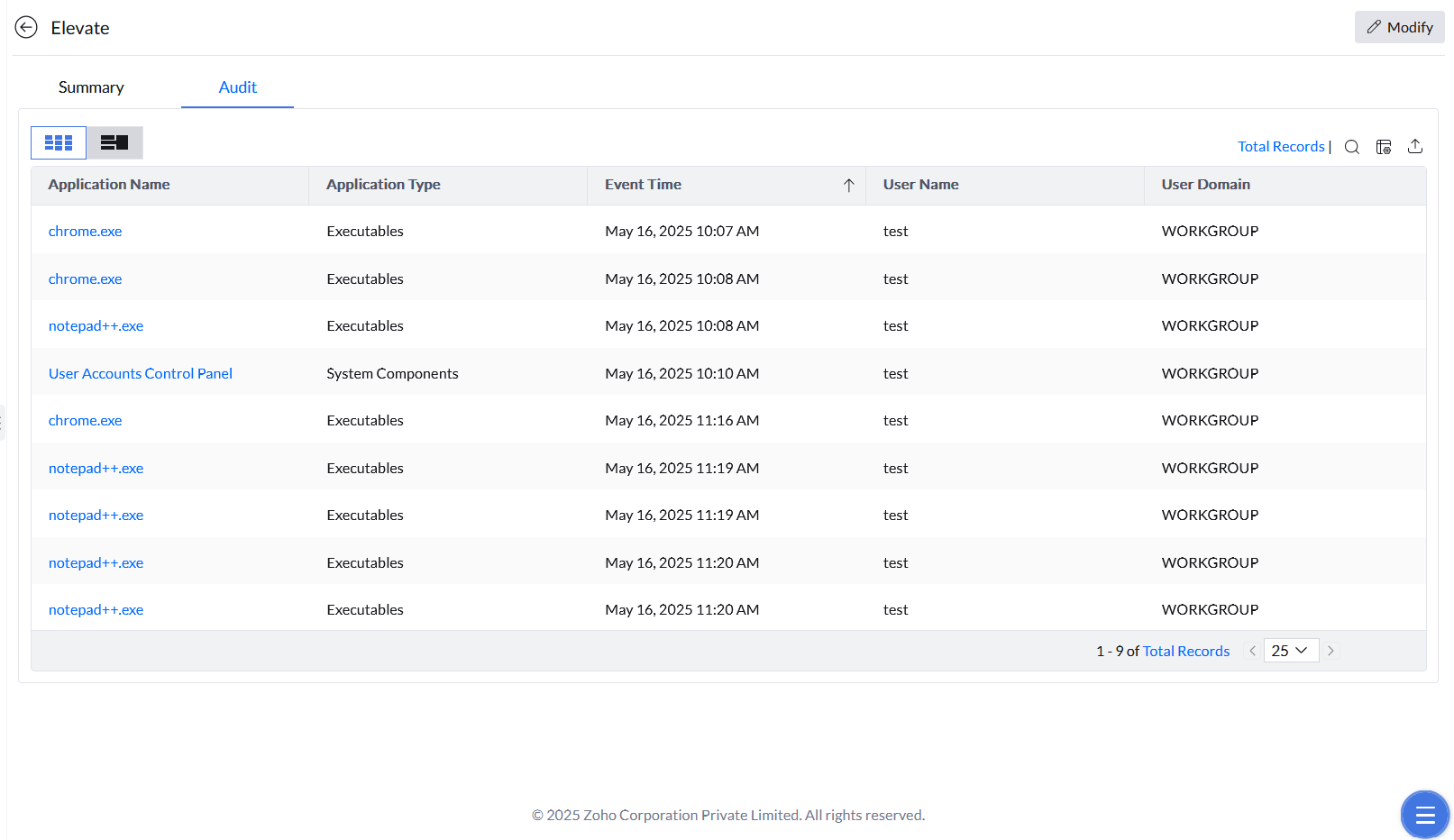
The audit trail provides a full record of privilege usage, which is critical for compliance, forensic investigations, and periodic access reviews.
Start your 30-day free trial and manage unlimited endpoints — secure and protected!