How to fetch information to configure a custom rule for application control?
Configuring custom rules decides what happens with the executable files of the processes that aren't currently installed in the endpoints. This provides the sysadmin with scope to define the rules based on the application resources that can be derived from their properties or via executing a command in the CLI.
Follow these steps to fetch information needed for custom rule creation:
- Windows
- Mac
Custom Rules in Windows have the following rule types:
- Vendor
- Product Name
- Verified Executable
- File Hash
To fetch Product Name and Executable Name, right click the application (the original executable, not the shortcut) and select properties (alternatively, selecting the application and pressing Alt+Enter also displays the properties).
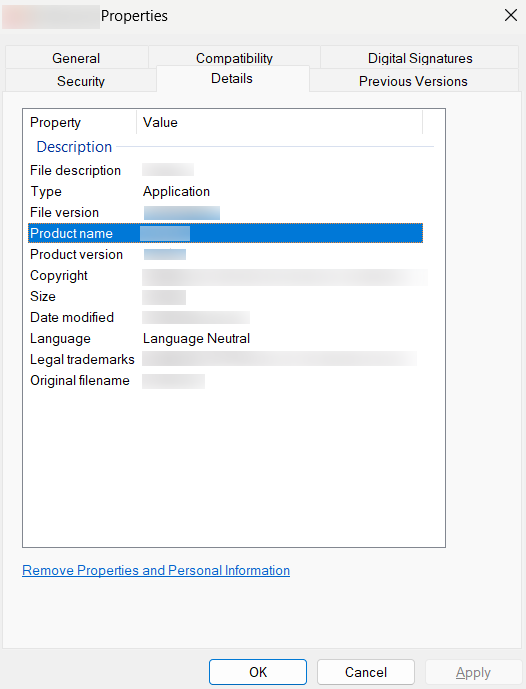
In this application properties, the Product Name is the same as titled in the pop-up, while the Executable Name is the one besides the Original filename. (Eg. Firefox executable name will be firefox.exe)
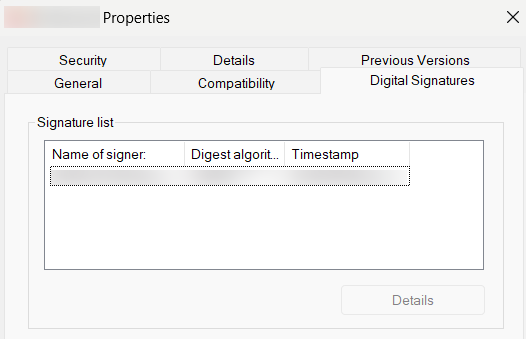
To know the Vendor Name, click on the tab Digital Signatures in the application properties. The value under the column Name of Signer is the Vendor Name.

Finally, to know the File Hash value, execute the following command in the command prompt,
certutil -hashfile "path_of_the_.exe_file" SHA256
(Note: In the file path, include the .exe file as well)
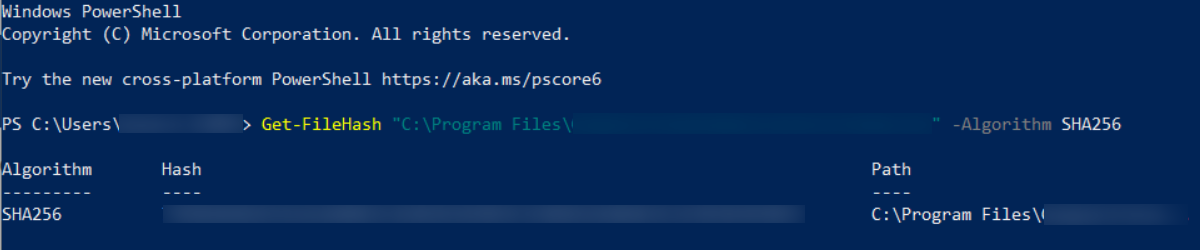
For Windows Powershell, execute the following command,
Get -FileHash "path_of_the_.exe_file" -Algorithm SHA256
Custom Rules in Mac have the following rule types:
- Vendor
- Application
- Binary
- File Hash
To fetch the application properties, follow the steps below:
Open Terminal in mac and enter the following command,
codesign -dvvv "path_of_the_.app_file"Example:
codesign -dvvv "/Application/Google Chrome.app"(Note: In the file path, include the .app file as well)
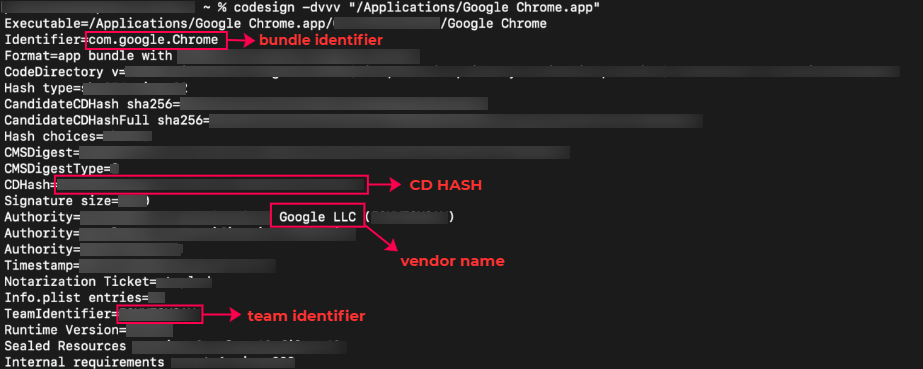
In this case, the Application Name is Google Chrome, for which,
- Vendor Name is mentioned in the Authority as Google LLC,
- Team Identifier is listed with the exact name,
- Bundle Identifier is com.google.Chrome as listed in the Identifier,
- Binary Name is the last entry of the path mentioned in the Executable, Google Chrome.
Note: If the Team Identifier is specified as "not set" and it contains the Platform Identifier, then the Team Identifier should be provided as "APPLE" (case-sensitive).
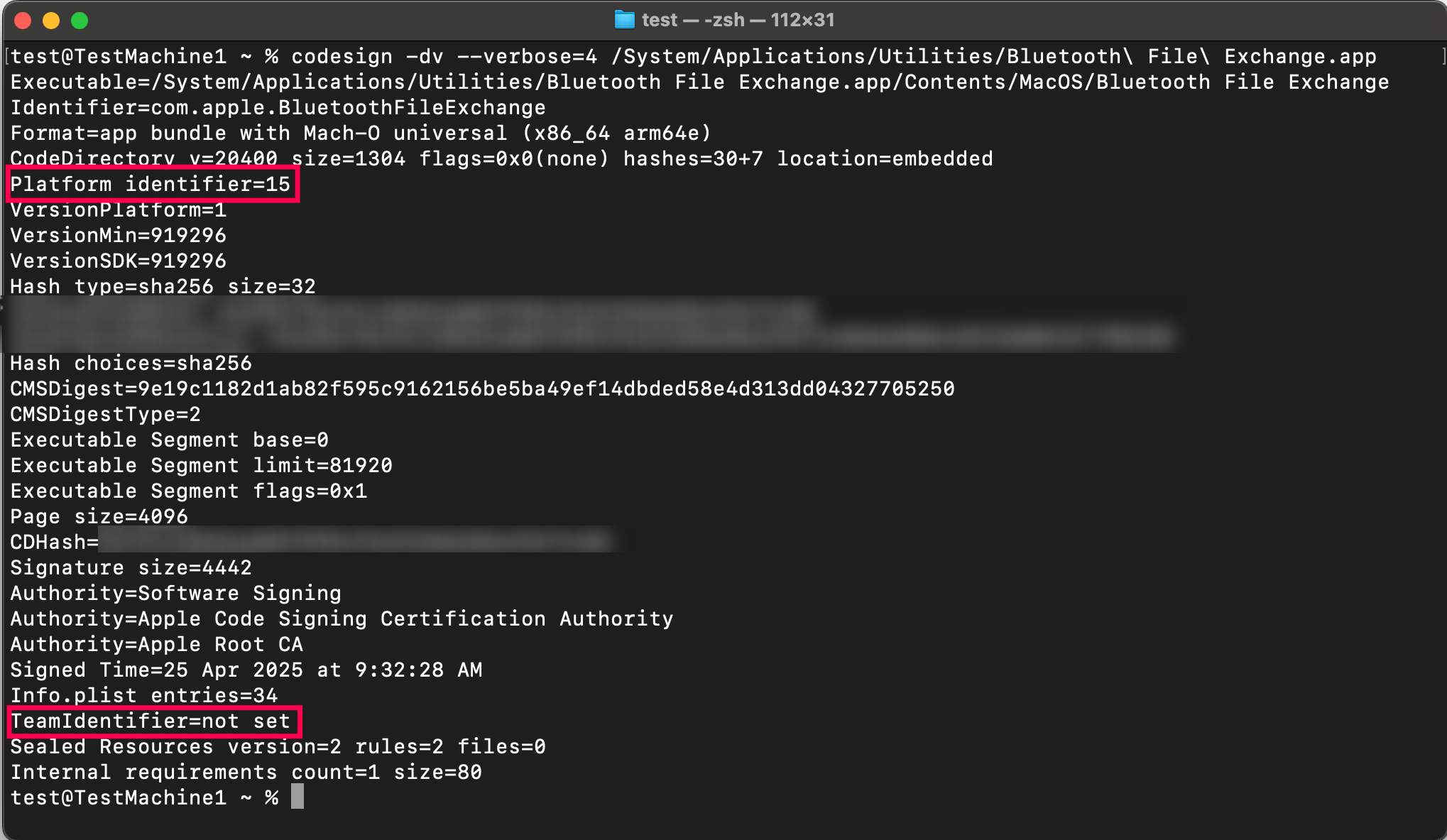
To find the application details for Intel macOS, the command is
codesign -a x86_64 -dvvv "path_of_the_.app_file"To find the application details for Apple Silicon macOS, the command is
codesign -a arm64 -dvvv "path_of_the_.app_file"And finally, before entering the File Hash value, the application has to be verified if it is signed or not.
- If signed, only CD HASH value will be considered in the custom rule.
- If it is unsigned, SHA-256 value can be entered.
Note: Entering SHA-256 value as File Hash for an application that is signed will not be processed as a valid custom rule.
To check if an application is signed, enter the following command in the mac Terminal,
codesign -d --extract-certificates "path_of_the_.app_file"
Once the Executable entry is found, execute the following command,
ls -l ./codesign*
If successful, check if it is signed by entering the following command,
security verify-cert -c ./codesign0
The result certificate verification successful indicates that Google Chrome is signed. So, it is recommended to use CD HASH value.
If an application is unsigned, the command
codesign -d --extract-certificates "path_of_the_.app_file"displays result like this.
For this application, which is not signed, enter the following command to know the SHA-256 value,
shasum -a 256 "path_of_the_.app_file"
The resultant SHA-256 value can be entered in the File Hash field.