Deployment Management
Deployment Management in Analytics Plus helps IT teams build, test, and deploy analytics content in a controlled way. It connects multiple workspaces through an ordered series of stages, such as Development, Testing, and Production, and lets administrators promote views and reports from one workspace to the next.
Instead of editing reports directly in a production workspace, teams can make changes in a development workspace, validate them across intermediate stages, and deploy the finalized content only when it is ready. Every successful deployment is tracked and saved as a version, making it possible to review who deployed a change and restore a stage to an earlier version when necessary.
Who can use Deployment Management?
Deployment Management is intended for administrators who manage analytics content across IT teams and need a governed way to move changes from development to production workspaces. It can be used to:
- Build service desk dashboards in a Development workspace, validate them in a Testing workspace, and publish the approved dashboards to Production.
- Review and trace changes before they reach reports used for IT operations and service management decisions.
- Roll out standardized infrastructure, network, or application-monitoring reports across downstream workspaces.
- Restore Production to a stable version if a deployed dashboard displays incorrect metrics.
What is in this page?
- Feature requirements
- Understand Deployment Management
- Create a deployment flow
- Deploy changes
- Restore a previous version
- Manage deployment flows
- View activity history
- Data source behavior
- Frequently asked questions
Feature requirements
Who can access Deployment Management?
Only Account Administrators and Organization Administrators can create and edit deployment flows, deploy content, and restore versions. A flow can include workspaces from different organizations where the administrator has the required access.
Where can I find Deployment Management?
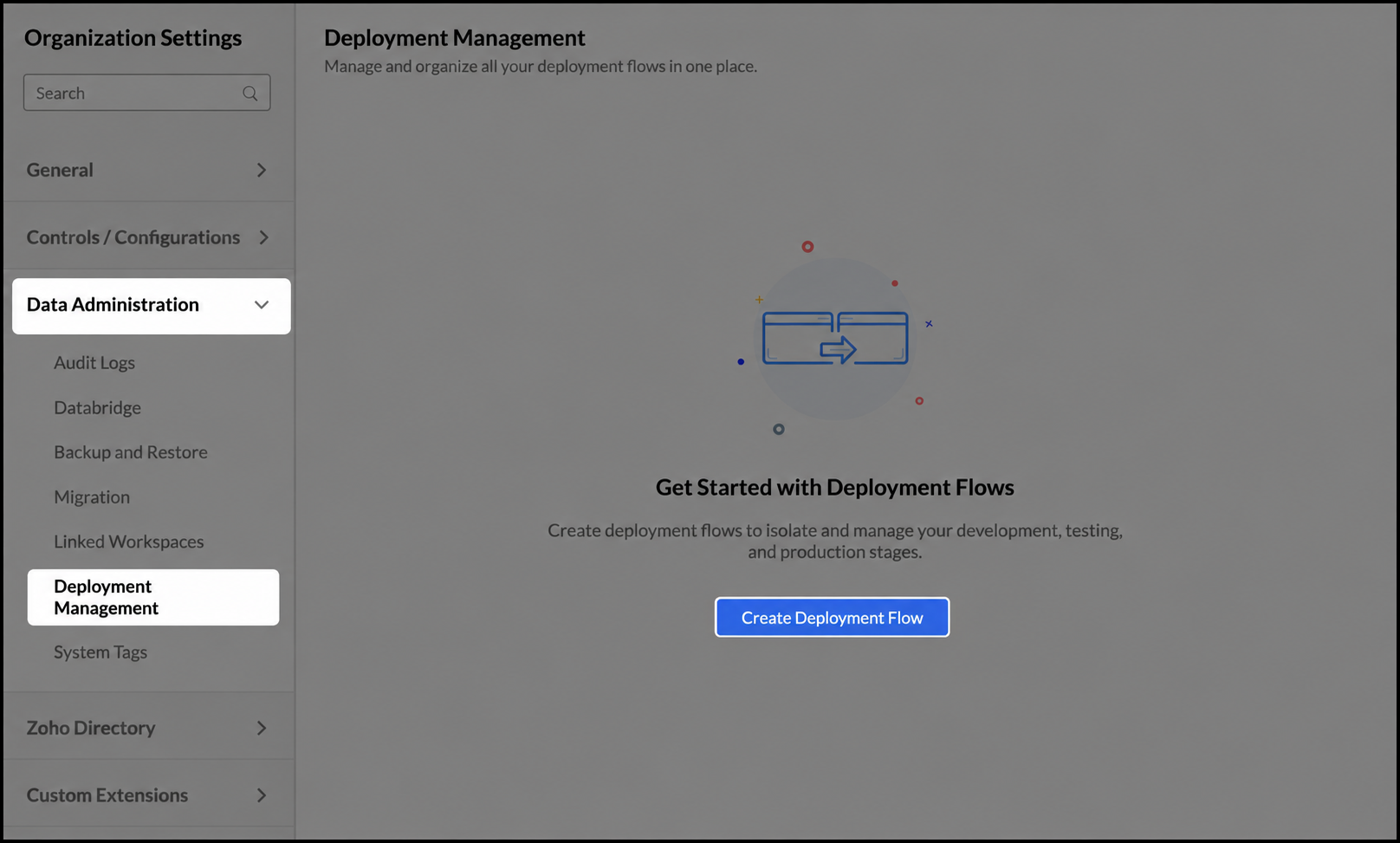
Open Organization Settings, expand Data Administration, and select Deployment Management.
Understand Deployment Management
Before creating a flow, understand how Deployment Management is organized and what happens during a deployment.
Deployment hierarchy
Deployment Management is organized into the following levels:
- Deployment Management: The top-level section where administrators view and manage deployment flows.
- Deployment flow: A container that holds an ordered set of stages. Each flow represents a promotion path, such as Development to Testing to Production.
- Stage: A step within a flow. Each stage is mapped to a workspace and appears in a fixed order. The stage order determines the direction in which content is promoted.
Every successful deployment to a stage is saved as a numbered version of that stage. The first stage has no versions because content is never deployed into it.
What gets deployed?
When content is deployed, Analytics Plus copies the metadata of the selected views and reports from the source stage and applies it to the target stage. A deployment can include:
- Tables and their schema, including column names, data types, default formats, and display names.
- Query tables, including their SQL queries and output schemas.
- Charts, including formulas, measures, dimensions, aggregations, filters, sorting, axes, legends, and user filters.
- Pivot, summary, and tabular reports, including fields, aggregations, totals, filters, and sorting.
- Dashboards, including layouts, widget positions and sizes, text, images, and supported interactions.
- Calculated fields, user filters, parameters, lookups, joins, drill paths, hierarchies, custom groups, alerts, schedules, and variables.
- Themes, formats, conditional formatting rules, and folder structures.
Note: A deployment copies report and view definitions, not the underlying data. The data in each stage remains in that stage's workspace and is not moved or saved in a version.
Create a deployment flow
A deployment flow is created using a two-step wizard. The first step defines the flow and its stages, and the second maps a workspace to each stage.
- Open Organization Settings.
- Navigate to Data Administration > Deployment Management.
- Click Create Deployment Flow.
Step 1: Enter the flow details and define stages
- In the New Deployment Flow dialog, enter a Flow Name and an optional description. For example, an IT operations team could create a flow named Service Operations Analytics.
- Enter a name for each stage.
- Click Add Stage to add another stage to the end of the flow.
- To remove a stage added during the current session, click the Delete icon next to it.
- Click Next.
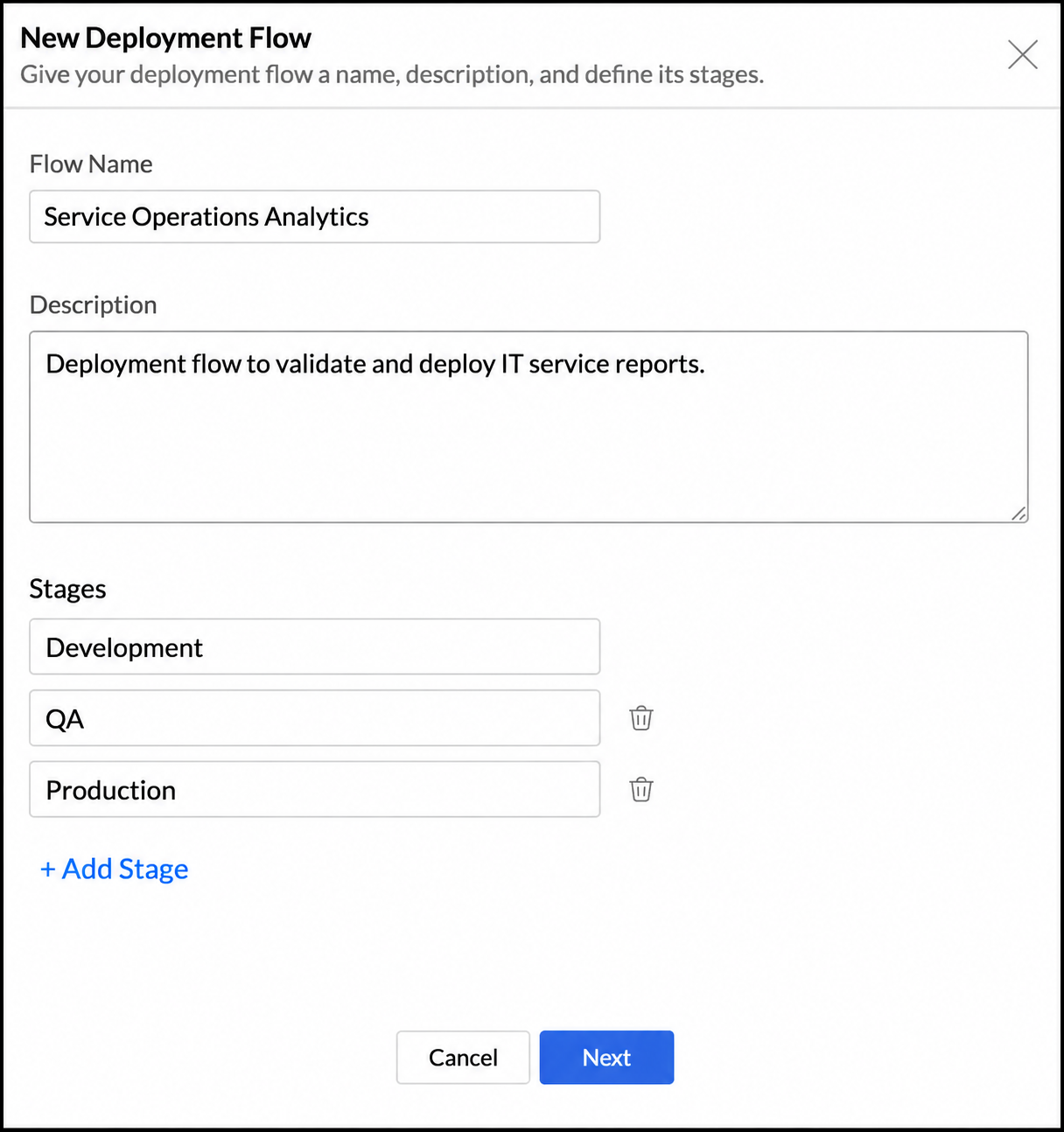
Note: A flow must contain at least two stages and can contain up to ten stages. The first and last stages cannot be deleted.
Step 2: Assign workspaces
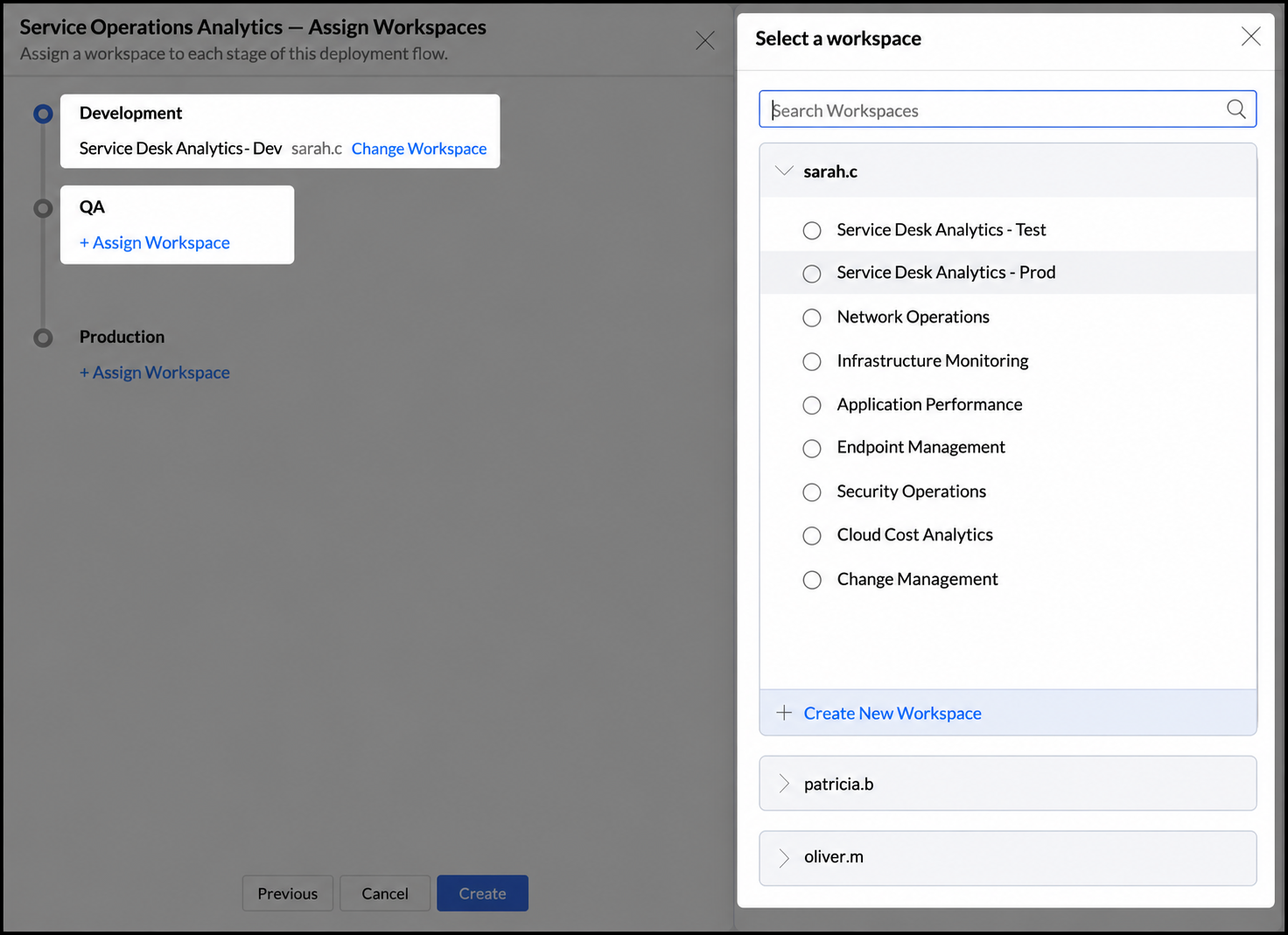
- For the first stage, select an existing workspace or create a workspace in the organization where the flow is being created.
- For each subsequent stage, create a workspace or select an existing workspace from an organization where you are an administrator.
- To reassign a stage, click Change Workspace and select another workspace.
- When workspaces are assigned, Analytics Plus checks their compatibility. If a workspace does not pass the check, reassign the stage before proceeding.
- Review the stages and their assigned workspaces, and click Create.
Deploy changes
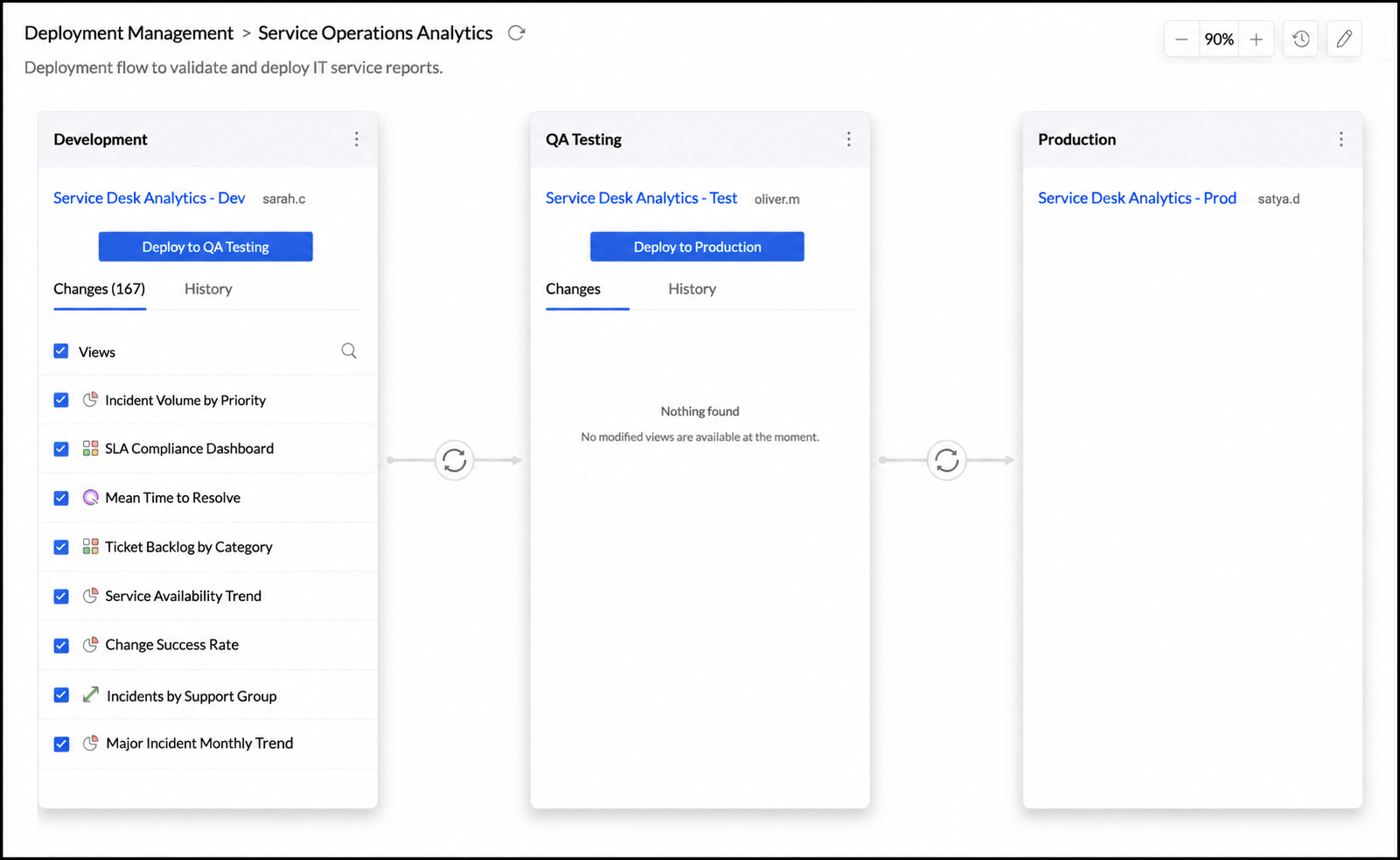
Deploying promotes analytics content from one stage to the next. The flow page displays each stage as a card in its configured order, allowing administrators to review changes before starting a deployment.
The tabs available on a stage depend on its position in the flow:
| Tab | First stage | Middle stages | Last stage |
|---|---|---|---|
| Changes | Yes | Yes | No |
| History | Yes | Yes | Yes |
| Versions | No | Yes | Yes |
- Changes: Lists added, modified, and deleted items. For the first stage, it displays modifications made in that workspace. For downstream stages, it compares the stage with its source stage.
- History: Lists deployments made from that stage to the next stage, including the user, number of views, date, time, and deployment notes.
- Versions: Lists versions saved after successful deployments to the stage.
Deploy content to the next stage
- On the source stage, click Deploy to {Stage Name}.
- In the Confirm Deployment dialog, review the content that will be deployed.
- Filter items by status to review new, modified, or failed items. Open the views panel to inspect the affected views.
- Add optional notes describing the deployment, and confirm.
Note: If a view with the same identity exists in the target stage, deployment replaces it with the source-stage version. Every successful deployment creates a version of the target stage.
Track deployment progress
- An In Progress indicator appears between the source and target stages while deployment is running.
- After a successful deployment, the indicator changes to a tick mark and a new version is added to the target stage.
- Click the success indicator between the stages to review the deployed changes.
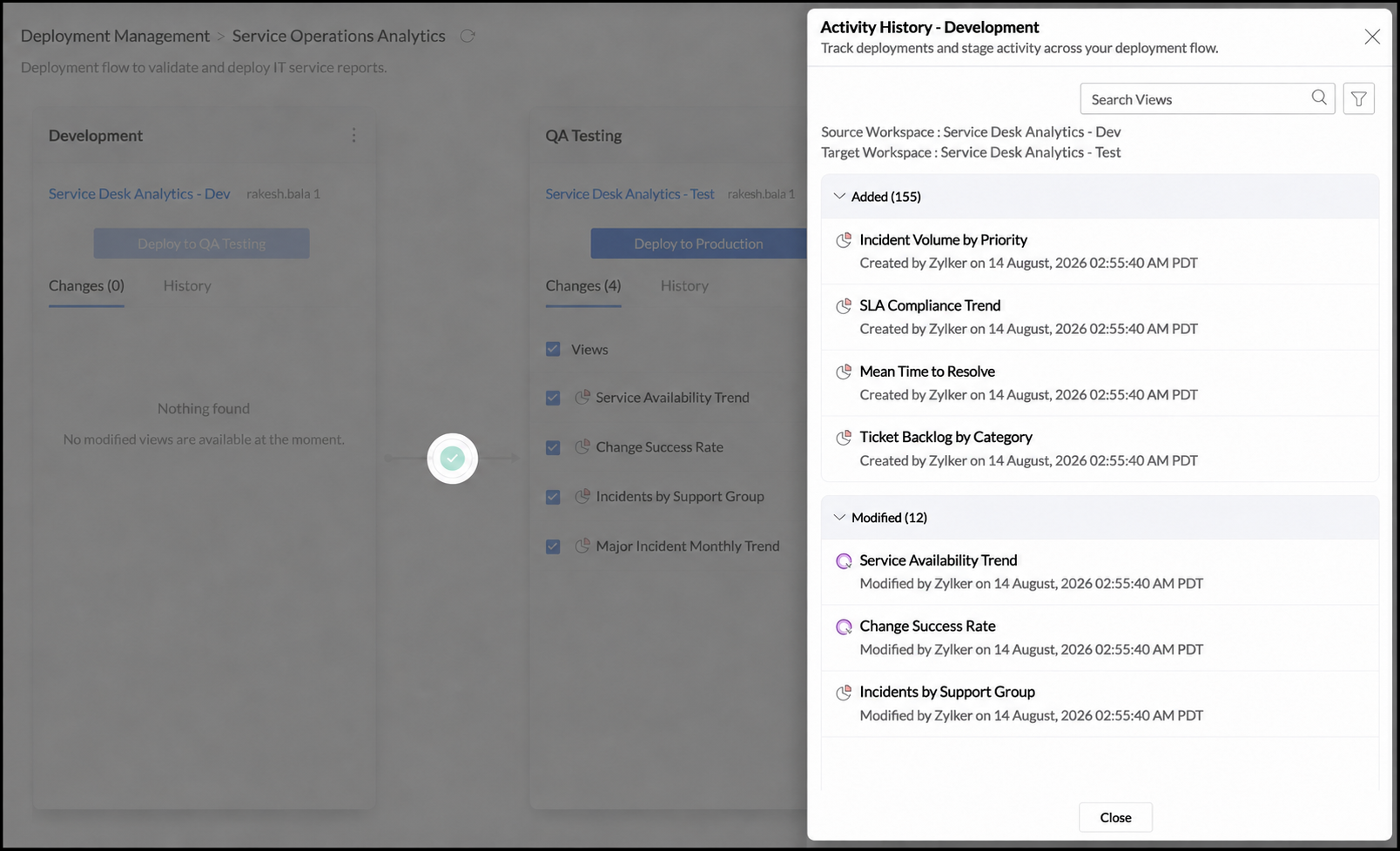
Empty states
- A stage with no changes displays Nothing Found.
- A Production stage displays Awaiting first deployment until it receives content.
- The Versions tab remains empty until the first successful deployment to the stage.
Restore a previous version
Every successful deployment to a stage is saved as a version. If a deployment does not work as expected, you can restore the stage to an earlier version.
- Open the required deployment flow.
- On the stage that you want to restore, open the Versions tab.
- Click Restore for the required version.
- Confirm the restore.
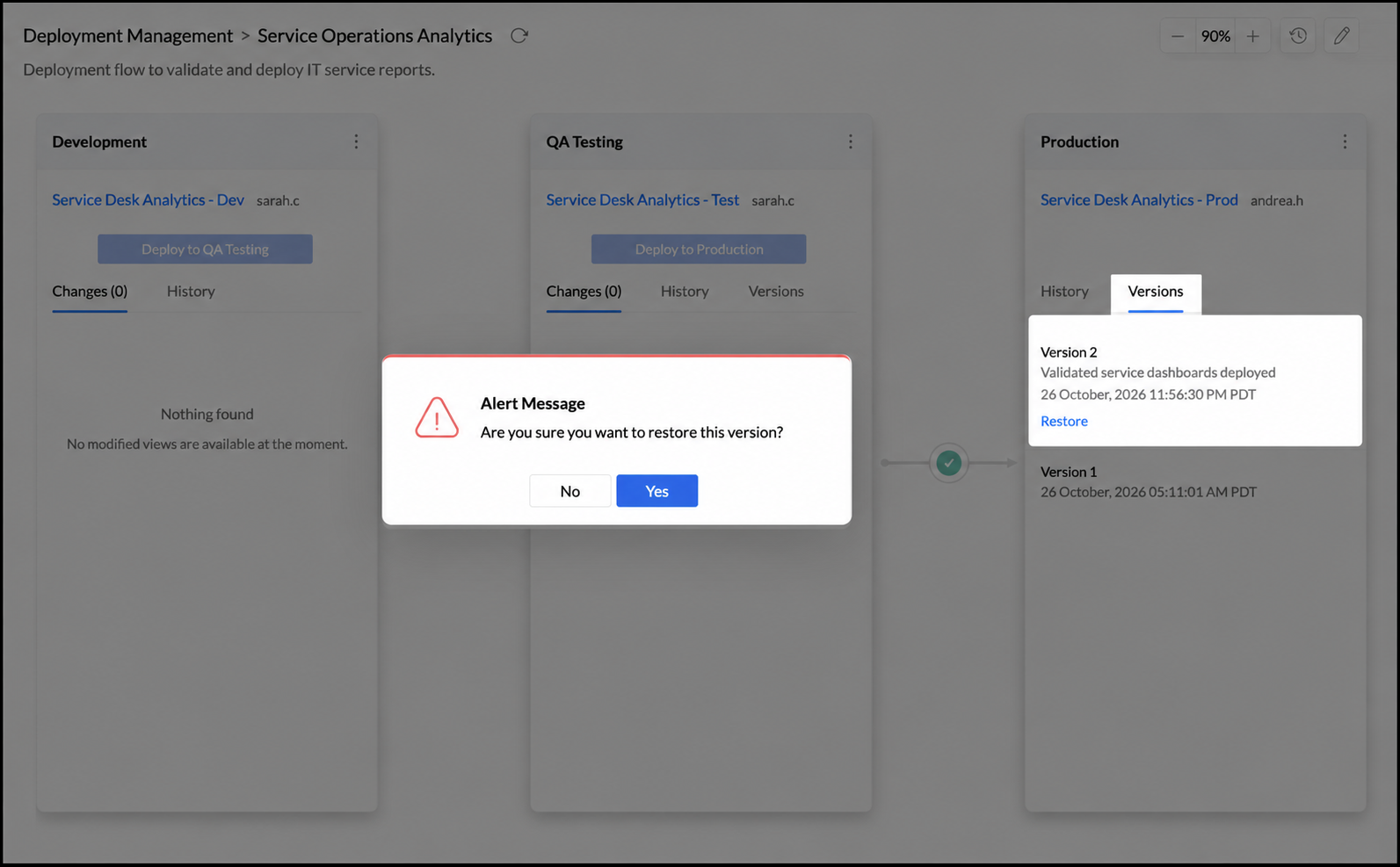
The stage's views return to the state saved in the selected version. Views changed or removed since that version are restored, while views added after that version are deleted. Other stages are not affected, and newer versions remain available.
Review a restore
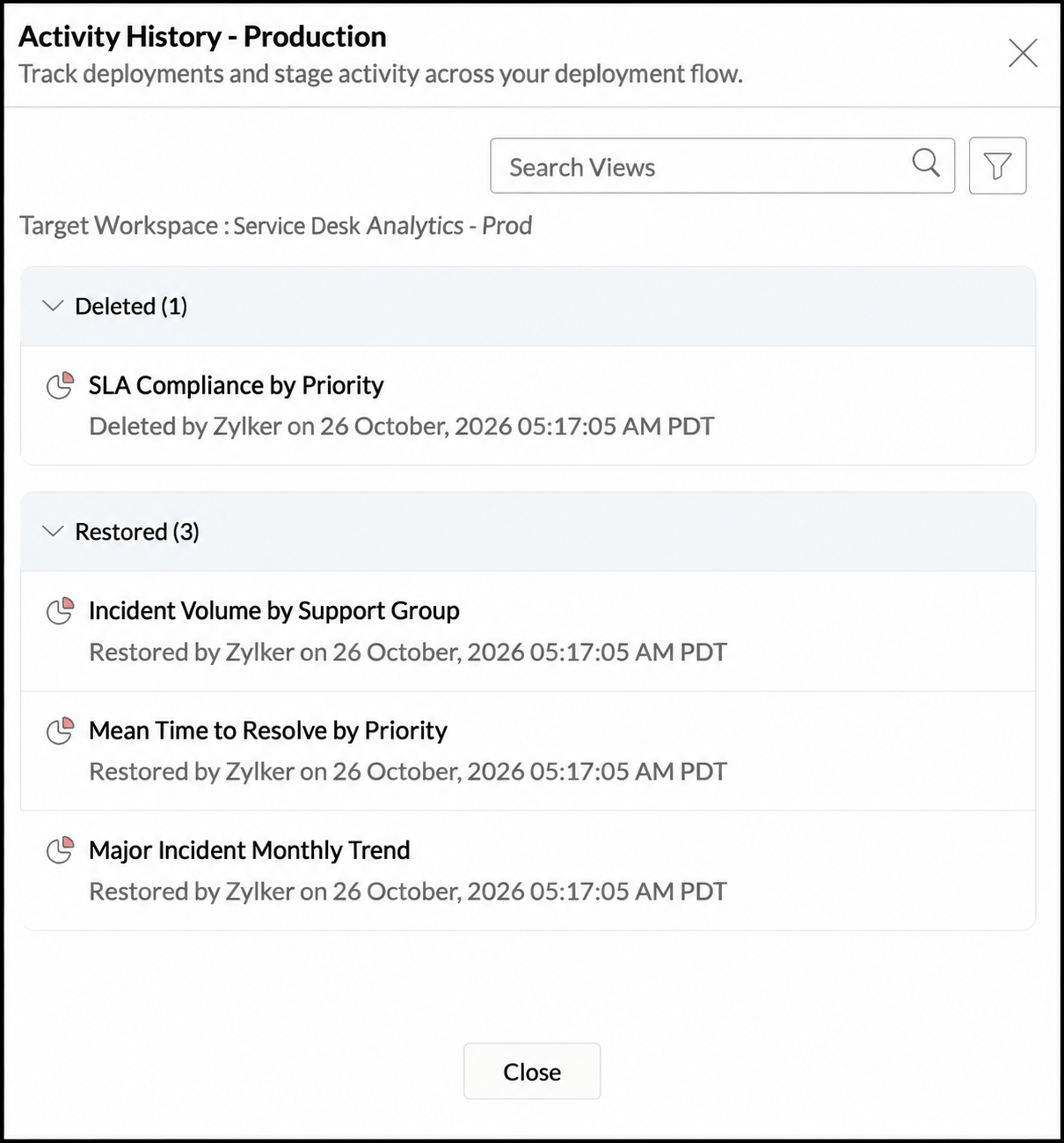
Each restore is recorded in the stage's Activity History. The panel identifies the target workspace and groups affected views by action:
- Restored: Views returned to the state stored in the selected version.
- Deleted: Views removed because they were not part of the selected version.
Use the search and filtering options to locate a view by name or filter the list by view type.
Manage deployment flows
The Deployment Management page lists flows as cards. Each card displays the flow name and description, a stage timeline, and a menu with options to edit, duplicate, or delete the flow.
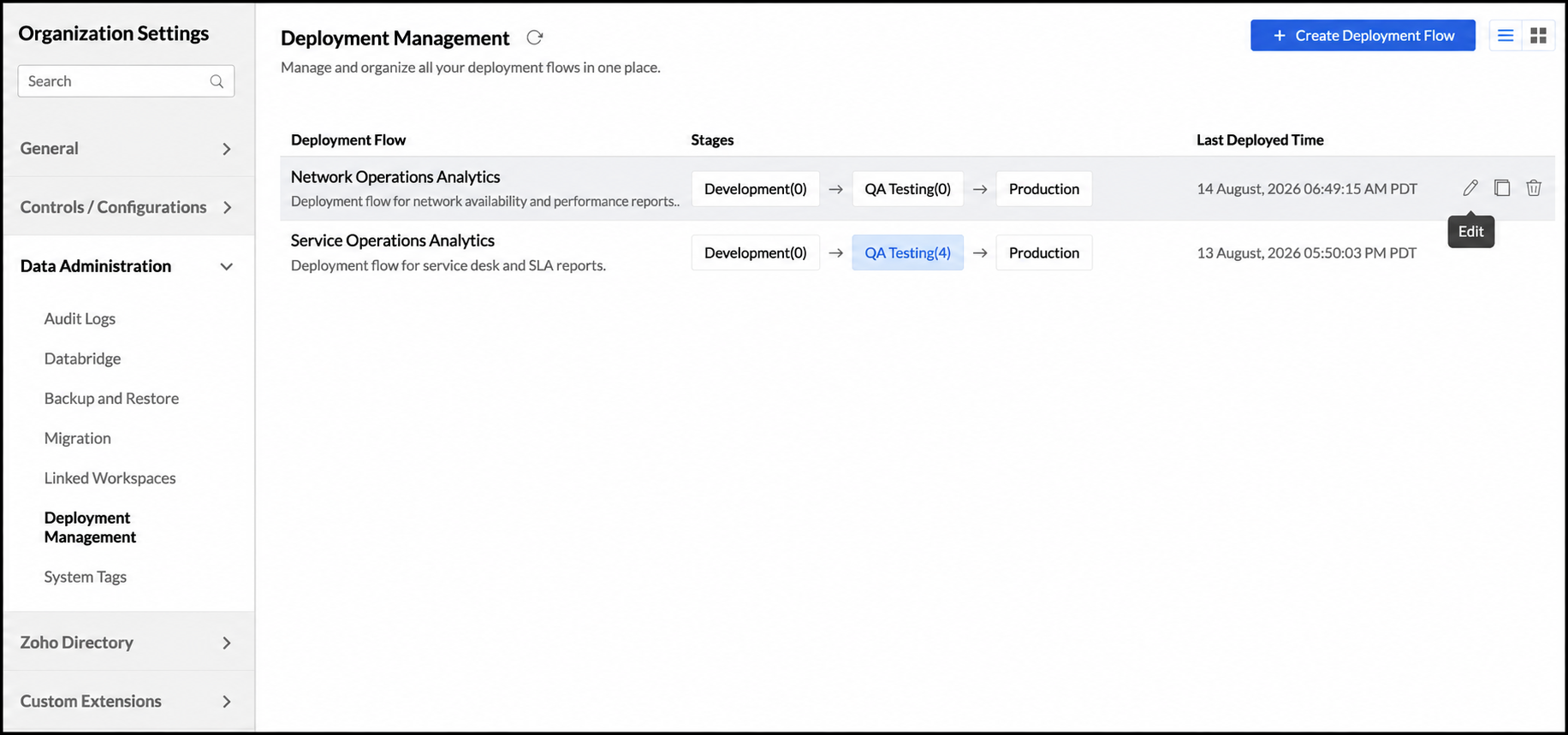
Note: A duplicated flow starts without versions. Deleting a flow removes its versions but does not remove content from its workspaces.
Manage stages
Open a flow and click the More icon on a stage card to access the following options:
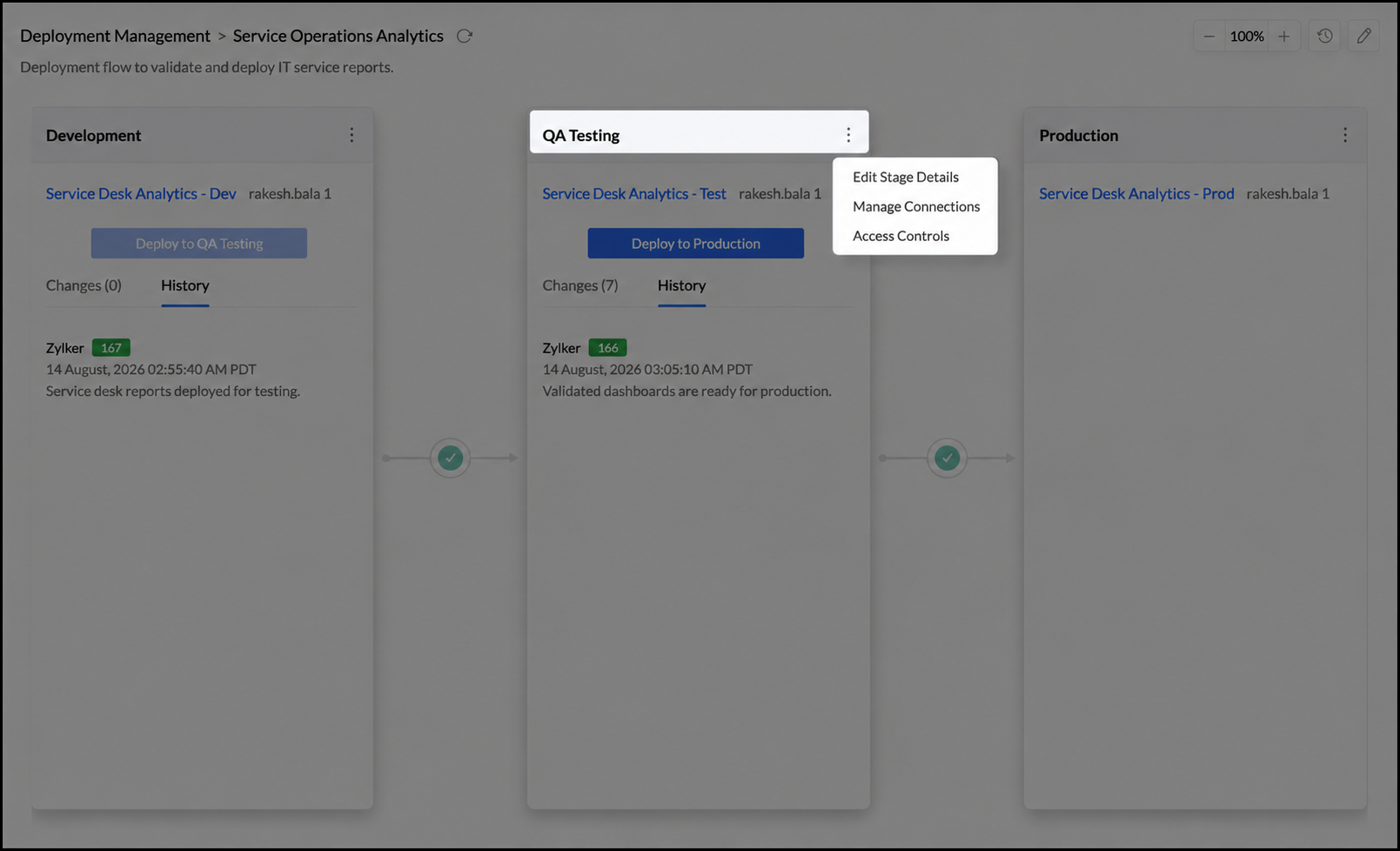
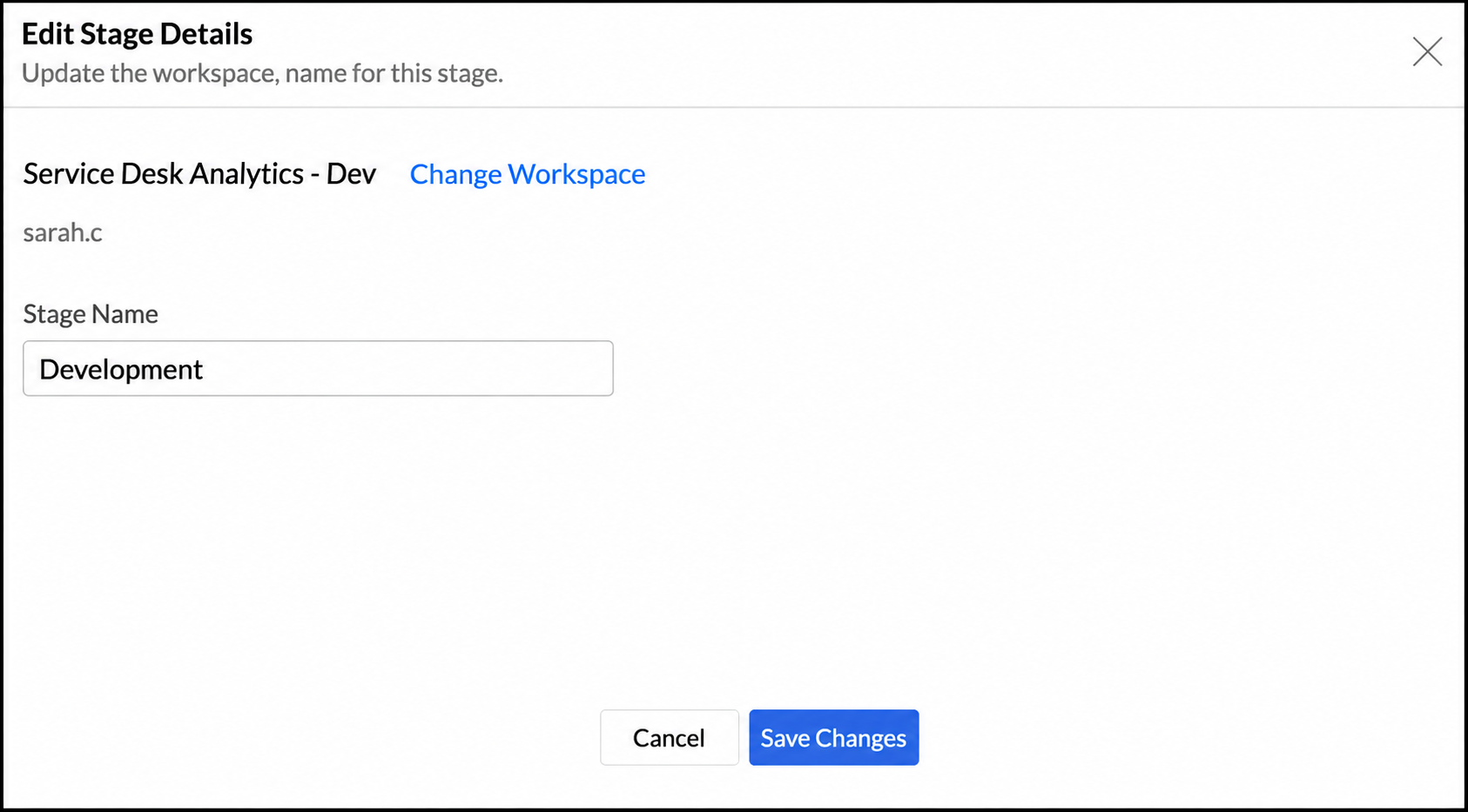
- Edit Stage Details: Reassign the workspace mapped to the stage. After reassignment, configure the stage's data sources and complete the compatibility checks again. Existing versions no longer apply, and versioning starts again with the next deployment.
- Manage Connections: Opens the assigned workspace's Data Sources page, where you can review and reauthenticate its connections.
- Access Controls: Opens the Manage Users page in Workspace Settings so that you can manage access to the assigned workspace.
View activity history
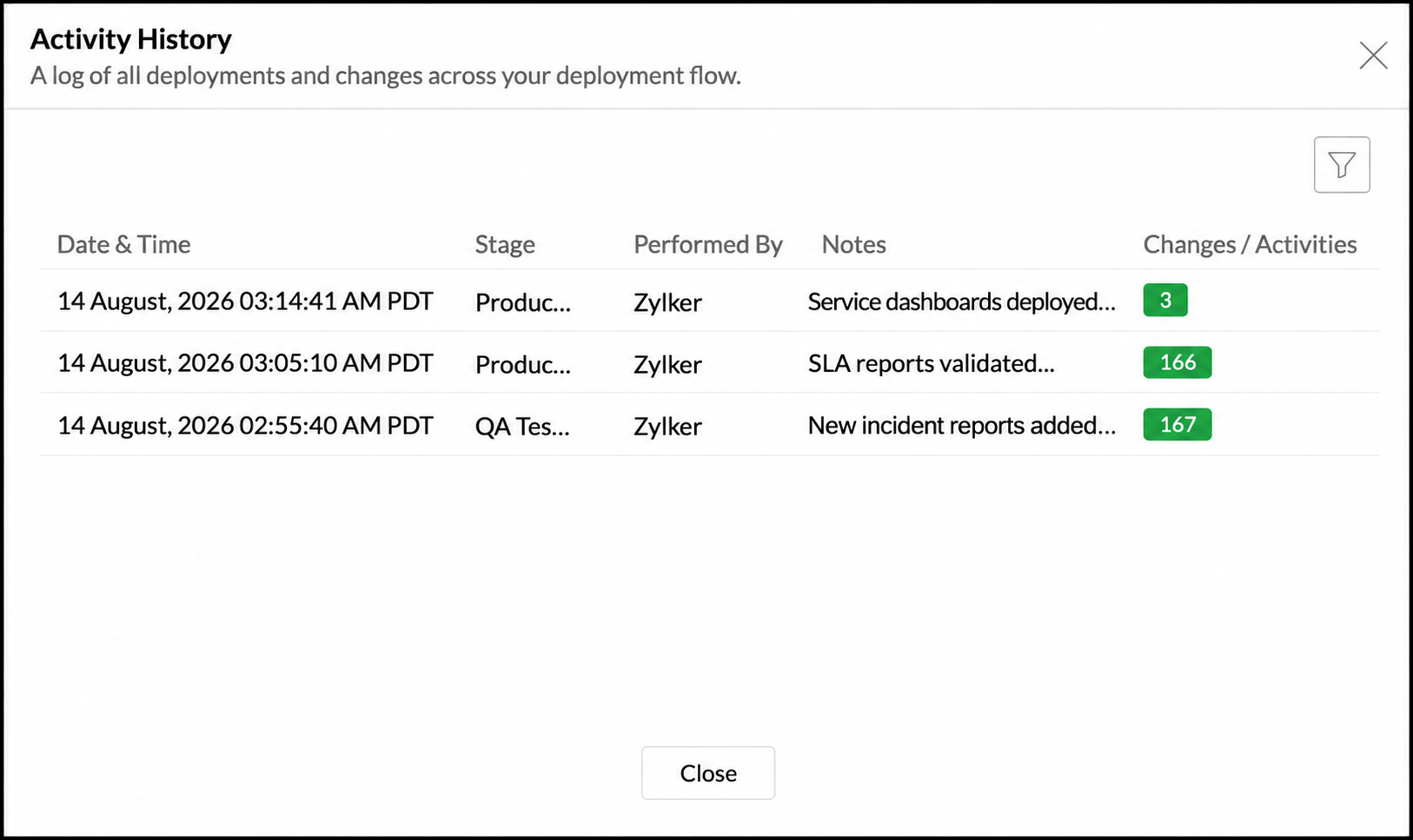
Activity History provides a record of actions performed in a deployment flow, including flow creation, workspace mapping, data source changes, deployments, restores, and deletions. On the flow page, click the History icon to view the complete history.

Each entry includes:
- The date and time of the action.
- The stage where the action was performed.
- The user who performed the action.
- Notes added to the action.
- Changes or activities grouped by action.
Click a change count to inspect the affected views. Use the action filter to focus on a particular activity, such as a restore.
Data source behavior
- Compatibility: Source and target workspaces must use compatible data sources and similar tables. Multiple data sources can be used in the first stage, while downstream stages must use a single source type to avoid deployment conflicts.
- Duplicate table names: When two sources contain tables with the same name, Analytics Plus adds a source-specific suffix to distinguish the second table. Connections are matched using internal identifiers.
- Source types: Local-file uploads deploy metadata only. Feeds, databases, and data lakes can use a new or existing connection. Connector sources cannot be changed during deployment.
- Restoring versions: A restore affects content definitions only. It does not change the connections or data sources configured in the stage's workspace.
Frequently asked questions
1. Does deploying or restoring a version overwrite the underlying data?
No. Deployment and restore operations work with the metadata that defines views and reports. They do not move or overwrite the underlying workspace data.
2. Who can create flows, deploy content, and restore versions?
Only Account Administrators and Organization Administrators can perform these actions.
3. Can I undo a deployment?
Yes. Open the target stage's Versions tab and restore the version saved before the deployment.
4. Why does the first stage not have a Versions tab?
Versions are created when content is deployed into a stage. Because no content is deployed into the first stage, it does not have versions.
5. Does restoring a version affect other stages?
No. A restore affects only the selected stage. Restore each stage separately if more than one stage must be returned to an earlier state.
6. Can I return to a newer version after restoring an older one?
Yes. Newer versions remain available after a restore and can be restored again.
7. How many stages can a flow contain?
A flow can contain between two and ten stages. The first and last stages cannot be deleted.
8. What should I do if a compatibility check fails?
Reassign the stage after confirming that its workspace uses a compatible data source and similar tables, and then run the compatibility check again.
9. Can I change a stage's workspace after creating the flow?
Yes. Use the stage's More menu to assign another workspace. Configure its data sources and run the compatibility checks again. New versions start with the next deployment.
10. How do I duplicate or delete a deployment flow?
Use the flow card's More menu. A duplicate carries over the flow details and stages but does not include versions. Deleting a flow removes its configuration and versions without deleting the associated workspaces or their content.