SQL and Formula Agent
Ask Zia uses agentic capabilities to translate a data-modeling goal into the steps needed to prepare data for analysis. Its specialized agents can generate and improve SQL queries, create formulas, transform data, and build pipelines while allowing you to review and control the resulting logic.
Use the links below to go directly to a data-modeling capability:
SQL Agent
The SQL Agent translates natural-language requirements into SQL queries using the connected tables and data sources as context. It can also explain an existing query, suggest performance improvements, and help troubleshoot query errors.
- Generate queries: Create SQL statements from a description of the required data and analysis.
- Explain queries: Describe the structure, logic, joins, filters, and operations in a query.
- Optimize queries: Identify redundant operations, unnecessary joins, inefficient filters, and overly complex logic.
- Troubleshoot queries: Identify potential query problems and suggest corrections.
Generate a query from the Query Table editor
- Click Create from the side navigation panel.
- Select Write SQL from the With AI tab. Alternatively, select Query Table from the Build tab.
- Describe the data you need. Include the intended analysis, relevant tables, and filters. For example, request a query that combines incident and application-monitoring data to compare outage duration with ticket volume.
- Use the Context list to select the tables that the SQL Agent should consider.
- Review the generated SQL, and click Accept Changes to add it to the editor.
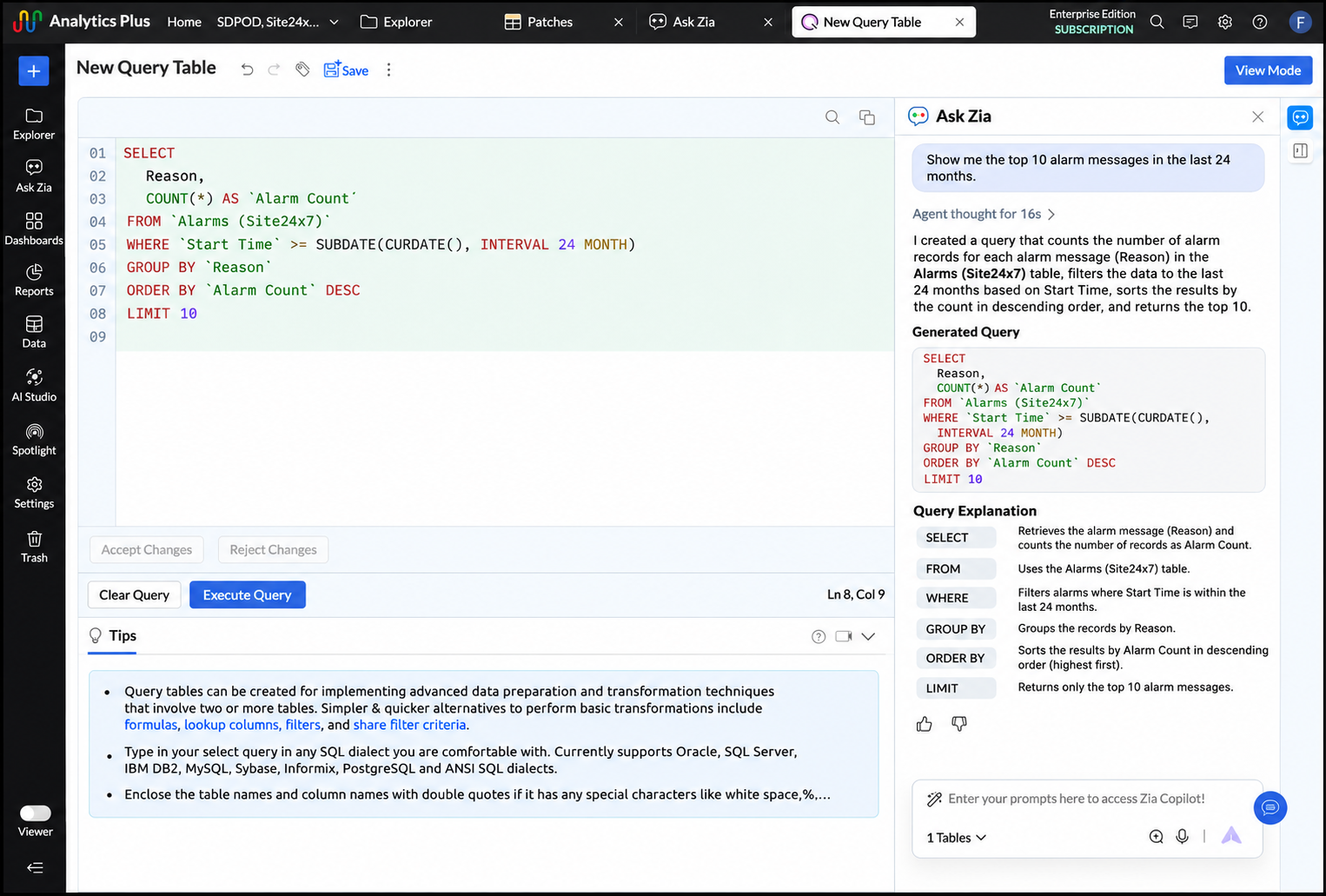
- Click Execute Query to run the query and review the results.
Use query assistance
Select a query in the editor, and use one of the following options:
- Explain Query: Review how the SQL statement works.
- Optimize Query: Simplify the logic and remove redundant conditions where possible.
- Troubleshoot Query: Identify issues and review suggested corrections.
Generate a query from Ask Zia
- Open Ask Zia from the side navigation panel.
- Enter Create a query or Help me with a query.
- Describe the requirements and include the relevant table details.
- Review the generated query, and choose one of the following actions:
- Save: Save the query as a Query Table. Enter a name, select the destination folder, and click OK.
- Open in Editor: Open the SQL in the Query Table editor for review or modification.
- Preview: Review the query output before deciding how to proceed.
Formula Agent
The Formula Agent converts a natural-language calculation requirement into a formula suggestion. Use it to create formula columns or aggregate formulas without constructing every expression manually.
Create a formula from the Formula pane
- Open the table where the formula should be added.
- Click Add on the toolbar, and select Formula Column. Alternatively, right-click a column and select Add Formula > Formula Column.
- In the Add Formula Column pane, open the Zia Formula Suggester.
- Describe the required calculation and include relevant table or column details. For example, request a formula that calculates the percentage of incidents resolved within the SLA target.
- Review and edit the suggested formula when required.
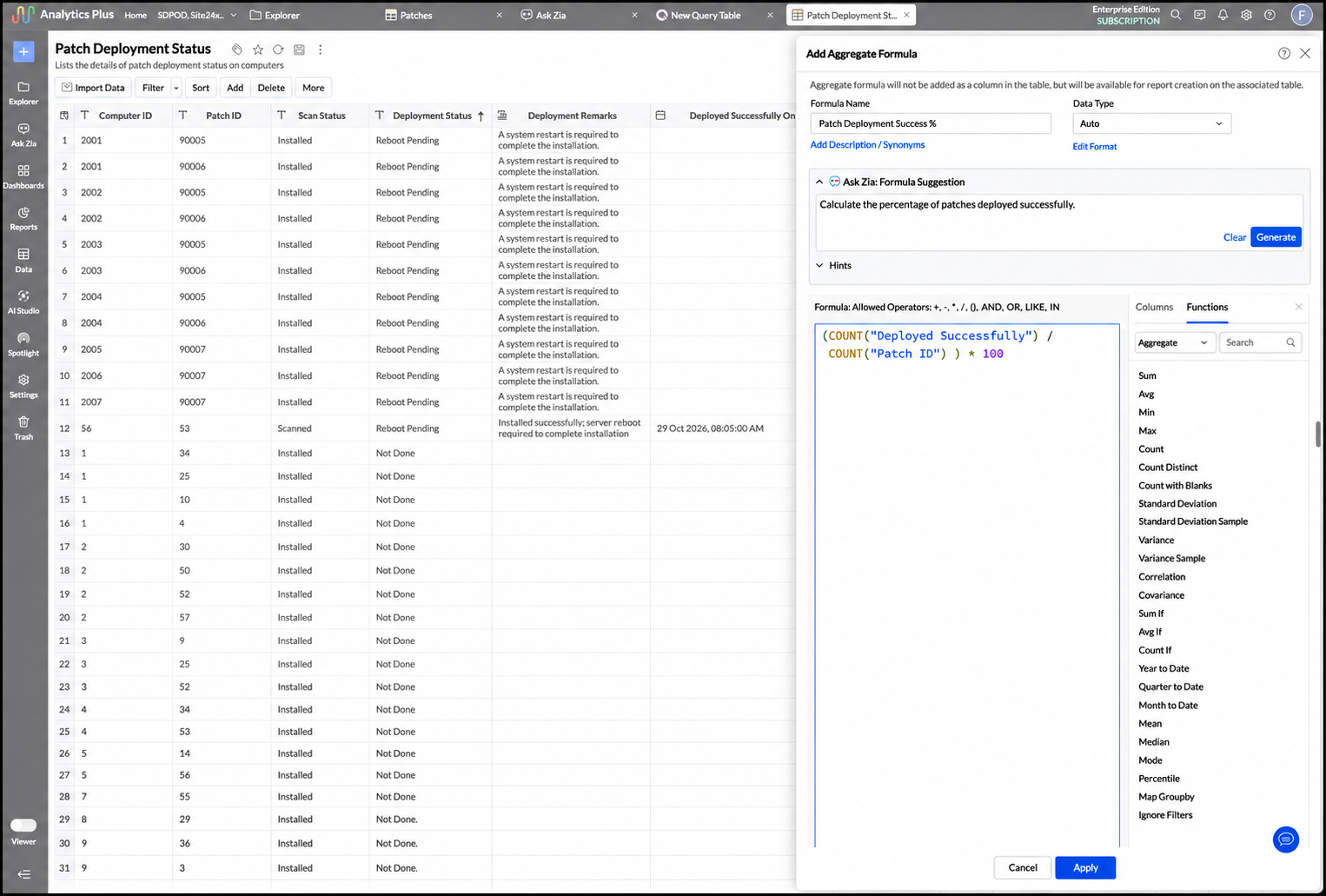
- Click Apply.
Create a formula from Ask Zia
- Open Ask Zia from the side navigation panel.
- Enter Create a formula or Help me with a formula.
- Describe the calculation and include the relevant table details.
- Click Save to add the result as a formula column or aggregate formula.
- To make changes first, click Open in editor, select the table and formula type, and edit the expression.
Build and automate a data pipeline
Ask Zia in the Pipeline Builder can help select data, apply transformations, preview the result, and create a schedulable pipeline.
- Open the Data Pipeline Builder from the side navigation panel.
- Select the required tables.
- Click the Ask Zia icon in the upper-right corner of the Pipeline Builder.
- Describe how the data should be prepared or transformed.
- Provide any additional information requested by Ask Zia.
- Review the generated preview, and click Apply Transform when the output is correct.
- Review the generated pipeline and configure its schedule when required.
For additional pipeline workflows, refer to Data pipelines and IT transformations.
Transform data by example
Transform by Example derives a transformation from sample output values that you provide for a column.
- Open the Pipeline Builder.
- Click More (+) > Prepare Data.
- Right-click the column to transform, and select Transform by Example.
- Enter the expected result for a few values in the preview, and press Enter.
- Review the generated transformation logic.
- Enter a name for the new column.
- Click Apply.