Manage version updates

Upgrade to version 2.4.0 for long-term support (recommended)

Alternatively, upgrade to version 2.4.6 for the latest features

Choose your existing version number
  • Choose your existing version number
  • version 2.4.0 and above
  • version 2.1.0 to 2.3.2
  • Version 2.0.0 & below

Download service pack 2.4.6 and advance to build 2.4.6

Service pack 2.4.6

SHA256 value: e0808705fa431fa7d4b999d3f4c4e65fd1e33ac40e9cd33958c9b515f0243f34

Download service pack 2.4.6 and advance to build 2.4.0

Service pack 2.4.0

SHA256 value: 65e27a1944c01c401da8704c5d109880603812faa2124de4b0bd5fc6ecb27cdd

Step 1: Download service pack 2.1.0 and advance to build 2.1.0

Service pack 2.1.0

SHA256 value: 2581a777f9a0e5dd383cb9f06f68fb95db428033d3cbcbfb13e0b119fa2d1c89

Step 2: Download service pack 2.4.0 and advance to build 2.4.0

Service pack 2.4.0

SHA256 value: 65e27a1944c01c401da8704c5d109880603812faa2124de4b0bd5fc6ecb27cdd

Download ME AppCreator: New users can download the latest version of ManageEngine AppCreator here and start exploring its features right away.

Support details: Details on the version-wise support timelines are available in the Product Support Life Cycle document.

Real-time feature updates: All the latest features, enhancements, and issue fix updates, will be updated in the release notes for your reference.
View version number

  1. Access your ManageEngine AppCreator web client.
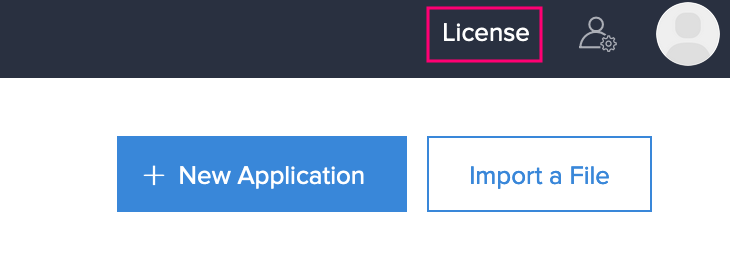
  2. Click License near the top-right corner. The License Managementpane will appear.

    zc_op_license_e

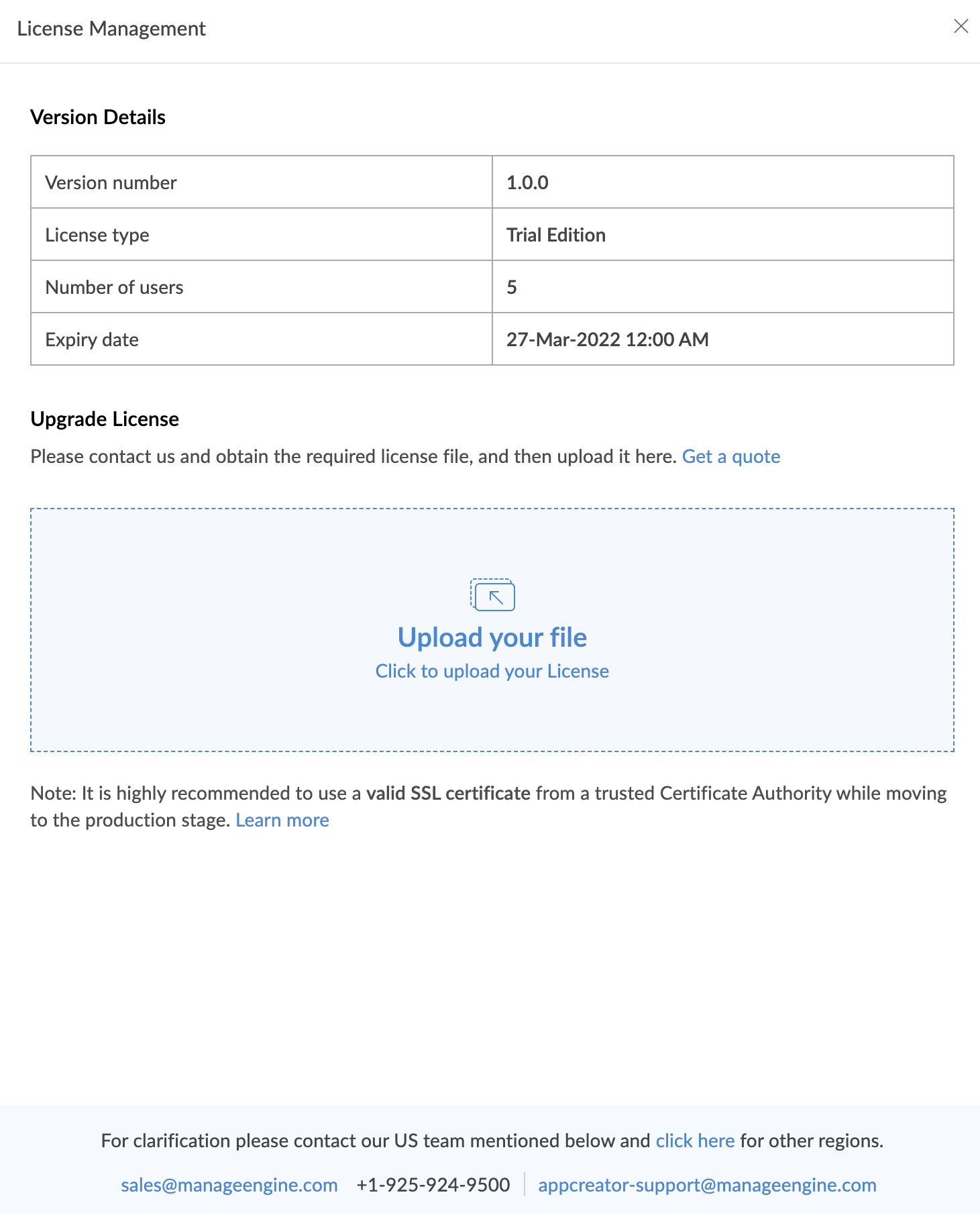
  3. View the version number under the Version Detailsdiv.

    zcop_upgrade_det

Prerequisites

  • As a best practice, take a complete backup of 'ManageEngine AppCreator Home' folder - /InstallationDirectory/AppCreator. Ensure that no files in this folder are open/used before the start of the upgrade process.
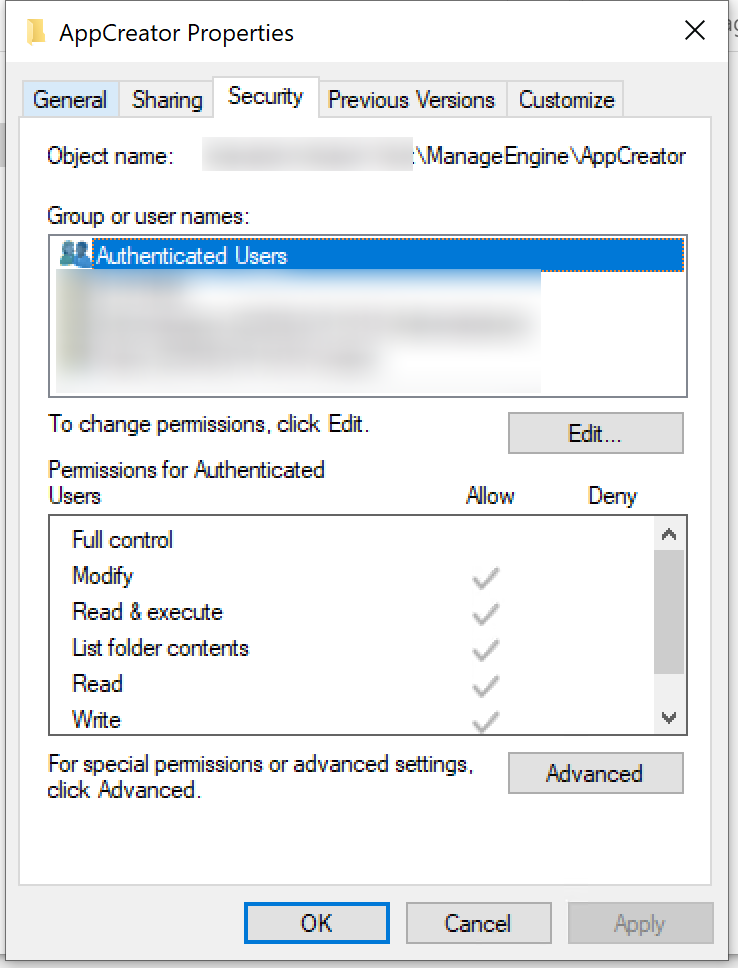
  • The ManageEngine AppCreator installation directory should have the following permissions configured. This is a pre-requisite for a successful upgrade and these permissions can be revoked after the upgrade is complete.

    appcreator_mngupd_perm

Update ManageEngine AppCreator for Windows

To update your ManageEngine AppCreator to a newer version,

  1. Shut down ManageEngine AppCreator.
    • Windows installations - Open the services window (Run--> services.msc) and stop the 'ManageEngine AppCreator service'.
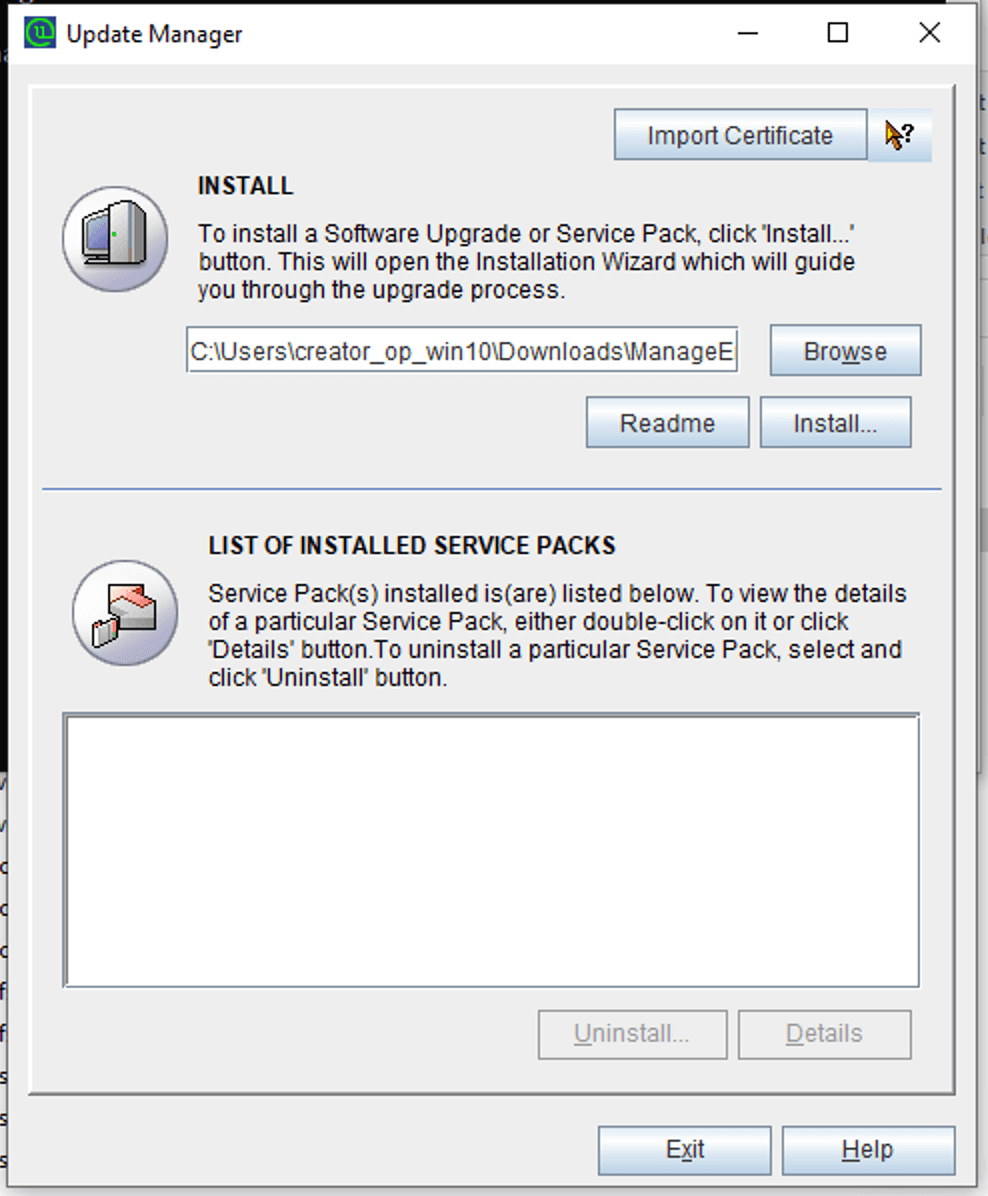
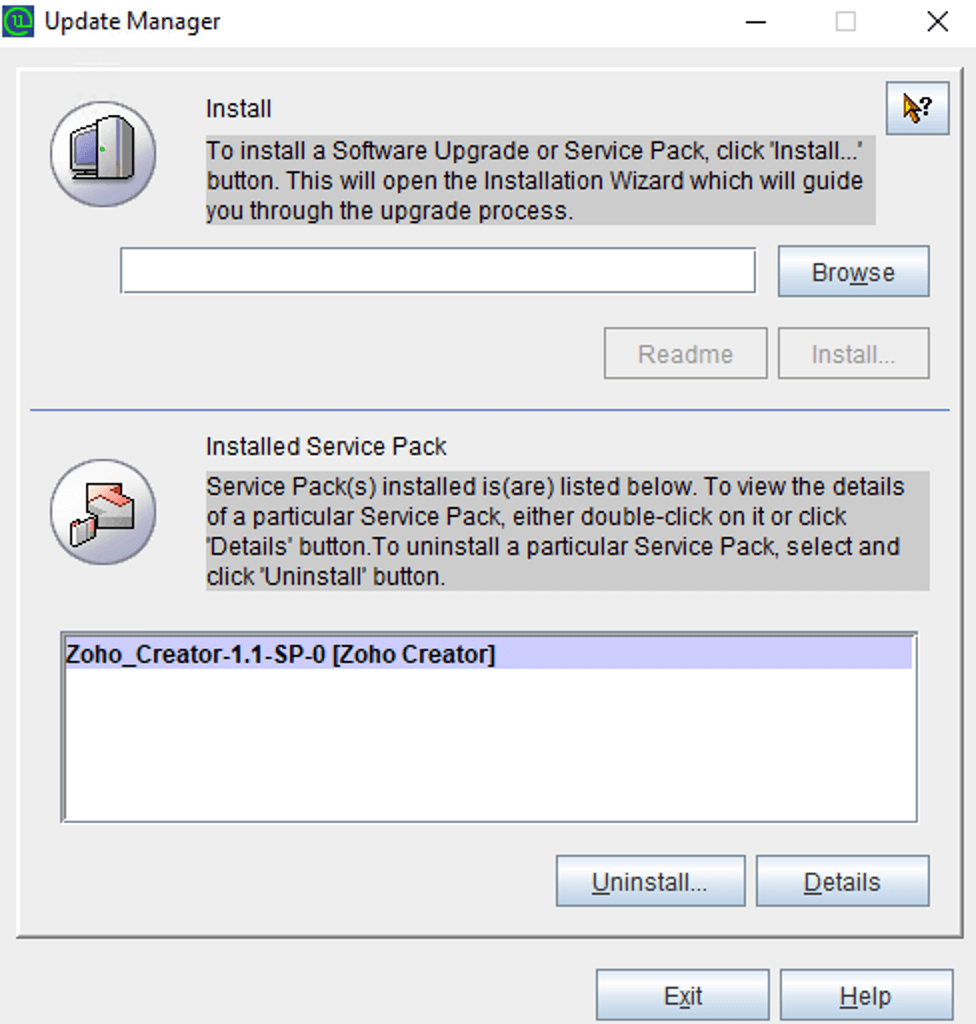
  2. Navigate to the installed folder/AppCreator/bin/ via the command prompt and click the UpdateManager file. The Update Manager wizardwill open.
    • Alternatively, you can type updatemanager.bat in the command prompt to open the Update Manager wizard.
    • For console mode, run the command updatemanager.bat-c to invoke the Update Manager tool.
  3. In the Update Manager, browse and select the Service pack file (ppm) saved in your computer and click Install.

    me_appcreator_op_verupd_browse

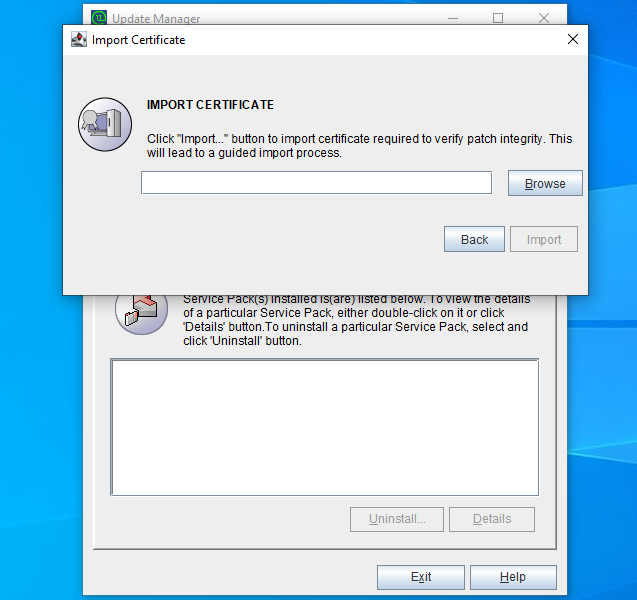
  4. The Import Certificate dialog box appears as given below. To download the certificate, click here.
    • If you are not connected to the internet, only then will the Import Certificate tab will appear.
    • If you are connected to the internet, the certificate will be downloaded automatically

  5. Once the certificate has been downloaded, click Browse and import the downloaded certificate.

  6. Click Import. Follow the on-screen instructions and continue the upgrade process.

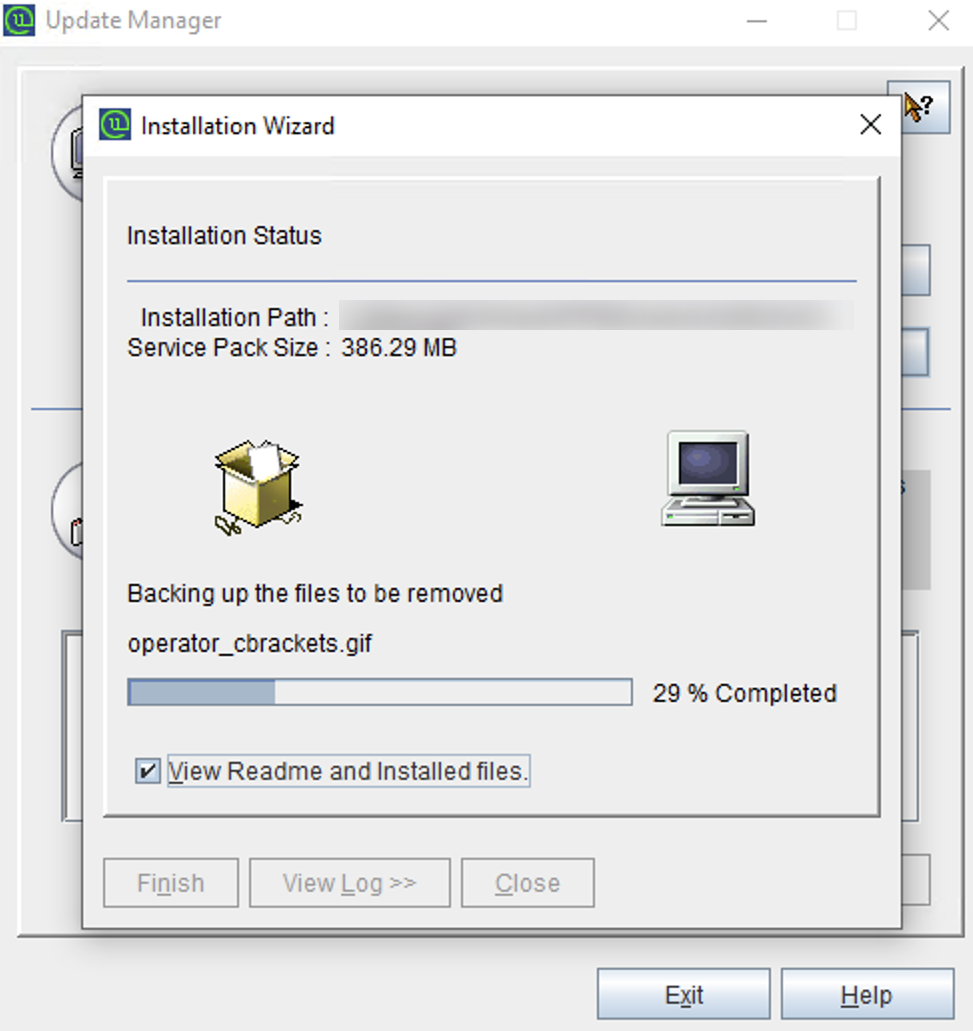
  7. Click Install to initiate the upgrade process. You can view the Installation Status.

    appcreator_verupd_instllstatus

  8. The Installed Service Packswill be listed below the respective section.

    op_verupd_servicepk

  9. Once you see the Installed message on your screen, click Finish to complete the installation.
  10. Start the ManageEngine AppCreator application.

Update ManageEngine AppCreator for Linux - GUI

  1. Shut down ManageEngine AppCreator.
    • Linux installations - Run the sh app_ctl.sh shutdown command from the installed_folder/AppCreator/bin/ via terminal
  2. Navigate to the installed folder/AppCreator/bin/ via the command prompt and type the command sh UpdateManager.sh
  3. The Update Manager wizard will open.
  4. To update to a new version, follow the steps from 2-6 in the above section.

Update ManageEngine AppCreator for Linux - Console

  1. Shut down ManageEngine AppCreator.
    • Linux installations - Run the sh app_ctl.sh shutdown command from the installed_folder/AppCreator/bin/ via terminal
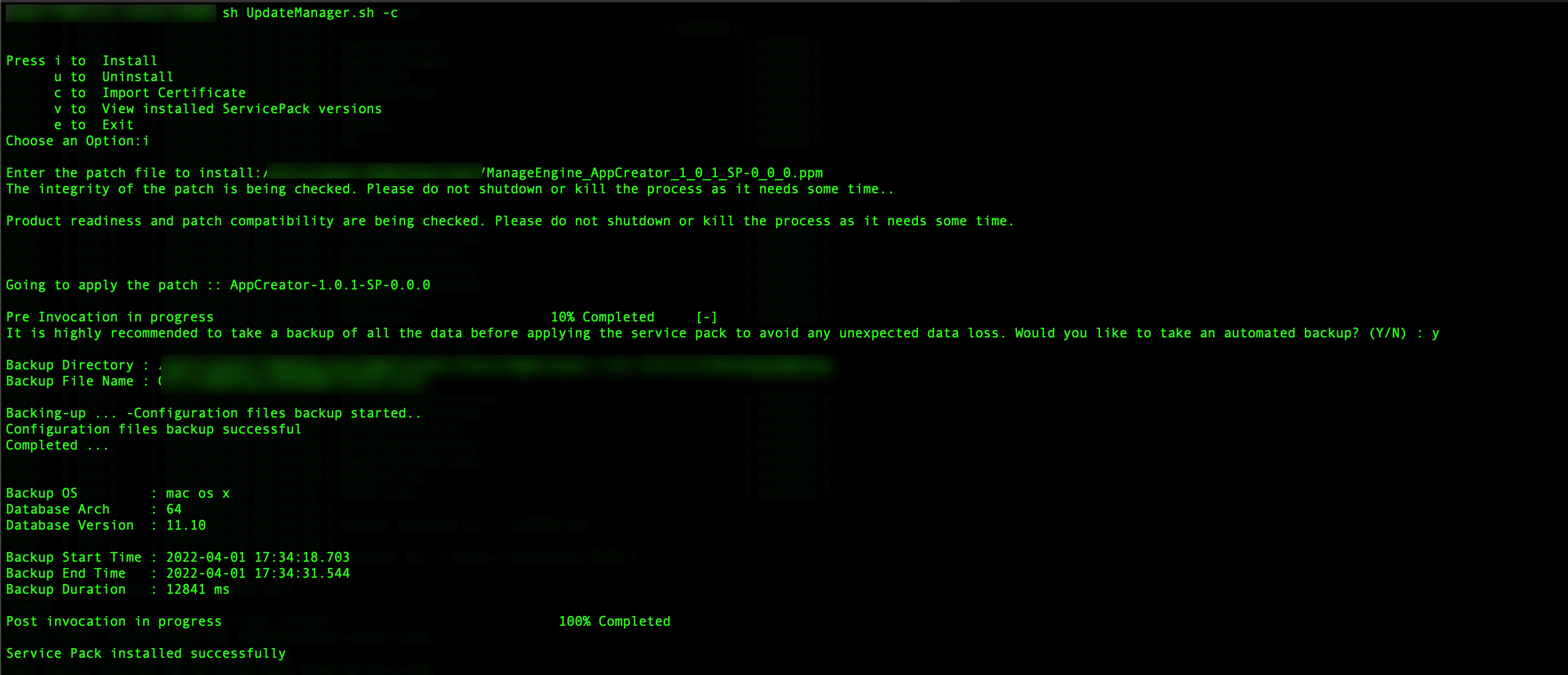
  2. Navigate to the installed folder/AppCreator/bin/ via the command prompt and type the command sh UpdateManager.sh -c
  3. Enter "i" to install the new version of ManageEngine AppCreator.

    appcreator_mngupd_linux3

  4. Enter "n" to exit the installation.

Still can't find what you're looking for?

Write to us: appcreator-support@manageengine.com