Java Version Management
Assign the right Java version to each web application in Internet Explorer, so legacy sites keep working without leaving the network exposed to outdated versions.
Overview
About Java Manager
Control which Java versions are allowed to run, and where.
Enabling and disabling Java versions
Java Manager gives administrators the ability to enable or disable specific Java versions within Internet Explorer. This is essential for addressing security vulnerabilities associated with certain Java versions, ensuring that potentially harmful websites are blocked.
Why It Matters
Importance of Java Manager
Balancing compatibility with legacy web apps against the security risk of outdated Java versions.
Granular, per-site version control
Many web applications still rely on Java plug-ins, especially in Internet Explorer. Using the correct Java version is crucial for proper rendering and avoiding security risks — mismatched versions can break web pages and compromise network security.
Setup
Implementing Java Manager
Create and deploy a Java Manager policy.
Creating and deploying the policy
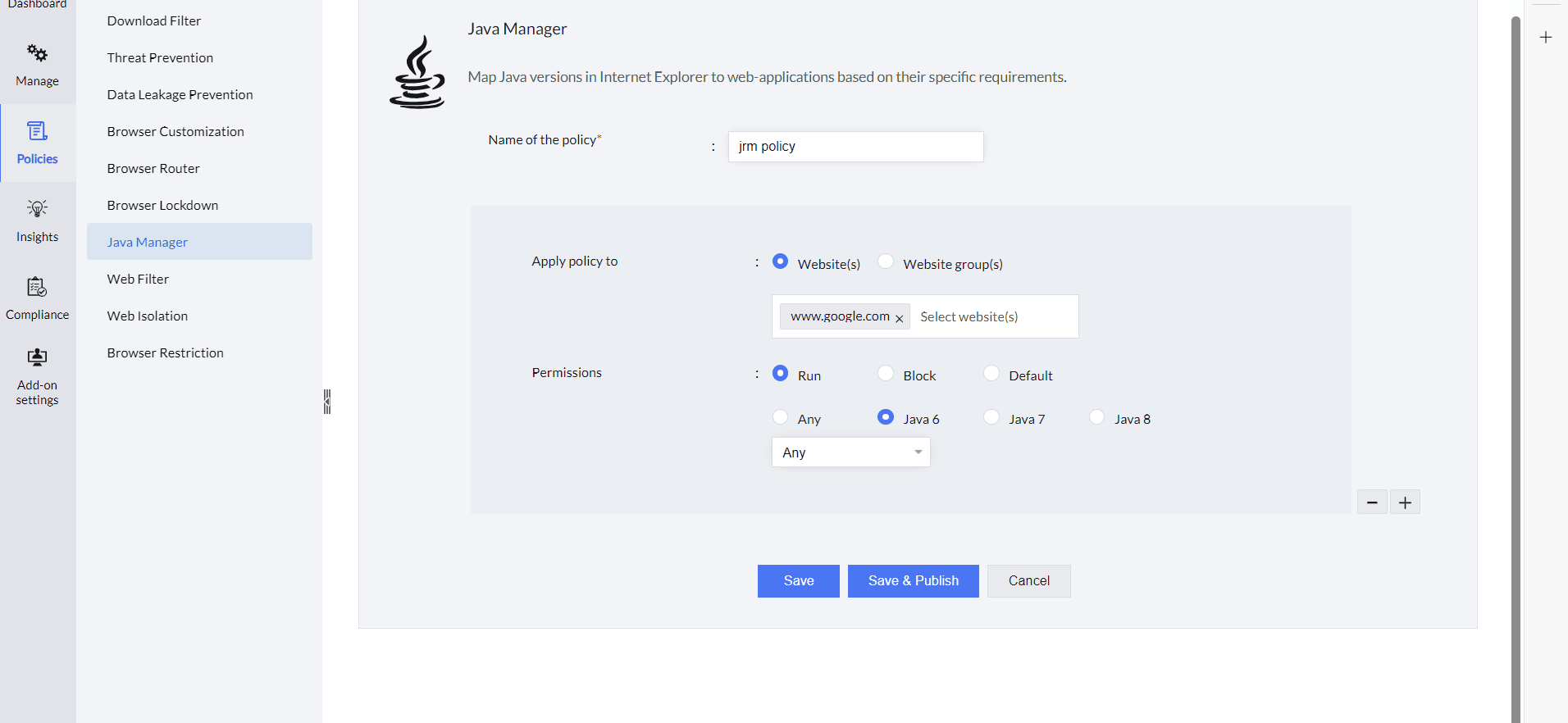
- In the Browser Security Plus console, go to Browsers → Policies → Java Manager.
- Click Create Policy.
- Give the policy a name.
- Select Website(s) or Website group(s) and enter the web applications or website group.
- Click Run, then click Any to allow all Java versions to run, or select the specific version to assign to the websites or website group.
- Click Block to block Java entirely for the entered websites or website group, and provide the message to show users when it's blocked.
- Click Default to assign the latest Java version available on users' machines to the selected websites or website group.
- Click the + button to add other websites to configure with Java Manager.
- Click Save to save the policy as a draft, or Save & Publish to publish it.
- Deploy the policy with the computers or groups of computers you want it applied to.