Configuring an Anomaly for CloudSpend accounts
You can customize the date range, schedule reports, and share the anomalies configured for your cost accounts. Additionally, you can filter the anomalies based on the following categories:
- Open: Displays the list of open anomalies across various report categories. By default, this filter is applied.
- False Positive: Shows anomalies marked as false positives. You can review these anomalies and update their status to Acknowledged if needed.
- Acknowledged: Lists anomalies confirmed as legitimate. You can change the status of these anomalies to False Positive if required.
Anomaly dashboard
On the Anomaly dashboard, you can view the summary and the list of anomalies configured for Accounts, Cost Centers, and Reports.
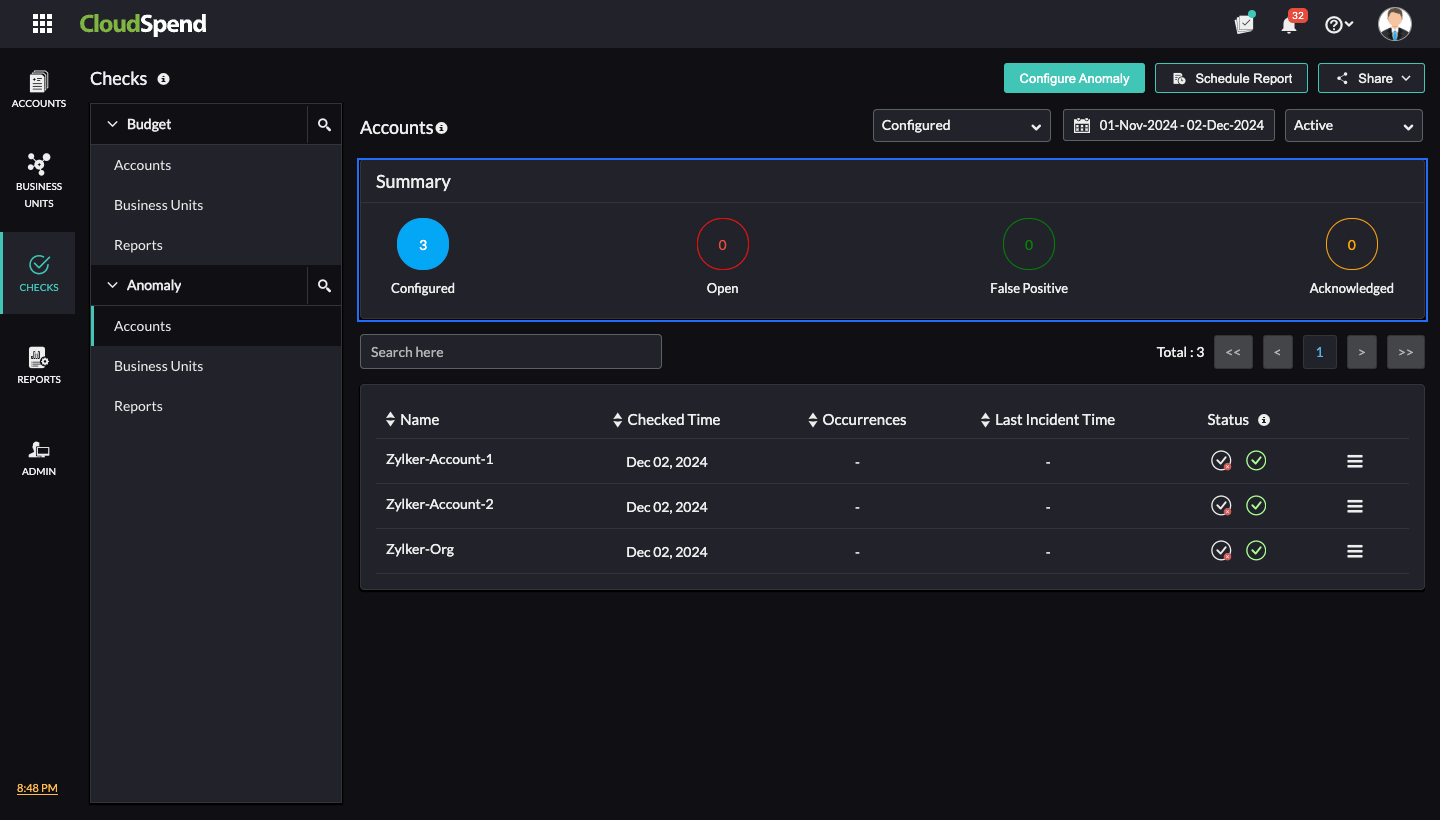
The Summarysection at the top provides a quick summary of anomalies in the below statuses:
- Configured: The total number of anomalies configured.
- Open: The number of open anomalies.
- False Positive: The number of false anomalies.
- Acknowledged: The number of acknowledged anomalies.
- Suspended: The number of suspended anomalies.
Note that the status counts are updated in real-time to reflect the current state.
Configure Anomaly
To configure anomalies for Accounts, Cost Centers, and Reports follow the steps mentioned in the below sections.
Accounts
You can set one or more anomalies in your subscription account. To configure anomalies for your cost accounts:
- Go to the CloudSpend console.
- In the left navigation pane, choose Checks, and then select the Anomaly> Accounts tab.
- Click Configure Anomaly and complete the following steps:
Step 1: Basic Details
- In the Basic Details page, enter the Display Name for the new anomaly.
- Anomaly Profile: Select the applicable Anomaly Profile. Anomaly profiles are reusable across multiple anomalies. If you wish to create a new profile, click Add to open the Anomaly Profile dialog box. To edit a policy, click Edit. After you make the necessary changes, click Save.
- In the Anomaly Profile dialog box, enter the following details:
- Display Name: Enter a display name for the new anomaly profile.
- Resource Type: Choose Accounts.
- Accounts: Select the applicable account.
- Cost Type: Select one of six different cost types for the budget policy in case of hybrid cloud (AWS, Azure, and GCP): Blended, Actual, Unblended, Amortized, Recurring, or Credits. Azure accounts will have only the Actual Cost as the cost type and GCP accounts will have Actual Costand Credits as the cost type.
- Blended: The average cost of usage across all billable accounts. For a hybrid account, the Blended cost type is considered by default for AWS accounts.
- Unblended: The usage costs charged on a specific day.
- Amortized: The total billable cost and the monthly reservation fees that are spread across the billing period.
- Recurring: The billable amount that keeps repeating.
- Actual Cost: The cost of raw usage and purchases for Azure and third-party marketplace offerings. This cost type is considered by default for Azure or GCP accounts in case of a hybrid account.
- Credits: The discounts or promotional offers that reduce the total cost of your GCP usage.
- Tags: Choose the applicable tags for your account. You can refine your selection further by selecting tag keys and values. You can also use Tag Profiles to combine two or more tags with multiple conditions for better filtering options.
- Add Label: Enter the label key and label value.
- Click Save to create the Anomaly Profile.
- Click Next to proceed to step 2.
Step 2: Configure Details
In the Configure Details page, enter the following details:
- Period: Choose the duration for the anomaly. The available options include Daily and Monthly.
- Unit: This is the measurement in which an anomaly is configured for your cloud cost, and the default unit is Percentage.
- Currency: Select the applicable supported currencies to create an anomaly using that currency.
- Deviation Percentage: Enter the required deviation percentage. The configured percentage applies when the deviation percentage of an anomaly exceeds the set threshold. This helps in identifying unusual spending patterns, enabling timely investigation and corrective action to manage and control cloud expenses effectively.
- Click Next to proceed to step 3. To go back to the previous page, click Back.
Step 3: Notification Settings
In the Notification Settings page, select the applicable notification profile and click Submit. If you wish to add a new notification profile, click Add.
Cost Centers
To configure anomalies for your Cost Centers:
- Go to the CloudSpend console.
- In the left navigation pane, choose Checks, and then select Anomaly> Cost Centers.
- Click Configure Anomaly and complete the following steps:
Step 1: Basic Details
- In the Basic Details page, enter the Display Name for the new anomaly.
- Anomaly Profile: Select the applicable Anomaly Profile. Anomaly profiles are reusable across multiple anomalies. If you wish to create a new profile, click Add to open the Anomaly Profile dialog box. To edit a policy, click Edit. After you make the necessary changes, click Save.
- In the Anomaly Profile dialog box, enter the following details:
- Display Name: Enter a display name for the new anomaly profile.
- Resource Type: Choose Cost Centers.
- Cost Centers: Select the applicable cost center.
- Cost Type: Select one of six different cost types for the budget policy in case of hybrid cloud (AWS, Azure, and GCP): Blended, Actual, Unblended, Amortized, Recurring, or Credits. Azure accounts will have only the Actual Cost as the cost type and GCP accounts will have Actual Costand Credits as the cost type.
- Blended: The average cost of usage across all billable accounts. For a hybrid account, the Blended cost type is considered by default for AWS accounts.
- Unblended: The usage costs charged on a specific day.
- Amortized: The total billable cost and the monthly reservation fees that are spread across the billing period.
- Recurring: The billable amount that keeps repeating.
- Actual Cost: The cost of raw usage and purchases for Azure and third-party marketplace offerings. This cost type is considered by default for Azure or GCP accounts in case of a hybrid account.
- Credits: The discounts or promotional offers that reduce the total cost of your GCP usage.
- Add Label: Enter the label key and label value.
- Click Save to create the Anomaly Profile.
- Click Next to proceed to step 2.
Step 2: Configure Details
- In the Configure Details page, enter the following details:
- Period: Choose the duration for the anomaly. The available options include Dailyand Monthly.
- Unit: This is the measurement in which an anomaly is configured for your cloud cost, and the default unit is Percentage.
- Currency: Select the applicable supported currencies to create an anomaly using that currency.
- Deviation Percentage: Enter the required deviation percentage.The configured percentage applies when the deviation percentage of an anomaly exceeds the set threshold. This helps in identifying unusual spending patterns, enabling timely investigation and corrective action to manage and control cloud expenses effectively.
- Click Next to proceed to step 3. To go back to the previous page, click Back.
Step 3: Notification Settings
In the Notification Settings page, select the applicable notification profile and click Submit. If you wish to add a new notification profile, click Add.
Reports
To configure anomalies for your Reports:
- Go to the CloudSpend console.
- In the left navigation pane, choose Checks, and then select Anomaly> Reports.
- Click Configure Anomaly and complete the following steps:
Step 1: Basic Details
- In the Basic Details page, enter the Display Name for the new anomaly.
- Anomaly Profile: Select the applicable Anomaly Profile. Anomaly profiles are reusable across multiple anomalies. If you wish to create a new profile, click Add to open the Anomaly Profile dialog box. To edit a policy, click Edit. After you make the necessary changes, click Save.
- In the Anomaly Profile dialog box, enter the following details:
- Display Name: Enter a display name for the new anomaly profile.
- Resource Type: Choose Reports.
- Reports: Select the applicable report.
- Cost Type: Select one of six different cost types for the budget policy in case of hybrid cloud (AWS, Azure, and GCP): Blended, Actual, Unblended, Amortized, Recurring, or Credits. Azure accounts will have only the Actual Cost as the cost type and GCP accounts will have Actual Costand Credits as the cost type.
- Blended: The average cost of usage across all billable accounts. For a hybrid account, the Blended cost type is considered by default for AWS accounts.
- Unblended: The usage costs charged on a specific day.
- Amortized: The total billable cost and the monthly reservation fees that are spread across the billing period.
- Recurring: The billable amount that keeps repeating.
- Actual Cost: The cost of raw usage and purchases for Azure and third-party marketplace offerings. This cost type is considered by default for Azure or GCP accounts in case of a hybrid account.
- Credits: The discounts or promotional offers that reduce the total cost of your GCP usage.
- Add Label: Enter the label key and label value.
- Click Save to create the Anomaly Profile.
- Click Next to proceed to step 2.
Step 2: Configure Details
- In the Configure Details page, enter the following details:
- Period: Choose the duration for the anomaly. The available options include Daily and Monthly.
- Unit: This is the measurement in which an anomaly is configured for your cloud cost, and the default unit is Percentage.
- Currency: Select the applicable supported currencies to create an anomaly using that currency.
- Deviation Percentage: Enter the required deviation percentage. The configured percentage applies when the deviation percentage of an anomaly exceeds the set threshold. This helps in identifying unusual spending patterns, enabling timely investigation and corrective action to manage and control cloud expenses effectively.
- Click Next to proceed to step 3. To go back to the previous page, click Back.
Step 3: Notification Settings
In the Notification Settings page, select the applicable notification profile and click Submit. If you wish to add a new notification profile, click Add.
Anomaly details
TheAnomaly Details page provides all information related to your anomalies. You can view the anomaly details by selecting the applicable anomaly from the Accounts, Cost Centers, or Reports section in the Checks page.
The Anomaly Details page provides the following:
- The anomaly summary details and similar anomalies identified in other cost accounts.
- Schedule a report and share the anomaly details as a PDF or as an email using the Share button.
- List of all the alerts that were raised for a particular anomaly in the Recent Alerts section. You can view the time of the notification, the medium through which it was sent, the period, the detected anomaly, the threshold, and the deviation percentage.
- Monthly, quarterly, or yearly historical data related to your anomaly. This can help you get an idea about details such as the anomaly incident time, severity, deviation percentage, and expected anomaly. Click the applicable Incident Time to view the Root Cause Analysis page.
Schedule report
You can schedule the below three types of reports for the configured anomaly,
- Dashboard: The anomaly dashboard, which includes the list of all anomalies.
- Details: The anomaly details page of individual anomaly entries.
Access anomaly insights through AI
Instead of scanning anomaly alerts manually, you can use your AI assistant to quickly identify unusual spending patterns when Zoho MCP is connected.
Here is what you can pull through the AI:
- Recent anomalies: Retrieve a list of detected anomalies within a given time range.
- Anomaly impact: Understand how much additional cost was introduced due to the anomaly.
- Affected dimensions: Identify which service, account, or region caused the anomaly.
- Anomaly trends: Analyze whether anomalies are recurring or isolated events.
Sample prompt: What caused the cost spike last week?
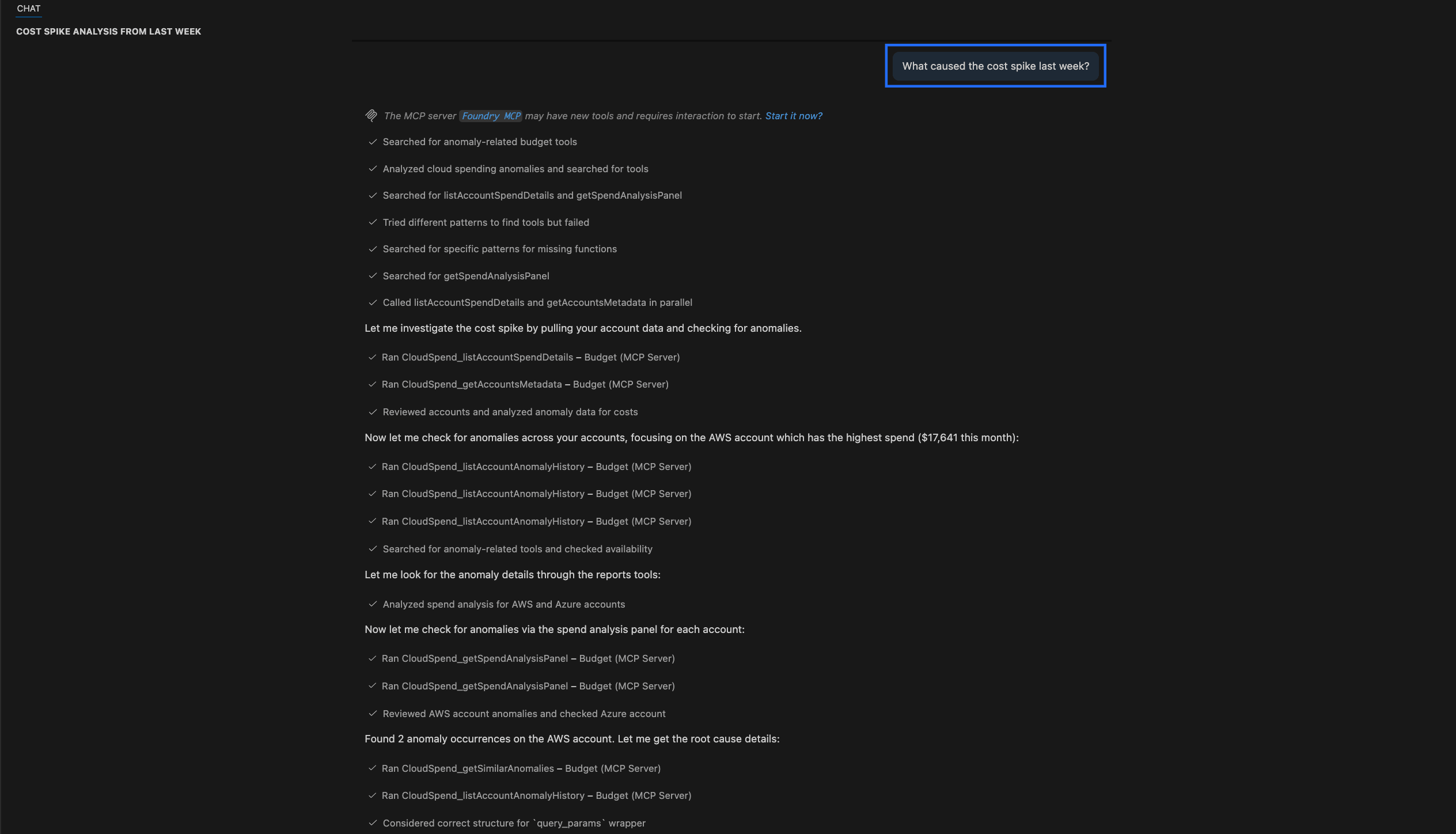
What AI returns: The AI identifies the account where the anomaly occurred and presents a detailed anomaly overview, including detection date, expected vs actual spend, deviation percentage, and current status. It explains how the spend changed over the selected period, highlighting peak usage days compared to the baseline.
It then provides root cause details by listing the services and newly created or scaled resources that contributed to the spike, along with their associated costs. The AI also highlights existing resources that showed unusual cost increases.
Finally, it summarizes the main contributors to the spike and, where relevant, includes suggested next steps to validate whether the usage is expected or requires optimization.