Rule Engine
The Rule Engine helps automate cloud cost governance across your environments. It allows you to define rules that take actions on cloud resources based on conditions, reducing the need for manual effort.
This feature is useful for teams managing multi-account and multi-cloud environments where consistent cost control and governance are required. Rule Engine works as a policy driven system where conditions trigger actions automatically.
Why do you need Rule Engine?
Managing cloud costs manualy does not scale. As infrastructure grows, issues with tagging, ownership, and cost allocation become more common.
Rule Engine helps by:
- Enforcing consistent tagging across resources.
- Reducing manual errors in cost governance.
- Applying policies across all accounts.
- Automating actions after cost data ingestion.
Without automation, teams spend more time fixing data than analyzing it.
Benefits of Rule Engine
Rule Engine provides the following benefits:
- Reduces manual effort by automating repetitive governance tasks.
- Ensures consistent cost allocation using standard rules.
- Scales across multiple cloud accounts and environments.
- Maintains a clear audit trail of all rule executions.
- Improves visibility into how and when rules are applied.
How Rule Engine helps in cloud cost management?
Rule Engine maintains clean and structured cost data in the background.
It helps you:
- Maintain consistent tagging across resources.
- Automatically correct missing or incorrect metadata.
- Apply governance policies without manual effort.
- Track rule executions for auditing and debugging.
This improves reporting accuracy, enhances cloud cost visibility, and ensures accurate cost allocation through consistent tagging automation.
Use case
A common real time scenario is in a company managing multiple cloud accounts where resources are frequently created without proper tagging. This leads to unclear ownership and inaccurate cost allocation.
With Rule Engine, the team sets up a rule to automatically identify resources that do not have a cost center tag and apply a default value based on predefined logic. The rule is configured to run automatically after each cost data parsing cycle.
As new resources are added, the rule ensures they are immediately tagged without manual intervention. Over time, this improves cloud cost visibility, ensures accurate cost allocation across teams, and reduces the effort spent on fixing inconsistent data, allowing teams to focus more on cost optimization and analysis.
Key components of Rule Engine
Rules
Rules define what action should happen and when. Each rule includes a condition and an action. This approach supports rule based cost management by enabling automated tagging and consistent governance across resources.
For example, you can identify resources without a cost center or owner tag and apply user defined tags automatically. This ensures proper cost allocation.
Rules can be triggered:
- Manually when you want to validate or fix data.
- Automatically after cost data parsing.
To manage rules:
- Click the play icon to run a rule.
- Click the edit icon to modify a rule.
- Click the delete icon to remove a rule.
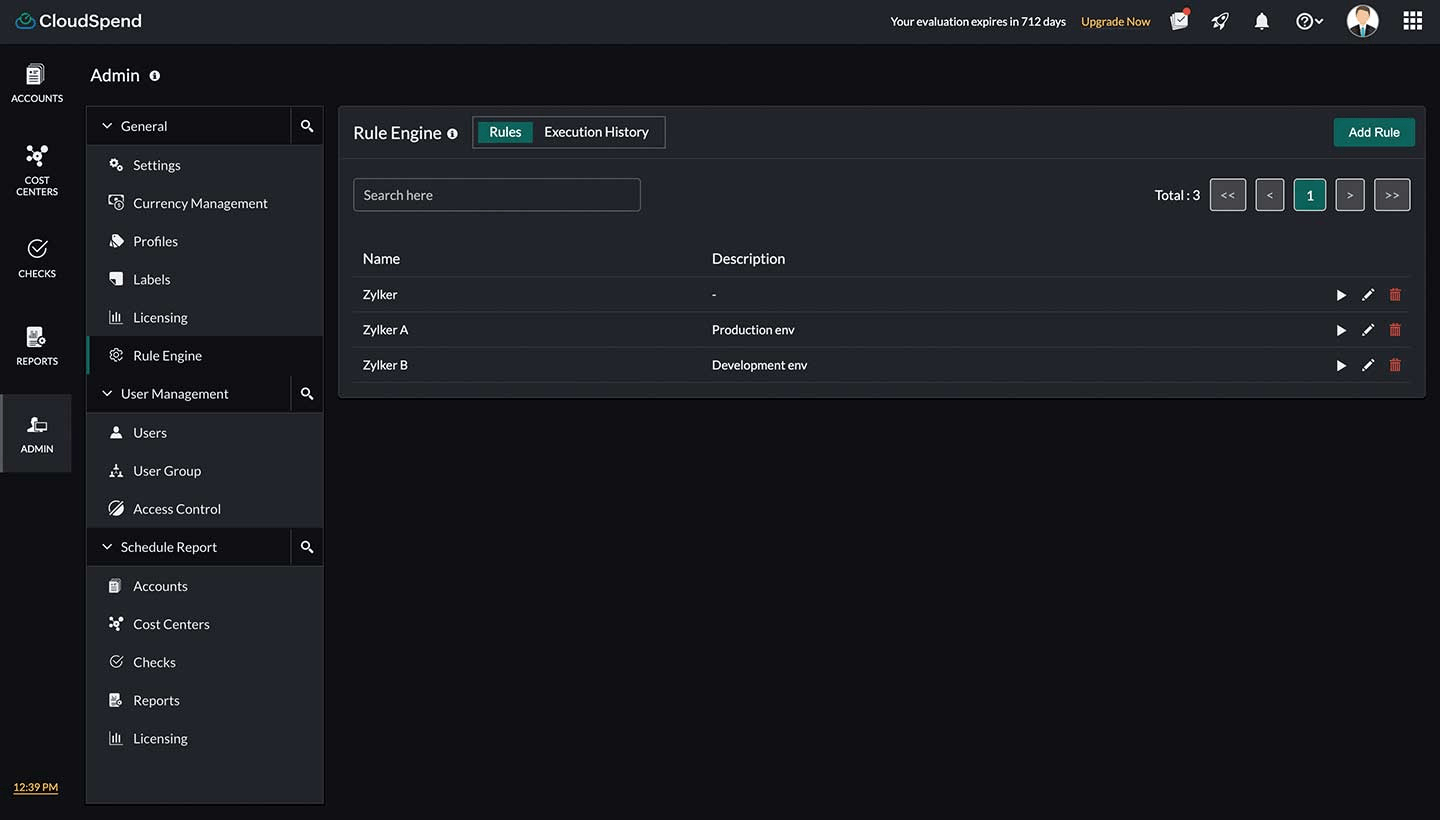
A common example is tagging all untagged resources in an account with a default cost center like Engineering or SharedServices. Another example is updating tags based on naming patterns, such as assigning a cost center based on resource prefixes or account level mapping. These actions help maintain clean and consistent cost data without manual intervention.
Execution History
Execution History shows how and when each rule was executed. It gives you visibility into the lifecycle of a rule run and helps you understand what actually happened.
Each execution goes through a status:
- Initiated: The rule has been triggered and is about to run.
- Running: The rule is actively processing. During this stage, the system applies the defined action to all resources that match the criteria across selected accounts or cost centers.
- Completed: The rule has finished running and the action has been successfully applied to the matching resources.
- Failed: The execution did not complete. This can happen if there is a backend failure or if the process is interrupted.
- No resources found: If no resources match the rule criteria, the execution will indicate that no applicable resources were found.
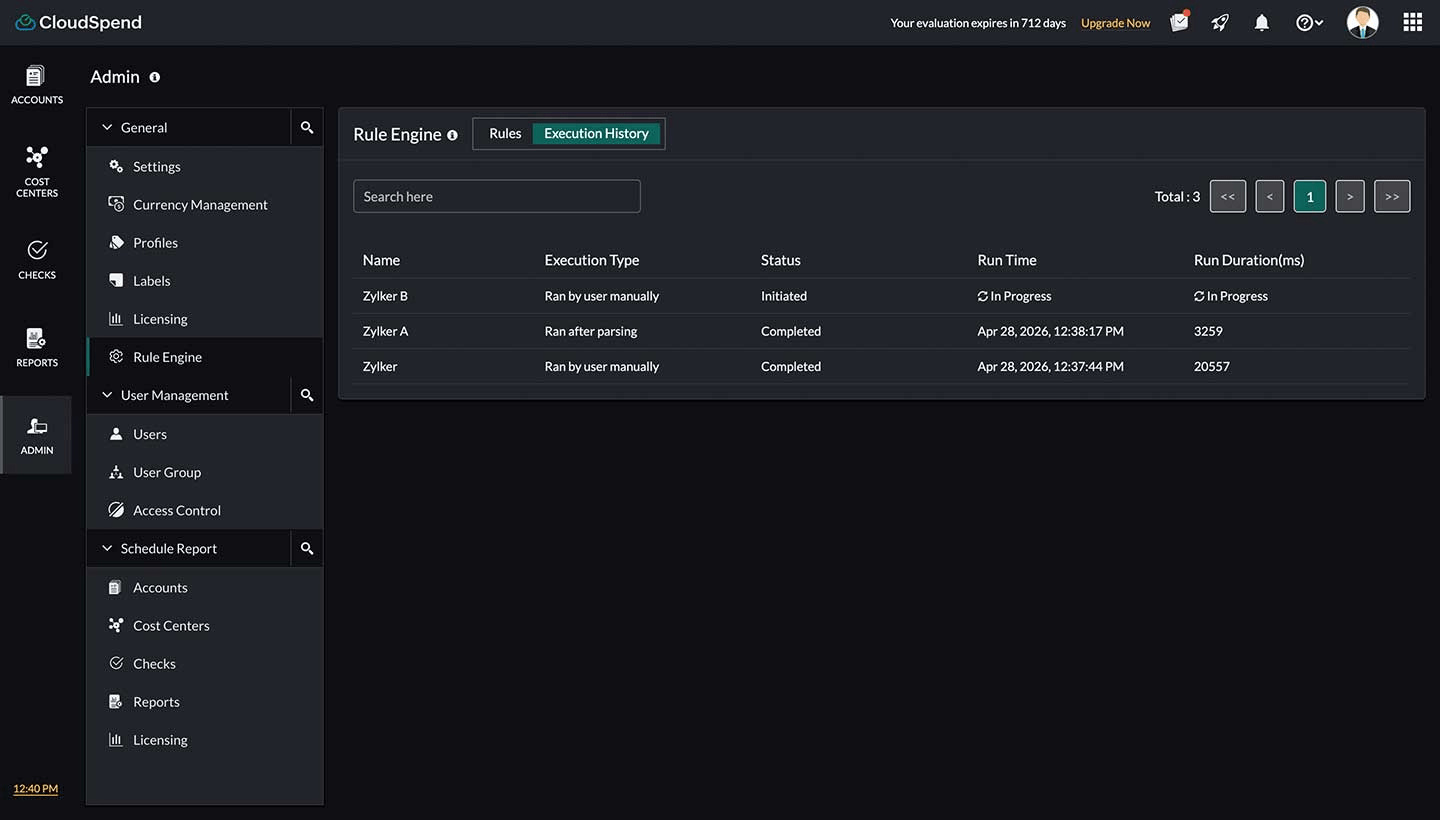
Execution History also shows how the rule was triggered:
- Ran by user manually: This means the rule was explicitly triggered by a user from the Rule Engine UI. It is typically used when you want to test a rule, fix data immediately, or reapply a rule after making changes. For example, you create a rule to assign a default cost center to untagged resources. After creating the rule, you manually run it to immediately update existing resources. The execution history will show this run as Ran by user manually, along with its status and results.
- Ran after parsing: This means the rule was triggered automatically after CloudSpend processes and ingests the latest cost data. It ensures that governance rules are applied as part of the regular data flow without manual intervention. For example, every time new billing data is parsed, a rule runs automatically to check for resources without a cost center tag and assigns one based on predefined logic. This helps improve cloud cost visibility by showing how governance rules are applied over time.
When you open a specific execution entry, you can view the list of resources where the rule was applied. This is available only for executions with a Completed status. It helps you verify exactly which resources were updated and ensures that the rule worked as expected.
For example, if you run a rule to assign a cost center to untagged resources, you can check the execution history to confirm which resources were updated and validate that the correct cost center was applied.
Configuring a Rule
Setting up a rule in CloudSpend is a step by step process. Each step helps you define what the rule does, when it runs, and how it applies governance actions.
To configure rule,
- Navigate to Admin > General > Rule Engine.
- Click Add Rule and follow the steps below.
Step 1: General Information
In this step, you define the basic details of the rule.
- Display Name: Enter a clear and meaningful name for the rule. This helps you identify the rule later in the Rules list and Execution History.
- Description: Provide a short explanation of what the rule does. This is useful for teams managing multiple rules. Example: Assign default cost center to resources without tags after parsing.
- Run After Every Parsing: Choose whether the rule should run automatically after each cost data parsing cycle. Select Yes if you want the rule to be applied continuously as new data is ingested. Select No if you want to run the rule manually only when needed. For instance, if enabled, every time new billing data is processed, the rule will automatically check for untagged resources and assign a cost center.
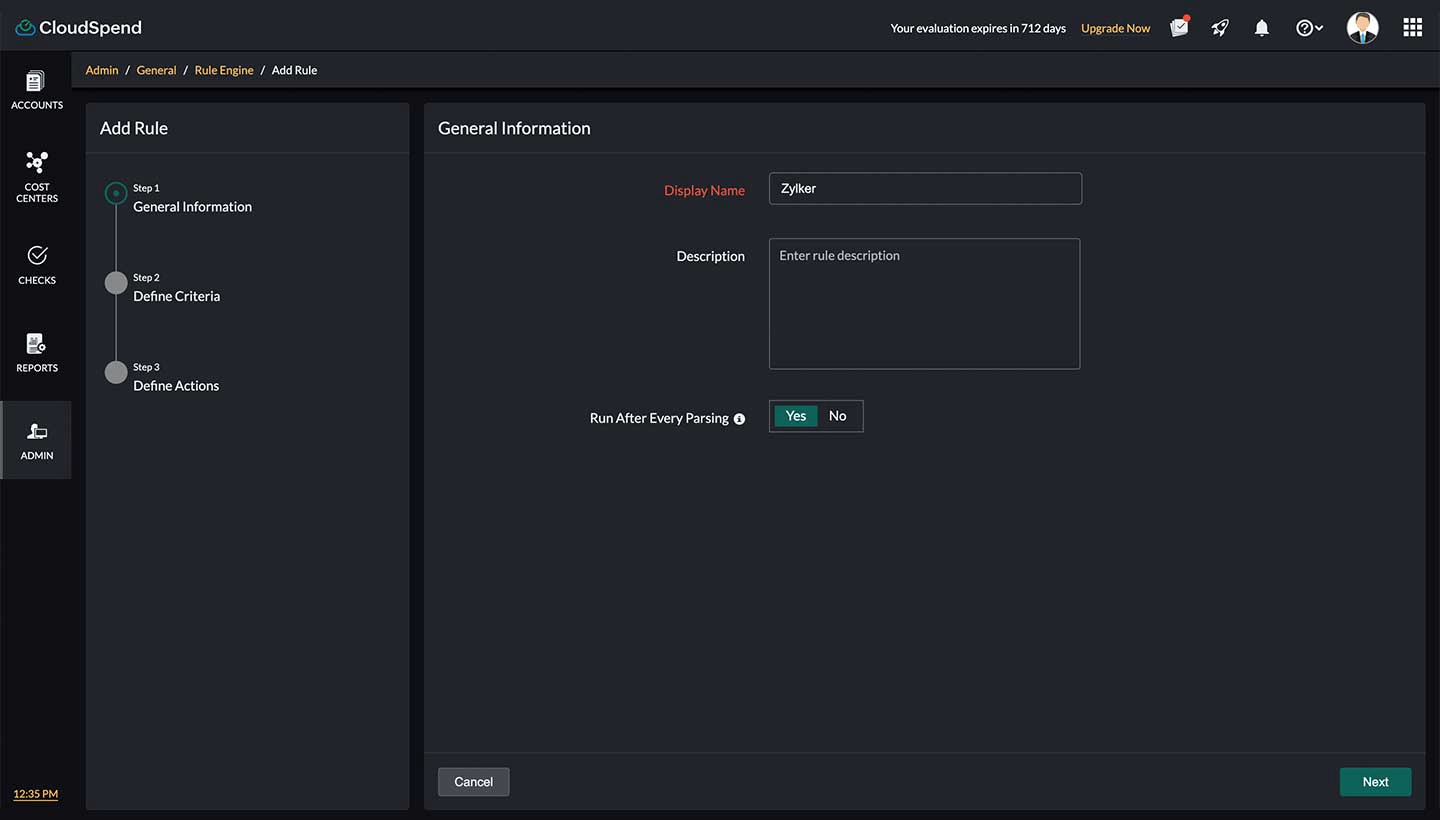
Once you complete this step, click Next to proceed.
Step 2: Define Criteria
In this step, you define which resources the rule should apply to. This is done by selecting a report type and building conditions using filters.
- Select any one of the below options as Report Type:
- Accounts: Apply the rule to resources within a specific cloud account.
- Cost Centers: Apply the rule to resources grouped under a specific cost center.
- Reports: Apply the rule based on a specific report view, such as service level or category level data.
- Choose scope (Accounts / Cost Centers / Reports): Based on the selected report type, choose the specific entity. Select the account, cost center, or report from the dropdown. This defines where the rule will evaluate resources.
- Define Criteria: You can chain multiple conditions using AND or OR. Click the add icon + to add another tag condition. Click the delete icon to delete a condition. Additionaly, you can fine-tune or manually edit the logical expression combining conditions.
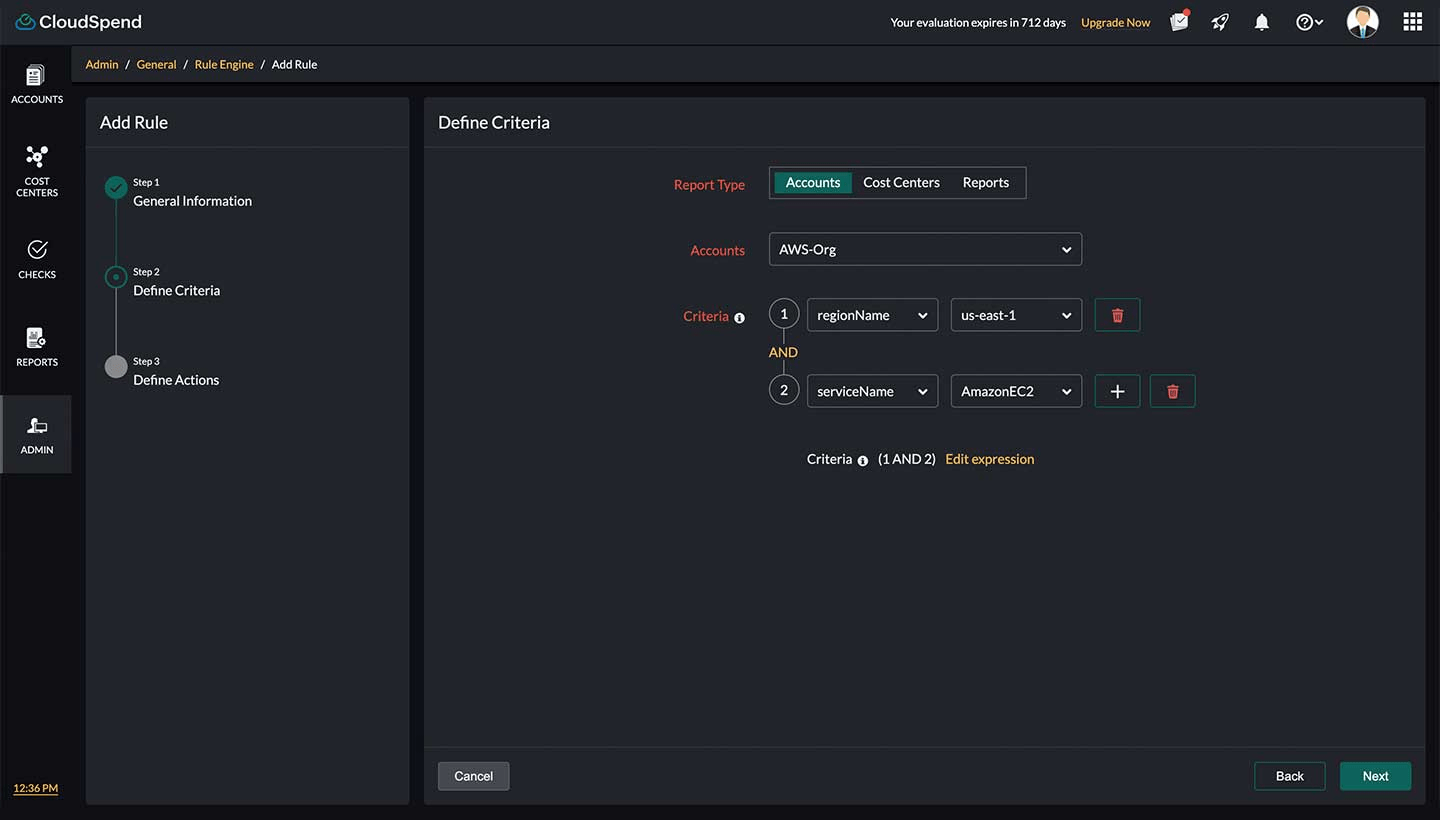
Once the criteria is defined, click Next to proceed to defining actions.
Step 3: Define Actions
In this step, you define the action that should be performed when the resources match the criteria specified in Step 2.
- Select the Action type. When the rule runs, it first evaluates the criteria defined in Step 2 to identify matching resources. It then performs the selected action only on those resources. For example, if a resource does not have a cost center, the rule can assign cost_center:shared services. If the tag is already present, its value can be updated to ensure consistency across resources. You can choose one of the following action types:
- Tags: Add new user-defined tags or update the value of existing tags on matching resources. If a tag with the same key already exists, its value can be updated based on the rule configuration.
- Dimensions: Add dimensions to matching resources by specifying a dimension name and value. This helps organize and group resources for reporting and cost analysis.
- Configure the action values: Based on the selected action type, configure the required values.
- For Tags: Select one or more tag key value pairs that should be applied. You can apply multiple tags as part of the same rule. For example: cost_center: engineering, environment: production.
- For Dimensions: You can choose the existing dimensions or add new dimensions if required. Click Add Dimension, specify the Dimension Name and Dimension Value, and save the configuration. You can add multiple dimensions if required.
- After configuring the action, you have two options:
- Save and Run: Saves the rule and immediately executes it. This is useful when you want to apply changes right away.
- Save: Saves the rule without executing it. You can run it later manually or allow it to run automatically based on your configuration.
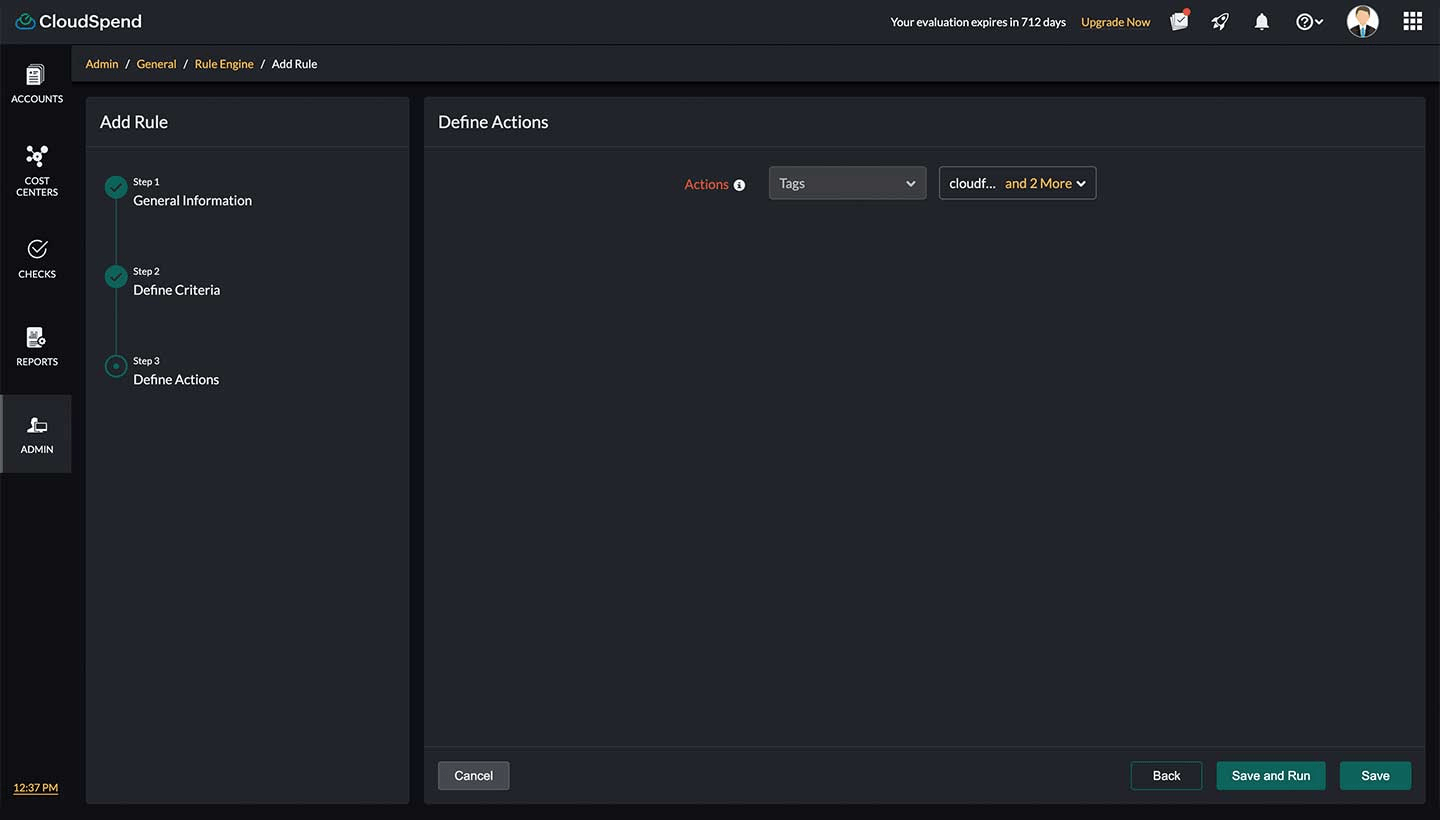
Once saved, the rule becomes active and will be listed in the Rules section. Its execution details can be tracked in the Execution History tab. Rule Engine enables automated tagging, improves cloud cost visibility, and supports rule based cost management for accurate cost allocation across your cloud environments.