CloudSpend for Enterprises
CloudSpend Workspace offers a focused and structured way to manage cost data, configuration entities, and access control for different cost centers or project environments. By creating distinct environments called Workspaces, organizations can separate and streamline how they manage cloud budgets, reports, checks, and user roles across departments, subsidiaries, or clients.
Overview
Workspace in CloudSpend offers a dedicated environment within your account that isolates cost-related configurations and data. Each Workspace can have its own:
- Cost accounts
- Cost Centers
- Budgets and Anomaly Checks
- Reports and dashboards
- User permissions
- Linked Cost Center portals in Site24x7
Workspaces help large organizations decentralize cloud cost management by offering tailored visibility and governance.
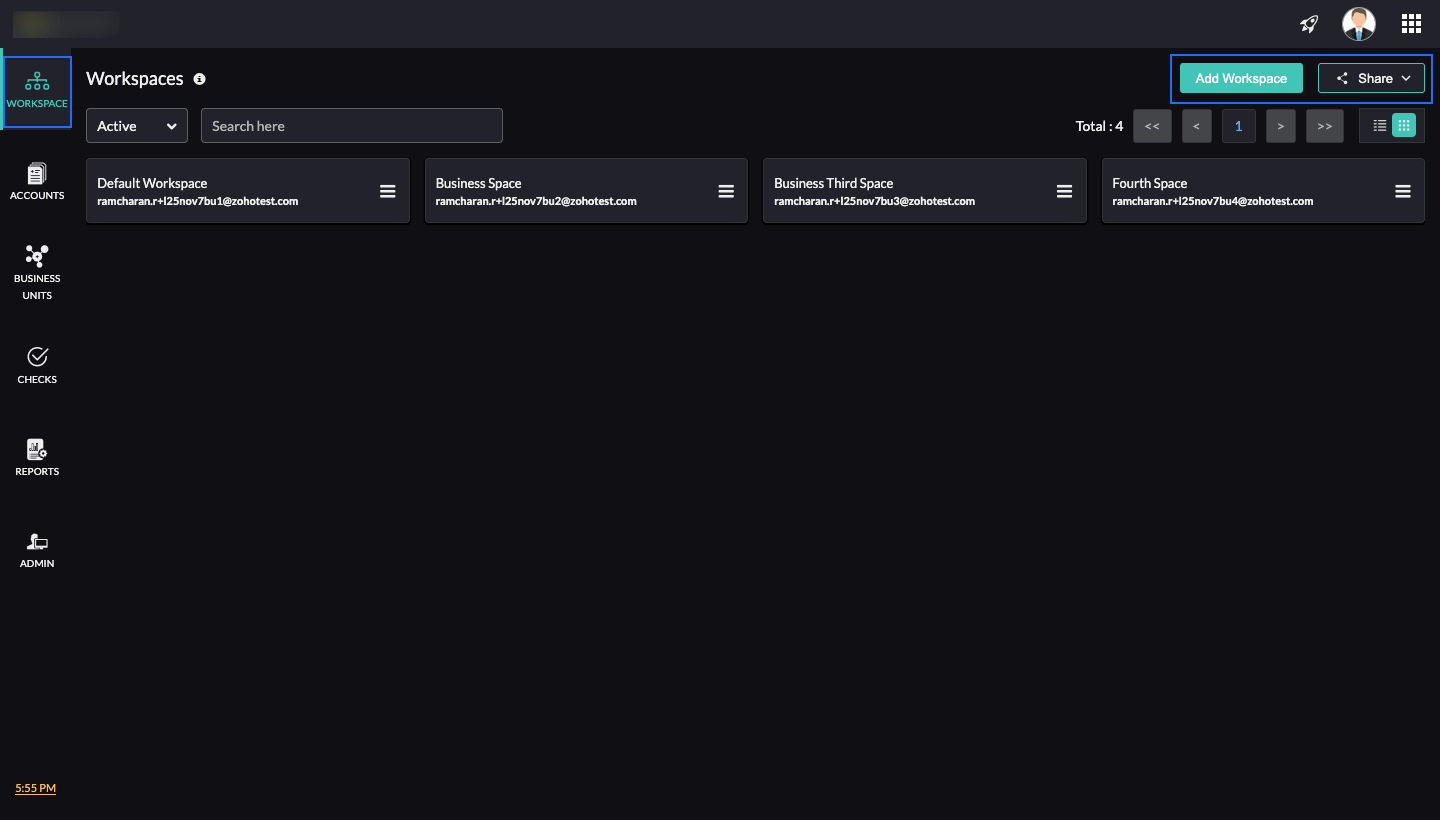
You can create multiple Workspaces under a single CloudSpend account and assign them to specific teams or stakeholders. Each Workspace functions independently with no overlap in configuration or data between Workspaces.
- In the Workspace Admin portal, only the Licensing tab will be displayed. This means that only Workspace admins can view and manage CloudSpend licensing details.
- Each account is limited to 10 Workspaces by default. Contact support to increase this limit.
Benefits of Workspace
- Data isolation: Cost accounts, budgets, and reports are siloed within each Workspace, ensuring data privacy and clarity.
- Decentralized management: Assign Workspace-specific roles to departments or project teams for autonomous management.
- Better governance: Enforce cost tracking and compliance independently for each cost center or region.
- Focused reporting: Generate and view only relevant budget and usage reports specific to a Workspace’s scope.
- Seamless Site24x7 integration: Each Workspace can be linked to a Cost Center portal in Site24x7 for shared visibility into performance and spending.
Why should you use Workspace?
Using Workspace is ideal if you:
- Operate in a multi-department or multi-client setup.
- Require access segregation for different teams or roles.
- Need to delegate configuration ownership and report access.
- Wish to avoid configuration clutter and improve team productivity.
Workspace simplifies cloud cost optimization by providing a clearer and more manageable structure tailored to your organization’s hierarchy or customer base.
Who should enable Workspace?
- Organizations with multiple teams managing cloud resources across business functions can have their own Workspace with access to relevant cost reports and budgeting.
- Enterprises operating in multi-cloud or hybrid-cloud environments that want to segment and optimize cost data by provider, geography, environment, or service.
Use cases
- Department-wise segregation
- Create separate Workspaces for departments like engineering, HR, and finance to manage their respective budgets, reports, and cost accounts independently.
- Region-specific governance
- For global organizations, Workspaces can be set up per geographic region, such as North America, EMEA, and APAC—for local cost governance and compliance.
- Project-based budgeting
- Large cloud initiatives can have dedicated Workspaces to track costs, assign ownership, and run targeted reports for the duration of a project.
Role management within Workspace
Role assignments ensure that the right users have the appropriate level of access and control.
There are two primary roles supported:
- Cost Administrator
- Cost User
Cost Administrator
- Can add and manage multiple Workspace accounts across the organization.
- Has complete visibility over all Workspaces.
- By default, holds organization admin privileges.
- Can assign roles to other users during Workspace setup.
Cost User
- Assigned access to specific Workspace accounts.
- Can be granted super admin rights locally within a specific Workspace.
- Can only view and manage the Workspaces and dashboards they are associated with.
- Does not have access to organization-wide settings or other Workspaces unless explicitly granted.
Workspace administrators have full oversight and management capabilities, while Workspace users operate within restricted scopes, promoting clear boundaries and accountability in cloud cost management.
Migrating to Workspace
If you are currently using CloudSpend without Workspaces and wish to enable them, you can migrate your organization to the Workspace model. Follow the steps below to complete the migration process:
Enable Multi Portal migration
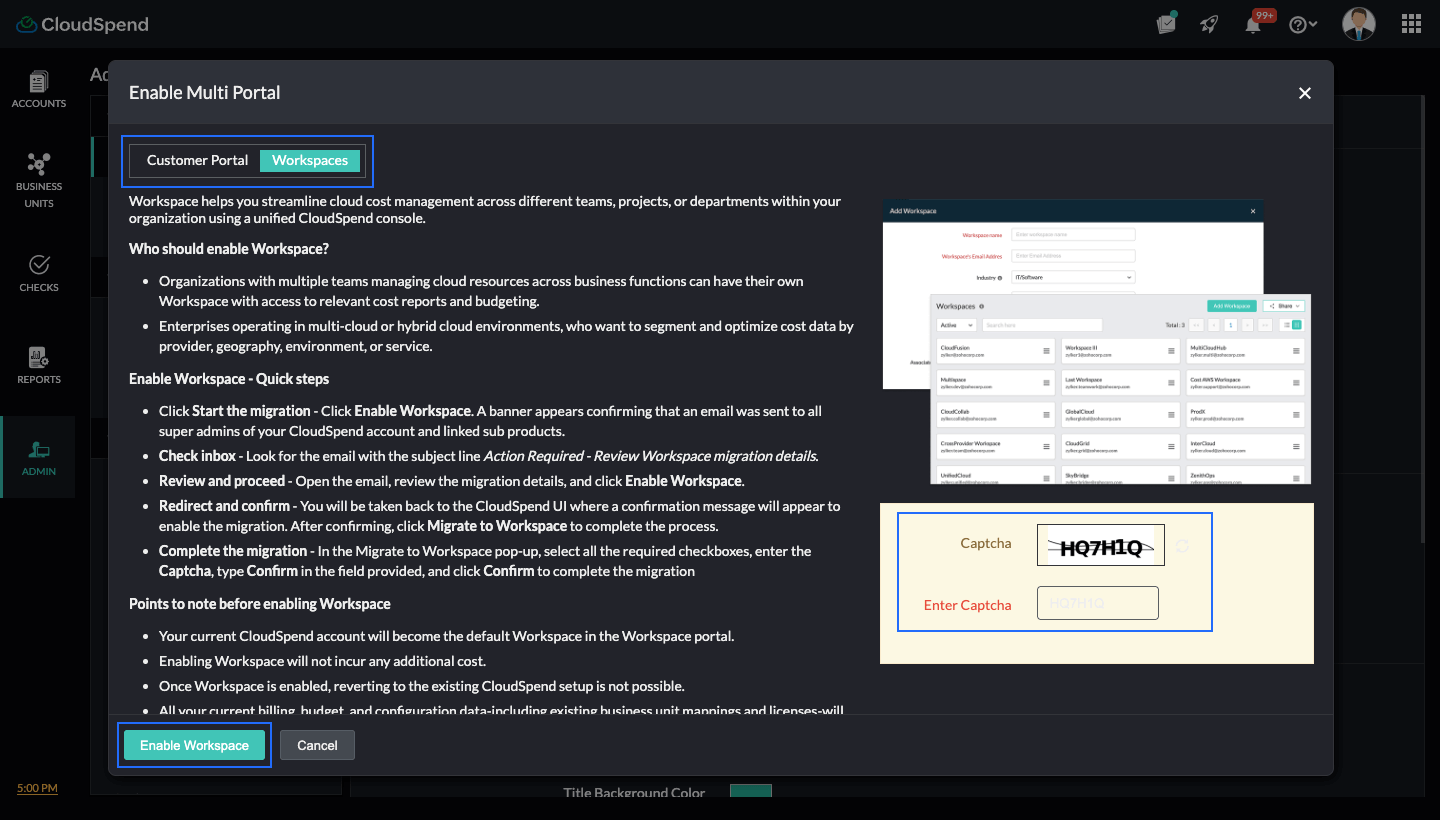
- Navigate to Admin > User Management > Users > Enable Multi Portal. The Enable Multi Portal pop-up screen will appear.
- Read and accept the Workspace details, enter the Captcha, and click Enable Workspace. A banner appears confirming that an email was sent to all super admins of your CloudSpend account and linked sub-products.
Review and confirm migration request
- Check your inbox for an email with the subject line Action required: Review Workspace migration details.
- Open the email, review the migration details, and click Enable Workspace.
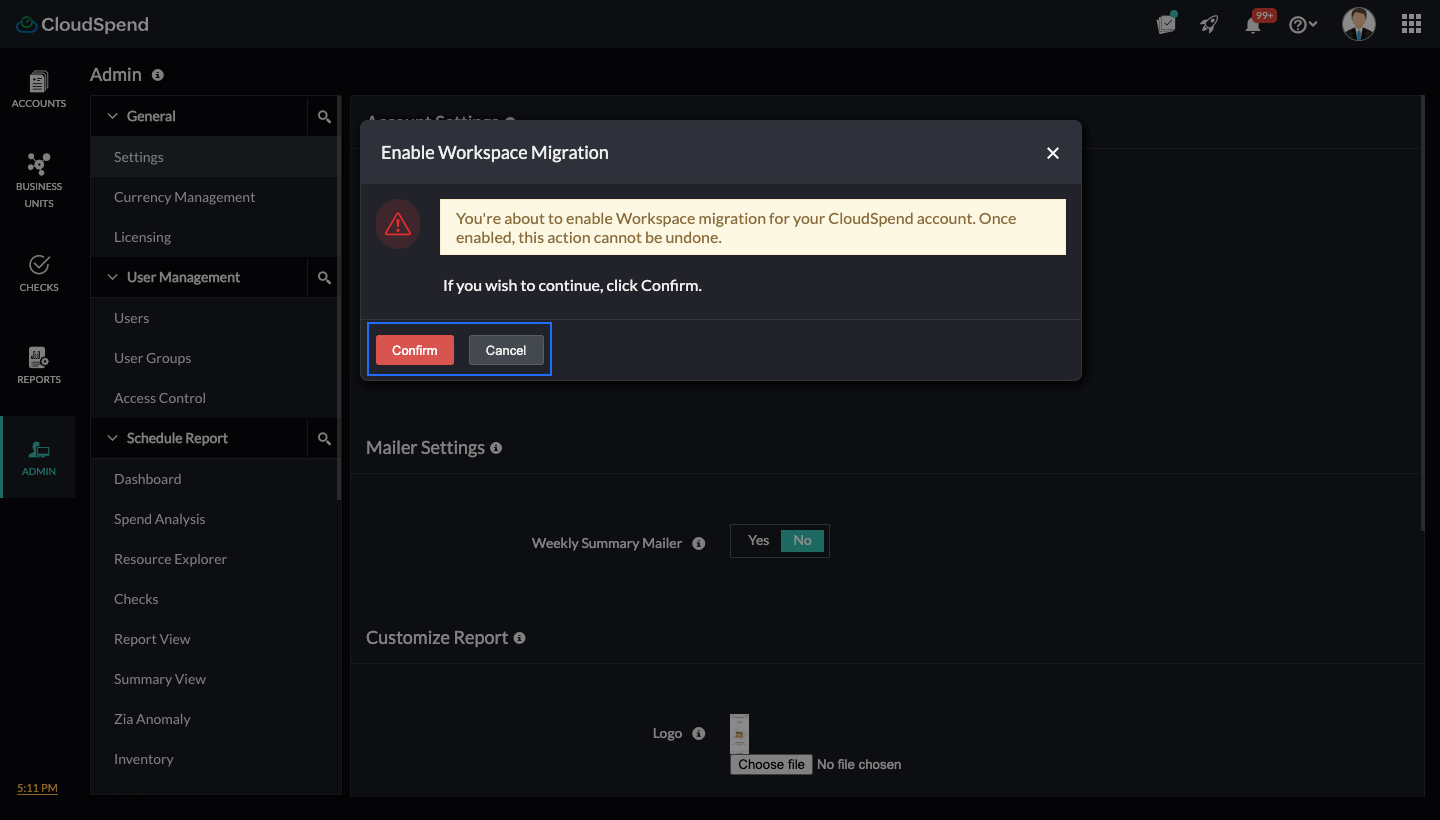
- You will be taken back to the CloudSpend UI where a confirmation message will appear to complete the migration.
- Click Confirm to proceed with the migration.
Migrate from User Management
- Go back to Admin > User Management > Users, and click Migrate to Workspace. The Migrate to Workspace pop-up will appear.
- Select the check boxes to acknowledge the conditions and results of migration.
- Enter the Captcha, type Confirm in the provided field, and click Confirm to begin the migration.
Migration completion
- The migration process may take a few minutes, depending on the size of your data.
- Once completed, your new Workspace will be available in the Workspace tab.
At least two admins must confirm the migration request to enable the migration. If the account has only one admin, a single confirmation is enough.
Viewing a Workspace
To access a specific Workspace account, use the filter dropdown located at the top-left of the Workspace index page. This allows you to search for and focus on the Workspace you wish to manage. Additionally, if you wish to work across multiple Workspaces simultaneously, you can open each one in a separate browser tab by clicking on the desired Workspace account name.
Creating a Workspace
To create a new Workspace, follow the below steps:
- Log in to CloudSpend and navigate to the Workspace tab.
- In the Workspaces page, click Add Workspace.
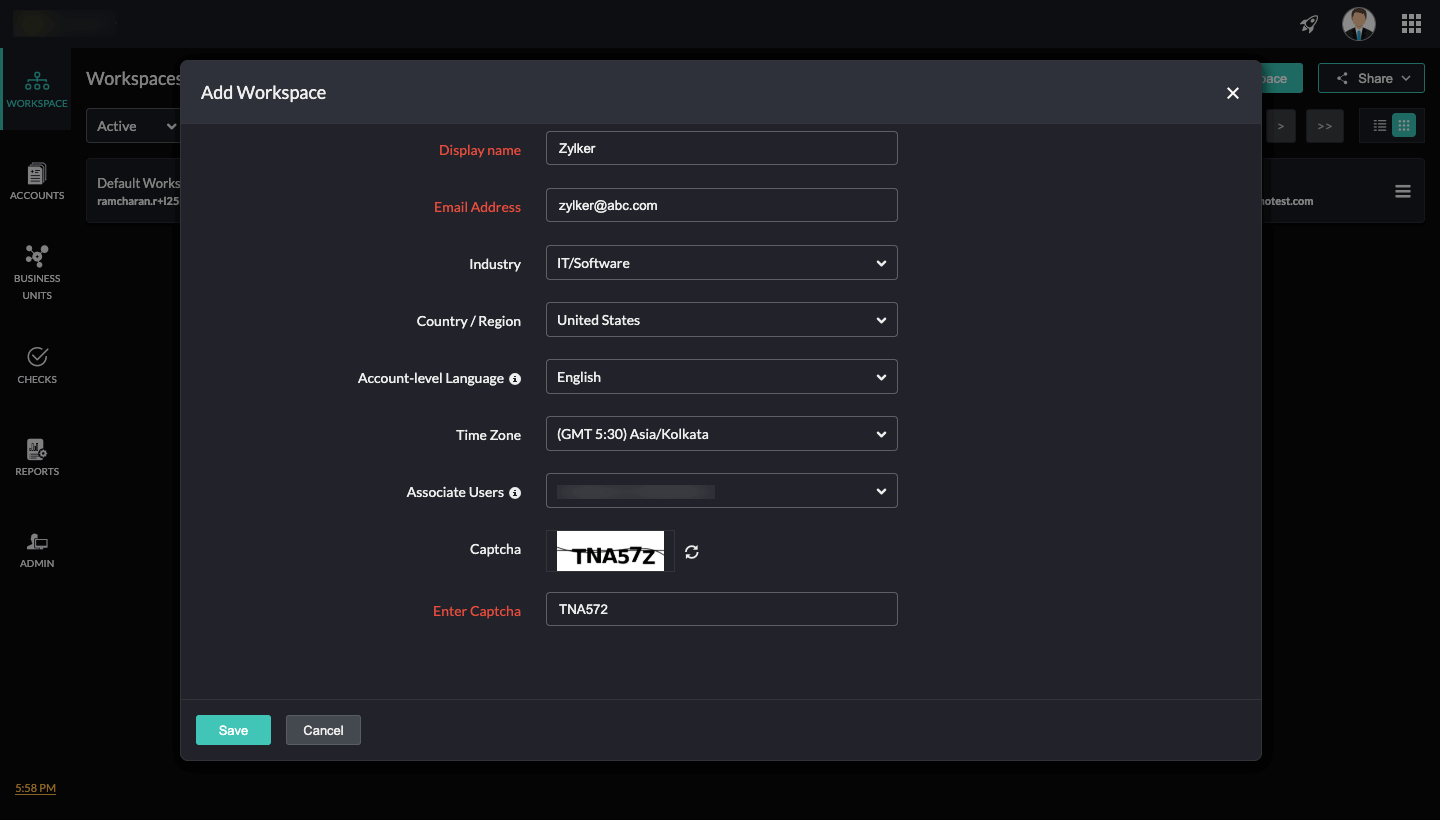
- In the Add Workspace page, enter the following details:
- Display Name:Enter a unique name to identify the Workspace.
- Email Address:Provide a contact email for Workspace-related communication.
- Industry: Select the business domain that best describes the Workspace.
- Country/Region:Choose the geographical location for the Workspace.
- Account-level Language:Set the preferred language for Workspace communication.
- Time Zone:Define the time zone that aligns with the Workspace’s operations.
- Associate Workspace Users:Select the users to be associated with the Workspace.
- Captcha:Enter the displayed captcha text for verification before creating the Workspace.
- Save/Cancel:Click Save to create the Workspace or Cancel to discard changes. Once saved, you view the Workspace account you created in the Workspaces page.
Editing a Workspace
To edit a Workspace:
- Click the Hamburger icon next displayed against the respective Workspace name.
- In the Edit Workspace page, make the required changes and click Save.
Rebranding a Workspace
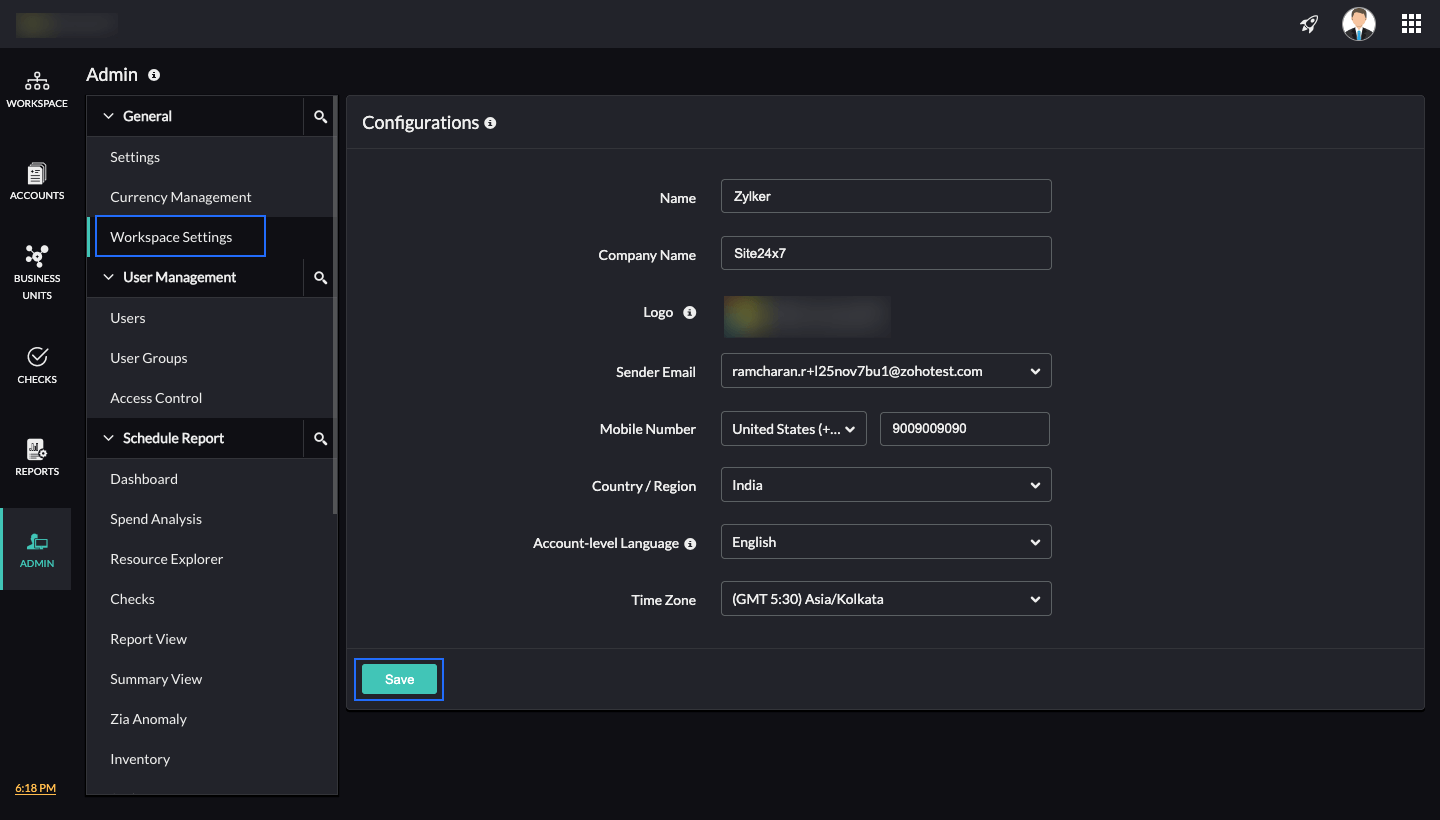
You can rebrand your Workspace at any time. Users with access to multiple portals (Workspaces) can update the branding by changing the logo, company name, or domain.
To rebrand a Workspace:
- Go to Admin > Workspace Settings.
- Edit the applicable fields and click Save.
Terminating a Workspace
To terminate a Workspace:
- Click the Hamburger icon next displayed against the respective Workspace name.
- On the Edit Workspace page, click Terminate Workspace.
- On the Terminate Workspace page, enter the following details:
- Reason for Termination:Select the reason for terminating the Workspace.
- Feedback: Share comments or suggestions related to the termination.
- Enter Captcha: Enter the displayed captcha text for verification.
- Click Terminate My Workspace to permanently delete the selected Workspace.
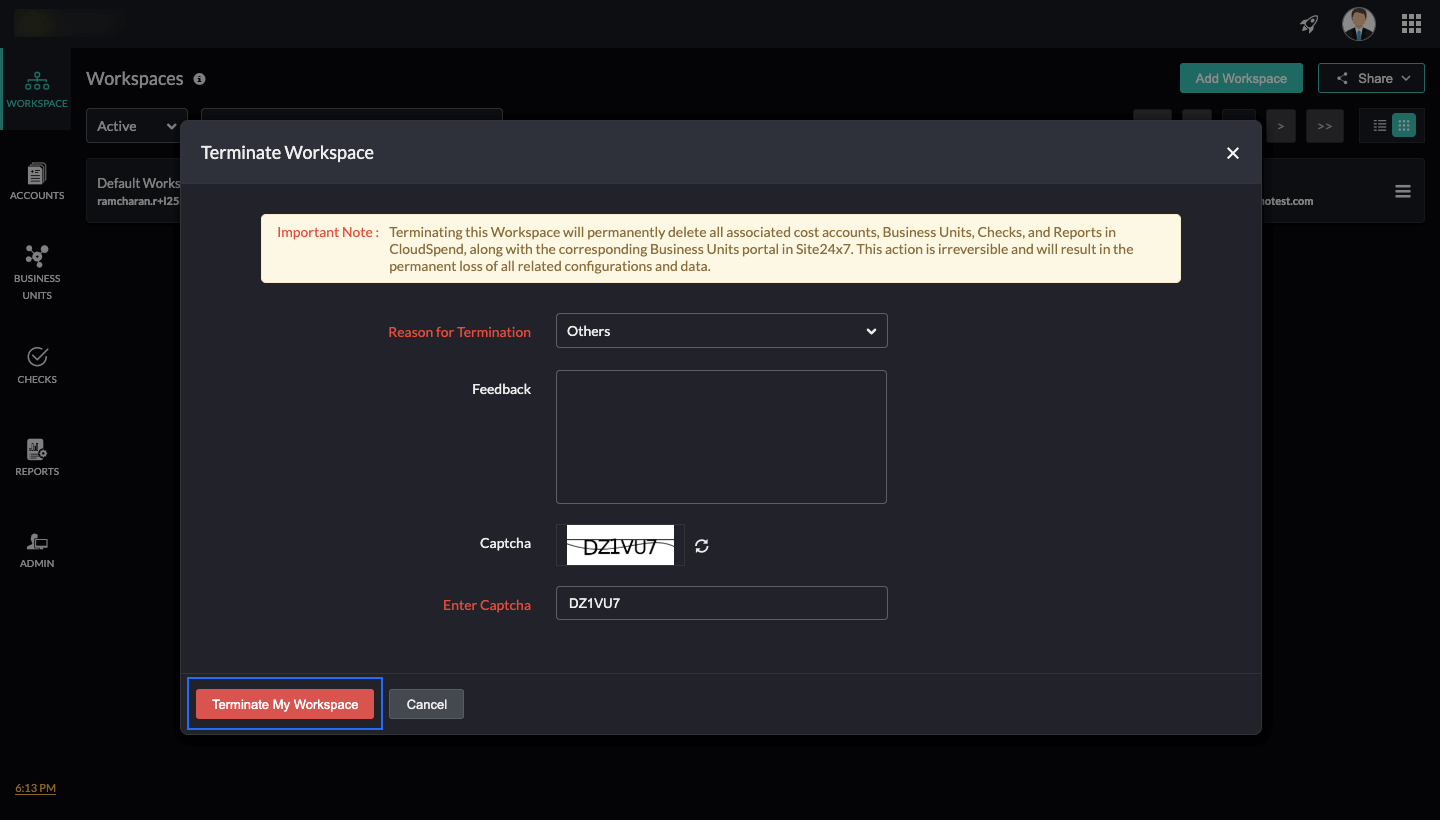
- Click Cancel to exit the dialog without taking any action.
Switching between Workspaces
You can switch between Workspaces from any module page in CloudSpend. By default, you start in your default Workspace.
To switch to another Workspace:
- Click the Workspace drop-down menu at the top-right of the page.
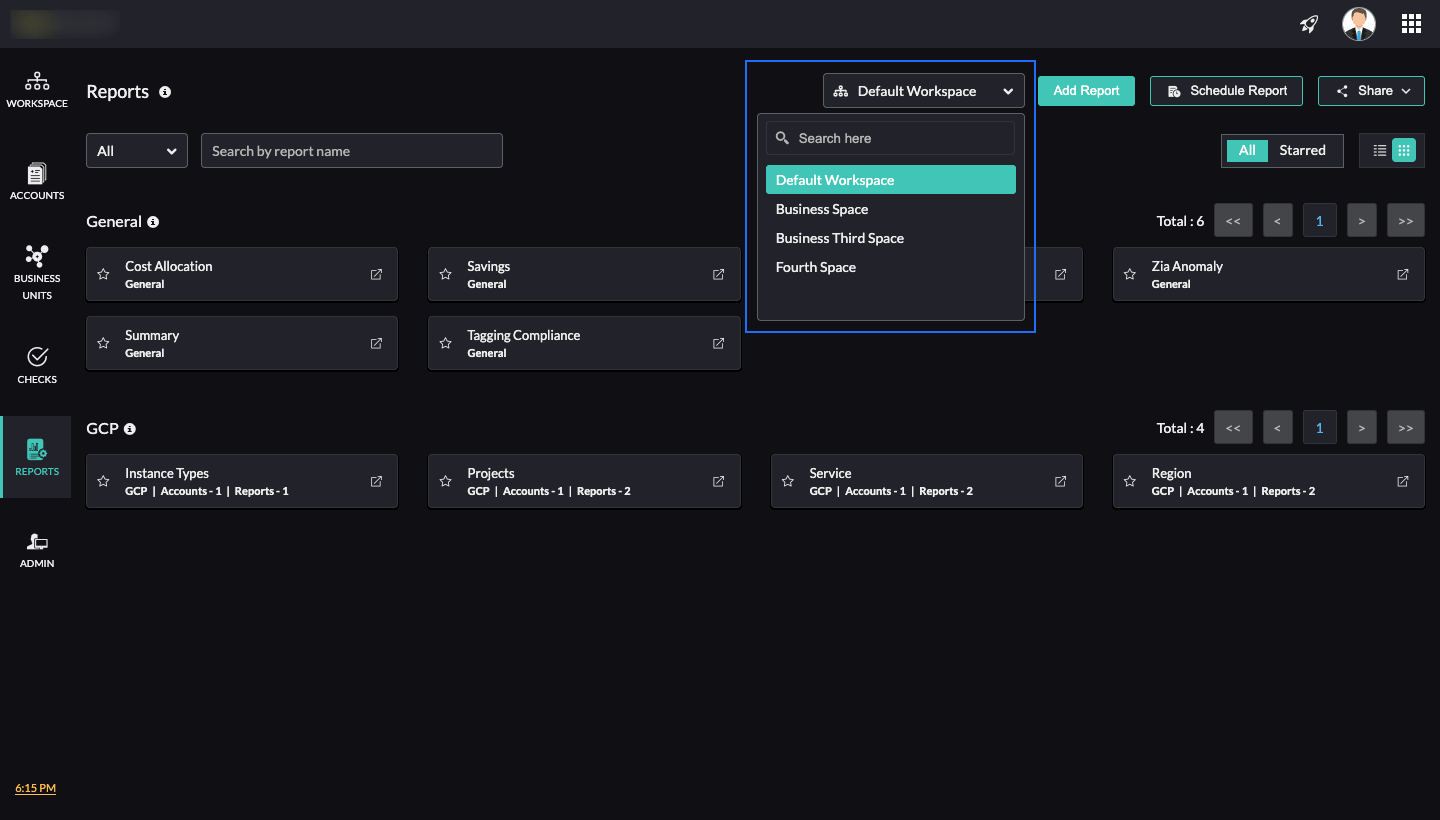
- Select the Workspace you want to switch to.
You will be instantly switched to the selected Workspace without leaving your current page.
Related topic