User and Role Administration
User administration refers to the process of managing user accounts within a system or application for better management. In the context of user administration involves tasks such as creating, modifying, and deleting user accounts. This includes defining user roles, assigning scopes (permissions), and ensuring that users have the appropriate access levels to perform their tasks.
Take a look at the features listed down under User Administration:

Users and Roles
User accounts are individual accounts created under a scope that provides them the access to endpoints custom groups and remote offices. Roles on the other hand, define a set of permissions that determine what actions a user can perform within the system. Each user is assigned a role, which governs and determines their level of access and authority.
What is a Role?
A role defines a set of permissions that controls what actions a user can perform inside the Endpoint Central MSP console. Every user must be assigned a role. Without a role a user cannot log in to the console.
There are two types of roles:
| Type | What it is | Can it be modified? | When to use |
|---|---|---|---|
| Pre-defined Role | Built-in roles shipped with the product. Represent common IT team profiles. | No - view only | When a built-in profile matches your team's needs exactly. |
| User-defined Role | Custom roles you create. Set each module to Read, Write, Full Control, or No Access. | Yes | When no pre-defined role matches. Gives granular module-level control. |
Role ≠ Scope: A role controls what a user can do. Scope controls which machines those actions apply to. Both must be configured. A user with Full Control role but no scope assigned will see zero devices. See the Scope of User documentation for scope configuration.
Role Management
Some of the most commonly used Roles are specified under Pre-defined Roles. However, you also have the flexibility to define roles that best suit your requirements under the User-defined Roles and grant appropriate permissions. Here's a brief on the Pre-defined and User-defined roles respectively:
Pre-defined roles:
You will find the following roles in the Pre-defined category:
- Administrator: The Administrator role has full control over all modules. The operations that are listed under the Admin tab include:
- Full control over all modules.
- Defining or modifying Scope of Management.
- Adding inactive users.
- Changing mail server settings.
- Scheduling vulnerability database updates, and more.
- Guest: The Guest role has read-only permission to all modules. A user who is associated with the Guest role can scan and view information about different modules, but cannot make changes. The Guest role also has read-only permission to view MDM inventory details, reports, profiles, and apps of mobile devices.
- Read-only access to all modules.
- Privileges limited to viewing information without the ability to make changes.
- Viewing configurations, reports, and so on.
- Technician: The Technician role has a well-defined set of permissions to perform specific operations. Users under the Technician role are restricted from performing the operations listed under the Admin tab. The operations that users with the Technician role can perform include:
- Define and deploy all types of configurations and collections.
- View all configurations, including those created by other users, and reports.
- Suspend, modify, or redeploy the configurations defined by them.
- Update the Vulnerability Database.
- Perform scan operations on all modules.
- Write permission for Inventory, Reports, Profiles, and Apps in Mobile Device Management.
- Auditor: The Auditor role has read-only access to reports and limited read access to MDM report data. Auditors cannot view or interact with any operational module. This role is intended for compliance reviewers and internal audit teams who need report visibility without operational access.
- Remote Desktop Viewer: The Remote Desktop Viewer role has access only to establish remote control sessions. Users associated with this role can invoke a remote desktop connection and view details of users who had connected to a particular system. All other modules are inaccessible.
- IT Asset Manager: The IT Asset Manager role has complete access to the Asset Management module. All other modules and features are inaccessible. IT Asset Managers can also view the inventory details of all mobile devices.
- Patch Manager: The Patch Manager role has complete access to Patch Management. Patch Managers can also use tools such as Wake On LAN, Remote Shutdown, and System Manager, and can schedule patch reports. All other modules and features are inaccessible.
- Vulnerability Manager: The Vulnerability Manager role has complete access to the Vulnerability module. All other modules and features are inaccessible.
- Mobile Device Manager: The Mobile Device Manager role has access only to Mobile Device Management. It has write permission for Inventory, Reports, Profiles, and Apps in Mobile Device Management. All other modules and features are inaccessible.
- OS Deployer: The OS Deployer role lets the associated user capture images of Windows OS and deploy them across the network computers.
- Application Control Manager: The Application Control Manager role has full control over Application Control and its reports. All other modules and features are inaccessible. This role is suited for security administrators who define and enforce application allow and deny policies.
- BitLocker Manager: The BitLocker Manager role has full control over BitLocker Management and its reports. All other modules and features are inaccessible. This role is intended for security administrators who manage full-disk encryption across endpoints.
- Browser Security Manager: The Browser Security Manager role has full control over Browser Security functions. All other modules and features are inaccessible.
- Device Control Manager: The Device Control Manager role has full control over Device Control and its reports. All other modules and features are inaccessible. This role is intended for security administrators who manage access to peripheral devices across endpoints.
- Endpoint DLP Manager: The Endpoint DLP Manager role has full control over Endpoint DLP. All other modules and features are inaccessible. This role is designed for data security administrators who prevent data loss across managed endpoints.
- Security Manager: The Security Manager role has full control over the Endpoint Security functions, such as BitLocker Management, Patch Management, Application Control, and Vulnerability Management, among others. This is the senior security role, suited for administrators who oversee the full security posture of the endpoints.
For a detailed breakdown of access levels across all roles, see the Role Permission Matrix.
User-defined Role
You can create roles, and customize them based on your personalized needs. These customized roles fall under the User-defined category. Follow the steps mentioned below to create a new User-defined role:
- Select the Admin tab, navigate to User Administration.
- Select the Role tab and click the Add Role button.
- Specify the Role Name and a small description about it.
- Define module-wise permission level for the Role in the Select Control Section. This includes options like Full Control, Write, Read, and No Access.
- Click Add button. This completes the process of creating a new role.

How to associate users with roles?
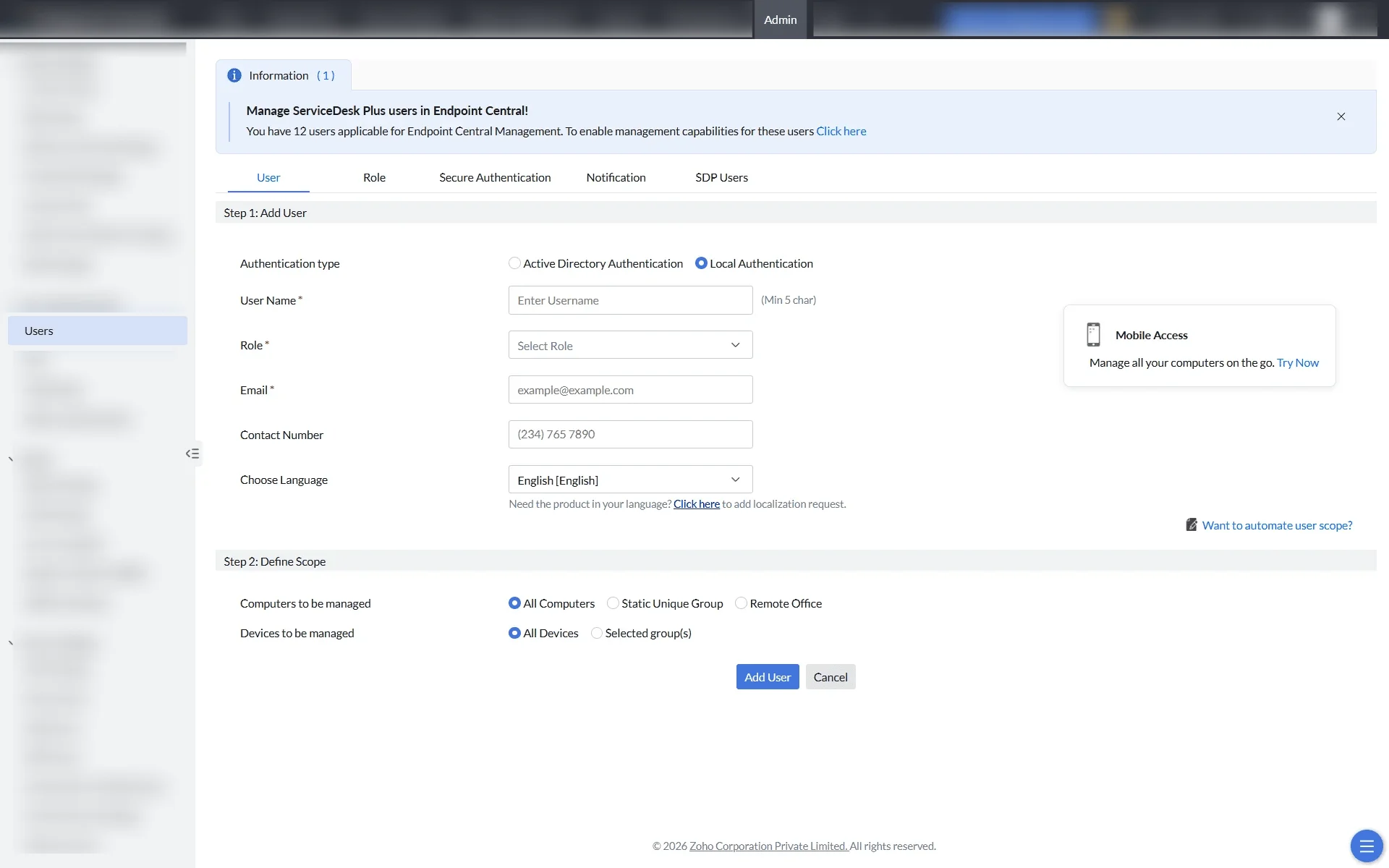
- Open the Web Console → Navigate to Admin tab → User Administration.
- Click User → Add User.
- Select the Authentication type as Active Directory Authentication or Local Authentication. For Active Directory Authentication, select a Domain in Domain name.
- Specify a User Name.
- Specify the Role from the drop-down list. This list will contain both pre-defined and user defined roles
- For Active Directory Authentication, the Email Address of the user will be fetched from Active Directory, if available. If not, specify the email address of the user manually. The Email Address should be manually entered for local authentication.
- If required, enter the phone number of the user
- Define the Scope for the user, you can specify the computers, which need to be managed by the user. You can choose to provide the user access to manage all computers, remote offices or specific unique custom groups. If you do not have a unique custom group, you can create one. If the custom group is not unique, it will not be listed here.
- You can also select the devices that need to be managed. You have the option to manage all devices or even selected groups.
- Click on Add User.
What Is Scope?
A scope defines which endpoints a user can see and act on. Each user has two scope dimensions in Endpoint Central MSP: the computers that the user can manage and the mobile devices that the user can manage (Mobile Device Management).
For the scope types, examples, a quick reference, and worked scenarios, refer to Scope of the User in the User Management Lifecycle document.
Secure Authentication
Secure Authentication under User Administration adds security to the application, so that only users with authorized privileges can perform operations in the Endpoint Central MSP console. It includes the following features:
- Two-Factor Authentication: Users must enter a one-time password (OTP) in addition to their username and password. The OTP is sent by email or generated by an authenticator app, depending on the mode you choose.
- User Account Policy: A set of rules for user accounts: the number of invalid login attempts allowed and the lockout duration, domain settings at login (hiding the domain list and the default domain for authentication), actions for account inactivity, and session expiry time.
- Password Policy: Rules for the passwords that users set: minimum length, minimum number of special characters, the number of previous passwords that cannot be reused, and how often users must change their password.
For detailed steps, refer to the Secure Authentication document.
Notifications
The Notification feature allows admins to get notified when the user performs a varied set of operations. For the admin to receive notifications, their e-mail ID addresses should be mentioned so that they get notified when the following changes are made:
- When a user resets the password
- When the user account gets locked or disabled due to invalid login attempts
- When the user account gets disabled due to inactivity
- When the disabled account is reactivated by the admin
- When the account is manually disabled by the admin
- When a new user account is created or deleted
SDP Users
The SDP Users listed down under this feature will not have access to console and therefore cannot carry out any endpoint management related activities. To provide access to SDP Users to use the functionalities of Endpoint Central, you can just click Add to icon under actions column corresponding to their names. This is only applicable when the Endpoint Central is integrated with ServiceDesk plus and adding SDP users to Endpoint Central is subject to your license plan.
To know more about the other important features under Global settings, visit the following links: