General Computer Reports
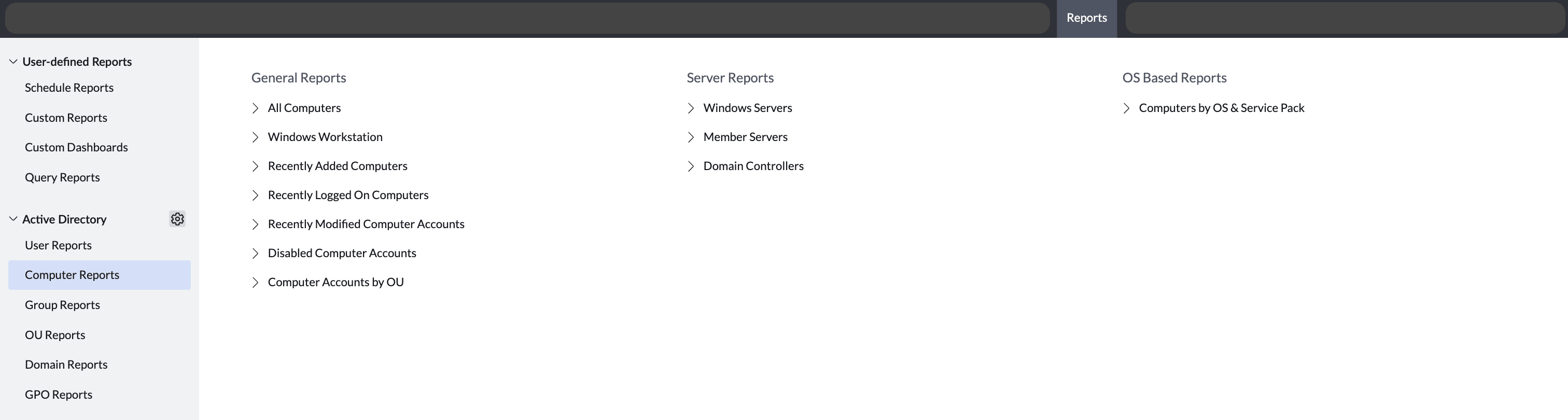
General Computer Reports provides administrators with a detailed overview of all computer accounts within their domain, including workstations, recently added, logged on, and modified computers, as well as disabled accounts. These reports help IT teams stay on top of computer account activity and maintain an accurate inventory of their domain infrastructure.
All Computers
Provides the list of all the computer accounts available in the domain. Follow the steps below to access the report:
- In the top navigation bar, click on Reports.
- In the left sidebar under the Active Directory section, click on Computer Reports.
- Click the "All Computers" report under General Reports.
- Clicking a computer account from the report displays the complete information of that account.
Windows Workstation
Provides the details of the workstations in the domain. All the computers except Servers and Domain Controllers are termed as workstations. Follow the steps below to access the report:
- In the top navigation bar, click on Reports.
- In the left sidebar under the Active Directory section, click on Computer Reports.
- Click the "Windows Workstation" report under General Reports.
Recently Added Computers
Provides the details of the computer objects that are added recently. This is determined based on the value contained in the createTimeStamp attribute. Follow the steps below to access the report:
- In the top navigation bar, click on Reports.
- In the left sidebar under the Active Directory section, click on Computer Reports.
- Click the "Recently Added Computers" report under General Reports.
- By default, the report displays the computer accounts that are created in the last week. You can choose a different period or generate a report for a custom period. Clicking a computer account from the report displays the complete information of that account.
Recently Logged On Computers
Provides the list of computer accounts through which a user has logged on to the domain. This is determined based on the value contained in the lastLogon attribute. Follow the steps below to access the report:
- In the top navigation bar, click on Reports.
- In the left sidebar under the Active Directory section, click on Computer Reports.
- Click the "Recently Logged On Computers" report under General Reports.
- By default, the report displays the computer accounts through which a user has logged on to the domain in the last week. You can choose a different period or generate a report for a custom period. Clicking a computer account from the report displays the complete information for that account.
Recently Modified Computer Accounts
Provides the details of the computer objects that are modified recently. This is determined based on the value contained in the ModifyTimeStamp attribute. Follow the steps below to access the report:
- In the top navigation bar, click on Reports.
- In the left sidebar under the Active Directory section, click on Computer Reports.
- Click the "Recently Logged On Computers" report under General Reports.
- By default, the report displays the computer accounts that are modified in the last week. You can choose a different period or generate a report for a custom period. Clicking a computer account from the report displays the complete information for that account.
Disabled Computer Accounts
Provides the list of computer accounts that are disabled in the domain. This is determined based on the value contained in the userAccountControl of the Active Directory. Follow the steps below to access the report:
- In the top navigation bar, click on Reports.
- In the left sidebar under the Active Directory section, click on Computer Reports.
- Click the "Disabled Computer Accounts" report under General Reports.
Computer Accounts by OU
Provides the list of computer accounts filtered by the OU it belongs to. Follow the steps below to access the report:
- In the top navigation bar, click on Reports.
- In the left sidebar under the Active Directory section, click on Computer Reports.
- Click the "Computer Accounts by OU" report under General Reports.
- By default, the computer accounts of all the OUs in the domain are listed. Browse to select a specific OU and click Generate to view the computer accounts of that OU. Clicking a computer account from the report displays the complete information of that account.