Device Control Temporary Access
Grant a specific user time-limited permission to use a blocked peripheral device.
Setup
Create and target temporary access
Name the policy, choose the user and computer, and define when the access is valid.
Create the policy
- Navigate to Policies → Temporary Access → Create.
- Enter the policy Name.
- Optionally add a Description that explains the purpose or key details.
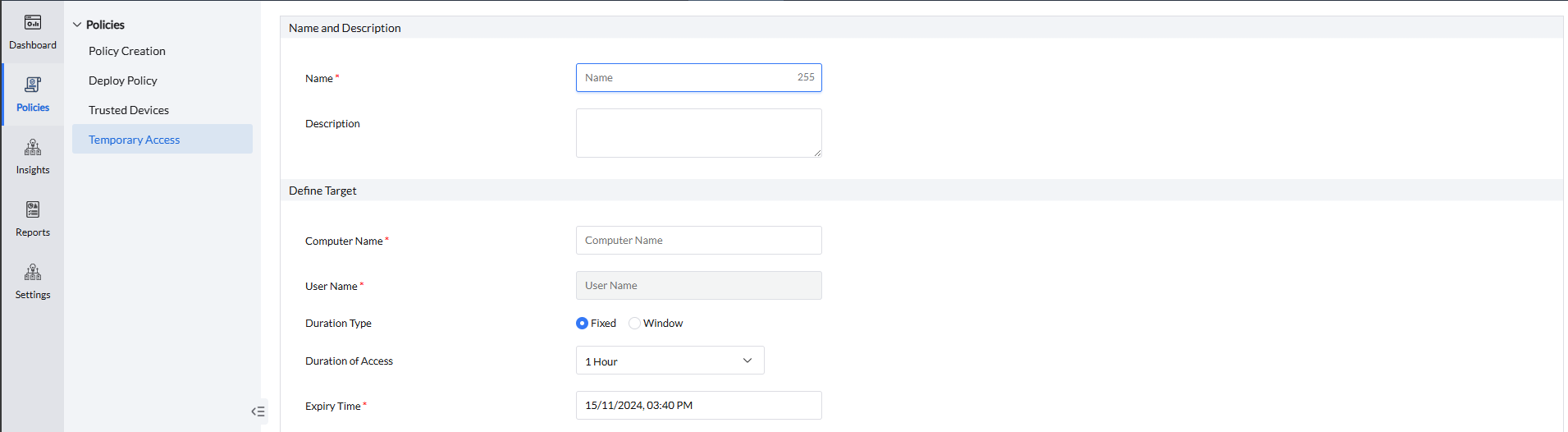
Define the target and duration
- Select the computer and the specific user who should receive temporary access.
- Duration:
- Fixed — set an access duration and an expiry date and time. Access begins when the policy is deployed to the computer.
- Window — set From and To dates and times. The user can access the selected device only within that period.
Devices
Choose the allowed device
Grant access to every instance of a device type or limit access to one identified device.
Select the device scope
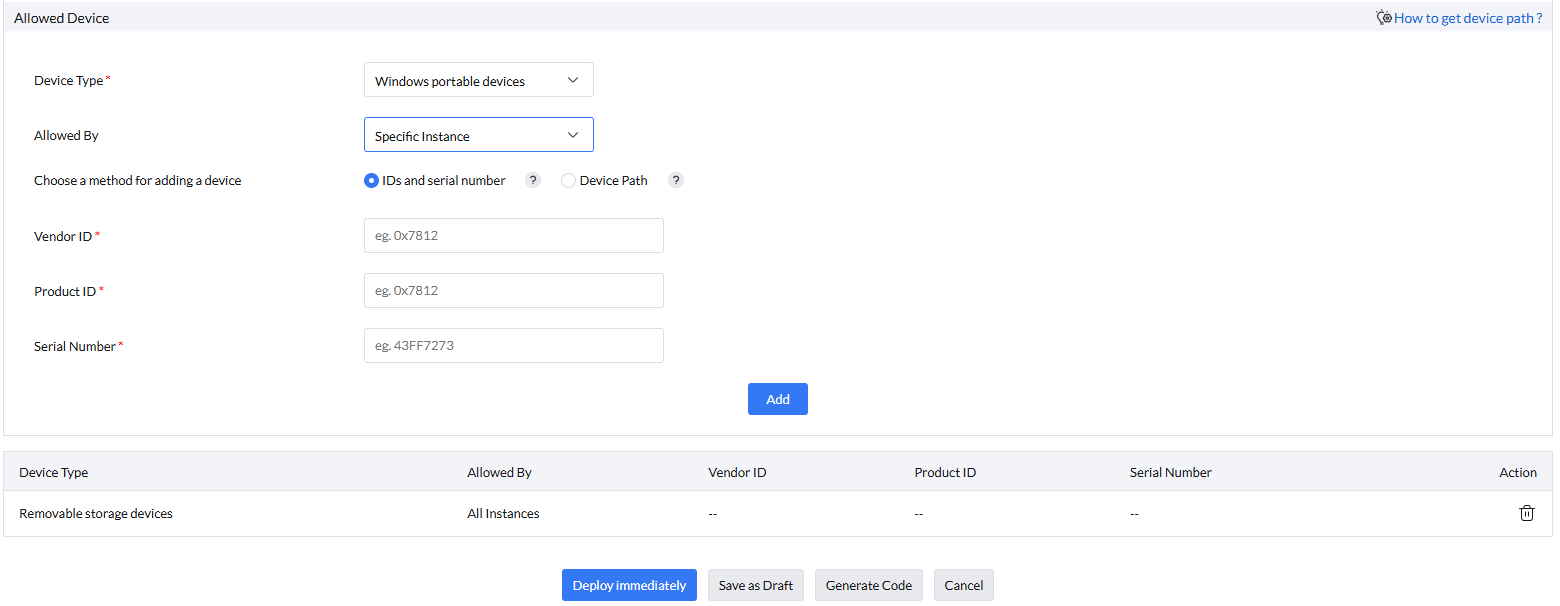
Select the device type that should receive temporary access, then choose how the device is identified:
- All Instances — grants access to every instance of the selected device type.
- Specific Instance — grants access only to the device identified by its device path.
Control removable storage
When the selected type is Removable Storage Device, advanced settings provide additional file-transfer controls.
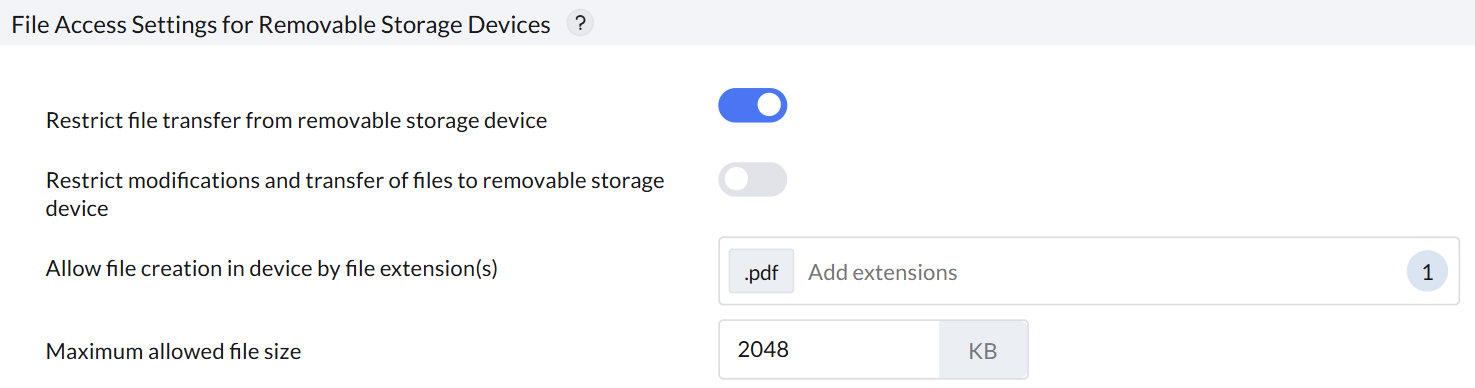
- Restrict transfers from a connected removable storage device to the computer.
- Restrict changes to files on the removable device and transfers from the computer to the device.
- Allow transfers to removable storage according to specific file extensions and their corresponding file sizes.
Deployment
Deliver temporary access
Apply the policy directly or give the user a code file that activates it from the endpoint.
Choose the deployment method
- Deploy Immediately — applies the policy directly to the target user.
- Generate a Code — creates a .tac file that the user can activate.
- Right-click the agent tray icon.
- Select View Device Temporary Access Portal.
- Select the .tac file.
- Select Apply.
Requests
Handle user access requests
Users can request access from their computers and administrators can review, approve, code, or decline each request.
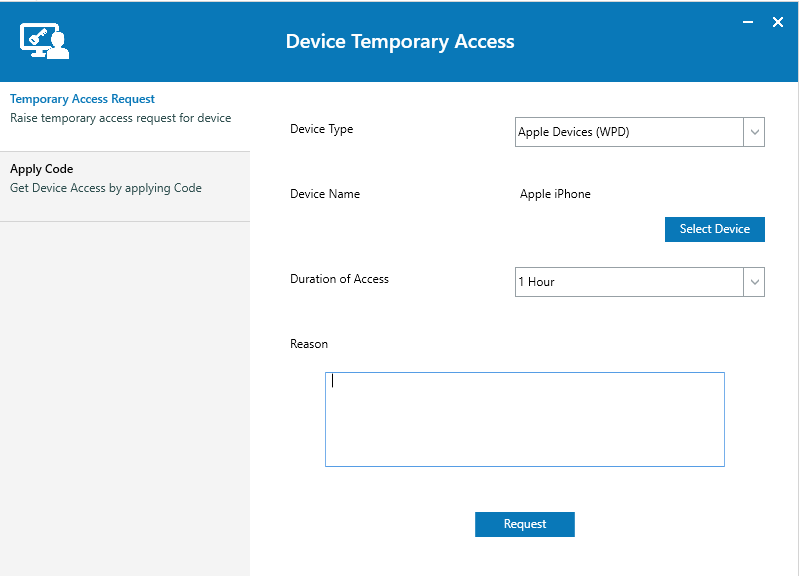
Submit a request from the endpoint
- Right-click the agent tray icon and select View Device Temporary Access Portal → Temporary Access Request.
- Select the device and access duration, enter the reason, and select Request.
Review the request
Open the policy to review the requested device and the reason supplied by the user.

Respond to the request
Select Modify, then choose an administrator action:
- Deploy Immediately — accepts the request and deploys the policy.
- Generate Code — creates a .tac file that the user can apply to activate the policy.
- Decline — rejects the temporary-access request.
