Scheduling DNS And DHCP Configurations
Scheduling DHCP configurations in DDI Central
In the DHCP module, only the following DHCP configurations can be scheduled within DDI Central, Subnets, Shared Networks, Hosts, Host Groups and Client Classes.
To schedule the DHCP configurations for a DHCP scope :
- Get into the DHCP module.
- Select the Networks menu.
- On the Networks page, DDI Central enables you to schedule the configurations for the following DHCP objects:Subnet, Shared Network, Client Classes, Host, and Host group.
- Add a new DHCP object (like subnet, shared Network, Host, Host groups, or Client Classes) or select the DHCP object of your choice and open it in edit mode by clicking the edit button
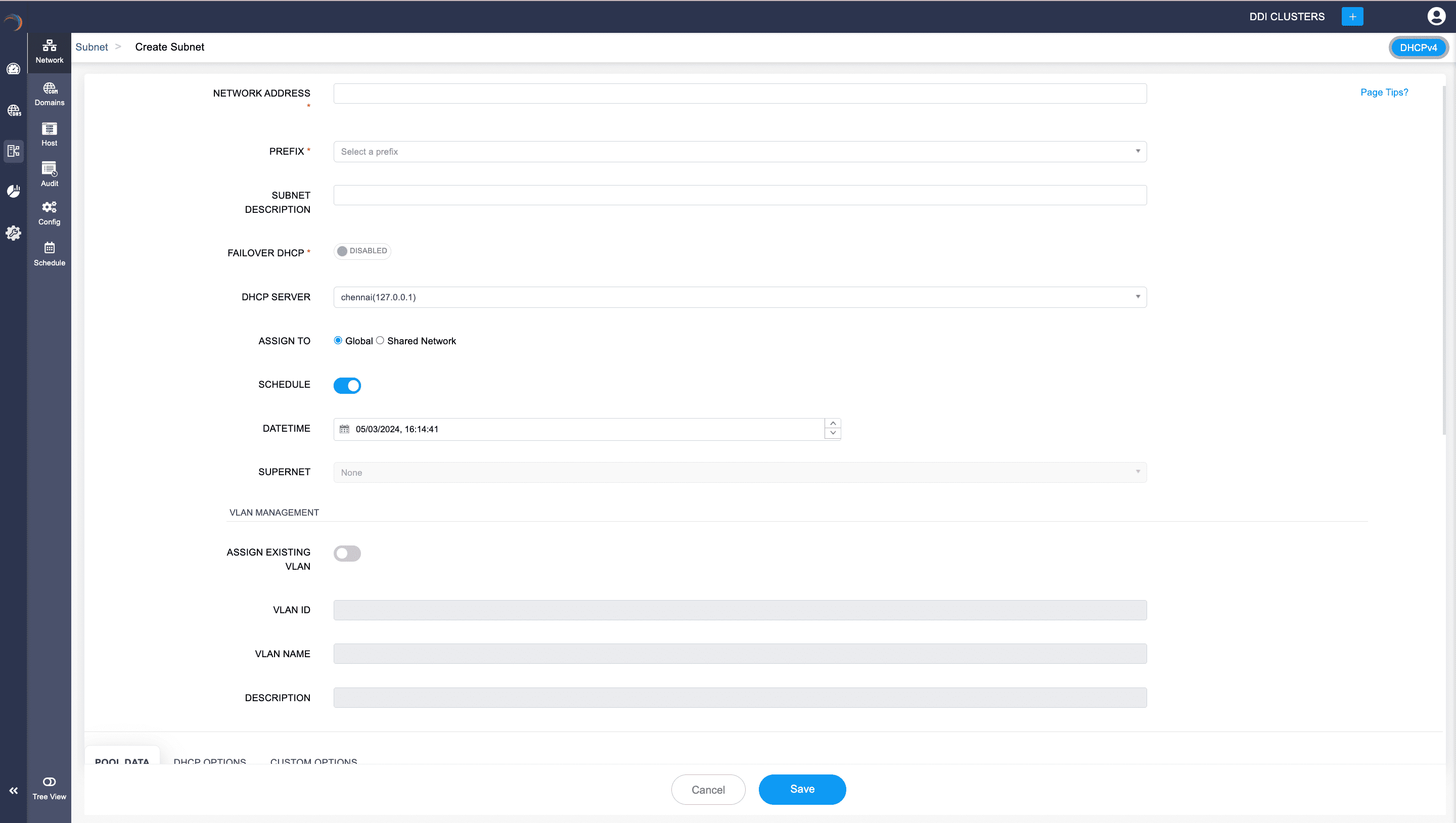
- Find the Schedule option and enable it.
- Once the Schedule option is enabled, DDI Central prompts you to choose the suitable Date and Time using the calendar and the clock widget.
- The Date and time you choose here is when the new configuration for the scope replaces the old configurations and gets activated.
- Enter all the other essential details for the new scheduled configurations and finally click Save.
- Once you click save, you can see a clock symbol to the right of the scheduled new configuration for easy identification and you cannot make any changes to that DHCP object.
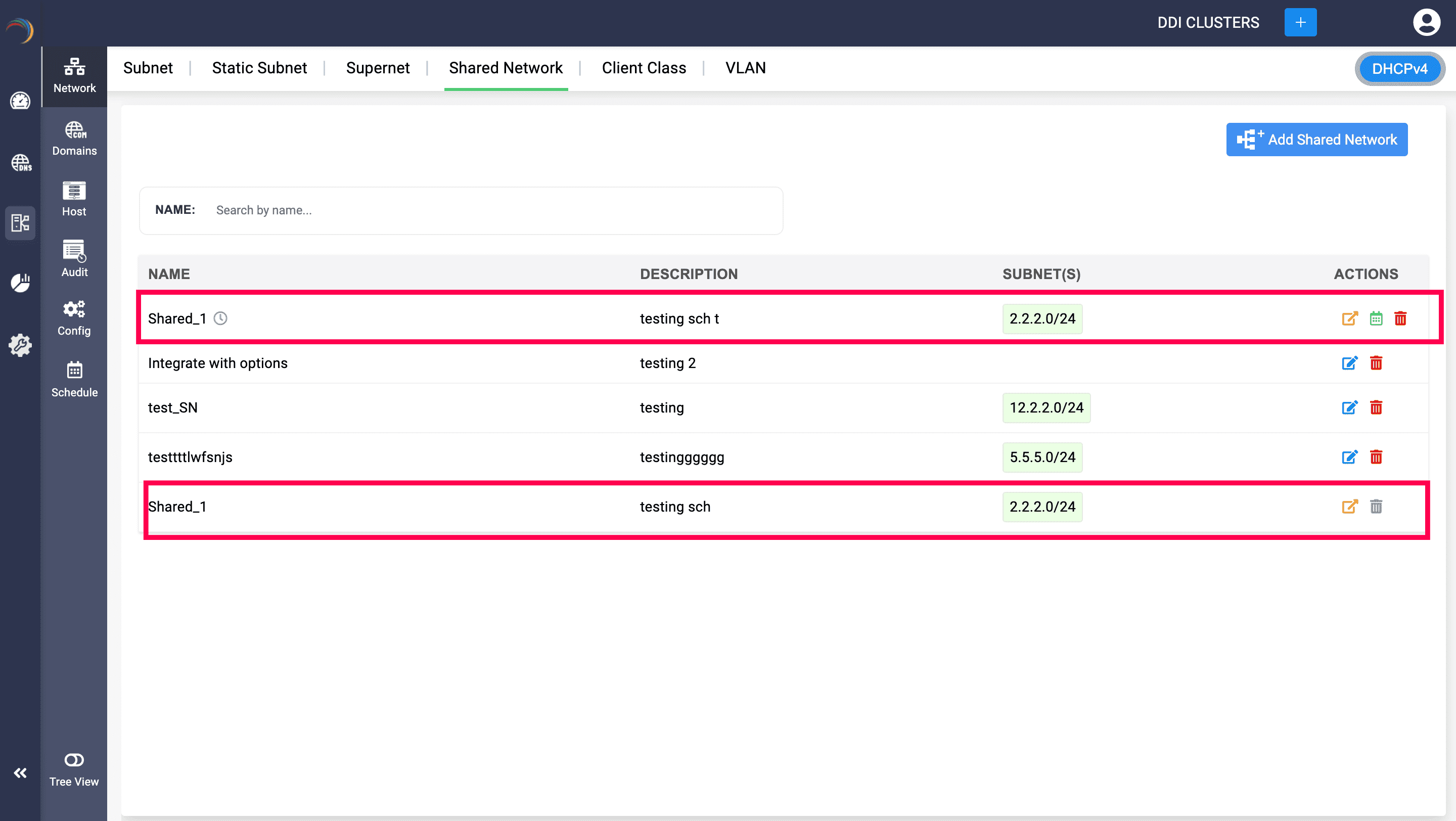
Upon scheduling new DHCP scope configurations, DDI Central ensures the stability of your system by locking the current settings, preventing any additional alterations. The newly scheduled configurations also become read-only and are not editable—they can only be viewed, rescheduled, or deleted (cancelled) if needed. This safeguard maintains the integrity of both the present and future configurations, ensuring that the scheduled changes occur without unintended modifications.
To have an overview of all the scheduled configurations :
Select DHCP-> Schedule. Navigate to the Configurations tab.
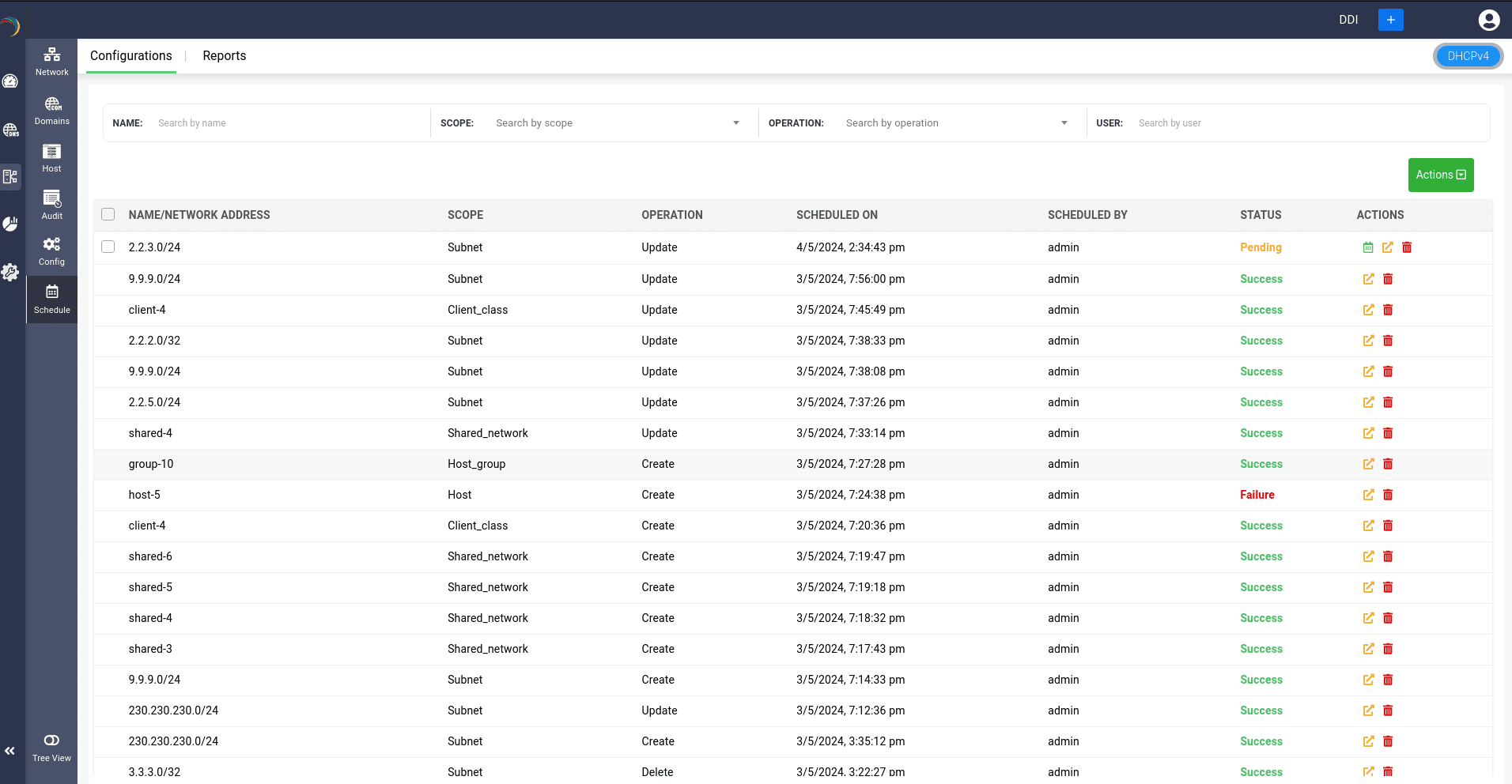
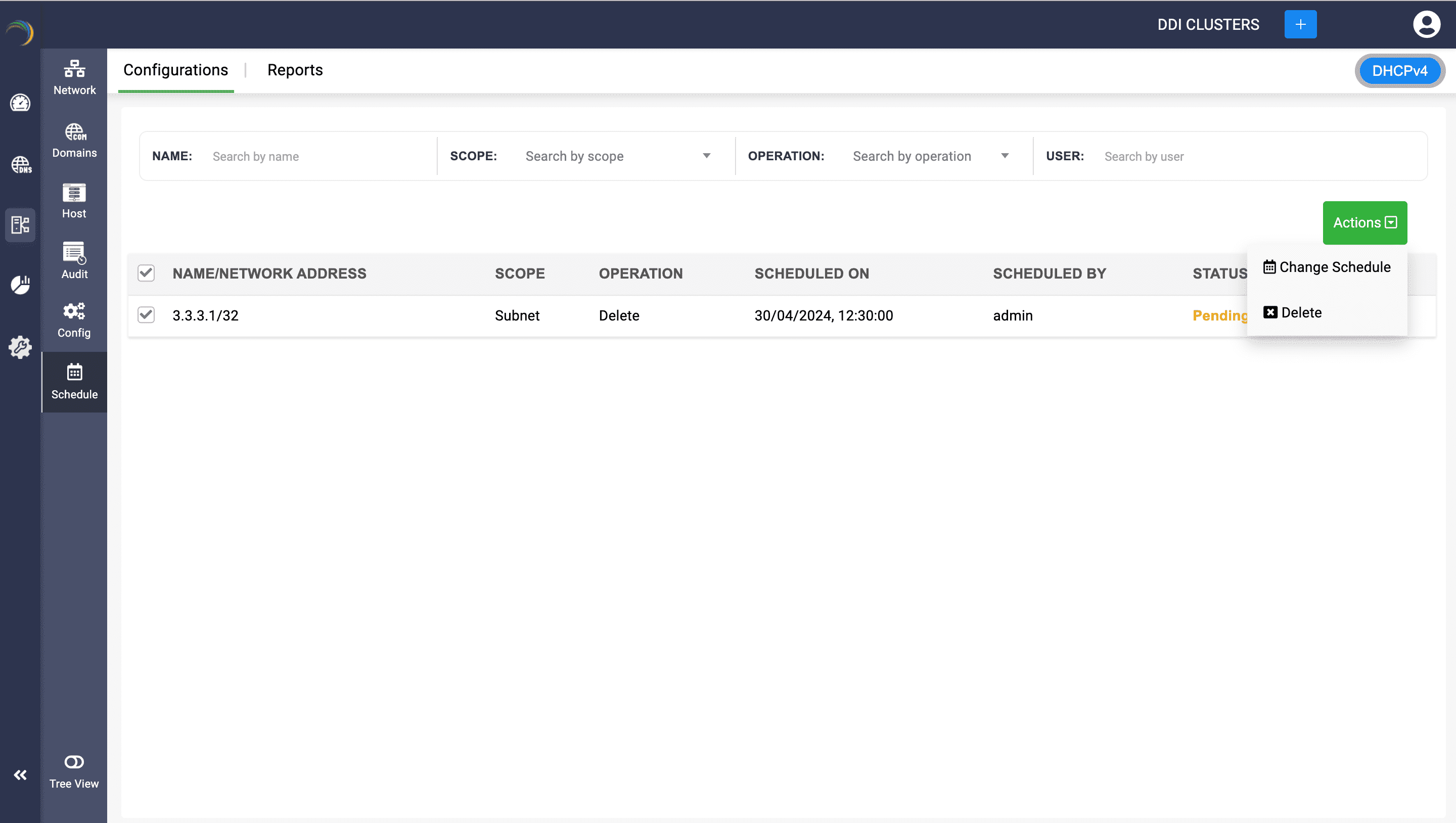
The Configurations tab provides a comprehensive overview of all scheduled scopes. Here, you can apply filters to search for specific configurations planned for your network. This tab exclusively allows you to reschedule, view, or delete these scheduled configurations. Additionally, you can select multiple configurations simultaneously and utilize the Actions dropdown button. From this dropdown, choose Change Schedule to collectively reschedule all the DHCP objects to one particular date and time, or select Delete to collectively remove the configurations.
DHCP Subnets:
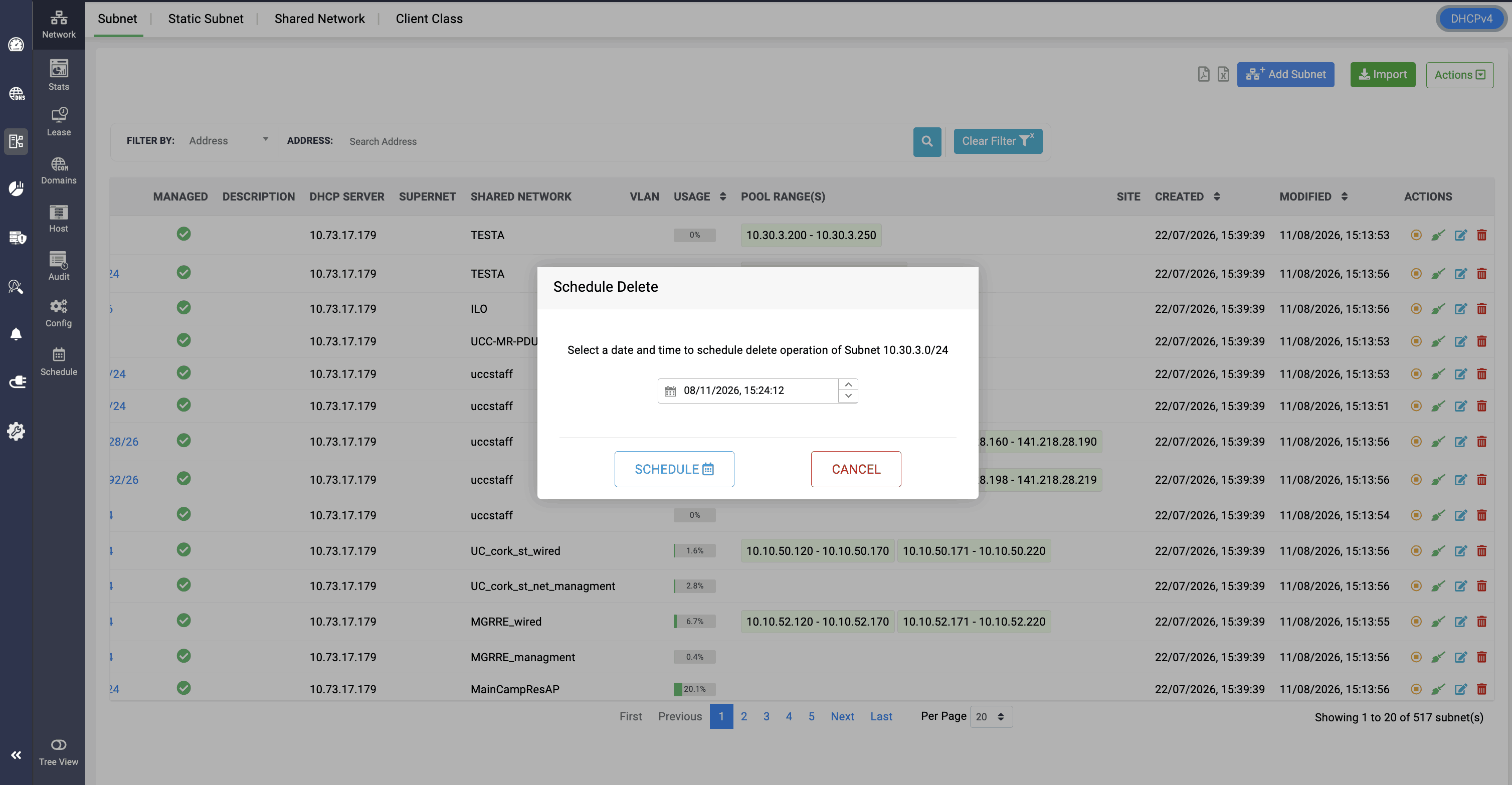
Subnet deletion can be scheduled in DDI Central. When you click the Delete icon, you can select the Schedule option and specify the date and time at which you want to schedule the deletion process.
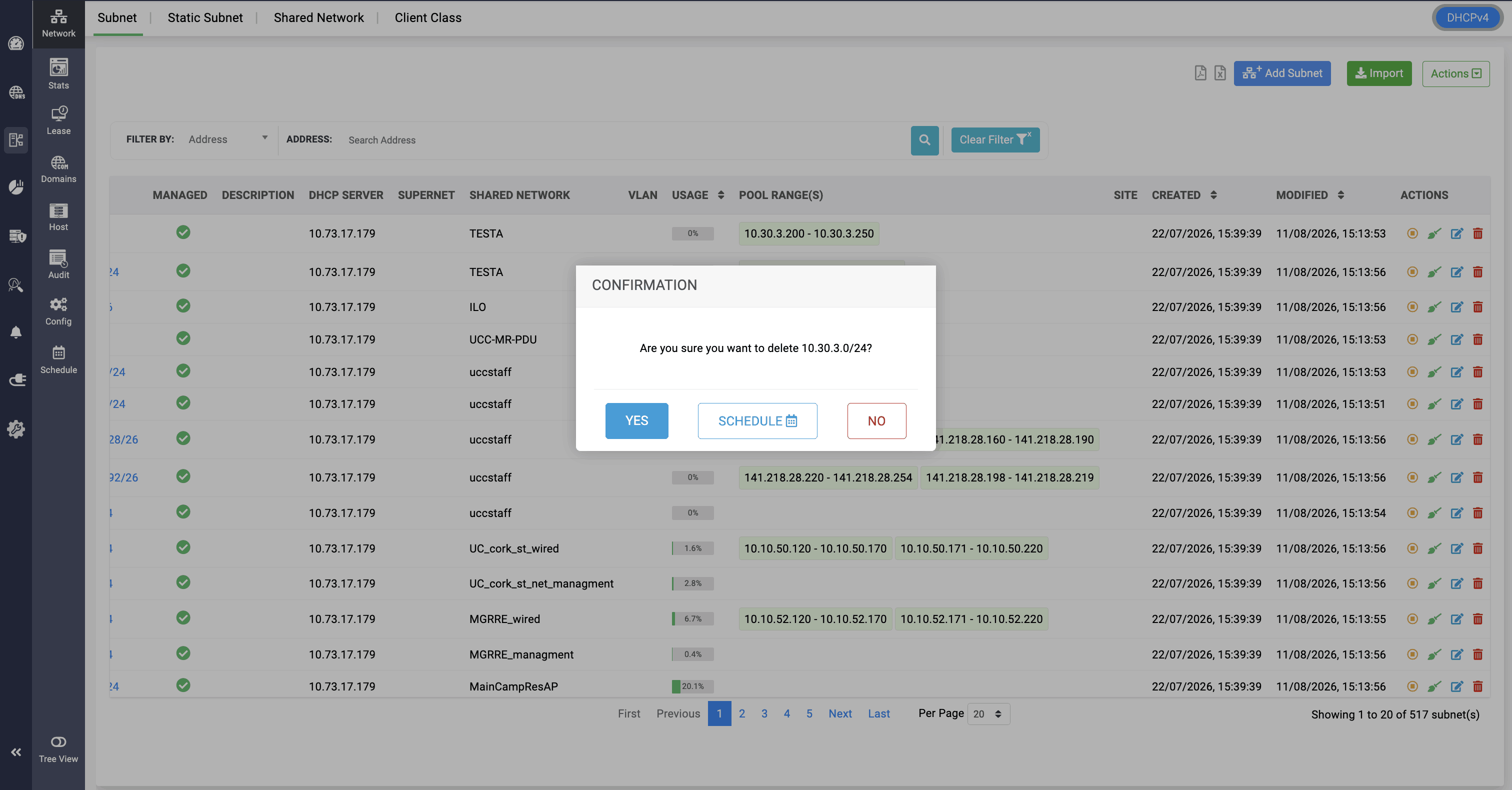
This way, the subnet remains in the network until the scheduled time, allowing for any last-minute usage, after which it is permanently deleted.
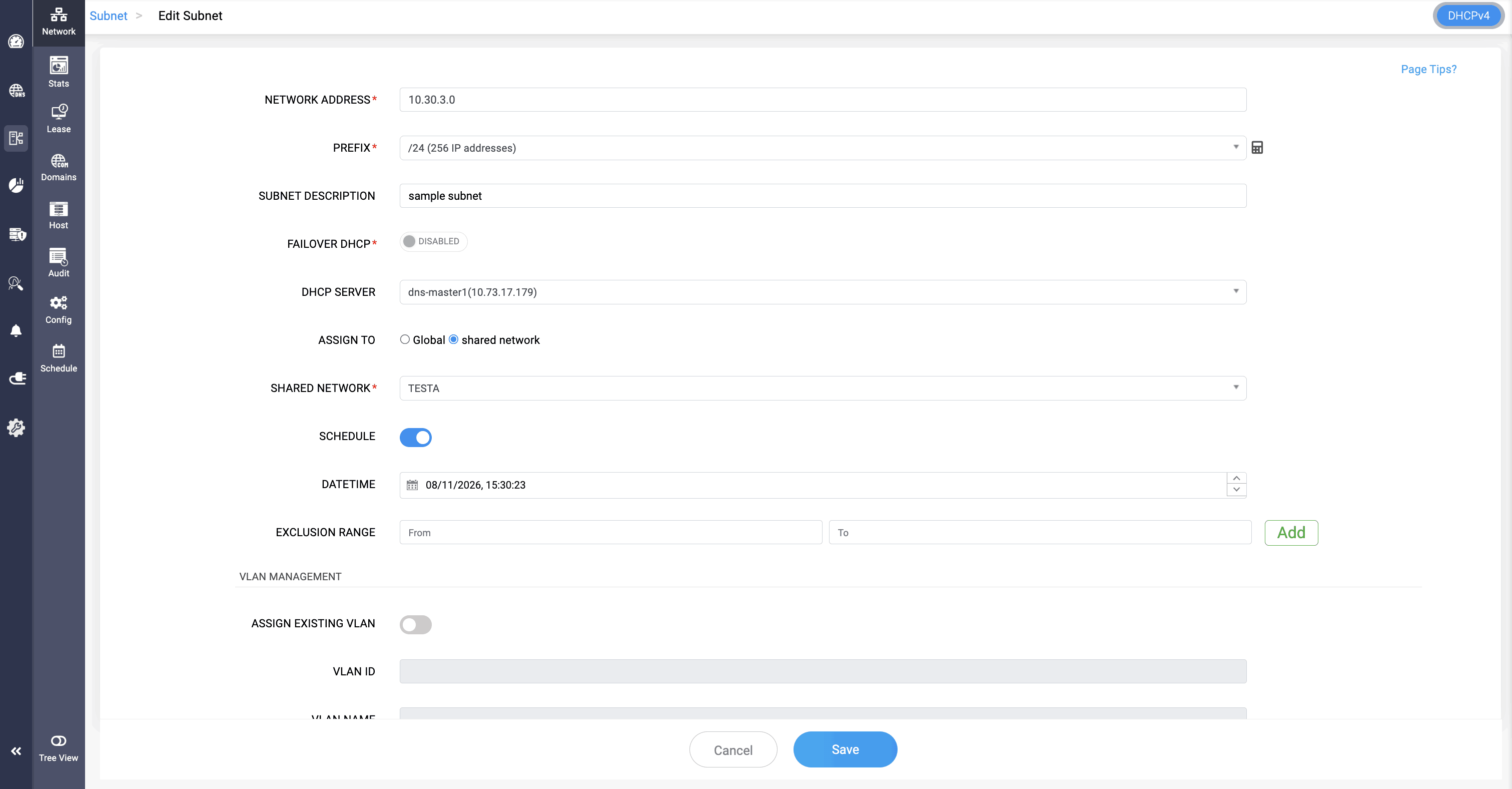
Editing and updating a subnet can also be scheduled to take effect in the network. Toggle the Schedule option, select the date and time, and save your configurations.
After that, you can see the Schedule icon in the Actions column of the subnet. When you click it, the scheduled date and time are displayed, and you can reschedule the update to a different time if required.
Once the scheduled time arrives, the update is reflected in the network.
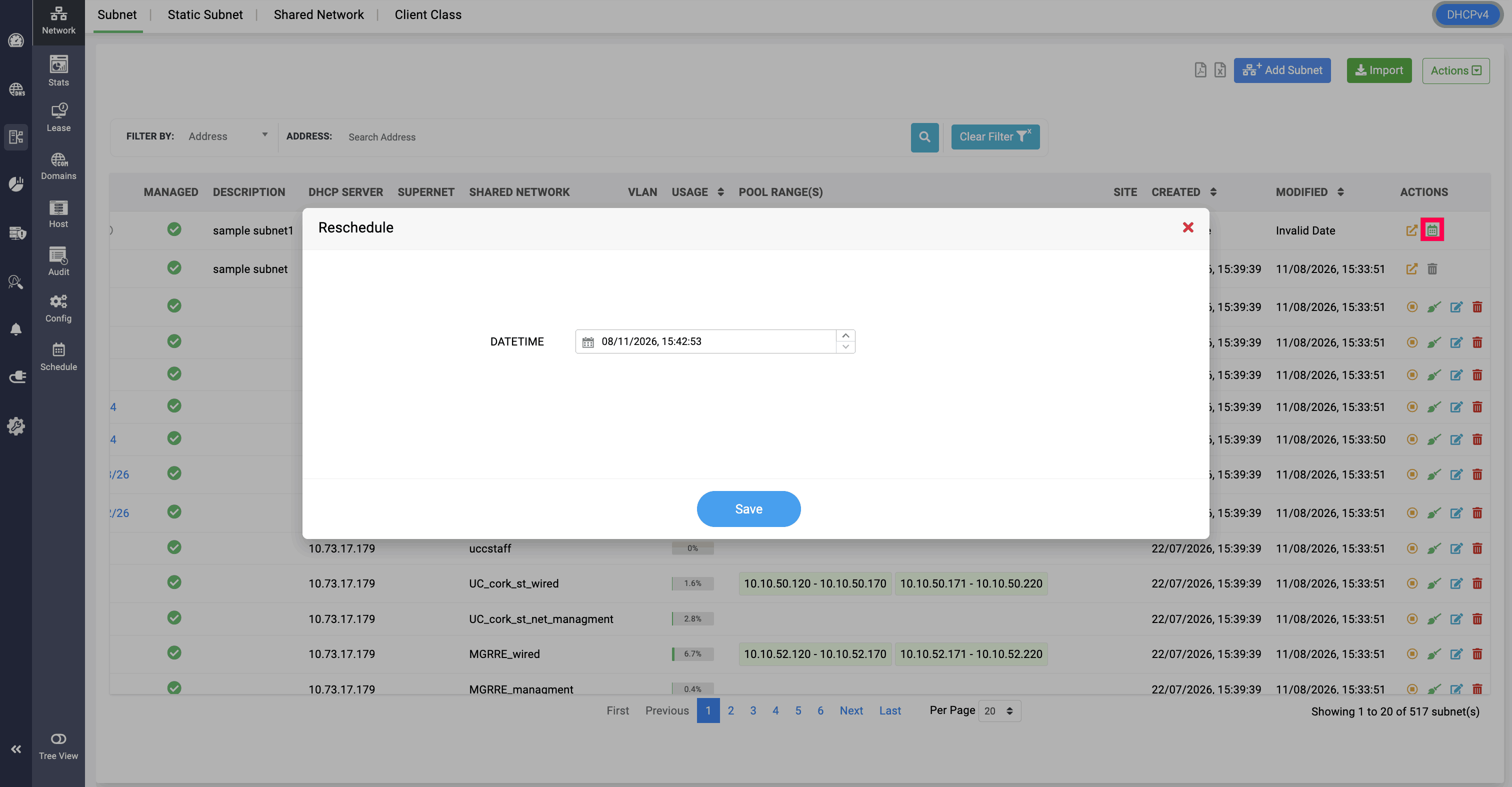
Shared Network:
Shared Network deletion can be scheduled in DDI Central. When you click the Delete icon, you can select the Schedule option and specify the date and time at which you want to schedule the deletion process.
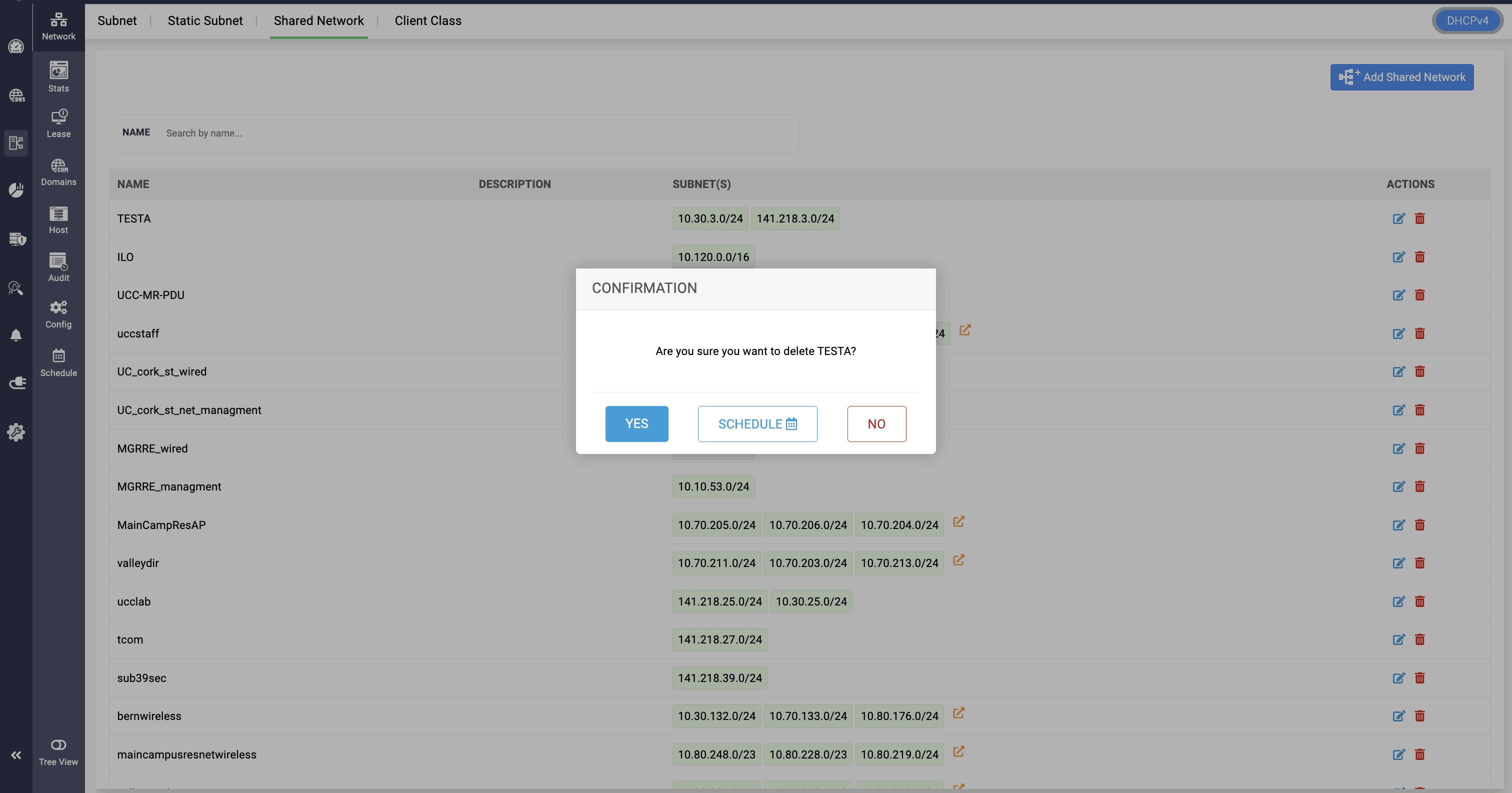
This way, the shared network remains in the network until the scheduled time, allowing for any last-minute usage, after which it is permanently deleted.
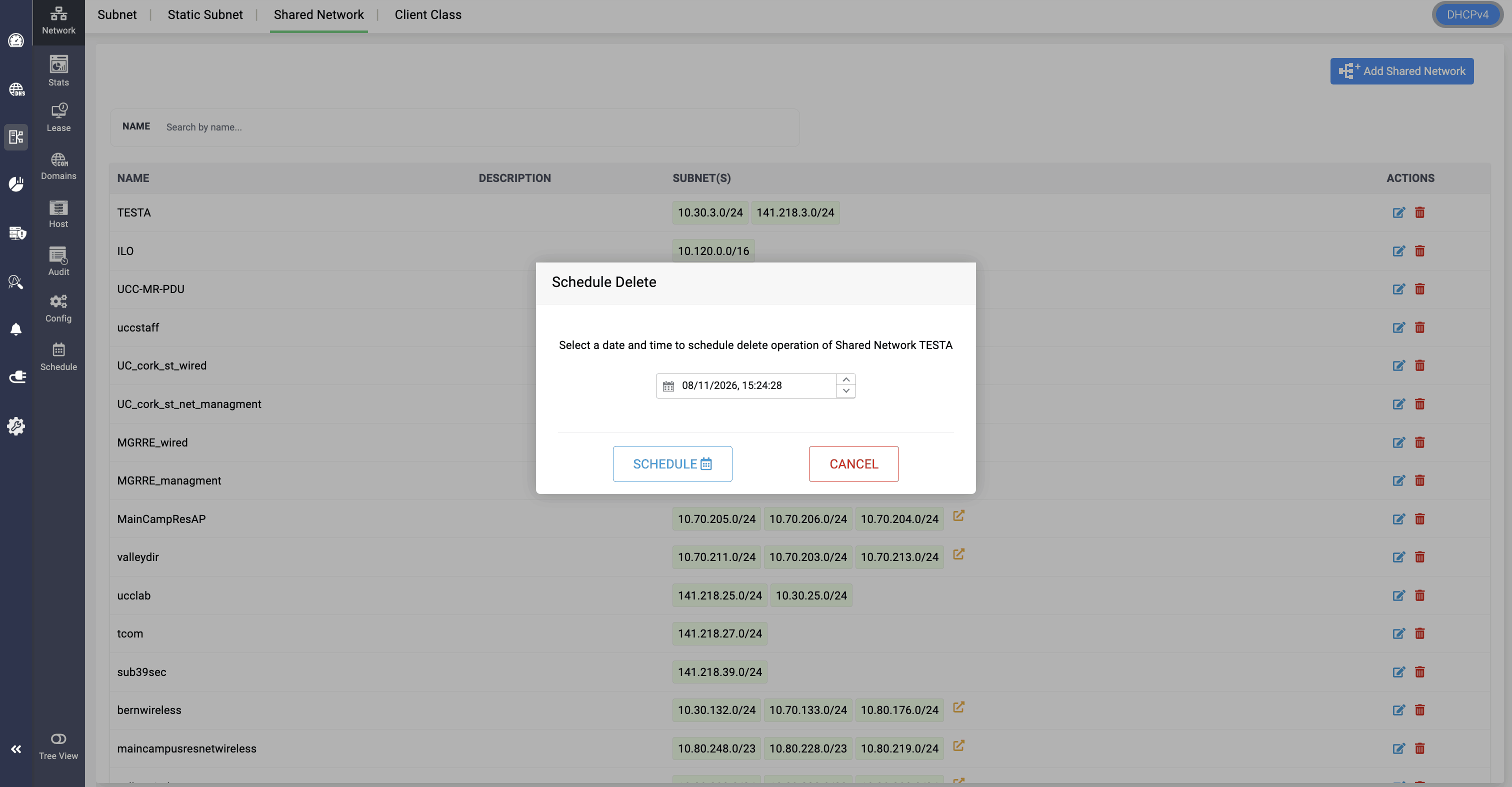
Editing and updating a shared network can also be scheduled to take effect in the network. Toggle the Schedule option, select the date and time, and save your configurations.
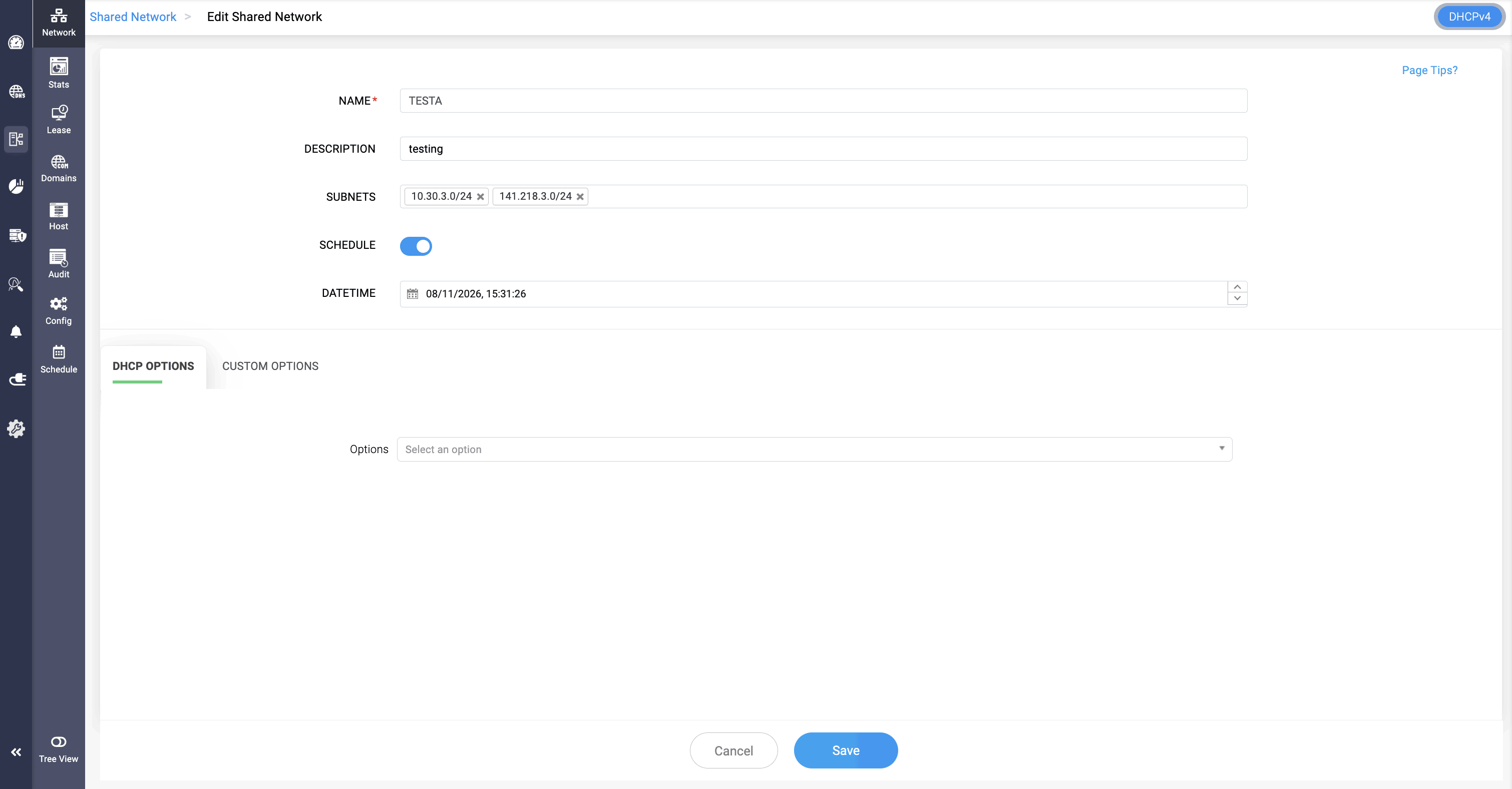
After that, you can see the Schedule icon in the Actions column of the shared network. When you click it, the scheduled date and time are displayed, and you can reschedule the update to a different time if required.
Once the scheduled time arrives, the update is reflected in the network.
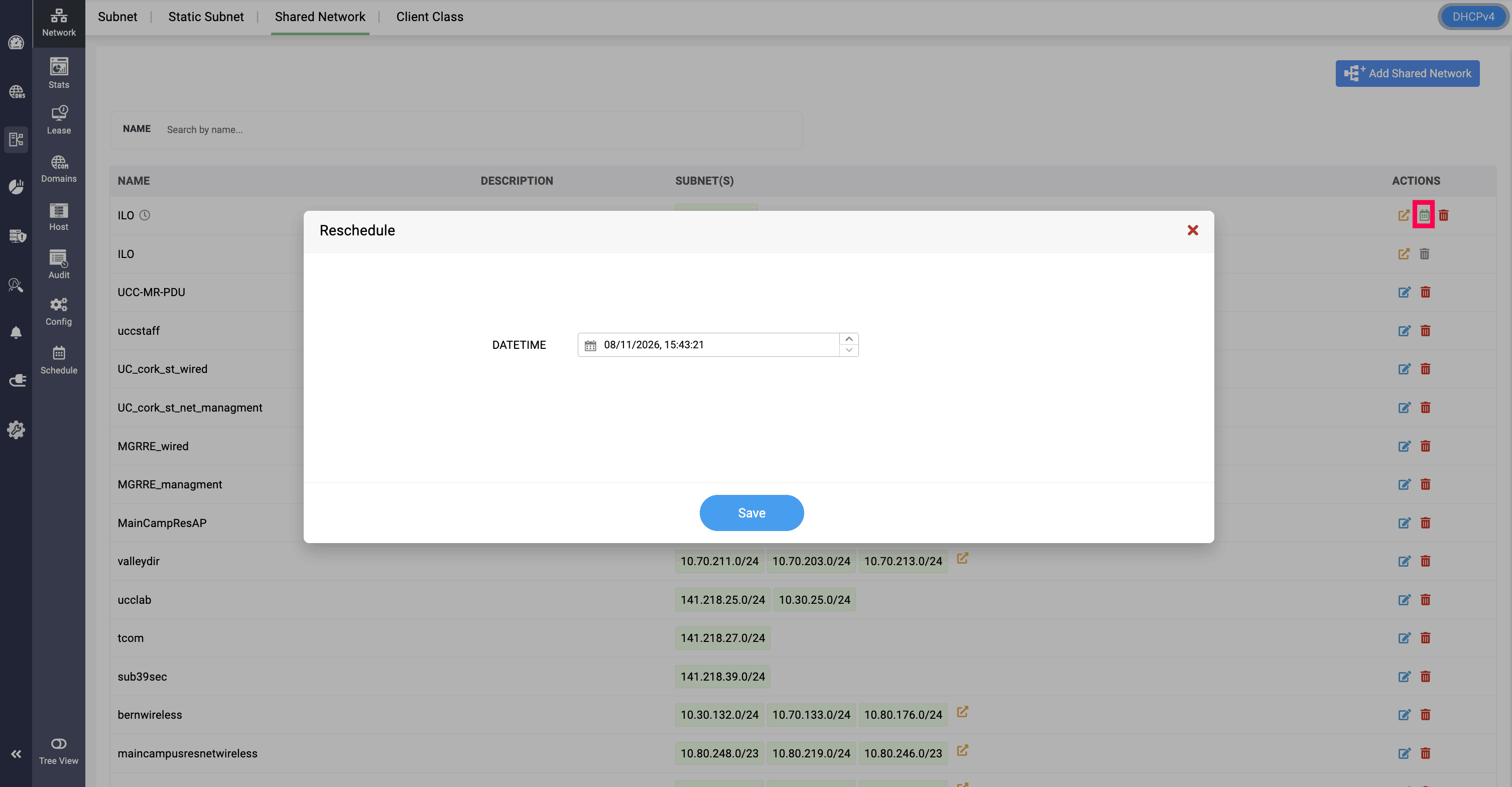
Hosts:
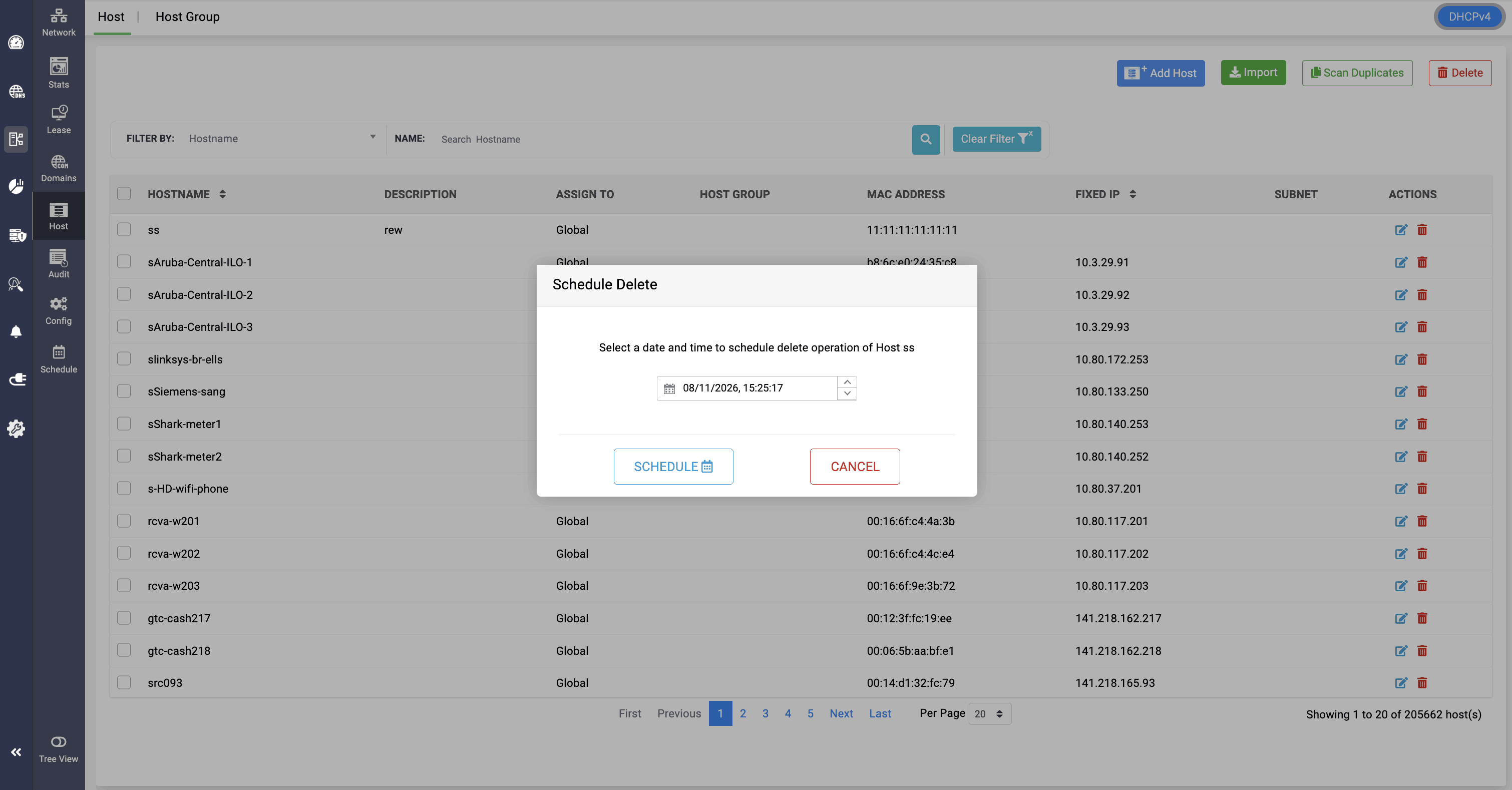
Host deletion can be scheduled in DDI Central. When you click the Delete icon, you can select the Schedule option and specify the date and time at which you want to schedule the deletion process.
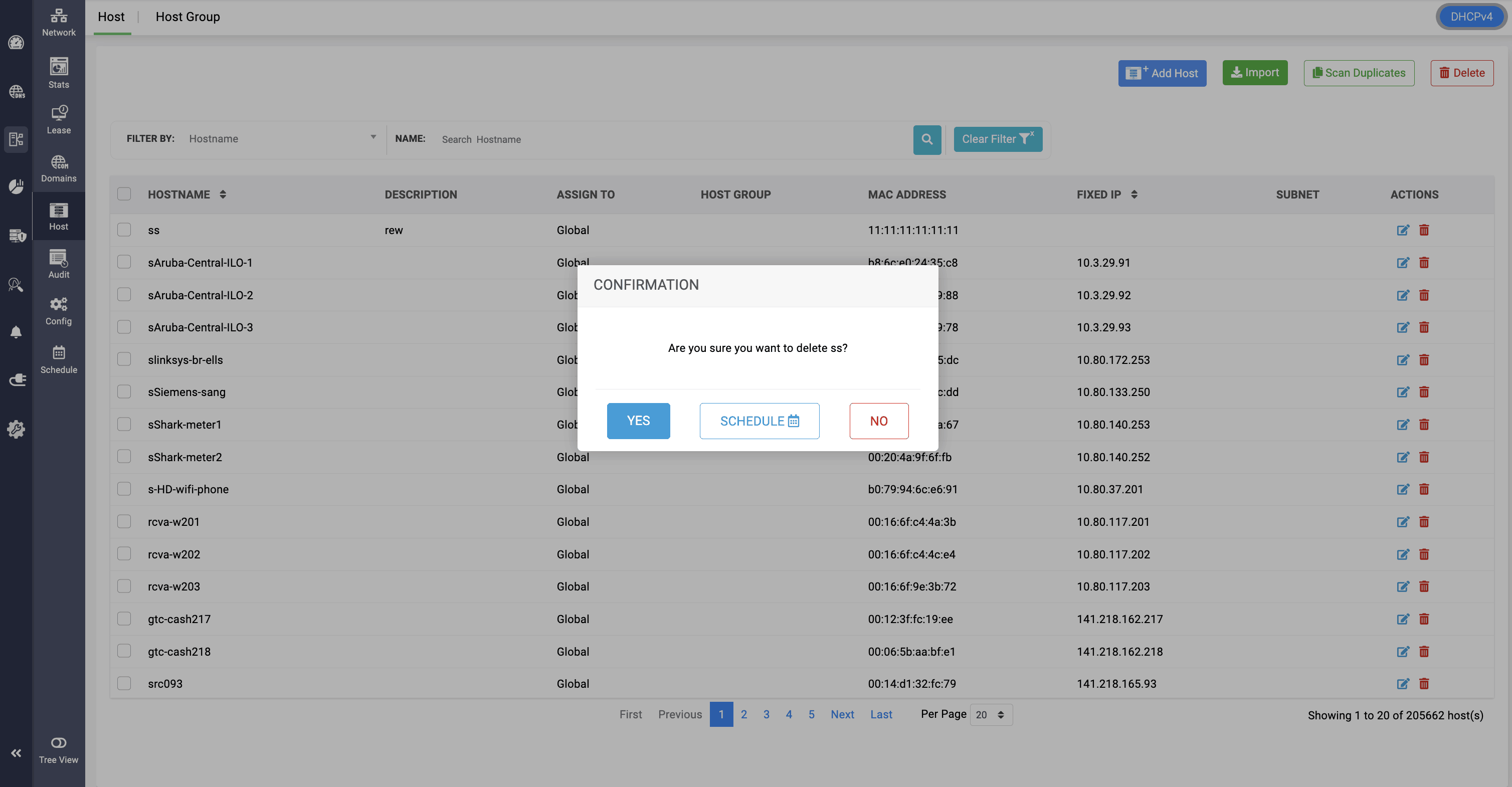
This way, the host remains in the network until the scheduled time, allowing for any last-minute usage, after which it is permanently deleted.
Editing and updating a host can also be scheduled to take effect in the network. Toggle the Schedule option, select the date and time, and save your configurations.
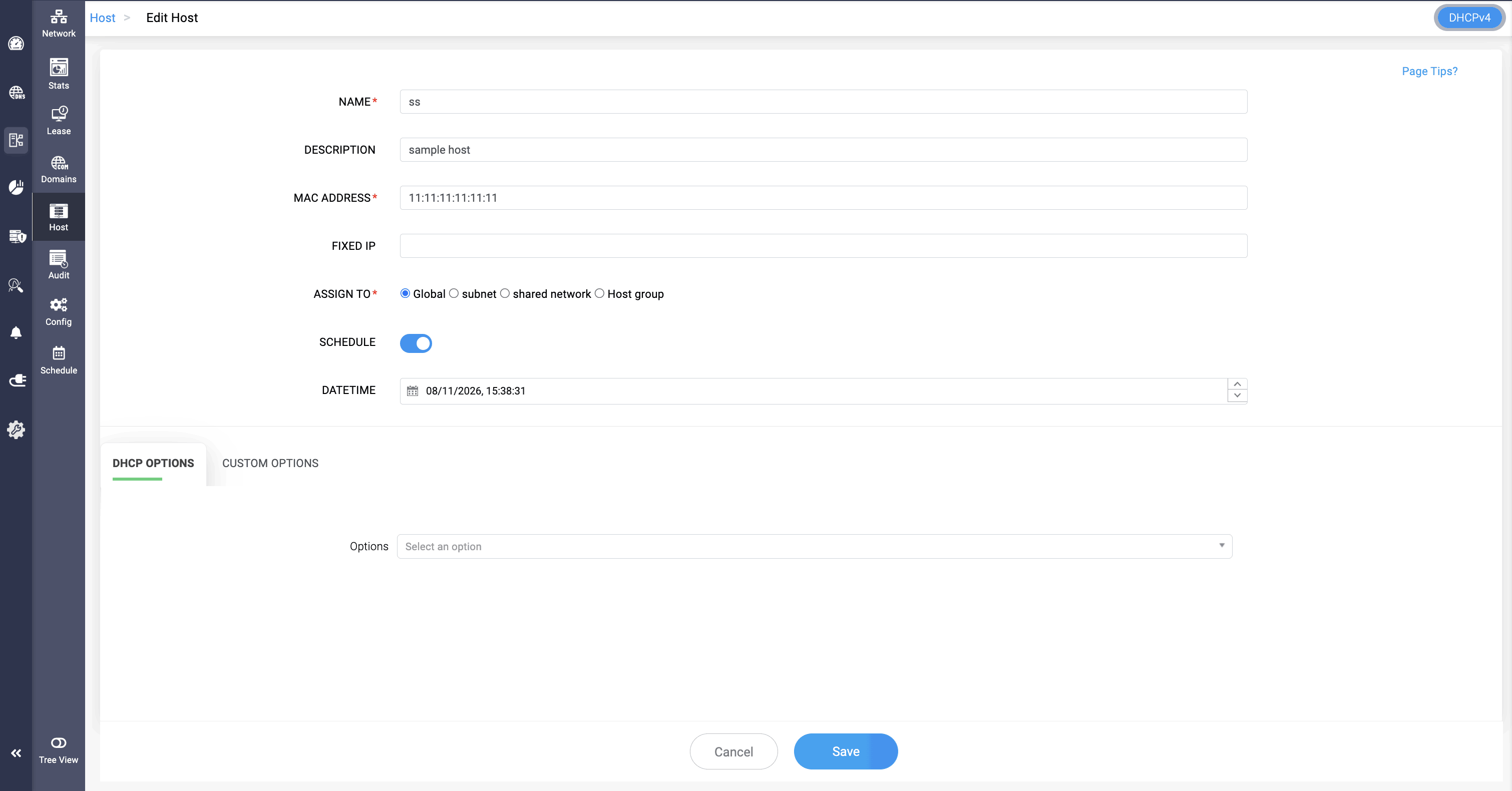
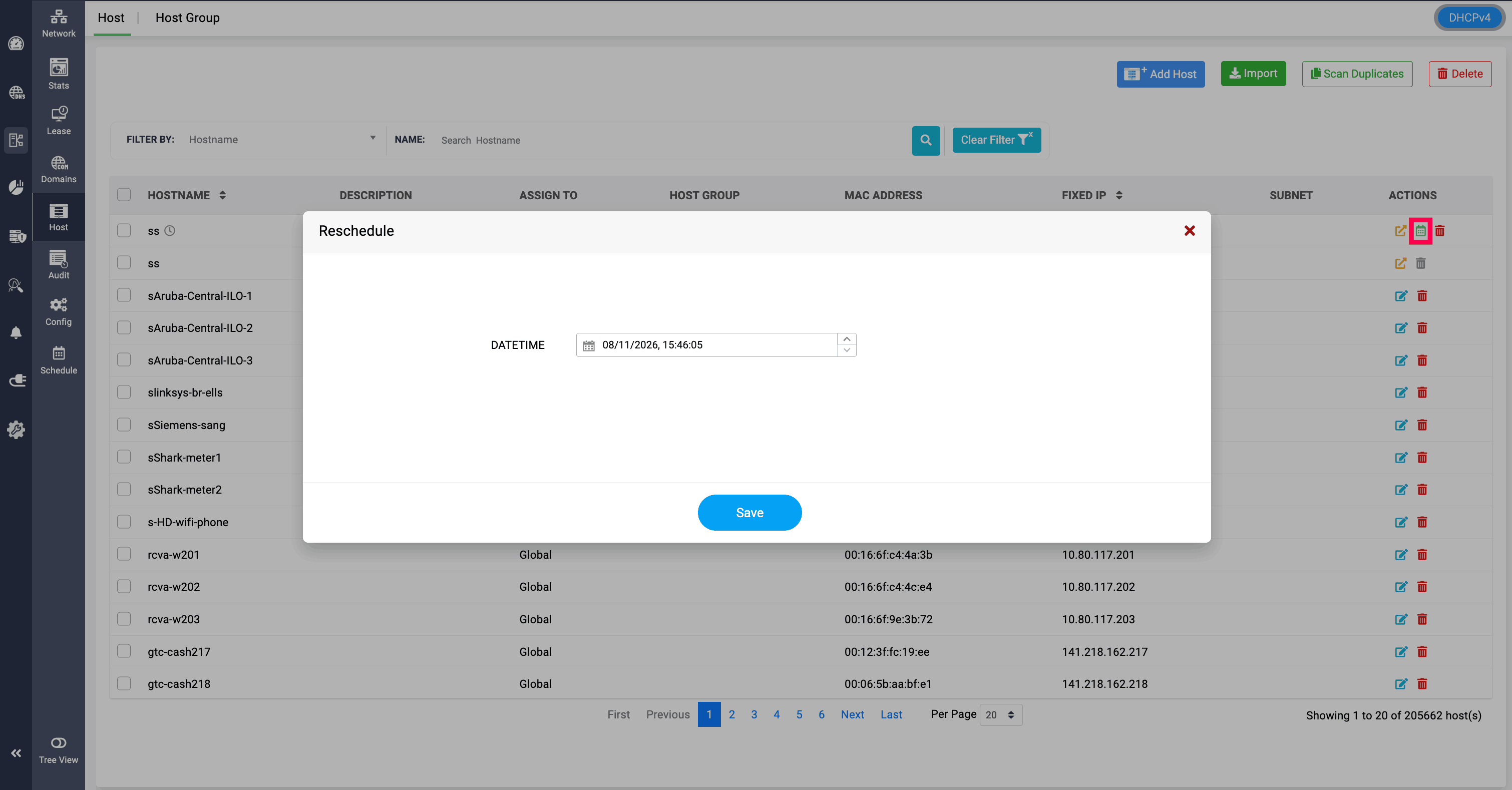
After that, you can see the Schedule icon in the Actions column of the host. When you click it, the scheduled date and time are displayed, and you can reschedule the update to a different time if required.
Once the scheduled time arrives, the update is reflected in the network.
Scheduling DNS configurations in DDI Central
In the DNS module, DDI Central enables you to schedule the configurations for resource records of the domains hosted on your on-premises DNS servers managed using DDI Central.
To schedule the DNS configurations for a record:
- Get into the DNS module.
- Select the Domains menu.
- On the Domains page, select the domain of your choice and click through the domain name,which opens up the Domain name's page that lists all the different types of records supported by DDI Central.
- Navigate to the relevant record section say A or AAAA. Create a new record or open an existing record in the edit mode.
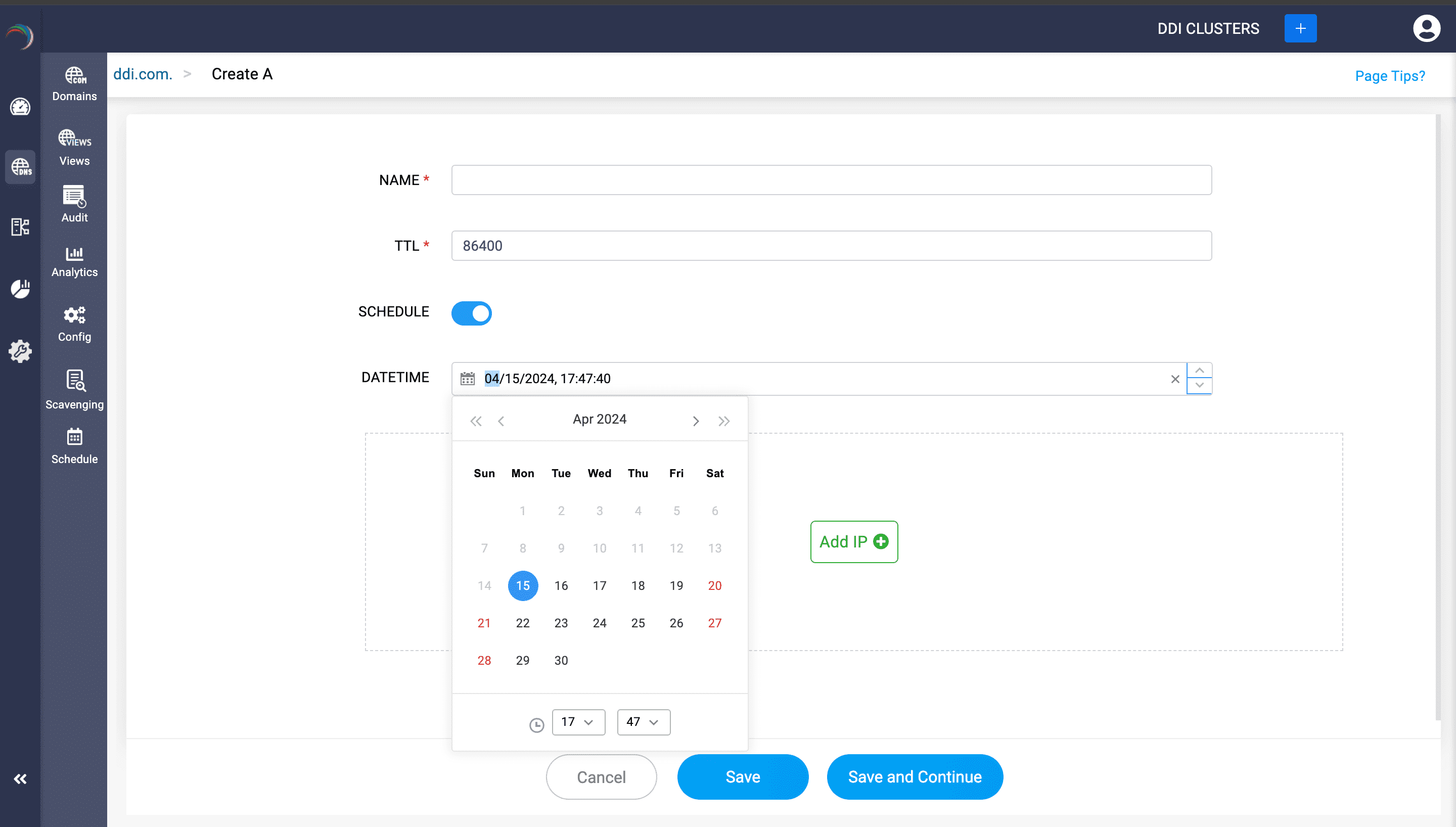
- On the Add/Edit record page that appears, find the Schedule option and enable it.
- Once the Schedule option is enabled, DDI Central prompts you to choose the suitable Date and Time using the calendar and the clock widget.
- The date and time you choose here is when the new configuration for the scope replaces the old configurations and gets activated.
- Enter all the other essential details for the new scheduled configurations, and finally click Save to finalize the configurations.
- Once you click save, you can see a clock symbol to the right of the scheduled configuration for easy identification and you cannot make any changes to the DNS record.
- Click Save and Continue to preserve the record configurations for the domain.
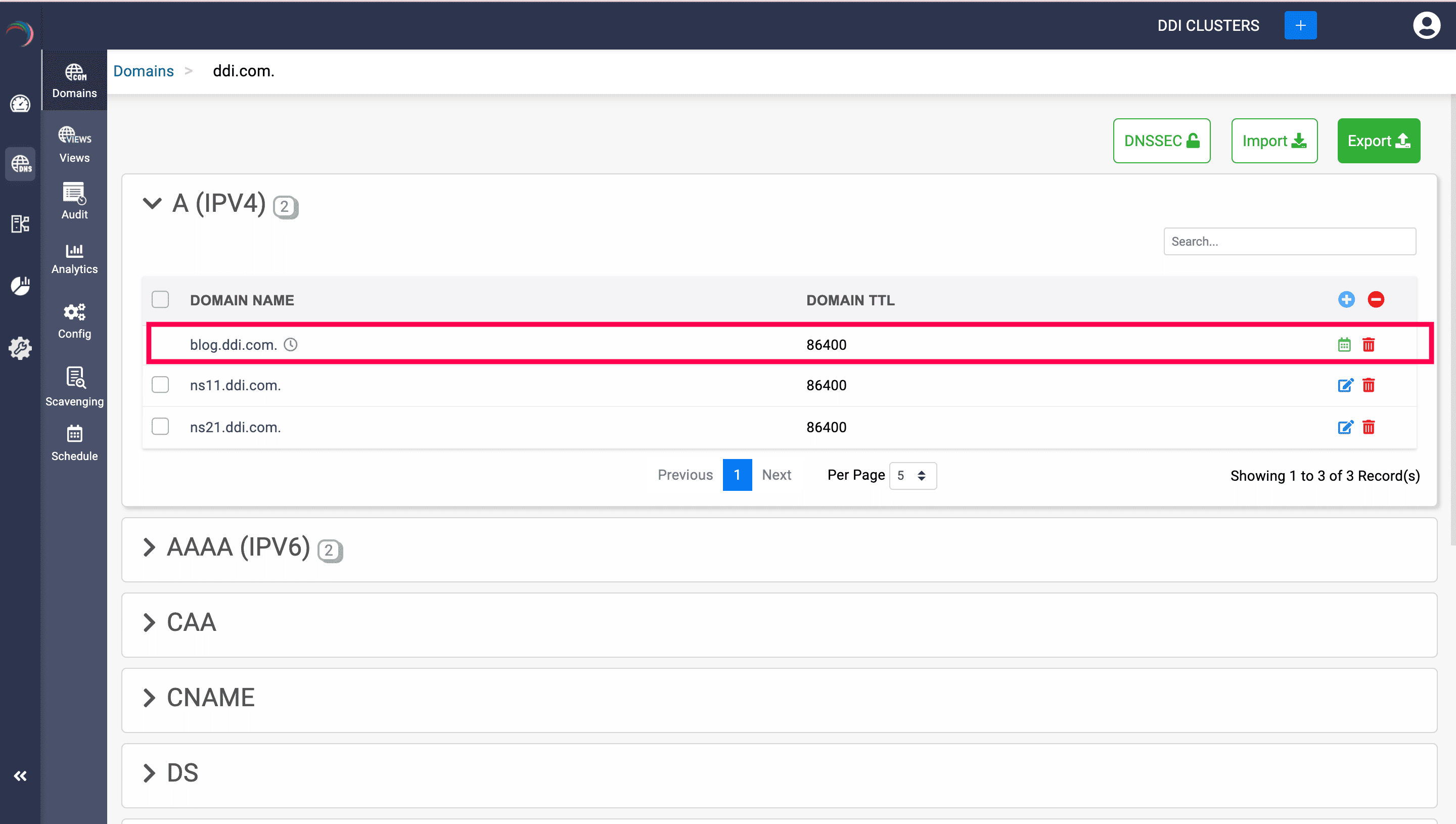
Upon scheduling new record configurations, DDI Central ensures the stability of your system by locking the current settings, preventing any additional alterations. The newly scheduled record configurations also become read-only and are not editable—they can only be viewed, rescheduled, or deleted (cancelled) if needed. This safeguard maintains the integrity of both the present and future configurations, ensuring that the scheduled changes occur without unintended modifications.
To have an overview of all the scheduled configurations
Select DNS-> Schedule. Navigate to the Configurations tab.
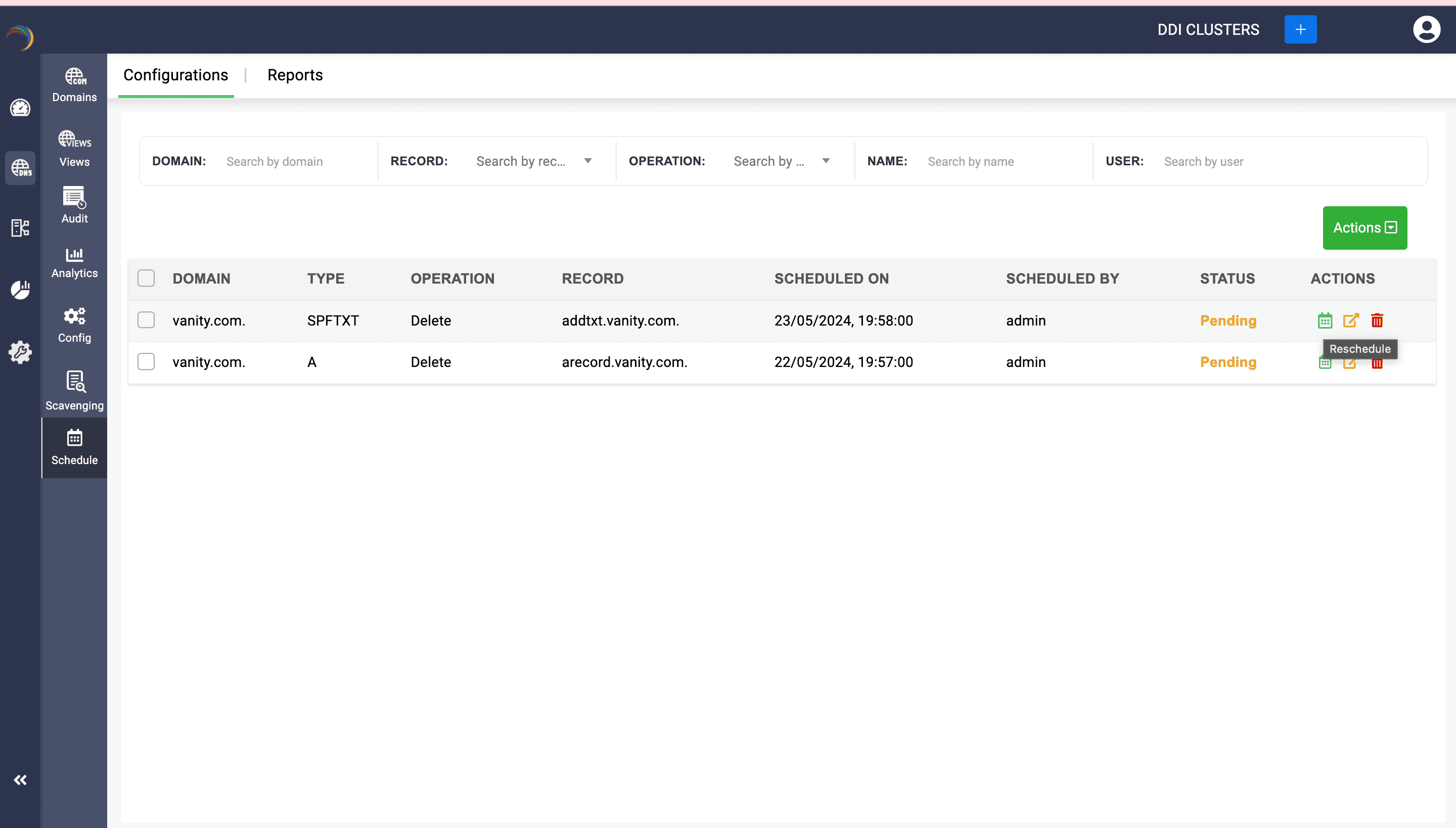
The Configurations tab provides a comprehensive overview of all scheduled DNS records. Here, you can apply filters to search for specific configurations planned for your network and check the status of each scheduled configuration. This tab exclusively allows you to reschedule, view, or delete these scheduled configurations.
Additionally, you can select multiple configurations simultaneously and utilize the Actions dropdown button. From this dropdown, choose Change Schedule to collectively reschedule all the DNS records to one particular date and time, or select Delete to collectively remove all the configurations.
DNS Records:
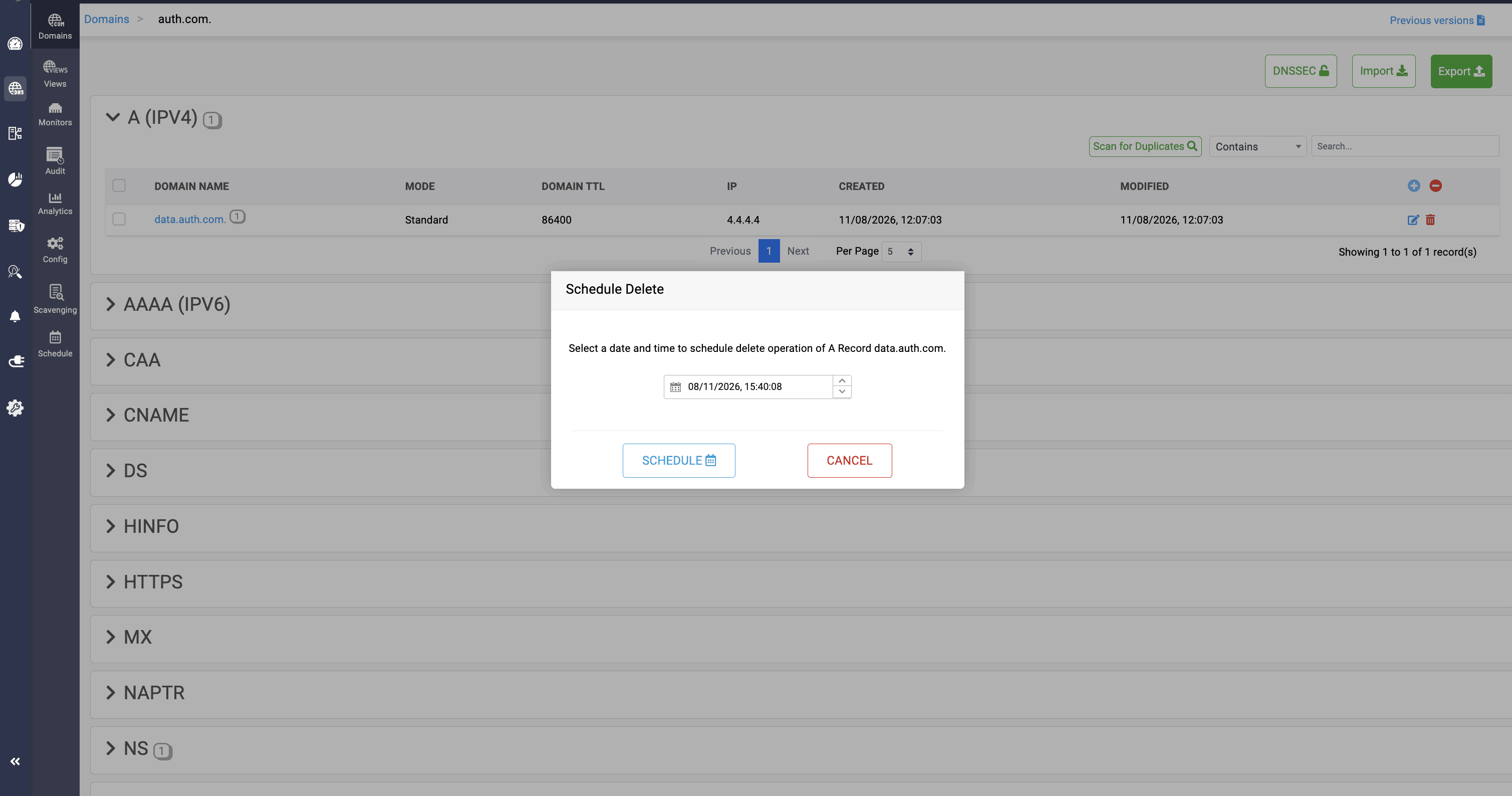
DNS record deletion can be scheduled in DDI Central. When you click the Delete icon, you can select the Schedule option and specify the date and time at which you want to schedule the deletion process.
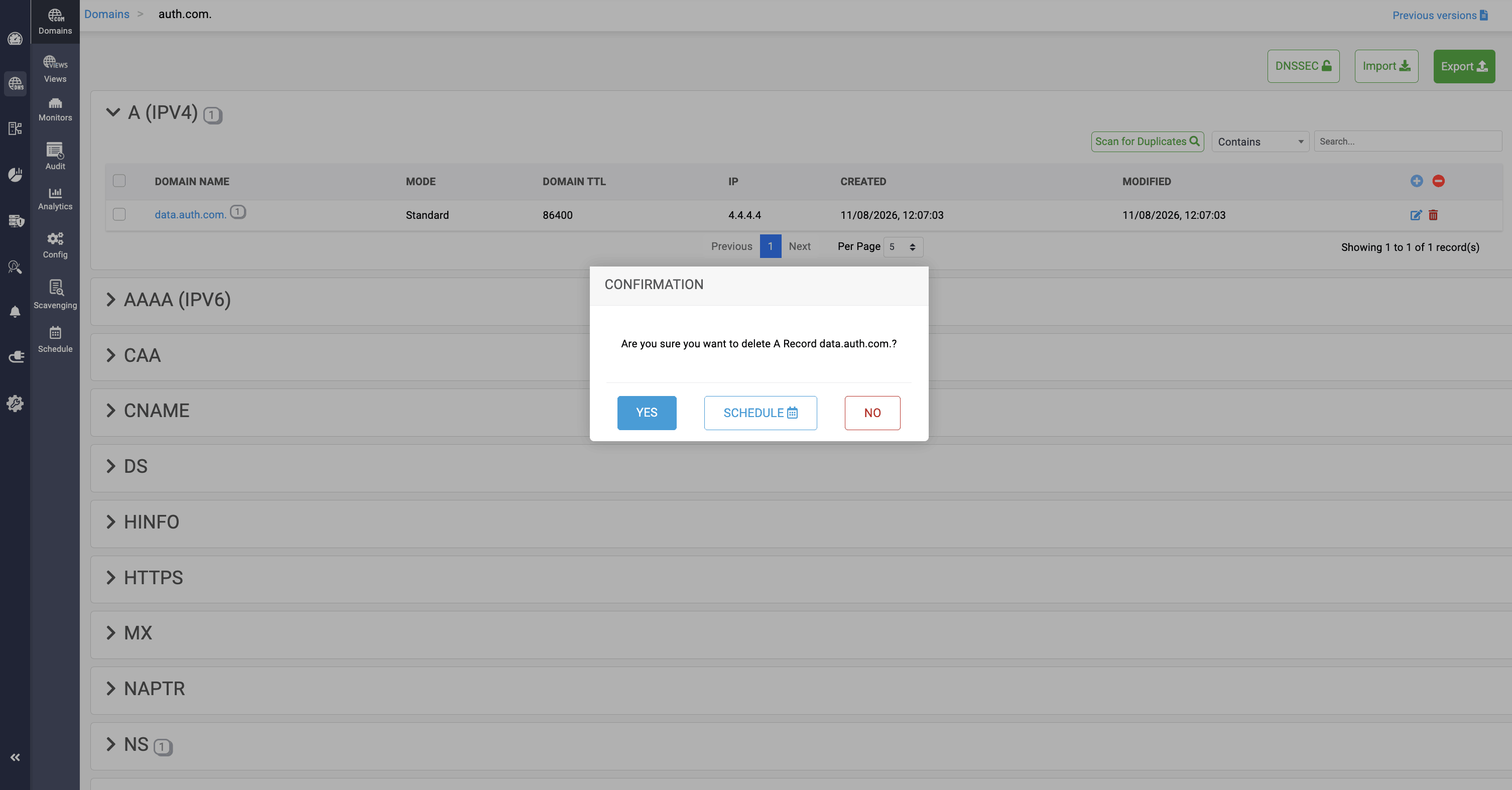
This way, the DNS record remains in the network until the scheduled time, allowing for any last-minute usage, after which it is permanently deleted.
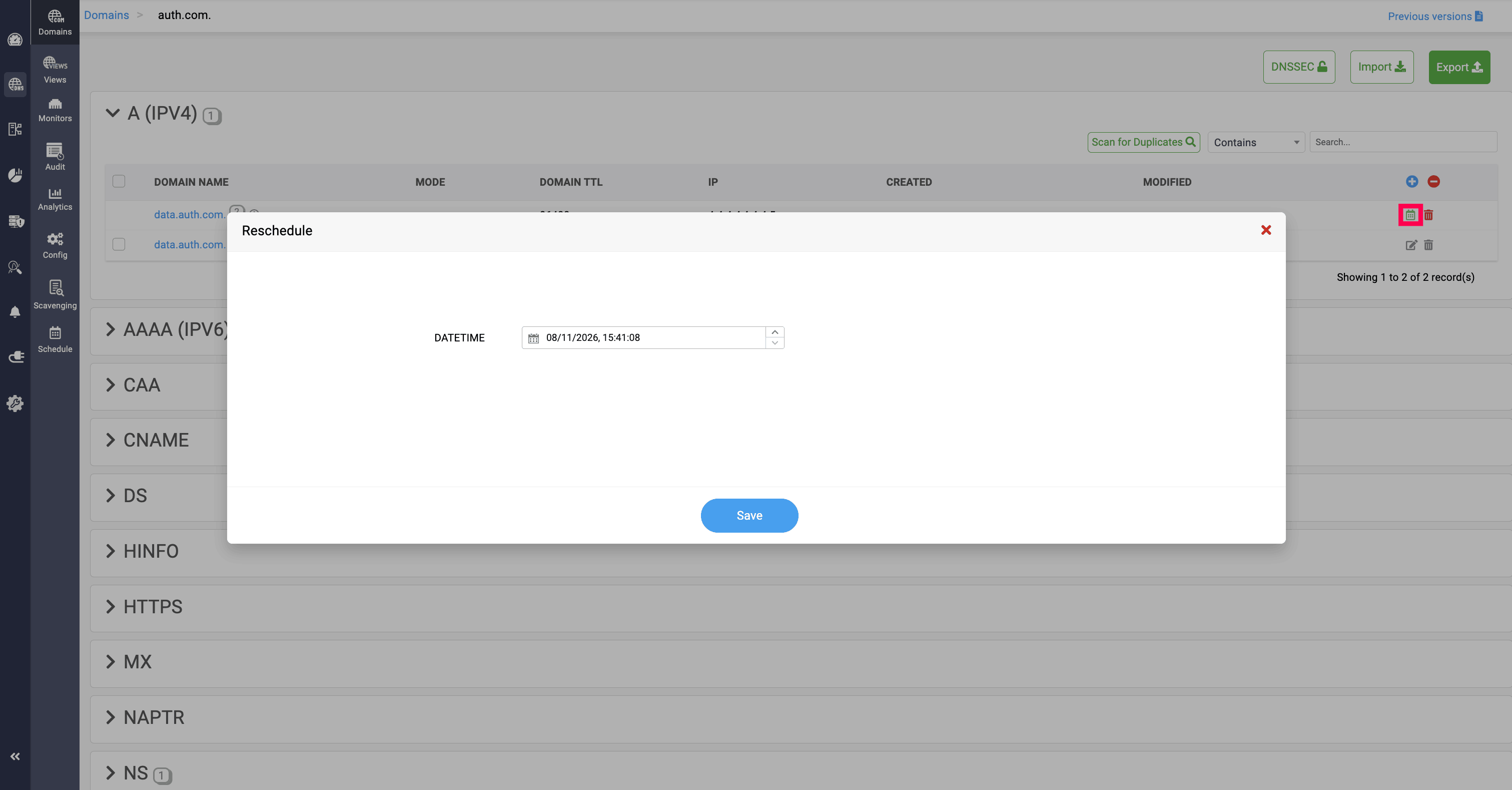
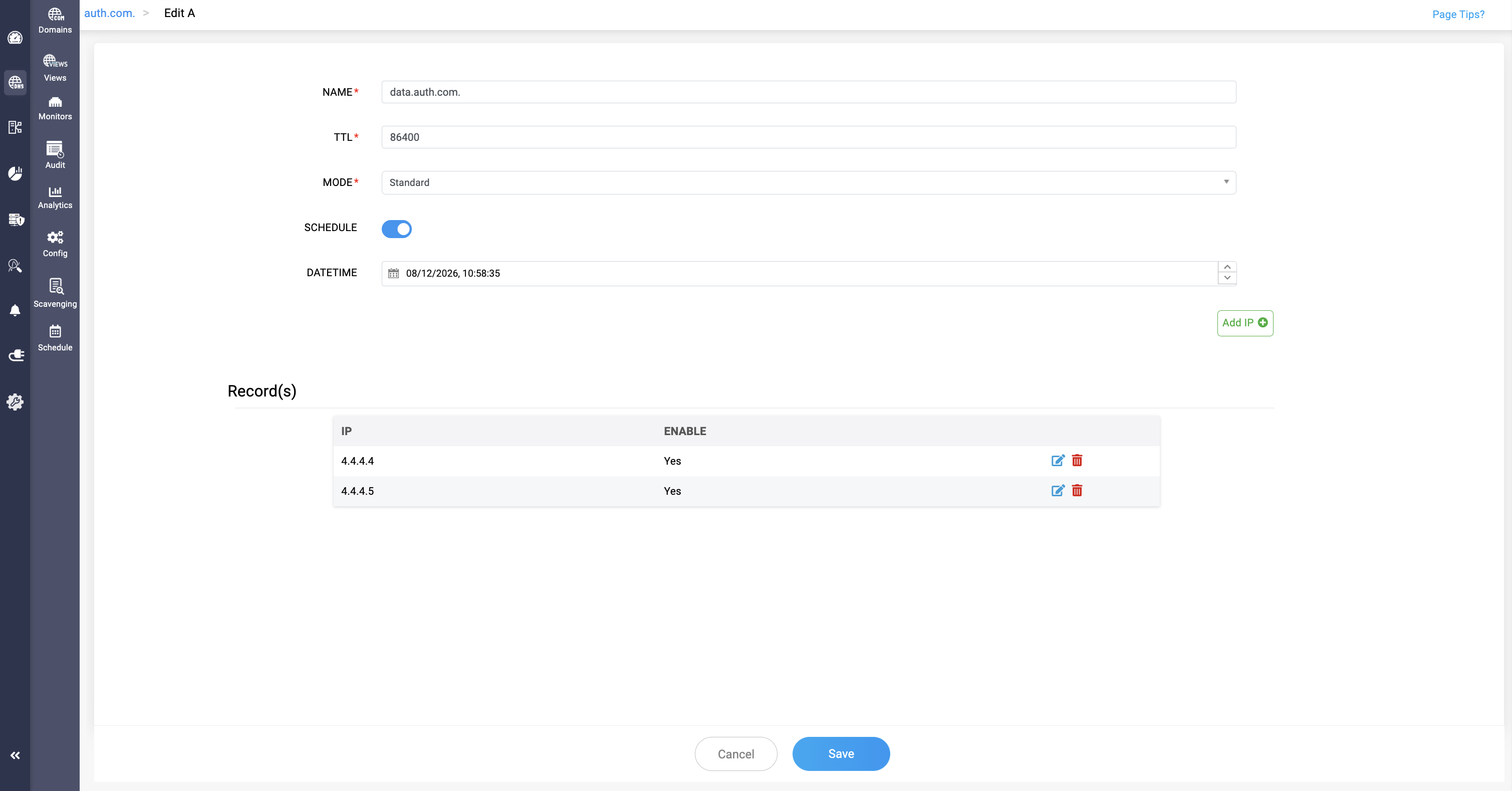
Editing and updating a DNS record can also be scheduled to take effect in the network. Toggle the Schedule option, select the date and time, and save your configurations.
After that, you can see the Schedule icon in the Actions column of the DNS record. When you click it, the scheduled date and time are displayed, and you can reschedule the update to a different time if required.
Once the scheduled time arrives, the update is reflected in the network.