
Two-factor authentication
Last updated on:
In this page
Overview
Two-Factor Authentication (2FA) adds an extra layer of login security by requiring users to verify their identity with a second factor in addition to their password. You can choose from multiple authentication methods such as email, SMS, authenticator apps, RSA SecurID, Duo Security, or backup codes. At least one method must be enabled for 2FA to work.
Two-Factor authentication
To strengthen user logon security, the product supports two-factor authentication. Two-Factor Authentication (2FA) requires a user to provide two different types of authentication factors to verify their identity. This makes sure the person logging in is really who they claim to be, even if their password is stolen.
By default, this setting and the methods under it are in a disabled state.
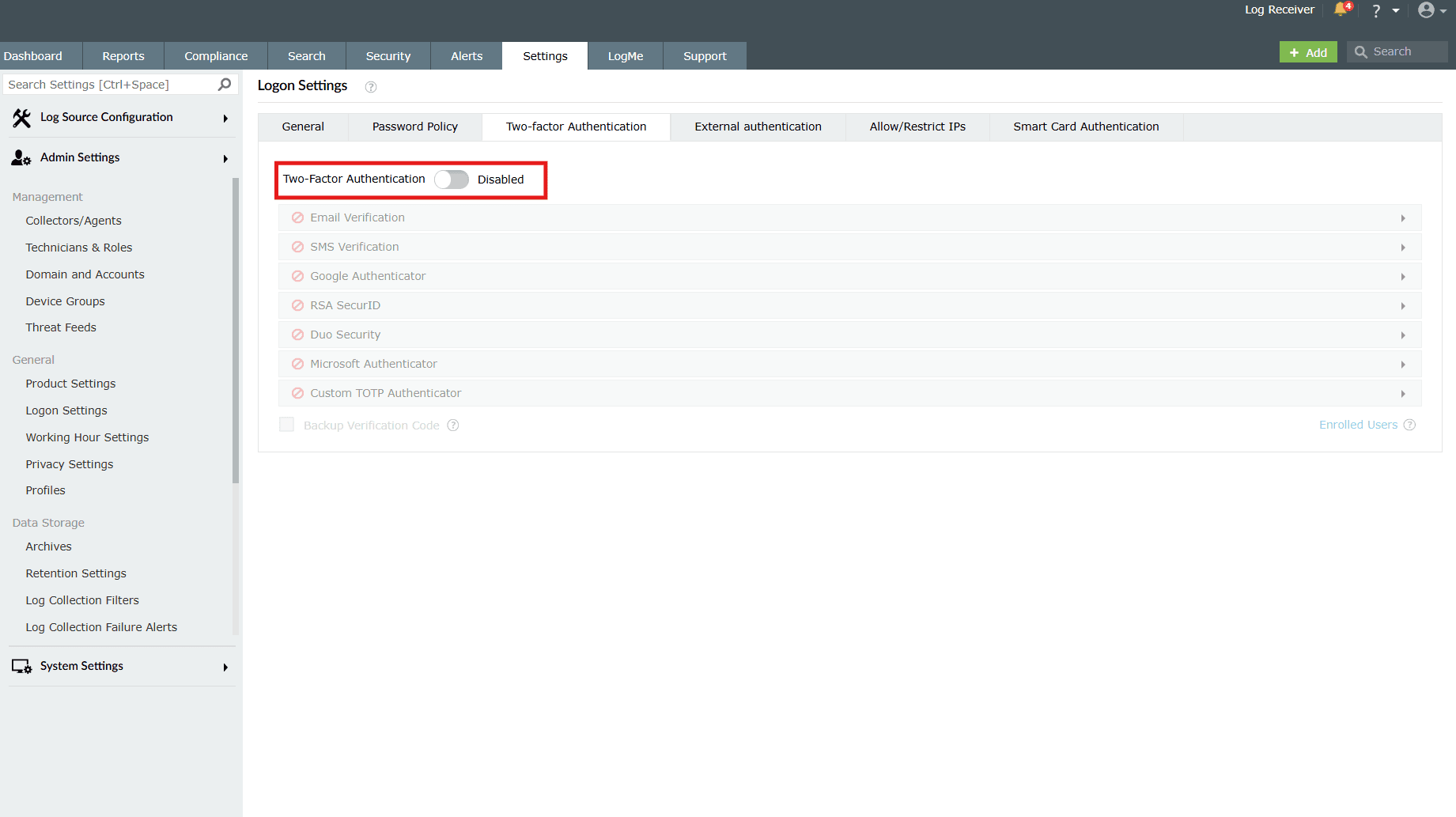
You must enable the toggle as highlighted in the above image in order to configure the Two-Factor Authentication settings. Additionally, authentication methods must also be enabled to be able to access their respective configurations.
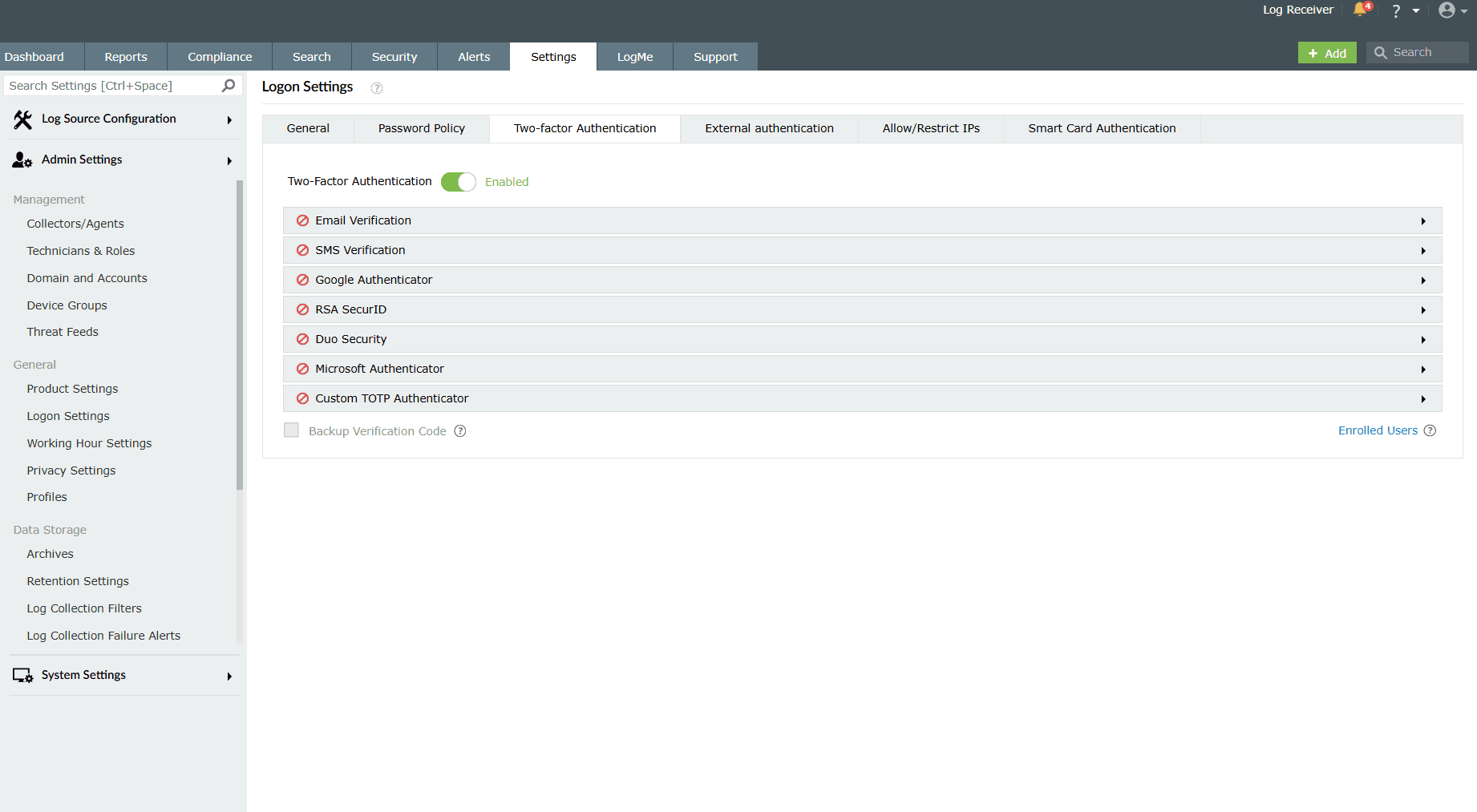
- You must configure at least one authentication mode to successfully enable two-factor authentication.
- If multiple authentication options are enabled, then the user will be asked to choose one at the time of logging in.
Once enabled, users need to authenticate using one of the authentication mechanisms below in addition to the Active Directory credentials whenever they log in. Click on the arrow icons to expand each authentication mode's configuration fields. Below is a detailed guide for the various authentication methods available under this logon setting.
Email Verification
When this option is selected, the product sends a verification code via email to the user’s email address. The user has to enter the verification code to login successfully.
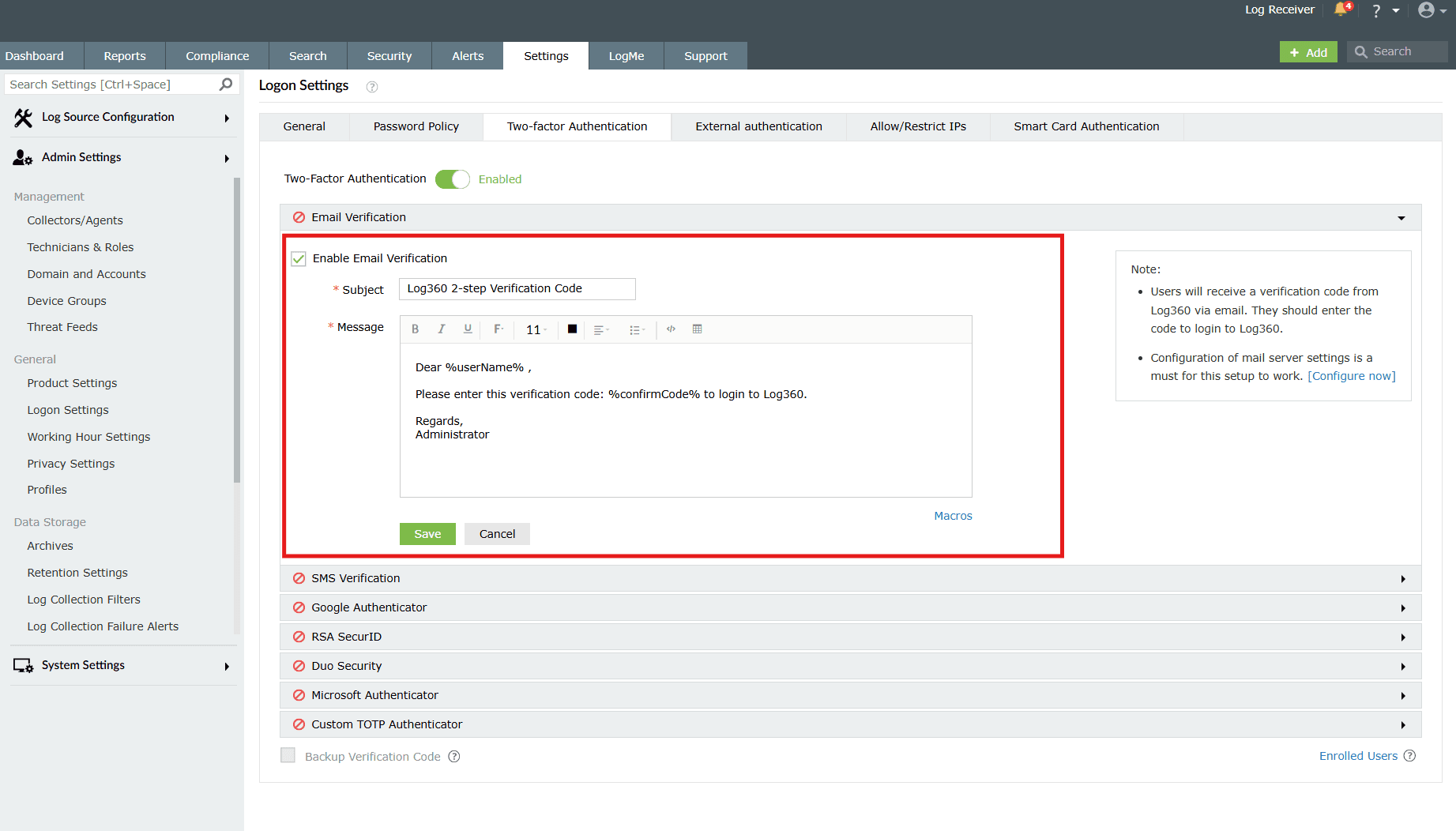
- Subject: Enter a subject for the email.
- Message: Enter the message in the box provided.
- Click the Macros link at the bottom to insert them in the email message. The message and subject can be modified as per user requirements with the help of available macros. The macro %confirmCode% must be present in the message.
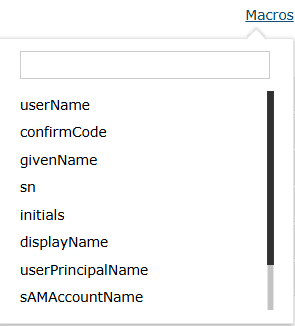
- After the necessary configurations are made, click on Save.
SMS Verification
When this option is selected, a verification code is sent via SMS to the user's mobile number. The user has to enter the verification code to login successfully.
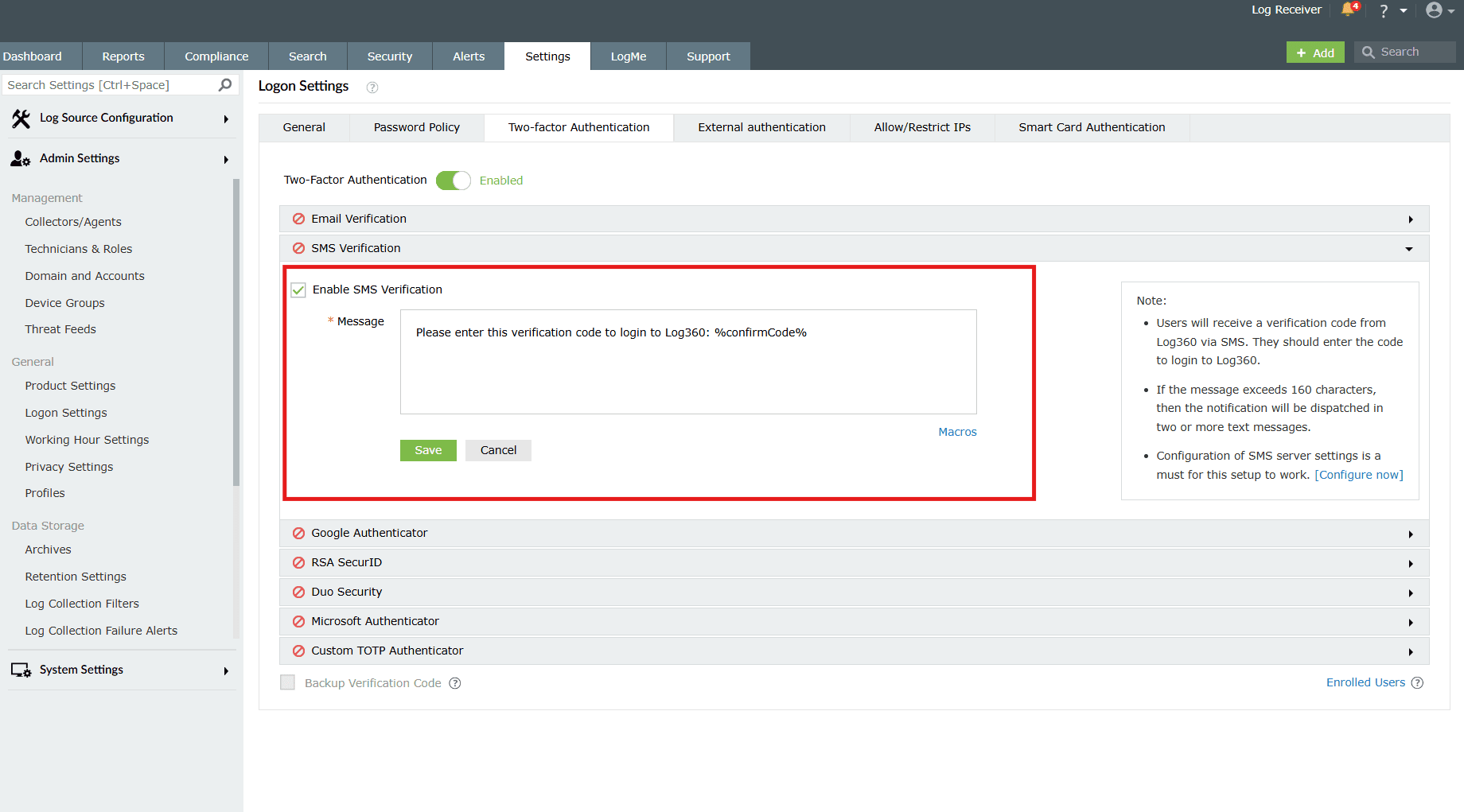
- Enter the Message in the box provided.
- Click the Macros link at the bottom to insert them in the SMS.
- After the configurations are made, click on Save.
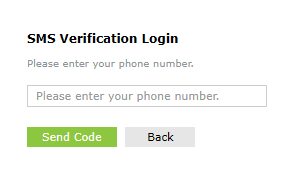
Once enabled, users will be asked to enroll for two-factor authentication by entering their mobile number during login.
Google Authenticator
Google Authenticator is a mobile app that generates TOTP (Time-based One-Time Passwords) for 2FA (Two-Factor Authentication). It enhances security by requiring a second verification step when logging into the product. Once enabled, users will be required to enter a six-digit security code generated by the Google Authenticator app for identity verification.
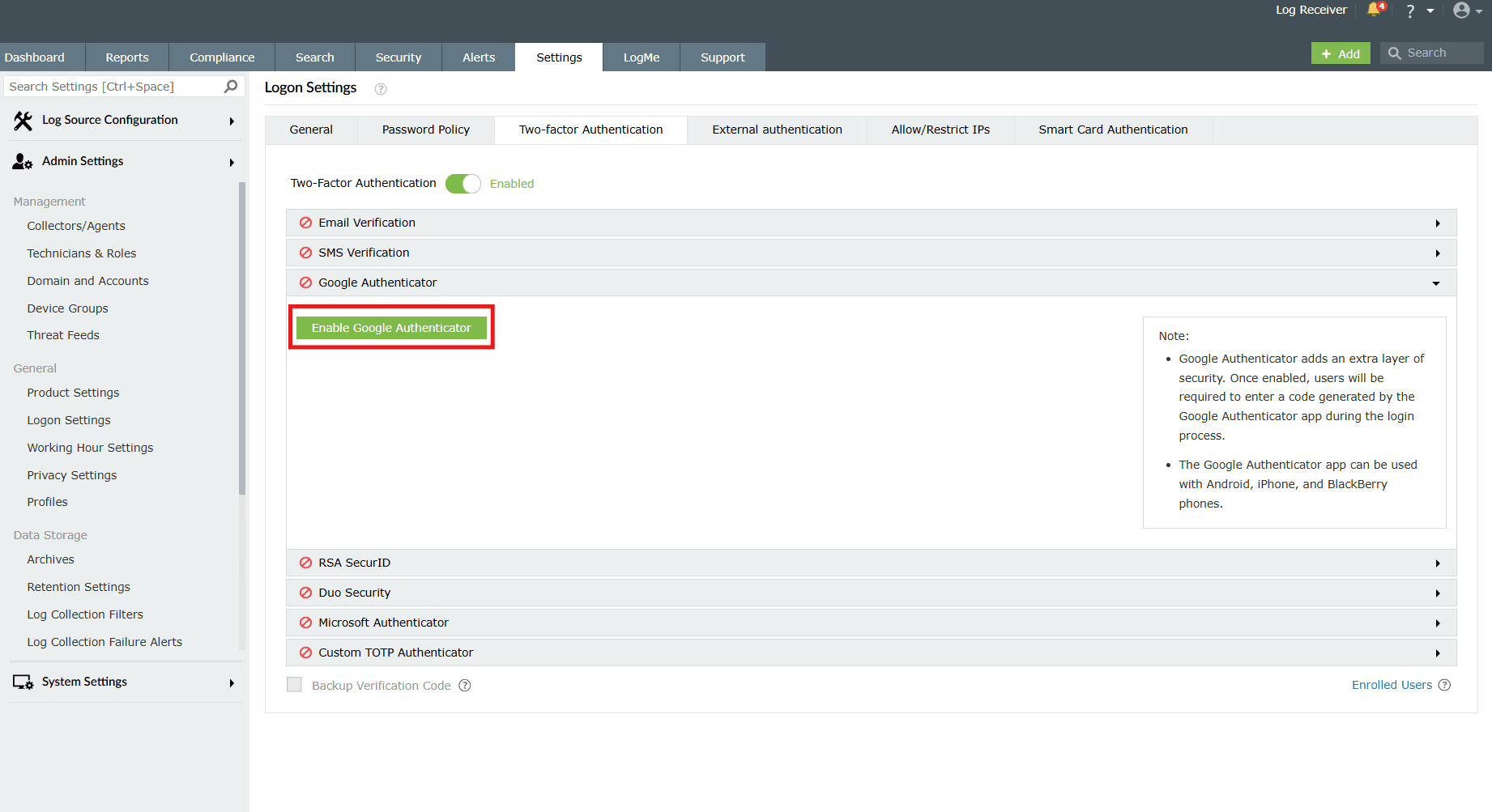
- Just click on Enable Google Authenticator.
- Click on Save.
After enabling successfully, users can enroll themselves for two-factor authentication using the Google Authenticator app during login.
- After entering the password and logging in, the product asks to setup Google Authenticator.
- A QR will be shown which can be scanned using Google Authenticator app.
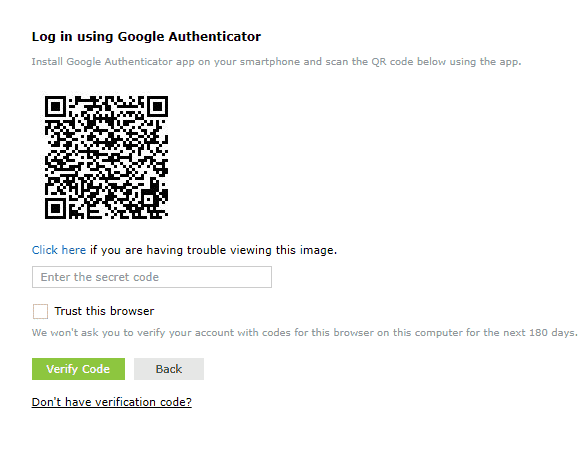
- Enter the time based 6 digit code that's generated in the Google Authenticator app to Enter the secret code box.
- Trust this browser option can be selected to go code-free for 180 days.
- Click Verify Code.
To disable Google Authenticator
- Simply click on the Disable Google Authenticator button available.

- A Confirm Action pop-up box appears. Click on OK.
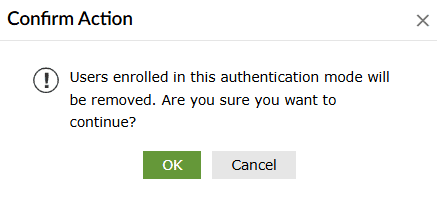
- Google Authenticator is now disabled, and the button shows the option to enable it now.
RSA SecurID
RSA SecurID is a mechanism developed for performing two-factor authentication for a user to a network resource. Users can use the security codes generated by the RSA SecurID mobile app, hardware tokens, or tokens received via mail or SMS to log in to the product.
Prerequisites
- For SDK integration: RSA Authentication Manager 8.0 or higher.
- For REST API integration: RSA Authentication Manager 8.2 SP1 or higher.
- Ensure that the product server is added as an authentication agent in the RSA admin console before configuring RSA SecurID in the product.
Steps to configure the product server as an authentication agent
- Log in to your RSA admin console (e.g., https://product-rsa.testdomain.com/sc).
- Navigate to Access > Authentication Agents > Add New.
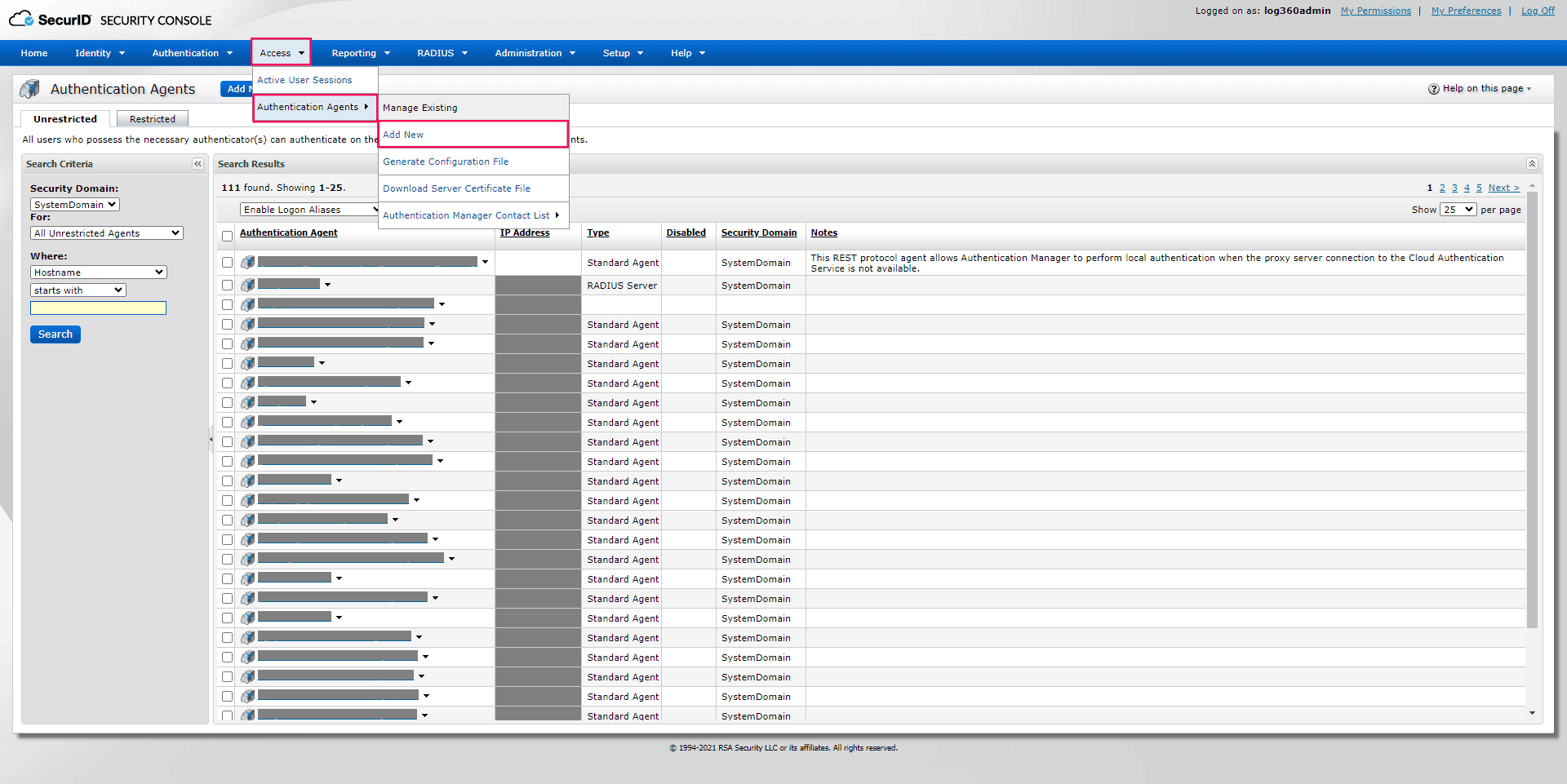
Image 6: RSA SecurID console configuration - Enter the product server hostname in the Hostname field and click Resolve IP.
- Click Save to add the product server as an authentication agent.
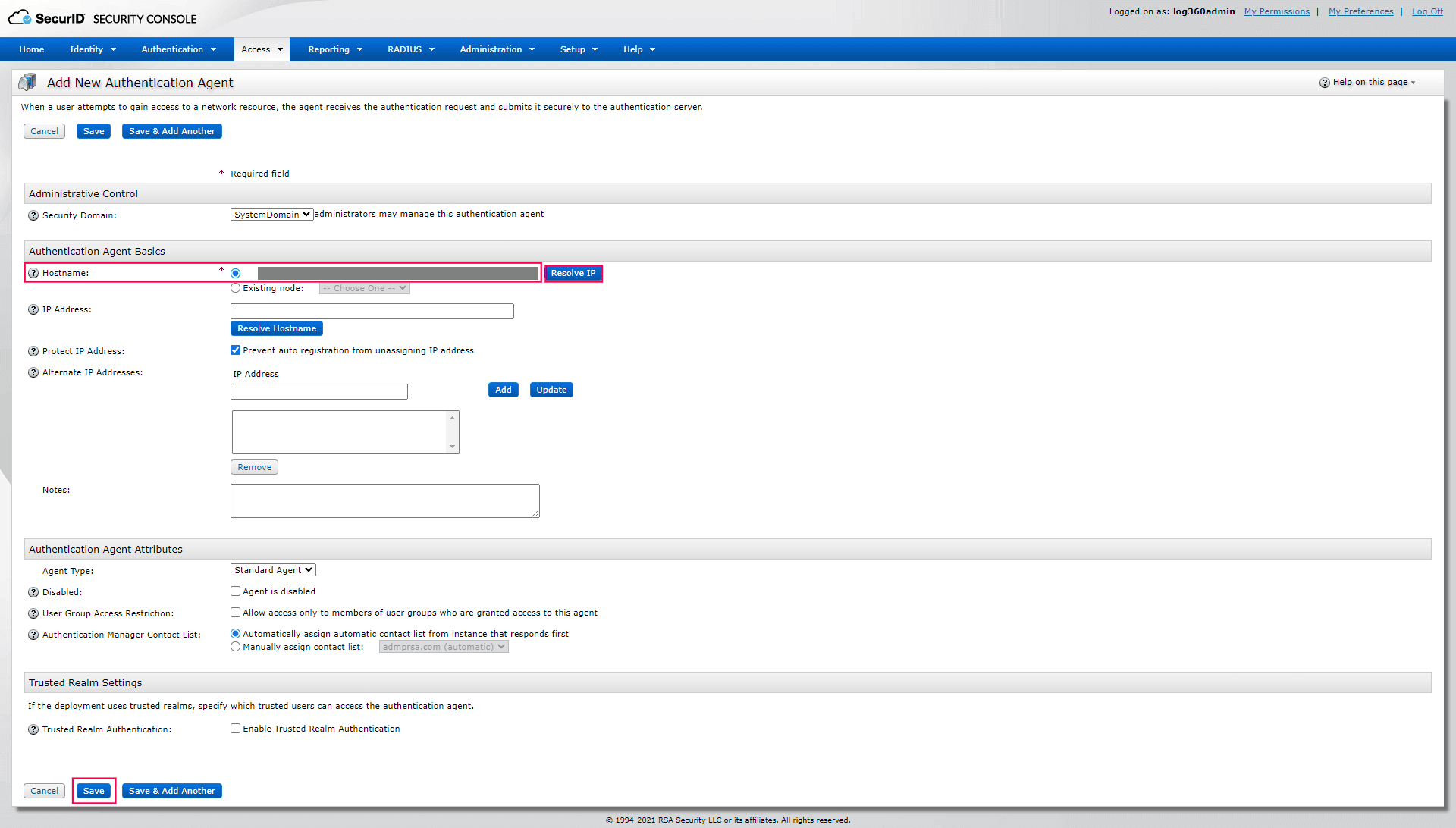
Image 7: Authentication agent in RSA SecurID console
SDK Integration (Legacy)
- Ensure that the following JAR files are present in the <product name_install_directory>/lib folder:
- authapi-8.6.jar
- log4j-1.2.12rsa-1.jar
- cryptojcommon-6.1.3.3.jar
- JcmFIPS-6.1.3.3.jar
- cryptojce-6.1.3.3.jar
NOTE These files are part of the Authentication Agent SDK for Java (v8.6). If they are missing, obtain the latest JAR files from RSA SecurID and place them in the directory.
- In the RSA admin console, go to Access > Authentication Agents > Generate Configuration File.
- Download AM_Config.zip and extract the sdconf.rec file.
- In the product console, navigate to RSA SecurID.
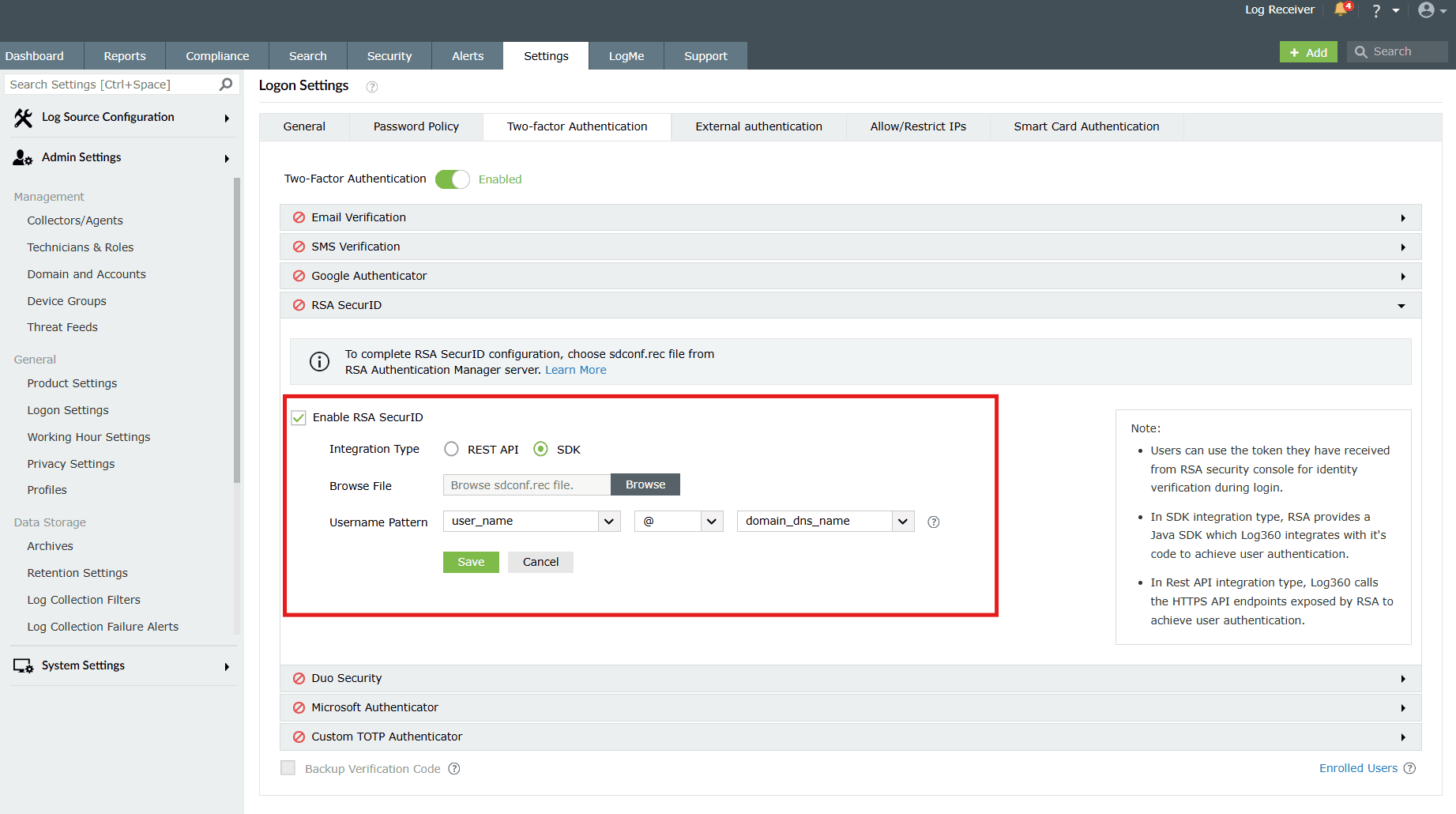
Image 8: Configuring RSA SecurID in the product console - Check the Enable RSA SecurID box.
- For Integration Type, select SDK.
- Click Browse and upload the sdconf.rec file.
- Click Save. Once enabled, users will be prompted to authenticate with their RSA SecurID token passcodes during login.
REST API Integration (Recommended)
- In the RSA admin console, navigate to Setup > System Settings > Authentication Settings > RSA SecurID Authentication API.
- Copy the Access ID, Access Key, and Communication Port details.
- In the product console, navigate to RSA SecurID.
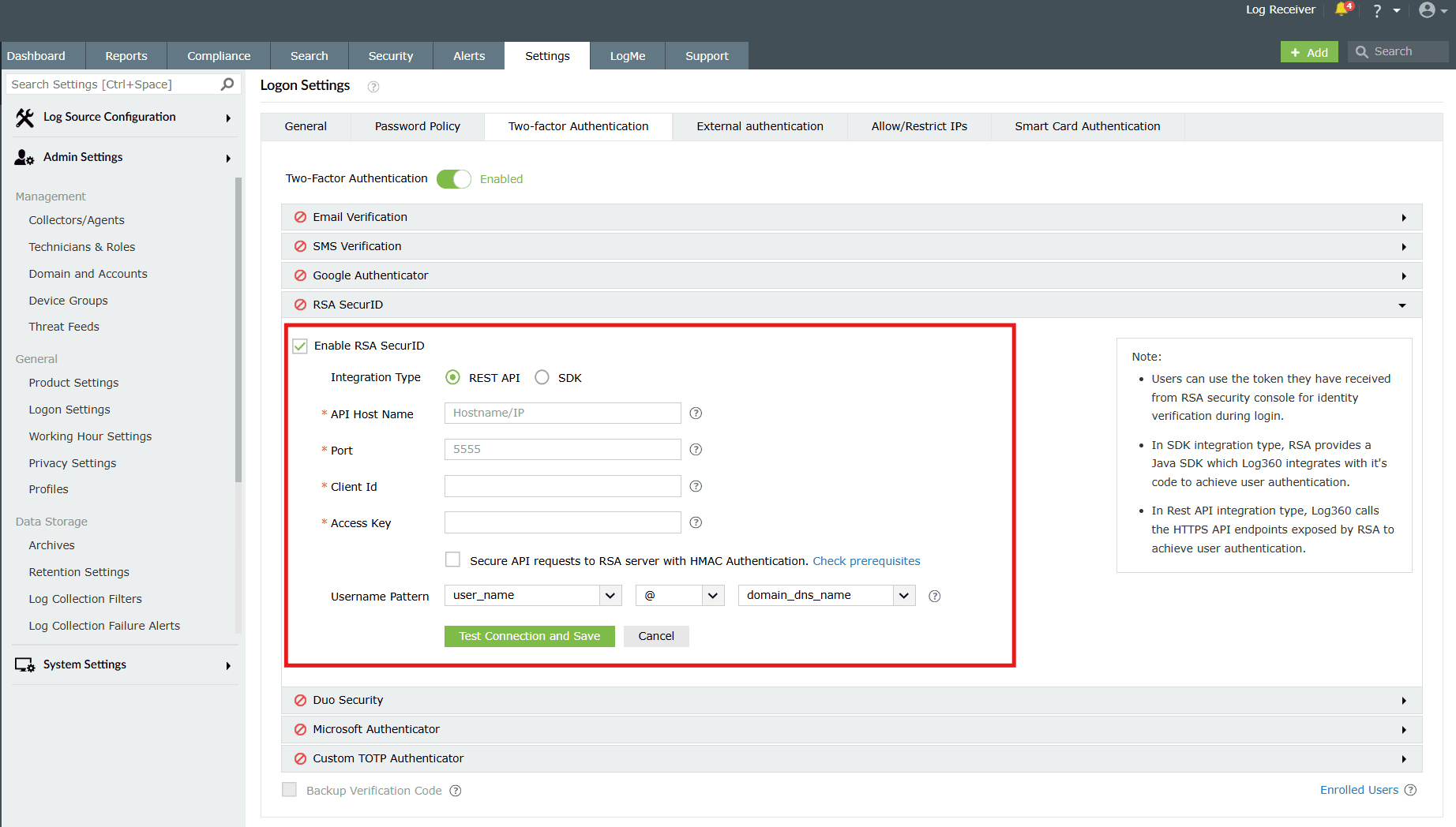
Image 9: Configuring RSA SecurID REST API in the product console - Check the Enable RSA SecurID box.
- For Integration Type, select REST API.
- Configure the following fields:
- API Host Name: Hostname/IP of RSA Authentication Manager.
- Port: Communication port number obtained in Step 2.
- Client Id: Hostname of the product server (authentication agent).
- Access Key: Key obtained in Step 2.
- Access Id: ID obtained in Step 2.
- (Optional) Check Secure API requests to RSA server with HMAC Authentication.
NOTE Before enabling HMAC, ensure HMAC prerequisites are configured on the RSA server.
- Click Test Connection and then Save.
HMAC Prerequisites
Hash-based message authentication code (HMAC) ensures the integrity of authentication requests exchanged between authentication agents and the RSA SecurID Authentication API.
- Log on to the appliance with SSH, or access it via VMware vSphere Client / Hyper-V Manager.
- To enable HMAC verification of requests, run:
./rsautil store -a update_config
auth_manager.rest_service.authorization.mode 1 GLOBAL 501
- To disable HMAC and use only the RSA SecurID Authentication API's access key for authentication, run:
./rsautil store -a update_config
auth_manager.rest_service.authorization.mode 0 GLOBAL 501
Duo Security
If your organization uses Duo Security for two-factor authentication, it can be integrated with the product to secure logins. Users can approve or deny the product login requests using a push notification or by entering the six-digit security code generated by the Duo mobile app. Authentication via Duo Security can be configured in two ways: Web v2 SDK and Web v4 SDK.
- Web v2 SDK: Uses a traditional Duo prompt which will be displayed in an iframe in the product.
- Web v4 SDK: Uses Duo's OIDC-based universal prompt with a redesigned UI that redirects users to Duo for authentication.
- Duo Security has phased out Web v2 SDK, so it is recommended to switch to Web v4 SDK, which features the new Universal Prompt.
- Enable HTTPS to ensure proper functioning of Web v4 SDK.
Prerequisite
Add the API hostname and admin console (e.g., https://admin-325d33c0.duosecurity.com) as a trusted site or intranet site in the users' machine if they are using older versions of Internet Explorer.
NOTE Duo Security has phased out Web v2 SDK, so it is recommended to switch to Web v4 SDK, which features the new Universal Prompt.
Web v4 SDK configuration steps
- Log in to your Duo Security account (e.g., https://admin-325d33c0.duosecurity.com) or sign up for a new account and log in.
- Go to Applications and click on Protect an Application.
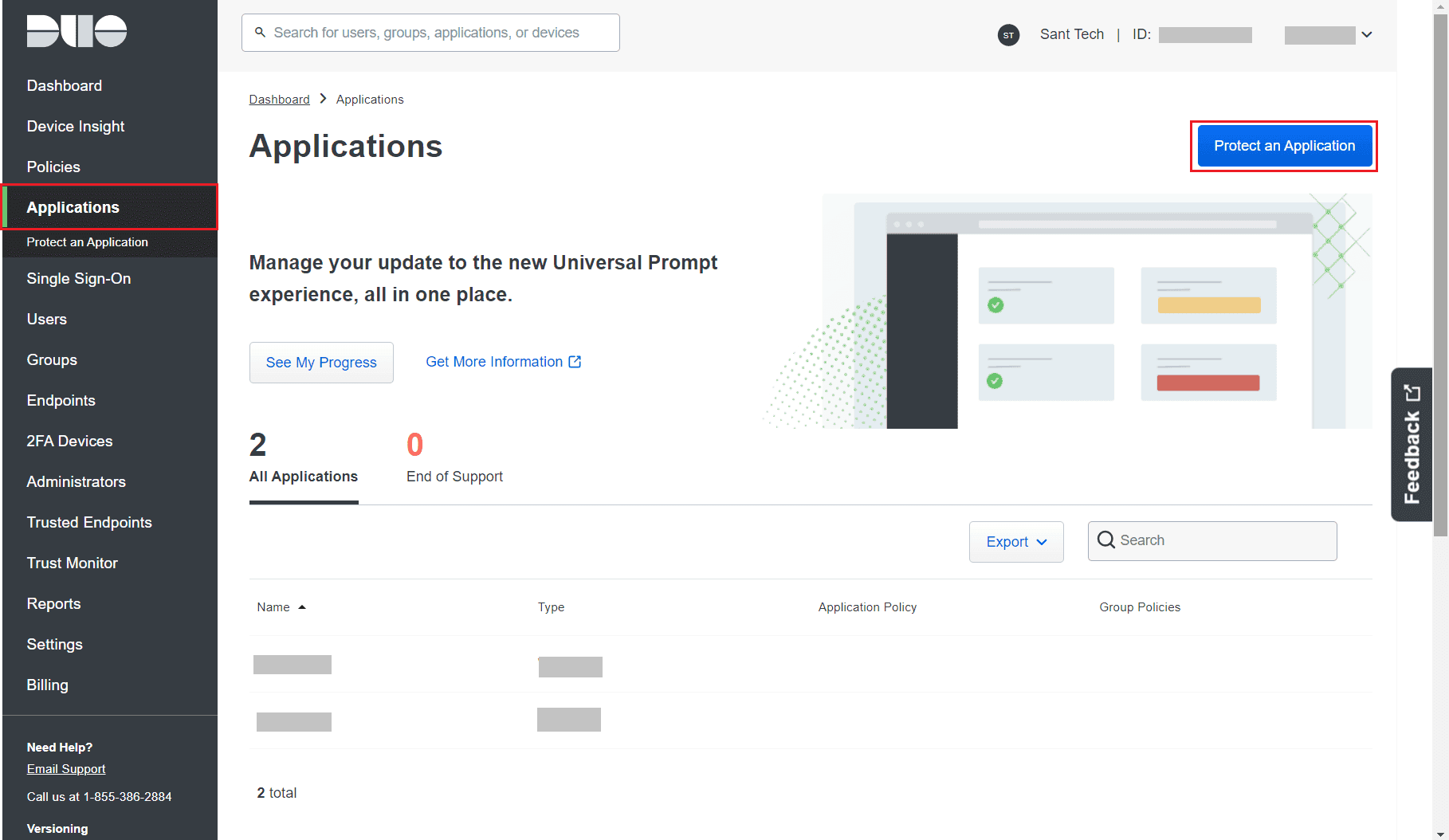
Image 10 : Protect an Application from Duo Security account - Search for Web SDK and click Protect.

Image 11: Web SDK from Duo Security account - Copy the Client ID, Client secret, and API hostname values.
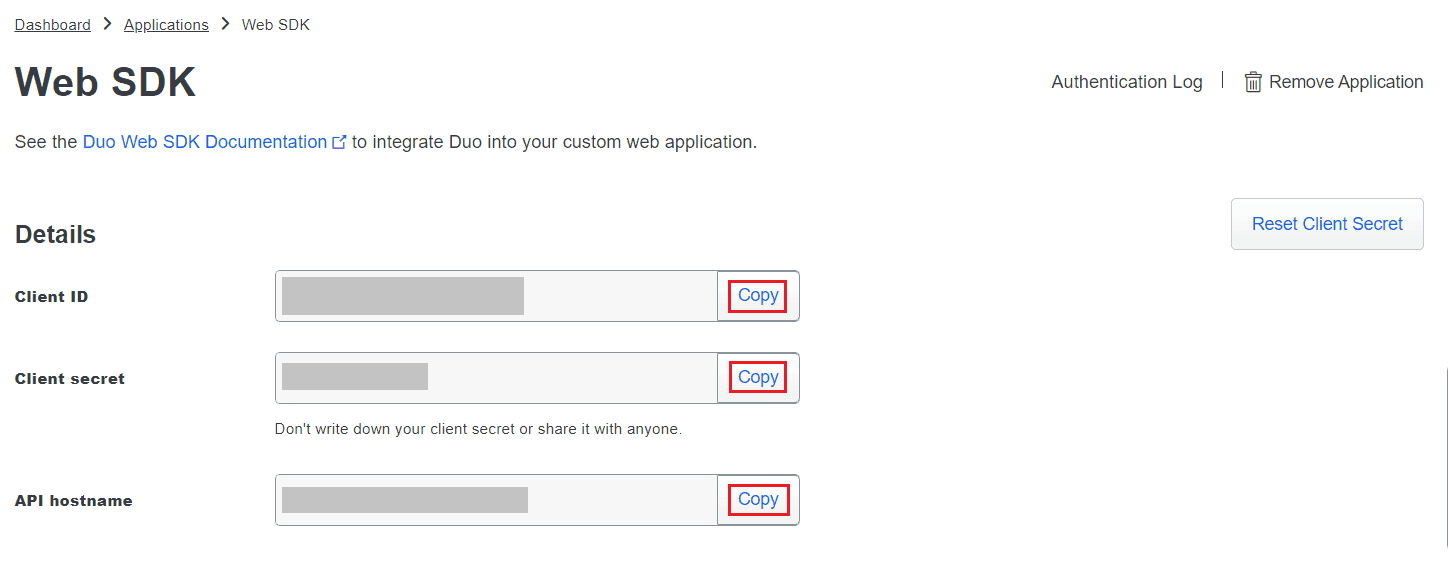
Image 12: Web Sdk configuration from Duo Security account - In the product console, navigate to the Duo Security module with Web v4 SDK as integration type.
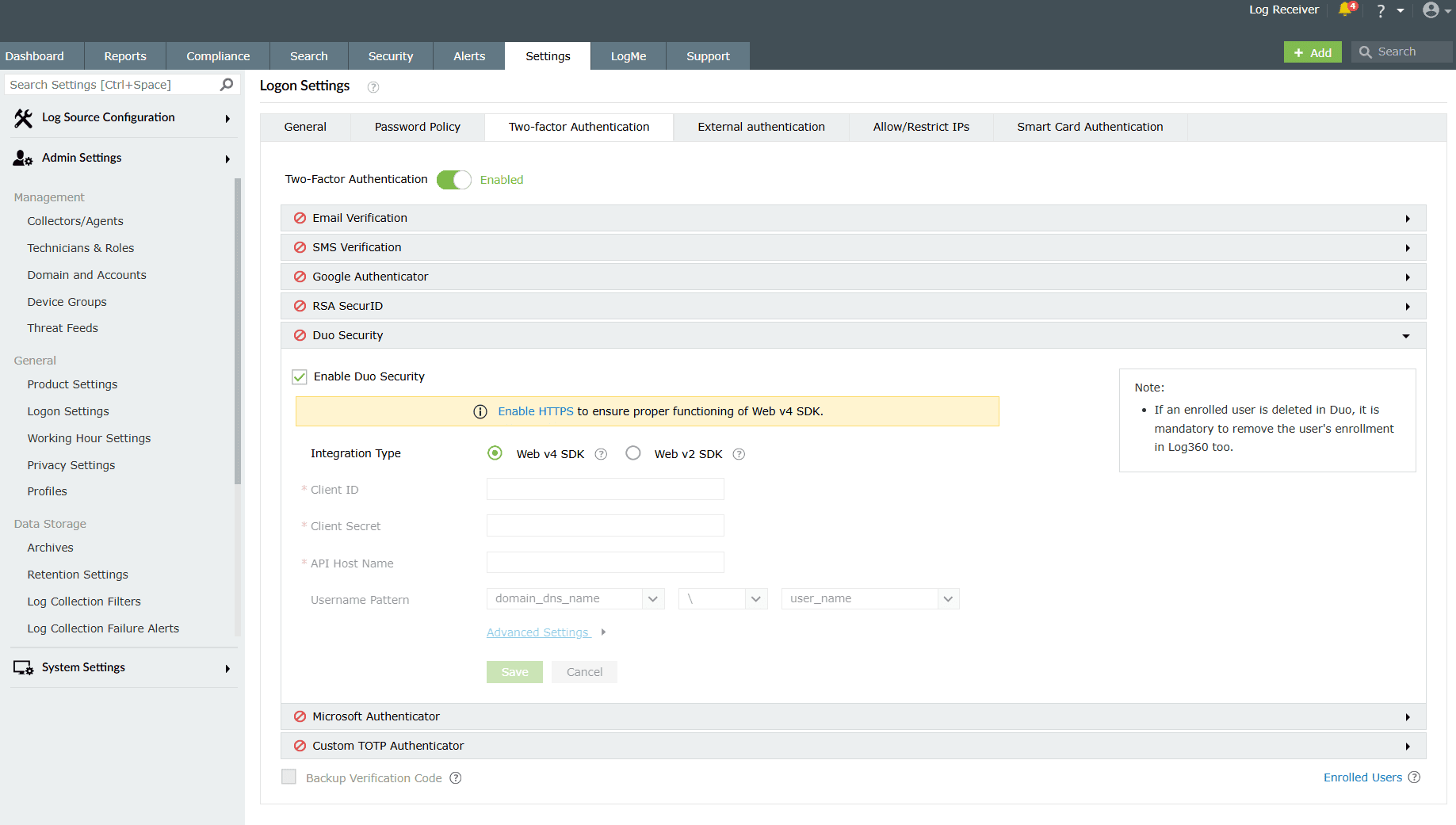
Image 13: Configuring Duo Security two-factor authentication in the product console - In the respective fields, paste the Client ID, Client secret, and API hostname obtained from the Duo Admin Panel.
- Click on Save.
Migrating from Web v2 SDK to Web v4 SDK
- In the Duo Admin Panel, select the Web SDK application, which was previously configured for the product, and copy the Integration key, Secret key and API hostname values.
- Scroll down to the Universal Prompt section. The App Update Ready message will be displayed, indicating that Universal Prompt can now be activated for the product.
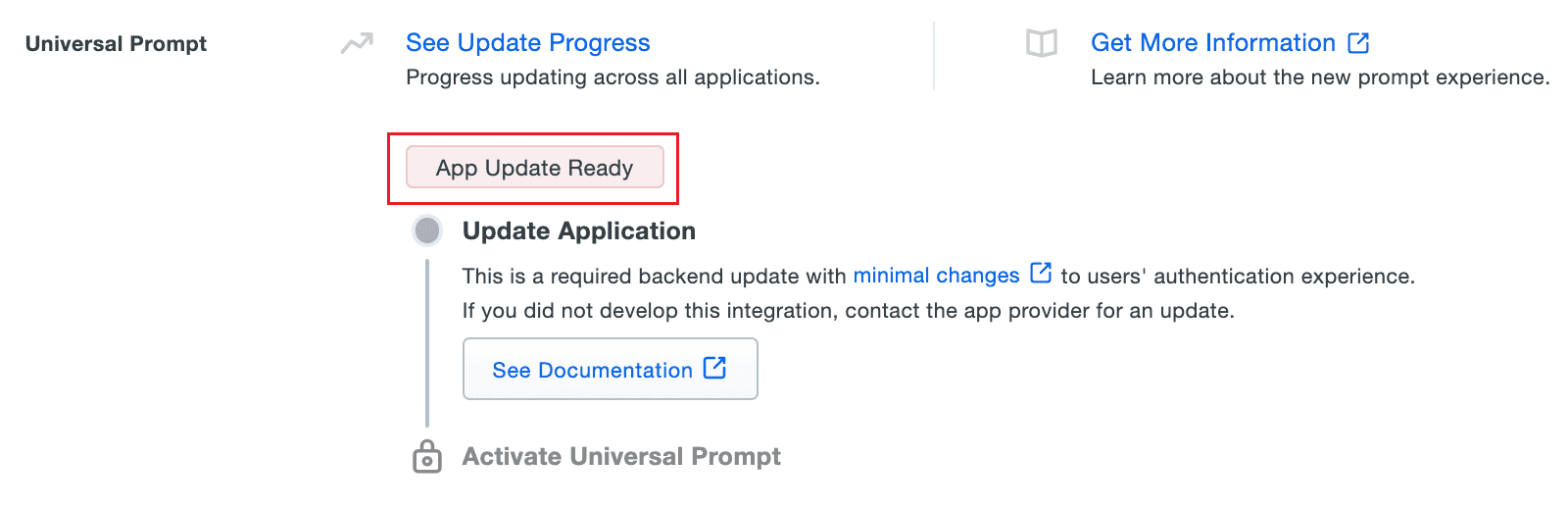
Image 14: App update ready to activate universal prompt in Duo Security console - In the Web v4 SDK fields in the product, paste the Integration key, Secret key, and API Host Name values in the Client ID, Client Secret, and API Host name fields respectively.
- Once the Web v4 SDK is configured in the product and a user authenticates through the frameless Duo v4 SDK, the App Update Ready message in Duo Admin Panel will be updated and the New Prompt Ready message will be displayed.
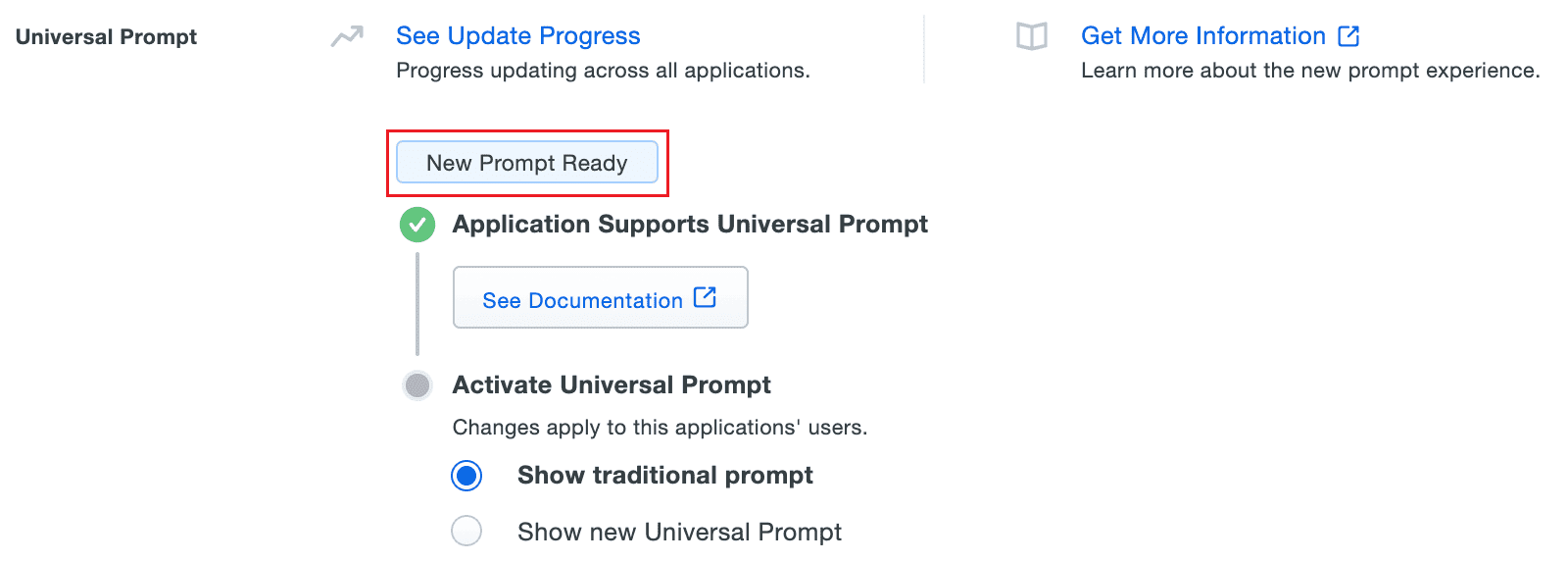
Image 15: Activating Universal Prompt for product console from Duo Security console - Select Show new Universal Prompt to activate the universal prompt for the product.
Microsoft Authenticator
Microsoft Authenticator is a mobile app that generates TOTP for 2FA, which not only enhances security but is also useful in forgot password scenarios. Its working is similar to that of Google Authenticator. This configuration too can be helpful in offline cases where there is no internet connection.
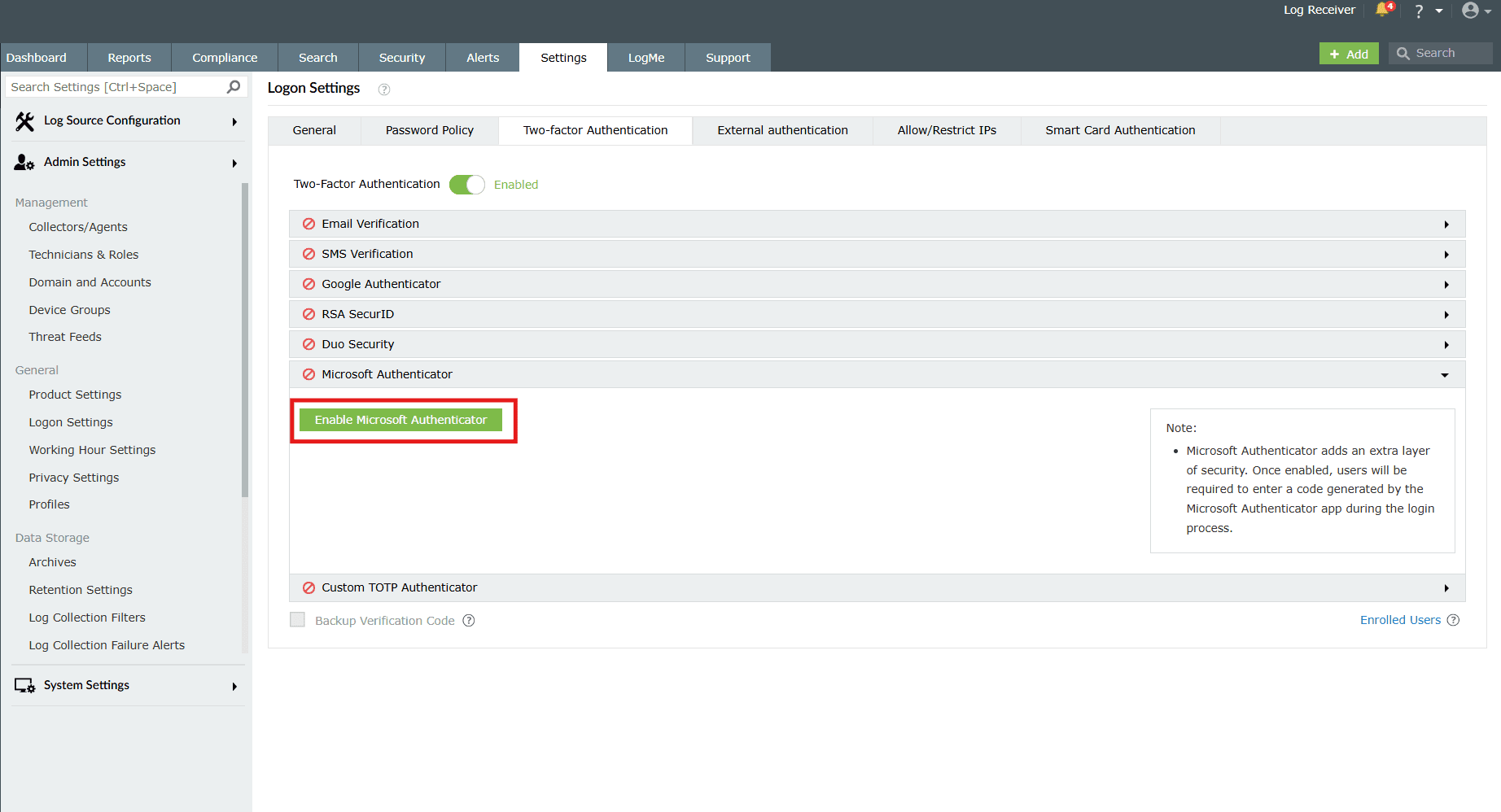
- Just click on Enable Microsoft Authenticator.
- Once enabled, users can enroll themselves for two-factor authentication using the Microsoft Authenticator app during login.
- After entering the password and logging in, the product asks to setup Microsoft Authenticator.
- A QR will be shown which can be scanned using the Microsoft Authenticator app.
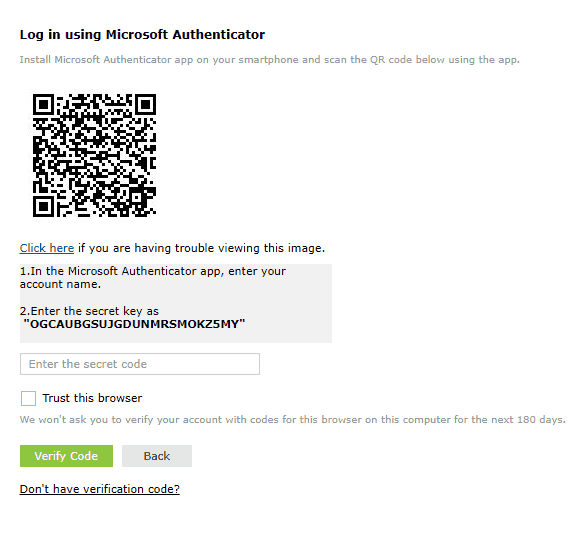
- Enter the time-based 6 digit code that's generated in the Microsoft Authenticator app to Enter the secret code box.
- Trust this browser option can be selected, and no code will be asked for 180 days.
- Click Verify Code.
To disable Microsoft Authenticator
- Simply click on the Disable Microsoft Authenticator button available.

- A Confirm Action pop-up box appears. Click on OK.
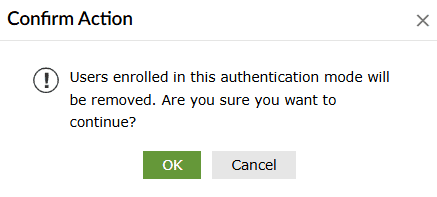
- Microsoft Authenticator is now disabled, and the button shows the option to enable it now.
Custom TOTP Authenticator
In addition to the authenticators mentioned above, you can also add a custom TOTP (Time-based One-Time Password) authenticator as a means of verifying identities, provided the application satisfies the following criteria:
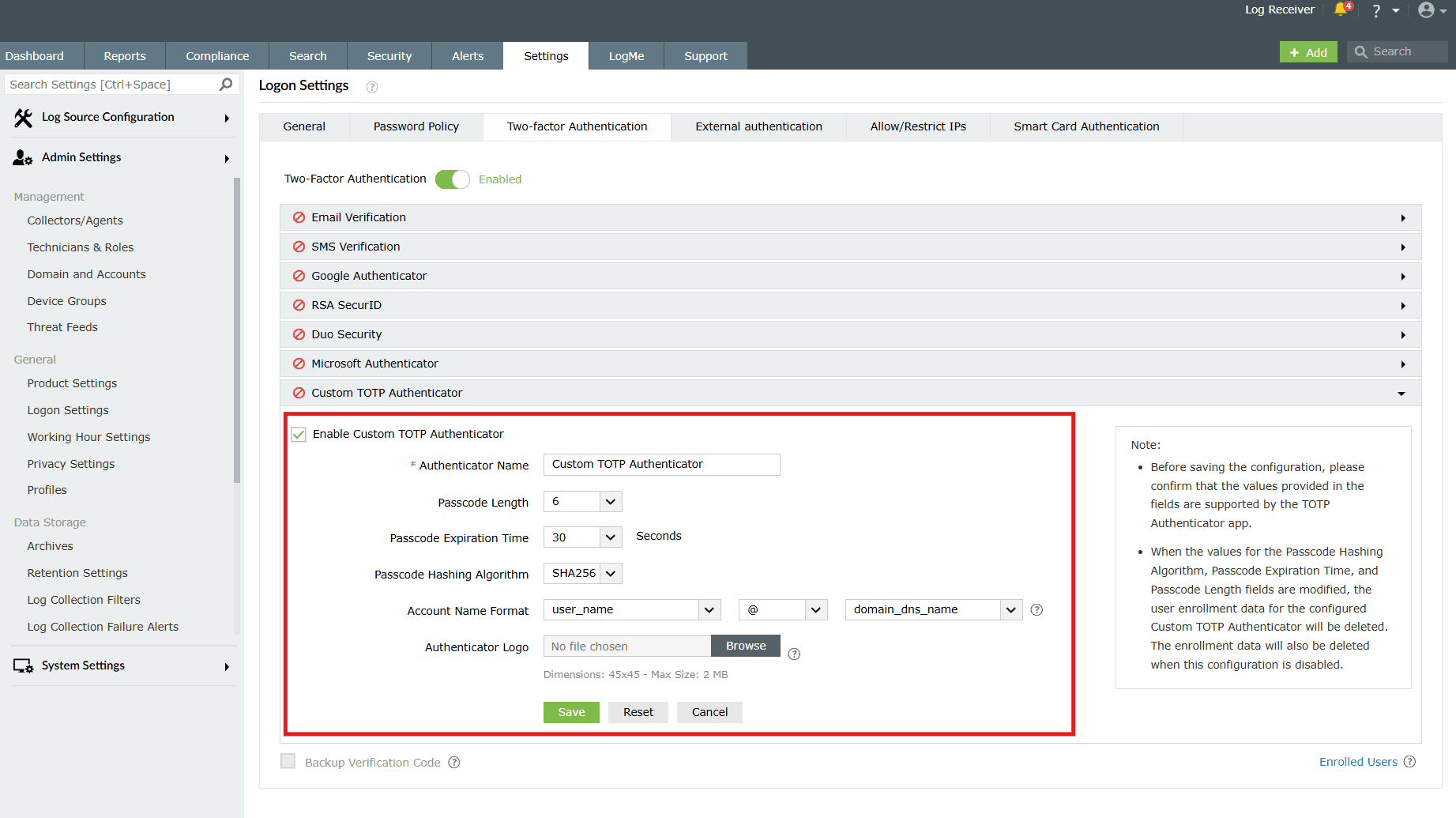
- Fill in the field values for the below:
- Authenticator Name: Enter the name of the authenticator application.
- Passcode Length: Fix a limit for passcode length. The application can provide passcodes of varying lengths- 6, 7, or 8 characters.
- Passcode Expiration Time: Set an expiry for the passcode (in seconds.)
- Passcode Hashing Algorithm: Choose a hashing algorithm for your passcode. The application supports any password hashing algorithm that the product utilizes- SHA1, SHA256, and SHA512.
- Account Name Format: This format decides how the username will be displayed in the TOTP app during configuration and passcode generation. The supported formats for the image are PNG, JPG, JPEG, BMP, and GIF. Please ensure the dimensions of the logo do not exceed 45x45 pixels and the size is less than 2MB.
- Click on the Reset button to reset and re-configure all the above fields.
- Click on Save after entering the field values.
Backup Verification Code
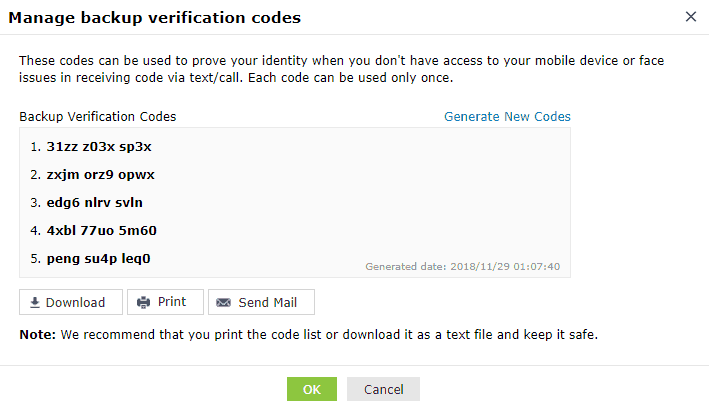
Backup verification codes allow users to log in when they don't have access to their phone or face issues with one of the two-factor authentication methods. When enabled, a total of five codes will be generated. A code once used will become obsolete and cannot be used again. Users also have the option to generate new codes.
Enabling backup verification code
To enable the backup verification code, simply put a check against the Backup Verification Code box.
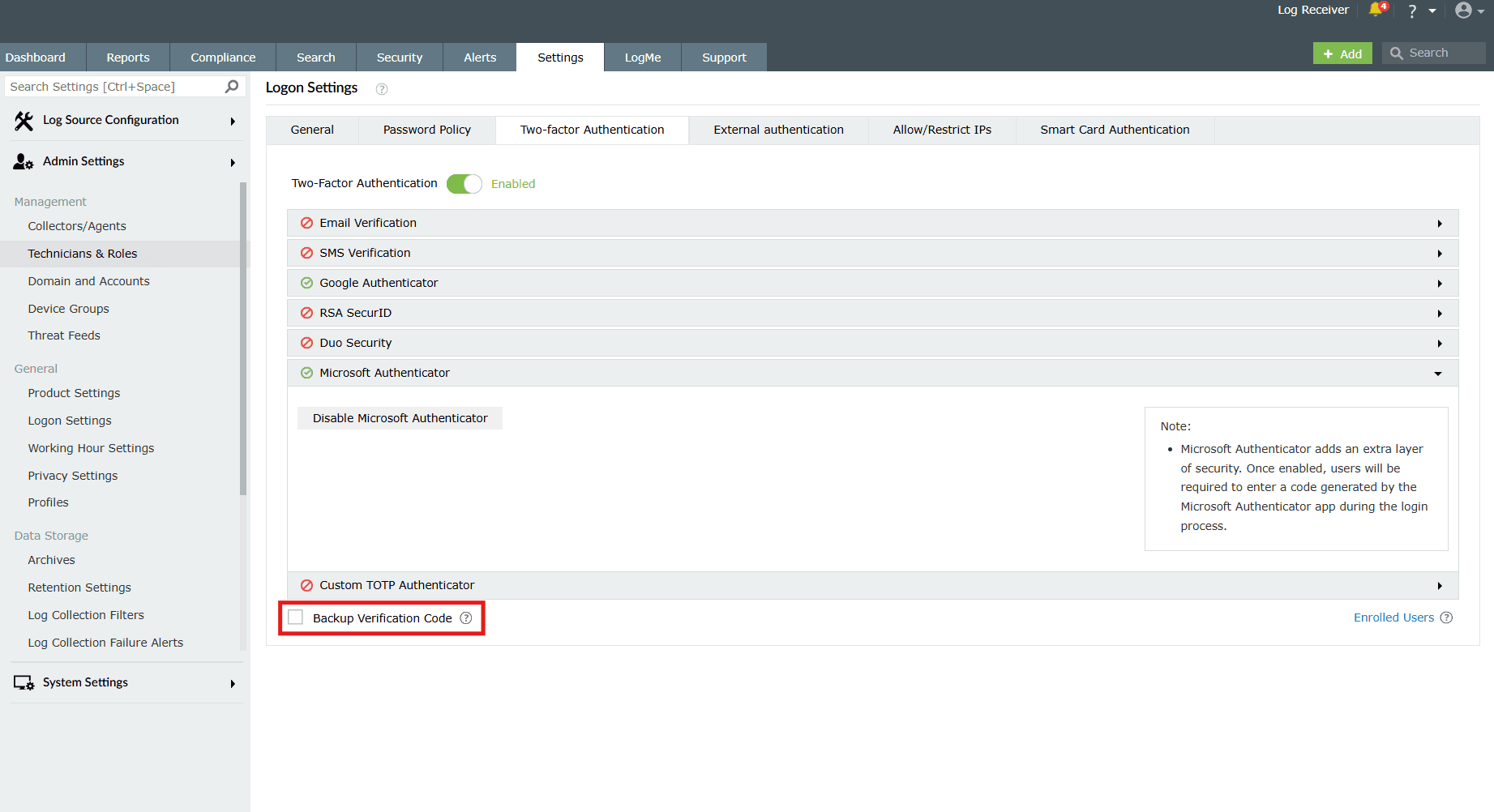
What happens after enabling?
- Once enabled, users will be notified to configure their codes when they log in to the product console. On clicking Configure Now, they will be taken to the two-factor authentication settings page.
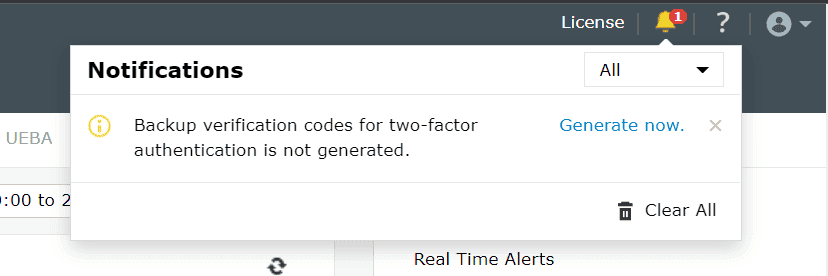
- Users need to click the Manage Backup Verification Codes link to view the codes.
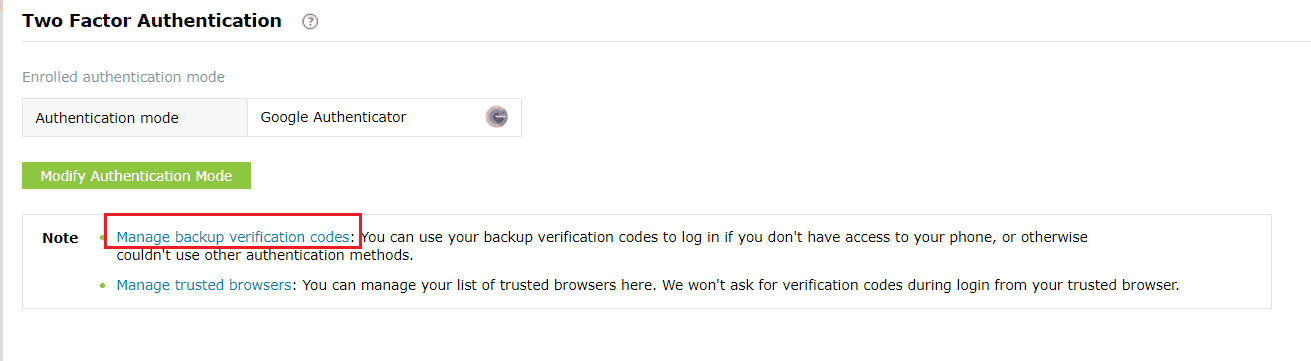
- Users can also download the codes as a text file, print them, get them delivered to their personal email address, or generate new codes.
Using the backup verification code to login
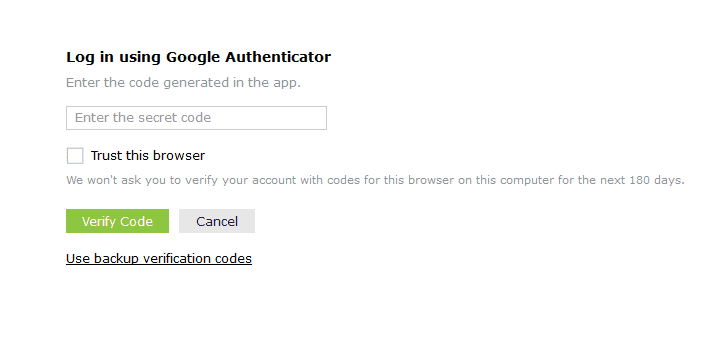
- To use backup verification codes during login, users need to click the Use backup verification codes link in the second-factor authentication page.
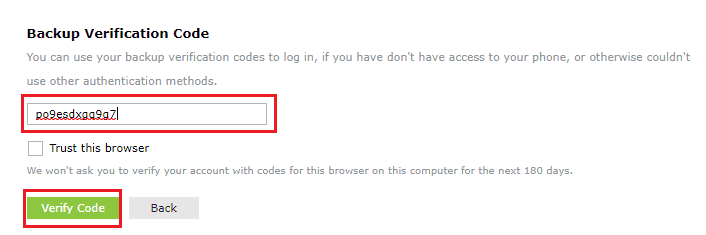
- In the backup verification code page, they need to enter one of their backup verification codes and click Verify Code to login.
Read also
This document explained how to enable and configure different two-factor authentication methods such as email, SMS, authenticator apps, RSA SecurID, Duo Security, custom TOTP, and backup verification codes. For more understanding, refer to the below help documents: