
Reports
Last updated on:
In this page
Overview
The Scheduled Detection Reports in the Manage Rules module enables administrators to generate automatically and export reports for rule-based detections at regular intervals. You can create schedules, define frequency, select rules, choose export formats, and configure notifications.
These reports offer visibility into detection trends over a specified time range, helping you monitor anomalies, meet compliance requirements, and perform in-depth security analysis.
Additionally, the Session Activity Reports allow you to track user and device sessions across your network. These reports focus on audit-oriented insights such as login durations, session times, and VPN access details, rather than security detections.
Scheduled detection reports (via the Manage Rules module)
Provides logs detected for a particular rule over a specified period of time.
-
You can access these reports by clicking on the Scheduled Detection
Reports option in the Manage Rules module as highlighted
below.
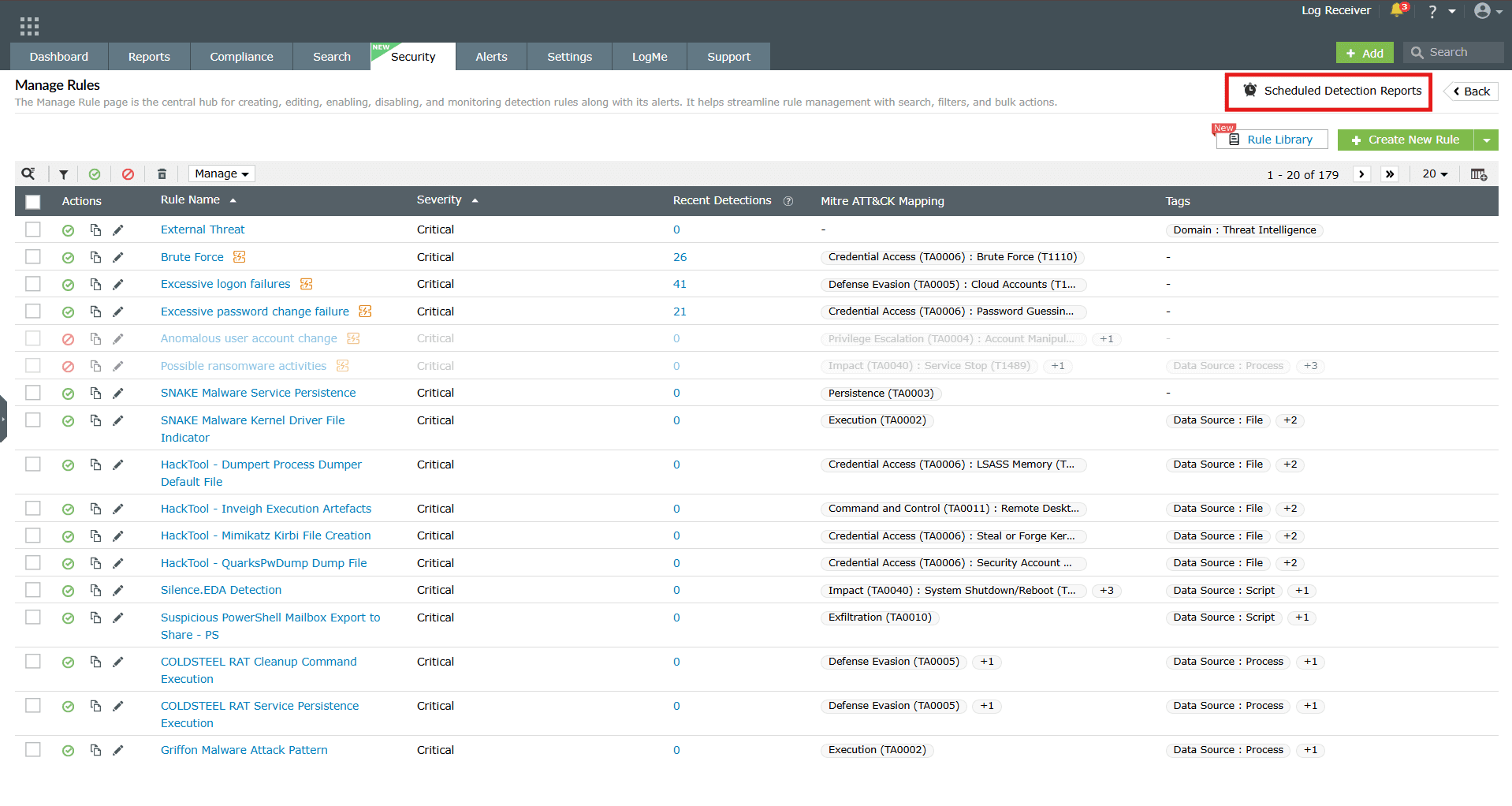
Image 1: Scheduled reports in the manage rules module - You will be taken to the Scheduled Reports module.
To create a new schedule for the report(s)
-
Click on the Create New Schedule button as highlighted below.
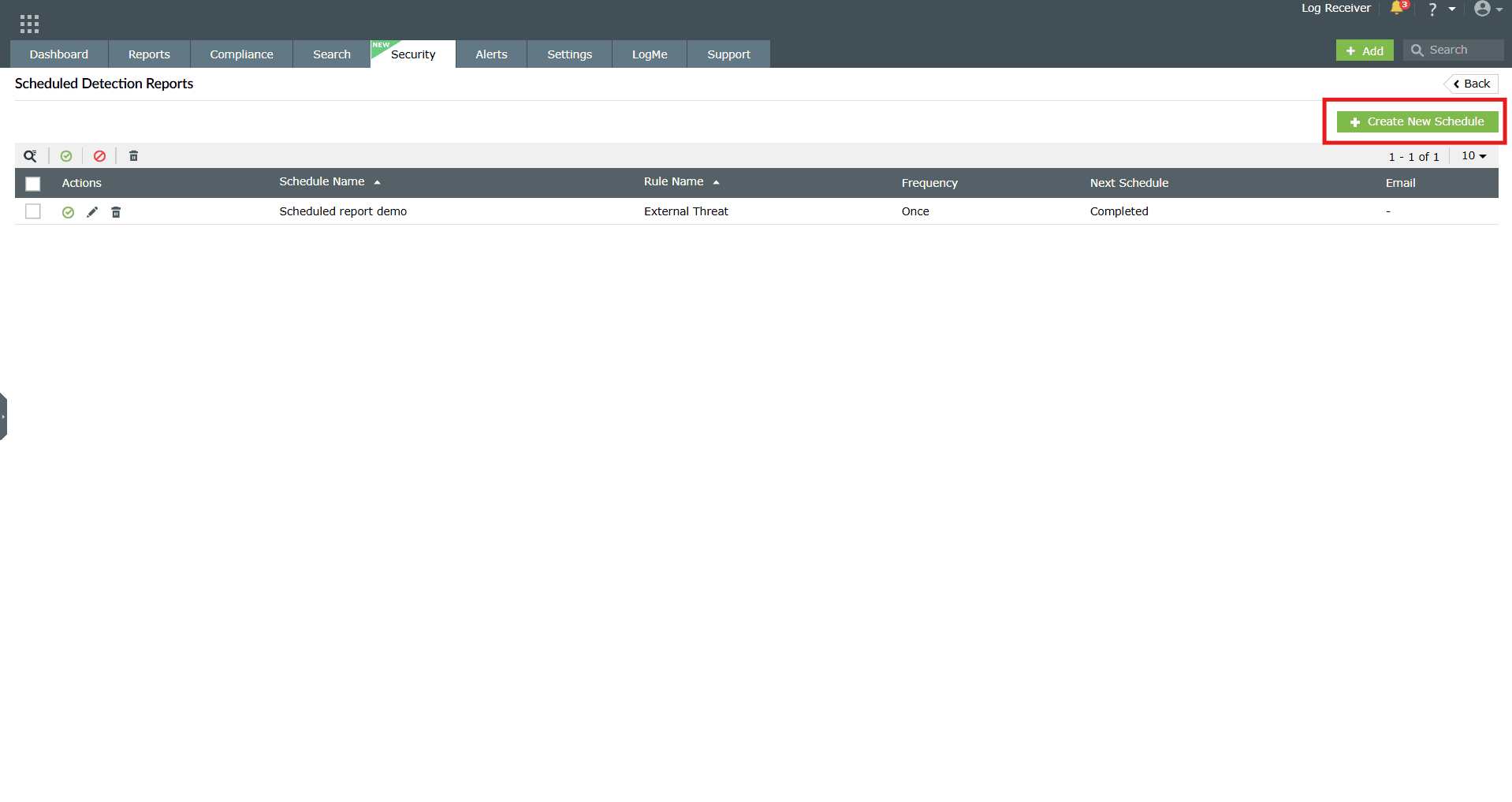
Image 2: Create scheduled reports in the manage rules module -
You will be taken to the Create Schedule module.
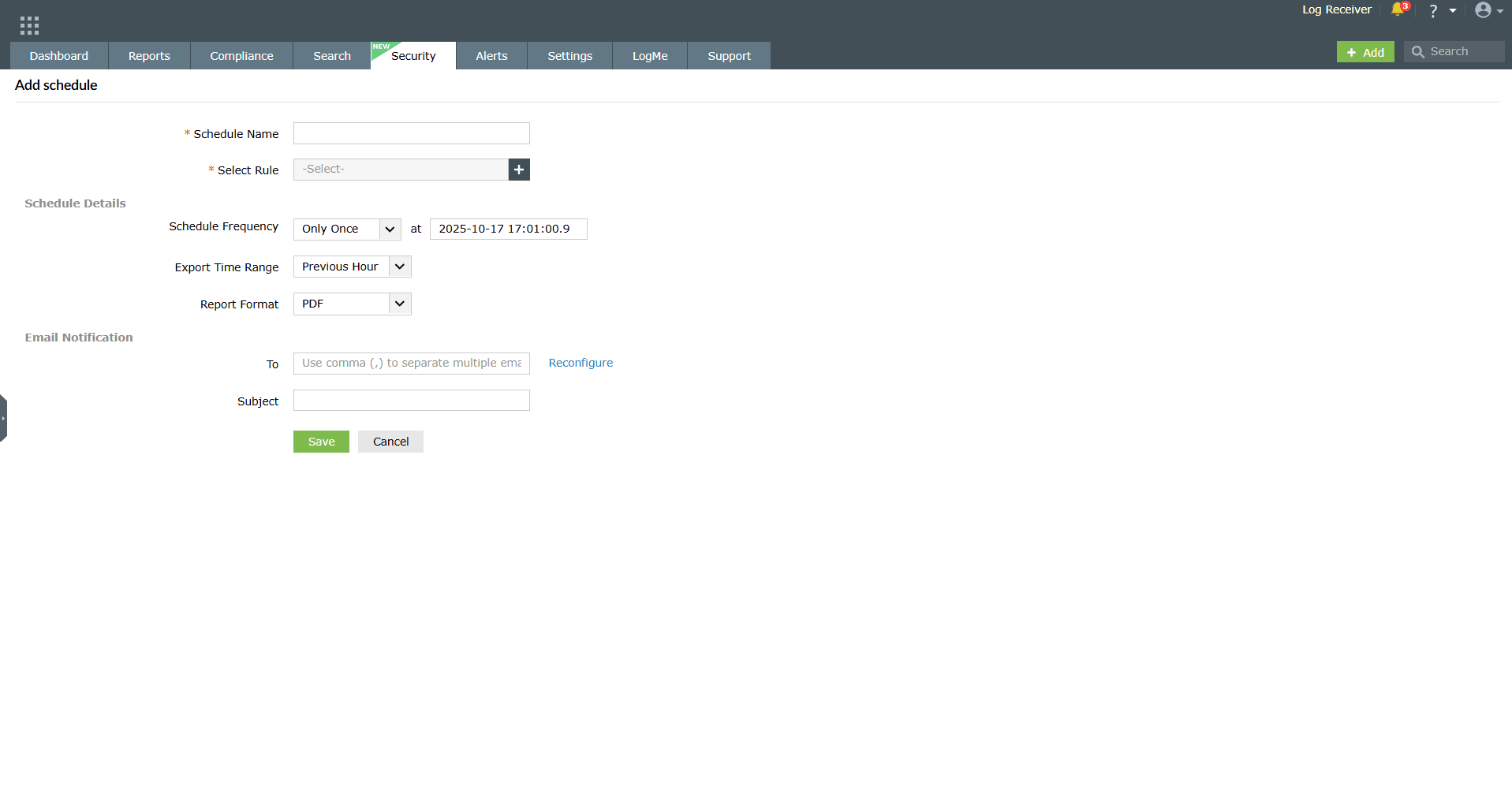
Image 3: Create scheduled reports in the manage rules module - Schedule Details
- Schedule Name: Assign a unique name to the schedule.
- Schedule Frequency: Define how often the schedule should run (hourly, daily, weekly, or monthly).
- Export Time Range: Specify the time range of data to include (e.g., last 24 hours, last 7 days, or custom).
- Report Format: Choose the preferred format for the exported report (PDF, CSV, XLS).
- Notification
- Select Template: Pick a predefined report template or customize one.
- Rule Details
- Select Rule: Choose the anomaly rule(s) you want to associate with the schedule. Reports and alerts generated will be based on the selected rules.
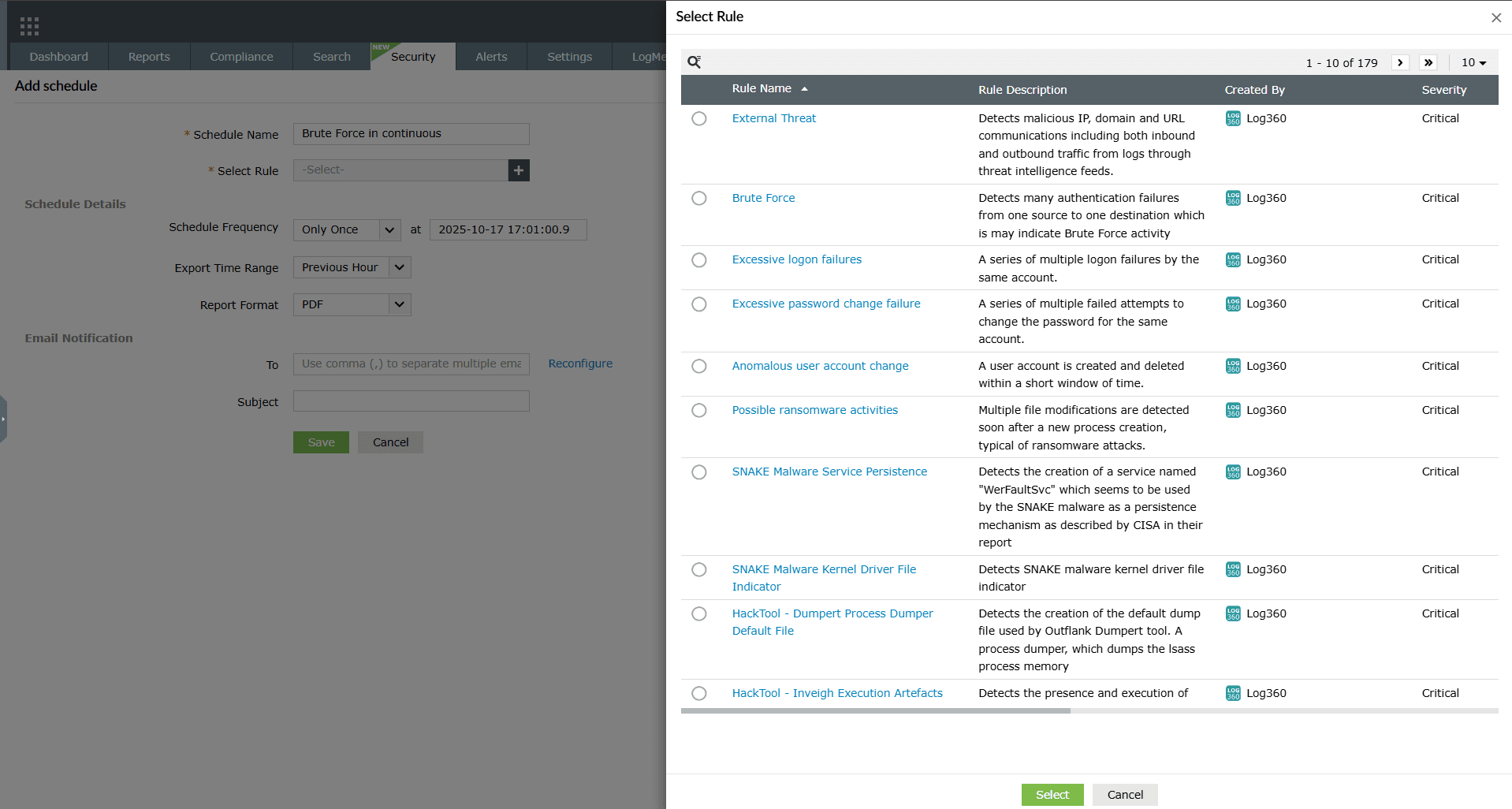
Image 4: Create scheduled reports in the manage rules module - Schedule Details
-
Click on Save after making all the required configurations. Upon
successful completion of action, the below pop-up appears.

To enable/disable a schedule for report(s)
Enabling a schedule
-
Click on the currently disabled icon
under the Actions column to enable
the schedule.
-
As soon as you perform this action, the icon indicates that the schedule is now enabled
and the below pop-up message appears briefly.

Disabling a schedule
-
Click on the currently enabled icon
under the Actions column to disable
the schedule.
-
As soon as you perform this action, the icon indicates that the schedule is now disabled
and the below pop-up message appears briefly.

To edit a schedule for report(s)
-
In the Scheduled Reports module, click on the edit
icon under the
Actions column.
- The Edit Scheduled Reports module appears on the screen.
-
Make the necessary edits and click on the Update button. Upon
successful completion of action, the below pop-up appears.

To delete a schedule for report(s)
-
In the Scheduled Reports module, click on the delete
icon under the
Actions column.
-
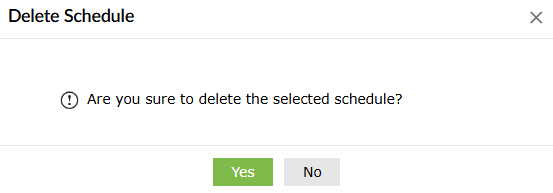
A Delete Schedule pop-up appears to confirm the action. Click on
Yes.
-
Upon successful completion of action, the below pop-up appears.

session-activity
The product processes log data across your network and provides reports on session activity of your network devices and users. You can access these reports via the Reports tab.
Session activity rules
You can either use the predefined rules present for each of the individual reports module to generate reports on session activity or you can build your own rules with individual actions.
- Device-level and user-level delegations are not supported for session activity rules.
- Session activity data follows the same retention period as detection rules and is retained for 90 days by default.
Predefined activity rules
There are a total of 15 predefined rules for session activity monitoring. These rules are spread across different report categories, all accessible from their respective modules separately.
Below is the complete list of all the session activity monitoring rules available.
| Report Name | Description | Group Name |
|---|---|---|
| Unix Sessions | Session created on Unix machines | Unix Sessions |
| Interactive Sessions | Session created on Windows machine interactively. | Windows Sessions |
| Cisco VPN Sessions | Session created via Cisco VPN. | VPN Sessions |
| Fortinet VPN Sessions | Session created via Fortinet VPN. | VPN Sessions |
| Remote Interactive Sessions | Session created on Windows machine remotely. | Windows Sessions |
| Sonicwall VPN Sessions | Session created via Sonicwall VPN. | VPN Sessions |
| PMP Sessions | Remote interactive session created with Password Manager Pro. | Windows Sessions |
| Huawei VPN Sessions | Session created via Huawei VPN. | VPN Sessions |
| H3C VPN Sessions | Session created via H3C VPN. | VPN Sessions |
| Meraki VPN Sessions | Session created via Meraki VPN. | VPN Sessions |
| Sophos VPN Sessions | Session created via Sophos VPN. | VPN Sessions |
| Barracuda VPN Sessions | Session created via Barracuda VPN. | VPN Sessions |
| WatchGuard VPN Sessions | Session created via WatchGuard VPN. | VPN Sessions |
| PaloAlto VPN Sessions | Session created via PaloAlto VPN. | VPN Sessions |
| CheckPoint VPN Sessions | Session created via CheckPoint VPN. | VPN Sessions |
Create custom activity rules
- To open the activity rule builder, navigate to the Reports tab and click on Manage Reports as highlighted below.
Image: Manage reports button in the reports tab - The Add Custom Report option will be displayed on the screen. Click on the drop-down of the button as highlighted below.
Image: Add custom report option in the reports tab - Click on Session Activity Report option.
Image: Session activity report option in the drop-down - You will be taken to the session activity rule creation module as shown below.
Image: Creating a custom session activity rule - Select the individual actions that make up the rule, from the categorized list of actions on the left of the screen.
Image: Building a custom session activity rule - You can also search for actions using the search bar on top of the list.
- You can drag and drop the actions to rearrange their order, or delete the action by clicking on the delete icon
on its right. - To detect repetition of the same action within a particular time interval, tick the Threshold Limit check box and enter the number of occurrences and time interval.
- For each action, specify the time interval within which it is to be followed by the next action, under the Followed by within field. You can specify the time interval in seconds or minutes by using the provided dropdown.
- To configure advanced options for any of the selected actions, click on Filters on the top right corner of the action.
- The first rule starts the session and the last rule ends the session. The duration of the session is the time-interval between the first and the last rule.
Advanced options
Each action in an activity rule corresponds to a log. Logs contain various fields, and each field has a specific value. With advanced options (present under the Filters on the right of the action), you can provide filter criteria for each field of the log/action and specify a threshold limit on the minimum number of repetitions of the action.
- You can select a filter field from the dropdown list provided. The fields provided in the dropdown may vary based on the action selected.
- You can add criteria for each action by clicking on the add button
. Similarly, you can delete a criteria for an action by clicking on the delete button
. - You can select the comparison type as equals, not equals, contains, starts with, ends with, link to, or is constant, from the dropdown provided.
NOTE When you provide more than one value for an equals comparison, the set of values provided are treated as a list of possible values and the action is accepted if any one value from the list is true. The same holds true for the contains, starts with, and ends with comparisons.
- When you provide more than one not equals comparison, the set of values provided needs to hold true for the action to be accepted.
- Link to:
- The Link to comparison type is used to check the value of the selected field against the value of a field in another action (belonging to the same rule or the primary action of the other rule).
- For instance, if the field Device type of Action 1 is linked to Action 2's Device type value, then Action 1 would get triggered only if the value of both the linked fields are the same.
- When you choose link to, the
icon appears at the end of the filter. Clicking on the icon will present a new tab.
NOTE At least one field of the starting rule should be linked to a field in the ending rule.
- Click the check box corresponding to the field of the second action against which you want to compare the value of the previous action.
- Click on the OK button to complete linking the two actions.
- Is constant:
- The is constant option is used to treat the specific field as constant.
- By selecting this option, a set of repeated actions are accepted by the rule only if this field's value remains constant throughout all the iterations.
- For instance, if the Target User field is kept as constant, then the action gets triggered only when the value of this field remains constant in all the iterations.
- The action doesn't get triggered if the event is generated with different values.
- Link to:
- When you provide more than one not equals comparison, the set of values provided needs to hold true for the action to be accepted.
Activity monitoring reports
EventLog Analyzer's Activity Monitoring Reports provide information on Windows, Unix and VPN Sessions. The reports provide details such as Device name, Username, Start Time, End Time, Status, and Duration.
Viewing session activity reports
You can view the predefined session activity reports as below:
- Interactive Sessions, Remote Interactive Sessions, and PMP Sessions for Windows machines.
- Unix Session Reports to provide you all details about all the Unix sessions.
- VPN Session reports such as Cisco VPN Sessions, Fortinet VPN Sessions, Sonicwall VPN Sessions, Huawei VPN Sessions, H3C VPN Sessions, Meraki VPN Sessions, PaloAlto VPN sessions, and WatchGuard VPN sessions for the respective VPN devices.
- Navigate to the Reports tab and choose the event category- for example, Network devices → VPN sessions. Below is the report for the predefined session activity rule.
Image: Viewing predefined session activity reports - You can view the reports for the custom created session activity rules as well via the report categories.
Image: Windows remote interactive session activity report - You can view the session activity reports for Windows, Unix, and VPN Sessions based on users and devices in the form of User-based View and Device-based View, in addition to the Default View.
- In the User-based view, you can analyze the weekly login and logout activities of a particular user.
- You can hover your mouse pointer over a generated user-based report in the table to find the Weekly Login View option.
Image: Weekly login view of a user - Clicking on this tab displays a timeline graph for every day of the week in which you can view a particular user's active session duration, login time, and logout time for any given day.
Image: Weekly login view data in user-based reports - This view also provides the number of hours the user was active per day and for the entire week.
- The Weekly Login View report is available only for all system-generated reports.
- The calendar widget allows you to select the time period for which you want to review the session activity for the selected devices/users.
- You can also schedule an activity monitoring report.
- The activity monitoring report can be exported in the PDF and CSV formats, by clicking on the Export as option.
- To know export details of a particular session, you can click on the View History icon
. - Hover over the Status value of any specific session in the report table to view the View History option. Click it to see detailed information about the selected session.
Image: View history option for a specific session activity - This tab displays all the details as given below:
Image: Viewing history of a specific session activity - This page contains the Configure Fields and Advanced View tabs.
- The Configure Fields tab allows you to view similar logs generated in a session by extracting logs that have the same field value (Domain, Device Name, Logon ID, and Username). You can choose the field by which you want to retrieve logs by clicking on the desired options from the drop-down box.
- By clicking on the Advanced View tab, you can drill down and view the raw logs of that session.
Manage session activity rules
- Navigate to the Reports tab and click on the Manage Reports button.
Image: Manage reports button in the reports tab - Click on the Manage Session Activity Reports icon as highlighted below.
Image: Manage session activity reports icon - Upon clicking the icon the Manage Session Activity Reports pane slides open.
Image: Manage session activity reports pane - From here you can manage- activate, deactivate, delete, edit, copy session activity rules, or show/hide reports for a rule.
Activate/deactivate session activity rule(s)
Activating a rule
- Click on the disabled icon
present in the ribbon above the rules list. Or, hover your mouse pointer over the status of the currently active rule. The option to deactivate becomes visible. Click on it.
- As soon as you perform this action, the icon indicates that the rule is now enabled
and the below pop-up message appears briefly.
Deactivating a rule
- Click on the enabled icon
present in the ribbon above the rules list. - As soon as you perform this action, the icon indicates that the rule is now disabled
and the below pop-up message appears briefly.
Bulk activate/deactivate session activity rules
- Click on the empty checkbox(es) in the first column in order to select the respective rules.
- Click on the Activate/deactivate icons in the ribbon above the rules list.
- Upon successful completion of the action, the below pop-up appears.
When activated:
When deactivated:
Copy a session activity rule
- Click on the copy icon
that becomes visible when you hover the mouse pointer over a rule. - You will be taken to the editing window of that particular session activity rule.
- Make the necessary changes in the field values in order to customize the copied rule and click on Update.
Image: Copying a session activity rule - Upon successful completion of the action, the below pop-up appears.
Edit a rule
- Click on the edit icon
that becomes visible when you hover the mouse pointer over a rule. - You will be taken to the editing window of that particular session activity rule.
- Make the necessary changes in the field values in order to customize the copied rule and click on Update.
Image: Editing a session activity rule - Upon successful completion of the action, the below pop-up appears.
Delete rule(s)
- Click on the empty checkbox(es) in the first column in order to select the respective session activity rules.
- Then click on the Delete icon
in the ribbon above the rules list. - Upon successful completion of the action, the below pop-up appears.
Bulk delete session activity rules
- Click on the empty checkbox(es) in the first column in order to select the respective rules.
- Then click on the Delete icon
in the ribbon above the rules list. - Upon successful completion of the action, the below pop-up appears.
Show/hide reports for a session activity rule
- Scroll to the right over the list of the session activity rules to view the Show/Hide Report column.
Image: Show/hide reports for a session activity rule - Click on the toggle to turn the toggle on
/ off
to show/hide the report respectively, for a specific session activity rule.
Read also
This document explained how to schedule detection reports, configure report details and notifications, and manage actions like enabling, disabling, editing, or deleting schedules. To learn more about related functionalities, refer to the below help documents: