
Incident building using the Incident Workbench
Last updated on:
This page explains about building incidents using the instances of the Incident Workbench.
Note
- Please refer to the Incident Workbench Overview page to learn about the feature, and check the Access page to learn how to invoke the Incident Workbench from different dashboards of the product
- You can add upto 20 analysis tabs in a single instance of the Incident Workbench. If you want to analyze more entities you will have to close the current instance, and open a new one.
Steps to add the Incident Workbench instance to Incidents as evidence:
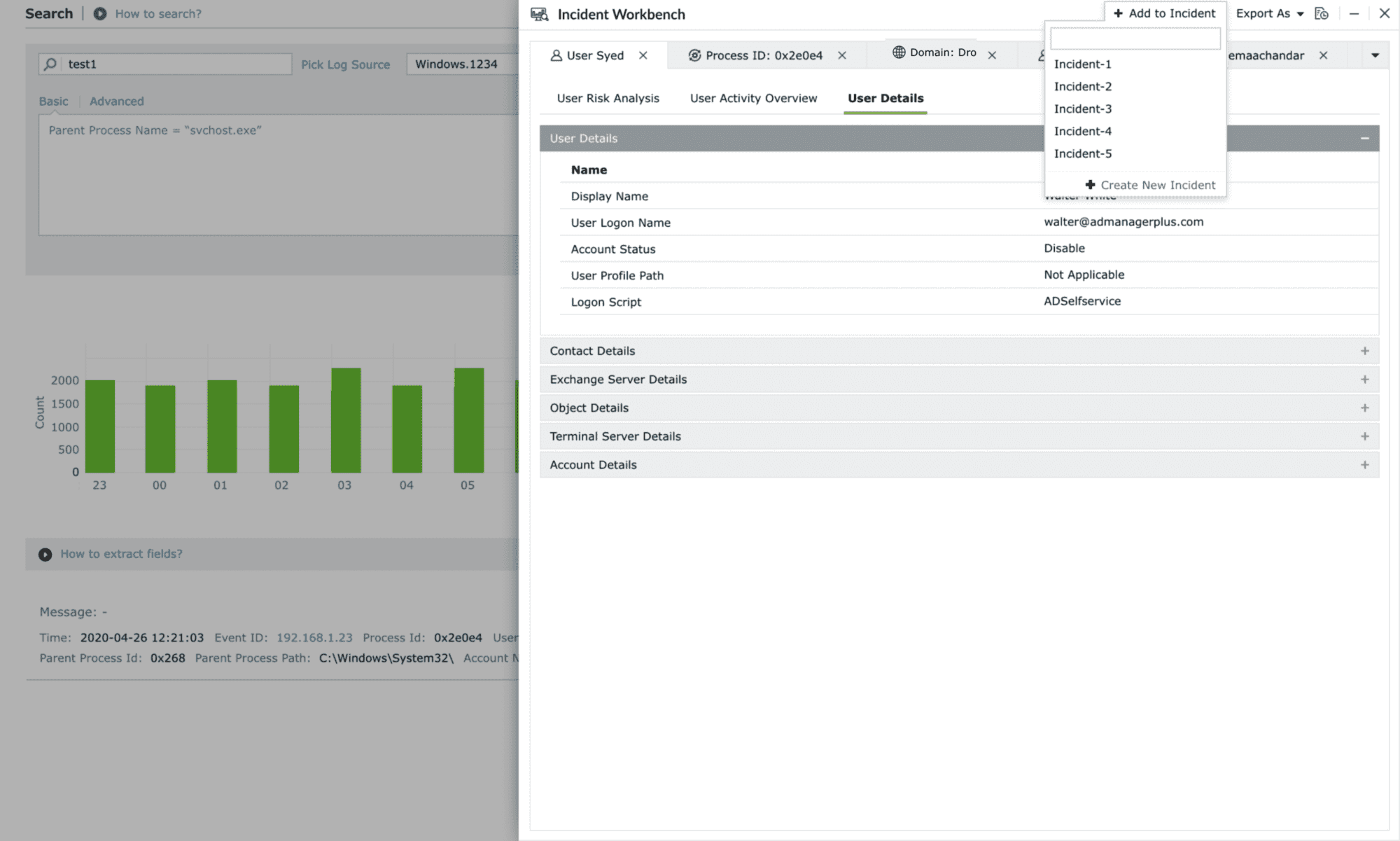
- Click on Add to Incident in the top right corner of the Incident Workbench to save the instance.
- The dropdown contains the list of existing incidents. Use the search bar to find specifc incidents and add the Incident Workbench instance.
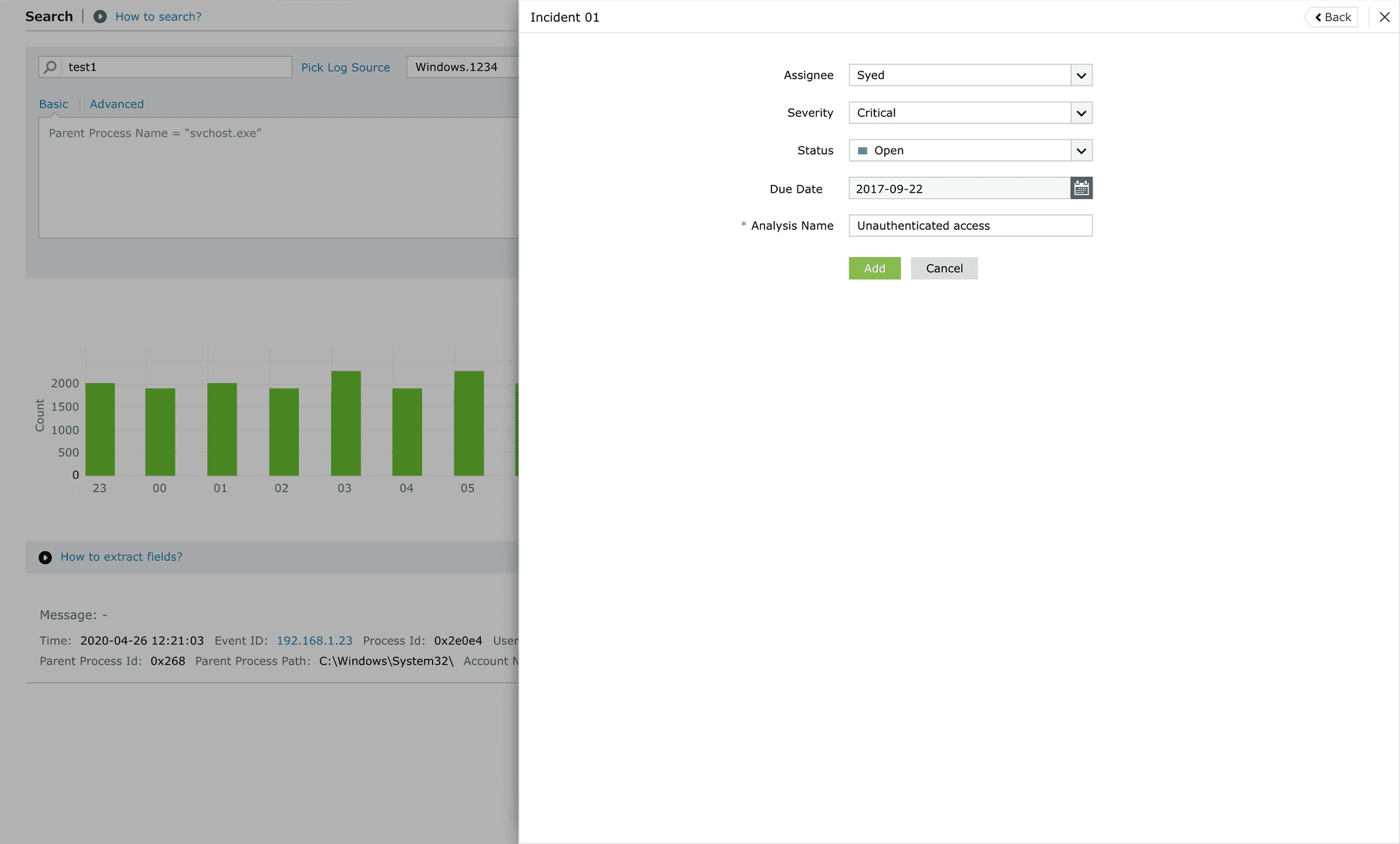
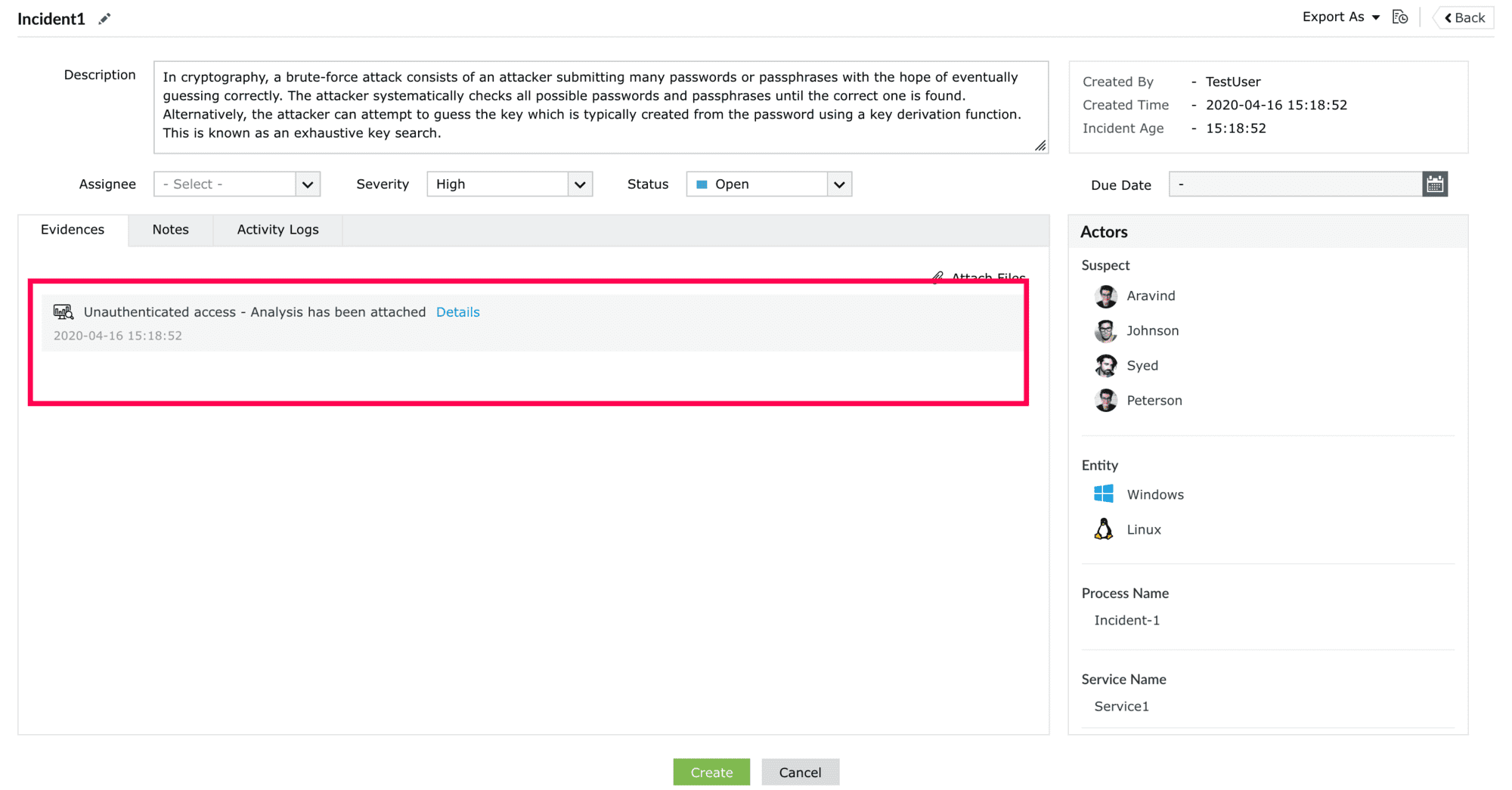
- Once you select the incident, the following page will appear. Assign a person to handle the incident, add severity and status, and set the deadline to resolve the incident.
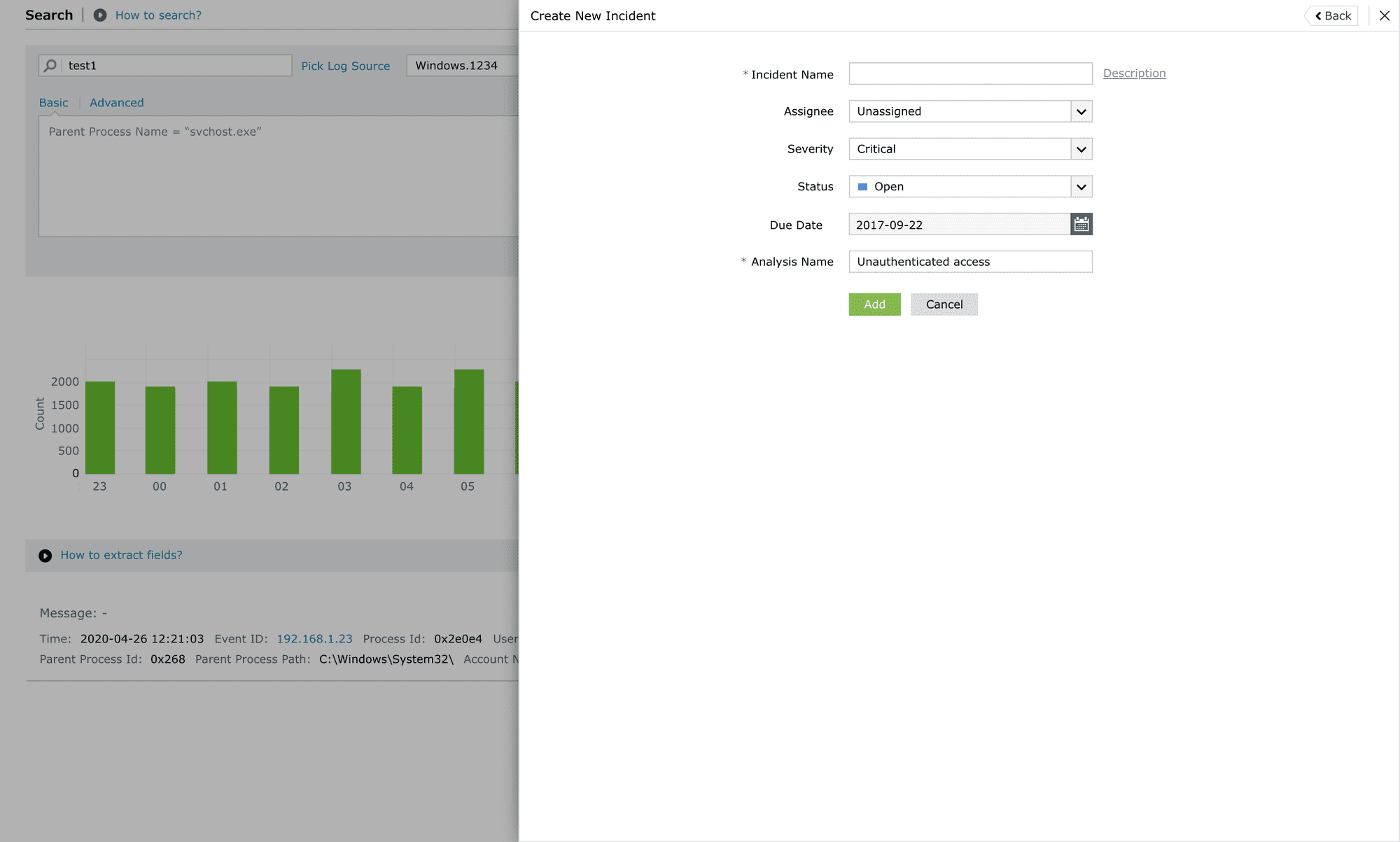
- To create a new incident and add the instance, click on the Create New Incident button in the dropdown. You need to add the additional details of the Incident Name, and Description in the corresponding page.
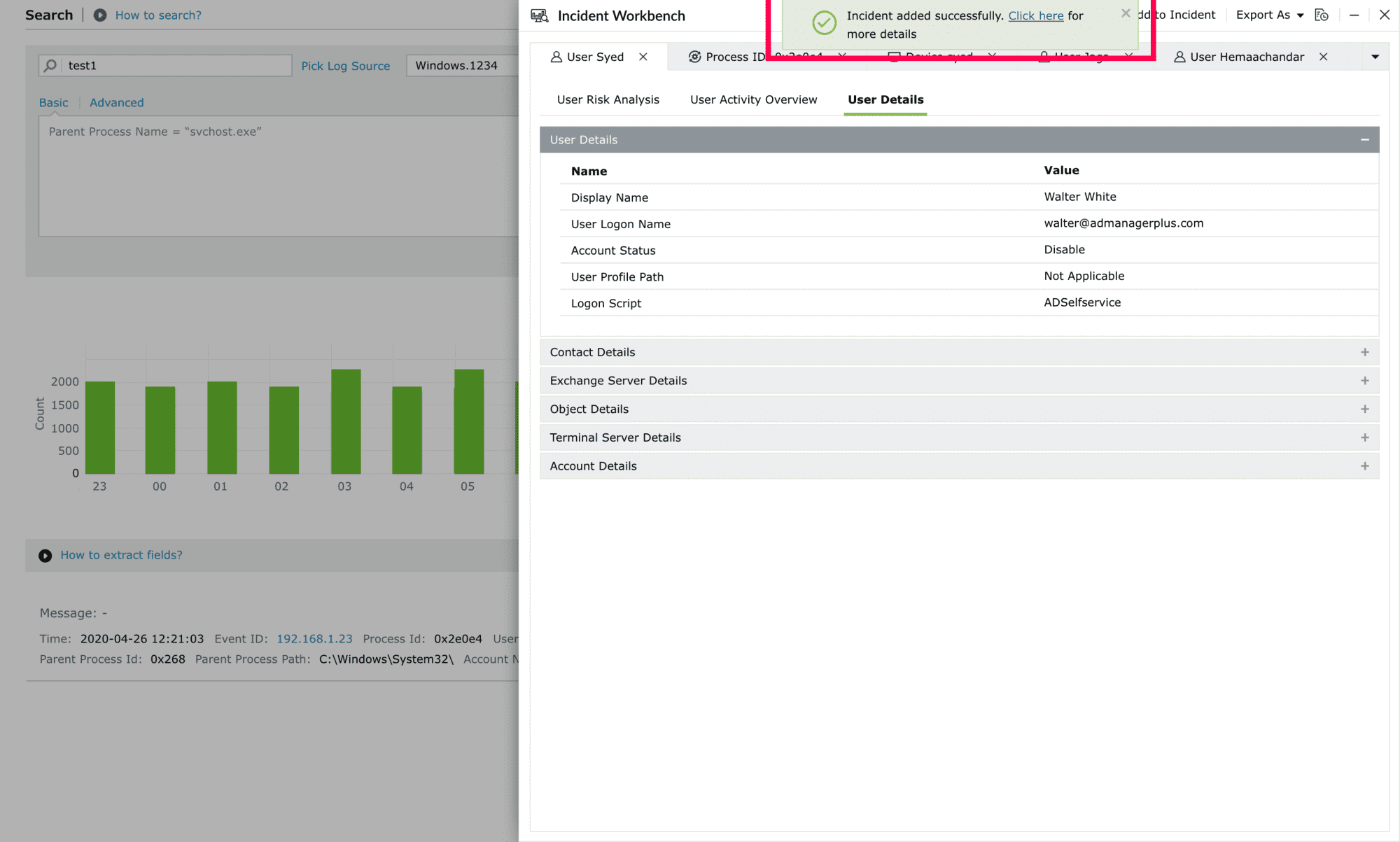
- Once the instance has been saved, you'll get the success message notification. The Click here link in the notification will lead you to the incident management console.
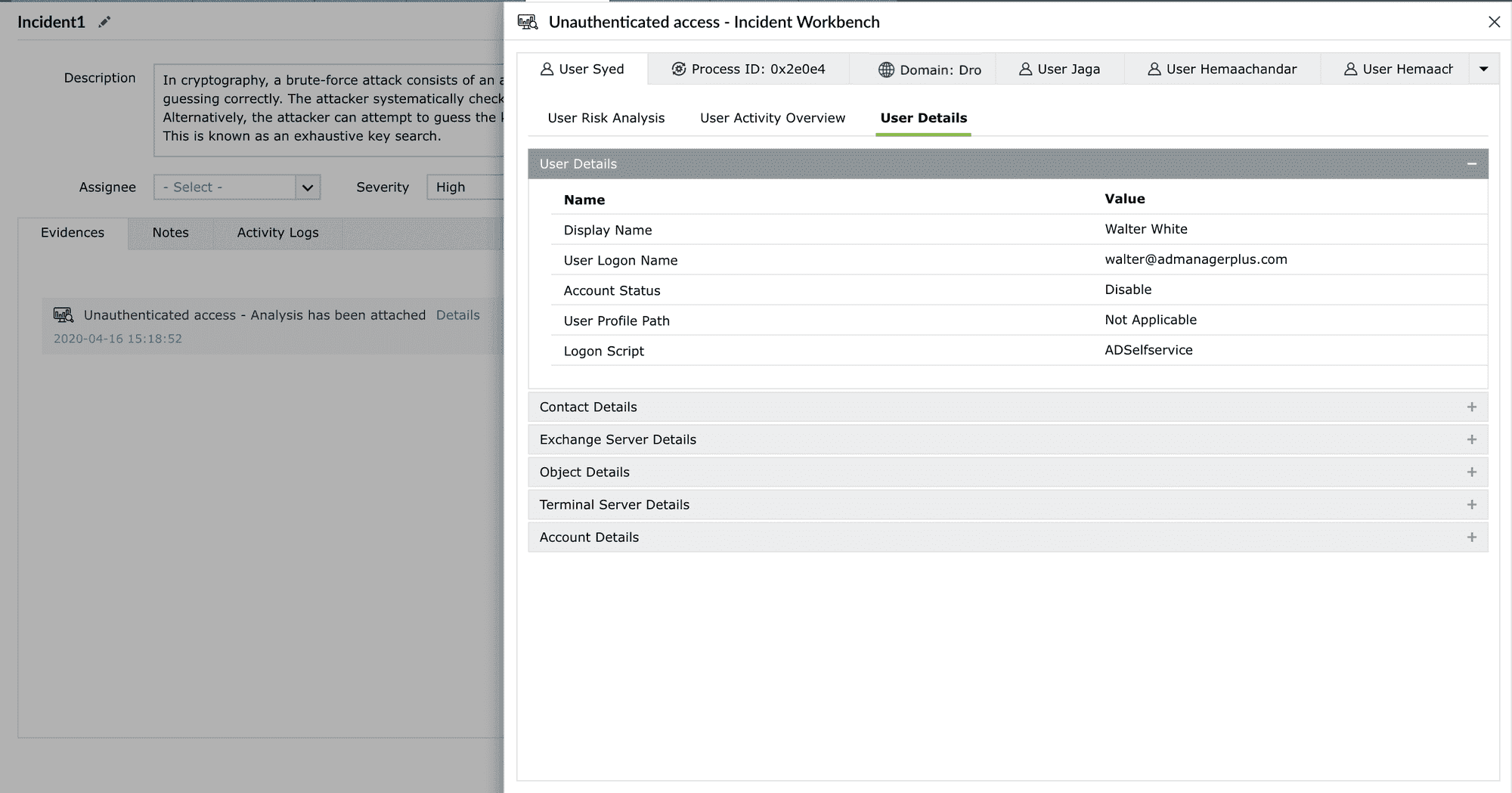
- Head to Alerts tab → Incident to view the list of incidents. Incident Workbench analysis are stored under the Evidences section in the incident management console. Click on Details to view the specific analysis.
Use the Incident Management help document to learn more about creating, accessing and managing incidents.
Note Minimize the tab to access the Incident Workbench while you traverse through different pages in the product. As long as you don't close the workbench, the analysis will be available even if you log out of the product and login again.