
Managing playbooks
Last updated on:
In this page
Overview
The manage playbook section provides an overview of all configured playbooks along with their status, associated alert profiles, and execution history. Custom playbooks can be edited, deleted, copied, or toggled on/off. Predefined playbooks, however, can only be enabled, disabled, or duplicated—not edited or deleted.
Managing playbooks
- In the product console, navigate to the Alerts tab. Click on the More tools icon present at the top-right corner of the page as highlighted in the below image.
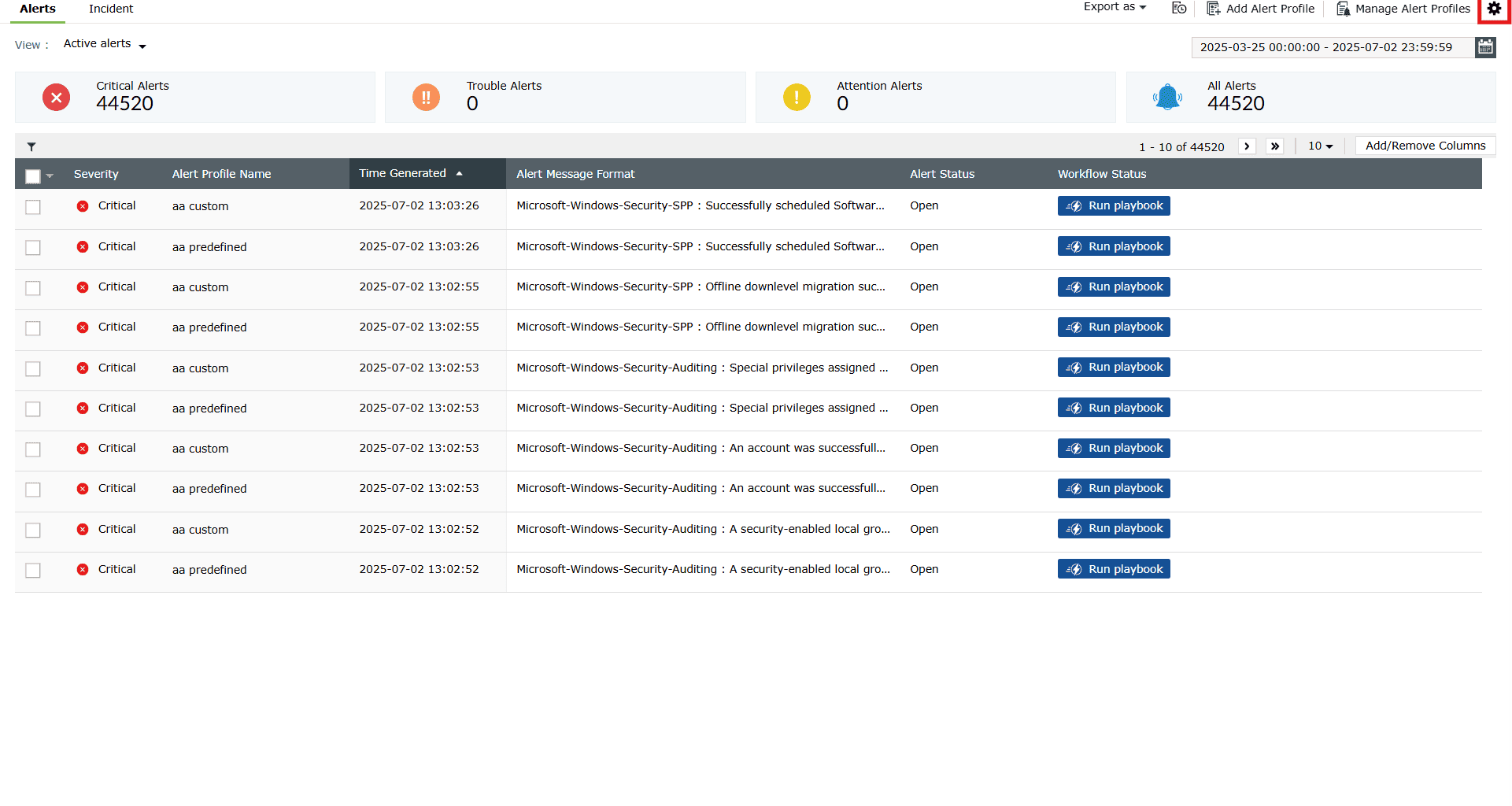
Image 1: More tools option in the Alerts tab - Click on Playbook to open the Manage Playbook page.
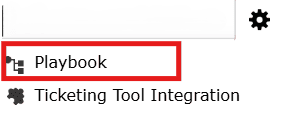
- The Manage Playbook page displays the list of all playbooks, their descriptions, the number of alert profiles associated with each playbook, and their histories. You can:
- Enable/disable
- Delete
- Edit
- Copy a playbook
Enable/disable a playbook
Enabling a playbook
- Click on the currently disabled icon
 under the Actions column to enable the playbook.
 - As soon as you perform this action, the icon indicates that the playbook is now enabled
 and the below pop-up message appears briefly.

Disabling a playbook
- Click on the currently enabled icon under the Actions column to disable the playbook.
- As soon as you perform this action, the icon indicates that the playbook is now disabled and the below pop-up message appears briefly.

Delete a playbook
- Click on the Delete icon
 under the Actions column to delete the playbook.
 - A Confirm Action pop-up appears. Click on Ok.
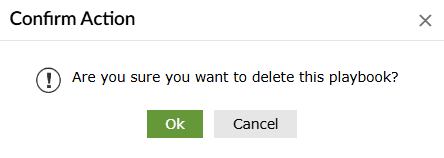
- Upon successful completion of the action, the below pop-up appears.

NOTE Only custom created playbooks can be deleted. Pre-defined playbooks can only be enabled/disabled or copied.
Edit a playbook
- Click on the Edit icon
 under the Actions column to edit the respective playbook.
 - You will be taken to the Edit Playbook page. Make the necessary edits by changing the playbook blocks if needed and/or editing the playbook blocks' details, and click on Save.
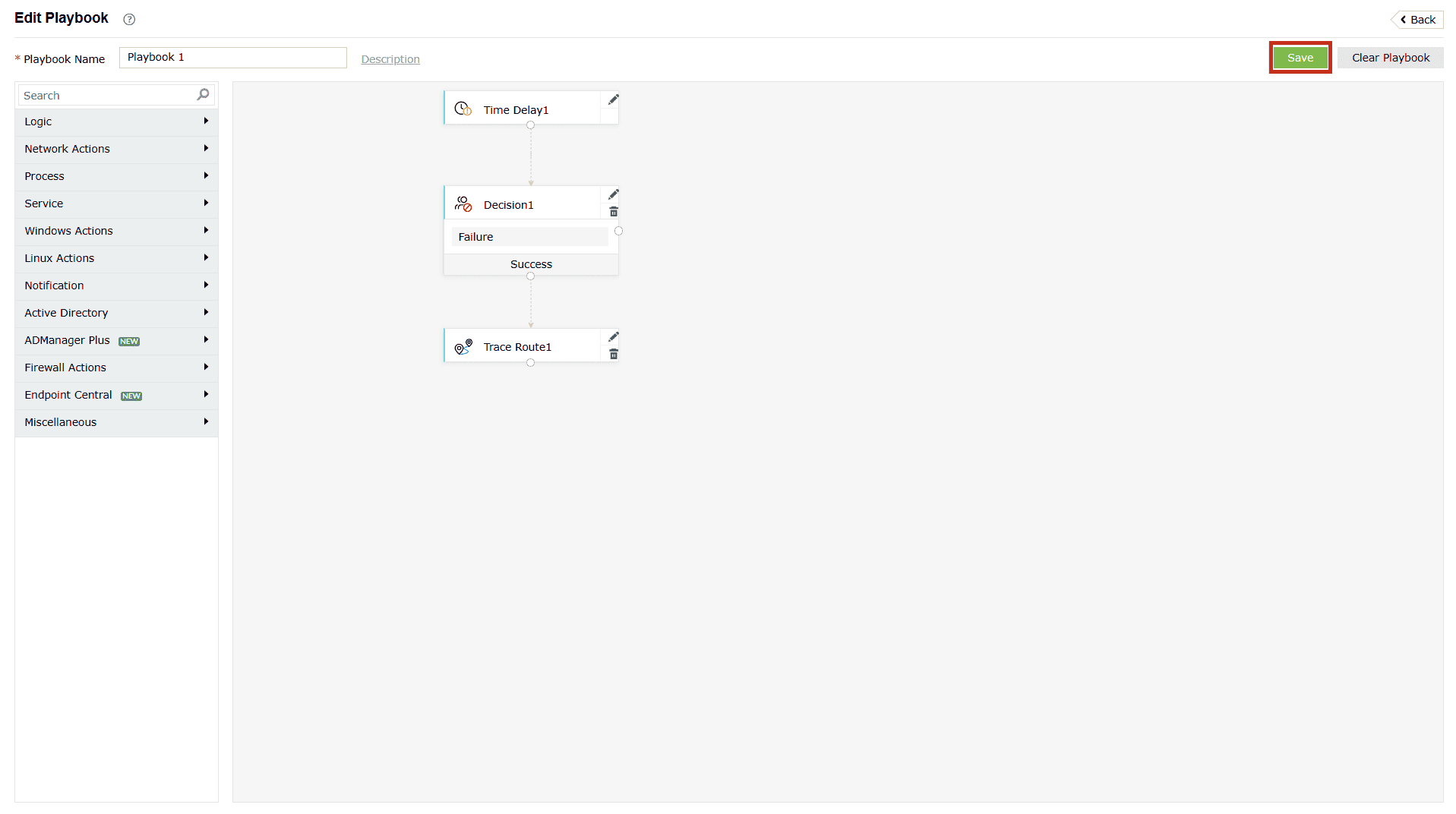
Image 2: Editing a playbook and saving the changes - The playbook is saved instantly, and you will be taken back to the Manage Playbook tab with your updated playbook listed under the playbooks list.
Copy a playbook
- Click on the Copy icon
 under the Actions column to duplicate the respective playbook.
 - That playbook is instantly duplicated, and you can see the cloned version with the Playbook Name "Copy of (name of the playbook you have cloned)".
Read also
To get the most out of Playbooks, learn how to create custom ones using drag-and-drop blocks and how to associate them with alert profiles for automated incident response. You may also want to explore supported playbook actions and prerequisite configurations.