This page explains the device enrollment experience for end users who receive email or SMS invitations from their MDM administrator. It covers what each invitation type contains, including QR codes, enrollment URLs, and one-time passwords, and it shows how to enroll iOS, Android, and Windows devices using the ManageEngine MDM Self Service app or MDM profile.
Email/SMS Invitation
The Email or SMS invitation will contain the following details, which user need to follow to enroll their devices:
For Android Devices: A download link for the ManageEngine MDM Self Service app, along with a QR code or URL to complete the enrollment process.
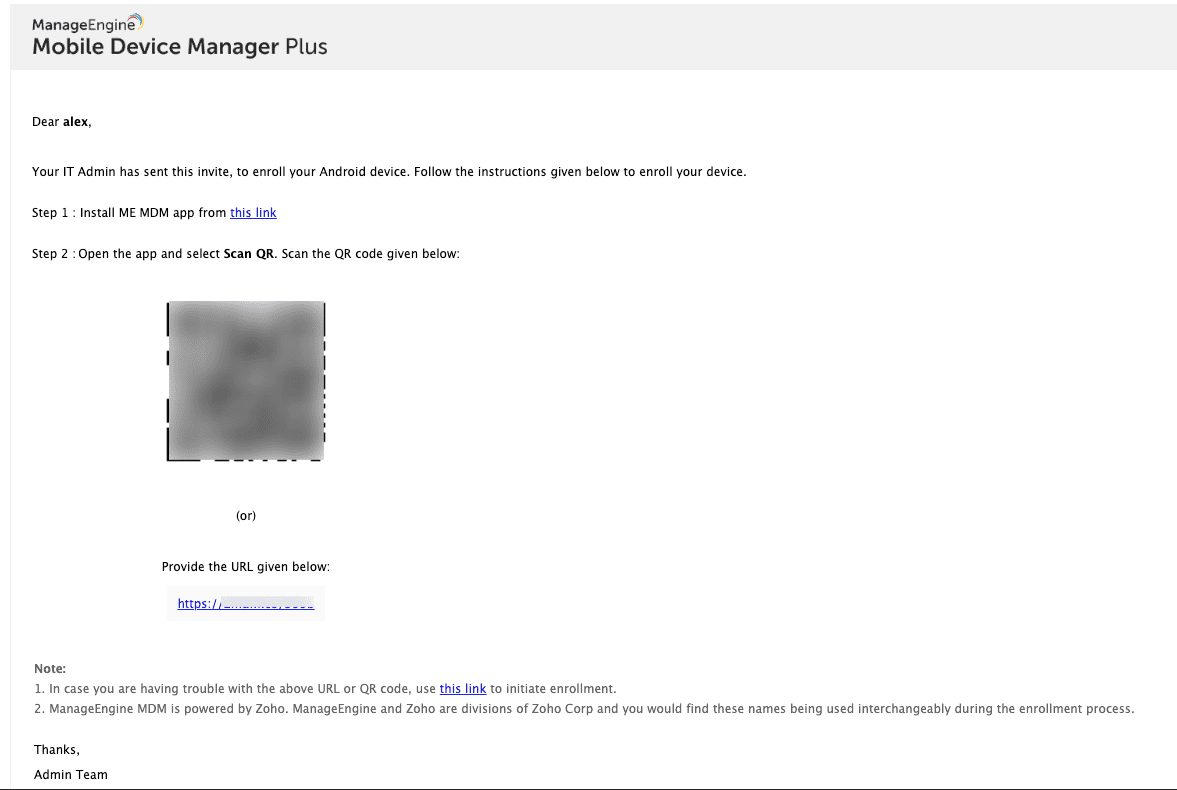
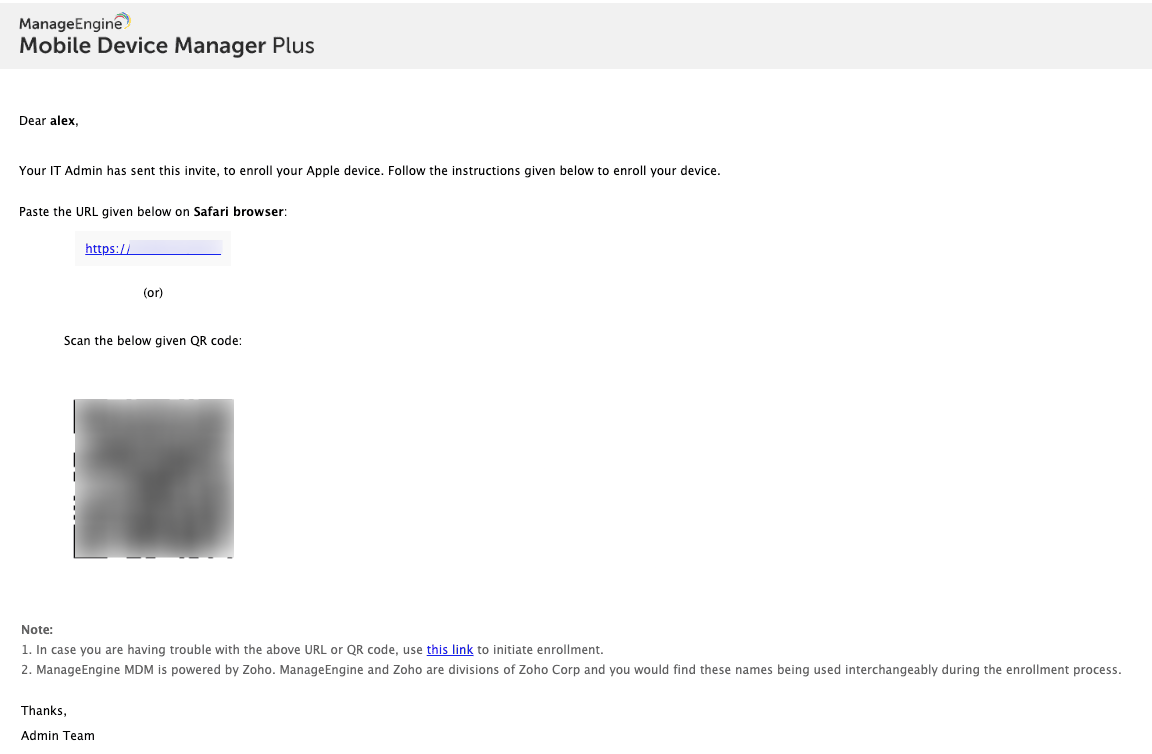
For iOS Devices: Step-by-step instructions for installing the MDM profile, accompanied by a QR code or URL for completing the device enrollment process.
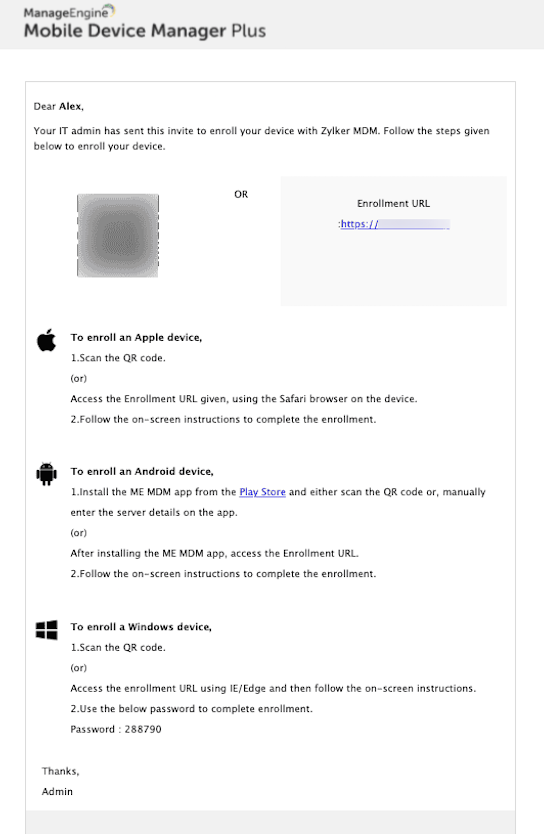
For Common Invite: Instruction to Enroll the Android, iOS, and Windows devices with the QR Code and the Enrollment URL.
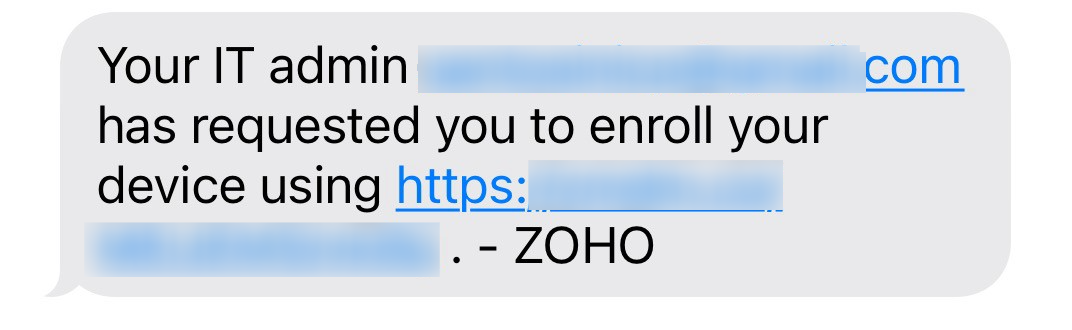
SMS-Invite: The SMS invitation contains an Enrollment URL. The user can access the provided URL to initiate the device enrollment process. Using this Enrollment invitation, only one device can be enrolled.
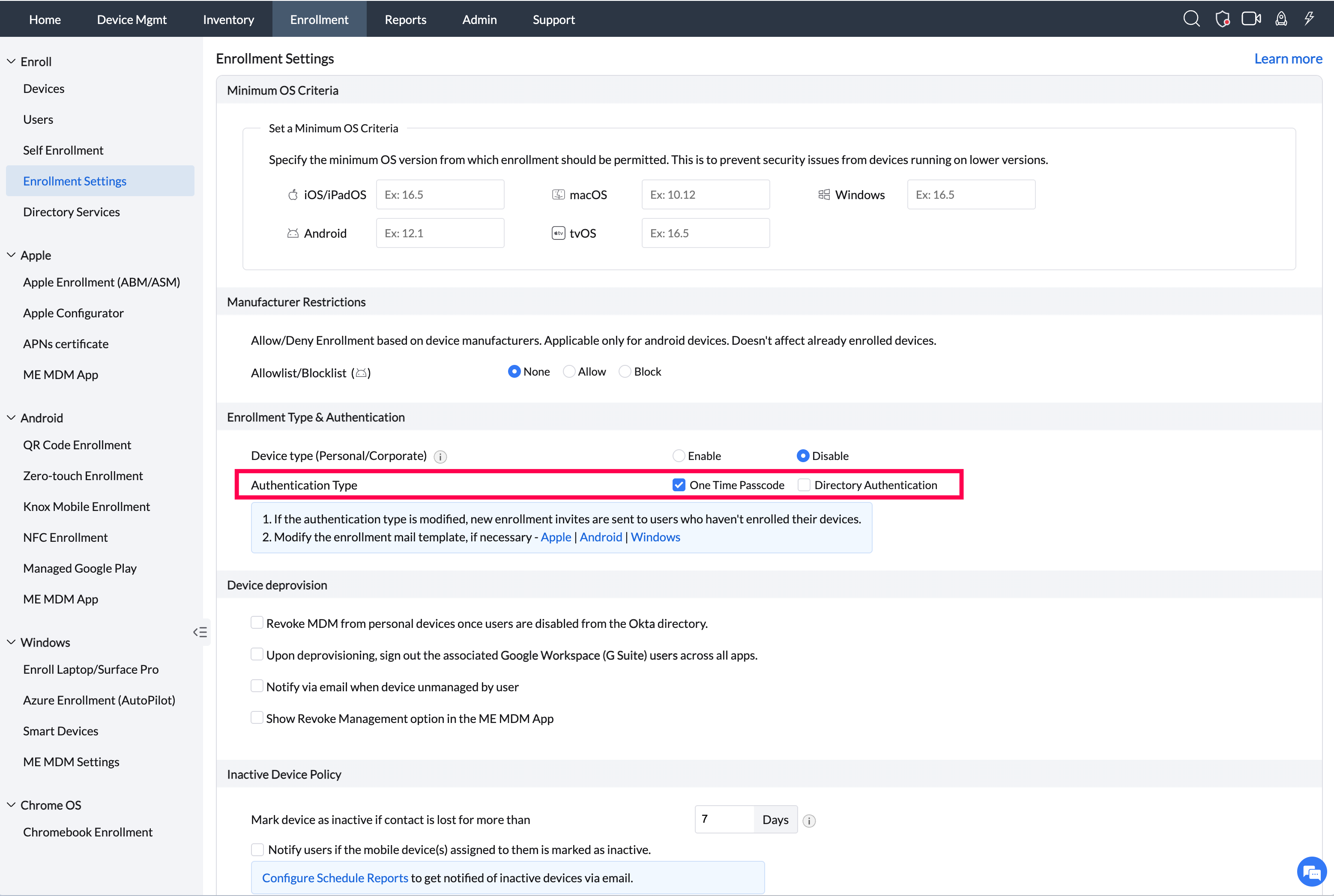
If One Time Password (OTP) Configuration is selected as the authentication type in Enrollment Settings, a one-time password will be generated and sent to the user along with the enrollment invitation. The user must use this OTP to enroll their mobile device.
Last updated: August 14, 2026
Enroll iOS Device
1. Download and install MDM Profile:
- Scan QR Code using the camera to download the MDM profile in Safari Browser. Alternatively, access the Enrollment URL from sms invite.
- User needs to allow to download the configuration profile. Users will receive a notification of successful download.
- Users need to open Settings on the iOS device and install the MDM profile from the downloaded section. Once the MDM profile is installed, users will receive a notification.
Manage Engine MDM App:
Once the MDM profile is installed, users will be prompted to install the ManageEngine MDM application. Within the ManageEngine MDM Self Service app, users can access organization announcements, compliance and policy details, shared documents, and organization-managed work applications in the App Catalog, which they can view or install.

View and Manage Enrolled Device:
- To access enrolled devices, Admin can navigate to the Devices section within the Enrollment Tab in the MDM Console, where the status of each device will be displayed as "Enrolled".
- Furthermore, Admin can execute actions on enrolled devices not only from the Devices section within the Enrollment Tab but also from the Inventory Tab and Management Tab.
2. Enroll the Device through ManageEngine MDM Self Service app:
The user need to install the ManageEngine MDM Self Service app from the app store. Then, open the ManageEngine MDM Self Service app and scan the QR code or enter the enrollment URL in the ManageEngine MDM Self Service app Enrollment section and follow the on‑screen prompts to download the MDM profile. Upon successful download of the MDM profile, the device will be managed.
Enroll Android Device
Install ManageEngine MDM Self Service App:
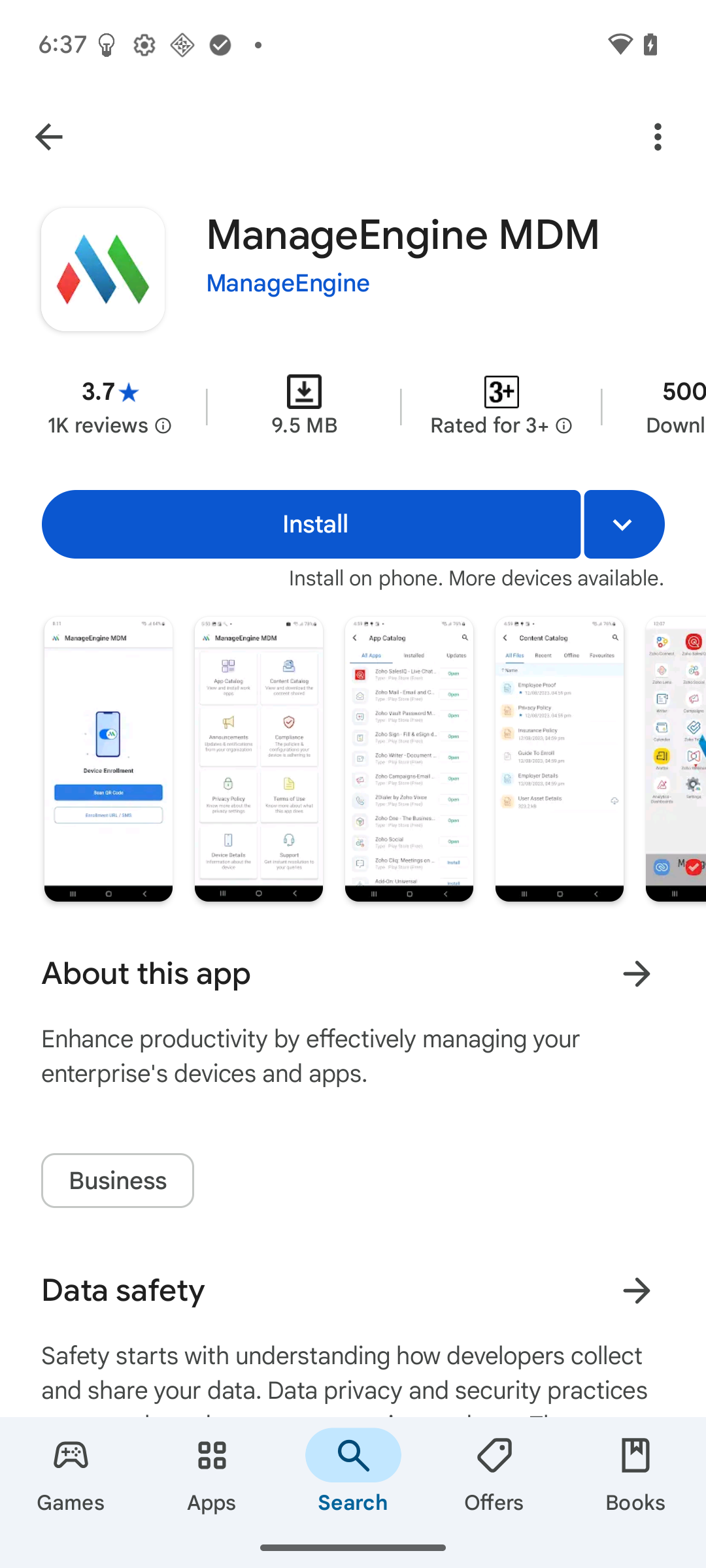
User need to scan the QR code or use the Enrollment URL to enroll their BYOD devices. Open the Camera and Scan the QR Code; the user will be presented with an Enrollment URL. Click the URL to download the ManageEngine MDM Self Service app. Alternatively, users can open the Play Store, search for the ManageEngine MDM Self Service app, and install it directly on their Android device.
Enroll the Device Using ManageEngine MDM Self Service App:
Launch the ManageEngine MDM Self Service app and either scan the QR Code or access the Enrollment URL to initiate the enrollment process. Follow the on-screen instructions provided by the app to complete the device enrollment successfully.
Note: Users must copy the entire SMS content and paste it into the Enrollment URL field within the ManageEngine MDM Self Service app to initiate the enrollment process.
View and Manage Enrolled Device:
- Upon successful completion of device enrollment, the user will receive a notification confirming the setup of the work profile. Users can then access the Work Profile on the enrolled devices, which distinguishes between personal and work applications for convenient management and organization.
- Admin can access the enrolled devices by navigating to the Devices section within the Enrollment Tab in the MDM Console, where the status of each device will be displayed as "Enrolled."
- Admin can execute actions on the enrolled devices from the Devices section within the Enrollment Tab, as well as from the Inventory Tab and Management Tab.
Enroll Windows Device
- Scan the QR code or access the URL provided, using the IE/Edge browser on the device. Follow the on screen steps.
- Enter the OTP to authenticate the device to proceed with the device enrollment.
- Upon successful enrollment the device will be managed in MDM Plus and Admin can view and manage the device in the Devices section of "Enrollment", and "Inventory."
What's Next?
Manage Enrollment Invites:
To learn how to manage enrollment invites in the MDM console, including tracking status and resending invitations, visit our Manage Enrollment Invite guide.
Android Enrollment:
For detailed information on various enrollment methods, including options for rugged and AOSP devices, please refer to our Android Enrollment Guide.
Apple Enrollment:
For insights into enrolling Apple devices, including iOS, iPadOS, and macOS, please consult our Apple Enrollment Guide.
Frequently Asked Questions
1. What information is included in an Android enrollment invitation?
An Android enrollment invitation includes a download link for the ManageEngine MDM Self Service app along with a QR code or enrollment URL to complete the enrollment process. If OTP authentication is enabled, a one-time password is also included.
2. Can one SMS invitation be used to enroll multiple devices?
No. An SMS invitation can be used to enroll only one device. If multiple devices need to be enrolled for a user, separate invitations should be sent for each device.
3. How does an end user enroll a Windows device from an invitation?
The user scans the QR code or accesses the enrollment URL using the IE or Edge browser on the Windows device, follows the on-screen steps, and enters the OTP if authentication is required. Upon successful enrollment, the device appears as managed in the MDM console.