Last updated: August 14, 2026
Sound Settings
This page explains how to configure Android sound settings using Mobile Device Manager Plus. Administrators can control volume levels for ringtones, notifications, alarms, and media across enrolled devices by creating a sound settings profile. It covers the three available ring modes — Sound, Silent, and Vibrate — along with options to upload a custom ringtone and restrict users from changing sound configurations. The profile applies to Fully Managed (COSU and COBO) devices, ensuring standardized sound settings across the managed device fleet.
Mobile Device Manager Plus allows administrators to configure and control sound settings, including volume levels for ringtones, notifications, alarms, and media, on enrolled devices. With the sound settings profile, admins can also set a custom ringtone and have the option to restrict users from modifying these settings. This ensures that devices remain compliant with organizational policies and sound settings remain consistent across the device fleet. This profile can be utilized when devices are provisioned as Fully Managed (COSU and COBO, or previously Device Owner), making it a key feature for maintaining standardized sound configurations across managed devices.
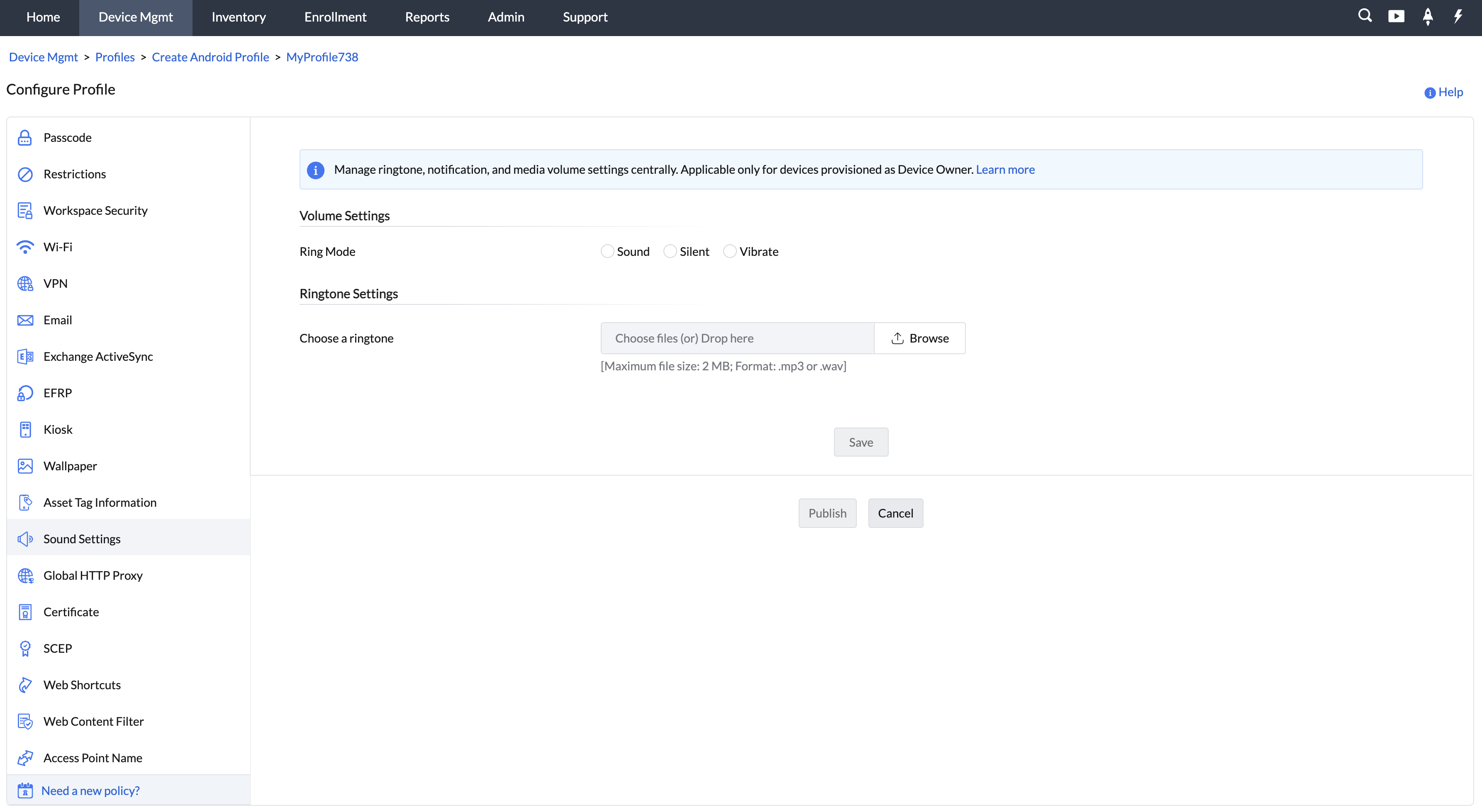
Volume Settings
In Volume Settings, admins can choose between three Ring Modes: Sound, Silent, and Vibrate.
- Sound Mode allows admins to configure the Ringer, Notification, Media, and Alarm volumes.
- Silent Mode mutes the Ringer and Notification sounds, while Media and Alarm profiles can still be customized.
- Vibrate Mode sets the Ringer and Notification to vibrate, but the Media and Alarm profiles remain configurable.
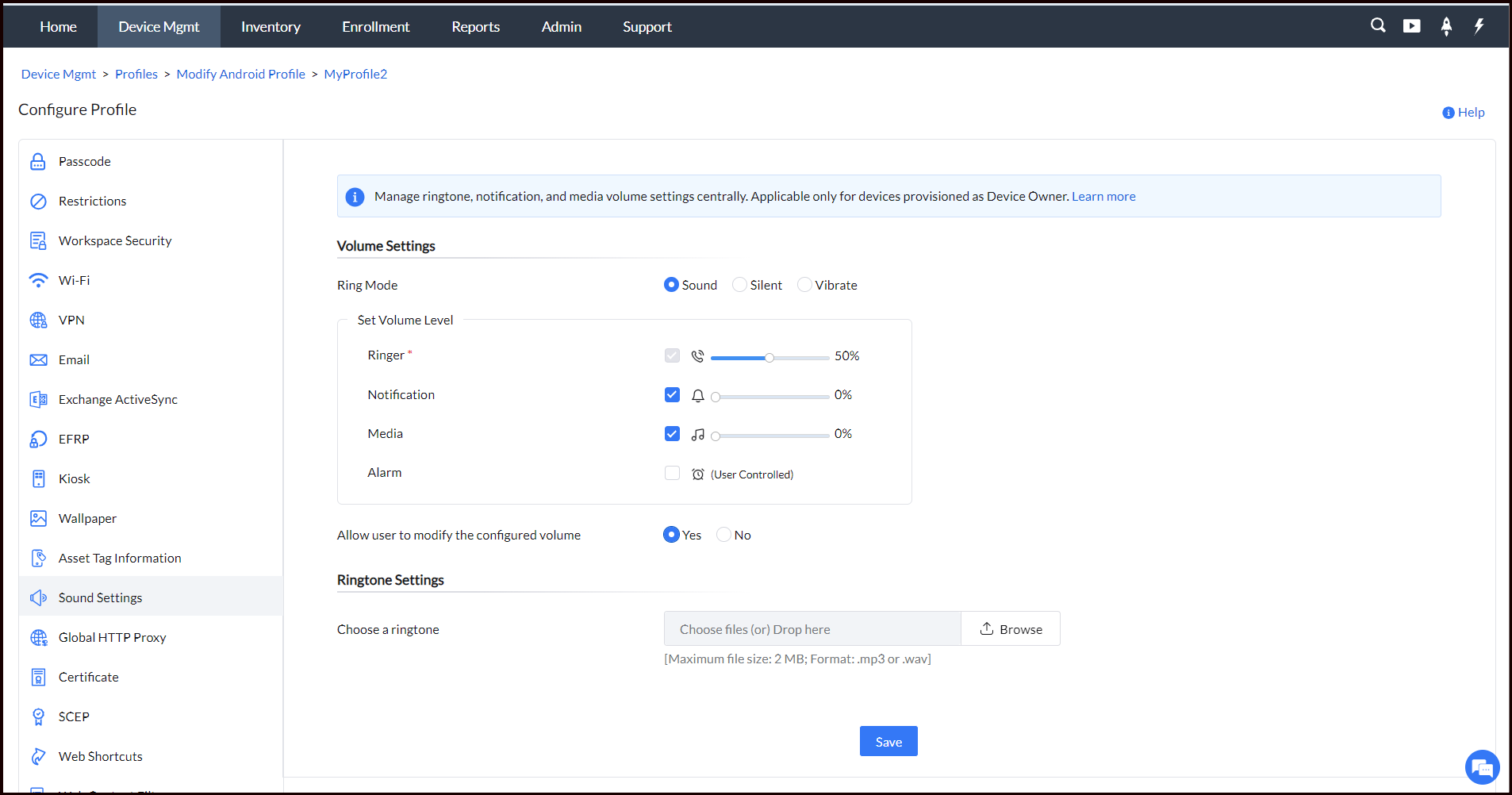
Admins also have the option to enable users to modify the Notification, Media, and Alarm volumes by selecting "Yes" under the "Allow user to modify the configured volume" setting. Additionally, admins can set a default ringtone by uploading one through the "Choose a ringtone" option.
Once these sound settings are configured, the admin can save and publish the profile. After applying the profile to the relevant devices or groups, the managed devices will immediately comply with the specified sound settings.
Points to Remember
- The supported file formats for uploading ringtones are .mp3 and .wav.
- In the case of dual SIM devices, configured ringtone settings will be applied only to the first SIM.
- A ringtone cannot be applied until the user grants the permission to modify system settings.
Frequently Asked Questions
1. What ring modes are available in the Sound Settings profile?
Three modes are supported: Sound (Ringer, Notification, Media, and Alarm volumes are all configurable), Silent (Ringer and Notification are muted while Media and Alarm stay adjustable), and Vibrate (Ringer and Notification vibrate while Media and Alarm remain configurable).
2. Can end users change the volume levels after the profile is applied?
Only if the admin enables the "Allow user to modify the configured volume" option, which lets users adjust the Notification, Media, and Alarm volumes on their device.
3. What audio file formats are supported for custom ringtones?
Only .mp3 and .wav files can be uploaded as a custom ringtone.
4. Why isn't my custom ringtone applying right after I push the profile?
The user must first grant permission to modify system settings on the device before the ringtone takes effect. Also, on dual SIM devices the ringtone is applied only to the first SIM.