Adding More Monitors
In OpManager, monitors are used to track the health and performance of devices in real time. The following monitors are associated automatically based on device type during discovery, and additional monitors can be added as needed.
- Servers: CPU, Memory, Disk Utilization, Partition Details.
- Routers: CPU, Memory, Buffer Hits/Misses, Temperature.
- Switches: CPU, Memory, Backplane Utilization.
- Firewalls: CPU, Memory, and Connection Count.
Similarly, other categories also have a few resources monitored by default. Apart from these, you can add more monitors like SysUptime monitors, various Disk I/O and Disk Usage-related monitors, Partition monitors, etc., for additional parameters.
How to add additional monitors?
OpManager allows you to extend monitoring by associating monitors with devices or templates. You can add monitors to individual devices directly from their snapshot page or configure them in bulk by following the steps below:
Via Device Templates:
- Go to Settings > Configuration > Device Templates.
- From the list of templates, select the template for the device type to which you want to associate more monitors. Use the search bar to locate your device template quickly.
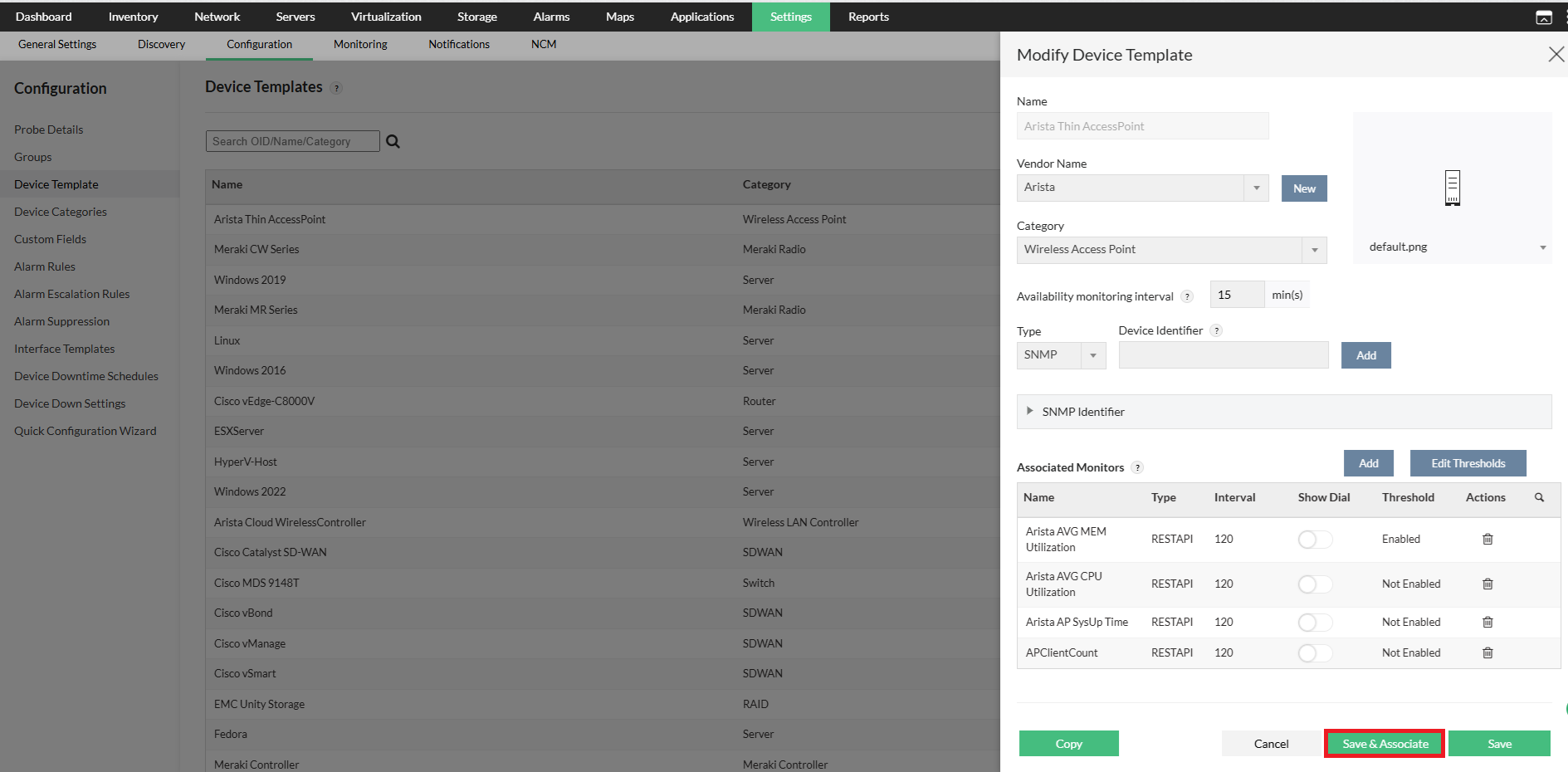
- In the device template, from the Monitors column, click the Add button.
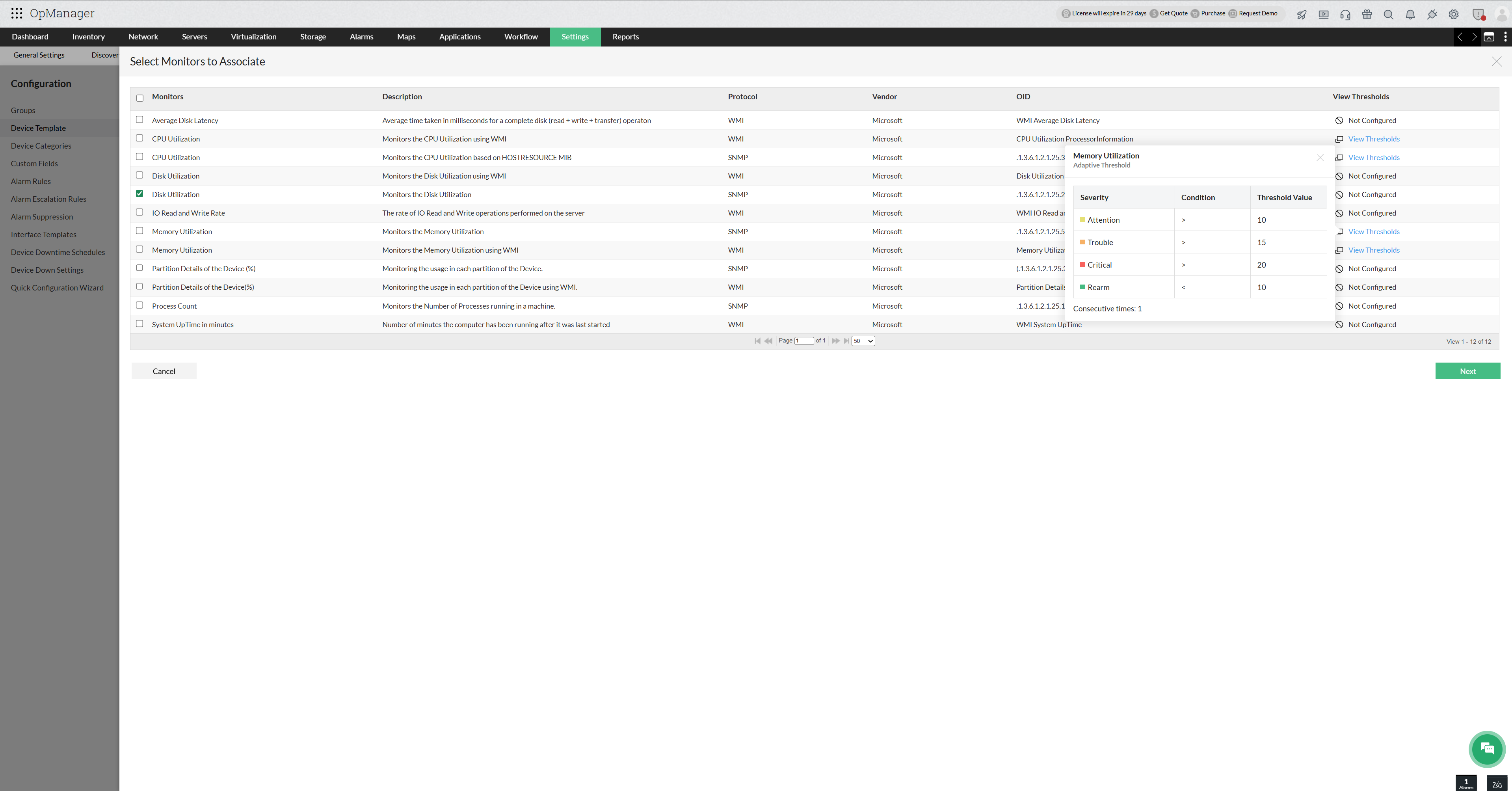
- All the monitors are listed. Select the required monitors from here and click OK.
- When associating monitors to a device template, you can use the Test Monitor option to validate whether the selected monitors work for the selected device type. Based on the test status, proceed with associating the monitors to the device template. Select the appropriate device to perform this operation.
- To save this setup, press Save or press Save and Associate to directly associate the selected monitor to the devices mapped to the Device Template. Press Copy to copy the Device Template.
Via the Performance Monitors page:
- Navigate to Settings → Monitoring → Performance Monitors.
- Locate the monitor you wish to associate and click Associate.
- When associating bulk performance monitors to devices, you can use the Test Monitor option to validate whether the selected monitors work. Based on the test status, proceed with associating the monitors to the devices. Select the appropriate device to perform this operation.
- In the pop-up, choose the target devices and confirm the association.
To add monitors to an individual device, follow the below steps:
Via the Device Snapshot page
Once a device has been discovered, you can add monitors to it by following the steps below:
- Navigate to Inventory and select the required device to open its snapshot page.
- Under the Monitors tab, click on the Actions dropdown. Select the Add Performance Monitors option.
- Select the necessary monitors, and click Add to add the monitors to an individual device.
- When associating a monitor with a device, you can use the Test Monitor option to validate whether it works for the device. Based on the test status, proceed with associating the monitor to the device.
Associating Monitors to Multiple Devices, Templates, and Probes
The bulk association feature enables you to configure monitor thresholds within a device template and apply them across templates, devices, or probes from a single workflow. This eliminates the need for repetitive manual configuration and ensures consistency in threshold settings across your environment. Using a unified flow, thresholds for a monitor can be saved to a template and then associated with multiple devices, applied directly to bulk devices, or propagated via probes from the Central server. This approach streamlines administration by allowing configurations to be applied broadly or selectively based on operational needs.
In Central deployments, probe-based filtering further enhances flexibility. You can apply thresholds to all devices for selected probes or target specific devices within a probe, enabling both wide-scale standardization and granular control. This is particularly useful when rolling out new threshold policies, enforcing uniform alerting standards, or making environment-wide adjustments efficiently.
Configuring Thresholds and Associating Monitors
To configure monitor thresholds and associate them with templates or devices:
- Go to Settings → Configuration → Device Templates.
- Select the required template and click Edit Thresholds, then modify the thresholds as needed.
- Click Save or Save & Associate based on your requirement.
When you click Save, the configured monitor thresholds are saved to the selected template. To apply these configurations, choose the appropriate association method as described below.
To Associate with Templates in Bulk
Navigate to Settings → Configuration → Device Templates → Select Template → Edit Thresholds → Save
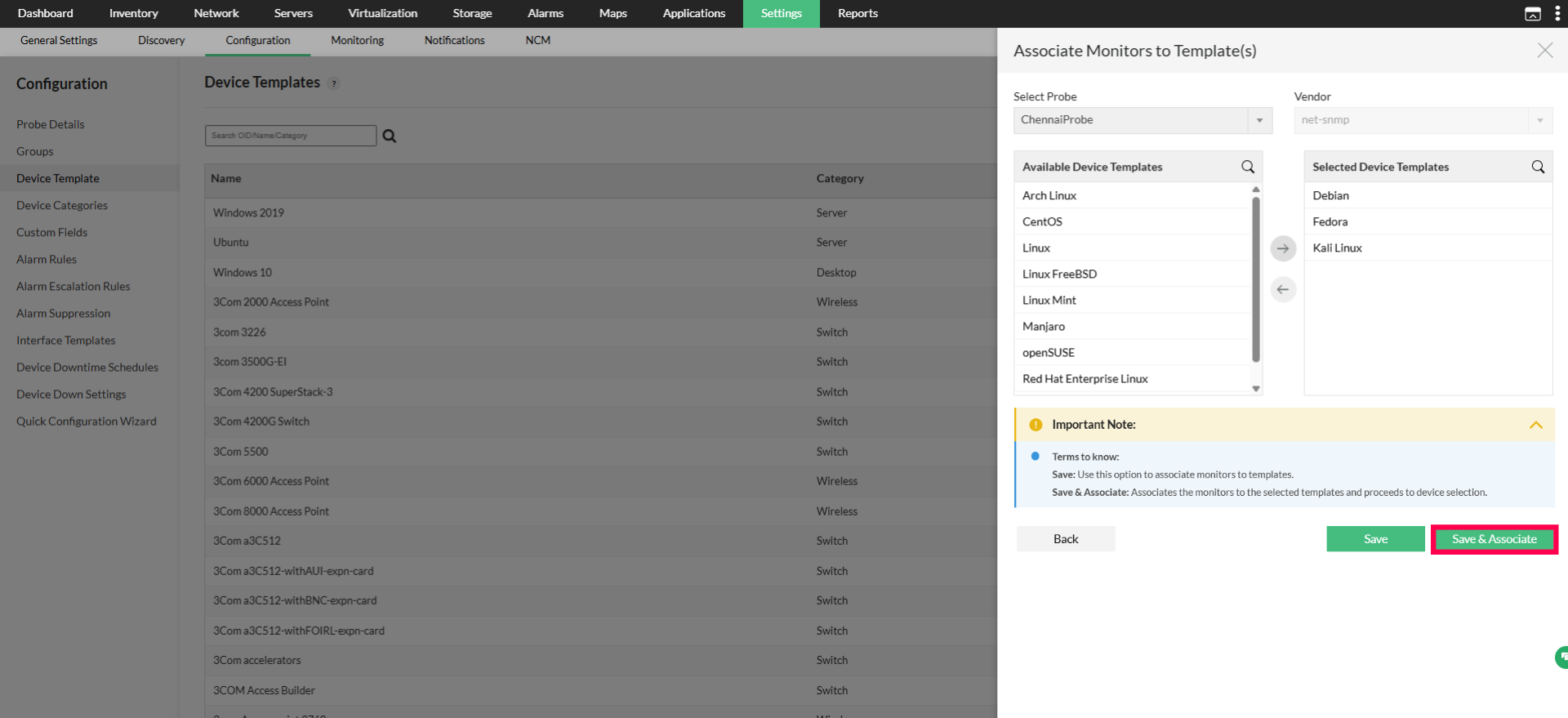
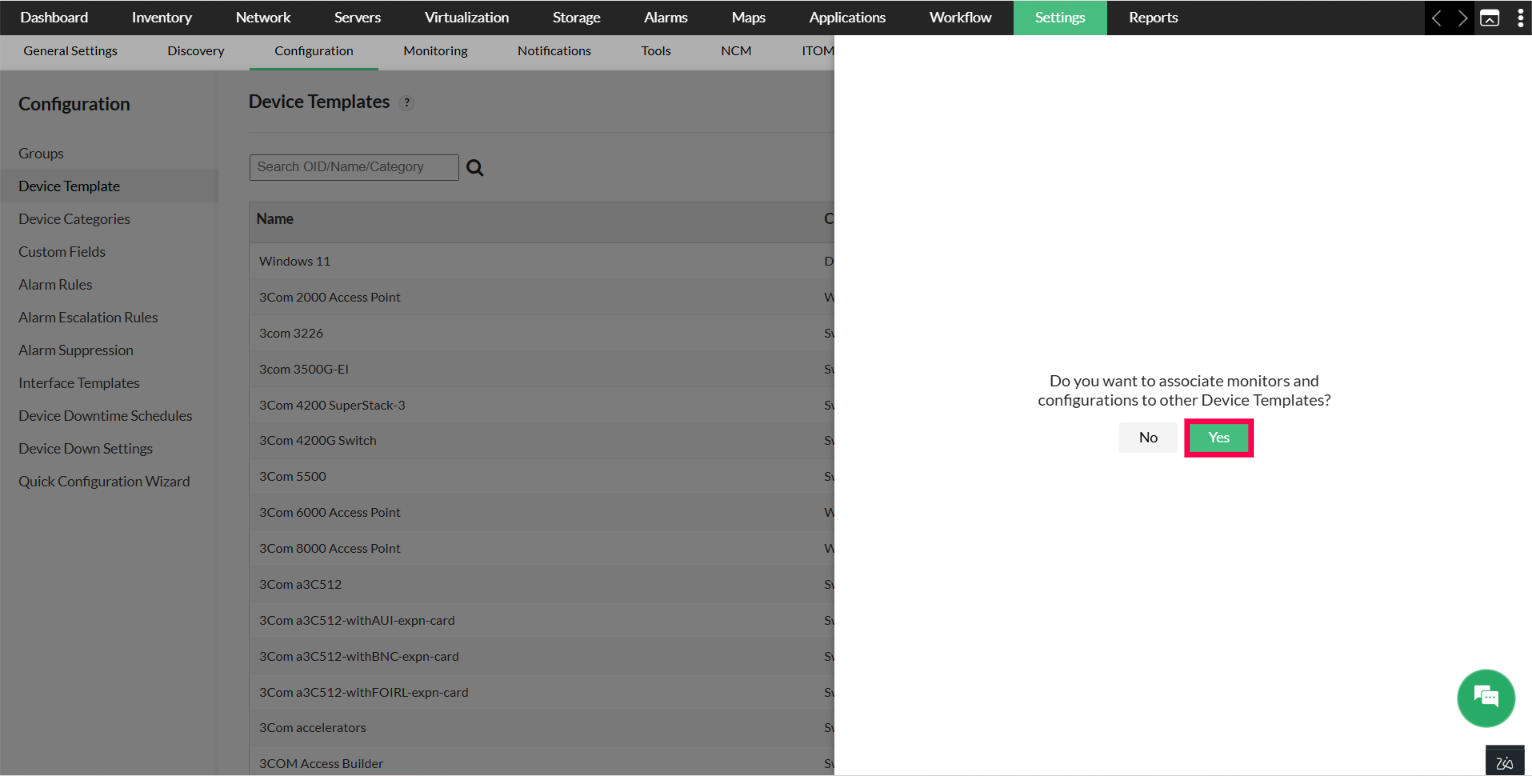
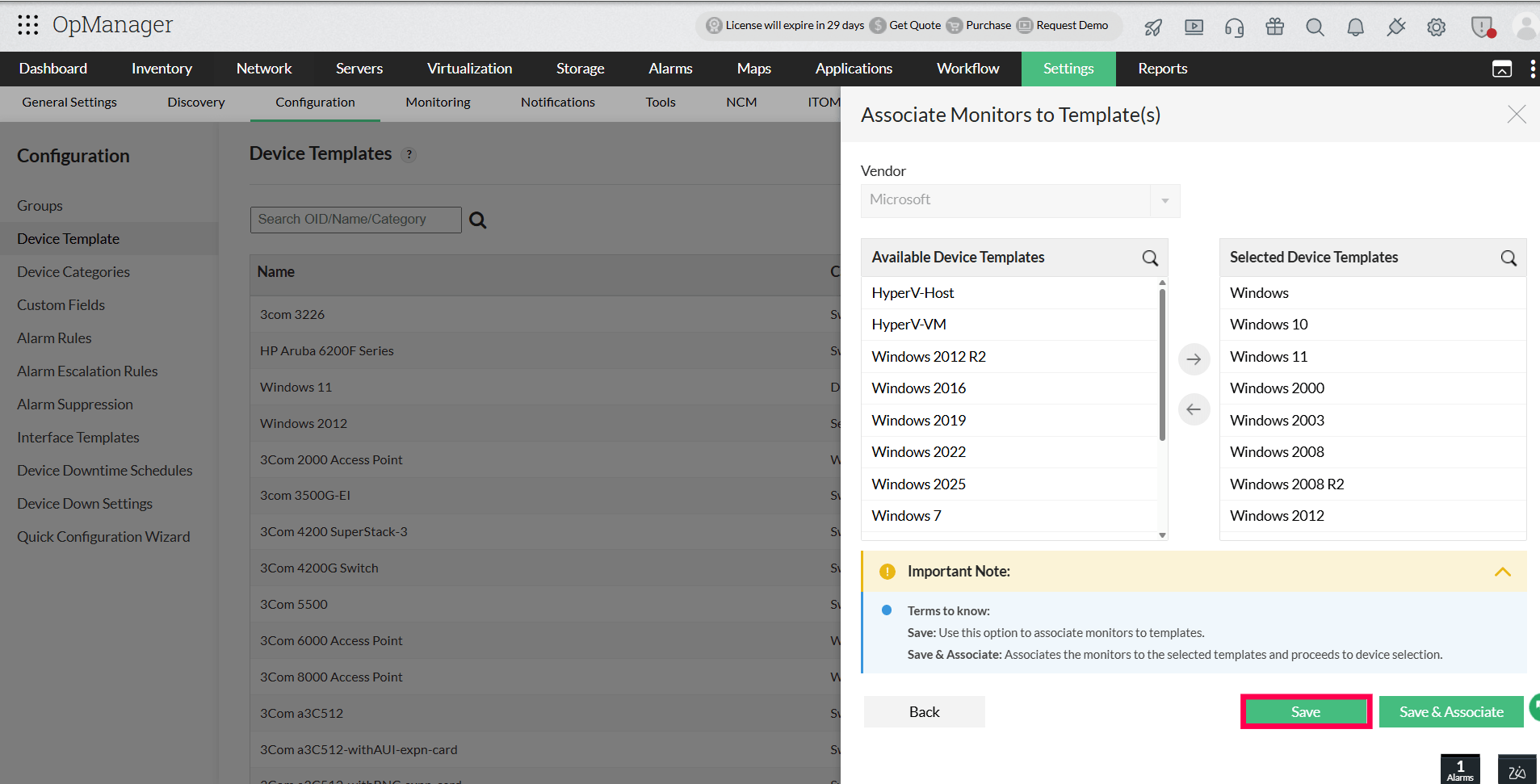
In the Select Monitors to Associate panel, select the required monitors and click Next. In the Associate Monitors to Template(s) dialog, select the required templates and click Associate. The selected monitors, thresholds, and dials will be applied to the chosen templates.


To Associate with Devices
Navigate to Settings → Configuration → Device Templates → Select Template → Edit Thresholds, and select Yes.
Then, select the monitors, and the templates that they should be associated to, and click Associate.
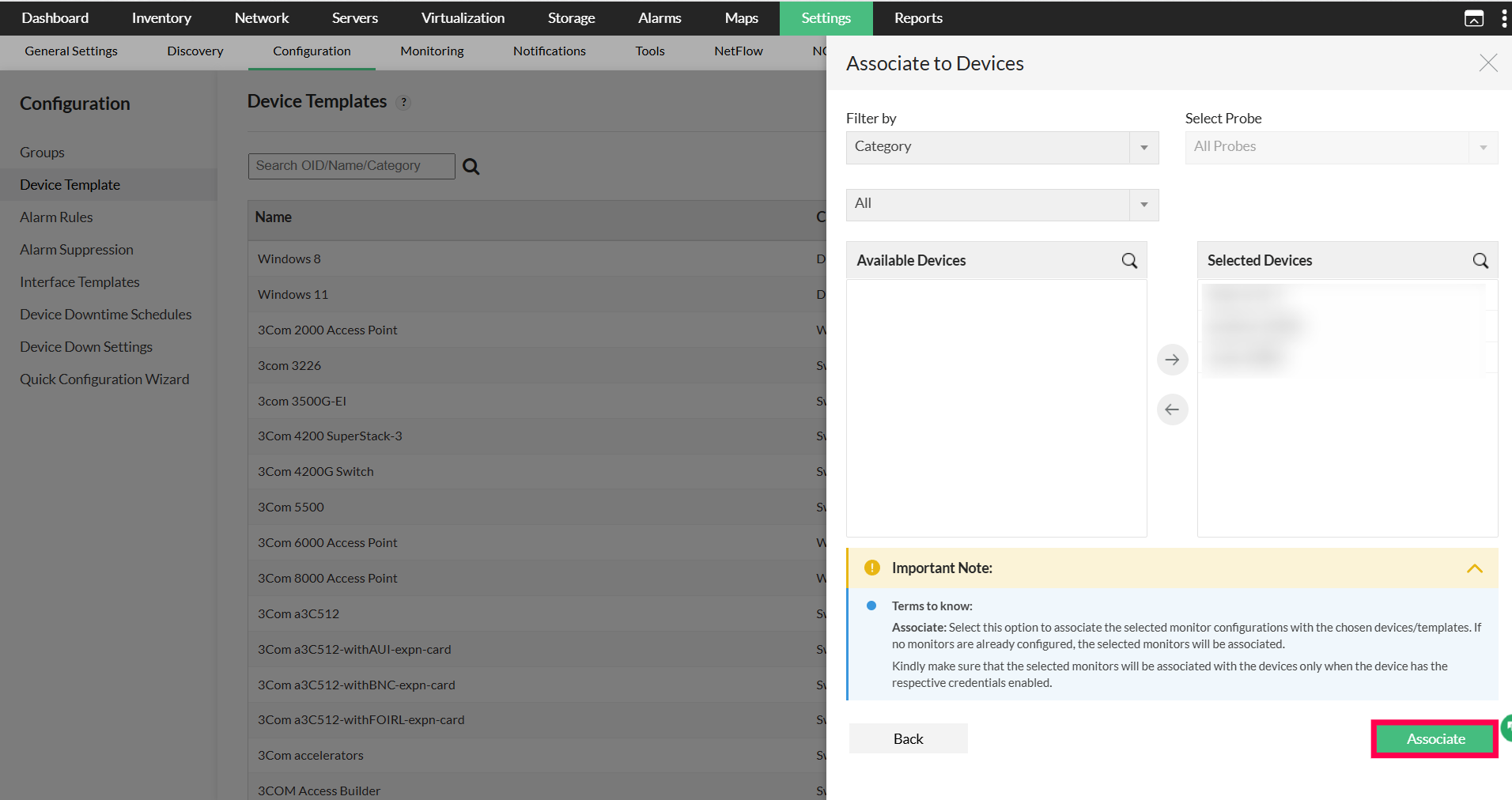
Select the devices from the list, and click Associate.Selecting multiple templates allows you to view and associate devices across all of them at once.
From the Central Server
Navigate to Settings → Configuration → Device Templates → Select Template → Edit Thresholds → Save & Associate.
Then, select the monitors, and the templates to which they should be associated. From the dropdown, select the probe and available device templates within it. Select Associate. The thresholds and dial status of a monitor will be applied to all templates and devices for the selected probes.