Discovering Hyper-V Servers in OpManager
To discover the Hyper-V host and VMs, you just need to provide the IP address and WMI credentials of Hyper-V host. The VMs are automatically discovered along with the host.
Steps to discover the Hyper-V host and VMs:Only the host credential is mandatory. VM OS credentials are required only if in-depth monitoring is needed.
Note: Required User Permissions for Hyper-V Monitoring
The user account must have Administrator privileges or belong to the Hyper-V Administrators group to monitor both hosts and VMs. Learn more
- Enter the Hyper-V Server Name / IP Address (IPv4 or IPv6 format).
- Select the appropriate Hyper-V credential from the drop-down list or click Add Credential.
- Profile Name – Provide a name for the credential profile.
- Description – Enter a brief description for easy identification.
- Domain Name \ User Name – Enter the Windows domain name followed by the username (for example: DOMAIN\username).
- Password – Enter the password for the specified user account.
- Retype Password – Re-enter the password to confirm.
- Verify the entered details and click Save to create the Windows/WMI credential profile.
- Select the required SNMP credential for the Hyper-V host, if needed. Note that WMI credentials are mandatory for Hyper-V monitoring.
- Click Discover to fetch the Hyper-V inventory.
- In the Discovered Devices screen, OpManager lists all virtual machines associated with the selected Hyper-V server.
- Select or clear the checkboxes to choose the virtual machines that need to be monitored.
- If in-depth OS-level monitoring is required, click Select Credentials and choose one or more SNMP, WMI, or CLI credential profiles for the selected virtual machines.
- Click Discovery Settings in the Discovered Devices screen to configure Hyper-V discovery behavior. In the Discovery Settings panel, you can set the Scan Interval (hrs) to automatically rediscover changes in the Hyper-V environment and choose whether to enable or disable Discovery of new VMs automatically.
- Click Save to apply the settings.
- Click Discover to start the discovery process.
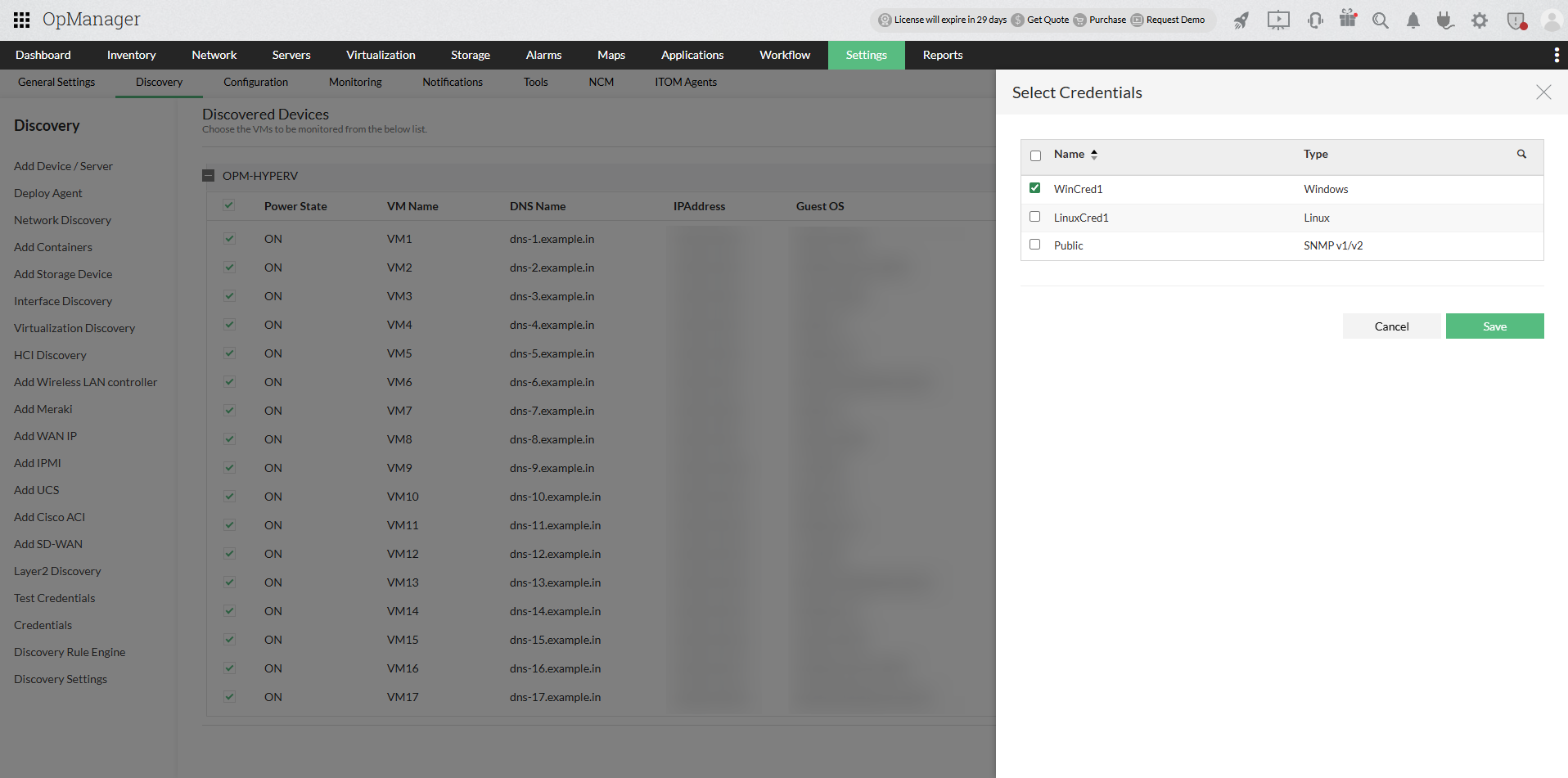
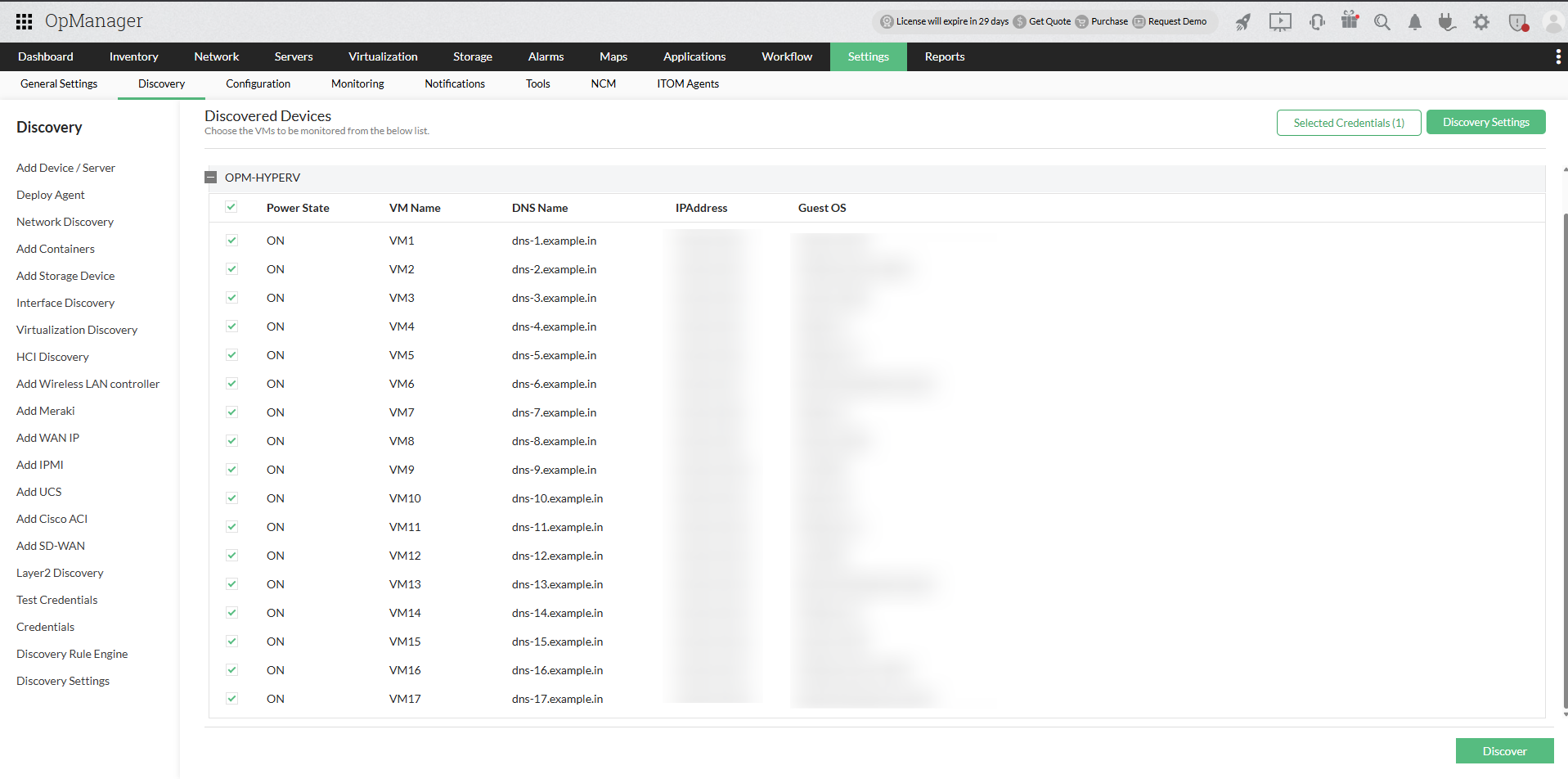
Once discovery is complete, navigate to Virtualization → Hyper-V to view the discovered Hyper-V hosts and virtual machines.
If any of the VMs are already discovered or added, OpManager automatically maps them as a virtual Device.
Note: If the device has been added successfully, but not displayed under the 'Virtualization' tab, search for that device in OpManager. Once you find it, go to the Snapshot page and look for the device type (Navigate to Inventory -> Devices and then click on a device to view its snapshot page) If it is mentioned as 'Unknown', it means that wrong credentials have been provided or it was not reachable during discovery. Provide the correct credentials and click on 'Rediscover Now'present under the sandwich menu at the top right corner in the snapshot page, to discover it as an Hyper-V host.
To learn more about Hyper-V monitoring, click here.
Frequently asked questions:
- How to discover devices and interfaces in OpManager?
- How to add a new credential?
- Can I add a non-admin user account for WMI?
- Can I add devices using SSH?
- Why are devices discovered as 'Unknown'?
- What are devices supported in OpManager?
- Why are interfaces not discovered for my device?
- How can I associate device templates to a newly discovered device?
- How to associate monitors to the discovered device?
- What is a discovery filter?
- How do I configure a new discovery rule?
- How to manage or unmanage a device?
- How to configure device dependencies?
- How can find the missing VMs and hosts?
- How can I discover a VLAN?.
- How does availability monitoring work in OpManager?
- What are the basic system requirements to install and use OpManager?
- How can I troubleshoot issues with device discovery?
- How can I troubleshoot issues with VCenter/ESX discovery?