Managing Schedules
PAM360 provides a centralized interface where administrators can quickly view and manage all the user and system-created schedules. This feature allows for easy review and modification of schedules, allowing users to enable, disable, or delete schedules as required. To manage schedules, navigate to Admin >> Manage >> Scheduled Tasks. This feature simplifies schedule management, making it more efficient for administrators to handle recurring tasks and automated operations.
This document covers the following topics in detail:
1. Schedule Actions
PAM360 offers a range of actions that allow you to manage your schedules effectively. Click the Schedule Actions icon beside the desired schedule to view, modify, or delete existing schedules in your PAM360 installation. You can perform the following actions on both user-created and system-generated schedules:
1.1. View Schedules
On the Scheduled Tasks page, you can view the list of schedules, including user-created and system-created ones. This list includes key details such as:
- Schedule name
- Schedule actions
- Schedule status
- Schedule interval
- Next schedule
- Operated by
To view the details of an active schedule,
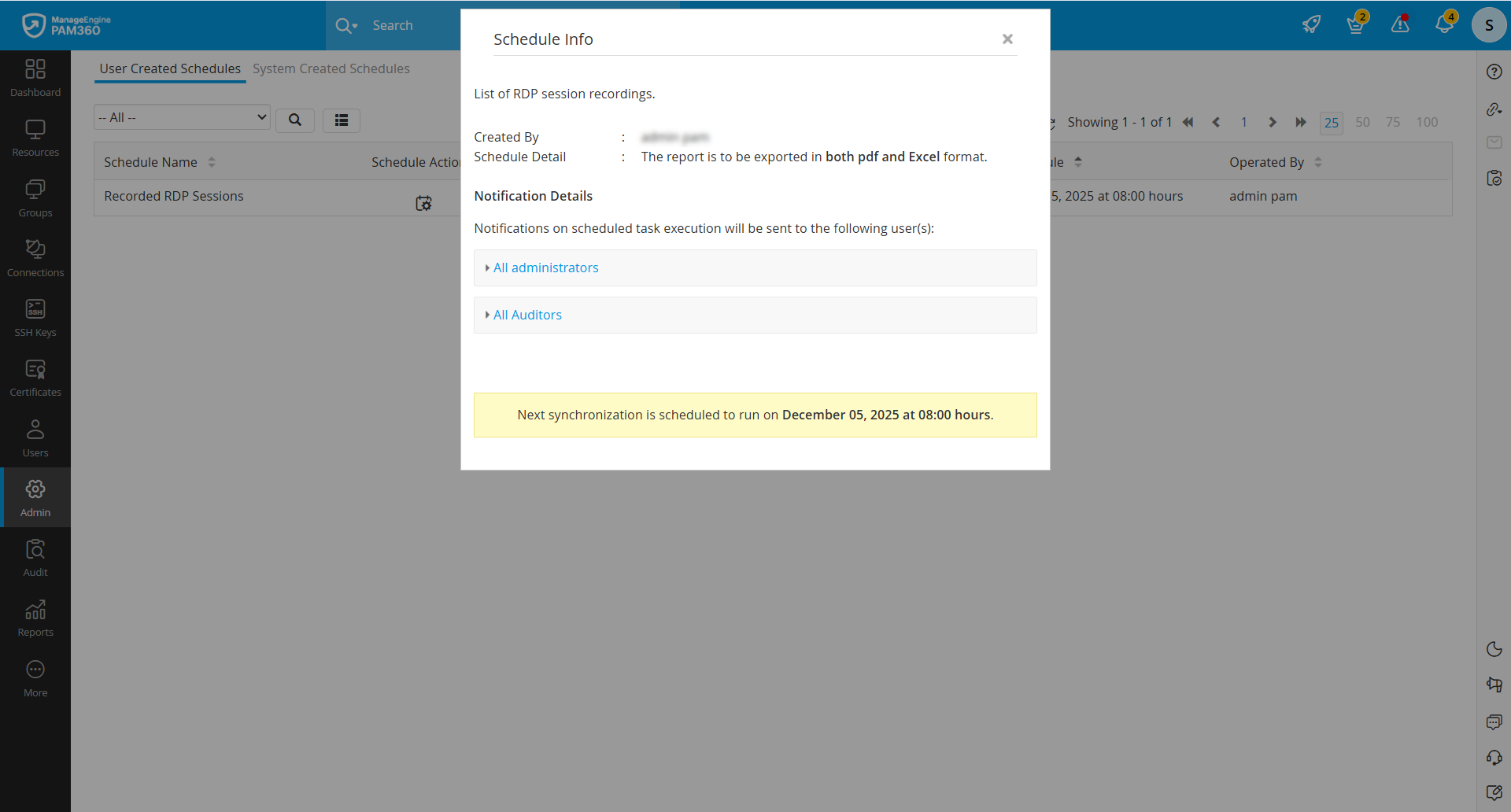
- Click the Schedule Actions icon beside the desired schedule you wish to view and select Schedule Info from the drop-down menu.

- You can now view schedule details such as schedule description, schedule type, user name, schedule owner, notification details, and the next scheduled time.
1.2. Edit Schedules
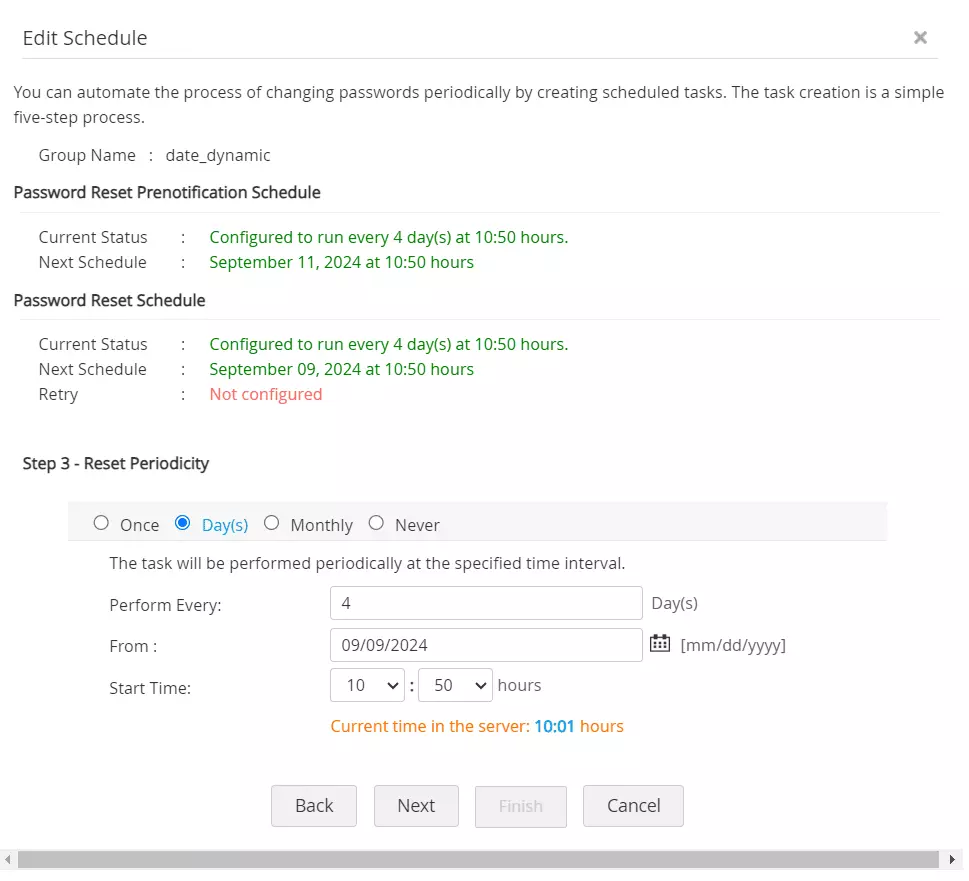
PAM360 allows you to edit all the user-created schedules. You can modify the schedule interval, date, and start time. Additionally, you can update the list of recipients to be notified after the schedule execution. The schedule status is displayed at the top of the Edit Schedule window.
Additional Detail
The Edit Schedule option is not available for system-created schedules.
To edit an active schedule,
- Click the Schedule Actions icon beside the desired schedule you wish to edit and select Edit Schedule from the displayed options.
- Make the necessary changes to the schedule interval, date, start time, or notification recipients.
- Save your changes to apply them.
Caution
Exercise caution while editing an active schedule, as modifications to its associated configuration may deactivate the schedule based on the changes made. In such cases, you must manually reconfigure the respective schedule.
1.3. Enable or Disable Schedules
This feature allows you to enable or disable any user-created schedule. However, it is not available for most system-created schedules, except for the password synchronization schedule. To enable or disable a schedule:
- Click the Schedule Actions icon beside the desired schedule you wish to modify and select the Enable/Disable option from the drop-down list.
- In the window that opens, click Ok to modify the schedule successfully

1.4. Delete Schedules
If you no longer need a user-created schedule, you can delete it to keep your schedule list organized. To delete an active schedule:
- Click the Schedule Actions icon beside the desired schedule you wish to delete and select the Delete option from the drop-down list.
- In the window that opens, click Ok to delete the schedule successfully.

2. Filter
The filter feature on the Scheduled Tasks page is designed to help you efficiently manage and locate schedules by applying specific criteria. The filter feature helps identify schedules that meet specific conditions, like schedules set to run within a particular time, which will be handy when managing numerous schedules. By filtering the list, you can streamline your workflow and quickly access the desired schedules. To apply the filter,
- Click the Filter icon, located in the top-left corner of the page.
- User-created and system-created schedules appear in separate tabs in the Filter window. Switch to the desired tab and choose the desired execution time interval. For example, you can filter schedules based on their interval, such as daily, weekly, monthly, or custom. The list will automatically update to display only the schedules that match your selected criteria.
3. Search
The search option in the Scheduled Tasks page is a powerful tool for quickly locating specific schedules, especially in environments with numerous tasks and users. Instead of scrolling through a long list, you can search for a schedule by name or the associated user. This feature significantly reduces the time spent finding schedules, allowing you to modify the desired schedule. To search for a specific schedule,
- Click the Search icon in the top-left corner of the screen.
- In the search bar, enter the name of the schedule you are looking for or the name of the schedule operator (the user who created or is responsible for the schedule).
- Press Enter or click the Search icon beside the search bar to view the search results.
The system will display the schedule(s) that match your search criteria, allowing you to access and manage them quickly.