Creating a user account is the starting point for giving someone access to a Windows network. The account is the security principal that a person signs in with, and it is what you grant group memberships, mailboxes, and folder permissions to. When you create a user in Active Directory (AD), the account is added directly to the domain, so there is no separate step to join it. The user can sign in to any domain-joined computer as soon as the account is enabled and their password is set.
You can create or add a user account through the New-ADUser cmdlet in PowerShell, the Active Directory Users and Computers (ADUC) console, or ManageEngine ADManager Plus. This guide walks through all three methods, how to create many users at once from a CSV file, and the post-creation steps, such as adding the user to groups and enabling the account, that turn a new object into a working account.
Before you can add a user to the domain, three things need to be in place: the right permissions, access to the directory, and the right tools:
For repeatable or scripted creation, the New-ADUser cmdlet adds a user in a single command. Import the ActiveDirectory module first, then supply a name. This example creates the account and sets its password and enabled state in one call:
									New-ADUser -Name "John Smith" -sAMAccountName "jsmith" -UserPrincipalName "jsmith@corp.com" `

									-Path "OU=Sales,DC=corp,DC=com" `

									-AccountPassword (Read-Host -AsSecureString "Enter password") `

									-Enabled $true
Confirm the account was created and read its state with Get-ADUser:
Get-ADUser -Identity jsmith | Select-Object Name, sAMAccountName, Enabled
Use -OtherAttributes to set directory attributes that don't have their own parameter, such as title and mail, in the same command:
									New-ADUser -Name "Andrew" -OtherAttributes @{

									'title'='director'

									'mail'='andrew@mail.com'

									}
Splatting keeps a multi-parameter call readable. This creates the account, prompts for a secure string password, and enables it:
									$params = @{

									Name = "Andrew"

									AccountPassword = (Read-Host -AsSecureString "AccountPassword")

									Enabled = $true

									}

									New-ADUser @params
Pass a certificate object to -Certificate to associate one with a user at creation:
									$params = @{

									Name = "Andrew"

									Certificate = (New-Object System.Security.Cryptography.X509Certificates.X509Certificate -ArgumentList "Export.cer")

									}

									New-ADUser @params
The -Type and -Server parameters target a non-standard object class and an Active Directory Lightweight Directory Services (AD LDS) directory:
New-ADUser -Name "Andrew" -Type iNetOrgPerson -Path "DC=Apple" -Server lds.Fabrikam.com:50000
To add many users at once, combine New-ADUser with Import-Csv. Prepare a CSV with a column for each attribute: at minimum the Name and sAMAccountName, plus the GivenName, Surname, UserPrincipalName, and Path as needed. Then pipe it through a loop that creates one account per row:
									Import-Csv "C:\temp\newusers.csv" | ForEach-Object {

									$password = ConvertTo-SecureString $_.Password -AsPlainText -Force

									New-ADUser -Name $_.Name -sAMAccountName $_.sAMAccountName `

									-UserPrincipalName $_.UserPrincipalName -Path $_.Path `

									-AccountPassword $password -Enabled $true

									}
The parameters and cmdlets below are used for user creation tasks in PowerShell.
| Parameter or cmdlet | Description |
|---|---|
| -Name | The account's common name shown in the directory |
| -sAMAccountName | The pre-Windows-2000 logon name: the one mandatory identity value |
| -UserPrincipalName | The user's User Principal Name (UPN) logon name, usually user@domain |
| -Path | The distinguished name of the OU the account is created in: defaults to the Users container |
| -AccountPassword | The initial password, passed as a secure string |
| -Enabled | Whether the account is enabled on creation: $true or $false |
| -OtherAttributes | Sets directory attributes that have no dedicated parameter, such as title or mail, passed as a hash table |
| -Type | The object class to create: defaults to user but can be iNetOrgPerson for an AD LDS instance |
| -Certificate | Associates an X.509 certificate with the account at creation |
| Set-ADAccountPassword | Sets or resets a user's password after creation |
| Enable-ADAccount | Enables an account that was created in a disabled state |
A newly created account isn't fully useful until a few follow-up tasks are done:
The ADUC console creates a single user through a guiding wizard and serves as a quick method of creating individual users.
ADManager Plus is a unified AD, Exchange, and Microsoft 365 management and reporting tool that creates users through a point-and-click console for one account or thousands, with no scripting. It sets attributes, group memberships, and mailboxes in the same flow, so an account is fully provisioned rather than just created.
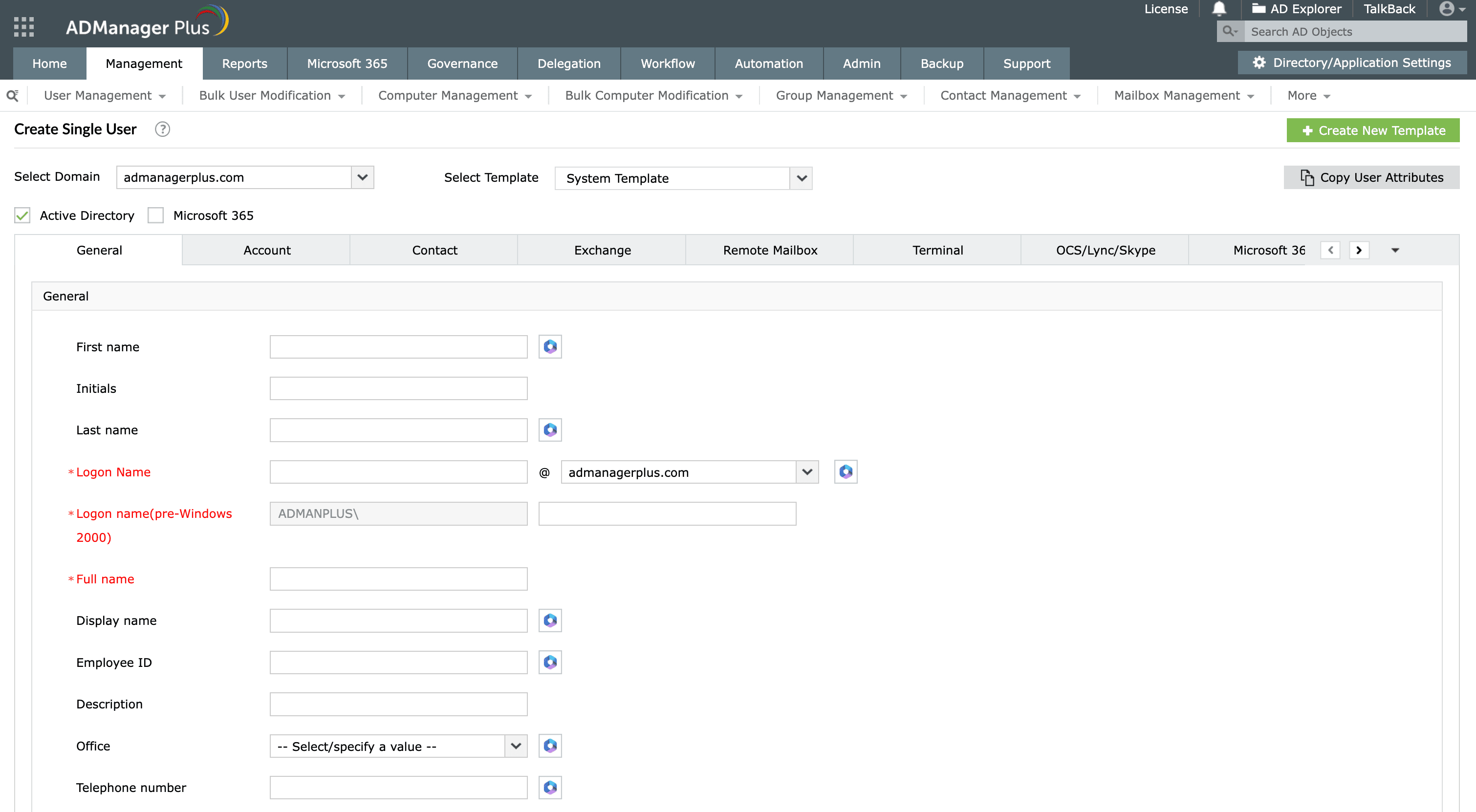
To provision many accounts at once, go to Management > User Management > User Creation > Create Bulk Users and import a CSV of the users. Optionally, apply a template so every account is created consistently.
This is a permissions problem. The account running ADUC or the script doesn't have rights to create users in the target OU. Sign in with an account in Account Operators or Domain Admins, or use one with delegated create rights for that OU, and confirm the tools are installed. If ADUC does not launch or the PowerShell cmdlet is not recognized, install the required RSAT components separately.
AD disables a new account when it has no password or a password that doesn't meet the domain policy. This is expected when you run New-ADUser without -AccountPassword. Set a compliant password with Set-ADAccountPassword, then enable the account with Enable-ADAccount or by clearing Account is disabled in ADUC.
A user with the same sAMAccountName or distinguished name already exists in the domain. Logon names must be unique, so choose a different one, or locate and reuse the existing account if it was created earlier. Check across OUs since the conflict can come from an account elsewhere in the domain.
If the account exists and is enabled but sign-in fails, confirm that the password was set and communicated correctly, that User must change password at next logon is enabled, and that the user signs in through a method that supports changing the temporary password. Also verify that the account isn't locked or expired. In a multi-DC environment, allow replication to converge or force it so the new account reaches the DC the user authenticates themself for.
ADManager Plus replaces scripts and repetitive wizard runs with a single console for AD, Microsoft 365, and Exchange management and reporting:
An Active Directory user is an account object that represents a person (or sometimes a service) in the domain and acts as their security principal for signing in and accessing resources. It has a unique logon name and a set of attributes, and it gets access to network resources through the security groups it belongs to. Once created and enabled, the user can sign in to any domain-joined computer with their credentials.
The native way is to combine New-ADUser with Import-Csv in PowerShell, creating one account per row of a CSV file, which is useful for onboarding a batch of users. For a script-free approach, ADManager Plus creates users in bulk from a CSV through its GUI, and it can automate creation on a schedule or from an HR system trigger as part of a JML workflow.
They refer to the same operation. Creating a user with New-ADUser or the ADUC wizard adds the account to the domain directly, so there is no separate step to add or join the user to the domain. The account exists in the directory as soon as it is created, and the user can sign in once the account is enabled and has a valid password.
When you create an account without setting a password, or with one that doesn't meet the domain password policy, Active Directory creates it in a disabled state since it won't enable an account that can't be signed into securely. Set a compliant password with Set-ADAccountPassword and enable the account with Enable-ADAccount, or supply -AccountPassword and -Enabled $true when you run New-ADUser.
ADUC comes with RSAT. On Windows 10 or 11, perform the installation steps from an elevated PowerShell window. On a DC, it is already installed. Once it's added, open it by running dsa.msc, or launch it from Server Manager > Tools.

